
The iCalendar Import / Export feature in WPRentals helps synchronize listing availability with external platforms such as Airbnb, Vrbo, Booking.com, Google Calendar, or other platforms that support iCal feeds.
This helps prevent double bookings by keeping unavailable dates synchronized between your WPRentals website and other booking platforms.
Video Tutorial
About iCalendar Import / Export
The iCalendar feature allows WPRentals to exchange availability information with third-party platforms.
For example:
- If dates are booked on Airbnb, you can import the Airbnb iCal feed into WPRentals so those dates become unavailable on your website.
- If dates are booked on your WPRentals website, you can export the WPRentals iCal feed to Airbnb, Vrbo, Booking.com, or another platform so those dates become unavailable there too.
iCalendar does not import full booking details, payments, guest messages, or reservation management data. It is used to synchronize calendar availability.
Where Owners and Admins Manage iCalendar
iCalendar feeds are managed from the front-end User Dashboard, inside each listing.
This applies to:
- registered owners who manage their own listings
- site admins who manage listings from the front-end dashboard
- single owner / single admin websites
The correct path is:
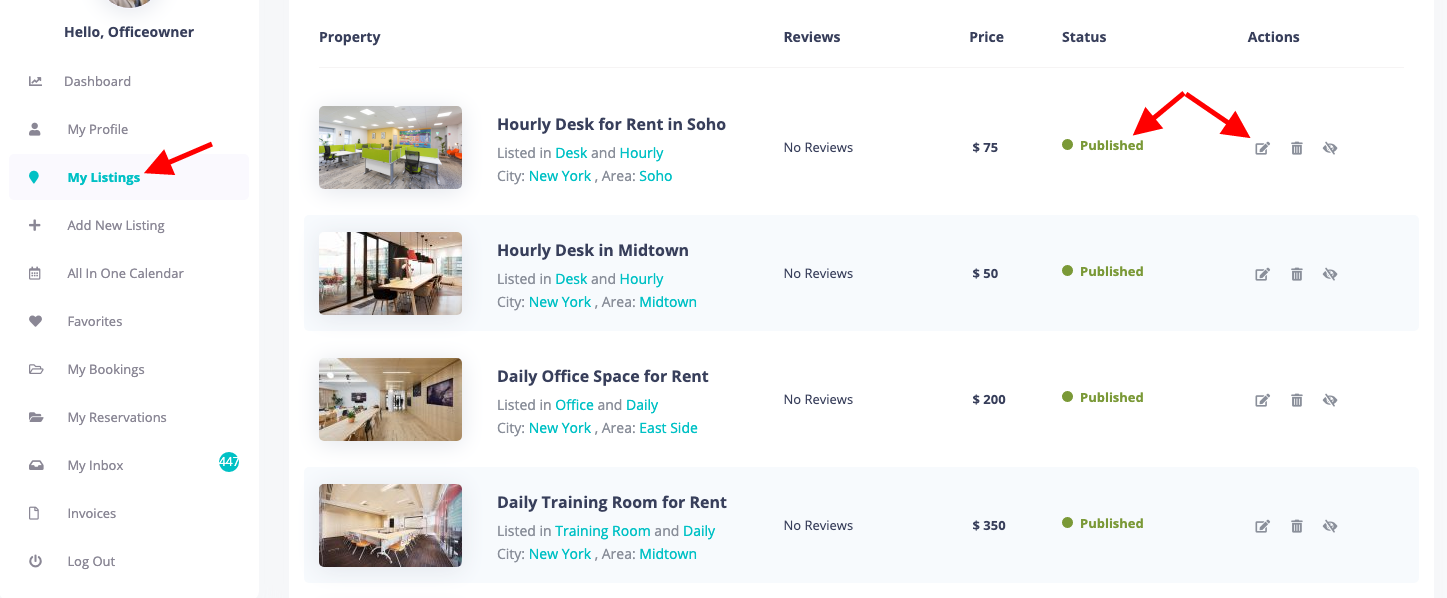
User Dashboard > My Listings > Edit Listing > Calendar
The listing must be Published for iCalendar synchronization to work.
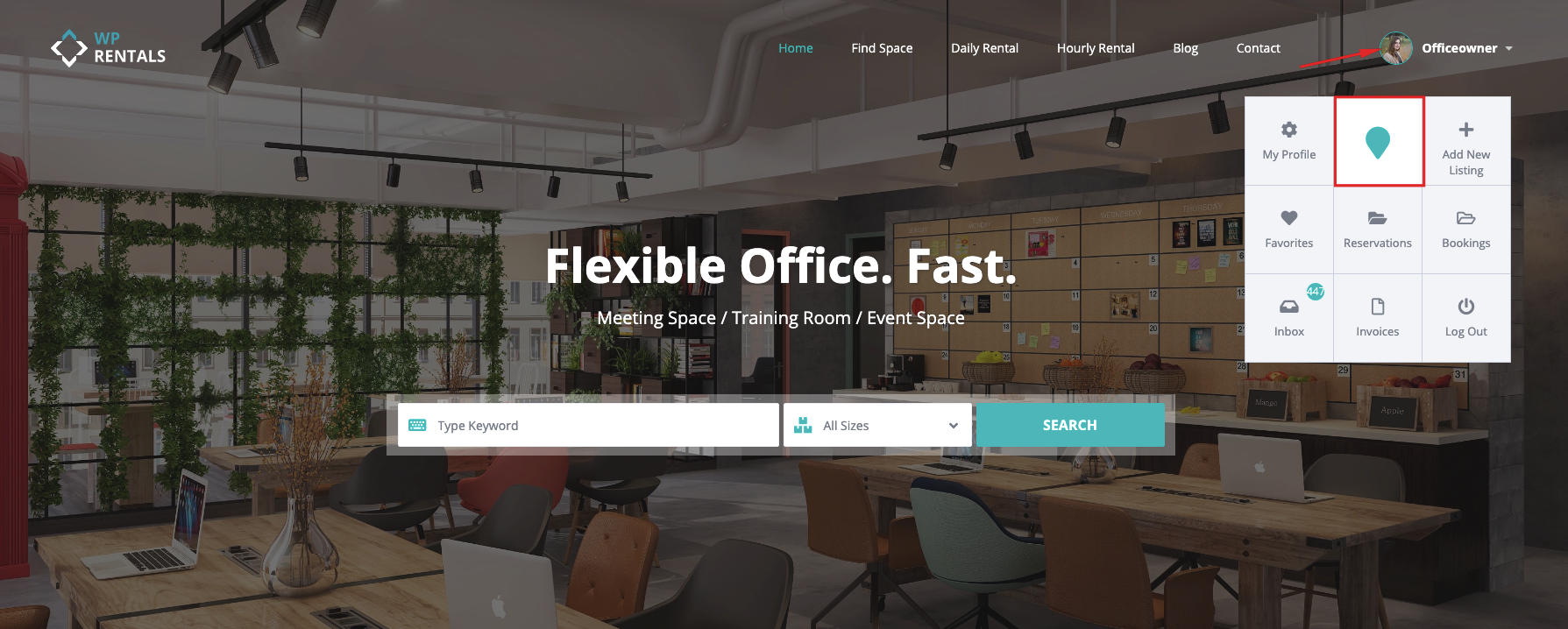
From My Listings, edit the listing where you want to manage the iCalendar feeds.
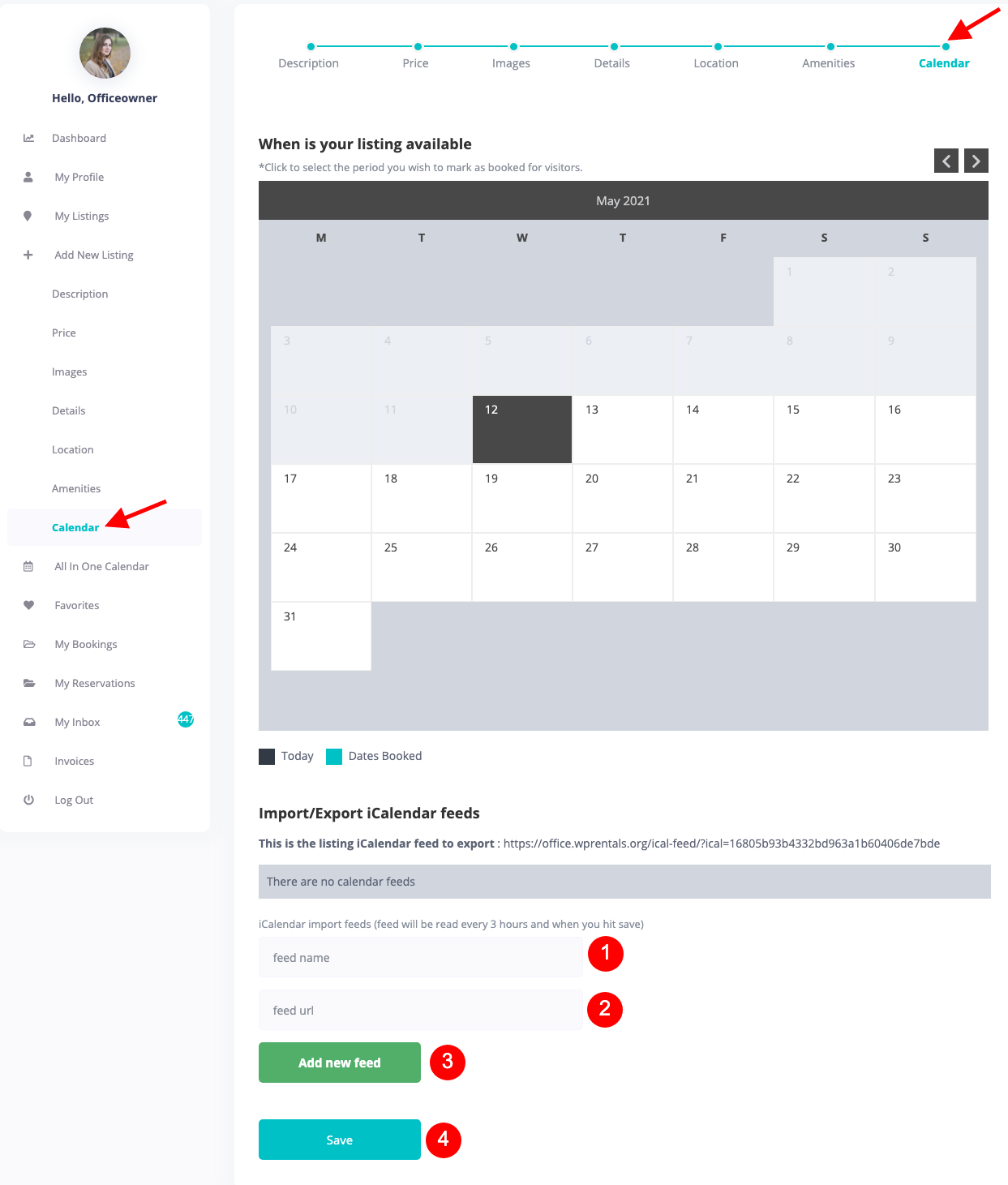
Then open the Calendar section and scroll to the iCalendar import/export area.
Requirements Before Using iCalendar
For iCalendar synchronization to work correctly, check the following requirements:
- The website must have SSL configured correctly.
- The listing must be Published.
- iCalendar synchronization does not work for listings saved as draft or pending.
- The website must not be blocked by a maintenance mode option.
- The iCalendar Feed page must exist and be published.
- We recommend adding at least one internal booked period before testing the exported feed on external platforms.
You can manually block dates from the listing calendar if you need to create an internal booked period for testing.
How to make calendar dates unavailable
Create the iCalendar Feed Page
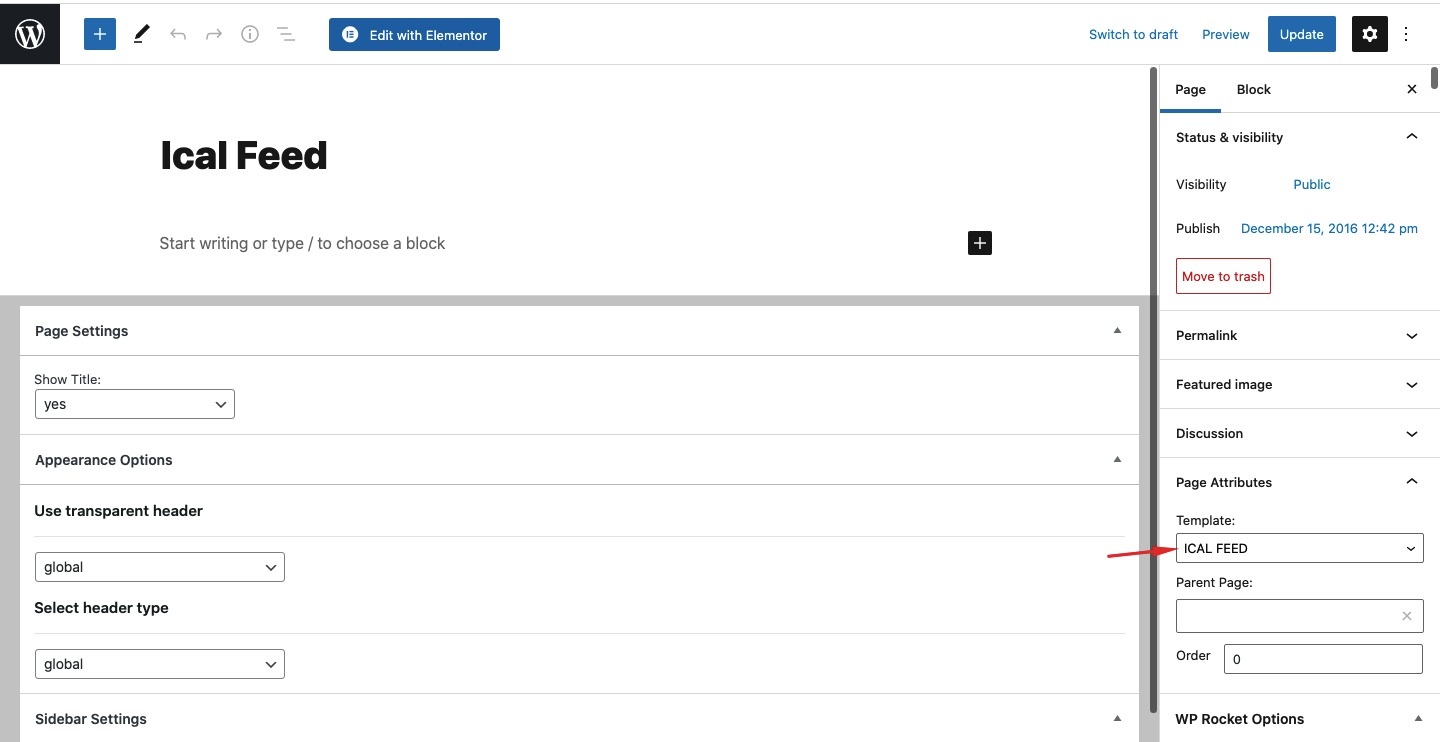
For the iCalendar export link to work, your website must have one published page using the ICAL FEED page template.
This page is usually imported automatically when you import a WPRentals demo.
If the page is missing, create it manually from:
Wp-admin > Pages > Add New
Then select the ICAL FEED page template and publish the page.
Export WPRentals Availability to Another Platform
Use the export feed when you want another platform to read the availability from your WPRentals listing.
Example:
- A booking is made on your WPRentals website.
- The dates should become unavailable on Airbnb, Vrbo, Booking.com, or another external platform.
- You copy the WPRentals export feed URL and add it to the external platform calendar import area.
To export a WPRentals listing calendar:
- Make sure the ICAL FEED page exists and is published.
- Log in to the front-end User Dashboard.
- Go to My Listings.
- Edit the published listing.
- Open the Calendar section.
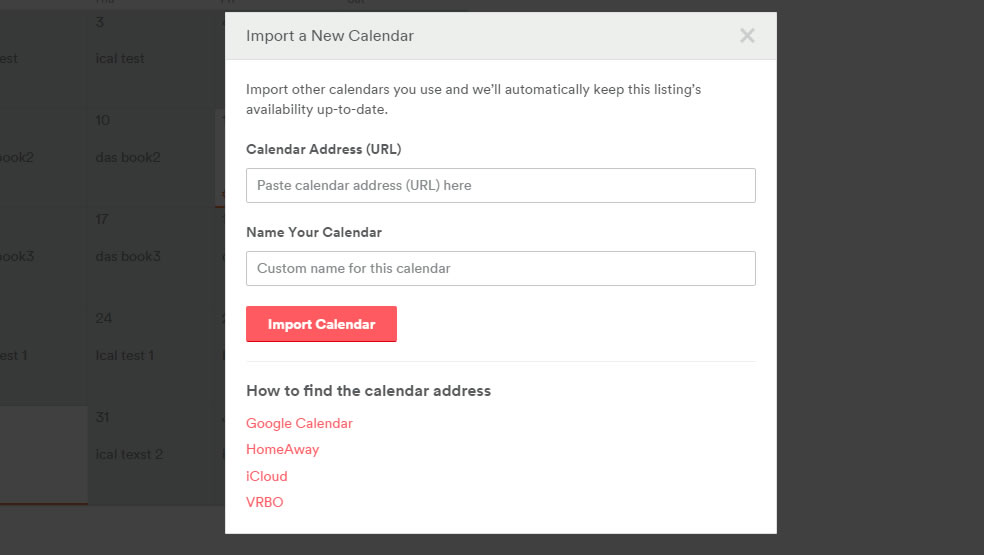
- Copy the iCalendar export URL generated for that listing.
- Paste that URL into the external platform where it allows importing another calendar.
Example of an export URL format:
https://yourdomain.com/ical-feed-export/?ical=example-feed-key
Import External Calendar Availability Into WPRentals
Use the import option when you want WPRentals to read unavailable dates from another platform.
Example:
- A booking is made on Airbnb.
- The Airbnb calendar marks those dates as unavailable.
- You import the Airbnb iCal feed into the WPRentals listing.
- WPRentals reads that feed and marks those dates as unavailable on your website.
To import an external feed into a WPRentals listing:
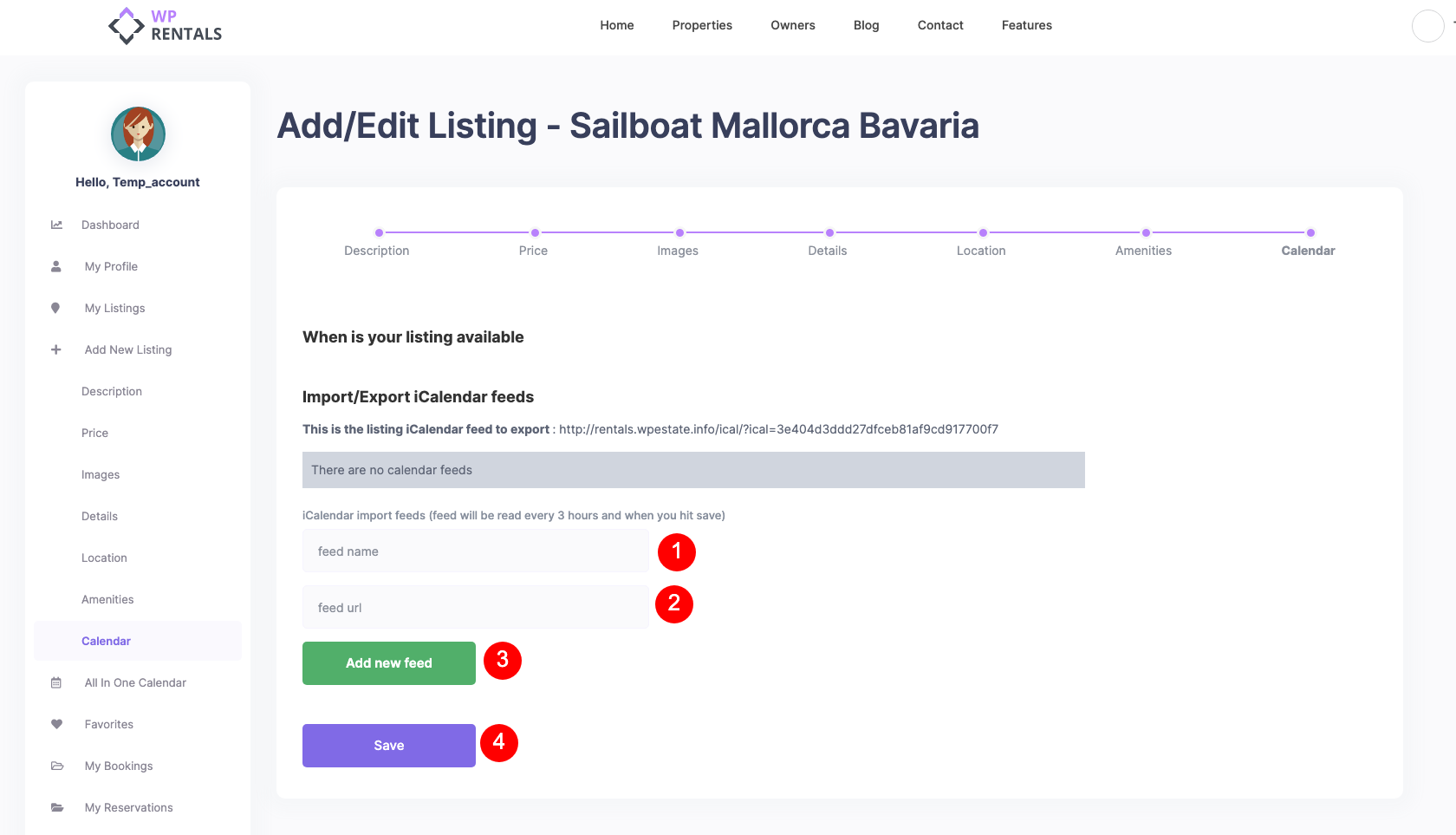
- Copy the iCal export URL from the external platform.
- Log in to the front-end User Dashboard.
- Go to My Listings.
- Edit the published listing.
- Open the Calendar section.
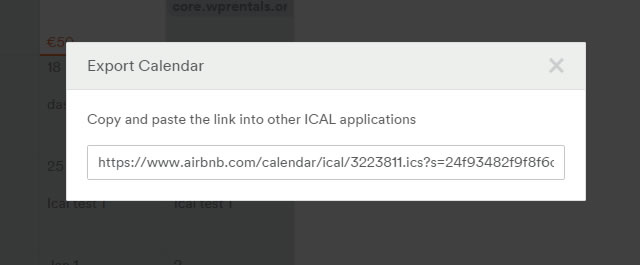
- Scroll to the iCalendar feed area.
- Add an iCal Feed Name, for example Airbnb or Booking.com.
- Paste the external iCal Feed URL.
- Click Add New Feed.
- Click Save.
The first synchronization is made when you save the listing. After that, the WordPress cron job checks the feed periodically.
Imported external bookings appear in the calendar with a special label. Internal bookings made on your WPRentals website use a different label, so owners can distinguish between website bookings and imported external availability.
Import Multiple iCalendar Feeds
You can import more than one iCalendar feed for the same listing.
This is useful when the same property is listed on multiple external platforms.
For example, you can add feeds from:
- Airbnb
- Vrbo
- Booking.com
- Google Calendar
- other platforms that support iCal export
To add multiple feeds, repeat the same process for each platform:
- Add the iCal Feed Name.
- Add the iCal URL.
- Click Add New Feed.
- Click Save.

How iCalendar Works With Hourly Bookings
iCalendar can also be used with hourly booking if the external platform provides an hourly iCal feed.
To import hourly availability:
- Copy the hourly iCal feed URL from the external platform.
- Go to User Dashboard > My Listings > Edit Listing > Calendar.
- Paste the feed in the iCalendar section.
- Save the listing.
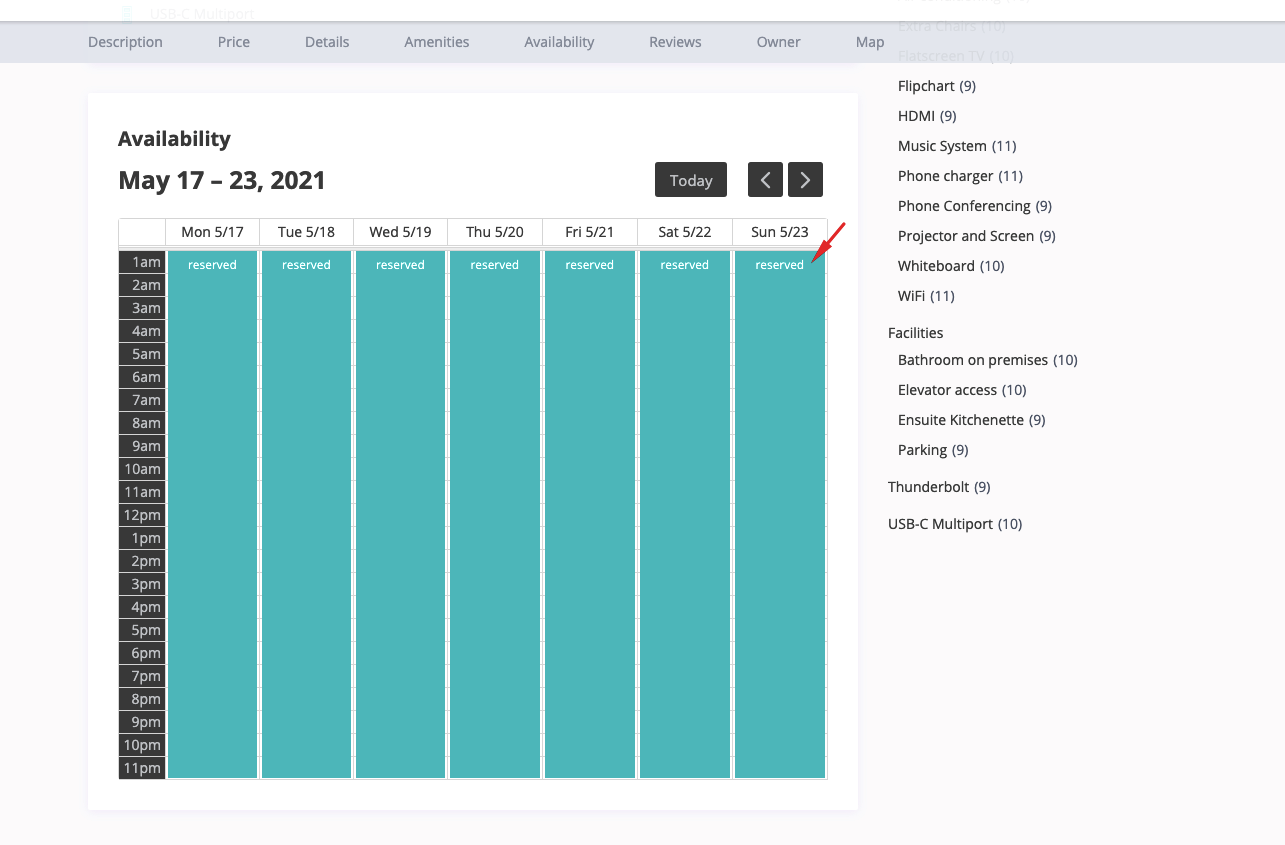
- Check the imported availability on the listing page.
If you want the listing to be excluded from search results for a specific date, the imported hourly booking must block the full day.
For that behavior, the imported feed must book the full day, starting with hour 1 and ending with hour 23.
iCalendar Cron Sync and Recurrence Time
After an external iCal feed is imported and saved, WPRentals uses a WordPress cron job to check for new feed data periodically.
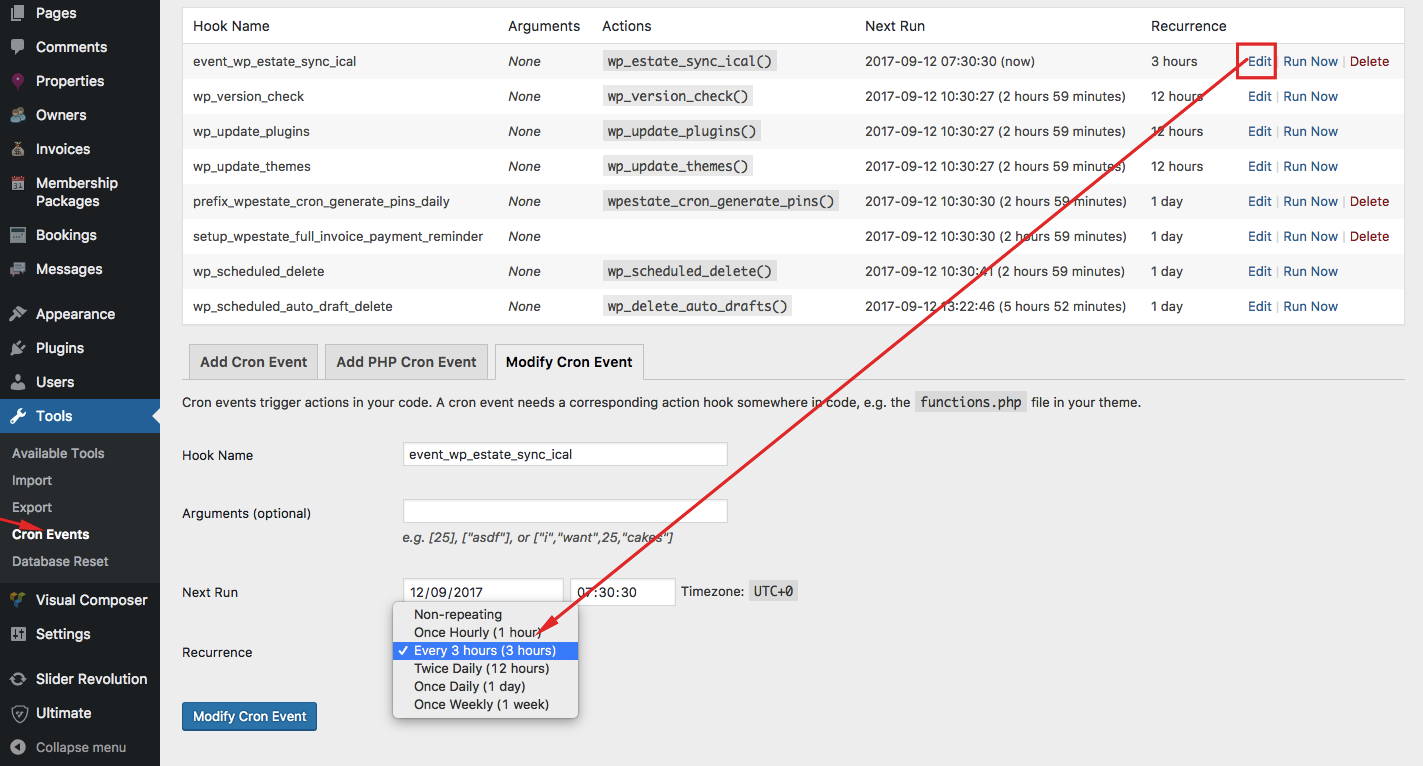
By default, the iCalendar feed sync runs every 3 hours.
If you want to manually trigger synchronization for a listing, open the listing calendar section and click Save again after the feed is added.
If you need to change the recurrence time, you can use the WP Crontrol plugin and edit the iCalendar cron job.
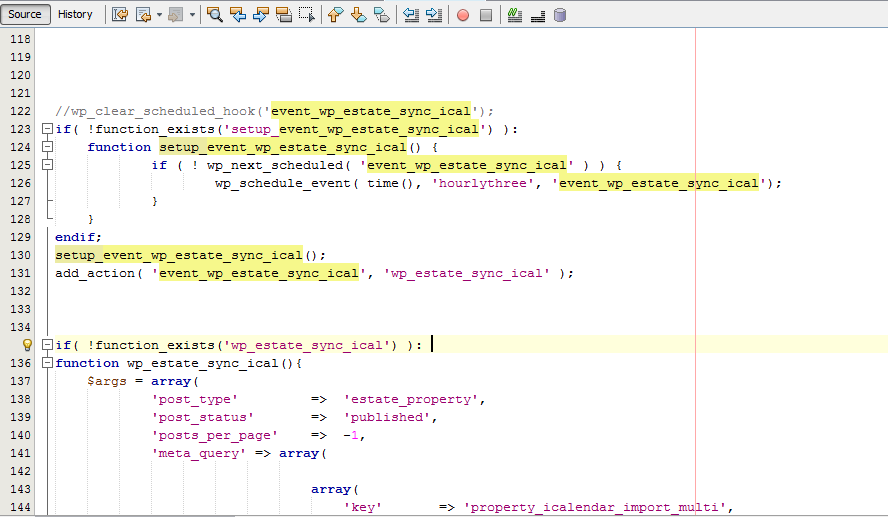
For developers, the cron job that checks for new feed data is defined in the theme files in the function setup_event_wp_estate_sync_ical.
iCalendar feed cron – Change to a different recurrence time
Known Limitations
Airbnb listings connected through API or a channel manager
iCalendar sync may not work with Airbnb listings that are already managed through an API-connected channel manager.
When an Airbnb listing is controlled through API, Airbnb may not allow calendar syncing through iCal for that listing, because the availability is controlled by the API connection instead of Airbnb’s own calendar.
In that case, the host must manage availability through the API or channel manager workflow used for that Airbnb listing.
Maintenance mode
If your website is blocked by maintenance mode, external platforms may not be able to read the WPRentals iCalendar export feed.
Draft or pending listings
iCalendar sync does not work for listings saved as draft or pending. The listing must be published.
Troubleshooting Checklist
If iCalendar sync does not work, check the following:
- The website has SSL installed and working correctly.
- The listing is Published.
- The website is not blocked by maintenance mode.
- The ICAL FEED page exists and is published.
- You are managing the feed from User Dashboard > My Listings > Edit Listing > Calendar.
- The external platform provides a valid iCal URL.
- The external iCal URL is copied fully and correctly.
- The feed was added with a name and URL, then saved.
- If needed, click Save again to manually trigger synchronization.
- For export testing, add at least one internal booked period to the listing calendar.
- If using hourly booking, check imported availability on the listing page.
Related Help Articles
How to make calendar dates unavailable
iCalendar feed cron – Change to a different recurrence time
Summary
- iCalendar import/export is used to synchronize listing availability with external platforms.
- iCalendar is managed per listing from the front-end User Dashboard.
- Registered owners and site admins use the same path: User Dashboard > My Listings > Edit Listing > Calendar.
- The listing must be published for iCalendar sync to work.
- The website must have one published page using the ICAL FEED template.
- Use export when another platform should read WPRentals availability.
- Use import when WPRentals should read availability from another platform.
- You can import multiple iCal feeds for the same listing.
- The default iCalendar cron sync runs every 3 hours.
- Airbnb API-connected listings may not support iCal sync.