
This help article explains how users add listings in WPRentals, how the site admin creates and manages the submission page, what happens when non-logged-in users start a submission, and where owners or admins manage listing details after login.
In WPRentals, there are two different areas used for listing submission:
- Wp-admin – used by the site admin to create dashboard pages, configure Theme Options, choose submission fields, and manage global settings.
- Front-end User Dashboard – used by owners and site admins to add, edit, price, manage calendar availability, and update listings.
What This Help Article Explains
This article is a general guide for the WPRentals listing submission process.
Use this article if you need to understand:
- which page is used for adding new listings
- how owners add listings from the front-end dashboard
- how the site admin can also add listings from the same front-end dashboard
- what happens when a non-logged-in user starts a listing submission
- what orphan listings are
- where to manage the listing submission form fields
- where to manage price, calendar, images, and iCal options
Wp-admin vs Front-End User Dashboard
Before setting up listing submission, it is important to understand the difference between wp-admin and the front-end User Dashboard.
Wp-admin is used for general configuration
The site admin uses wp-admin to:
- create the User Dashboard pages
- configure Theme Options
- choose which fields appear in the submission form
- choose which fields are mandatory
- control who can submit listings
- set submission type: free, paid submission, or membership submission
- manage global booking, payment, and listing settings
User Dashboard is used for listing management
Owners and site admins use the front-end User Dashboard to:
- add new listings
- edit existing listings
- add price details
- upload listing images
- manage calendar availability
- add custom price periods
- add iCal feeds
- manage booking-related listing details
Create the Add New Listing Page
If you imported a WPRentals demo, the User Dashboard pages are usually already created.
If you did not import demo content, you must create the dashboard pages manually from wp-admin.
To create the submission page:
- Go to Wp-admin > Pages > Add New.
- Create the page for Add New Listing.
- Assign the correct WPRentals User Dashboard submit page template.
- Publish the page.

Related help:
How to create the User Dashboard pages
How Registered Users Add Listings
Registered users who have listing submission access can add listings from the front-end User Dashboard.
The correct path is:
User Dashboard > Add New Listing
or, depending on the dashboard menu:
User Dashboard > My Listings > Add New Listing
To edit an existing listing, users go to:
User Dashboard > My Listings > Edit Listing
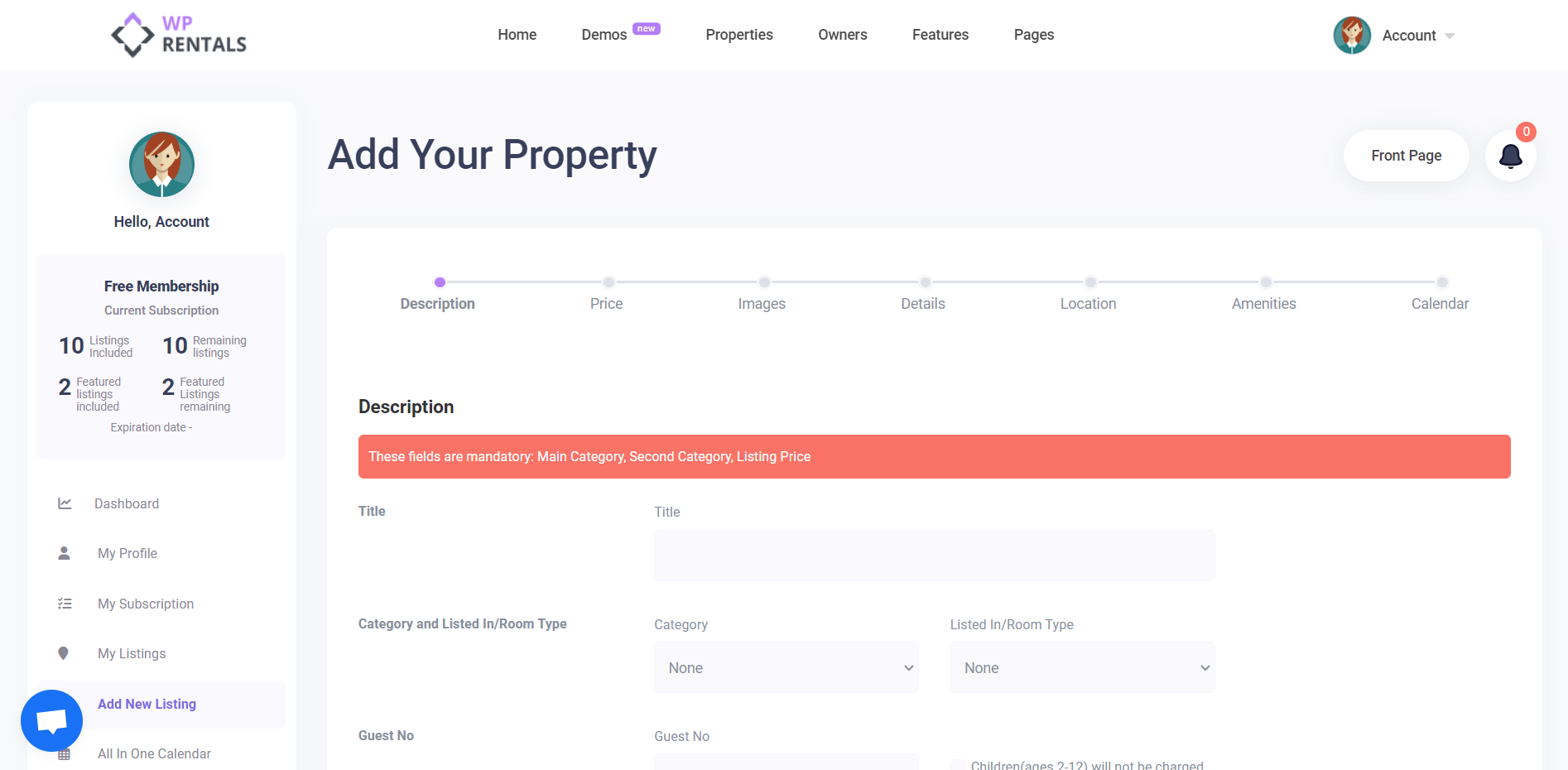
The fields shown in the listing form are controlled by the site admin from Theme Options.
How Site Admins and Single Owners Add Listings
The site admin can also manage listings from the front-end User Dashboard.
This is recommended when:
- the website is managed by one site admin
- the website is used as a single-owner rental website
- only selected users can submit listings
- the admin wants access to all WPRentals listing options
The same dashboard paths apply:
User Dashboard > My Listings > Add New Listing
and:
User Dashboard > My Listings > Edit Listing
How Non-Logged-In Users Start a Submission
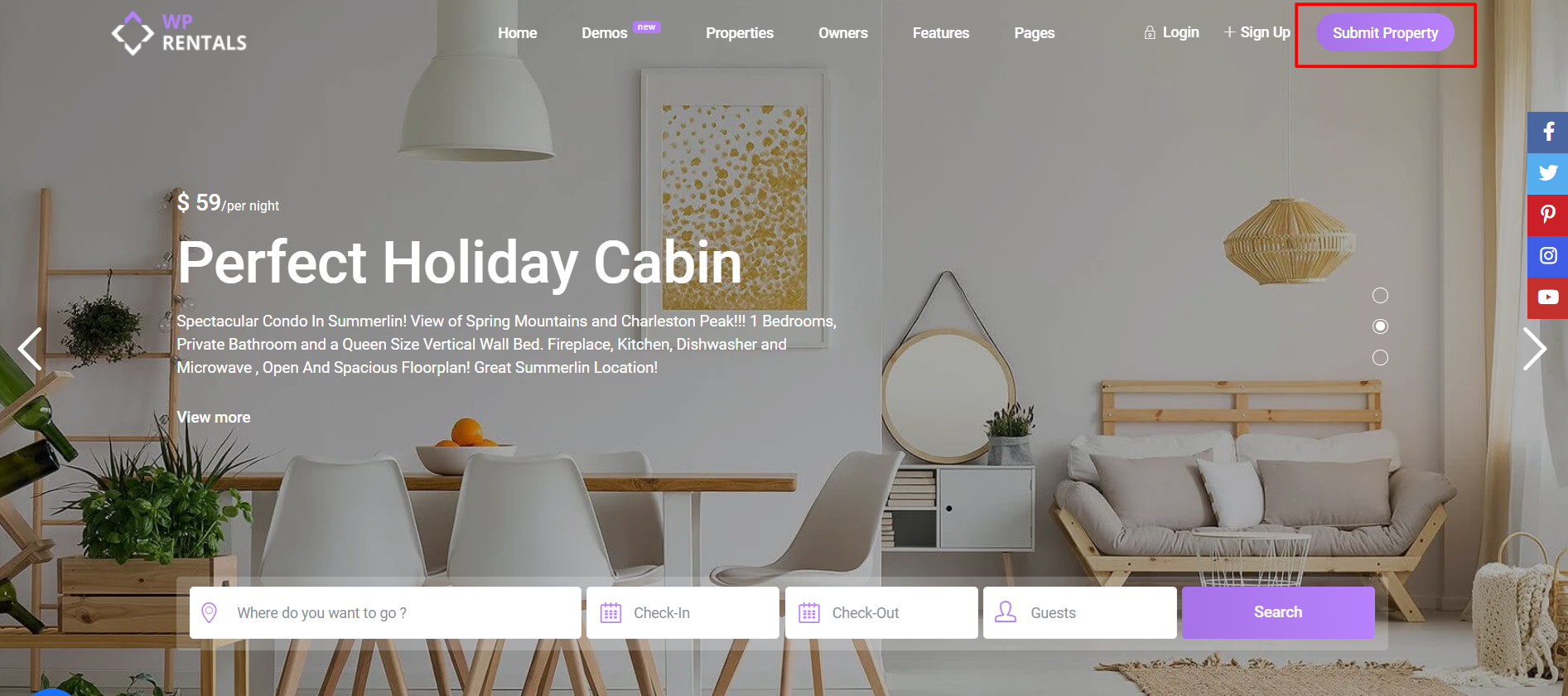
Non-logged-in users can start the listing submission form if the Submit button is visible in the menu or header.
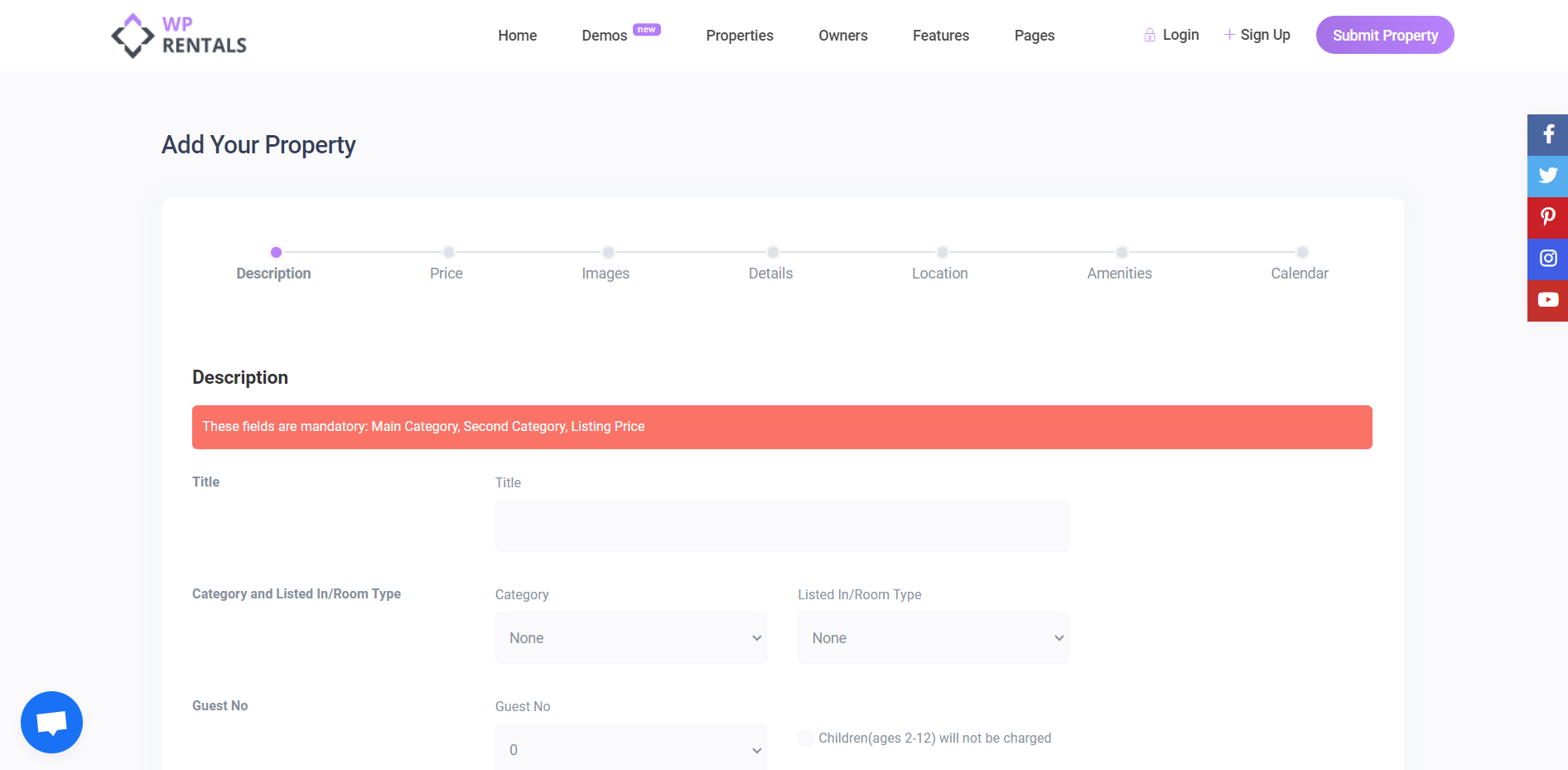
This button opens the Add New Listing / submission page.
When a non-logged-in user starts filling in the submission form, the listing details can begin to save after the Description section is completed.
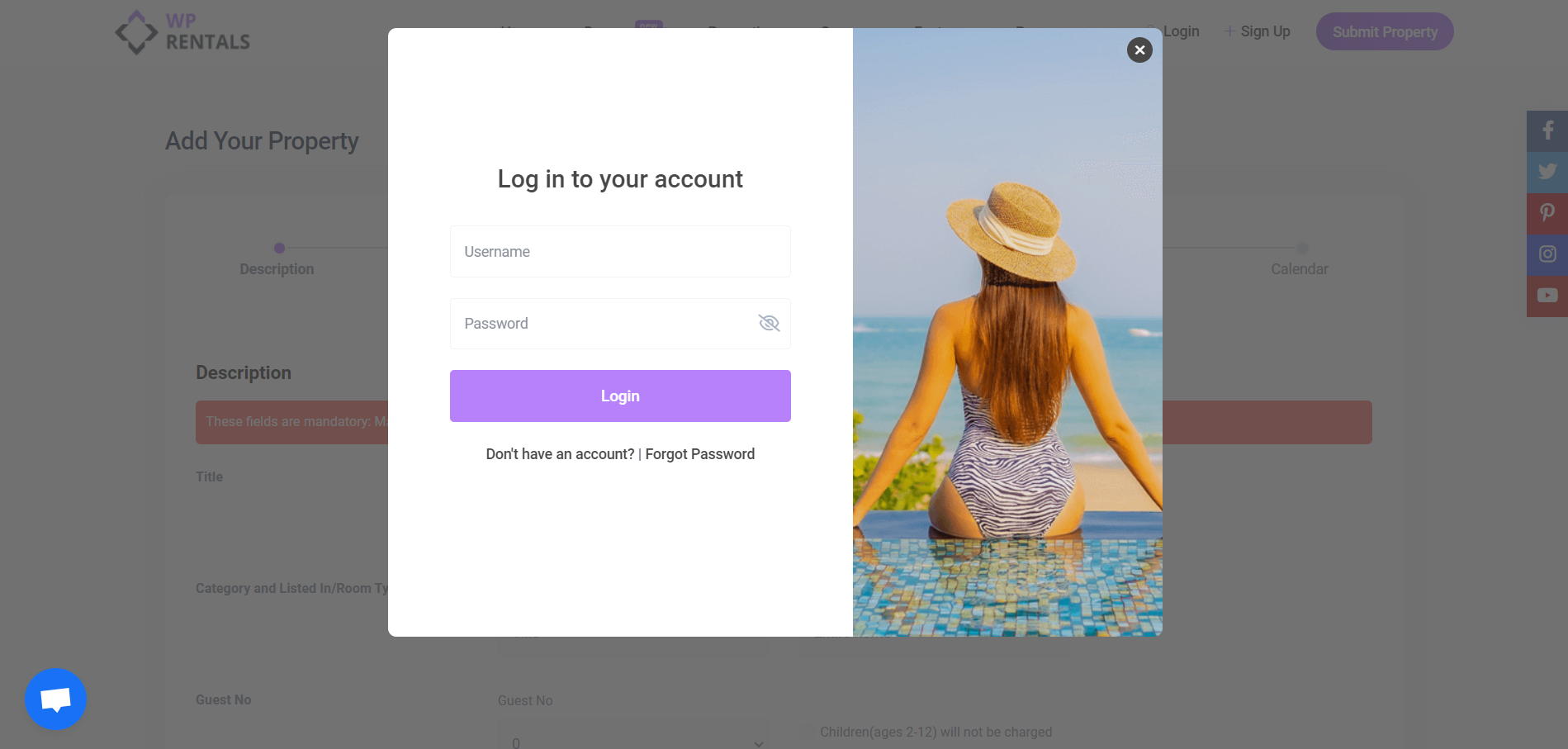
To complete the submission, the user must log in or register.
If you do not want non-logged-in users to start the submission process, hide the Submit button.
Orphan Listings and Auto-Delete Option
An orphan listing is an incomplete listing created when a visitor starts a submission but does not finish the registration or login process.
This can happen when:
- a non-logged-in visitor starts the listing submission form
- the visitor adds some listing details
- the visitor does not complete login or registration
- the listing remains incomplete
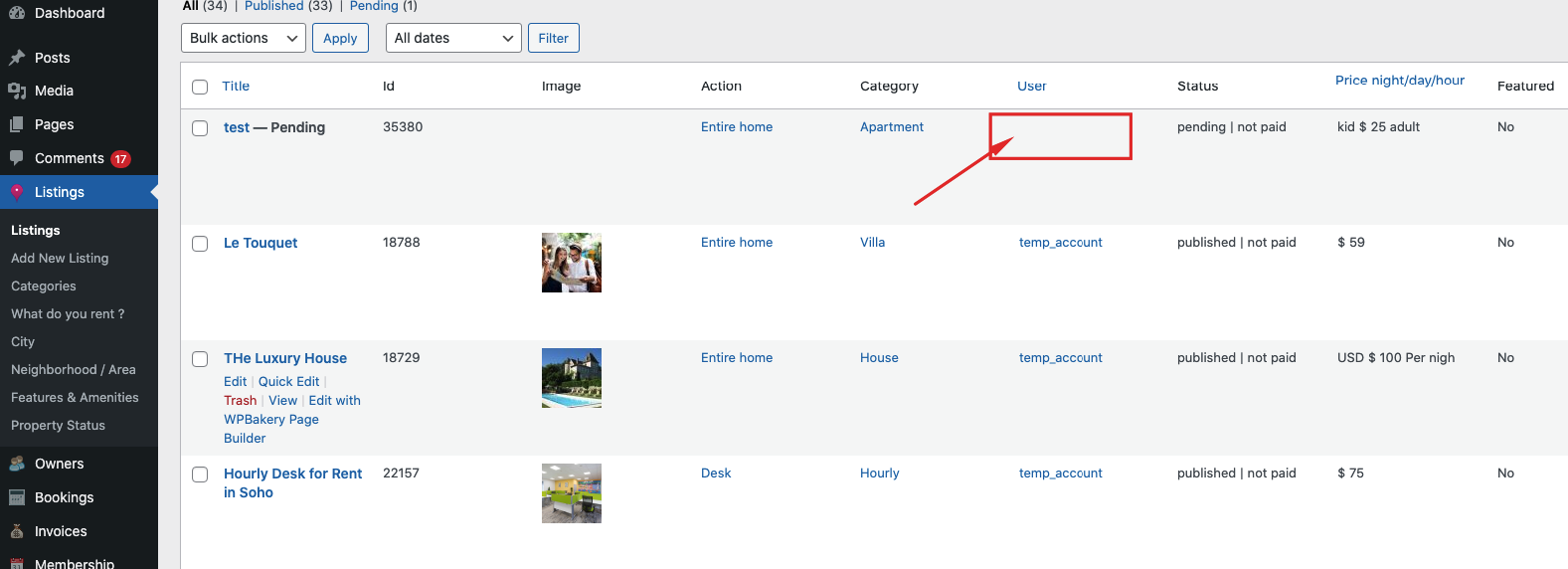
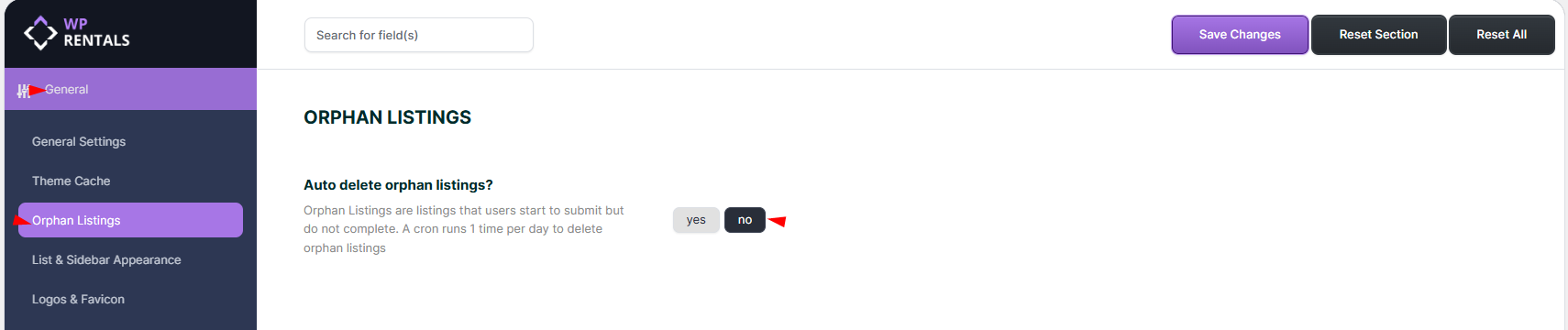
Orphan listings can be deleted automatically by a daily cron job, depending on your theme setting.
Go to:
Theme Options > General > Orphan Listings
Find:
Auto delete orphan listings?
- Yes – orphan listings are deleted automatically.
- No – orphan listings are not deleted automatically and must be reviewed manually if needed.
Related help:
Theme Options – General – Orphan Listings
Control Who Can Submit Listings
The site admin can decide who is allowed to submit listings.
This is useful if:
- only the site admin should add listings
- only selected owners should add listings
- renters should be able to book but not submit listings
- the website should work as a multi-owner marketplace
Manage this from:
Theme Options > Register & Login Settings > Renter / Owner Separation
Related help:
How to allow only certain users to submit listings in front end
Manage Submission Form Fields
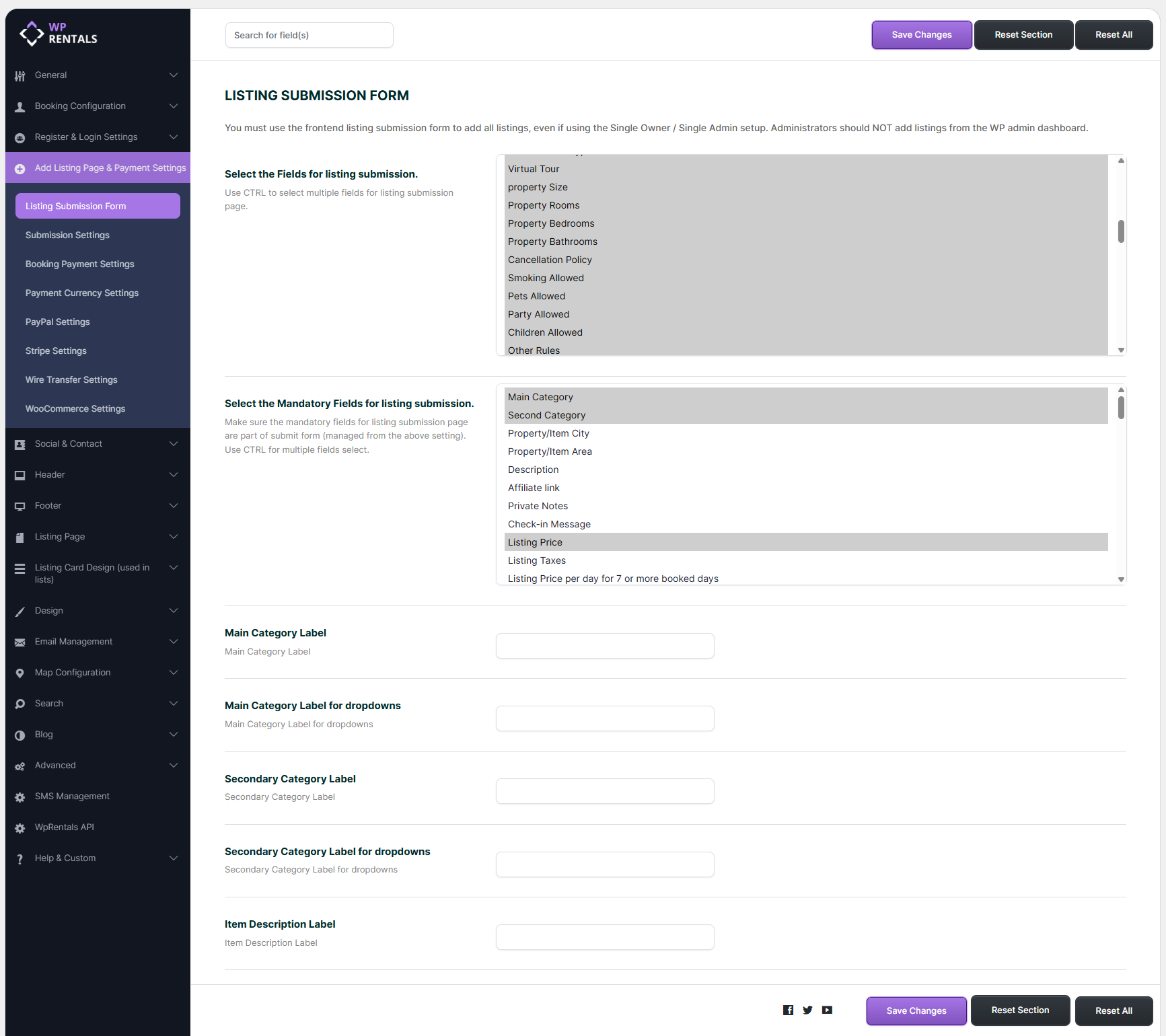
The site admin controls which fields appear in the front-end listing submission form.
Go to:
Theme Options > Add Listing Page & Payment Settings > Listing Submission Form
From this section, the admin can choose:
- which fields show in the Add New Listing form
- which fields show in the Edit Listing form
- which fields are mandatory
- which custom fields are available
- which location fields are available
- which price and calendar fields are available
Related help:
How to manage submit form fields and mandatory fields
Location options in the submit listing form
Pricing Details
Listing price details are managed from the front-end User Dashboard.
Go to:
User Dashboard > My Listings > Add New Listing > Price
or:
User Dashboard > My Listings > Edit Listing > Price
From the Price section, owners or admins can manage options such as:
- standard price
- weekend price
- long-stay price
- cleaning fee
- city fee
- security deposit
- extra guest price
- extra booking options
Related help:
Submit Listing Form – Price Details Explained
How to add custom prices for specific periods
Calendar and iCal Details
Calendar settings are also managed from the front-end User Dashboard.
Go to:
User Dashboard > My Listings > Edit Listing > Calendar
From the Calendar section, owners or admins can:
- block unavailable dates
- add or delete booked periods
- manage custom price periods
- import iCal feeds
- export iCal feeds
Related help:
Manage the listing calendar, add iCal feed, and export iCal feed
How to add or delete booked periods from the calendar section
Managing Listing Images
Listing images are managed from the front-end listing form.
Go to:
User Dashboard > My Listings > Add New Listing
or:
User Dashboard > My Listings > Edit Listing
The site admin can control some image-related rules from Theme Options, such as how many images can be uploaded in the front-end submission form.
Related help:
How to add or edit images in a listing
What Can Be Edited From Wp-admin
Some listing details can be reviewed or edited from wp-admin by the site administrator.
However, WPRentals listings are primarily designed to be submitted and managed from the front-end User Dashboard.
Use wp-admin for admin-level review or corrections, but use the front-end dashboard for the complete listing workflow.
Related help:
What you can edit for a property in wp-admin
Important Notes
- This help explains the general listing submission process in WPRentals.
- The site admin creates dashboard pages and configures submission settings from wp-admin.
- Owners and site admins add or edit listings from the front-end User Dashboard.
- The recommended paths are User Dashboard > My Listings > Add New Listing and User Dashboard > My Listings > Edit Listing.
- Non-logged-in users must log in or register before they can complete a listing submission.
- If non-logged-in users start a submission but do not finish login or registration, an orphan listing can be created.
- Orphan listings can be deleted automatically by the daily cron job if auto-delete is enabled.
- The site admin controls which fields are shown or mandatory in the submission form.
- Do not make hidden fields mandatory.
- Price, calendar, iCal, and image details are managed from the front-end listing form.
Related Help
How to create the User Dashboard pages
Submit a Property from the User Dashboard
Theme Options – General – Orphan Listings
How to allow only certain users to submit listings in front end
How to manage submit form fields and mandatory fields
Location options in the submit listing form
Submit Listing Form – Price Details Explained
How to add custom prices for specific periods
Manage the listing calendar, add iCal feed, and export iCal feed
How to add or delete booked periods from the calendar section
How to add or edit images in a listing
What you can edit for a property in wp-admin
Summary
- Wp-admin is used for setup and global configuration.
- The front-end User Dashboard is used for adding and managing listings.
- Registered owners and site admins follow the same dashboard workflow for their listings.
- The submission page must use the correct WPRentals User Dashboard template.
- Non-logged-in users can start a submission only if the Submit button is visible.
- Users must log in or register to complete the submission.
- Incomplete submissions can become orphan listings.
- Submission fields, price fields, location fields, and mandatory fields are controlled from Theme Options.