
Advanced Search Type 4 in WPRentals is a horizontal search form that shows over the theme hero media header.
By default, Search Type 4 shows these fields first:
- Title Keyword
- Category
- Type
Additional fields can be added as custom search fields. These fields show when the search form is expanded.


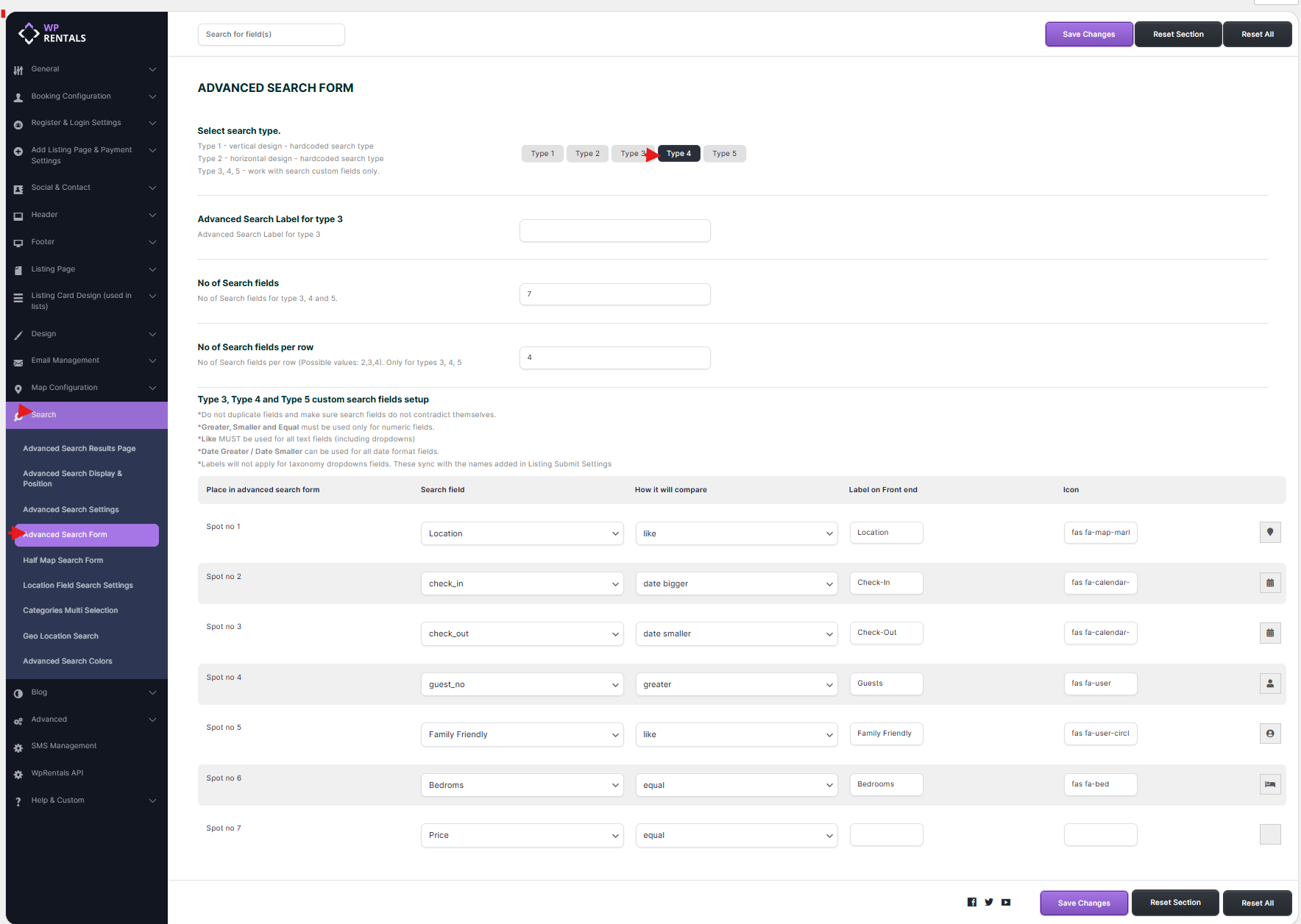
Enable Advanced Search Type 4
Go to:
WPRentals Options > Search > Advanced Search Form
Find:
Advanced Search Type
Select:
Type 4
Save the settings.
Where Search Type 4 Shows
Advanced Search Type 4 shows over the theme hero media header.
It can show over these hero media options:
- Theme Slider
- Map
- Image
- Video
- Revolution Slider
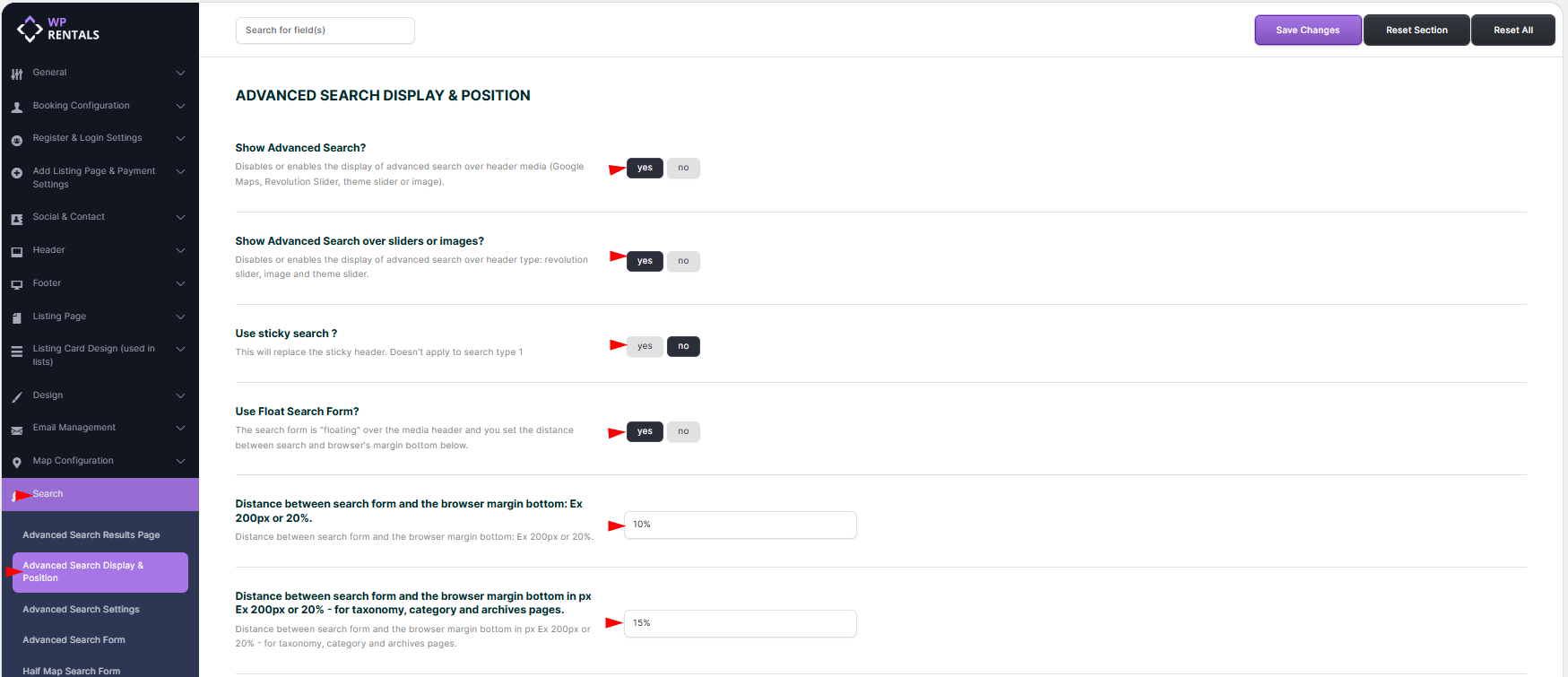
Control the Search Form Position
You can manage where the search form appears over the hero media from:
WPRentals Options > Search > Advanced Search Display & Position
Configure Custom Fields
The custom fields for Search Type 4 are managed from:
WPRentals Options > Search > Advanced Search Form
You can configure:
- Number of Search Fields – enter the number of custom fields you want to add, save, then refresh the page.
- Fields Per Row – choose how many fields show on one row. Options are 2, 3, or 4.
- Custom Fields – choose fields from theme default fields and listing custom fields.
- Custom Icons – add FontAwesome icons for search fields, if needed.
Search Fields and Required Compare Terms
| Search Field | Field Type | Compare Term to Use | Notes |
|---|---|---|---|
| Location | Location / text search | Like | Used for location search with Google Places, OpenStreet Places, or theme location search. |
| Check-in | Date | Date Greater | Used for the arrival date. |
| Check-out | Date | Date Smaller | Used for the departure date. |
| Guests | Number | Greater | Shows listings that allow the selected number of guests or more. |
| Listing City | Dropdown / taxonomy | Like | Used when City is added as a separate dropdown field. |
| Property Area | Dropdown / taxonomy | Like | Used when Area is added as a separate dropdown field. |
| Listing Main Category | Dropdown / taxonomy | Like | Used for the main listing category. |
| Second Category | Dropdown / taxonomy | Like | Used for the second listing category or listing type. |
| Property Category | Dropdown / taxonomy | Like | Used for listing category taxonomy search. |
| Property Type | Dropdown / taxonomy | Like | Used for listing type taxonomy search. |
| Listing County | Text input | Like | Used for county text search. |
| Listing State | Text input | Like | Used for state text search. |
| Listing Country | Dropdown | Like | Uses the theme country list. |
| Bedrooms | Number / dropdown | Greater, Equal, or Smaller | Use Greater when visitors should find listings with at least the selected number. |
| Bathrooms | Number / dropdown | Greater, Equal, or Smaller | Use Greater when visitors should find listings with at least the selected number. |
| Rooms | Number / dropdown | Greater, Equal, or Smaller | Use the compare term based on the search behavior you want. |
| Beds and Baths Component | Component | Equal | The results show listings with the selected number of beds or baths, or more. |
| Price Slider | Price range | Greater | Use the dedicated price field. Min and max values are set in Advanced Search Settings. |
| Price Component with Input and Slider | Price range | Greater | Use the dedicated price component. Min and max values are set in Advanced Search Settings. |
| Features and Amenities | Checkbox / feature list | – | Enable Show Amenities and Features fields, then select which features show in search. |
| Listing Custom Field – Text | Custom text field | Like | Use for text-based custom fields. |
| Listing Custom Field – Dropdown | Custom dropdown field | Like | Use for dropdown custom fields. |
| Listing Custom Field – Number | Custom numeric field | Greater, Equal, or Smaller | Use based on whether the field should match higher, equal, or lower values. |
| Listing Custom Field – Date | Custom date field | Date Greater or Date Smaller | Use Date Greater for start/min dates and Date Smaller for end/max dates. |
| Zip | Text input | Like | Used for zip/postal code search. |
| Size | Number input | Greater, Equal, or Smaller | Use based on the search behavior you want. |
Field Notes
Location Field
The Location field is used when visitors search by a general location field.
Location search can be configured with Google Places, OpenStreet Places, or the theme location system.
Check-in and Check-out
Use Check-in and Check-out if visitors need to search by booking availability. They both must be added.
- Check-in must use Date Greater.
- Check-out must use Date Smaller.

Guests
Use Guests with Greater if visitors should see listings that allow the selected number of guests or more.
Categories
Listing Main Category, Second Category, Property Category, and Property Type should use Like.
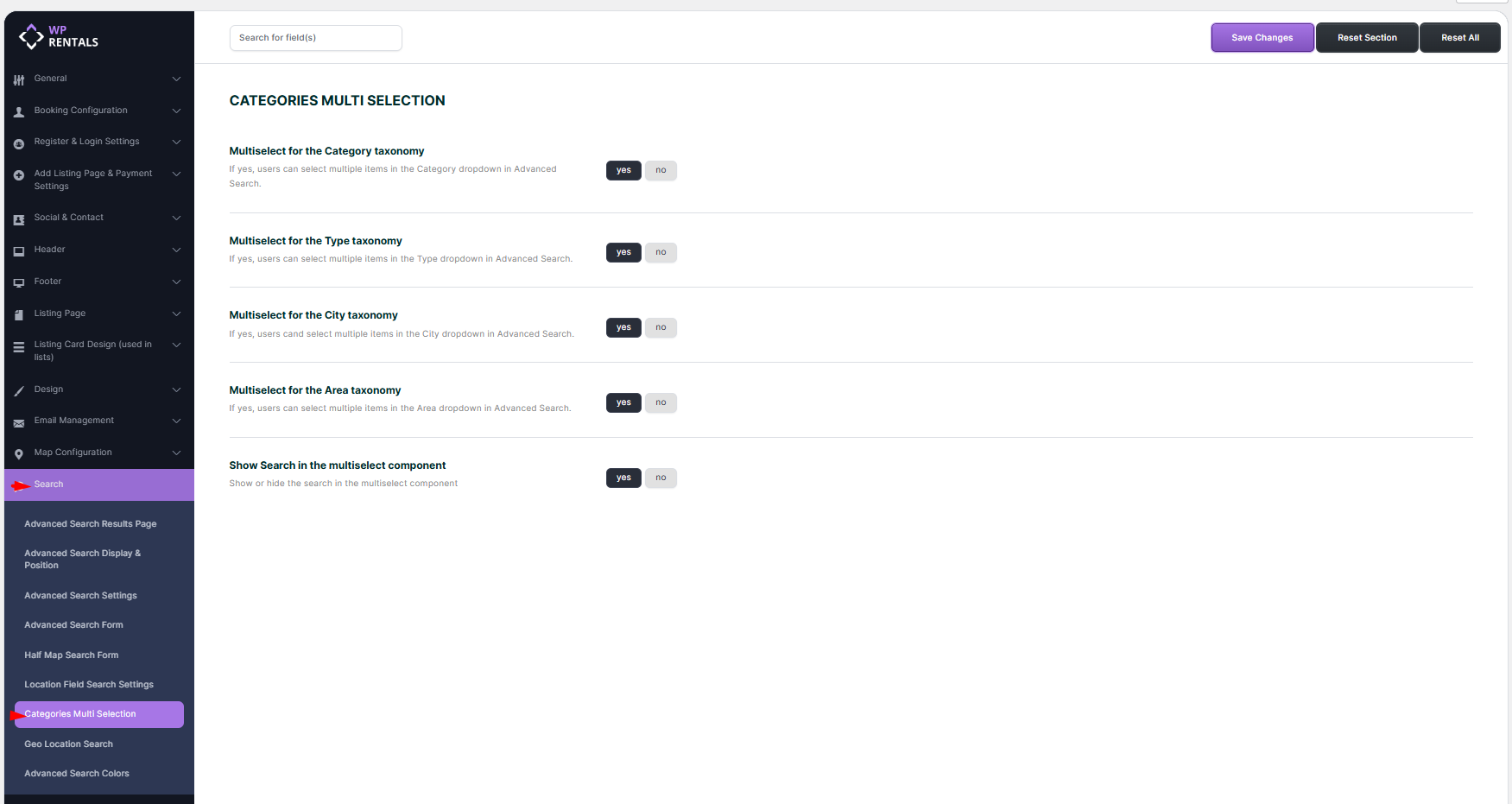
You can enable multi-select from:
WPRentals Options > Search > Categories Multi Selection
Important Notes
- Advanced Search Type 4 is a horizontal hero media search form.
- It shows Title Keyword, Category, and Type by default.
- Custom fields show when the search form is expanded.
- Use WPRentals Options > Search > Advanced Search Form to configure fields.
- Use the correct compare term for each field.
- After changing the number of fields, save and refresh the page.
- For Half Map search, use the separate Half Map Search Form settings.
- For Elementor pages, use the Elementor Search Form Builder widget.
Related Help
Advanced Search Type 1 and Type 2
Advanced Search Type 3, Type 4, and Type 5 custom fields setup