
WPRentals includes several search form options. This help explains the settings available in WPRentals Options > Search > Advanced Search Settings.
These settings control the price slider range, the display of amenities and features in search, and the dropdown values used for guests, beds, bathrooms, and rooms when these fields are added to the supported search forms.
To manage them go to WPRentals Options > Search > Advanced Search Settings
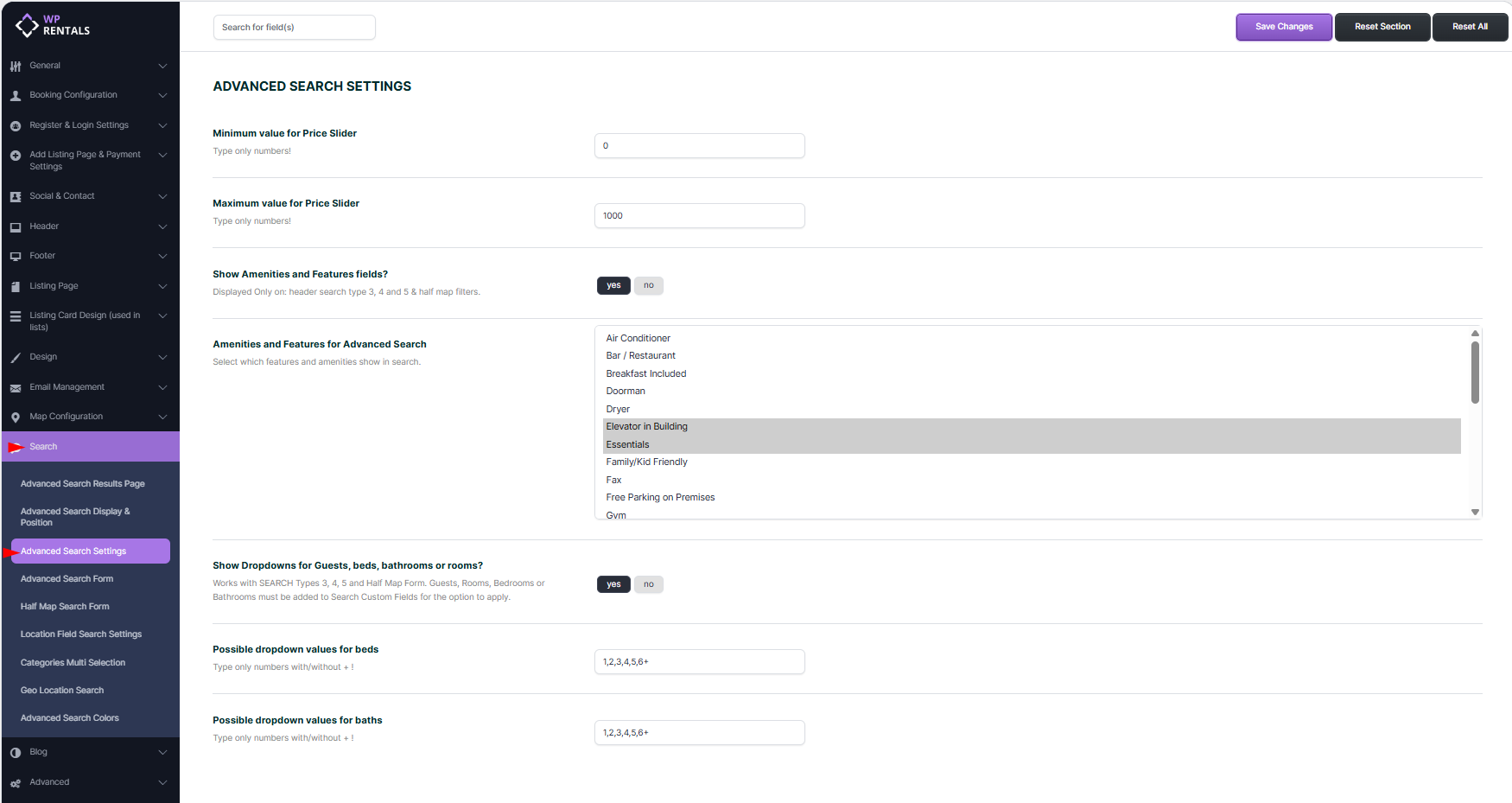
Search Forms Used in WPRentals
WPRentals has several search form options. Some use global theme search settings, while others have separate settings.
1. Hero Media Search
The Hero Media Search appears over the theme hero media header. It is available in 5 search type variations.
The hero media header is managed separately from:
WPRentals Options > Header > Hero Media Header
- Search Type 1 – predefined vertical search form.
- Search Type 2 – predefined horizontal search form.
- Search Type 3 – horizontal search form with custom fields.
- Search Type 4 – horizontal search form with 3 default fields plus custom search fields. The default fields are title keyword, first category, and second category.
- Search Type 5 – vertical search form with custom fields.
2. Mobile Search
The mobile search displays as a collapsible search bar on mobile devices.
It follows the theme search form configuration used by the selected search type (1, 2, 3, 4 or 5)
3. Advanced Search Shortcode
The Advanced Search Shortcode displays the WPRentals advanced search form inside a page or post.
The shortcode uses the global search form settings from:
WPRentals Options > Search > Advanced Search Form -> Help Advanced Search Shortcode for Elementor or Bakery
4. Search Widget
The search widget can be added to widgetized areas. Widget areas are managed from the WordPress dashboard under:
Appearance > Widgets – Help Sidebars and Widgets
5. Half Map Search Form
The Half Map Search Form appears in Half Map layouts, including:
- Search Results Half Map layout
- Taxonomy and Property Category Half Map layout
- Properties List Half Map page template
The Half Map Search Form allows visitors to search and filter properties without reloading the page.
The Half Map Search Form has separate field settings from the main Advanced Search Form.
Help – Theme Options – Search – Half Map Search Form
6. Elementor Search Form Builder
The Elementor Search Form Builder is a separate drag-and-drop search form builder for pages created with Elementor.
Use it when you need a custom search form for a specific Elementor page. It does not automatically change the global search form used by the hero search, shortcode, or widget.
Help WPRentals Search Form Builder for Elementor
Advanced Search Settings Summary
| Setting | What It Controls | Where It Applies |
|---|---|---|
| Minimum Value for Price Slider | Sets the lowest price value used by the price slider. | Search forms where the Price Field is added. |
| Maximum Value for Price Slider | Sets the highest price value used by the price slider. | Search forms where the Price Field is added. |
| Show Amenities and Features fields? | Enables or disables the amenities and features section in search. | Header Search Types 3, 4, 5, and Half Map filters. |
| Amenities and Features for Advanced Search | Controls which features and amenities are shown in the search form. | Used only when amenities and features are enabled. |
| Show Dropdowns for Guests, beds, bathrooms or rooms? | Changes guests, beds, bathrooms, and rooms fields from input fields to dropdown fields. | Search Types 3, 4, 5, and Half Map Search Form when these fields are added. |
| Possible dropdown values for beds | Controls the available values in the beds dropdown. | Used when dropdowns are enabled and the beds field is added. |
| Possible dropdown values for baths | Controls the available values in the baths dropdown. | Used when dropdowns are enabled and the bathrooms or baths field is added. |
Price Slider Settings
Minimum Value for Price Slider
This option sets the starting price for the price slider filter in the search form.
- Enter only numbers.
- Example: 0
- This value becomes the minimum price shown in the price range.
Maximum Value for Price Slider
This option sets the maximum price for the price slider filter in the search form.
- Enter only numbers.
- Example: 2500
- This value becomes the maximum price shown in the price range.

Price Field Versions
The Price Field can be used in two versions.
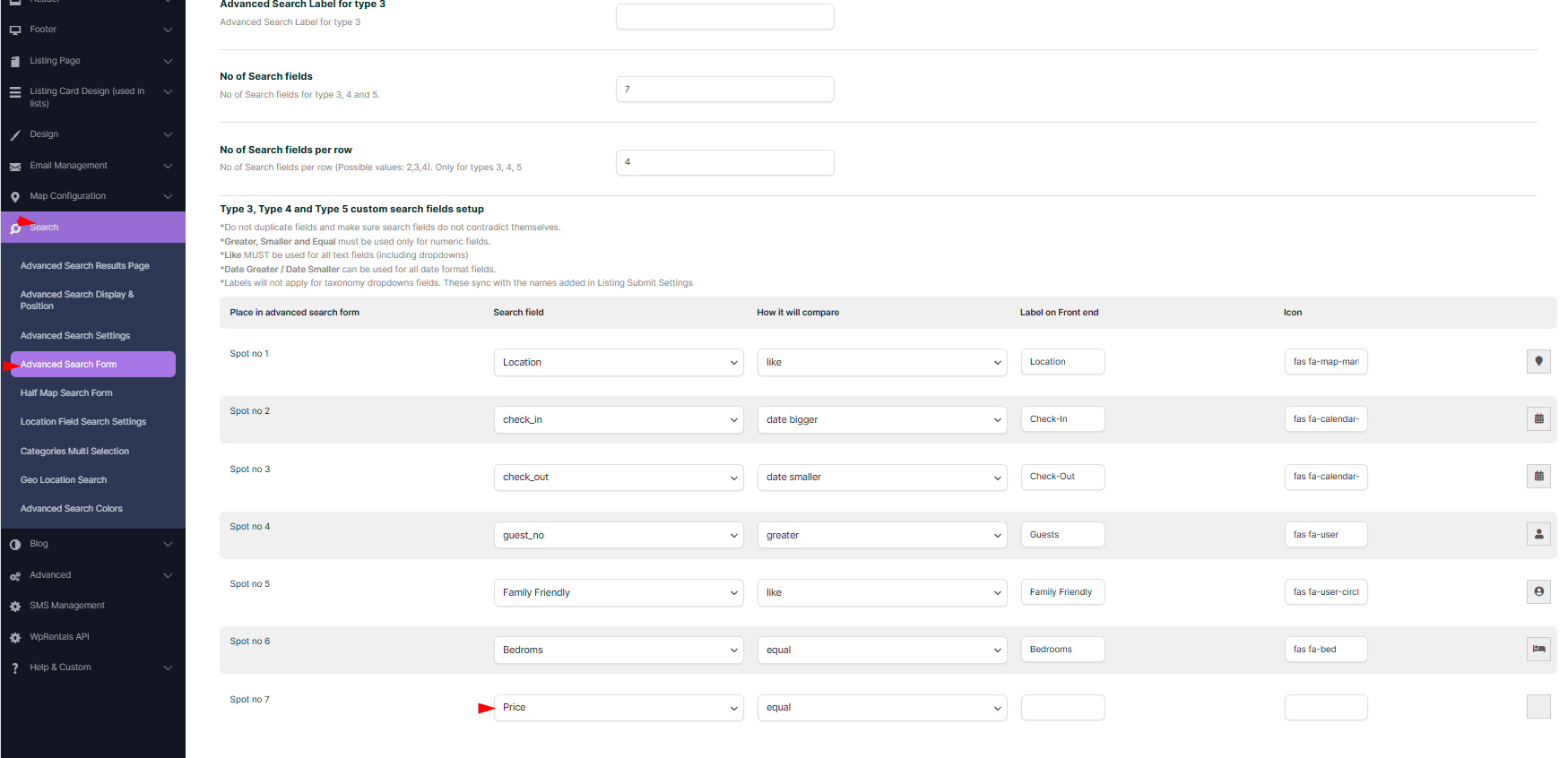
Version 1: Price Slider
This version displays a slider that allows visitors to select a price range. The minimum and maximum values are managed from WPRentals Options > Search > Advanced Search Settings.

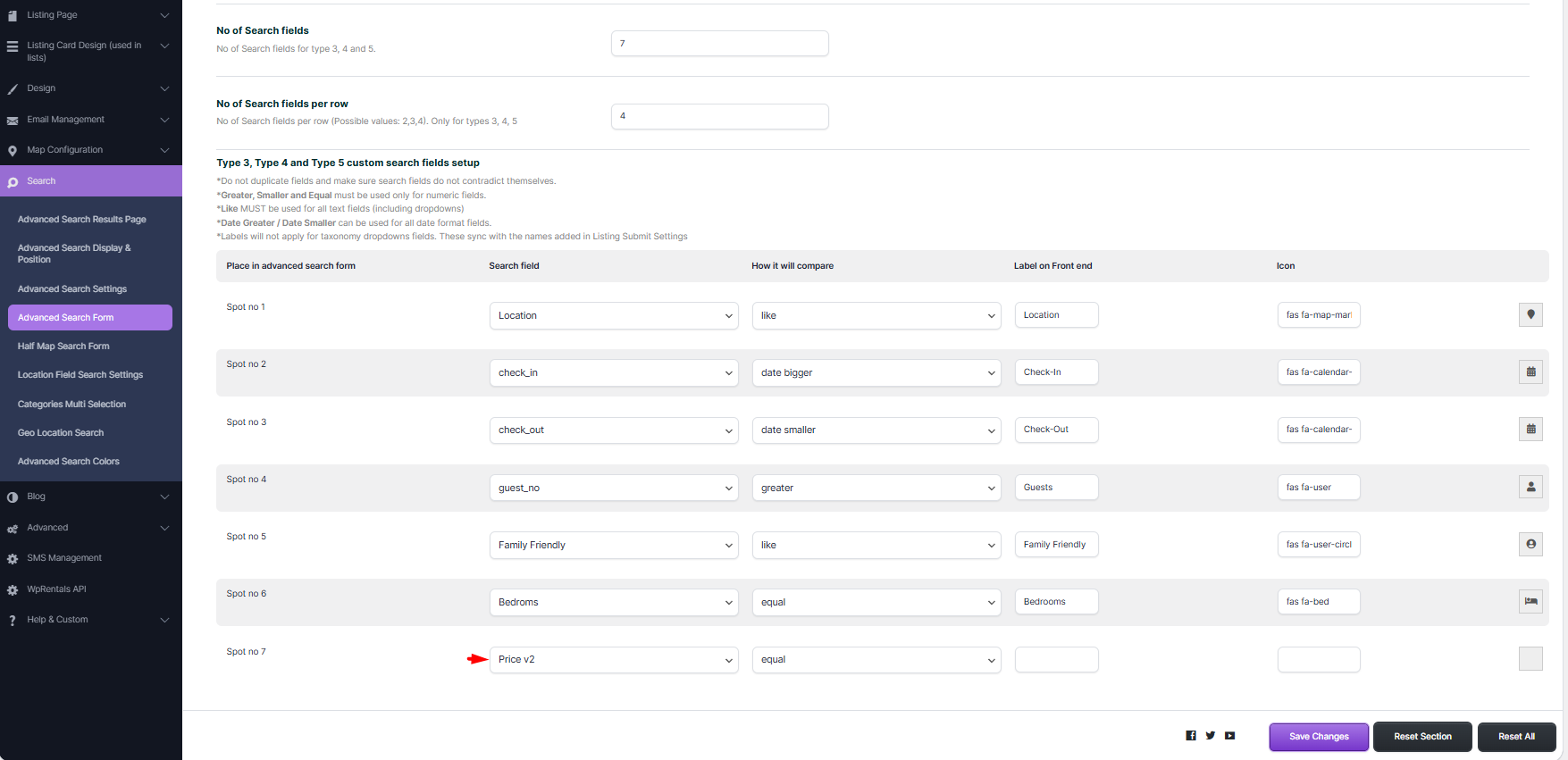
Version 2: Price V2 Component with Input and Slider Selectors
This version displays both input fields and a slider. Visitors can type a price directly into the input fields or use the slider to adjust the price range.

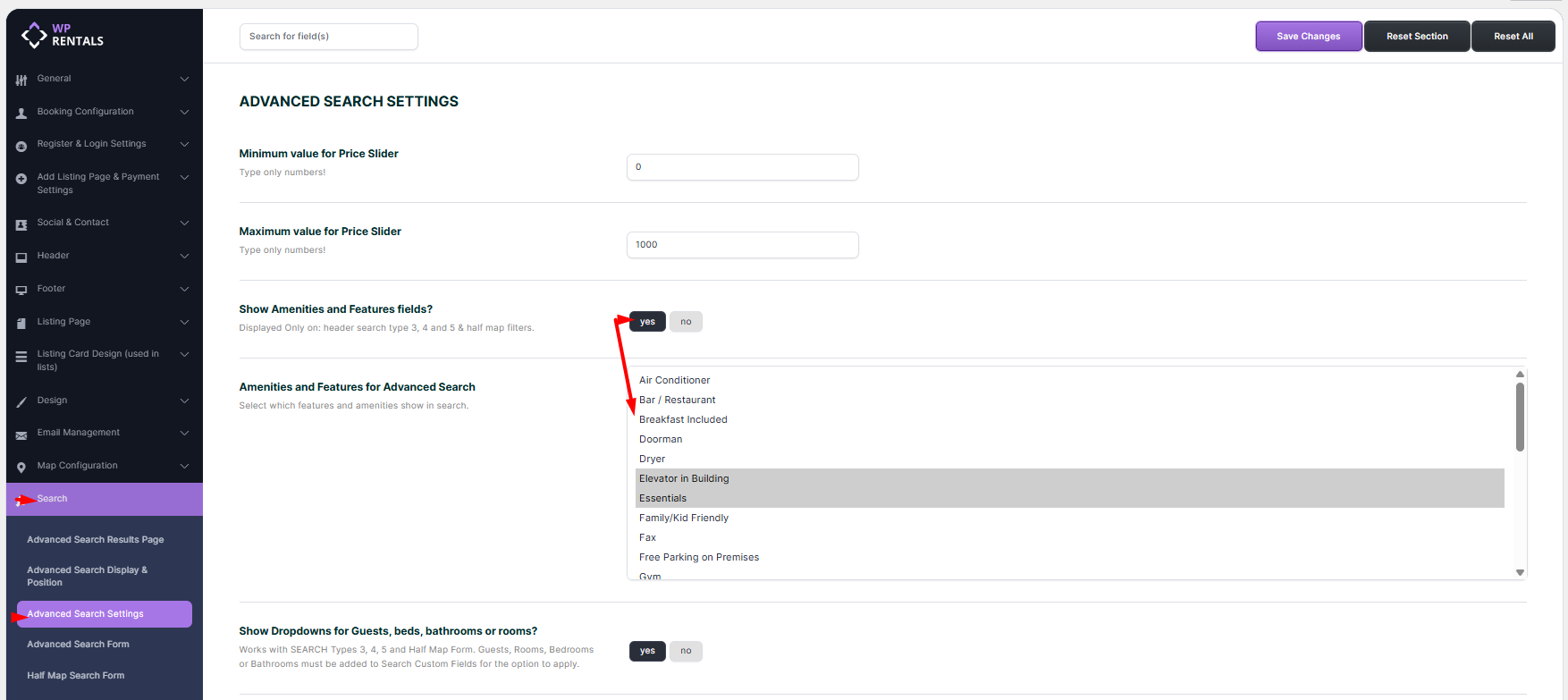
Amenities and Features Fields
Show Amenities and Features fields?
This option enables or disables the amenities and features section in the search form.
- Set this option to Yes to show amenities and features in search.
- Set this option to No to hide amenities and features from search.
- This option applies to header Search Types 3, 4, 5, and Half Map filters.
Amenities and Features for Advanced Search
Use this field to select which amenities and features should be displayed in the search form.
- The option appears under Show Amenities and Features fields?.
- Select only the features that should be available as search filters.
- Save the settings after making changes.

Dropdowns for Guests, Beds, Bathrooms, and Rooms
Show Dropdowns for Guests, beds, bathrooms or rooms?
This option controls whether guests, beds, bathrooms, and rooms fields show as dropdowns in the search form.
- Set this option to Yes to show these fields as dropdowns.
- Set this option to No to keep them as input fields.
- This option works with Search Types 3, 4, 5, and the Half Map Search Form.
- The fields must also be added to the search form custom fields for the setting to apply.
The fields must be added first in the search form setup.
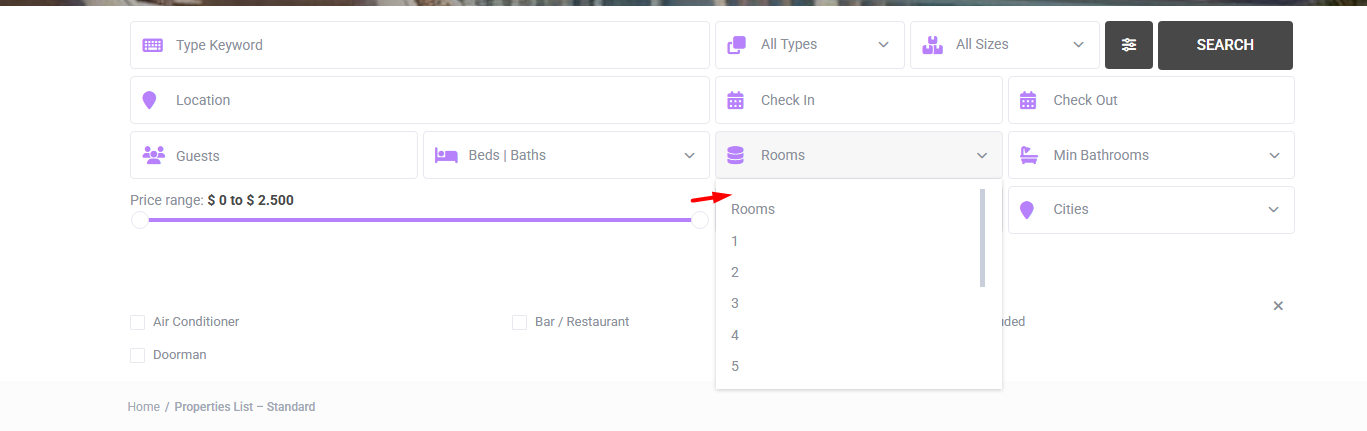
After the dropdown option is enabled, the fields show as dropdowns on the front end.
Possible Dropdown Values for Beds and Baths
Possible Dropdown Values for Beds
This option defines the available bedroom values in the dropdown menu.
- Enter numbers separated by commas.
- Use + for the upper limit.
- Example: 1,2,3,4,5,6+
Possible Dropdown Values for Baths
This option defines the available bathroom values in the dropdown menu.
- Enter numbers separated by commas.
- Use + for the upper limit.
- Example: 1,2,3,4,5,6+
Beds, Baths, Bathrooms, and Rooms Fields
Beds, Bathrooms, and Rooms as Separate Fields
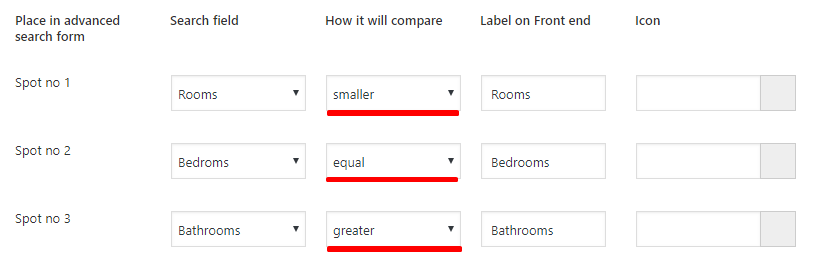
Beds, bathrooms, and rooms can be added as separate search fields.
- They can show as input fields or dropdowns.
- They can use Smaller, Equal, or Greater as compare rules.
- Use Greater when visitors should see listings with at least the selected value.
- Use Equal when the value must match exactly.
- Use Smaller when the search should return values lower than the selected value.
Example of dropdown display on the front end:
Beds and Baths Component
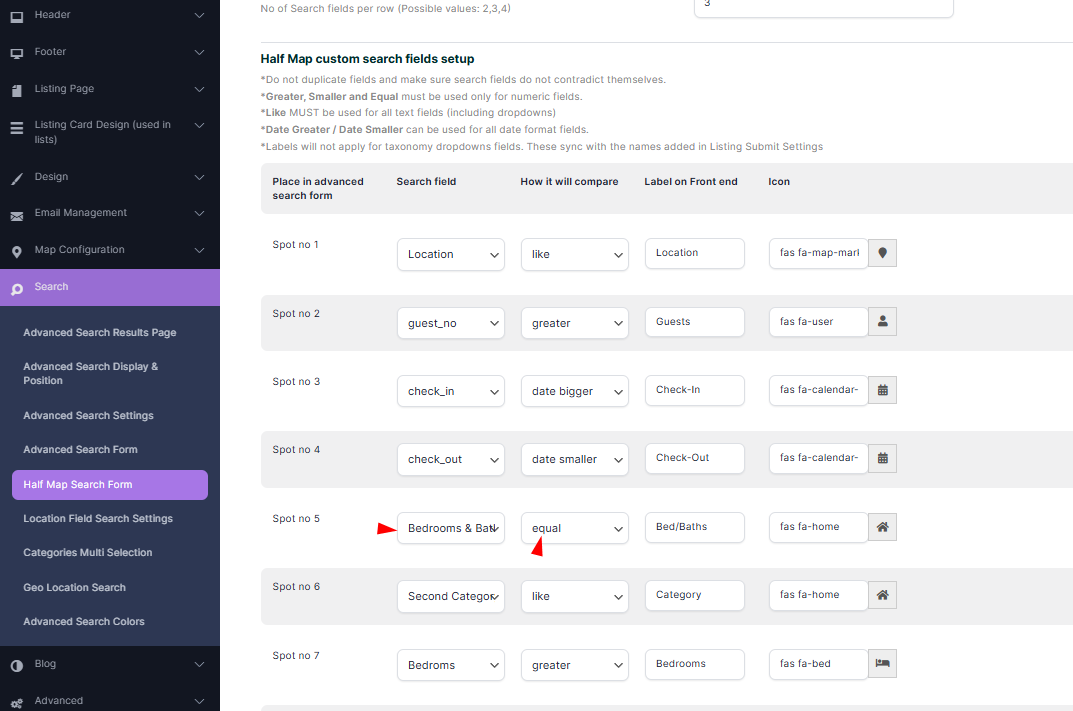
The Beds and Baths Component combines beds and baths into one search field.
- This field should use Equal as the compare rule.
- The results will show listings with equal to or greater than the selected number of beds or baths.

Important Notes
- The settings in this article are managed from WPRentals Options > Search > Advanced Search Settings.
- The Price Field must be added to the search form before the price slider values can show on the front end.
- The minimum and maximum price values control the price range shown by the price slider or price selector component.
- The amenities and features section applies to header Search Types 3, 4, 5, and Half Map filters.
- The dropdown option for guests, beds, bathrooms, and rooms applies only when those fields are added to the search form custom fields.
- Search Type 1 and Search Type 2 use predefined layouts.
- Search Type 3 and Search Type 5 use custom fields.
- Search Type 4 uses 3 default fields plus custom fields.
- The Half Map Search Form has separate field settings from the general Advanced Search Form.
- The Elementor Search Form Builder is managed separately inside Elementor.
Related Help
- Supported fields in the Advanced Search Form
- Global Hero Header Media Options
- How to manage Advanced Search Type 3 and Type 5
- How to manage Advanced Search Type 4
- Advanced Search Shortcode for Elementor or Bakery
- Sidebars and Widgets
- Theme Options – Search – Half Map Search Form
- WPRentals Search Form Builder for Elementor