
This help explains what to check when the map does not load in WPRentals, even after adding a Google Maps API key.
The map can fail to show if the Google API key is not fully configured, if the required Google APIs are not enabled, if the key restrictions do not match the domain, if listing coordinates are missing, or if the page does not load the map library.
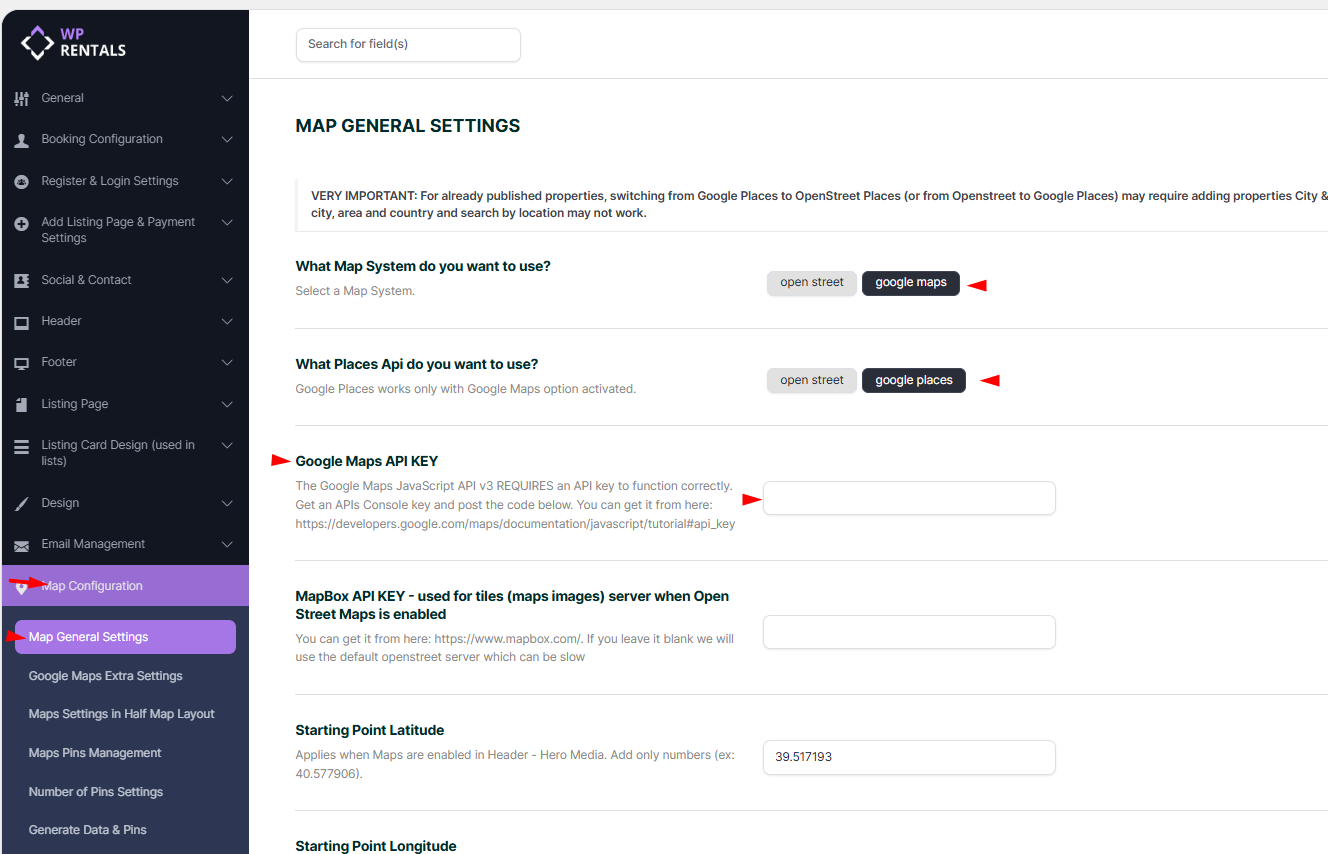
Check the Map System
Go to:
WPRentals Options > Map Configuration > Map General Settings
Check:
What Map System do you want to use?
Select:
- Google Maps, if you want to use Google Maps and Google Places.
- OpenStreetMaps, if you do not want to use a Google Maps API key.
If you select Google Maps, a valid Google Maps API key is required.
Check the Google Maps API Key
Google Maps requires a Google Cloud account and an API key.
Before using the key on the website, check that:
- Billing is enabled in Google Cloud.
- The API key was created in the correct Google Cloud project.
- The required APIs are enabled.
- The API key restrictions match the website domain.
- The key is added in WPRentals Options.
WPRentals does not control Google billing, API access, quotas, or Google Cloud restrictions. These are managed from your Google Cloud account.
Help: Google Maps – How to add Google API Key
Enable the Required Google APIs
In Google Cloud Console, go to:
APIs & Services > Library
Enable the APIs needed by WPRentals Google Maps features:
- Maps JavaScript API
- Maps Static API
- Places API
- Places API (New)
- Geocoding API
- Geolocation API
- Street View Static API
If you use Google Places autocomplete in the search or listing form, make sure Places API and Places API (New) are enabled.
Check API Key Domain Restrictions
If the API key is restricted to the wrong domain, Google Maps will not load.
In Google Cloud Console, check the API key restrictions.
For a website, use HTTP referrer restrictions and add the website domain.
Example:
https://yourdomain.com/*
https://www.yourdomain.com/*
If your website uses both www and non-www, add both versions.
If you test on a staging domain or temporary domain, add that domain too.
If the website was moved, SSL was added, or the domain changed, update the API key restrictions in Google Cloud.
Google Maps Error: RefererNotAllowedMapError
If the browser console shows this error:
Google Maps JavaScript API error: RefererNotAllowedMapErrorit means the current Google Maps API key is not allowed to load on the URL where it is being used.
Google documentation: https://developers.google.com/maps/documentation/javascript/error-messages#referer-not-allowed-map-error
The error usually shows the URL that is not allowed.
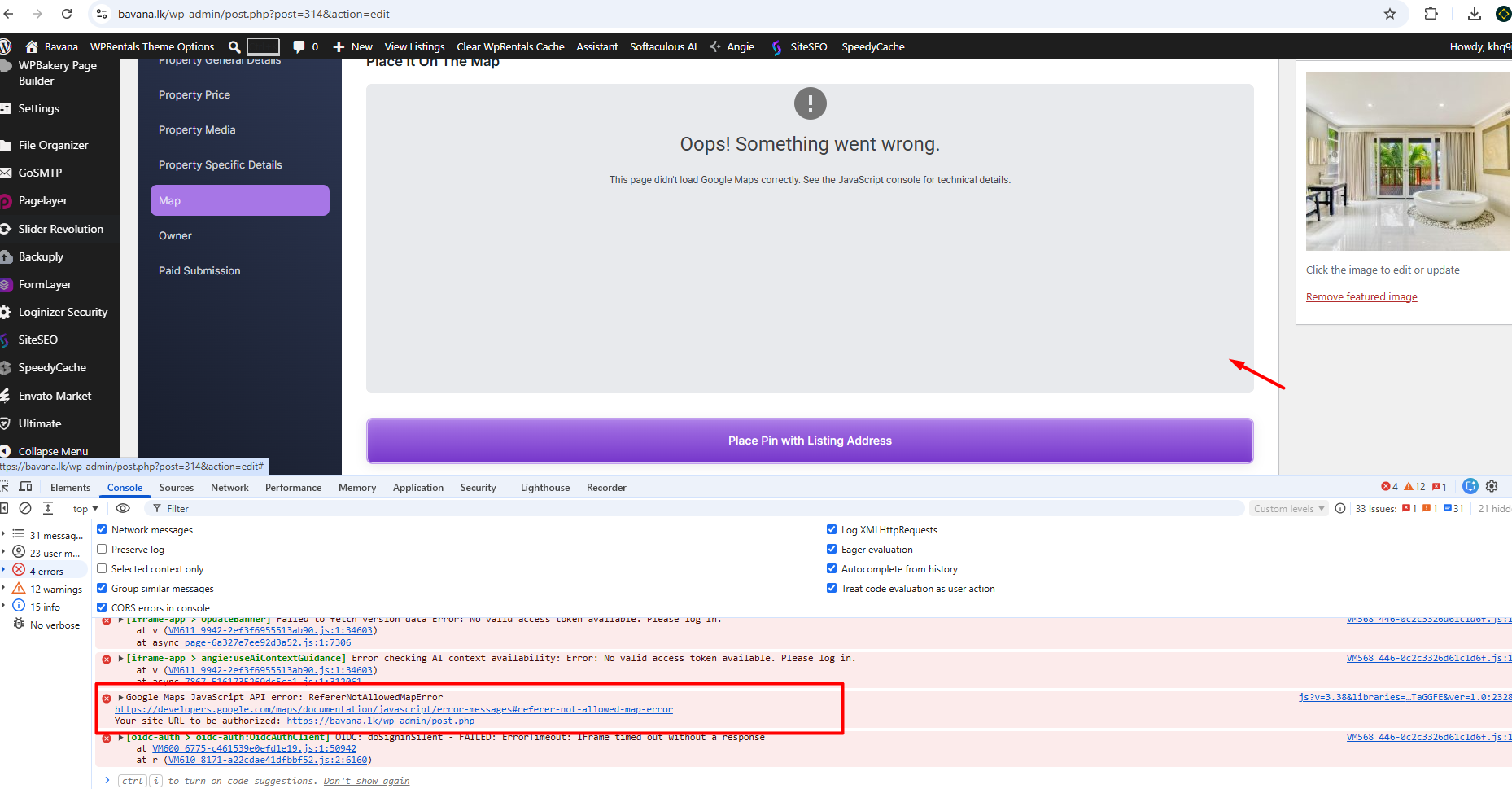
Example:
https://comain.lk/wp-admin/post.phpTo fix this, update the allowed referrers for the Google Maps API key in Google Cloud Console.
Add the website domain, for example:
https://domain.lk/*If you also use the www version, add it too:
https://www.domain.lk/*If you use a staging domain or temporary domain, add that domain too.
After updating the API key restrictions:
- Save the changes in Google Cloud Console.
- Wait a few minutes for Google to apply the change.
- Clear the website cache.
- Clear the browser cache.
- Test the map again.
Add the API Key in WPRentals
Copy the API key from Google Cloud Console.
Then go to:
WPRentals Options > Map Configuration > Map General Settings
Paste the API key in the Google Maps API Key field.
Also check:
- Map System: Google Maps
- Places option: Google Places, if you want Google location autocomplete
Save the theme options.
Check Listing Latitude and Longitude
The map pin needs latitude and longitude values.
When adding or editing a listing, check the location section.
If using Google Places:
- Start typing the City / Area / Country and select the correct Google autocomplete result.
- Type the full property address.
- Click Place Pin with Address.
- Check that Property Latitude and Property Longitude are filled in.
- Save or update the listing.
You can also copy coordinates manually from Google Maps and paste them into the listing latitude and longitude fields.
Help: How to Find Latitude and Longitude / How to Set Google Maps Coordinates
Generate Data and Pins
After changing map settings, listing locations, property coordinates, or map pins, regenerate the theme map data.
Go to:
WPRentals Options > Map Configuration > Generate Data & Pins
Click Save Changes.
Then clear the website cache and browser cache.
This helps refresh the files used by the map, pins, and location data.
Map Not Loading on Advanced Search Results Page or Half Map Pages
If the map is missing on the Advanced Search Results page or Half Map pages, the map library may not be loading on that page.
A common browser console error is:
google is not definedThis can happen when the page renders map code, but the Google map library is not loaded for that page.
To force the map library to load, set the page to use a map as the Hero Media Header.
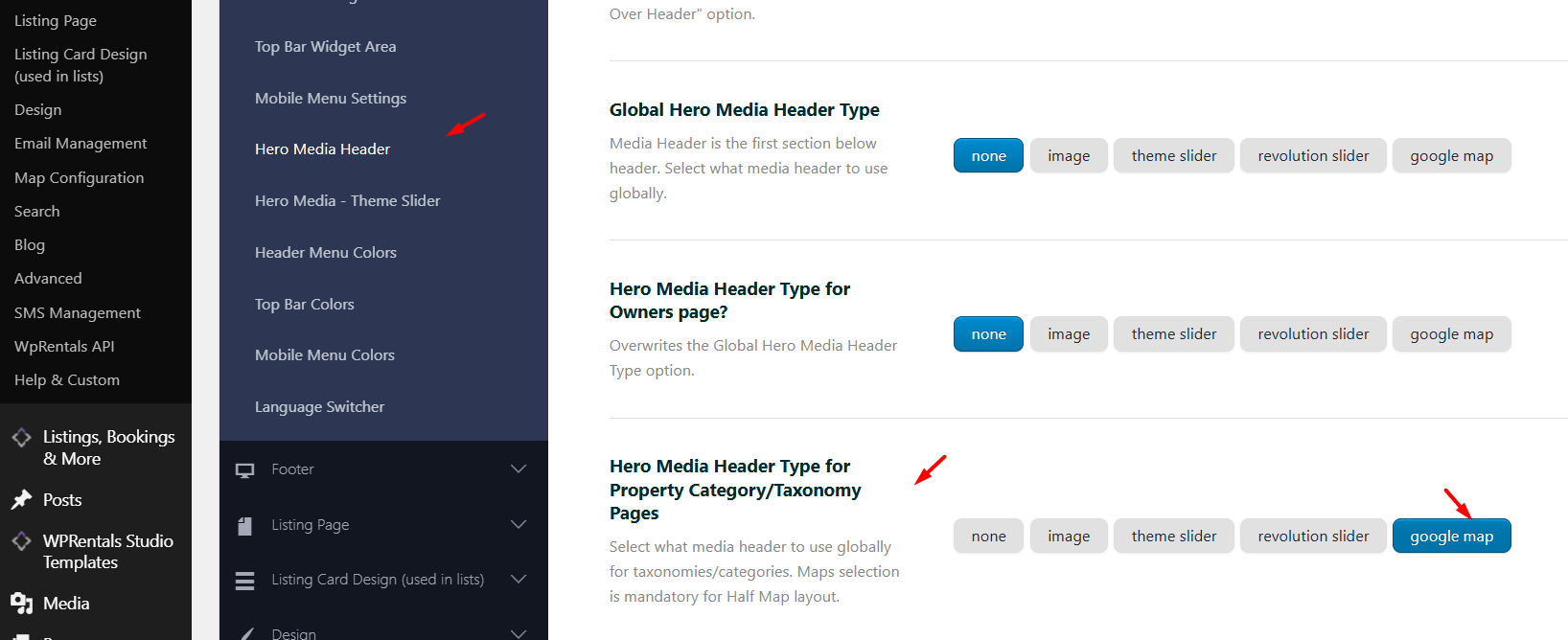
Option 1: Set the global hero media to map
Go to:
WPRentals Options > Header > Hero Media Header
Select the map option for the hero media header and save.
Help: Global Hero Header Media Options
Option 2: Set the map only for a specific page
Go to:
Pages > All Pages
Edit the Advanced Search Results page or the page where the map should load.
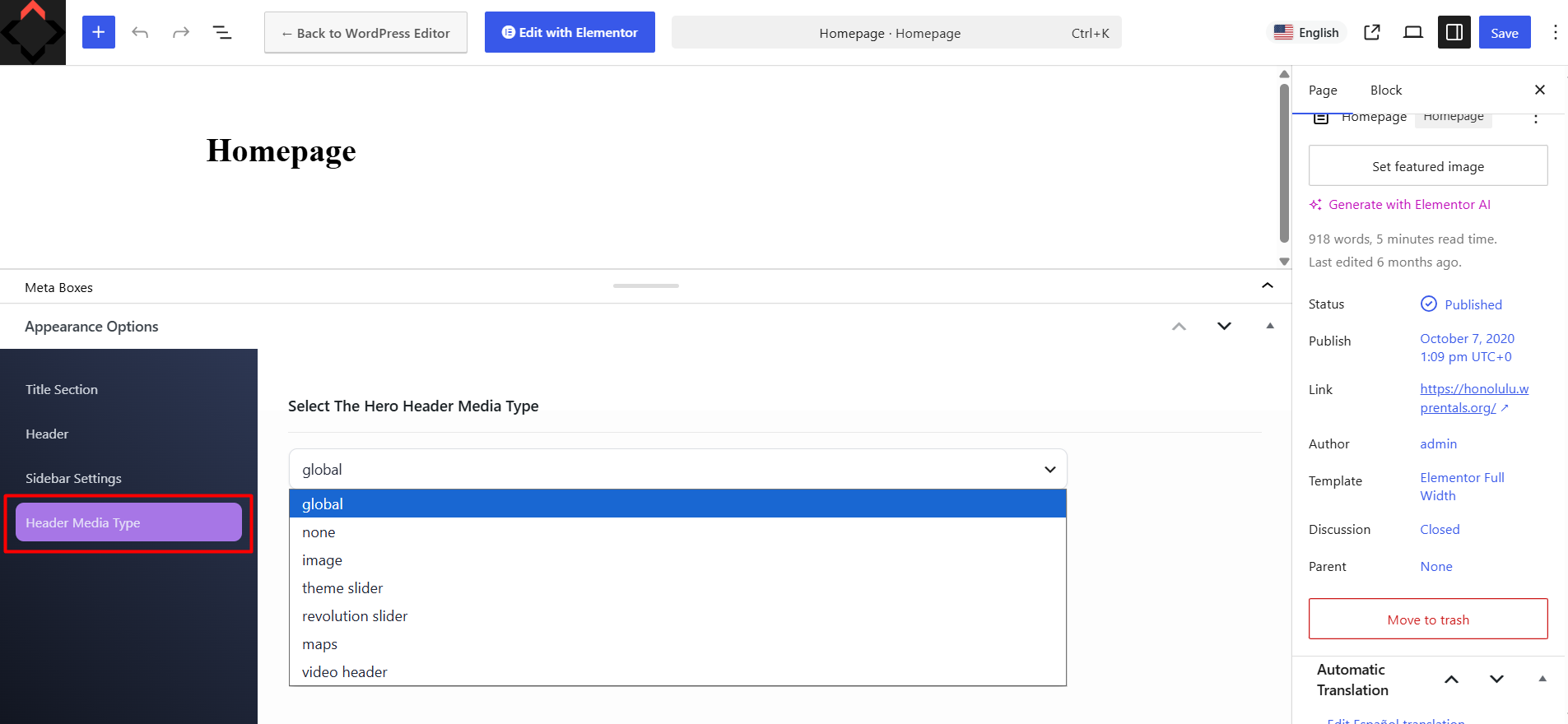
Go to the page Appearance Options.
Set the header type to:
MAPS
Update the page.
Help: Custom Hero Media Header Options For Pages
Then clear cache and test the page again.
Tip: The map can work on single listing pages and still fail on the Advanced Search Results page if the map library is not loaded on that specific page.
Use OpenStreetMap If You Do Not Want Google Maps
If you do not want to use Google Maps, you can use OpenStreetMap.
Go to:
WPRentals Options > Map Configuration > Map General Settings
Select:
OpenStreetMaps
OpenStreetMap can be used without a Google Maps API key.
You can optionally add a MapBox API key for faster map tile loading. If no MapBox key is added, the default OpenStreetMap tile server is used.
Important: OpenStreetMap does not support Google Places or Street View.
Related Help
Google Maps – How to add Google API Key
Theme Options – Map Configuration Settings
Map Type: OpenStreetMap or Google Maps
How to Set the Location of a Property on the Map
How to Find Latitude and Longitude / How to Set Google Maps Coordinates
Listing Location Options for the Submission Form
Properties List Half – Custom Page Template
Custom Hero Media Header Options For Pages
Global Hero Header Media Options
How to Manage the WPRentals Map with Listings Widget
Map Configuration: How Read From File Works