
In WPRentals, a booking is connected to the guest/renter through the booking author.
If you need an existing booking to show in a specific guest account under My Reservations, you must set that guest user as the author of the booking.
How the Booking and Renter Connection Works
The guest/renter connected to a booking is controlled by the WordPress author of the booking post.
This means:
- Guest / renter account → booking author → My Reservations
- Property owner → owner booking data → My Bookings
If a booking is not showing in the correct guest account, check the booking author.
Enable the Author Field for Bookings
By default, the Author field may not show when editing a booking from wp-admin.
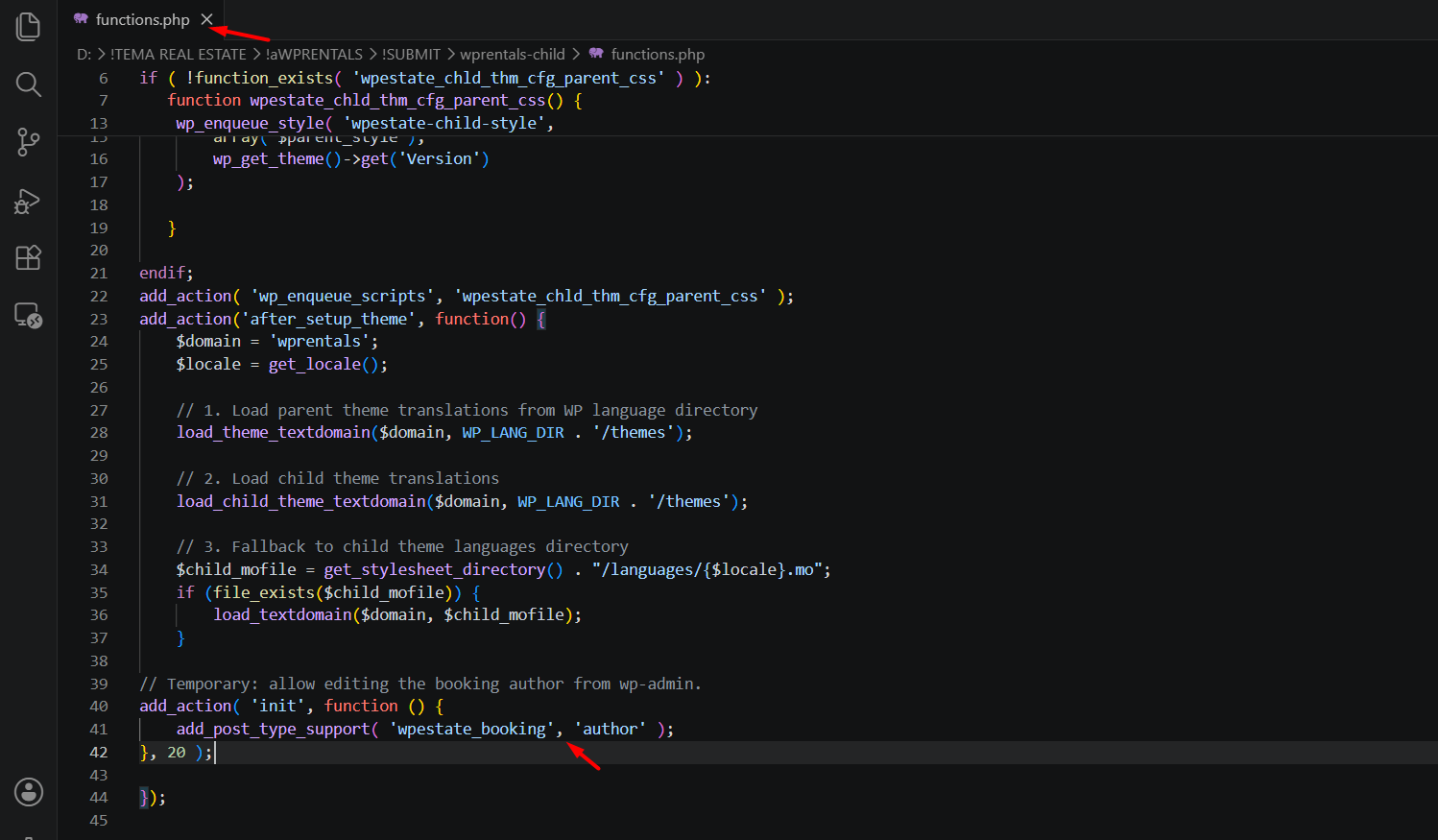
To make the Author field visible, add this temporary code in the child theme functions.php file or with the Code Snippets plugin:
add_action( 'init', function () {
    add_post_type_support( 'wpestate_booking', 'author' );
}, 20 );
After this code is added, edit the booking again.
If the Author field is still not visible, click Screen Options at the top right of the edit booking page and enable Author.
Change the Booking Author
Go to:
wp-admin → Listings, Bookings & More → Bookings
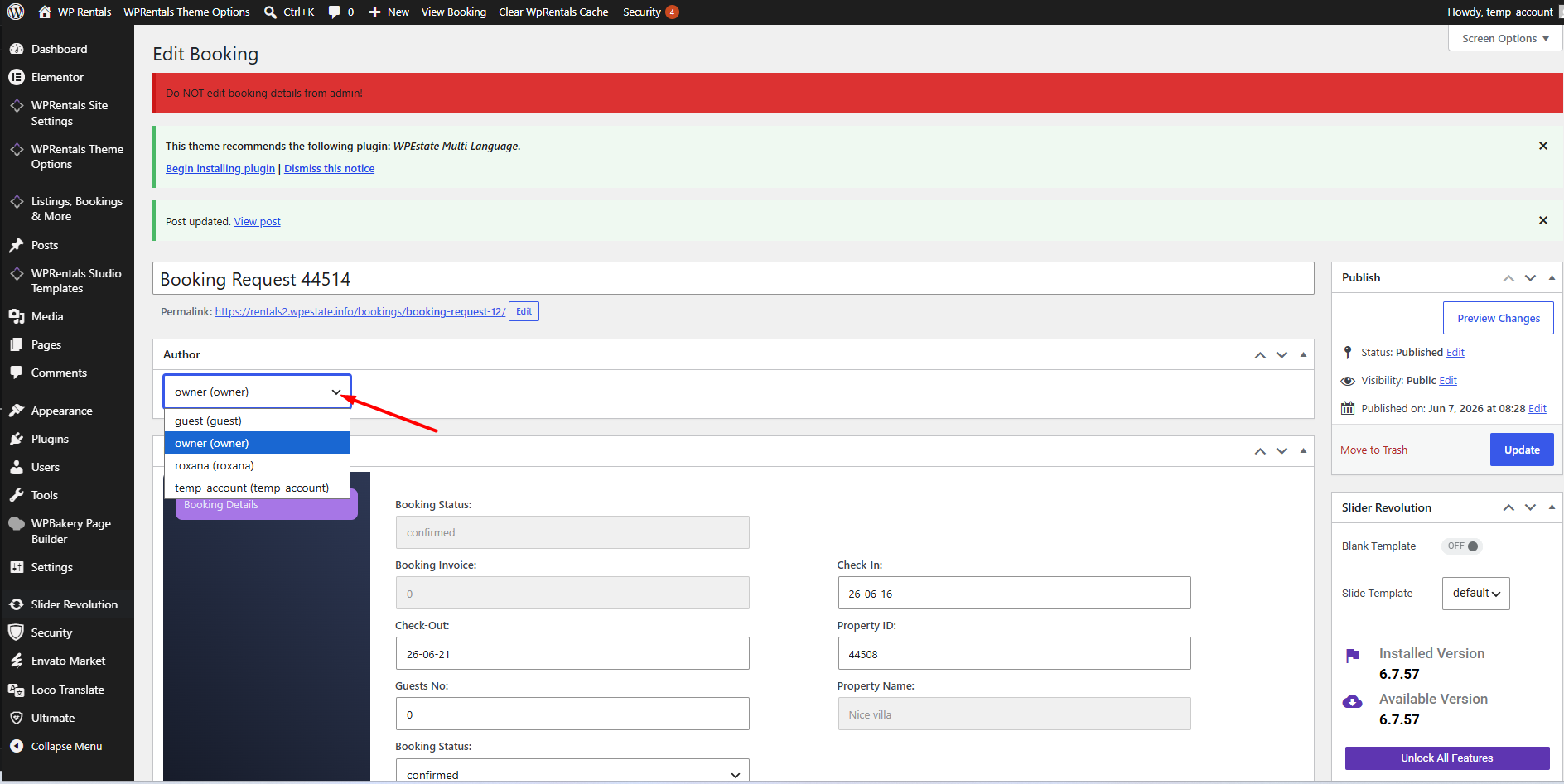
Edit the booking you want to update.
In the Author box, select the guest/renter user who should be connected to that booking.
Click Update to save the booking.
Check the Guest Reservations Page
After the booking author is changed, log in as that guest/renter account.
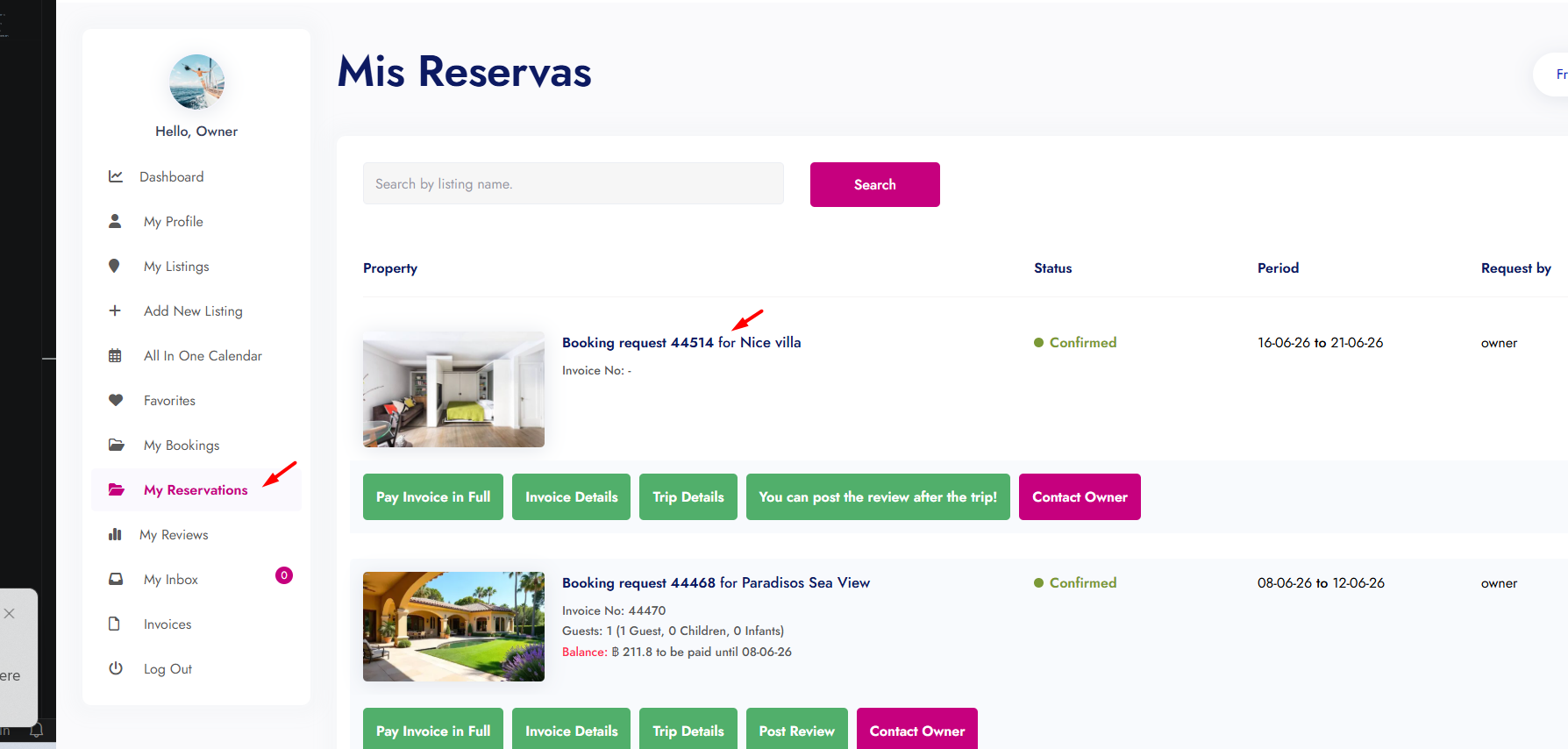
Go to the user dashboard and open:
My Reservations
The booking should now show there.
Important Notes
Do not edit the booking details from wp-admin unless you are sure the change is needed. The manual change explained in this article is only for assigning the correct guest/renter to an existing booking.
This is useful for correcting an existing booking manually.
For normal bookings made from the frontend, WPRentals assigns the guest automatically.
After you finish changing the booking author, you can remove the temporary code if you do not need to edit booking authors again.