
The Properties List template creates a page that shows listings from your property database.
You can use it to show all listings, or only listings from a selected category, type, city, or area.
This article explains the Standard List layout. For the layout with listings and map side by side, use the Half Map template.
Important Notes
- The page reads listings from your full property database.
- You can filter the list by category, type, city, or area from the page settings.
- The Properties List template has two main styles: Standard List and Half Map.
- This article is for the Standard List layout.
- For the Half Map layout, check this help: Properties List Half
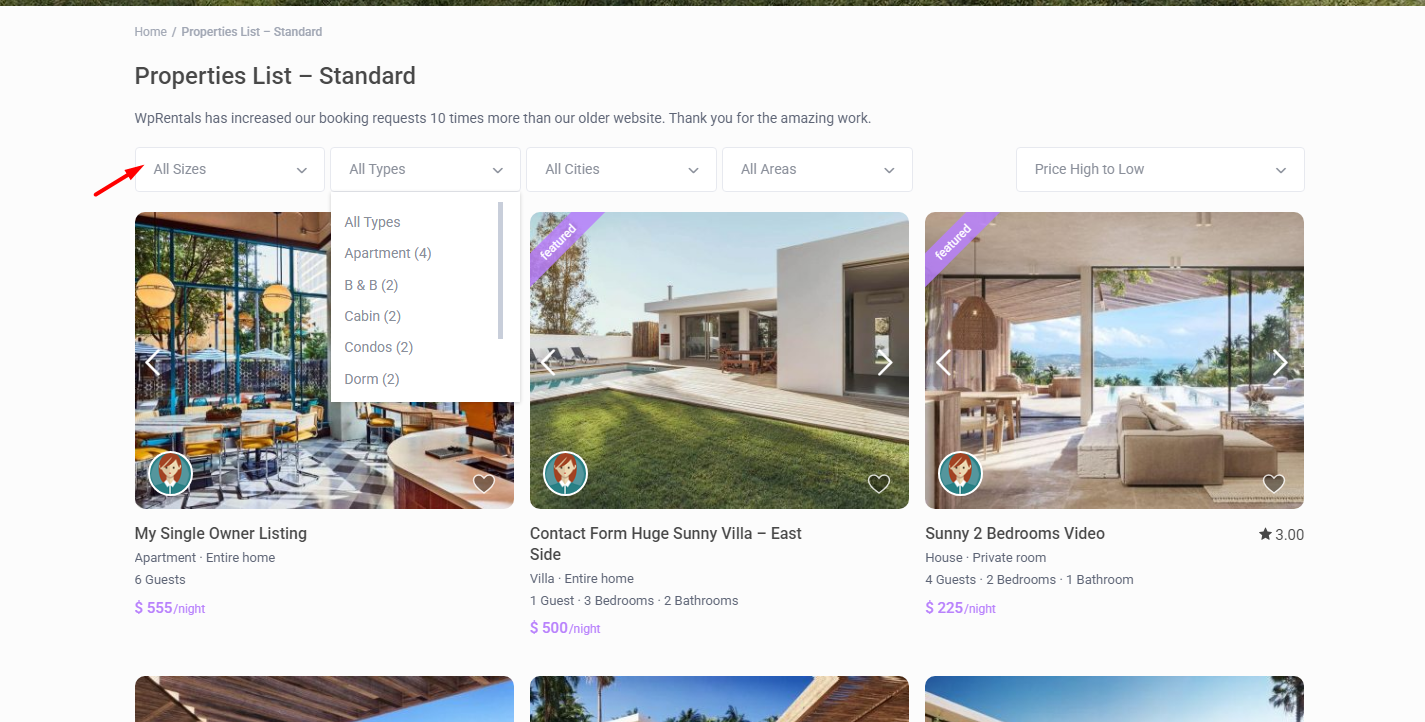
When to Use the Properties List Template
Use this template when you want to create a normal listing page, such as:
- A page with all listings.
- A page with listings from one city.
- A page with listings from one area.
- A page with listings from one category or type.
- A page with rentals shown in a standard list/grid layout.
This template is not the same as the Advanced Search Results page. The Properties List template is used to create a fixed listing page with optional filters selected in the page settings.
Create a Properties List Page
To create the page, you need to:
- Create or edit a WordPress page.
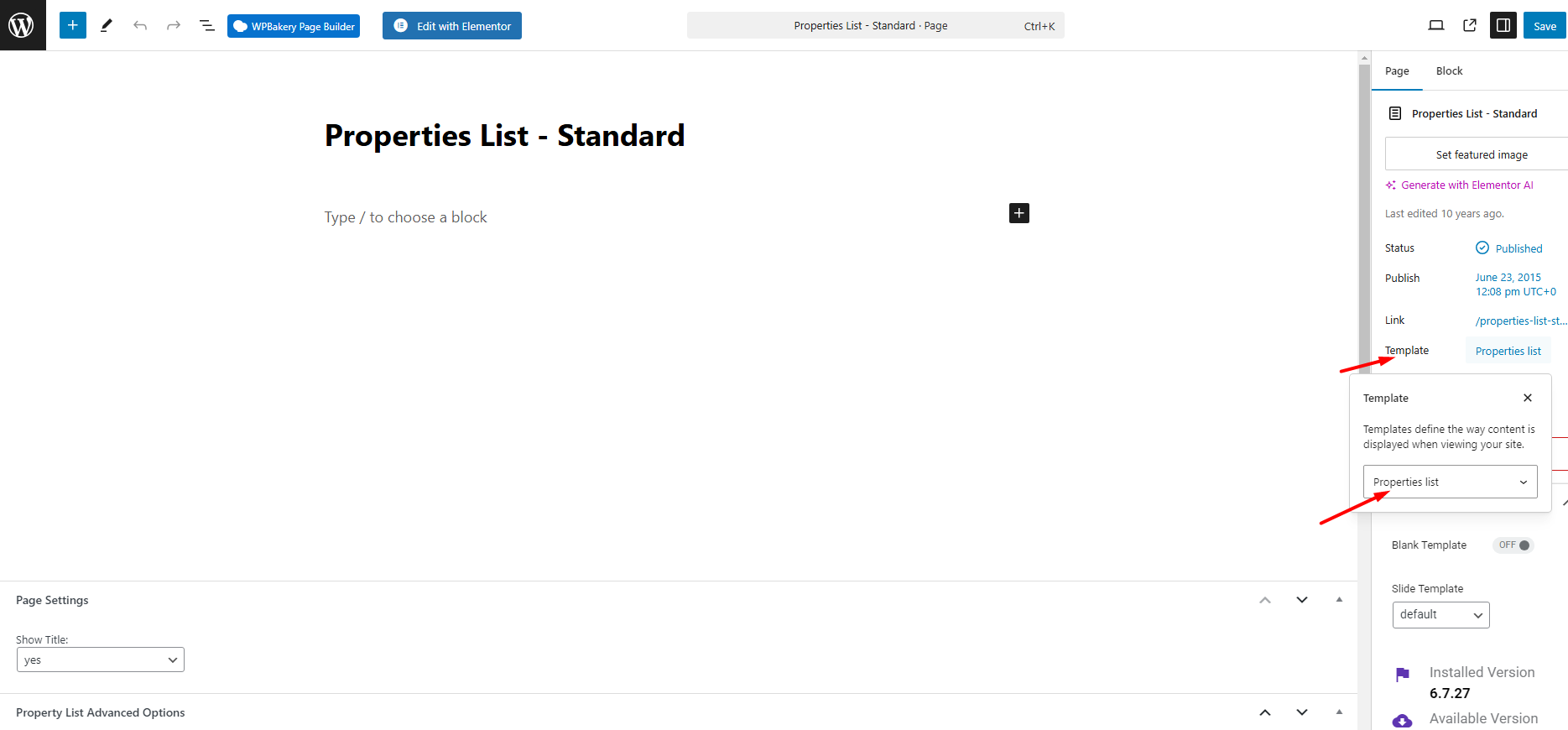
- Select the Properties List page template.
- Choose the listing filters and order from the page settings.
- Publish or update the page.
Step 1: Select the Page Template
Go to:
Admin > Pages > Add New
or edit an existing page.
From the page template options, choose:
Properties List
This creates the standard property list page.
Step 2: Complete the Page Settings
After selecting the template:
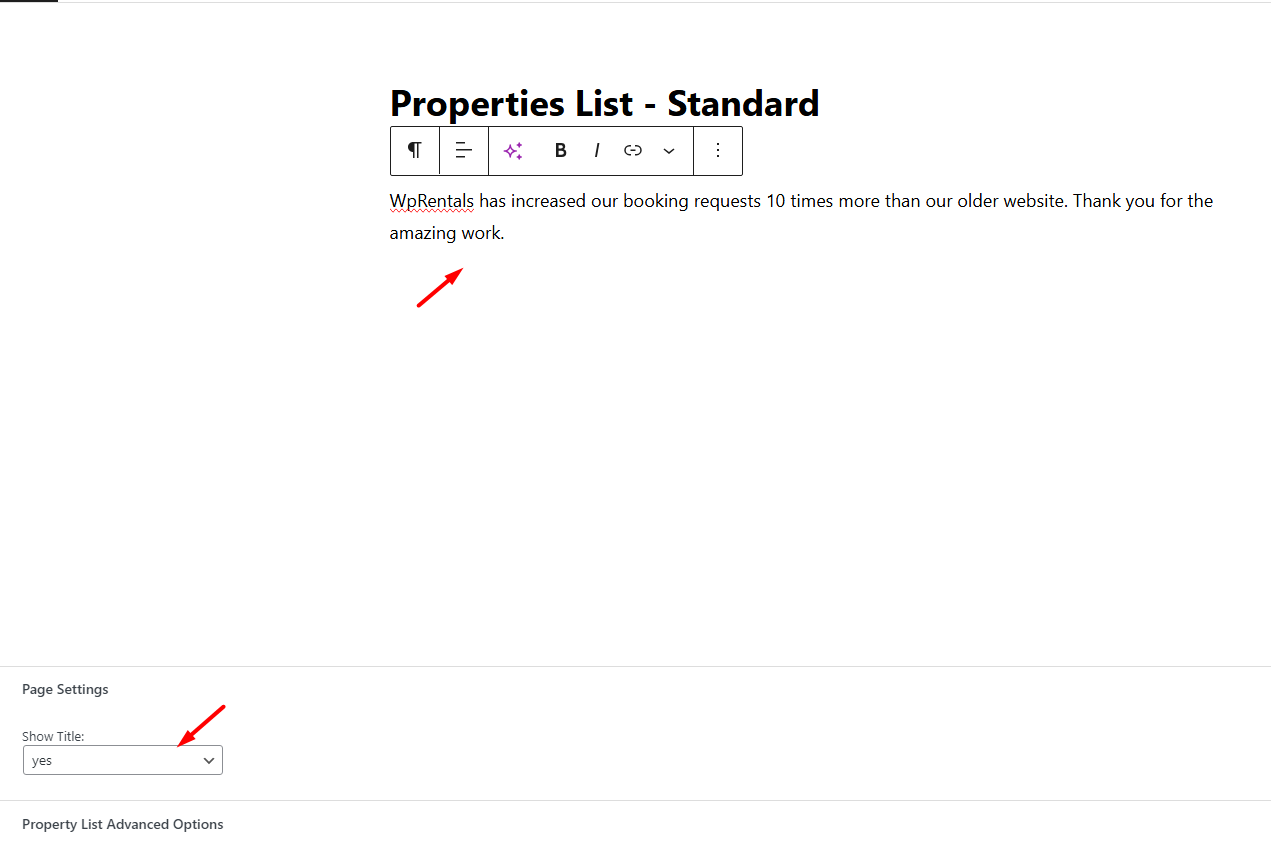
- Add the Page Title.
- Add the page content or description, if needed.
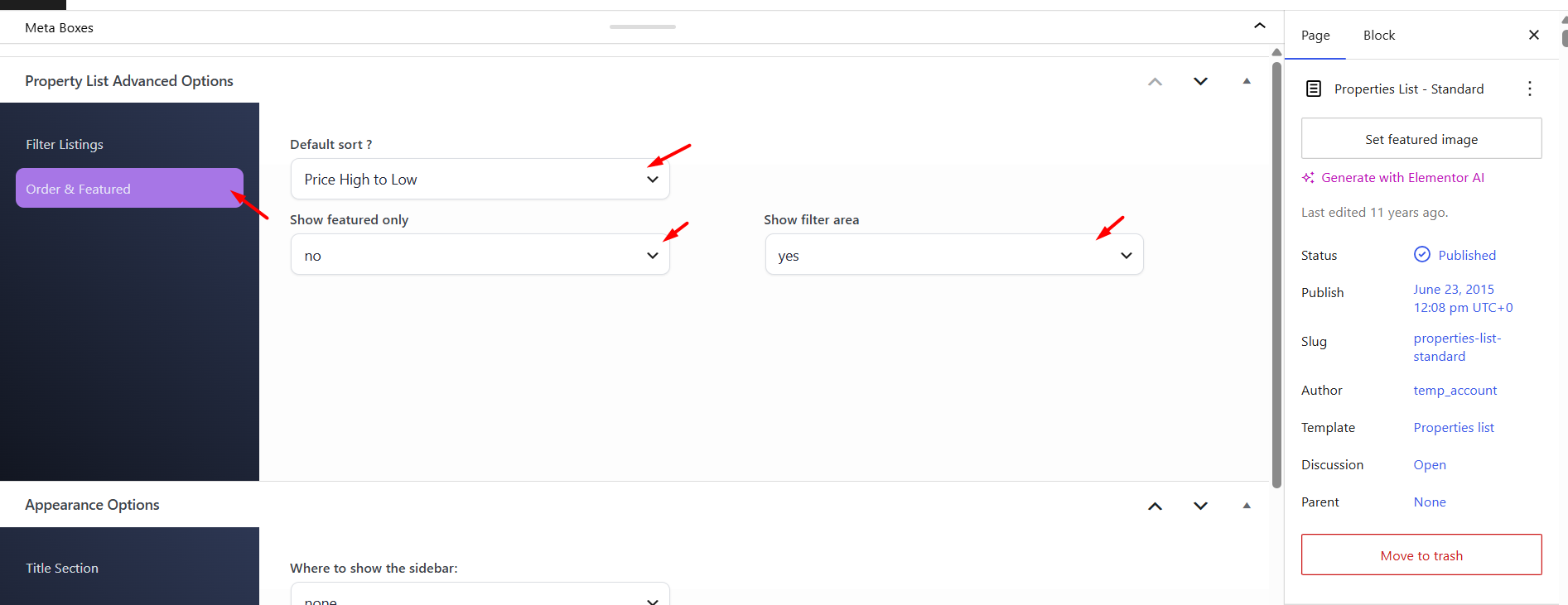
- Scroll down to Properties List Advanced Options.
- Choose which listings should show on this page.
- Choose the order for the listings.
- Publish or update the page.
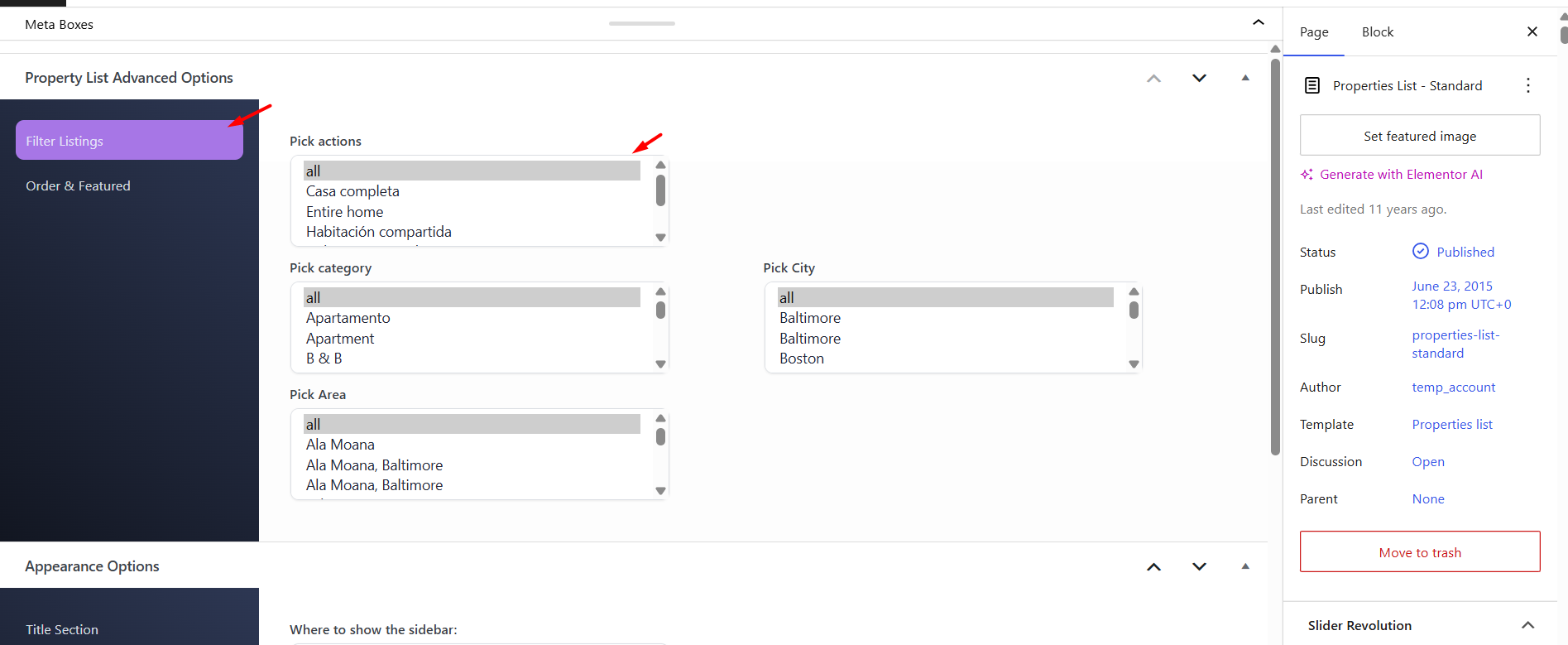
Filter Which Listings Show on the Page
The Properties List Advanced Options section controls which listings are displayed.
You can leave the filters empty if you want to show all listings.
You can select filters if you want the page to show only a specific group of listings.
For example, you can create:
- A page for one city.
- A page for one area.
- A page for one rental type.
- A page for one category.
Use only the filters that match the page you want to create.
Example: if you want a page for listings in one city, select that city in the page options. You do not need to select category, type, and area unless the page must be limited by those options too.
Choose the Listing Order
Use Order Properties By to control the order of the listings on the page.
- Default
Featured properties show first. The remaining listings are sorted by publish date, newest first. - Price High to Low
Listings with higher prices show first. - Price Low to High
Listings with lower prices show first. - Newest First
The newest published listings show first. - Oldest First
The oldest published listings show first. - Newest Edited
The most recently updated listings show first. - Oldest Edited
The listings edited longest ago show first. - Bedrooms High to Low
Listings with more bedrooms show first. - Bedrooms Low to High
Listings with fewer bedrooms show first. - Bathrooms High to Low
Listings with more bathrooms show first. - Bathrooms Low to High
Listings with fewer bathrooms show first.
Hero Media and Sidebar Settings
The page settings also let you manage the header media and sidebar for this page.
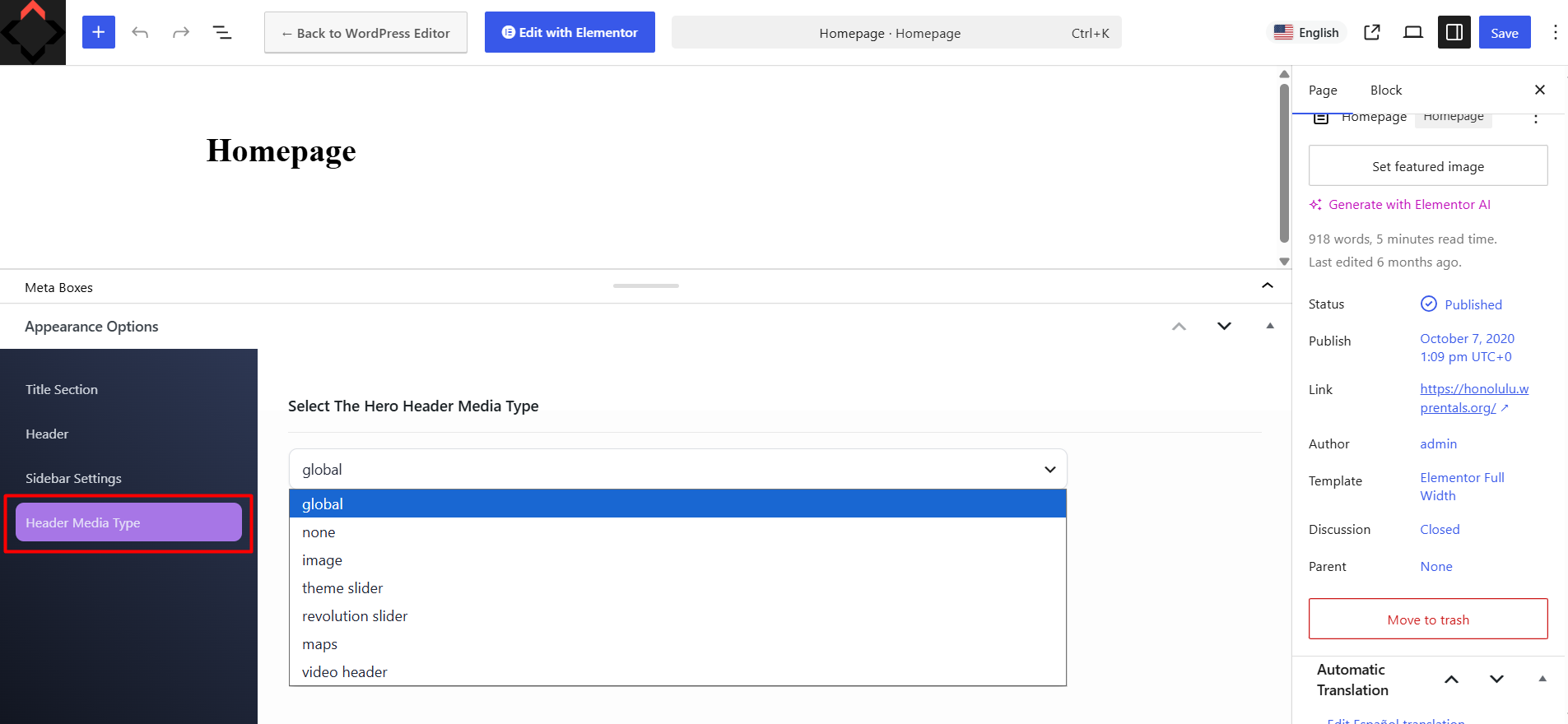
Hero Media Type
Choose what appears in the hero/header area of this page.
Options can include:
- None – no hero media is displayed.
- Theme Slider – shows the theme slider.
- Maps – shows a map with listing markers.
- Revolution Slider – shows a Revolution Slider.
Custom Hero Media
Use these page settings when you want this page to have a different hero media than the global site setting.
Related help:
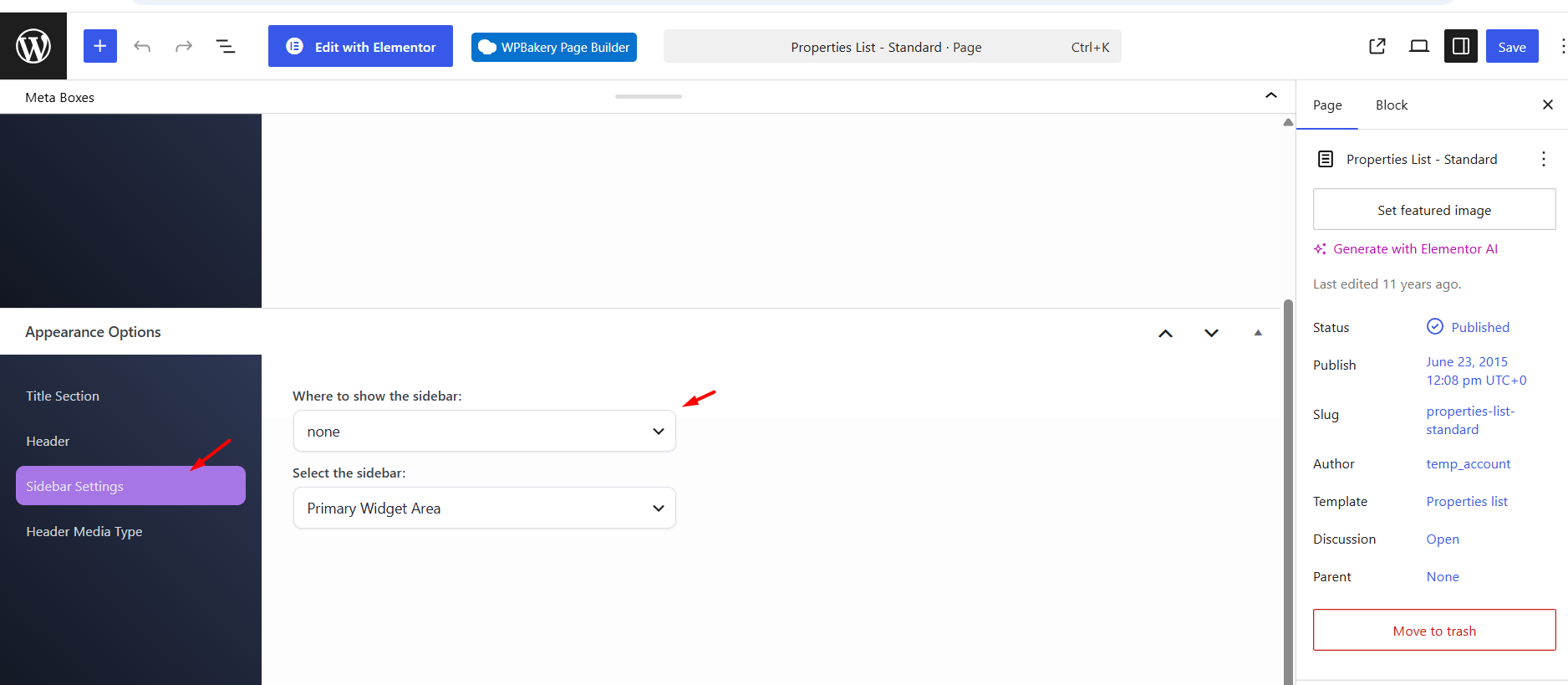
Sidebar Position
Choose the page sidebar layout:
- No Sidebar – full-width layout.
- Right Sidebar – sidebar on the right.
- Left Sidebar – sidebar on the left.
Select Sidebar
Choose which sidebar widget area should show on this page.
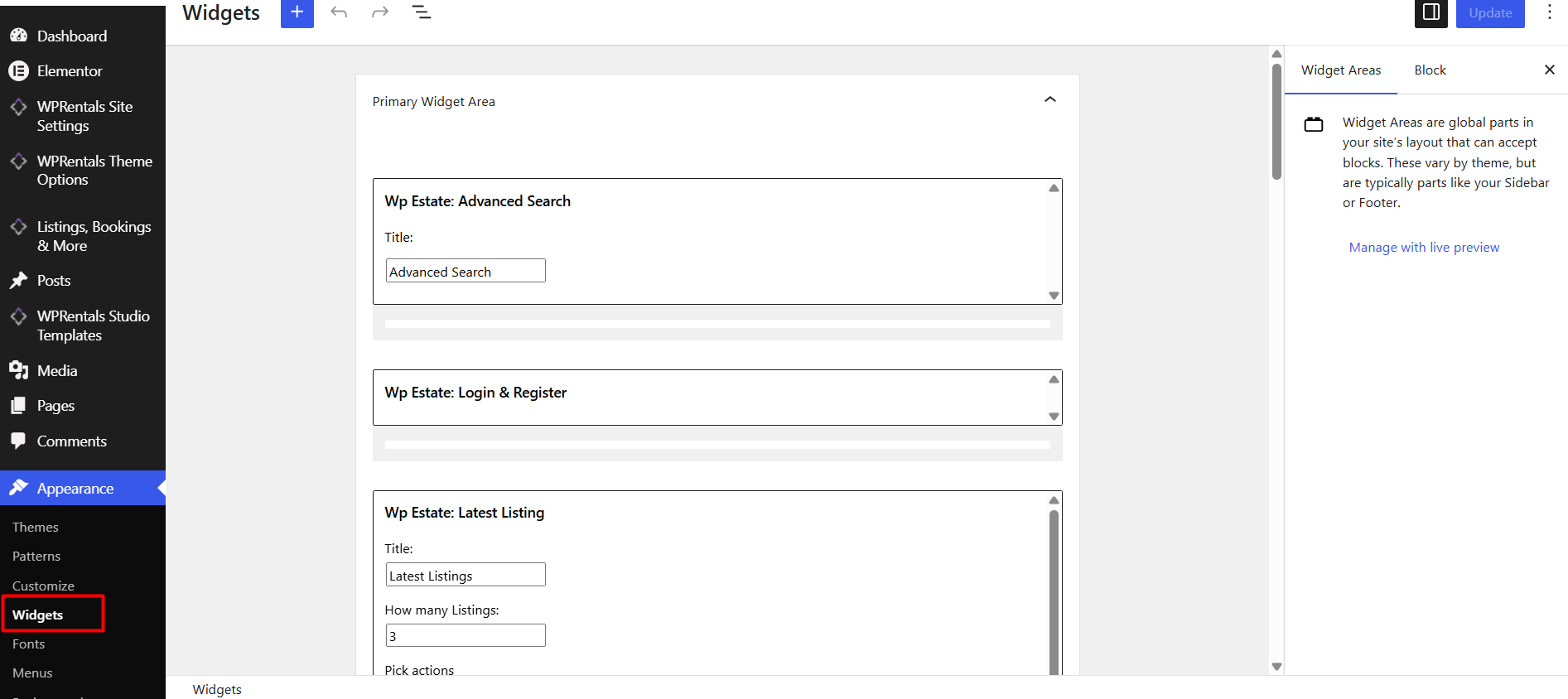
You can manage sidebar widgets from:
Appearance > Widgets
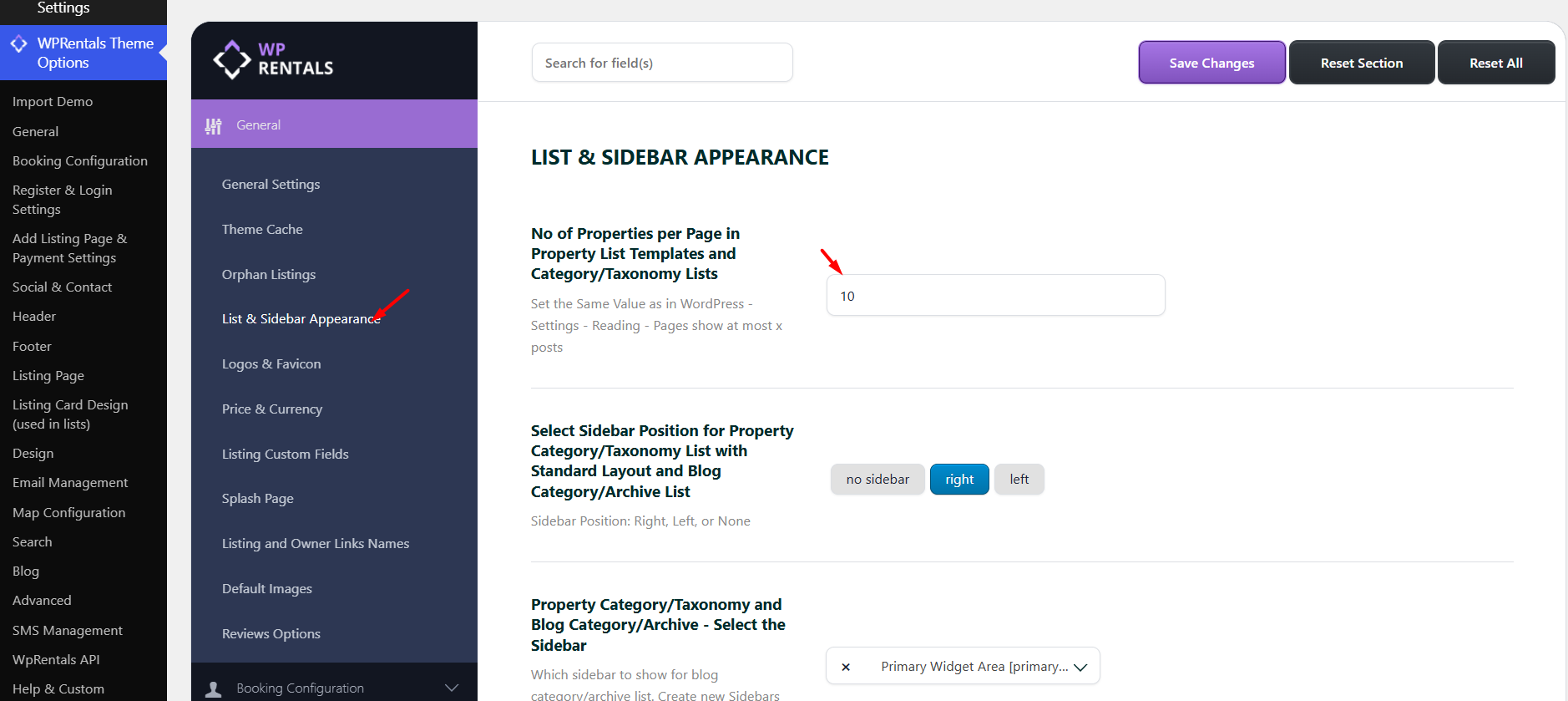
Set the Number of Listings per Page
To control how many listings show on each page, go to:
Theme Options > List & Sidebar Appearance > No of Properties per Page in Property List Templates and Category/Taxonomy Lists
Set the number of listings you want to show per page.
This setting affects:
- Properties List pages
- Properties List Half pages
- Taxonomy/category pages
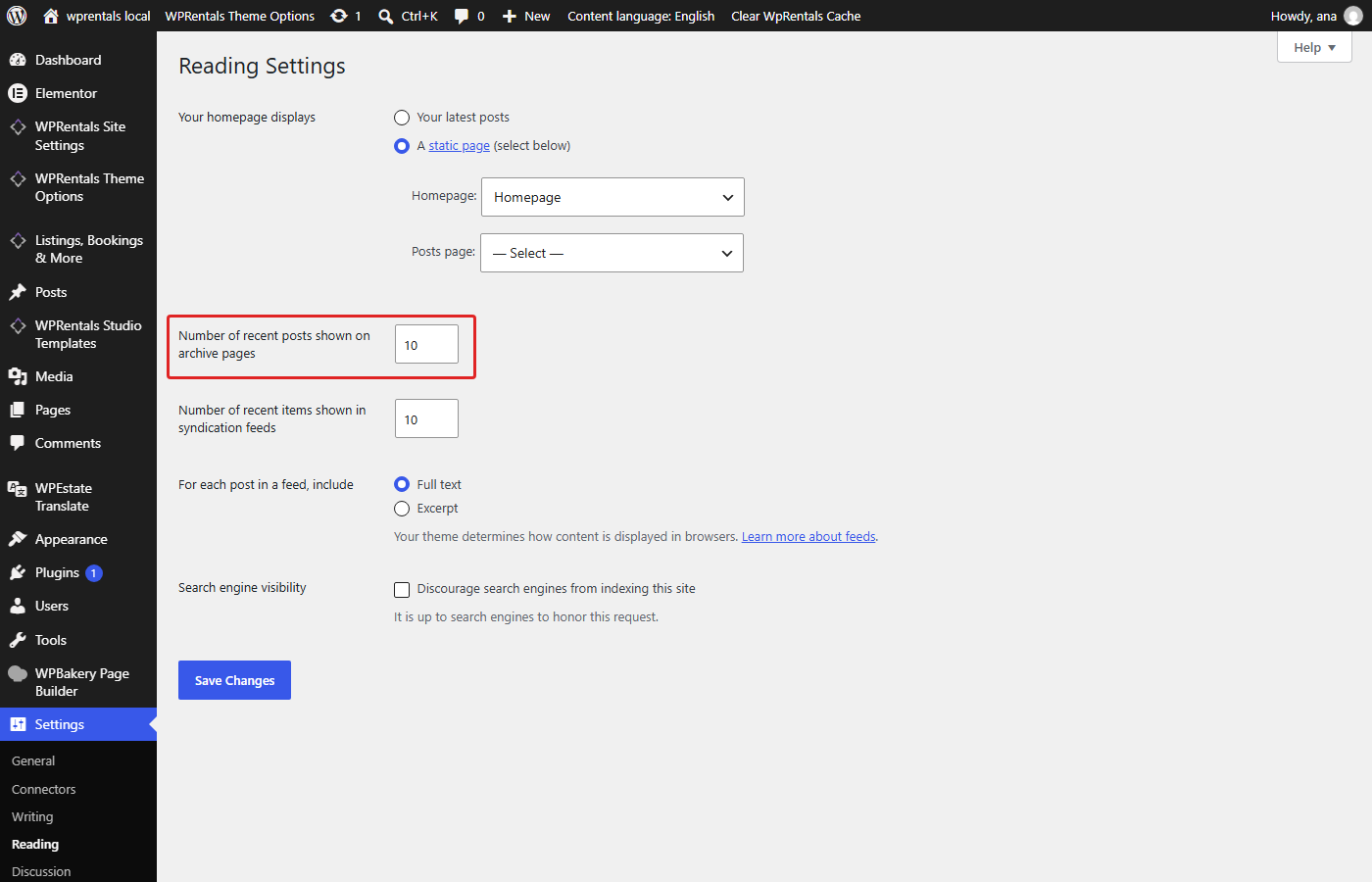
Also set the same value in:
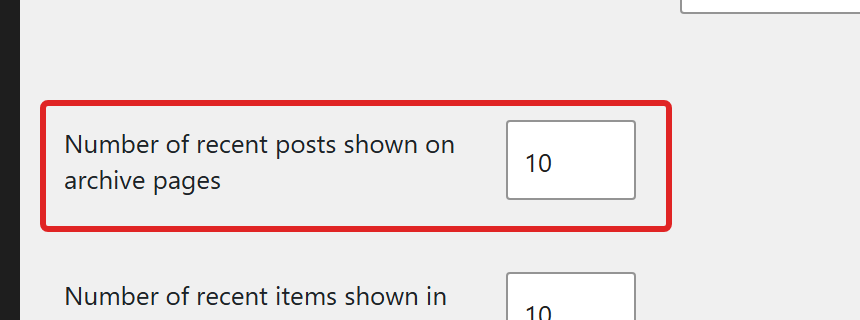
WordPress > Settings > Reading > Number of recent posts shown on archive pages (called Blog pages show at most in older WordPress versions)
Hide Specific Filters with CSS
The Properties List page can show taxonomy filters above the listings.
If you do not want to show one of those filters, you can hide it with CSS.
Add the CSS in:
Theme Options > Design > Custom CSS
Hide All Areas
.col-md-2.area_taxonomy_filter {
    display: none;
}
Hide All Types
.col-md-2.main_taxonomy_filter {
    display: none;
}
Hide All Cities
.col-md-2.city_taxonmy_filter {
    display: none;
}
After adding CSS, clear the website cache and browser cache.
Common Issues to Check
The page shows all listings instead of a specific group
Edit the page and check Properties List Advanced Options. Make sure the category, type, city, or area filter is selected.
The page shows no listings
Check if the selected filters are too strict. For example, if you select a city and an area, only listings that match both will show.
Also check that the listings are published and assigned to the selected taxonomy terms.
The map does not show
Check the Hero Media Type for the page. If you selected Maps, make sure the map settings are configured and the listings have latitude and longitude.
The number of listings per page is not correct
Check both settings:
- Theme Options > List & Sidebar Appearance > No of Properties per Page in Property List Templates and Category/Taxonomy Lists
- WordPress > Settings > Reading > Number of recent posts shown on archive pages (called Blog pages show at most in older WordPress versions)
Set the same value in both places.
The sidebar does not show
Edit the page and check the sidebar settings. Make sure the page is not set to No Sidebar. Also check that the selected sidebar has widgets added in Appearance > Widgets.
Related Help
Theme Options – Map Configuration Settings
How to Find Latitude and Longitude / How to Set Google Maps Coordinates