
Overview
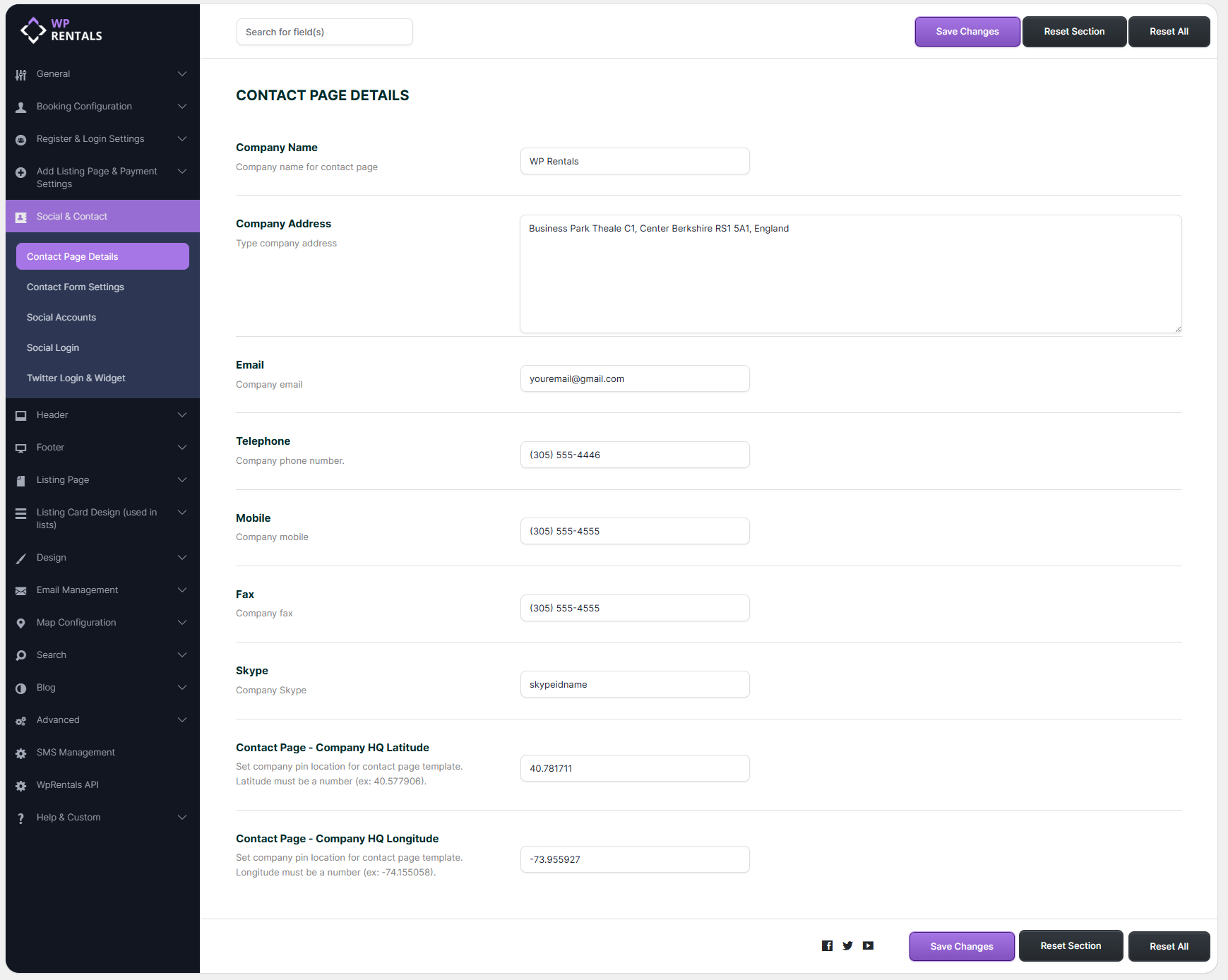
The Contact Page Details section in WPRentals is used to manage the main company contact information displayed on the theme Contact page template.
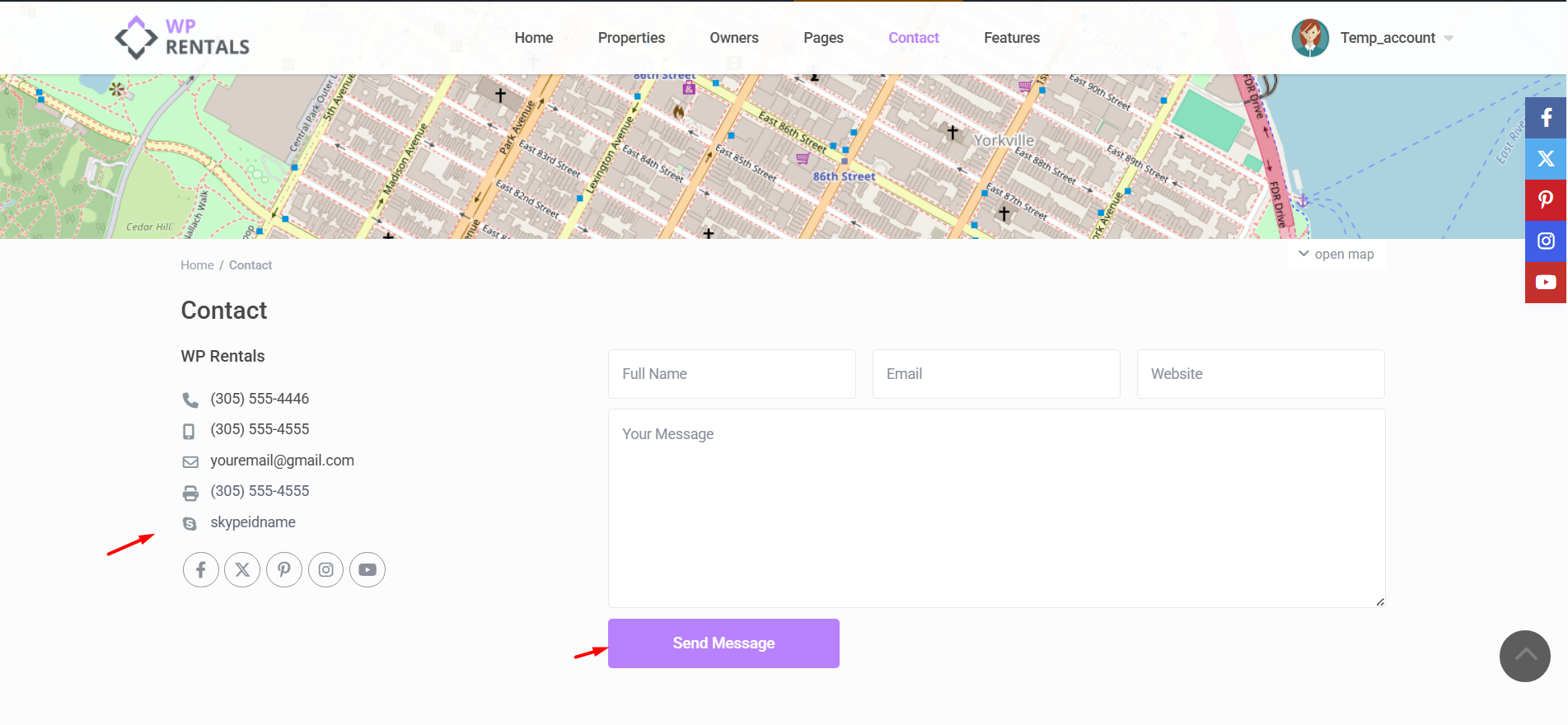
From this section, you can add your company name, address, email address, phone numbers, Skype ID, and the map coordinates used for the contact page location pin.
Where to Find Contact Page Details
Go to:
Theme Options > Social & Contact > Contact Page Details
Use this section to add the contact information that should appear on the website Contact page.
What This Section Controls
The Contact Page Details section controls the company contact information used by the WPRentals Contact page template.
Depending on your page setup and theme options, these details can appear on the Contact page and in other theme areas that use company contact information.
This section can control:
- Company name
- Company address
- Contact email address
- Telephone number
- Mobile number
- Fax number
- Skype ID
- Contact page map location
Contact Page Details Fields Explained
Company Name
Add the company or business name as it should appear on the Contact page.
Company Address
Add the physical address of your company or business.
This address can be displayed on the Contact page as text. The map pin position is controlled by the latitude and longitude fields, not only by the address text.
Add the email address that should receive messages sent from the website Contact page.
Use a valid email address that can receive emails.
Telephone
Add the main company phone number.
This phone number can be displayed on the Contact page so visitors can call the business directly.
Mobile
Add a mobile contact number if you want to show one on the Contact page.
Fax
Add the company fax number if your business still uses fax communication.
This field is optional.
Skype
Add the company Skype ID if you want visitors to contact you through Skype.
Contact Page – Company HQ Latitude and Company HQ Longitude
Add the latitude and longitude coordinates for the company location used on the Contact page map.
Use decimal coordinate values.
Example:
- Latitude: 40.712776
- Longitude: -74.005974
Email Field and Contact Page Messages
The Email field in Contact Page Details is the email address used for messages sent from the Contact page form.
Before testing the Contact page form, check:
- The email address is typed correctly.
- The email address exists and can receive emails.
- The email inbox is not full.
- The message is not in the spam or junk folder.
- The website email delivery setup is working correctly.
Use the Contact Page Template
The Contact Page Details fields are used especially with the WPRentals Contact Page template.
To use the Contact Page template:
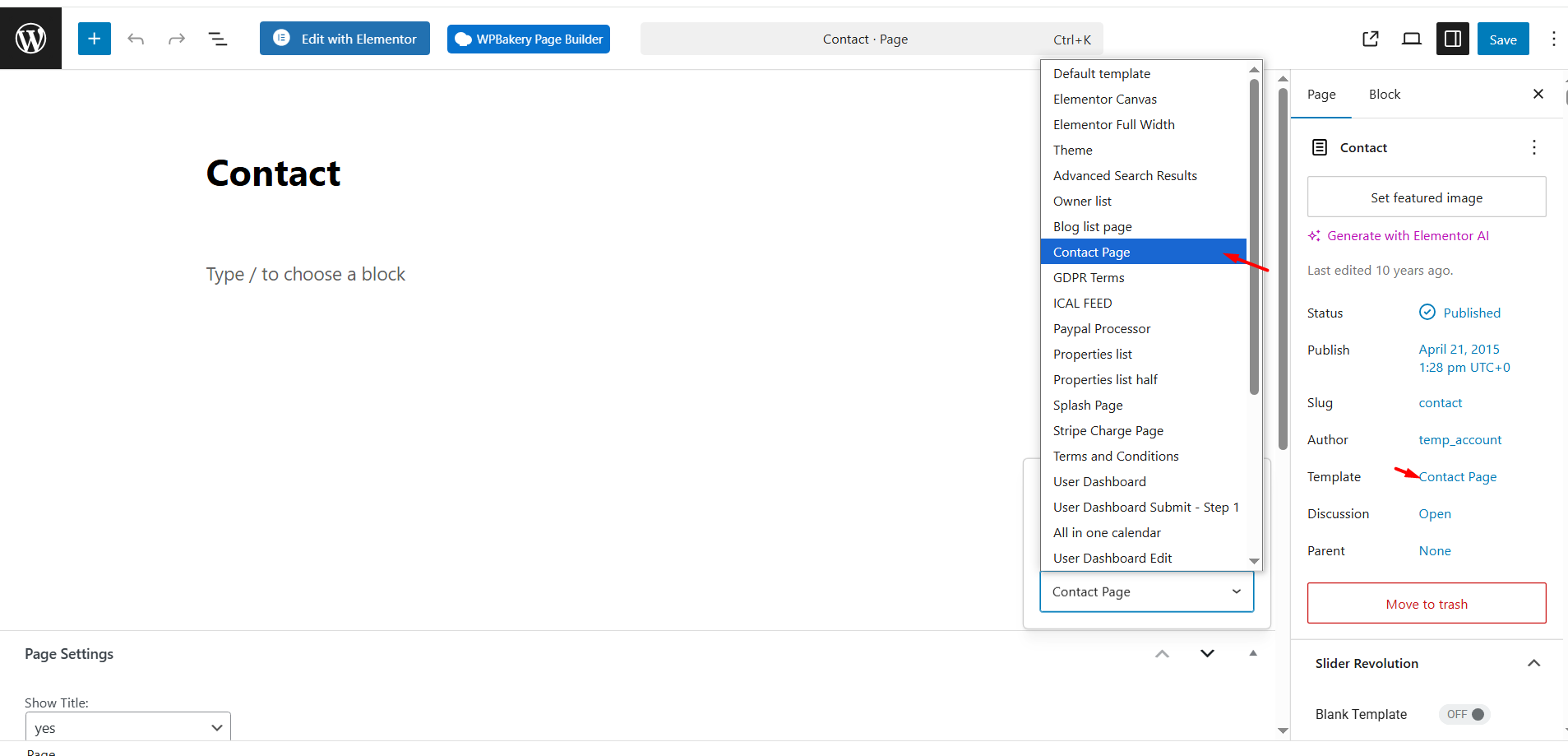
- Go to Pages > Add New or edit your existing Contact page.
- Add the page title and page content if needed.
- Assign the Contact Page template from the page template settings.
- Publish or update the page.
Show the Map on the Contact Page
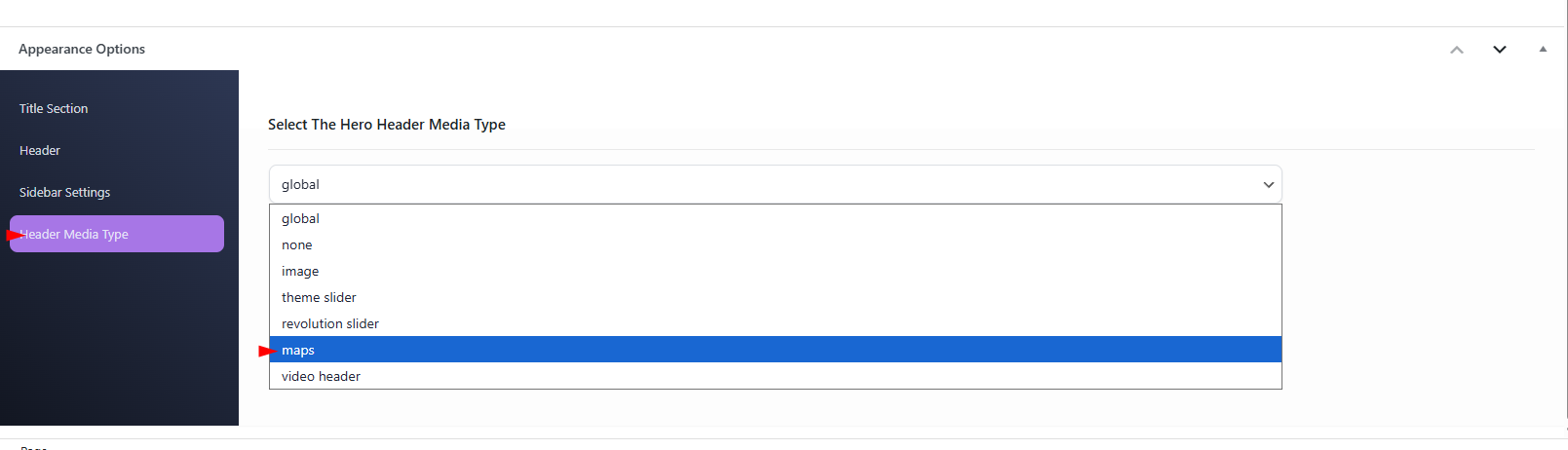
The Contact page can display a map in the header area, depending on the page header settings.
To show the map on the Contact page, edit the Contact page and choose the map header type from the page header settings, as shown in the screenshot below.
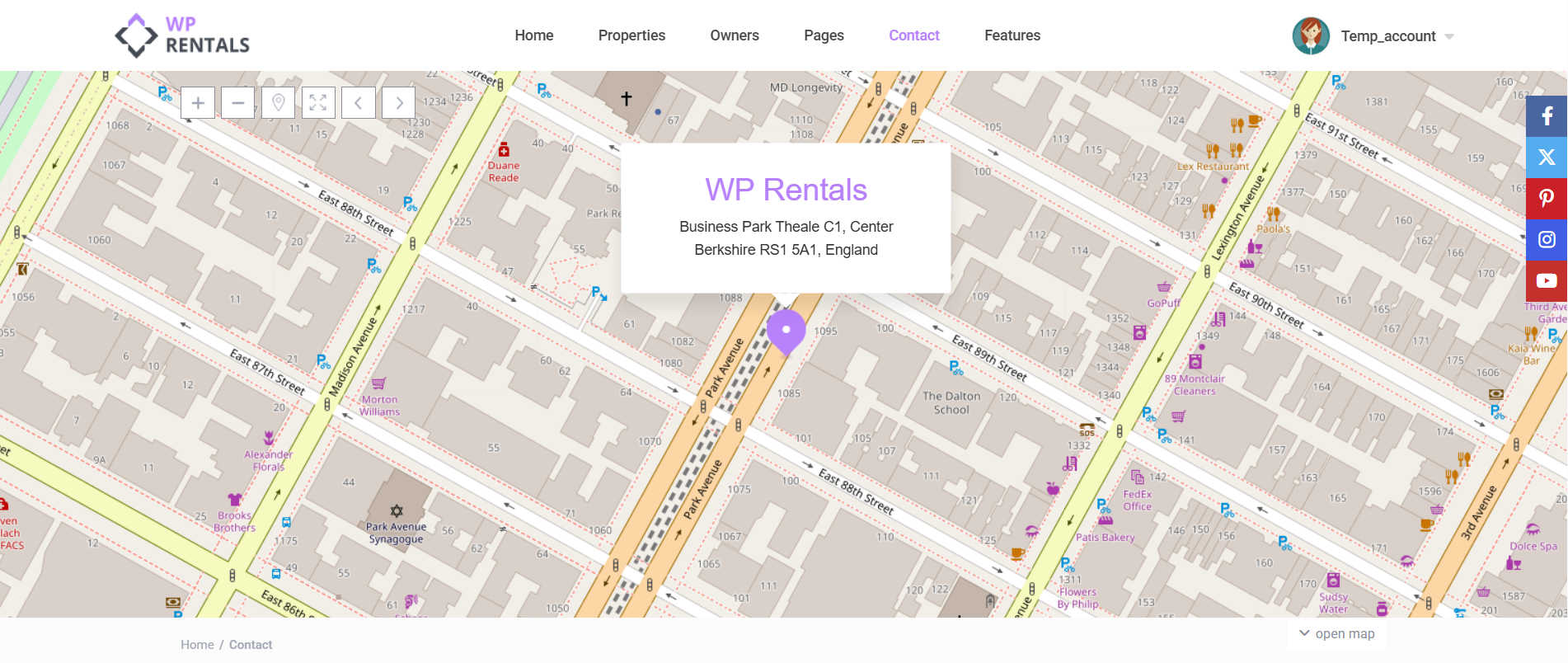
The map zoom uses the global map zoom by default, but it can also be adjusted for the Contact page from the page settings shown in the screenshot.
Latitude and Longitude Fields
The Contact page map pin is controlled by the Company HQ Latitude and Company HQ Longitude fields.
If the map pin does not show in the correct place, check these fields first.
Make sure:
- The latitude value is correct.
- The longitude value is correct.
- The values are added as decimal numbers.
- The latitude and longitude are not reversed.
- The map provider is configured correctly in the theme map settings.
Save and Test the Contact Page
After adding or editing the Contact Page Details:
- Save the theme options.
- Open the Contact page on the front end.
- Check that the company name, address, email, phone, mobile, fax, or Skype details display correctly.
- Check that the map appears if the page is configured to show a map.
- Check that the map pin is in the correct location.
- Send a test message from the Contact page form.
- Check that the message is received at the email address added in Contact Page Details.
Troubleshooting
The Contact page details do not show
- Check that the fields are completed in Theme Options > Social & Contact > Contact Page Details.
- Check that the page uses the WPRentals Contact Page template.
- Clear cache and test the page again.
- If the page is built with Elementor, WPBakery, or another custom layout, check if that layout uses the theme Contact Page Details fields.
The Contact page email is not received
- Check that the email address added in Contact Page Details is correct.
- Check the spam or junk folder.
- Check if WordPress emails are working on the website.
- Check the sender email from Theme Options > Email Management > Email Settings.
- Check SMTP or hosting mail settings if emails are not delivered.
The map does not show
- Check that the Contact page is configured to show the map header type.
- Check the theme map settings.
- If you use Google Maps, check that the Google Maps API key is added and configured correctly.
- Check if the required Google Maps APIs are enabled.
- Clear cache and test again.
The map pin is in the wrong location
- Check the Company HQ Latitude field.
- Check the Company HQ Longitude field.
- Make sure the values are not reversed.
- Use decimal coordinate values.
- Save the theme options and refresh the Contact page.
Important Notes
- The Contact Page Details section is managed from Theme Options > Social & Contact > Contact Page Details.
- These fields are used especially by the WPRentals Contact Page template.
- The Email field receives messages sent from the Contact page form.
- The Contact Page Details email is different from the owner profile email used by the Contact Owner form.
- The map pin location is controlled by Company HQ Latitude and Company HQ Longitude.
- The company address is contact text and does not replace the latitude and longitude values.
- If the map does not show, check the page header settings and the global map settings.
- If you use Google Maps, the Google Maps API key and required APIs must be configured correctly.
- If contact emails are not received, check the email address, spam folder, website email settings, SMTP setup, and hosting mail configuration.