
Overview
This article explains what to check when emails are not received from a WPRentals website.
WPRentals can trigger email notifications for actions such as booking requests, Contact Owner messages, registration emails, password reset emails, booking confirmations, invoices, and other theme notifications.
However, the theme does not provide the mail server. Emails are sent through the WordPress mail function usually available on the hosting account as included service with your hosting package, or through an SMTP service configured on the website by yourself or by your hosting.
How Email Sending Works
When an action happens on the website, WPRentals prepares the email notification and sends it through the WordPress email function.
After the email is passed to WordPress, final delivery depends on the hosting mail server or SMTP service used by the website.
The usual flow is:
- A website action happens, such as a booking request, Contact Owner message, registration, or password reset.
- WPRentals prepares the matching email notification.
- WordPress sends the email using the hosting mail function or SMTP plugin.
- The hosting mail server or SMTP provider sends the message to the recipient.
- The recipient email provider decides if the message is delivered to the inbox, spam, junk, or rejected.
First Check: Identify Which Email You Are Testing
Before changing settings, identify which email is not received. Different emails use different recipient addresses.
| Email Type | Where to Check | What to Verify |
|---|---|---|
| Admin notifications | WordPress Dashboard > Settings > General | Check that the WordPress admin email address is correct. |
| Theme sender email | Theme Options > Email Management > Email Settings | Check that the sender email is valid and accepted by the hosting provider or SMTP service. |
| Email notification text | Theme Options > Email Management > Email Content | Check that the email has both a subject and content. |
| Contact Owner messages | User Dashboard > My Profile | Check that the owner assigned to the listing has the correct profile email address. |
| Contact page messages | Theme Options > Social & Contact > Contact Page Details | Check that the contact page email address is correct. |
| Duplicate admin copies | Theme Options > Email Management > Duplicate Email | Check that the duplicate email address is correct, if used. |
Check the Recipient Email Address
The email recipient depends on the type of notification you are testing.
Admin Notifications
For admin notifications, check the WordPress admin email from:
WordPress Dashboard > Settings > General
Make sure the administration email address is correct and can receive emails.
Contact Owner Messages
Contact Owner messages are sent to the owner connected to the listing.
Check the owner profile email from:
User Dashboard > My Profile
Also check that the listing is assigned to the correct owner.
For Contact Owner messages, confirm:
- The listing is assigned to the correct owner.
- The owner profile email address is correct.
- The owner email inbox can receive messages.
- The message is not in spam or junk.
My Profile Page – User Dashboard
Contact Page Messages
If you are testing the Contact page form, check the email address from:
Theme Options > Social & Contact > Contact Page Details
Make sure the email field is completed with the correct address.
Theme Options – Contact Page Details
Duplicate Email Copies
If the admin wants to receive copies of theme notifications, check:
Theme Options > Email Management > Duplicate Email
Make sure the duplicate email address is typed correctly.
Duplicate Email for Administrator
Check the Email Subject and Content
Go to:
Theme Options > Email Management > Email Content
Find the email notification you are testing and make sure both fields are completed:
- Subject – controls the email subject line.
- Content – controls the email message body.
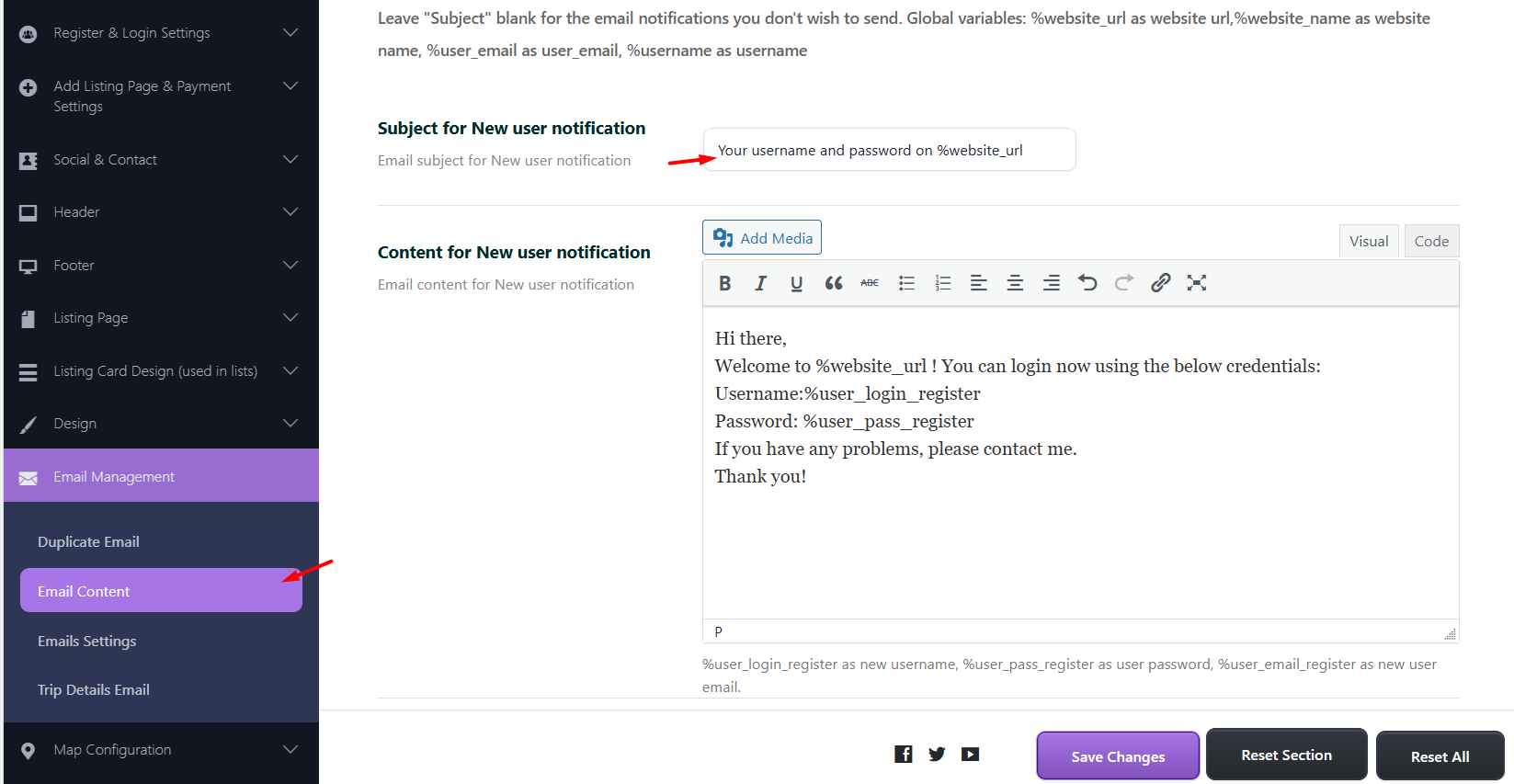
After checking the subject and content, test the exact action that should trigger the email.
Check the Sender Email Address
Go to:
Theme Options > Email Management > Email Settings
Check the sender email field used by the theme.
The sender email should be a real email address that exists on your domain or is accepted by your SMTP provider.
Recommended examples:
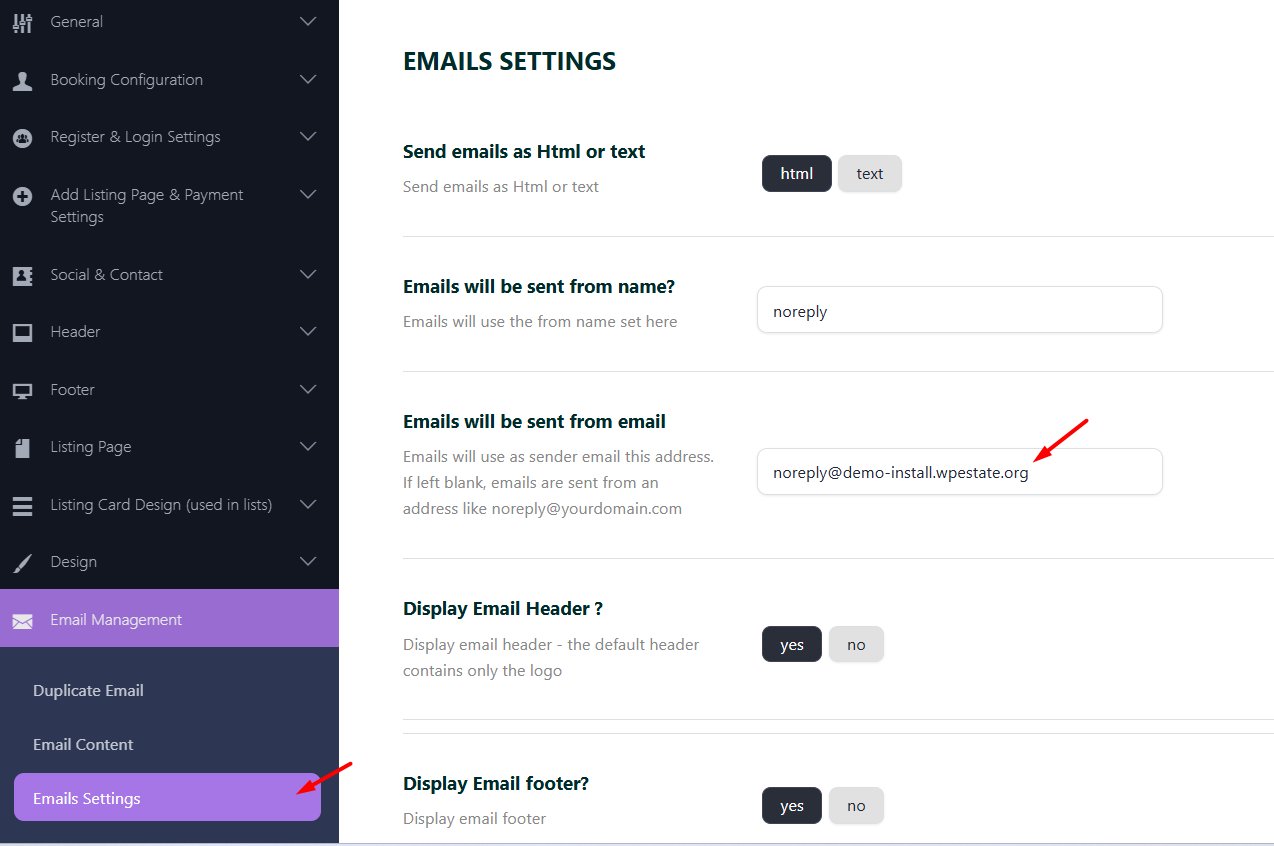
If your hosting provider or SMTP provider requires a specific sender email address, use that same email address in WPRentals Email Settings.
Email Design and Sender Controls
Test the Exact Website Action
After checking the recipient email, sender email, subject, and content, test the exact action connected to that notification.
- To test a booking email, send a test booking request.
- To test an invoice email, issue a test invoice from the owner dashboard.
- To test a booking confirmation email, complete the booking confirmation flow.
- To test the Contact Owner email, send a message from a listing page.
- To test the Contact page email, submit the Contact page form.
- To test a password reset email, use the WordPress password reset option.
Test the WordPress Password Reset Email
A simple way to check if the hosting mail function works is to test the default WordPress password reset email.
- Go to your website login page.
- Use the password reset option.
- Check if the password reset email is received.

If the WordPress password reset email is not received, this usually means the website mail function is not working correctly on the hosting account.
In this case, the hosting provider must confirm if the mail function is active for the hosting account, or SMTP must be configured.

Check Hosting Mail or SMTP
Some hosting accounts include a working mail server. Other hosting providers, especially some cloud hosting providers, do not provide mail sending by default.
If your hosting does not provide mail sending, you must configure SMTP or use a third-party email delivery service.
Common options include:
- SMTP from your hosting provider.
- SMTP from your business email provider.
- A transactional email service such as SendGrid or another SMTP provider.
- A WordPress SMTP plugin configured with a valid sender email account.
If you use SMTP, the sender email configured in the SMTP plugin should match the sender email configured in:
Theme Options > Email Management > Email Settings
Check Spam, Junk, and Email Authentication
If emails are sent but arrive in spam or junk, the issue is usually related to email authentication or sender reputation.
Ask the hosting provider, mail provider, or domain administrator to check:
- SPF records.
- DKIM records.
- DMARC records.
- Sender email authorization.
- Server IP reputation.
- Reverse DNS or PTR record.
- Mail server logs.
Use Email Logs to Confirm What Happens
If you need to check whether the website is trying to send the email, you can use an SMTP or email log plugin.
One option is the Post SMTP plugin:
After installing an email log plugin:
- Trigger the email action you want to test.
- Check if the email appears in the log.
- Check if the log shows success or an error.
- If there is an error, share it with the hosting provider or SMTP provider.
If the log shows that the email was sent, but the email is not received, check spam, recipient mailbox rules, SMTP logs, and mail server authentication.
Important Notes
- WPRentals can trigger email notifications, but the theme does not provide the mail server.
- Email sending depends on WordPress, hosting mail function, or SMTP setup.
- Admin notifications require the correct admin email address.
- Contact Owner messages require the listing to be assigned to the correct owner and the owner profile email to be valid.
- Contact page messages require the correct email in Theme Options > Social & Contact > Contact Page Details.
- If an email subject is blank in Email Content, that notification will not be sent.
- The sender email must be valid and accepted by the hosting provider or SMTP service.
- If the WordPress password reset email does not send, the issue is not theme related.
- If emails go to spam, check SPF, DKIM, DMARC, sender reputation, and mail server configuration.
- If hosting does not support mail sending, use SMTP or a third-party email delivery service.
Related Help
Email Design and Sender Controls
My Profile Page – User Dashboard
Theme Options – Contact Page Details