
Overview
In WPRentals, the Duplicate Email option allows the administrator to receive a copy of each email notification sent by the theme.
This option is useful when the site admin, site manager, or support team needs to monitor booking requests, contact messages, payment notifications, user messages, and other important theme emails.
You can find this option in:
Theme Options > Email Management > Duplicate Email
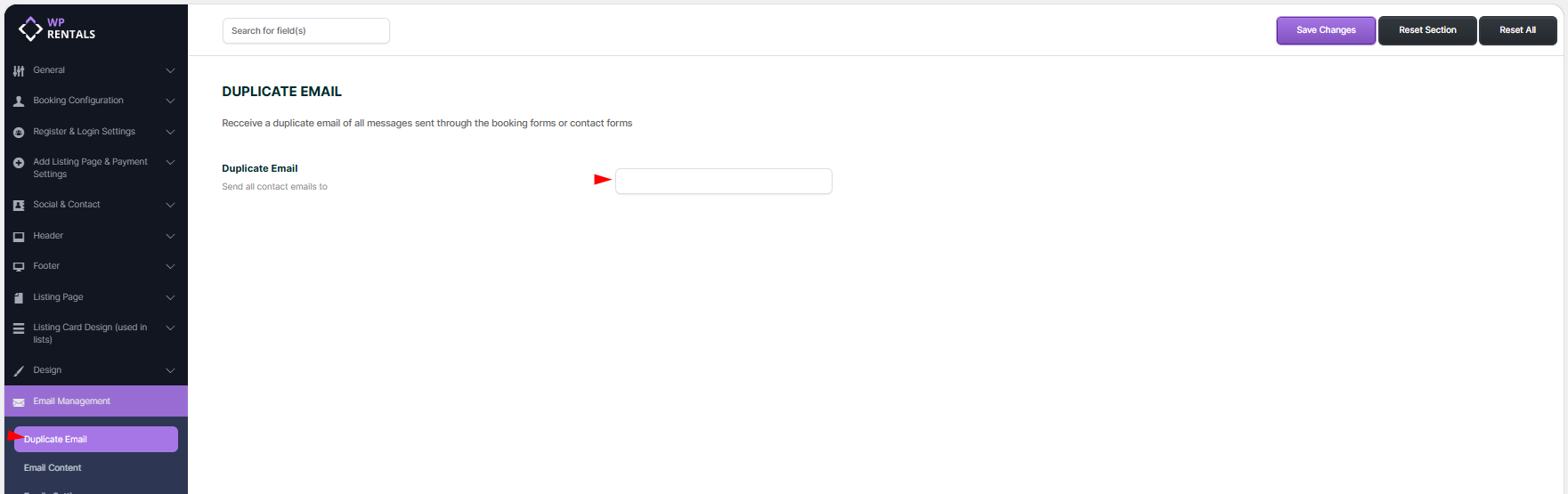
What the Duplicate Email Option Does
Any email address added in the Duplicate Email field will receive a copy of the email notifications sent by the theme.
This helps the administrator keep a backup copy of important website communication.
For example, if a guest sends a booking request or a visitor sends a message through the contact owner form, the normal recipient still receives the email, and the duplicate email address can receive a copy.
Where to Find the Option
Go to:
Theme Options > Email Management > Duplicate Email
In this field, add the email address where you want to receive duplicate copies of theme email notifications.
How to Enable Duplicate Email Notifications
- Go to Theme Options > Email Management > Duplicate Email.
- Add the email address that should receive duplicate copies.
- Save the theme options.
- Send a test notification from the website, such as a contact owner message or booking request.
- Check the original recipient inbox and the duplicate email inbox.
What Emails Can Be Copied
The Duplicate Email option can send a copy of theme email notifications such as:
- New booking requests.
- Booking confirmations.
- Booking rejected or cancelled notifications.
- Contact form submissions.
- Messages between users.
- Payment confirmations.
- Invoice notifications.
- Admin notifications.
When This Option Is Useful
Use the Duplicate Email option when:
- The website administrator wants to monitor all important communication.
- A site manager needs backup copies of booking or contact notifications.
- You want to make sure no important booking request or message is missed.
- You manage a single-owner website and want the admin email to receive copies.
- You want an internal team email address to receive copies for follow-up.
Important Limitations
The Duplicate Email option only adds a copy recipient for theme email notifications.
It does not:
- Change the original recipient of the email.
- Replace the property owner email address.
- Replace the guest email address.
- Fix email delivery problems caused by server mail settings.
- Control emails sent by third-party plugins.
- Guarantee that emails will arrive in the inbox instead of spam or junk.
Email Delivery Notes
The theme can trigger the email notification and the duplicate copy, but final email delivery depends on the website email setup.
If duplicate emails are not received, check:
- The duplicate email address is typed correctly.
- The sender email is configured in Theme Options > Email Management > Email Settings.
- The website uses a valid sender email address.
- SMTP is configured correctly, if an SMTP plugin is used.
- The email is not in spam or junk.
- The hosting mail server is sending emails correctly.
- SPF, DKIM, and DMARC records are configured for the sending domain.
Troubleshooting
The duplicate email is not received
- Check that an email address is added in Theme Options > Email Management > Duplicate Email.
- Check that the email address is spelled correctly.
- Save Theme Options again.
- Send a test contact owner message or booking request.
- Check spam and junk folders.
- Check if the original notification was sent to the main recipient.
- Check SMTP or server mail logs if no emails are received.
The original recipient receives the email, but the duplicate address does not
- Check if the duplicate email address is valid.
- Check if the receiving mailbox is blocking the message.
- Test with another email address.
- Check spam and junk folders for the duplicate mailbox.
- Check whether the mail server allows sending copies to that address.
No email notification is sent at all
- Check that the related email notification is enabled in Theme Options > Email Management.
- Check that the website sends normal WordPress emails.
- Check the sender email from Theme Options > Email Management > Email Settings.
- Check SMTP settings if an SMTP plugin is used.
- Ask the hosting provider to check mail logs if emails are not leaving the server.
The email goes to spam or junk
- Use a sender email address that belongs to the website domain.
- Use authenticated SMTP when possible.
- Check SPF, DKIM, and DMARC records.
- Check server IP reputation.
- Check whether the email content or subject is being flagged by the receiving mail provider.
Important Notes
- The Duplicate Email option is managed from Theme Options > Email Management > Duplicate Email.
- The email address added there receives copies of theme email notifications.
- The original email recipient still receives the original notification.
- This option is useful for admins, site managers, backup monitoring, and support workflows.
- The option applies to emails sent by the WPRentals theme notification system.
- It does not control emails sent by third-party plugins or WordPress core emails outside the theme notification flow.
- It does not fix email delivery or spam issues.
- If emails are not received, check SMTP, hosting mail logs, sender email, and spam folders.