
What the Advanced Search Results Page Does
The Advanced Search Results page receives the search parameters selected by the visitor and displays the matching listings.
For example, when a visitor searches by location, check-in date, check-out date, guest number, category, price, or another search field, and clicks the Search button, the results are displayed on this page.
The page can be displayed in two layouts:
- Standard layout
- Half Map layout
Required Checks
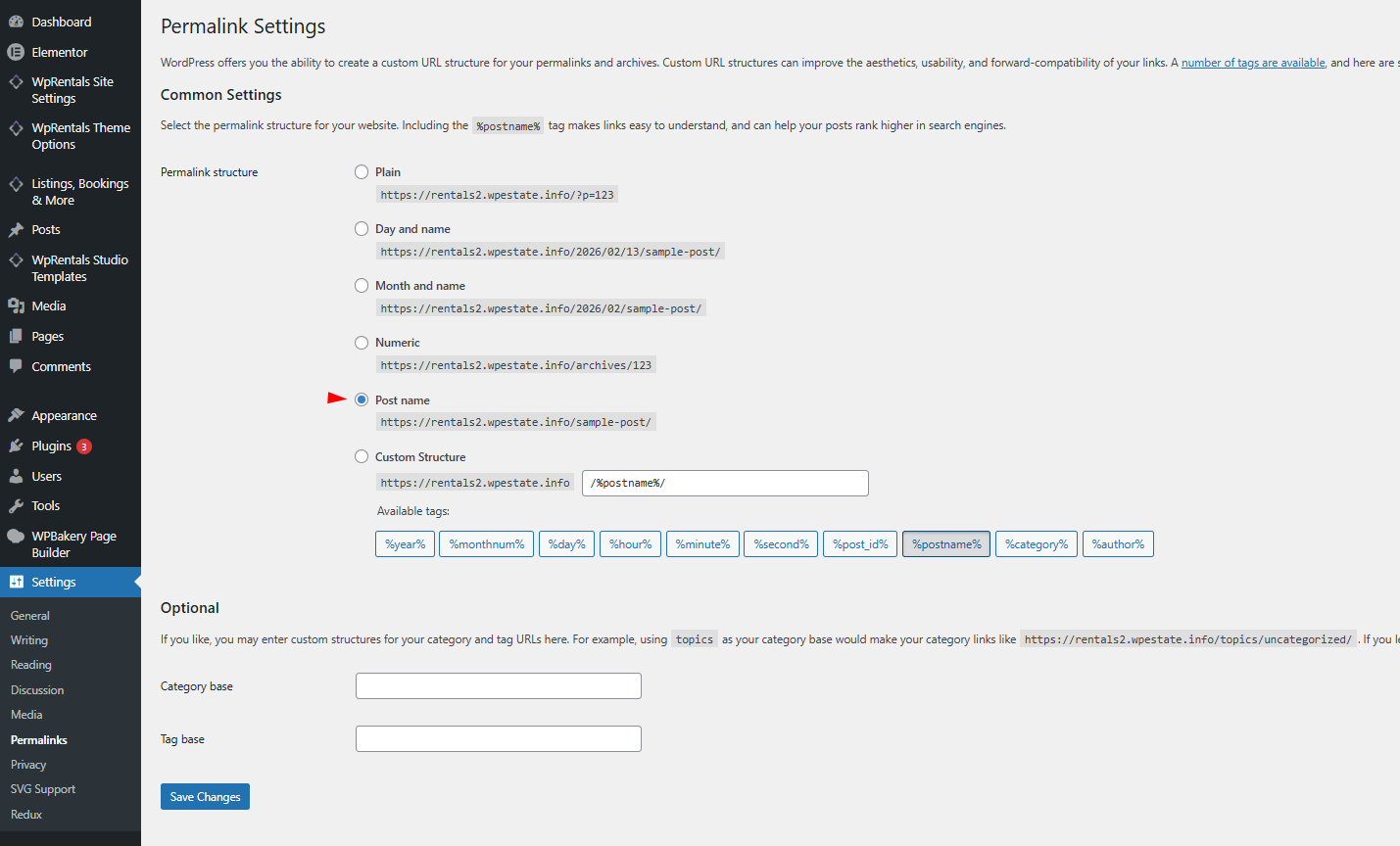
1. Check WordPress Permalinks
For the search redirect to work correctly, go to:
Wp-admin > Settings > Permalinks
Set the Common Settings to:
Post Name
Then click Save Changes.
2. Check That the Advanced Search Results Page Exists
The Advanced Search Results page must exist in:
Wp-admin > Pages
This page is usually imported with the demo content.

Important checks:
- The page must be Published.
- The page should not be set as the homepage.
- The page should not be added as a regular menu item.
- The page should not be edited with Elementor or WPBakery.
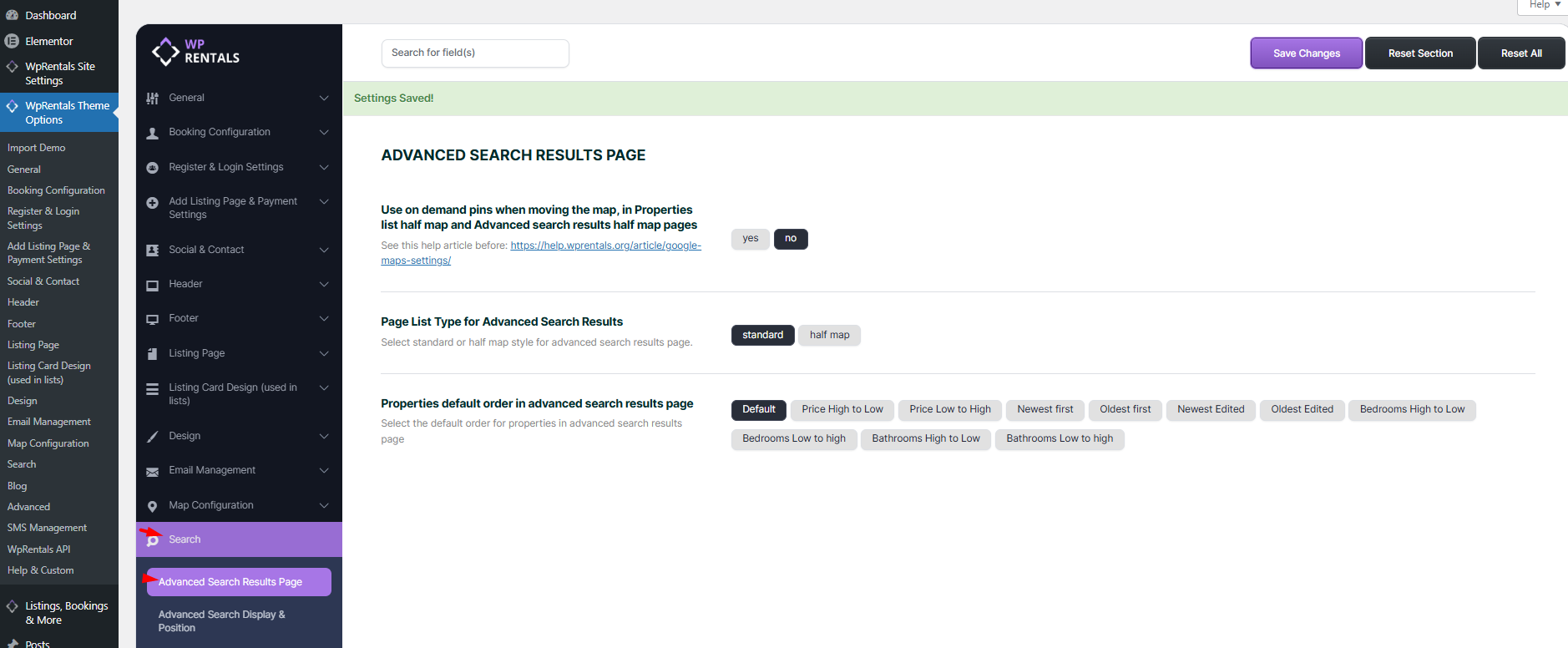
Manage the Advanced Search Results Page Options
Go to:
WPRentals Options > Search > Advanced Search Results Page
From this section, you can manage:
- The search results layout
- The map layout
- The default order of properties
- How results are displayed after a search
Standard Layout
The Standard layout displays the search results in a regular page layout.
It can show:
- Header menu
- Header media, depending on page settings
- Properties from the search results
- Sidebar, depending on the selected sidebar settings
- Footer
In the Standard layout, the list shows properties that match the search criteria, based on pagination.
The map, if used in the header media, shows pins for the current search results page.

Why Search Options Do Not Show in Standard Layout
This is how WPRentals works by design.
The Half Map layout always shows the map area and the Half Map search/filter bar.
The Standard layout does not automatically display the same Half Map search fields above the results.
This means:
- The search/filter bar shown in Half Map is part of the Half Map layout.
- The Standard layout does not use the Half Map filter bar.
- The Half Map Search Form settings do not control the Standard layout.
- The Standard layout uses the normal Advanced Search form setup, header search, shortcode/widget search, or sidebar widget search.
How to Show the Search Form in Standard Layout
If you want search options to appear when using the Standard results layout, use one of the options below.
Option 1: Use the standard Advanced Search form in the header
Go to:
WPRentals Options > Search > Advanced Search Form
and:
WPRentals Options > Search > Advanced Search Settings
Make sure the standard Advanced Search form is enabled and configured.
This is the form used in the header, search shortcode/widget, and standard layouts.
Help:
Advanced Search Type 3 and 4 Custom Search Fields Setup
Option 2: Show the search form in the page header
If you want the search form to show in the page header, edit the page settings and manage the hero media/search display options.
Go to:
Pages > All Pages
Edit the Advanced Search Results page.
Check the page Appearance Options or header options.
Set the header/search options based on the design you want.
Help:
Option 3: Add the Advanced Search widget in a sidebar
You can also show search options in the Standard layout by adding the Advanced Search widget to a sidebar.
Go to:
Appearance > Widgets
Add the Advanced Search widget to the sidebar you want to use.
Then select that sidebar for the Advanced Search Results page, if the Standard layout uses a sidebar.
Help:
Option 4: Use the Advanced Search shortcode or Elementor widget
You can add the Advanced Search form with a shortcode or Elementor widget on pages where you need a custom layout.
This is useful when you want to place the search form in a specific section of a page.
Help:
WPRentals Search Form Builder for Elementor
Half Map Layout
The Half Map layout displays the property list and the map side by side.
It shows:
- Header menu
- Half Map filter section
- Properties from the search results
- Map pins for the current results
- No sidebar
- No footer
- No header media
The fields in the Half Map filter section are managed separately from:
WPRentals Options > Search > Half Map Search Form
In Half Map layout, the property list and map work together. The list shows the properties available for the current search results page, and the map shows the related pins.
If there are more results than the number of properties allowed per page, the remaining results are available through pagination.

Map Pins on the Advanced Search Results Page
On the Advanced Search Results page, map pins follow the current search results.
This means:
- The list shows the properties that match the search criteria.
- The map shows pins for the current results page.
- If the results continue on page 2, the next group of properties and pins will show when the visitor changes pagination.
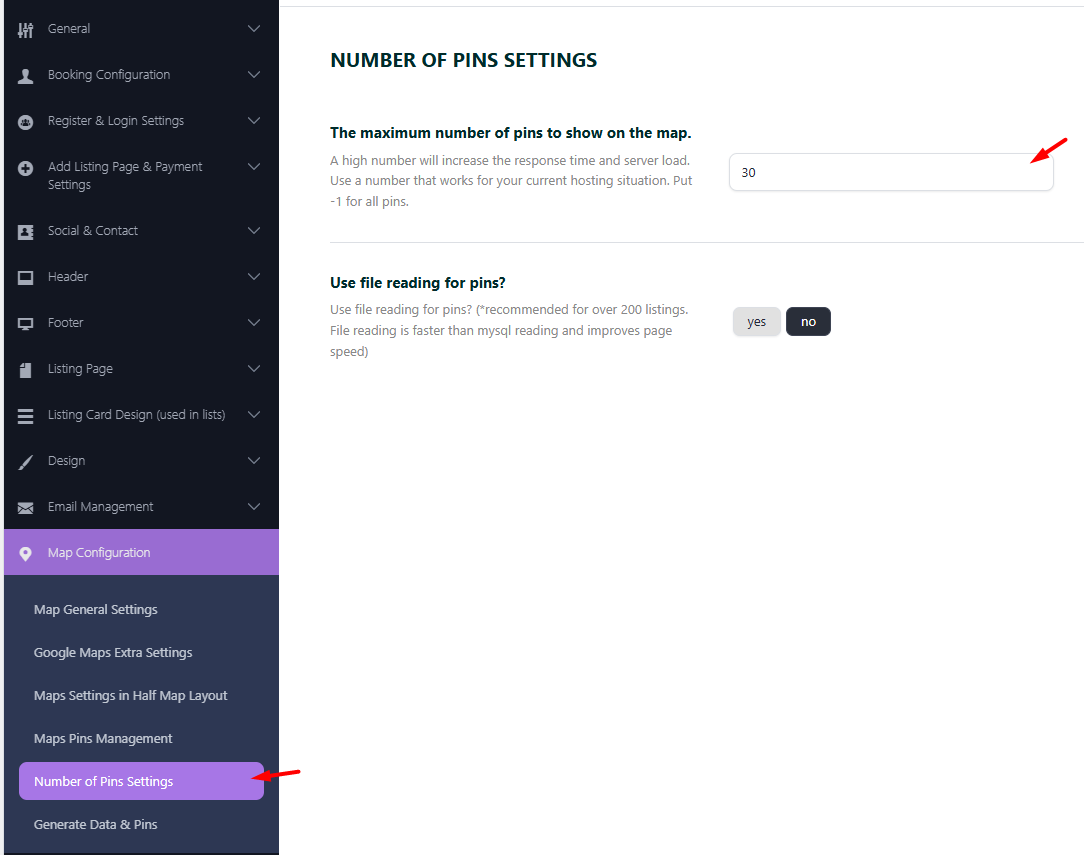
The maximum number of pins is controlled from:
WPRentals Options > Map Configuration > Maximum number of pins to show on the map
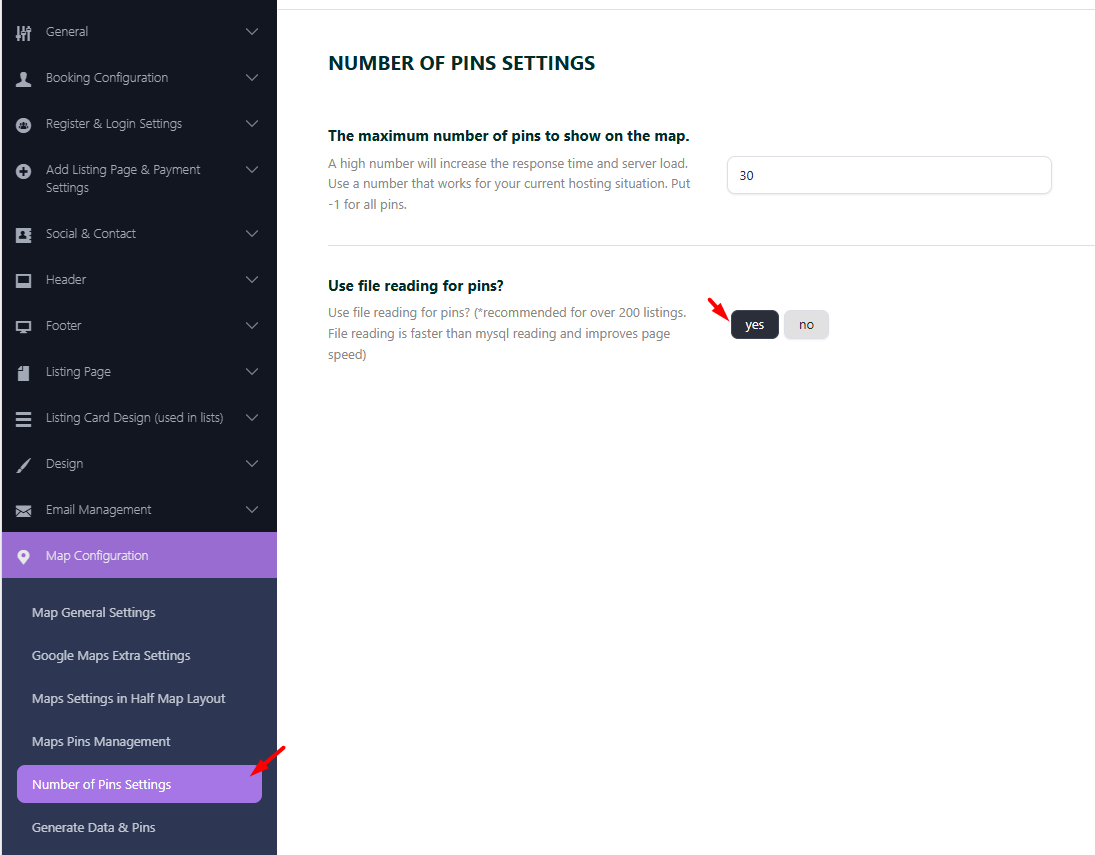
Use File Reading for Pins
The option Use file reading for pins? controls how map pins are loaded.
When this option is set to No, pins are loaded through database queries.
When this option is set to Yes, pins are loaded from generated files. This can improve performance for websites with many listings.
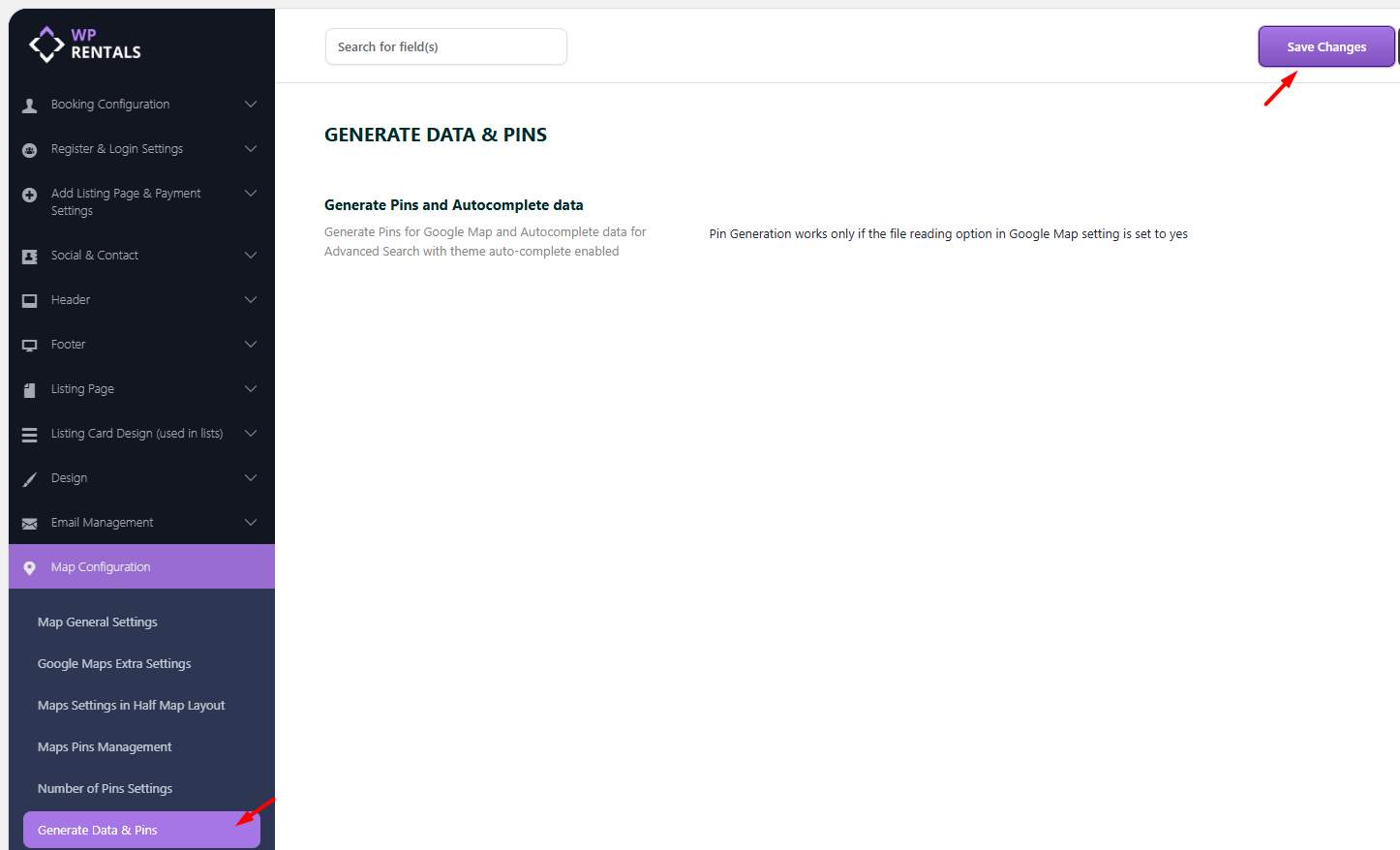
To regenerate pins, go to:
WPRentals Options > Map Configuration > Generate Data & Pins
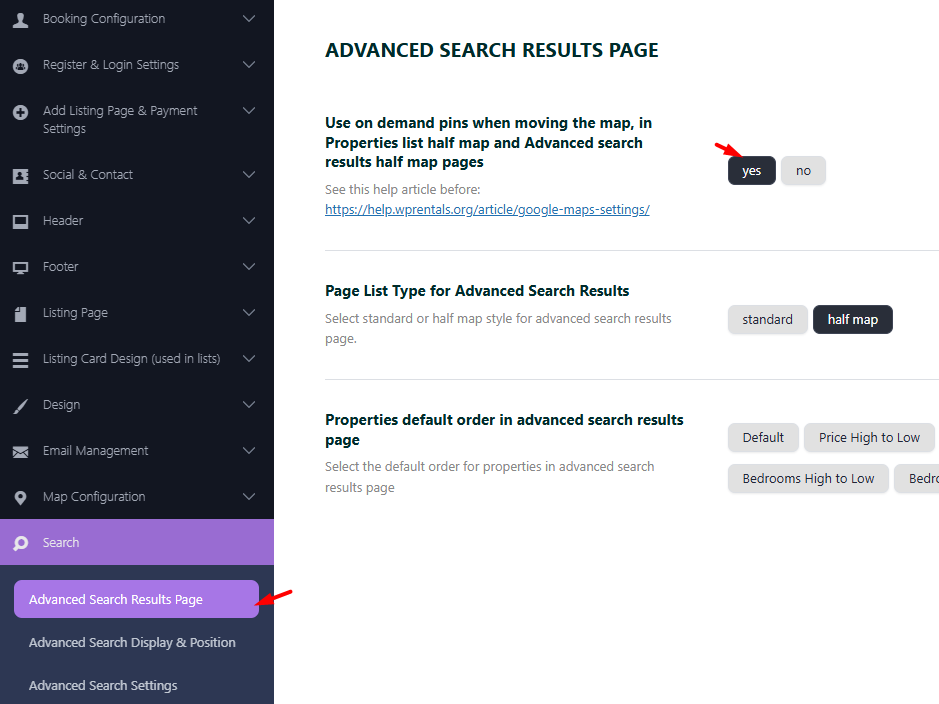
On-Demand Pins in Half Map Layout
The Use on-demand pins when moving the map option applies to the Advanced Search Results page only when the page uses the Half Map layout.
When enabled, moving the map can update the properties shown in the list based on the properties available in the current map view.
Important notes:
- If the map is zoomed too far out, such as continent level, the pin count may not be accurate.
- If the listings available in the current map view are listed on more than one page, the map and list show the results available on the current page only.
- The rest of the listings and pins show when changing pagination.
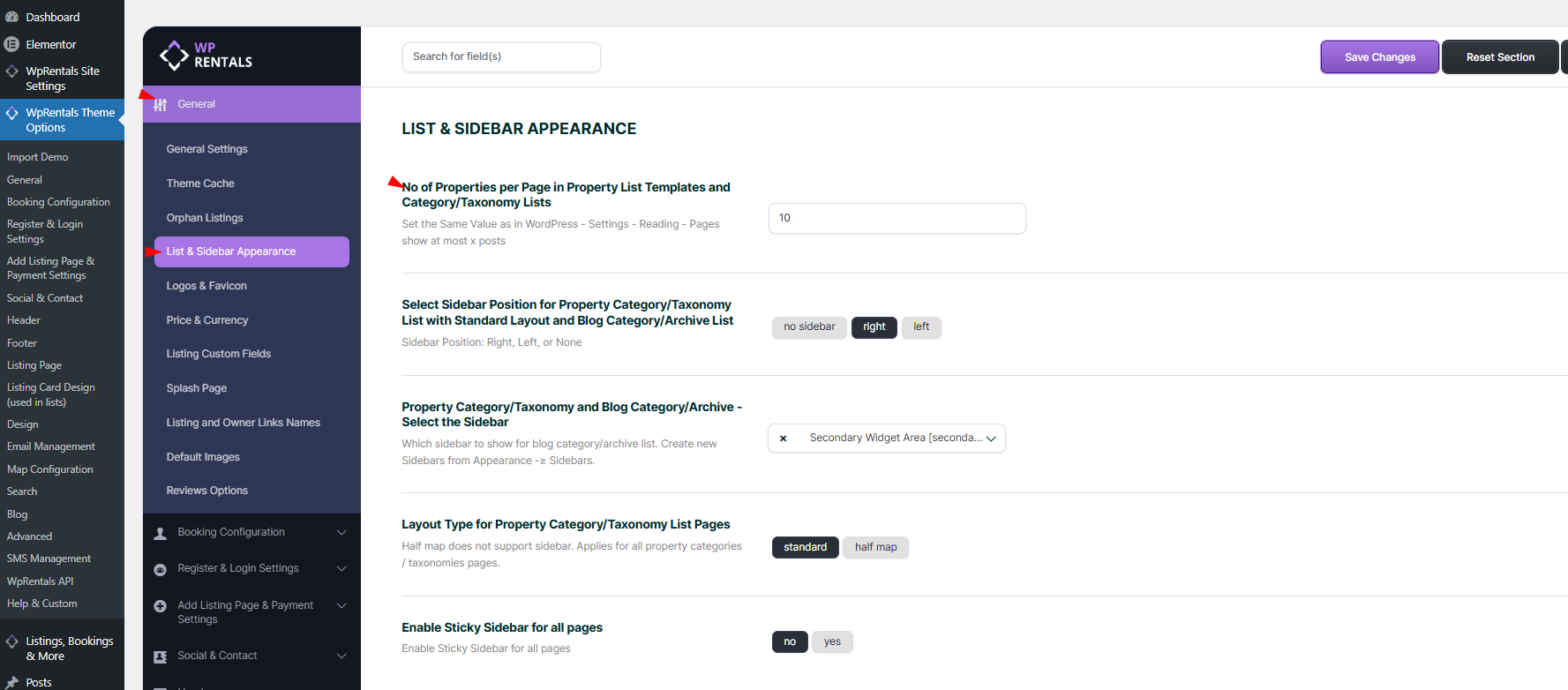
Default Property Order
The default order of properties on the Advanced Search Results page is managed from:
WPRentals Options > Search > Advanced Search Results Page
Available ordering options include:
- Default – Featured listings appear first, followed by regular listings, ordered by ID.
- Price High to Low – Listings are ordered by price from highest to lowest.
- Price Low to High – Listings are ordered by price from lowest to highest.
- Newest First – Listings are ordered by ID, from most recent to oldest.
- Oldest First – Listings are ordered by ID, from oldest to most recent.
- Newest Edited – Listings are ordered by the edit date, from most recent to oldest.
- Oldest Edited – Listings are ordered by the edit date, from oldest to most recent.
- Bedrooms High to Low – Listings are ordered by the number of bedrooms, from highest to lowest.
- Bedrooms Low to High – Listings are ordered by the number of bedrooms, from lowest to highest.
- Bathrooms High to Low – Listings are ordered by the number of bathrooms, from highest to lowest.
- Bathrooms Low to High – Listings are ordered by the number of bathrooms, from lowest to highest.
The selected order affects how properties are displayed in the results list. The map pins follow the properties available for the current results page or current map view, depending on the selected layout and map settings.
Important Notes
- This help is only for the Advanced Search Results page.
- The Advanced Search Results page is the page users reach after clicking the Search button.
- The page must be published.
- Permalinks should be set to Post Name.
- The page should not be used as the homepage.
- The page should not be edited with Elementor or WPBakery.
- The page can use Standard or Half Map layout.
- The Half Map layout automatically shows the Half Map filter bar.
- The Standard layout does not automatically show the Half Map filter bar.
- The Half Map filter fields are managed from WPRentals Options > Search > Half Map Search Form.
- The Standard search form is managed from WPRentals Options > Search > Advanced Search Form and Advanced Search Settings.
- To show search options in Standard layout, use the header search form, Advanced Search widget, shortcode, Elementor search widget, or sidebar widget.
- Map pins on this page follow the current search results and pagination.
- If file reading for pins is enabled, regenerate pins after changing listings or map settings.
Related Help
Advanced Search Type 3 and 4 Custom Search Fields Setup
Theme Options – Search – Advanced Search Results Page
WPRentals Search Form Builder for Elementor