
Free Submission allows selected users, owners, or site admins to add listings from the front-end User Dashboard without paying a listing submission fee.
This setup is useful when you do not want to charge owners for adding listings. For example, you may use Free Submission if:
- the site admin adds all listings
- one selected owner manages all listings
- you allow owners to submit listings without paying for each listing
- you want to collect money from bookings instead of charging for listing submission
Enable Free Submission
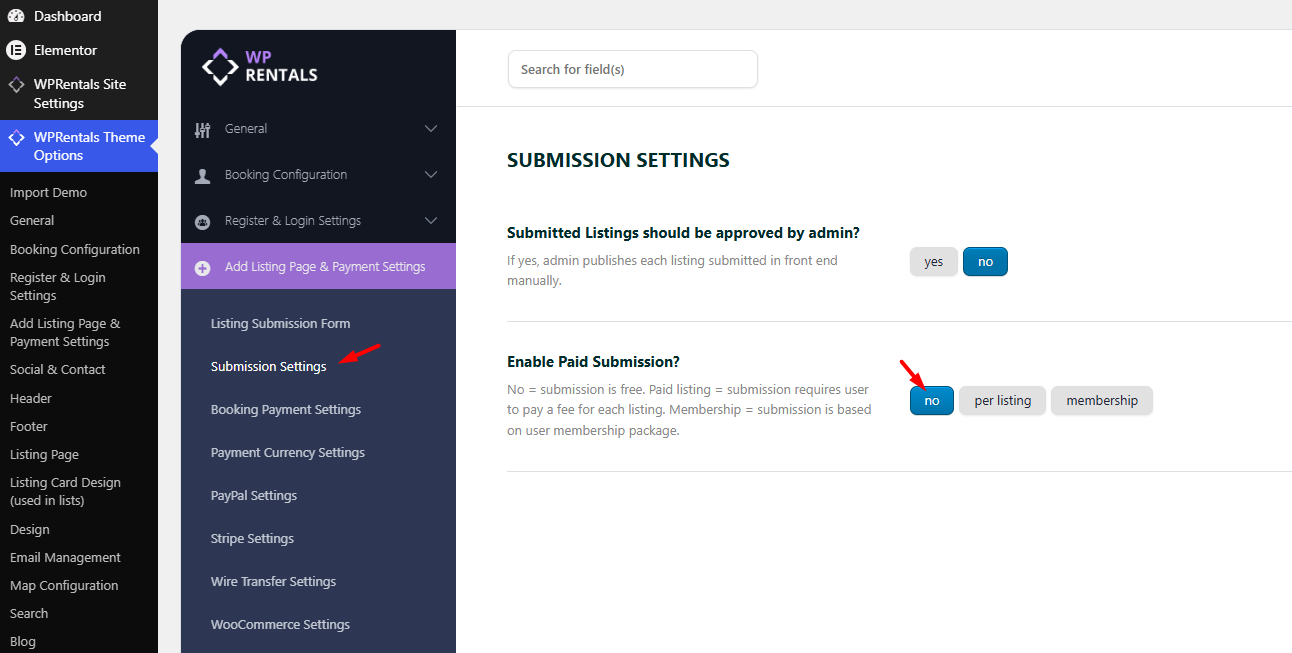
To enable Free Submission, go to:
Theme Options > Add Listing Page & Payment Settings > Submission Settings
Find the option Enable Paid Submission and set it to No.
When Enable Paid Submission is set to No, users who are allowed to submit listings can add listings without paying a listing submission fee.
Who Can Add Listings With Free Submission
Free Submission does not automatically mean every visitor can add listings. Listing submission access still depends on your registration and user settings.
Listings can be added by users who have permission to submit listings, such as:
- the site admin managing listings from the front-end dashboard
- owners registered from the front end
- selected usernames allowed to submit listings
How to Add Listings From the Front End
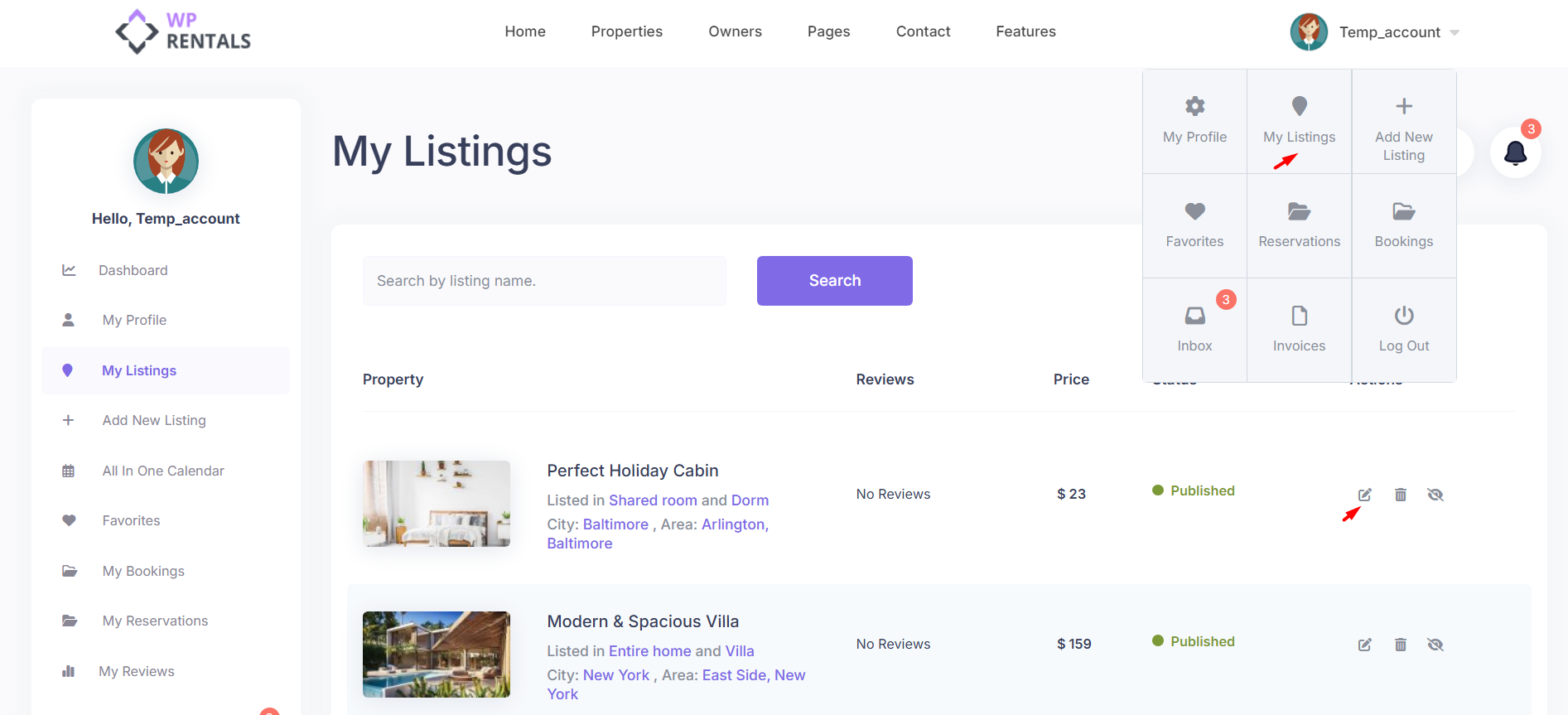
Listings should be added from the front-end User Dashboard.
The correct paths are:
User Dashboard > My Listings > Add New Listing
or:
User Dashboard > My Listings > Edit Listing
This applies to both:
- site admins managing listings from the front-end dashboard
- owners managing their own listings from the front-end dashboard

Manage the Listing Submission Form Fields
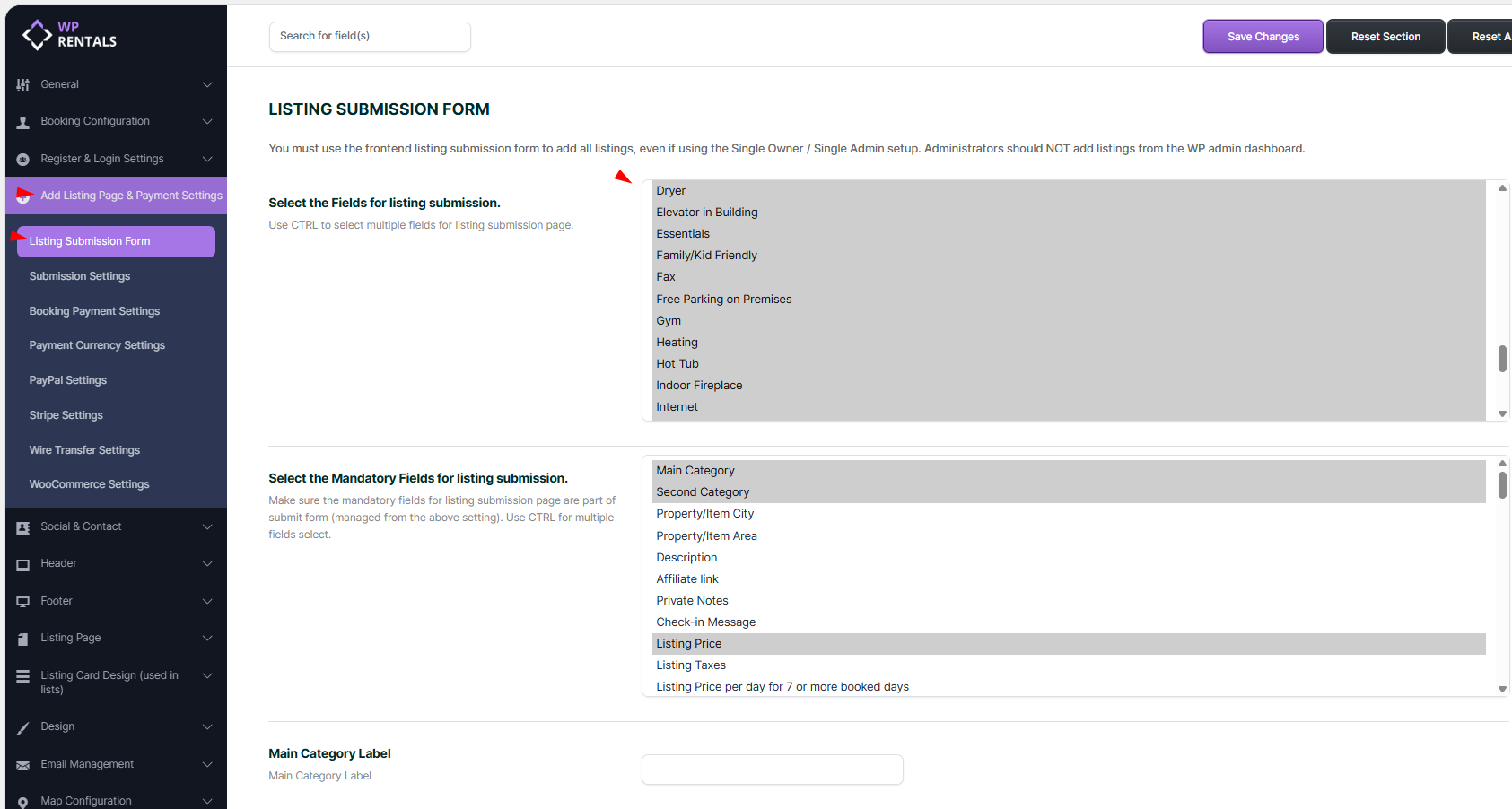
The site admin controls which fields appear in the front-end listing form.
Go to:
Theme Options > Add Listing Page & Payment Settings > Listing Submission Form
From this section, you can choose:
- which fields show in the Add New Listing and Edit Listing forms
- which fields are mandatory
- which custom fields are available
- which Features and Amenities are available
- how many images can be uploaded
Manage Submit Form Fields and Mandatory Fields
How Listings Are Published
With Free Submission, users do not need to pay a listing submission fee.
Publishing depends on:
- the admin approval setting
- whether all mandatory fields are completed
- whether the listing is complete and valid
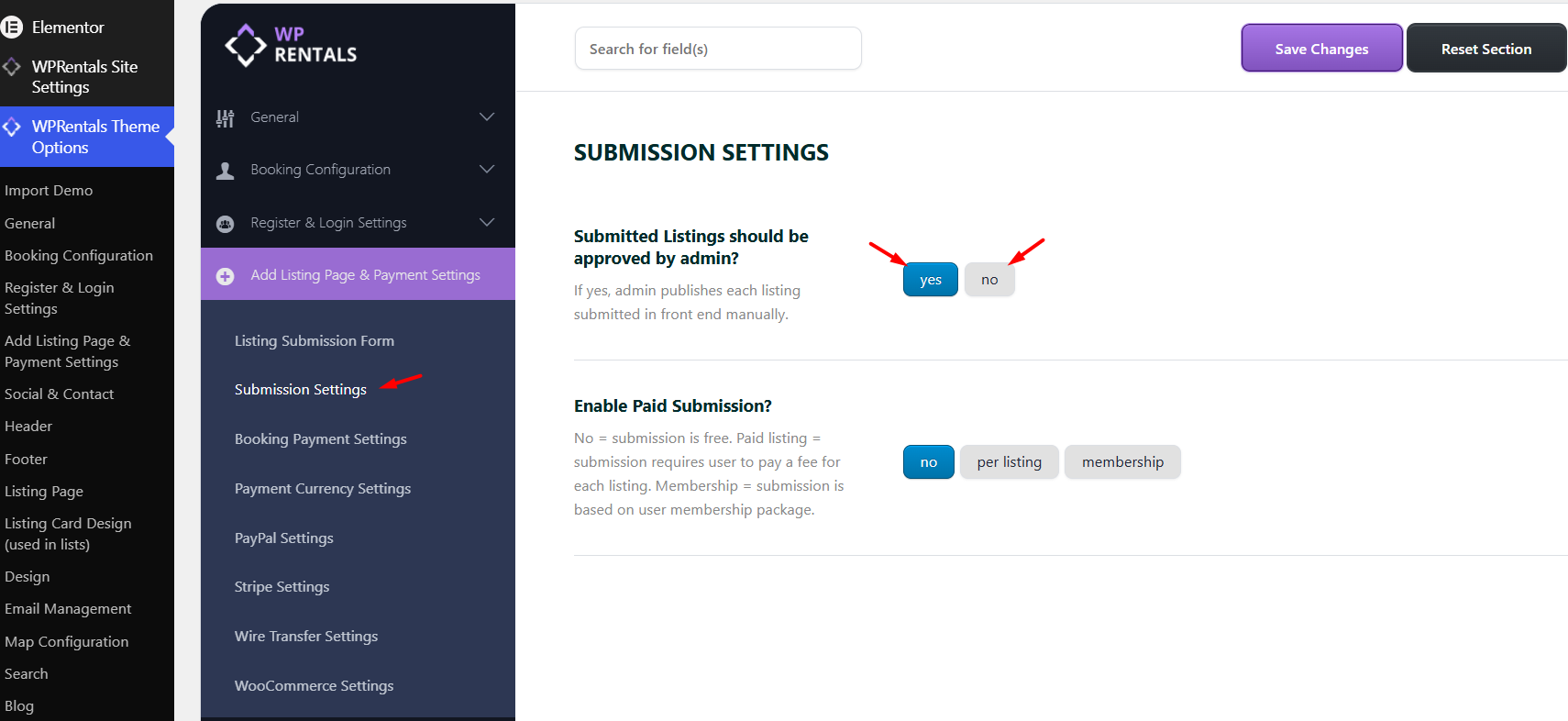
The approval option is managed from:
Theme Options > Add Listing Page & Payment Settings > Submission Settings
Approve Listings Manually
Use manual approval if you want to review each listing before it appears on the website.
When manual approval is enabled:
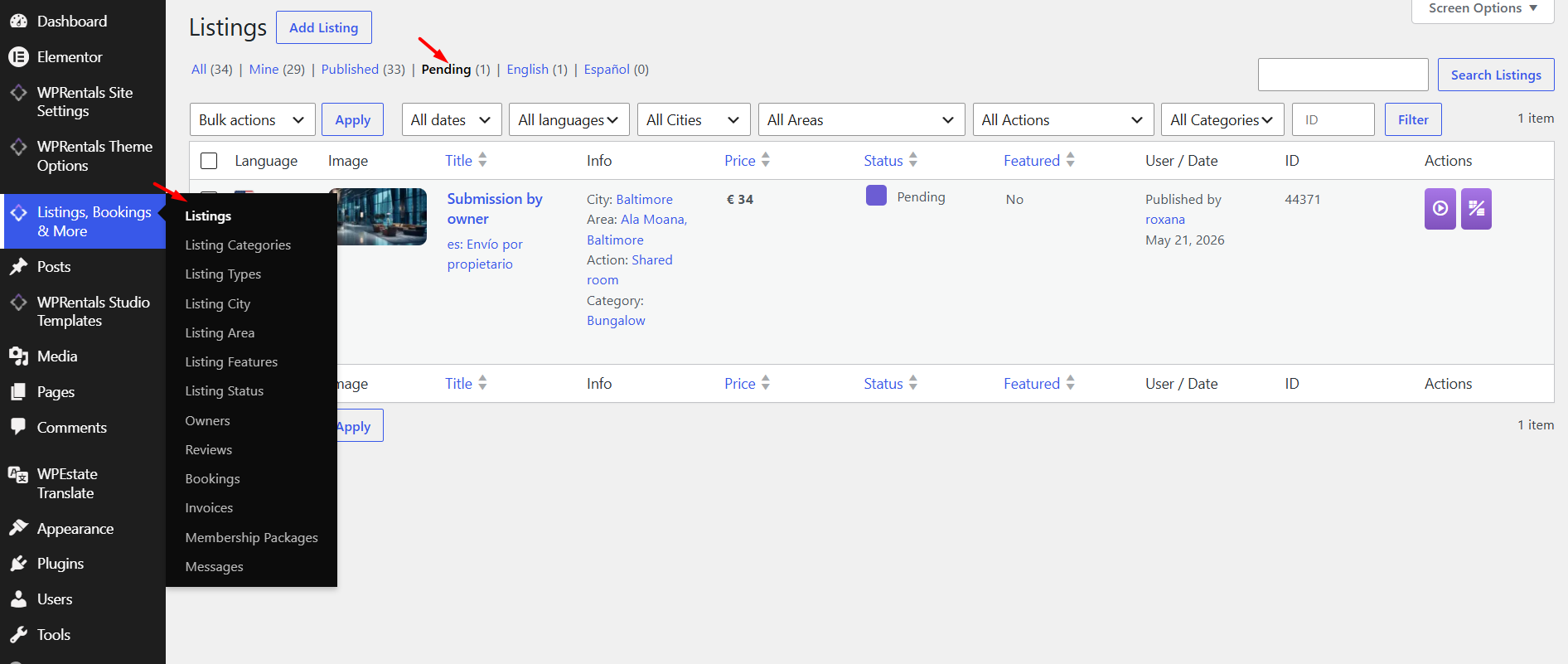
- front-end submitted listings are saved as Pending
- the listing is not visible publicly until the admin publishes it
- the admin receives an email notification when a new listing is submitted
- the admin must review and publish the listing from wp-admin
To review pending listings, go to:
Wp-admin > Listings, Bookings & More > Properties
Approve Listings Automatically
Use automatic approval if you want complete listings to publish without manual admin review.
To approve listings automatically, set the approval option to No.
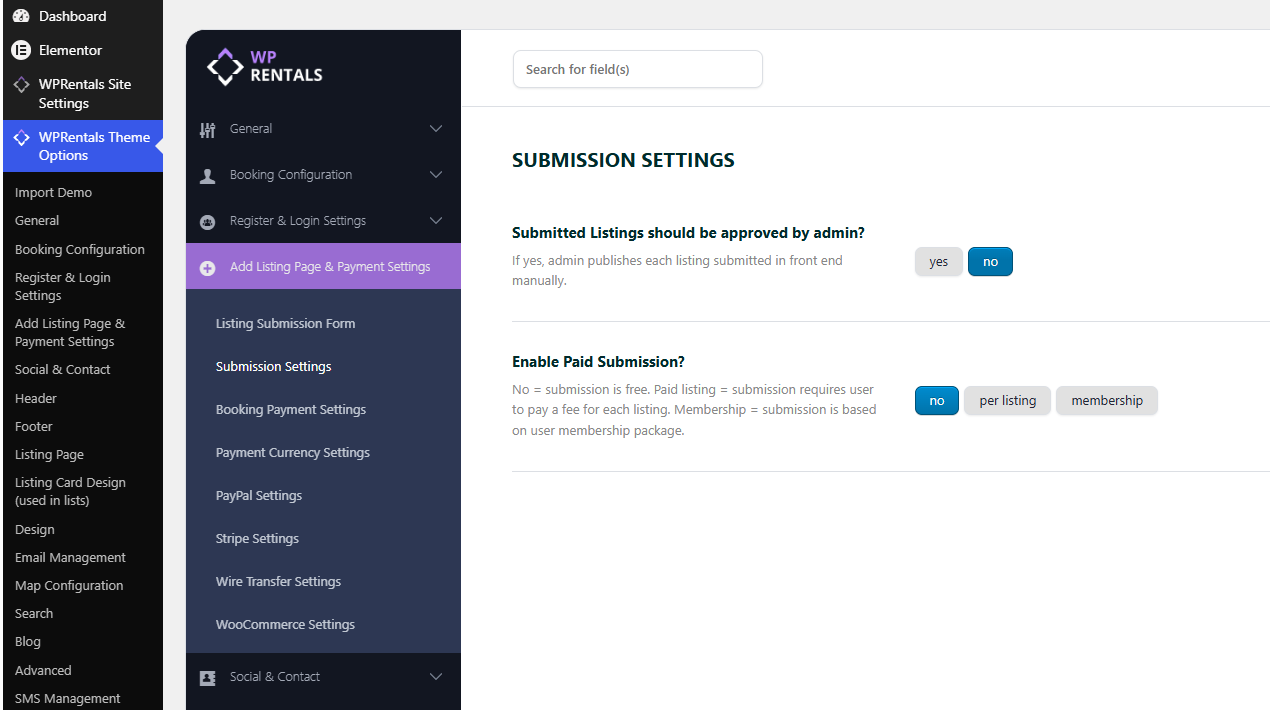
When automatic approval is enabled and Free Submission is used:
- there is no listing submission payment required
- a complete and valid listing can be published after submission
- if mandatory fields are missing, the listing can remain Pending
Collecting Money From Bookings
Free Submission means users do not pay to add listings. It does not mean bookings are free.
If you want to collect money when guests book a property, configure booking payment settings separately.
Go to:
Theme Options > Add Listing Page & Payment Settings > Booking Payment Settings
From this section, the admin can configure:
- Deposit Fee – the amount or percentage required to confirm a booking.
- Service Fee – the admin service fee / commission used for bookings.
- Payment merchants – the payment methods enabled for booking payments.
Online booking payments go to the site admin payment account.
If the deposit or service fee is greater than 0, the guest must pay the required amount before the booking is confirmed.
Booking: How to work with Deposit Fee and Service Fee
What payment platforms are supported in WPRentals?
Related Help Articles
Manage Submit Form Fields and Mandatory Fields
How to approve listings manually or automatically
Booking: How to work with Deposit Fee and Service Fee
What payment platforms are supported in WPRentals?
Summary
- Free Submission is enabled by setting Enable Paid Submission to No.
- Free Submission means users do not pay to add listings.
- Listings are added from User Dashboard > My Listings > Add New Listing.
- Listings are edited from User Dashboard > My Listings > Edit Listing.
- Publishing depends on the approval setting and mandatory fields.
- If automatic approval is enabled, complete listings can publish after submission.
- If mandatory fields are missing, listings can remain pending.
- Booking payments are configured separately from Booking Payment Settings.
- Online booking payments go to the site admin payment account.