
What These Options Do
WPRentals lets you control exactly how prices are written across your whole site: how many decimals appear, which characters separate the decimals and the thousands, and whether there is a space between the currency symbol and the number.
This matters because number formatting is not the same everywhere. $1,234.50 in the United States is written 1.234,50 € in most of Europe, and in several countries showing the decimals is mandatory even when they are zero.
All of these settings are global. Set them once and every price on the site follows them.
Where to Find Them
Go to WPRentals Theme Options > General > Price & Currency.
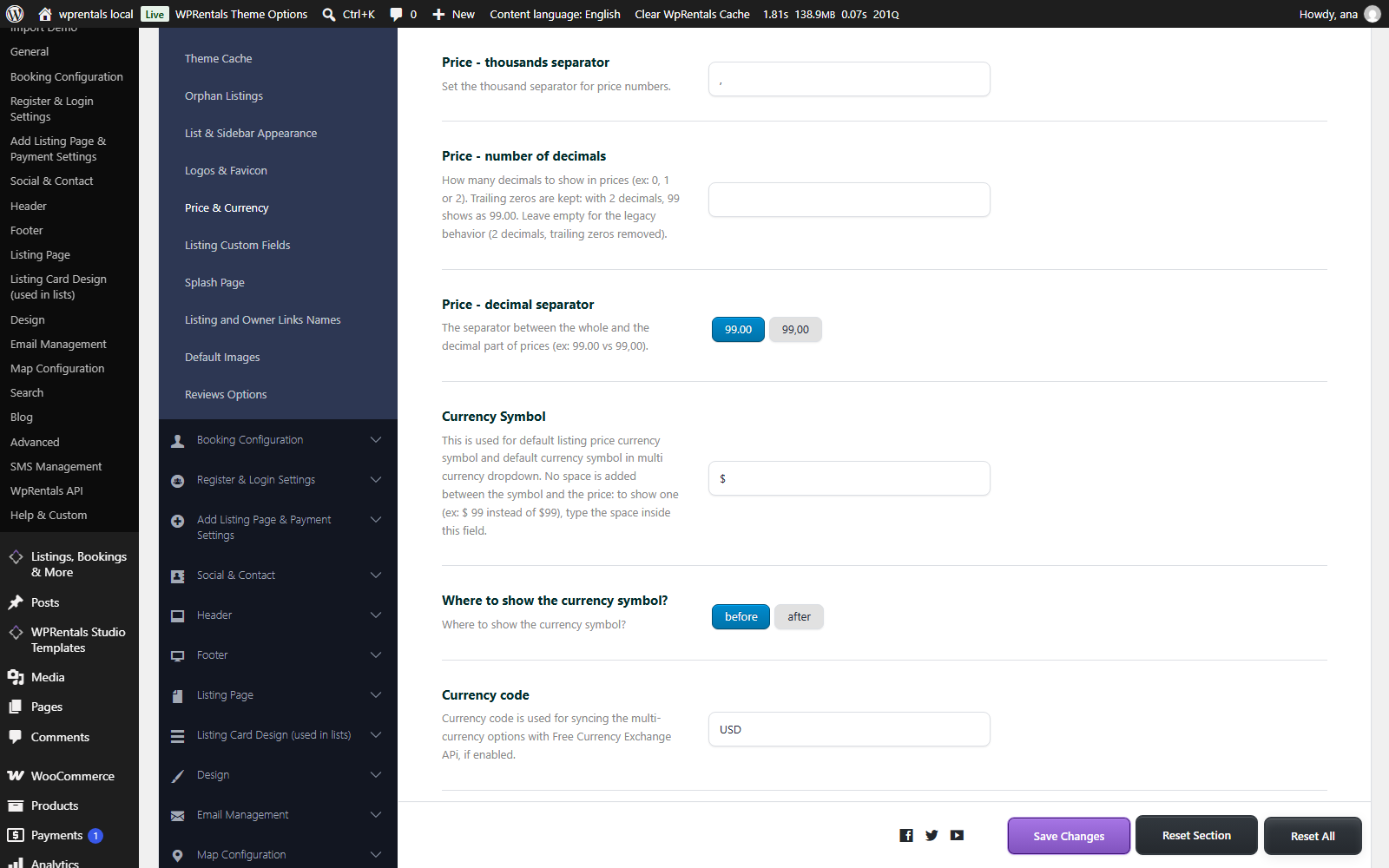
Remember to click Save Changes after editing any of them.
A note on this guide: where a value is shown inside quotation marks, such as “$ ”, the quotation marks are only there to make a space visible. Do not type them into the field.
Price – Number of Decimals
Controls how many digits appear after the decimal separator.
- Type a whole number: 0, 1 or 2
- Trailing zeros are kept. With 2 decimals, a price saved as 99 is displayed as 99.00
- With 0 decimals, prices are rounded to whole numbers, so 99.5 is displayed as 100
- Leave the field empty for the legacy behaviour: up to 2 decimals with trailing zeros removed, so 99 stays 99 and 99.50 shows as 99.5
If your country requires prices to always show two decimals, set this field to 2. This is the setting that guarantees 99.00 instead of 99.
Price – Decimal Separator
Chooses the character between the whole part and the decimal part of a price. Pick one of the two buttons:
- 99.00 uses a dot, standard in the US, the UK and many other countries
- 99,00 uses a comma, standard across most of Europe and South America
Please note: this option only affects your prices once Price – number of decimals has a value. While the decimals field is empty the theme stays in legacy mode and always uses a dot, no matter which button is selected here.
Price – Thousands Separator
The character inserted every three digits in large numbers. Type the character you want directly into the field:
- A comma gives 1,234.50
- A dot gives 1.234,50
- A single space gives 1 234,50
- Leaving it empty gives 1234.50, with no separator at all
Important: the thousands separator and the decimal separator must be different characters. Setting both to a dot produces unreadable prices such as 1.234.50.
Space Between the Currency Symbol and the Price
WPRentals adds no space between the currency symbol and the number. You control the space yourself, by typing it inside the Currency Symbol field.
- Currency Symbol “$” shown before gives $99.00
- Currency Symbol “$ ” with a trailing space, shown before, gives $ 99.00
- Currency Symbol “€” shown after gives 99,00€
- Currency Symbol “ €” with a leading space, shown after, gives 99,00 €
Use Where to show the currency symbol? to place the symbol before or after the number.
Without a space in the Currency Symbol field:

With a space typed at the start of the Currency Symbol field:

Common Currency Formats
Use this table as a starting point. Copy the values into the matching fields.
| You want | Decimals | Decimal separator | Thousands separator | Currency Symbol | Symbol position |
|---|---|---|---|---|---|
| $1,234.50 | 2 | 99.00 | a comma | “$” | before |
| $ 1,234.50 | 2 | 99.00 | a comma | “$ ” | before |
| 1.234,50 € | 2 | 99,00 | a dot | “ €” | after |
| 1 234,50 € | 2 | 99,00 | a single space | “ €” | after |
| 1 235 лв | 0 | not used | a single space | “ лв” | after |
And here is the default US style, straight out of the box:

Where These Settings Apply
The formatting is applied everywhere a price is shown to a visitor:
- Listing cards in grids, carousels, search results and the half map layout
- The single property page, both the price badge and the full Price Details block
- Map pins and their infoboxes
- Booking form totals, including the running total that updates as the visitor picks dates
- Custom price periods and custom invoice prices
- Invoices, bookings and dashboard reservation totals
- Membership package and purchase totals
- Converted prices when you use the multi-currency selector
Two places deliberately do not follow these settings:
- Payment gateways. The amounts sent to Stripe and PayPal stay in machine format, such as 1234.50, because payment processors require it. Your customers still see your chosen formatting everywhere on the site itself
- The search price slider labels, which stay whole numbers so the slider remains readable
Your prices are always stored as plain numbers in your base currency. These options change only how those numbers are written on screen, so you can change them at any time without altering your listings, bookings or invoice records.
Important for Existing Sites
Older versions of WPRentals always inserted a space between the currency symbol and the price automatically. That automatic space has been removed so that you can decide for yourself whether to have one.
After updating, if your prices used to read $ 99 and now read $99, this is expected. To get the space back:
- Go to WPRentals Theme Options > General > Price & Currency
- In the Currency Symbol field, add a space next to the symbol: after it if the symbol shows before the price, before it if the symbol shows after the price
- Click Save Changes
Everything else keeps working exactly as before. If you never touch the new Price – number of decimals field, your prices keep the decimal behaviour they have always had.
Troubleshooting
My decimals are not showing
- Check that Price – number of decimals actually contains a number. An empty field means legacy mode, which strips trailing zeros
- Enter 2 and save to force two decimals on every price
I chose the comma decimal separator but prices still use a dot
- The decimal separator only takes effect once Price – number of decimals has a value. Enter 2 in that field and save
I changed a setting but prices look the same
- Click Clear WpRentals Cache in the top admin bar
- Clear any caching plugin and your browser cache. Listing card prices in particular are cached
My prices look like 1.234.50
- Your thousands separator and your decimal separator are both set to a dot. Change one of them so the two characters differ
The space is on the wrong side of the symbol
- The space has to be on the side facing the number. If Where to show the currency symbol? is set to before, put the space after the symbol. If it is set to after, put the space before the symbol
Non-Latin currency symbols
- Symbols such as лв, د.إ and € are fully supported. Type them straight into the Currency Symbol field