
What This Option Does
By default, WPRentals hides the footer on every Half Map layout. The Half Map layout is built to fill the browser window: the map is fixed on one side and the listings column scrolls next to it, so there is no page scroll left to reveal a footer.
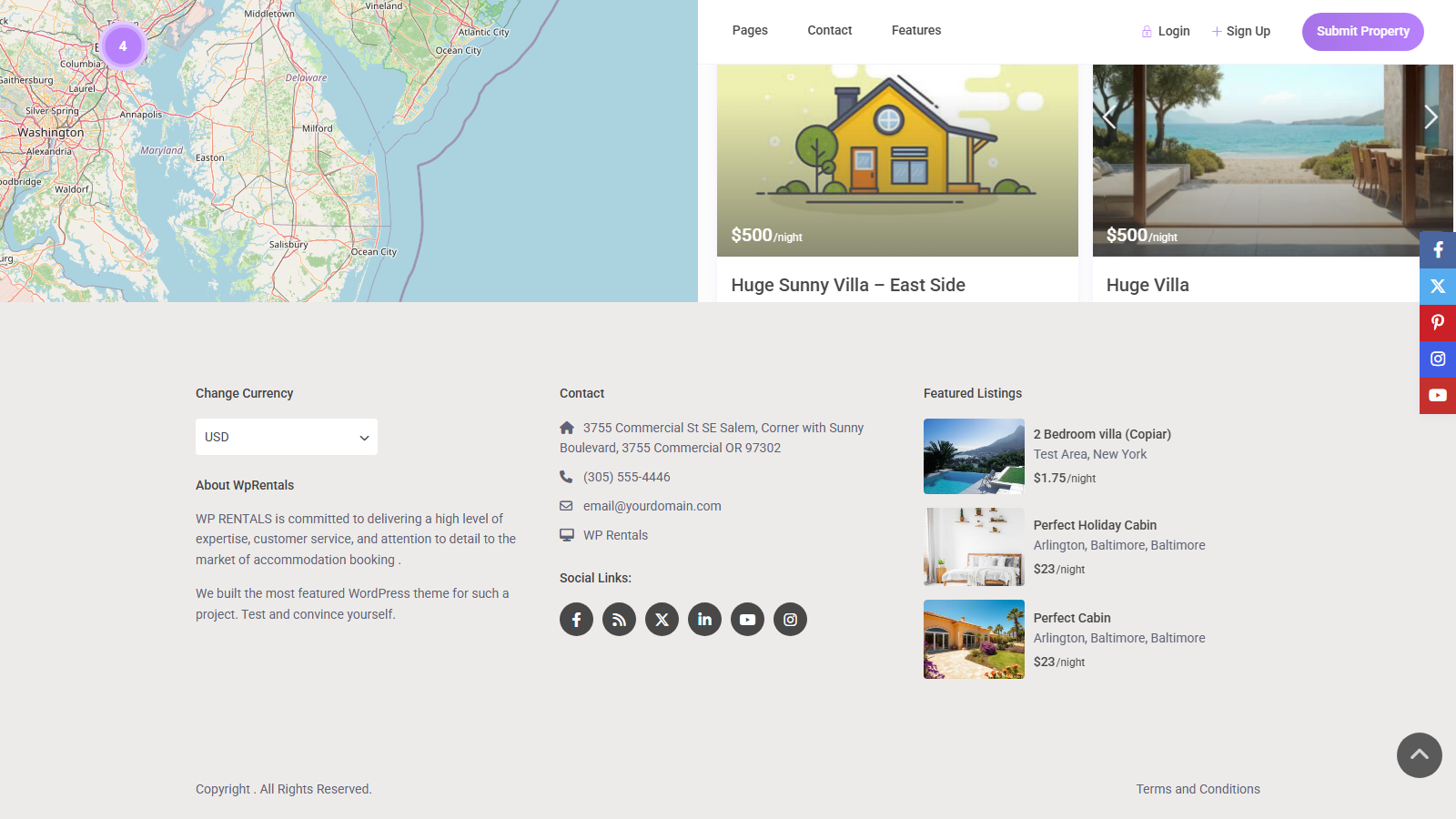
Show Footer when using Half Map Layout changes that. When it is set to Yes, the Half Map area becomes a fixed-height block, the page itself becomes scrollable again, and your footer appears underneath the map and listings.
Where to Find the Option
Go to WPRentals Theme Options > Footer > Footer Layout. The option is the last one in that section.
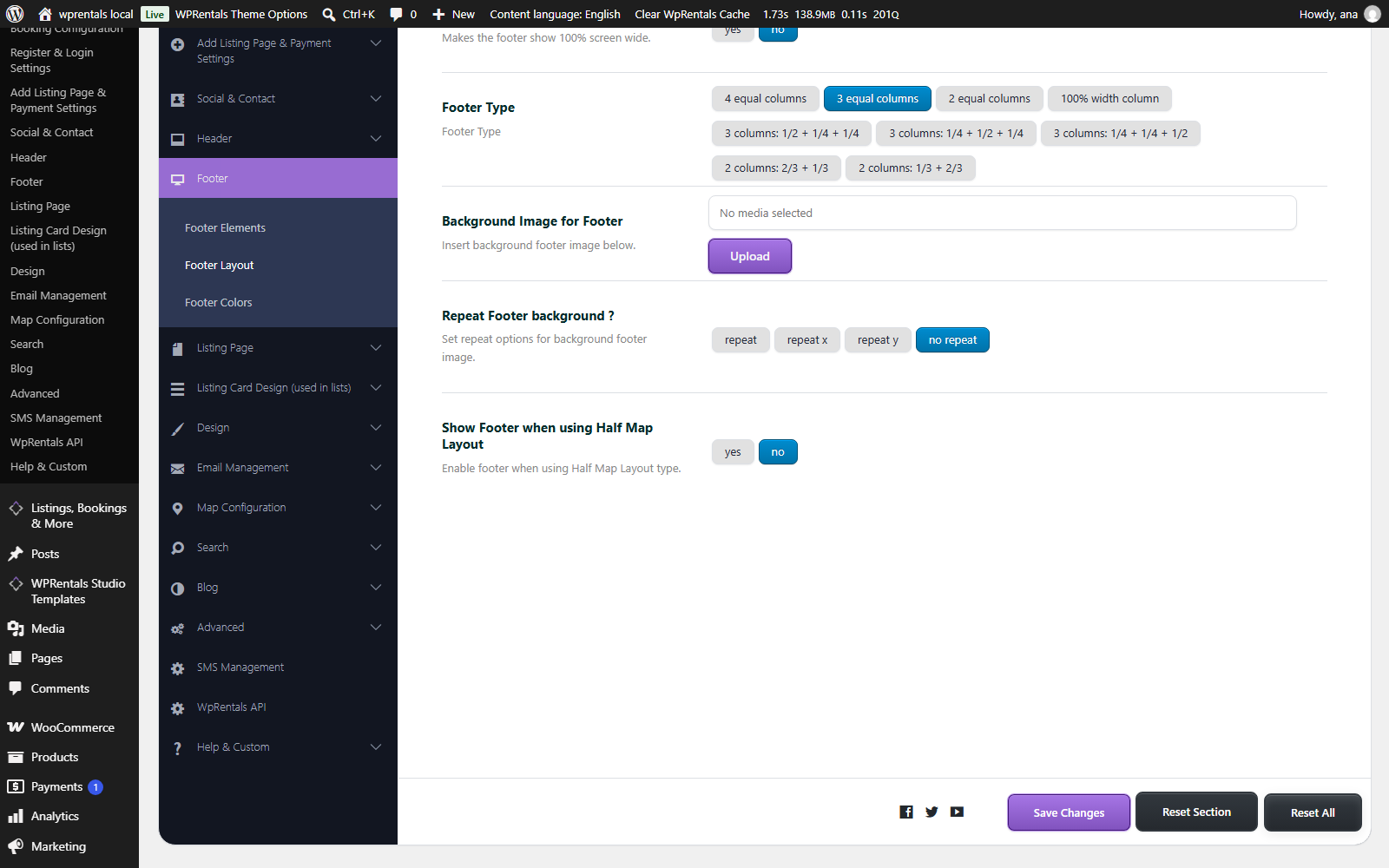
Show Footer when using Half Map Layout
- This is a Yes / No option
- Choose Yes to show the footer at the bottom of Half Map pages
- Choose No to keep the Half Map layout full height with no footer
- The default value is No, which is the behaviour older versions of the theme always used
Click Save Changes to apply it.
Which Pages Are Affected
The option is global and applies to all three Half Map views in the theme:
- Half Map pages – any page you created with the Properties list half page template, assigned under Page Attributes > Template in the page editor.
- Property category and taxonomy pages – but only when WPRentals Theme Options > General > List & Sidebar Appearance > Layout Type for Property Category/Taxonomy List Pages is set to half map.
- The Advanced Search Results page – but only when WPRentals Theme Options > Search > Advanced Search Results Page > Page List Type for Advanced Search Results is set to half map.
Every other page on your site is untouched by this setting. Pages that are not Half Map already show your footer normally, and turning this option on or off does not change them.
Before and After
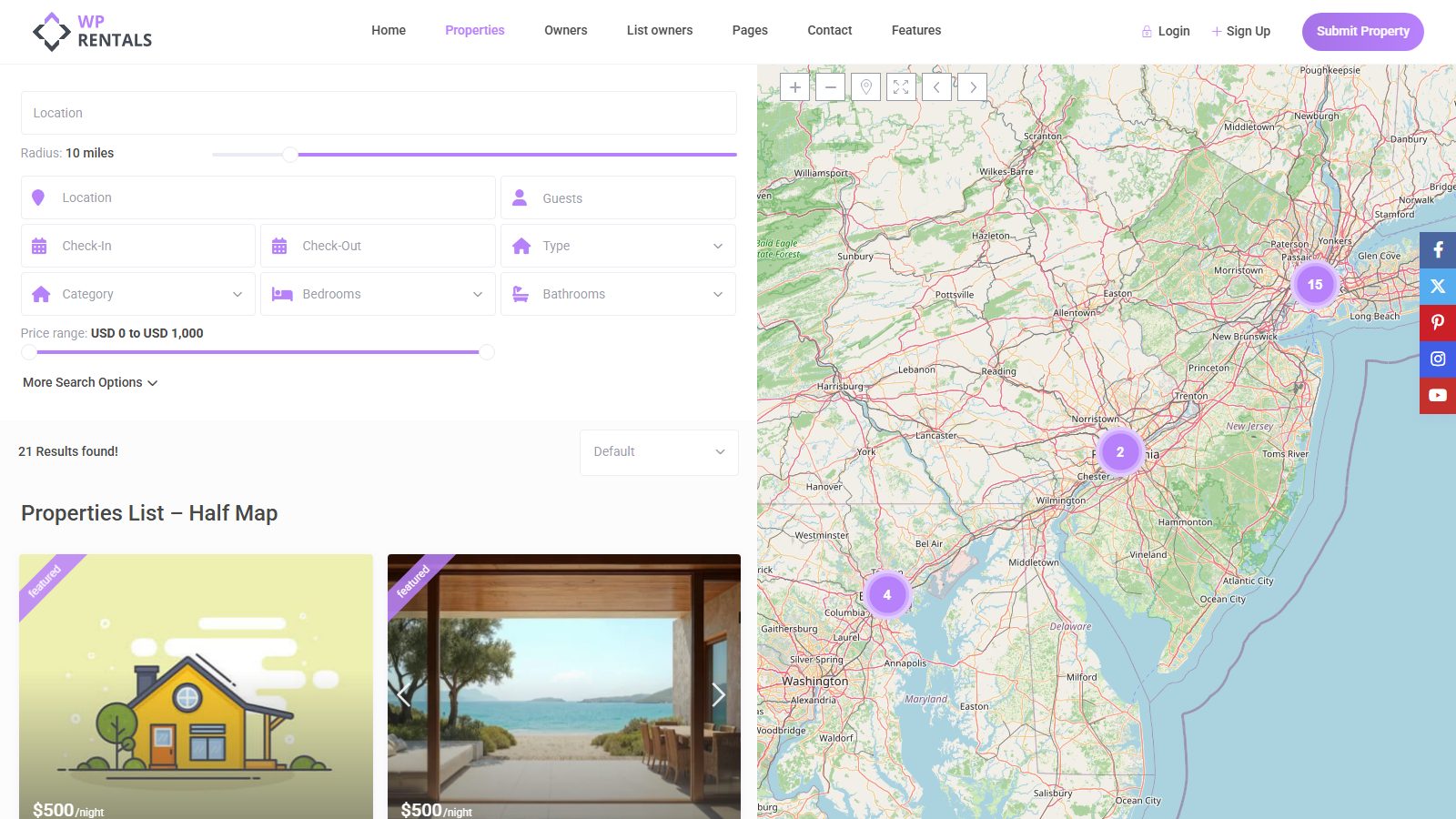
With the option set to No, the Half Map page fills the window and there is no footer to scroll to:
With the option set to Yes, the page scrolls and the footer appears below the map and the listings:
Works With Studio, Elementor and Classic Footers
When the option is enabled, Half Map pages use exactly the same footer as the rest of your site. Whichever footer you already built will be the one that shows:
- A WPRentals Studio footer template – including one whose display condition is set to Entire Site
- An Elementor footer template assigned to the footer location
- The classic footer built from Theme Options > Footer and the footer widget areas in Appearance > Widgets
This matters if you use Studio Templates. Previously a Studio footer set to Entire Site would show on every page except the Half Map ones. With this option enabled it now shows there too, so multilingual and per-language footers behave consistently across the whole site.
You do not need to build a separate footer for Half Map pages.
Troubleshooting
I turned it on but the footer still does not show
- Clear the theme cache with Clear WpRentals Cache in the top admin bar, then clear any caching plugin and your browser cache
- Make sure you clicked Save Changes in Theme Options
- Confirm the page really is a Half Map layout. If a category page is set to standard instead of half map, it was already showing the footer and this option does nothing to it
The footer shows but it is empty
- This option only controls whether the footer is displayed, not what is inside it
- If you use the classic footer, add widgets in Appearance > Widgets to the footer widget areas
- If you use a Studio or Elementor footer, check that the template’s display conditions include the page you are looking at
I want the footer everywhere except Half Map pages
- Leave the option set to No. That is the default and it is exactly this behaviour