
Every property page in WPRentals can end with a short row of other listings from your site, under the heading Similar Listings. It gives a guest somewhere to go when the property they opened is not quite right, and it keeps them on your site instead of sending them back to a search engine.
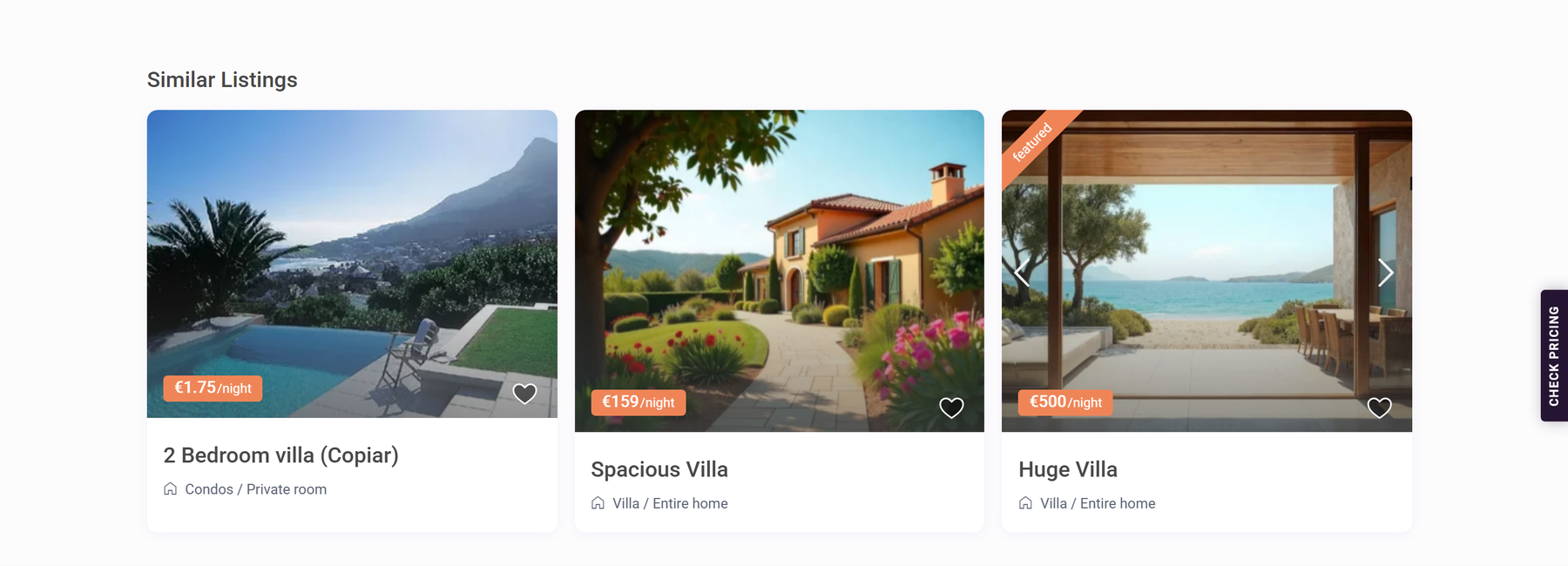
How WPRentals decides which listings are similar
The list is built automatically. You do not pick the related properties one by one on each listing. WPRentals reads the taxonomy terms of the property the visitor is looking at — its category, action category, city and area — and then looks for other published properties that share those terms. The property being viewed is always left out of its own list.
Matching is strict. When you use more than one taxonomy, a property has to match all of them to qualify, not just one. Category plus city means "same type of listing, in the same city". So every taxonomy you add makes the list smaller, not bigger.
If nothing qualifies, the section is not printed at all — you get no empty heading and no blank space.
Where the settings are
Go to WPRentals Theme Options → Listing Page → Similar Listings.
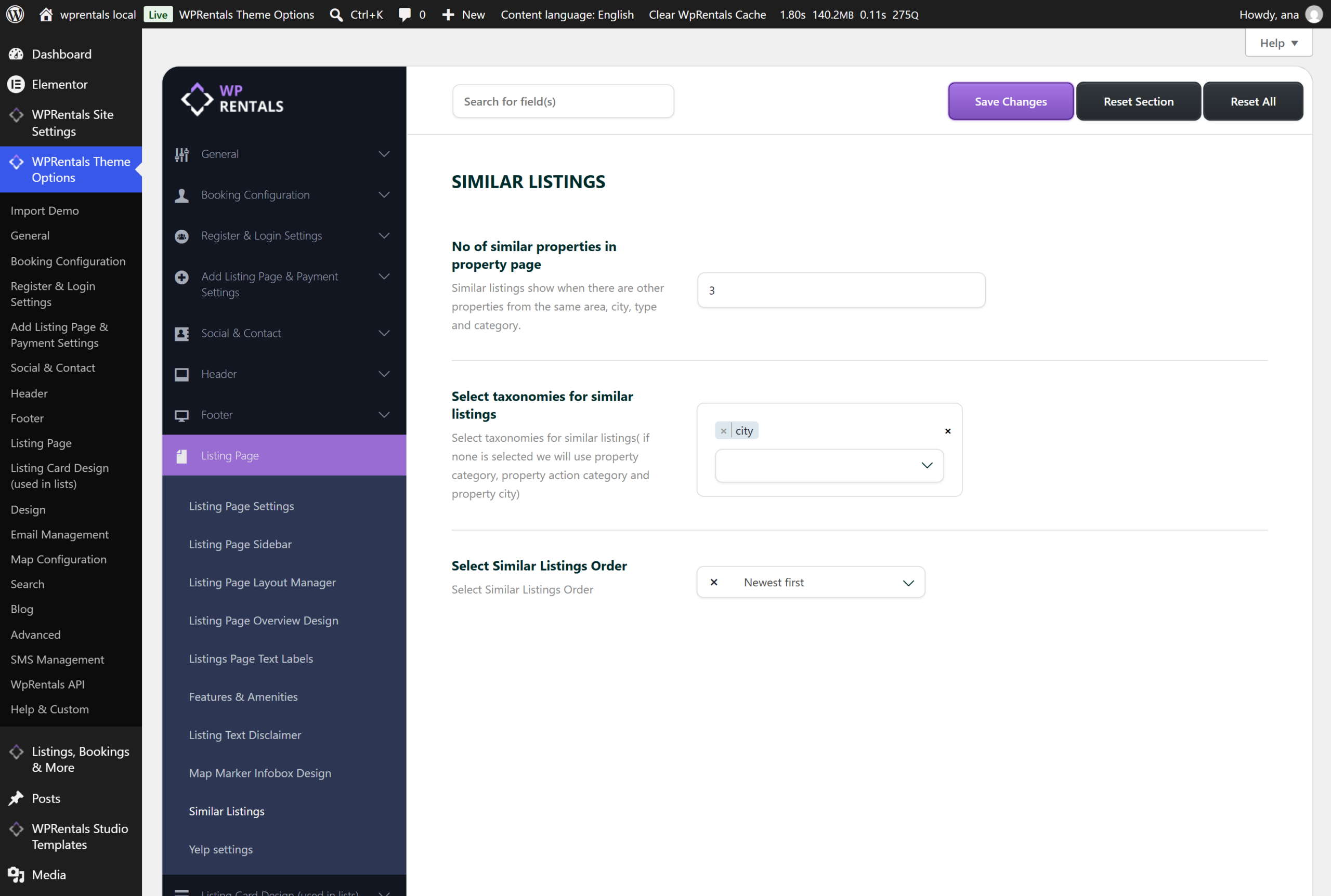
The panel holds three settings.
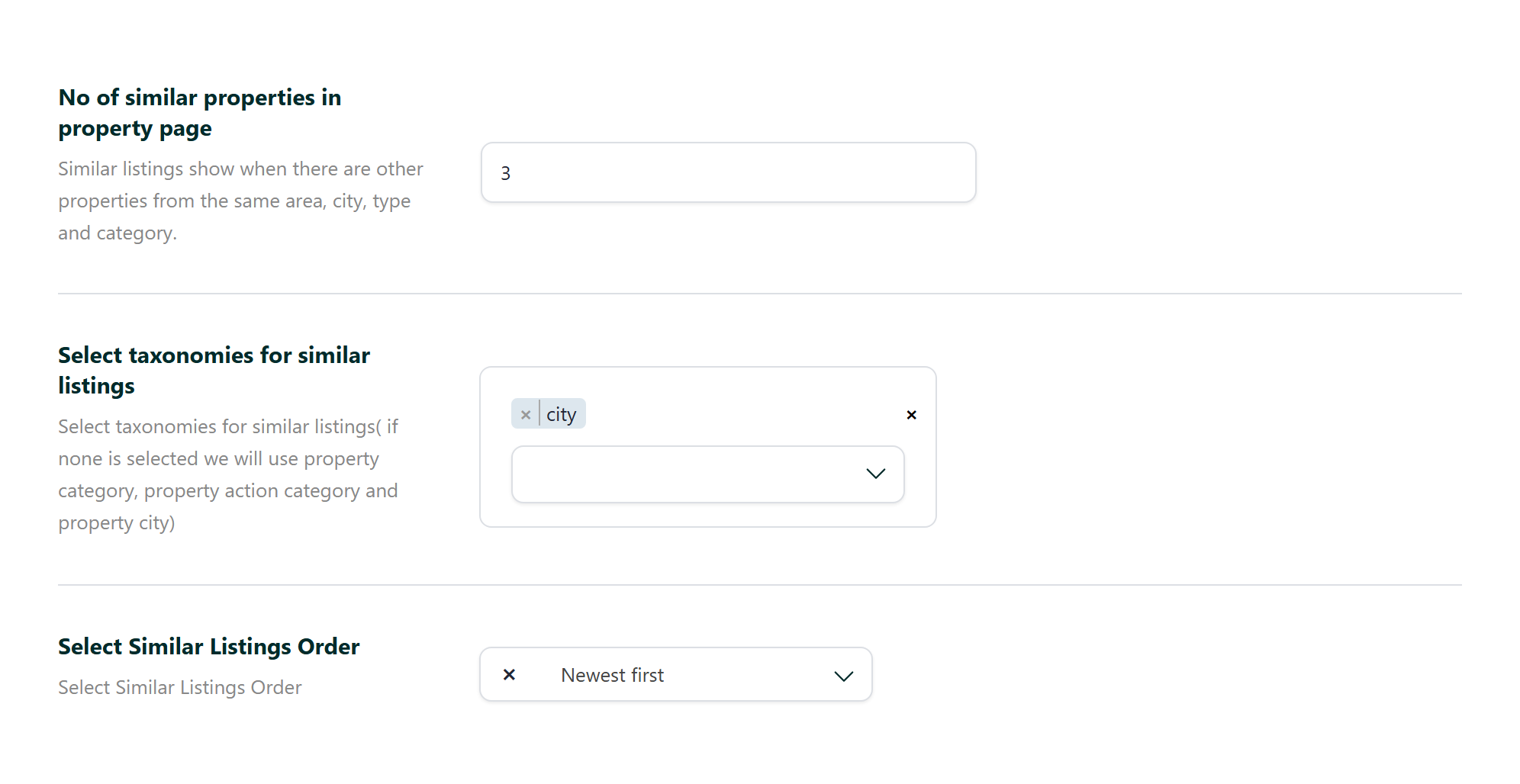
No of similar properties in property page
The maximum number of listings the section will show. The theme ships with 4. If fewer properties qualify, only those are shown — this is a ceiling, not a target.
Match it to how many cards fit on one row in your layout. Three or four fills the width on most designs; a larger number simply wraps onto a second row.
Select taxonomies for similar listings
This is where you decide what "similar" means on your site. You can pick one or several of: category, action category, city and area.
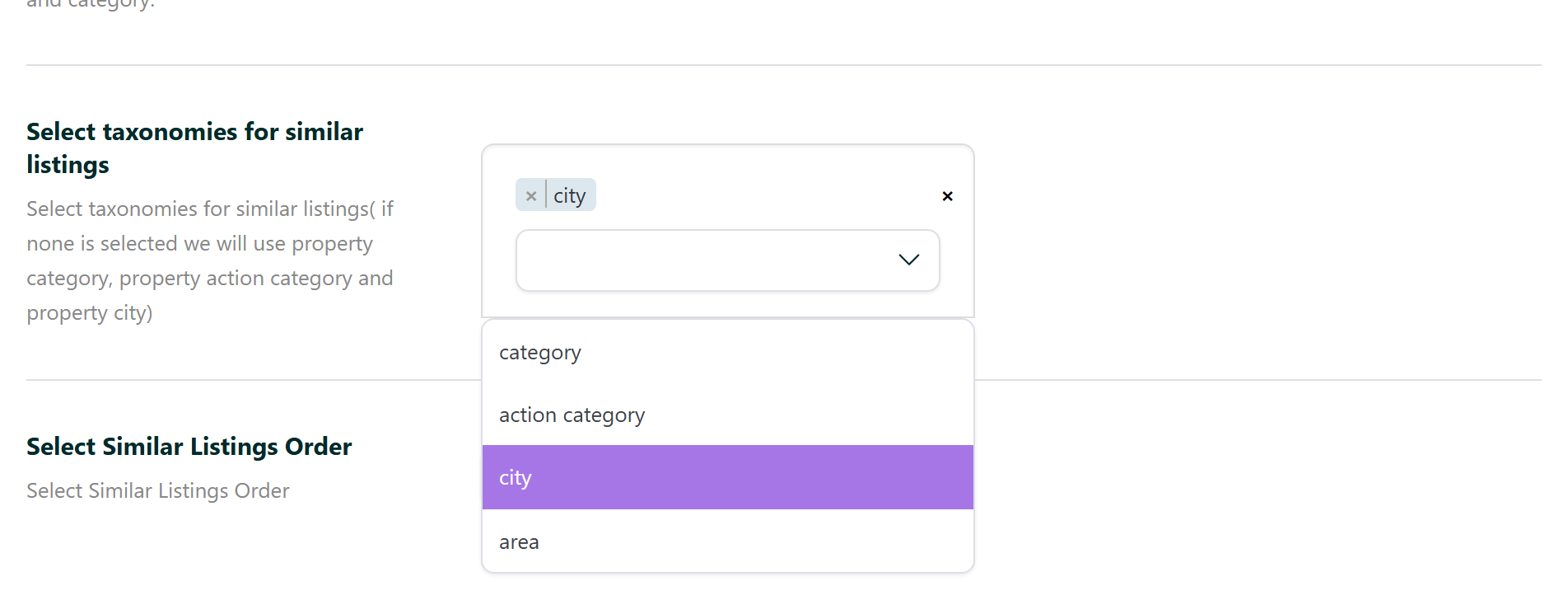
Remember that the selections are combined, so pick the fewest that still give a useful result:
- City only — the most forgiving choice and the one that most reliably fills the row. Good for city-based rental sites.
- Category and city — a good middle ground: the same kind of property, in the same place.
- All four — very strict. On a site with a few hundred listings it often matches nothing, and the section quietly disappears from your property pages.
Leave the field empty and WPRentals falls back to matching on all of them. The hint under the field mentions category, action category and city; area is used as well.
One useful detail: a taxonomy is only applied when the current listing actually has a term in it. A property with no area assigned will not be excluded from its own similar list because of the area rule.
Select Similar Listings Order
Once WPRentals knows which properties qualify, this decides which of them appear first — which matters, because the number setting above cuts the list short.
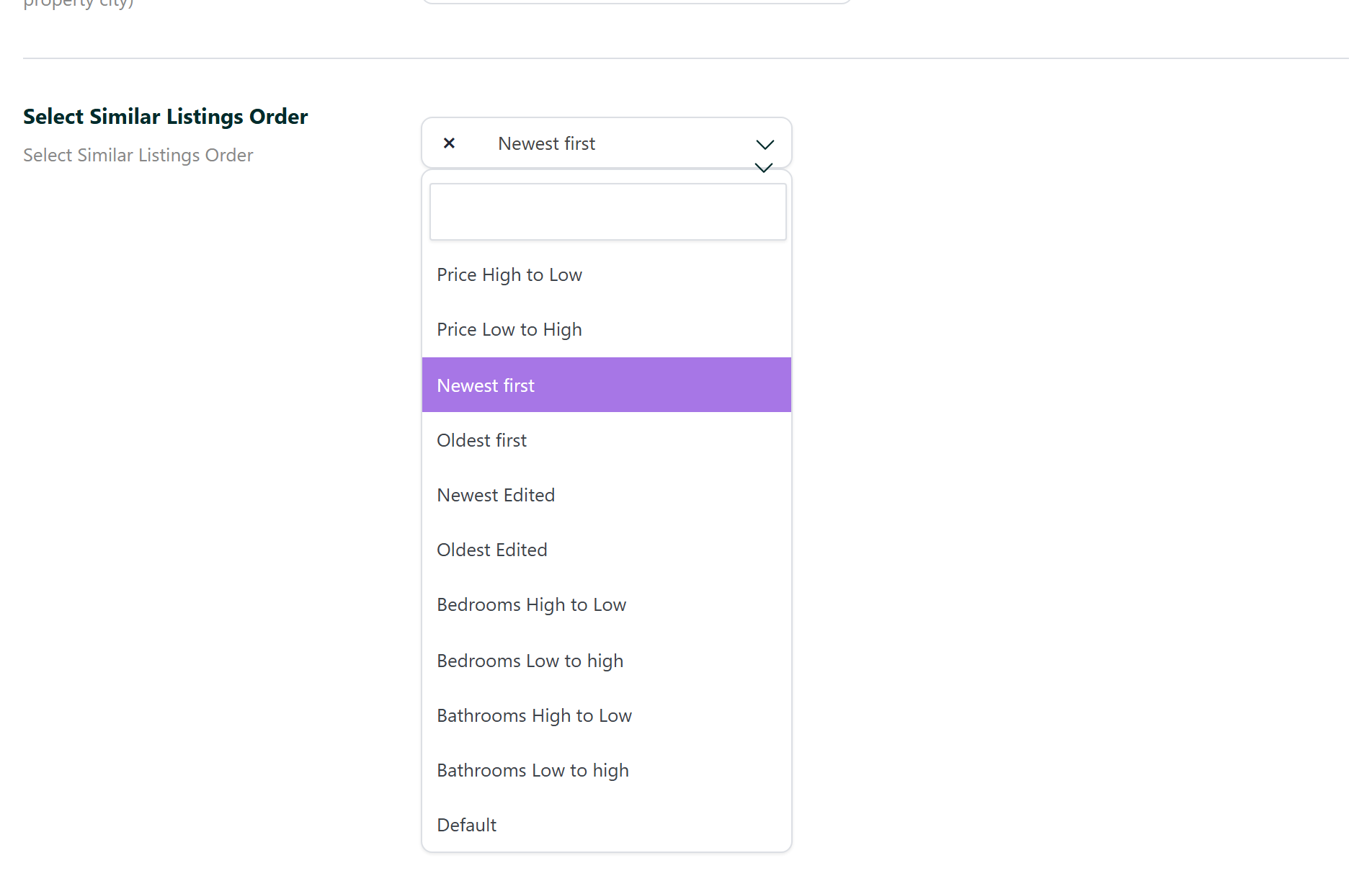
The choices are:
- Price High to Low and Price Low to High
- Newest first and Oldest first — by the date the listing was created
- Newest Edited and Oldest Edited — by the date the listing was last updated
- Bedrooms High to Low and Bedrooms Low to high
- Bathrooms High to Low and Bathrooms Low to high
- Default — featured listings first
If you sell featured placements, Default is the option that rewards them here. Newest first is the usual choice when you want new listings to get exposure.
Turning the section off
The Similar Listings section appears on all five listing page design types. To remove it, go to WPRentals Theme Options → Listing Page → Listing Page Layout Manager and set Hide Default Similar Listing Section? to yes.

If you build your property page with Layout Manager blocks or WPRentals Studio
The three settings above control the standard Similar Listings section that WPRentals adds at the end of the property page. They are not read by the Similar Listings block you can place through the Layout Manager, nor by the Similar Listings widget in WPRentals Studio — those render with their own built-in rules, and the Studio widget has its own control for how many listings to show.
This also means you can end up with the section twice: once from your layout or Studio template, and once from the standard section at the bottom. If you see two rows of similar listings, set Hide Default Similar Listing Section? to yes and keep the one you placed yourself.
The section is missing — what to check
- Nothing qualifies. By far the most common cause, and it always looks like a bug rather than a filter. Open the property, note its category, action category, city and area, and confirm at least one other published listing shares every taxonomy you selected. Then remove taxonomies from the setting until the row appears.
- The matching listings are not published. Drafts, pending and expired listings are never considered.
- The section is hidden. Check the toggle above.
- Caching. After changing any of these settings, clear your caching plugin and the WPRentals cache so property pages are rebuilt.