
Advanced Search Type 1 and Advanced Search Type 2 are predefined search form layouts in WPRentals.
These search types use the default theme search fields and layout. They are not built from custom fields.
What Search Type 1 and Type 2 Are
Search Type 1 and Search Type 2 are default WPRentals advanced search forms.
| Search Type | Layout | Fields | Use Case |
|---|---|---|---|
| Search Type 1 | Vertical layout | Predefined theme fields | Use this when you want the default vertical search form over the hero media header. |
| Search Type 2 | Horizontal layout | Predefined theme fields | Use this when you want the default horizontal search form over the hero media header. |
Search Type 1 example:
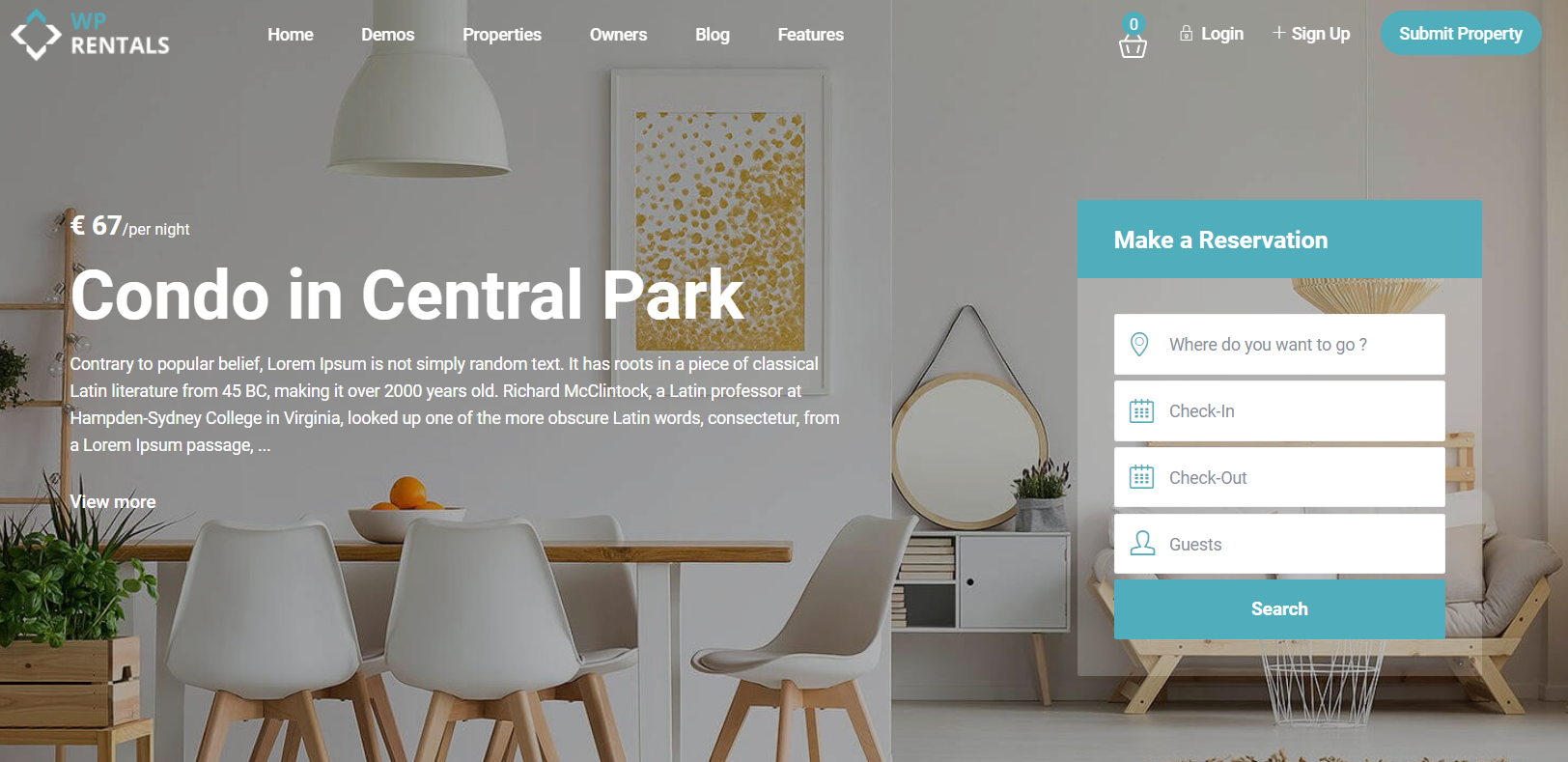
Search Type 2 example:

How to Enable Search Type 1 or Type 2
Go to:
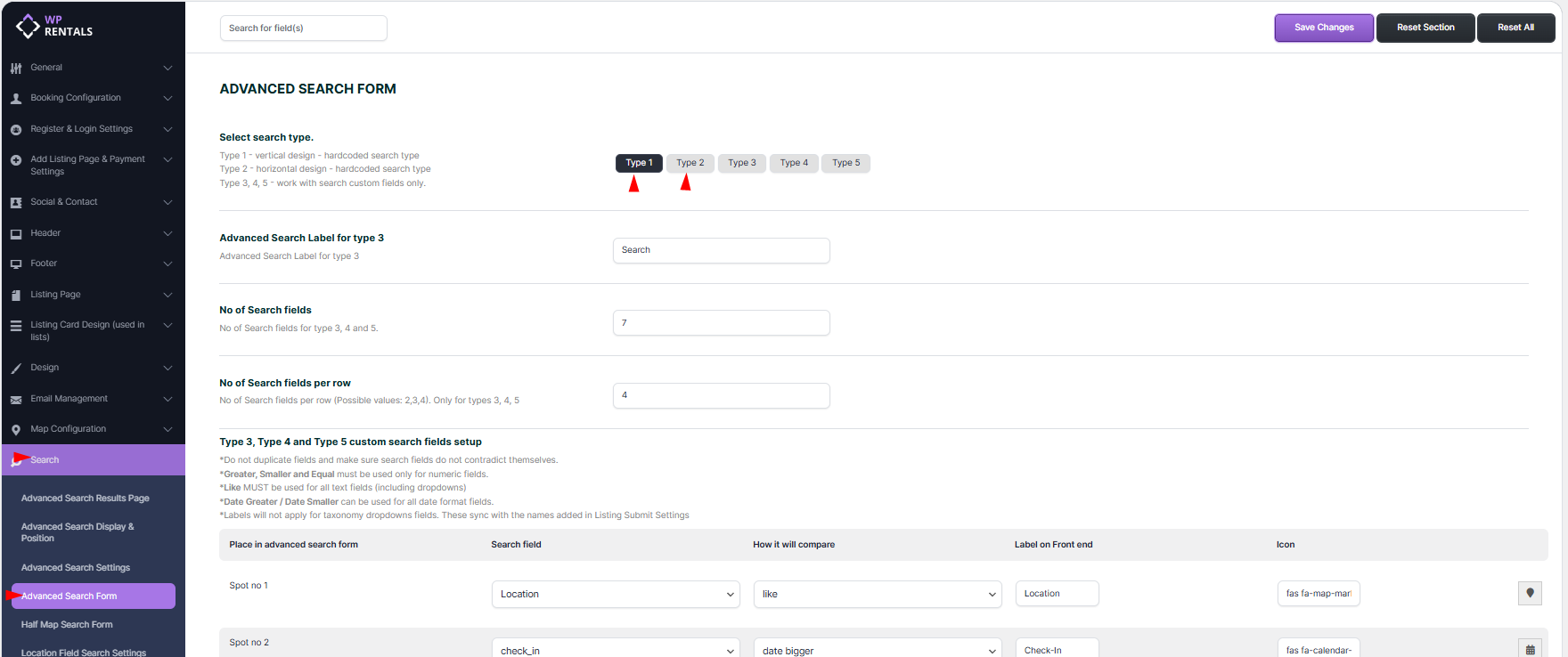
WPRentals Options > Search > Advanced Search Form
Find the option for Advanced Search Type and select:
- Type 1 for the vertical default search form
- Type 2 for the horizontal default search form
Save the settings.
Where Search Type 1 and Type 2 Show
Search Type 1 and Search Type 2 show over the theme hero media header.
They can show over these hero media options:
- Theme Slider
- Map
- Image
- Video
- Revolution Slider
Control the Search Form Position
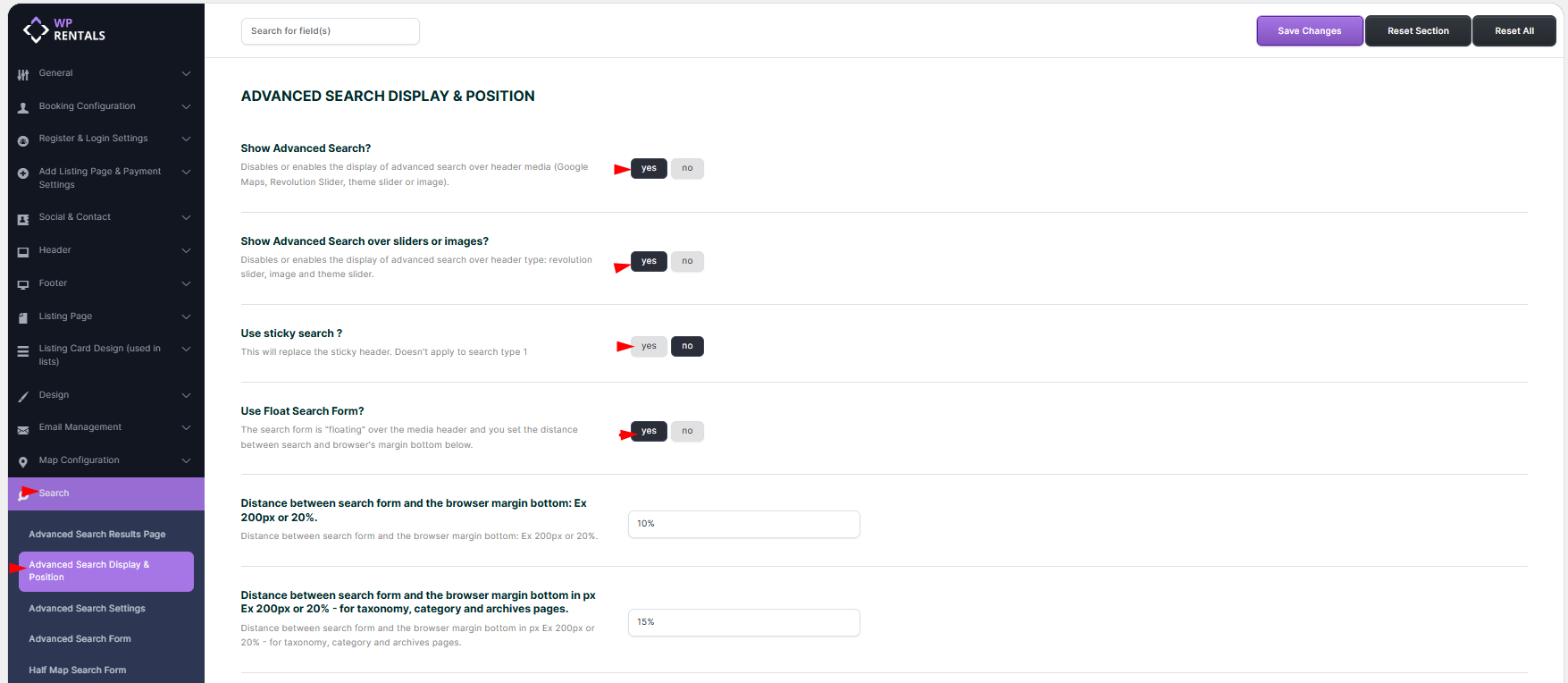
You can control the position of Search Type 1 and Search Type 2 from:
WPRentals Options > Search > Advanced Search Display & Position
Mobile Search
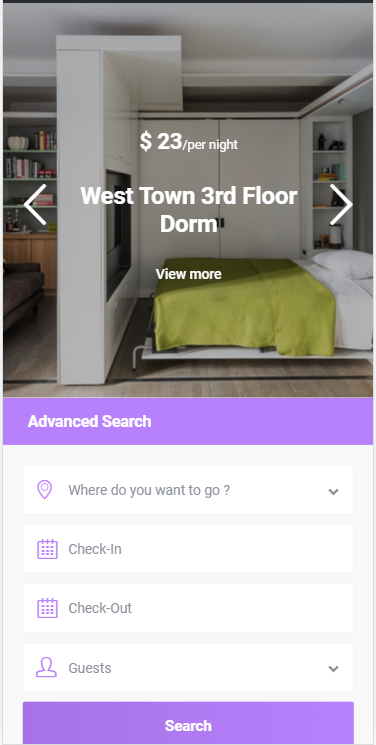
The mobile search appears collapsed by default.
You can make the mobile advanced search open by default using the help below:
How to make mobile advanced search open by default
Search Widget
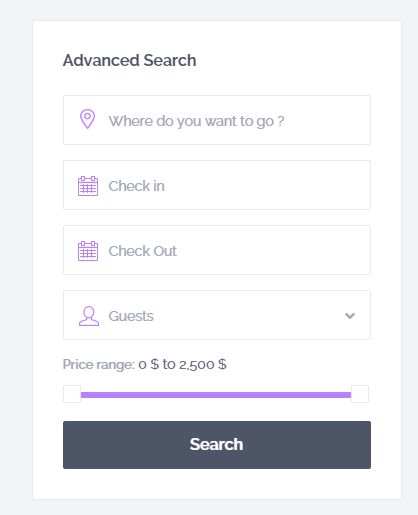
The Advanced Search widget can be added to standard WordPress widget areas, such as sidebars.
The search widget also includes a price slider field.
Search Shortcode
The Advanced Search shortcode can be placed inside pages or posts.

Important Notes
- Search Type 1 and Search Type 2 use predefined theme fields.
- Search Type 1 uses a vertical layout.
- Search Type 2 uses a horizontal layout.
- These search types show over supported theme hero media headers.
- They do not have custom field configuration.
- Custom modifications to Search Type 1 or Search Type 2 require custom code.
- For search forms with selectable custom fields, use Search Type 3, Search Type 4, Search Type 5, Half Map Search Form, or Elementor Search Form Builder.
Related Help
How to make mobile advanced search open by default
Advanced Search Type 3, Type 4, and Type 5 custom fields setup