
The All In One Calendar page is part of the front-end User Dashboard in WPRentals.
This page gives owners and site admins a calendar overview of their listings, booked dates, and unavailable periods. It is useful when you want to manage availability for multiple listings from one place, instead of opening each listing separately.
Video Presentation
What the All In One Calendar Page Is Used For
The All In One Calendar page shows a calendar overview for the listings managed by the logged-in owner or site admin.
From this page, users can:
- see their listings in one calendar view
- view booked dates and unavailable periods
- mark dates as booked manually
- manage availability without opening each listing first
This is useful when an owner or site admin manages more than one listing and wants a faster way to check or block availability.
Who Can Use the All In One Calendar
The page is available in the front-end User Dashboard for users who manage listings.
This can include:
- registered owners who manage their own listings
- site admins who manage listings from the front-end dashboard
- single owner accounts used to manage all listings
The calendar displays the listings connected to the logged-in user.
How to Create the All In One Calendar Page
If you imported a WPRentals demo, this page is usually already created.
If you did not import demo content, create the page manually.
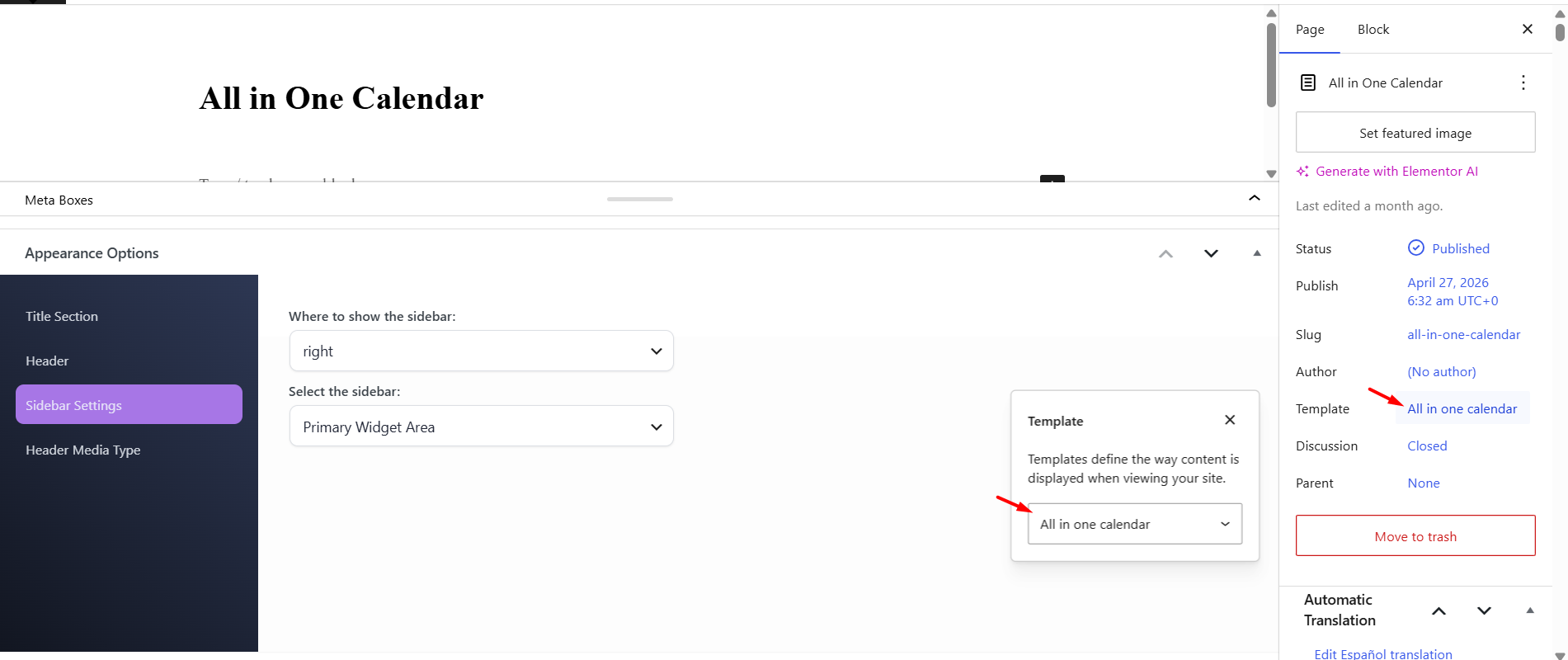
- Go to Wp-admin > Pages > Add New.
- Add the page title, for example All In One Calendar.
- Select the page template All in one calendar.
- Publish the page.
Where Users Find the Page
After the page is created and published, it appears in the front-end User Dashboard menu.
Users access it from:
User Dashboard > All In One Calendar

What the Calendar Shows
The All In One Calendar shows the listings managed by the logged-in user and the availability status for those listings.
Depending on the existing booking and availability data, the page can show:
- published listings connected to the user
- booked periods
- manual booked periods
- unavailable dates
- calendar blocks imported from external sources, when iCal is used for the listing
This gives the owner or site admin a quick overview of listing availability from one dashboard page.
How to Mark Dates as Booked From the All In One Calendar
Use this option when you want to block dates manually from the calendar overview.
For example, use it when:
- the property was booked outside the website
- the owner wants to reserve the property for personal use
- the property is unavailable for maintenance
- the website is used as a presentation website and bookings are handled manually
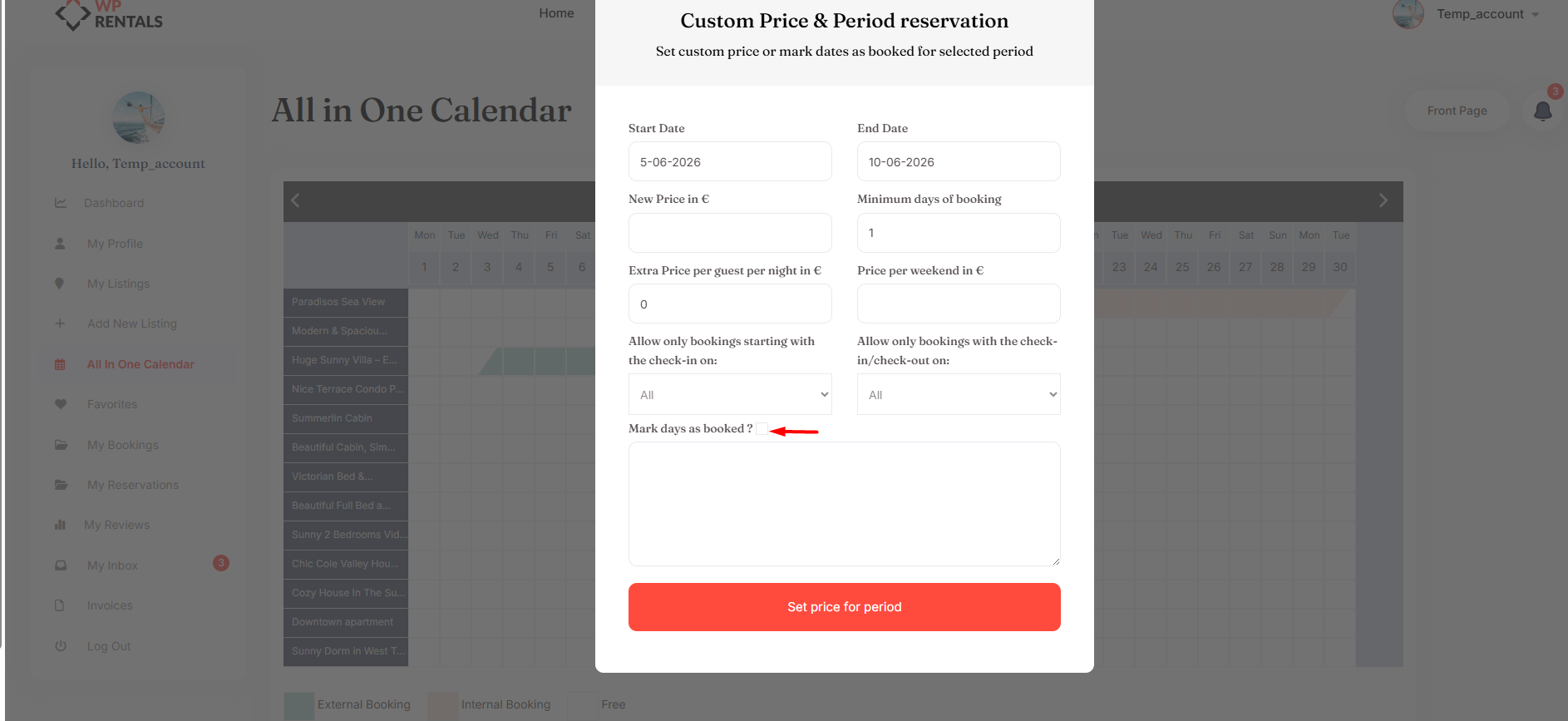
To mark dates as booked:
- Log in to the front-end User Dashboard.
- Go to All In One Calendar.
- Select the dates for the listing you want to block.
- Choose the option to mark the selected period as booked.
- Click Save.
How to Remove a Manually Booked Period
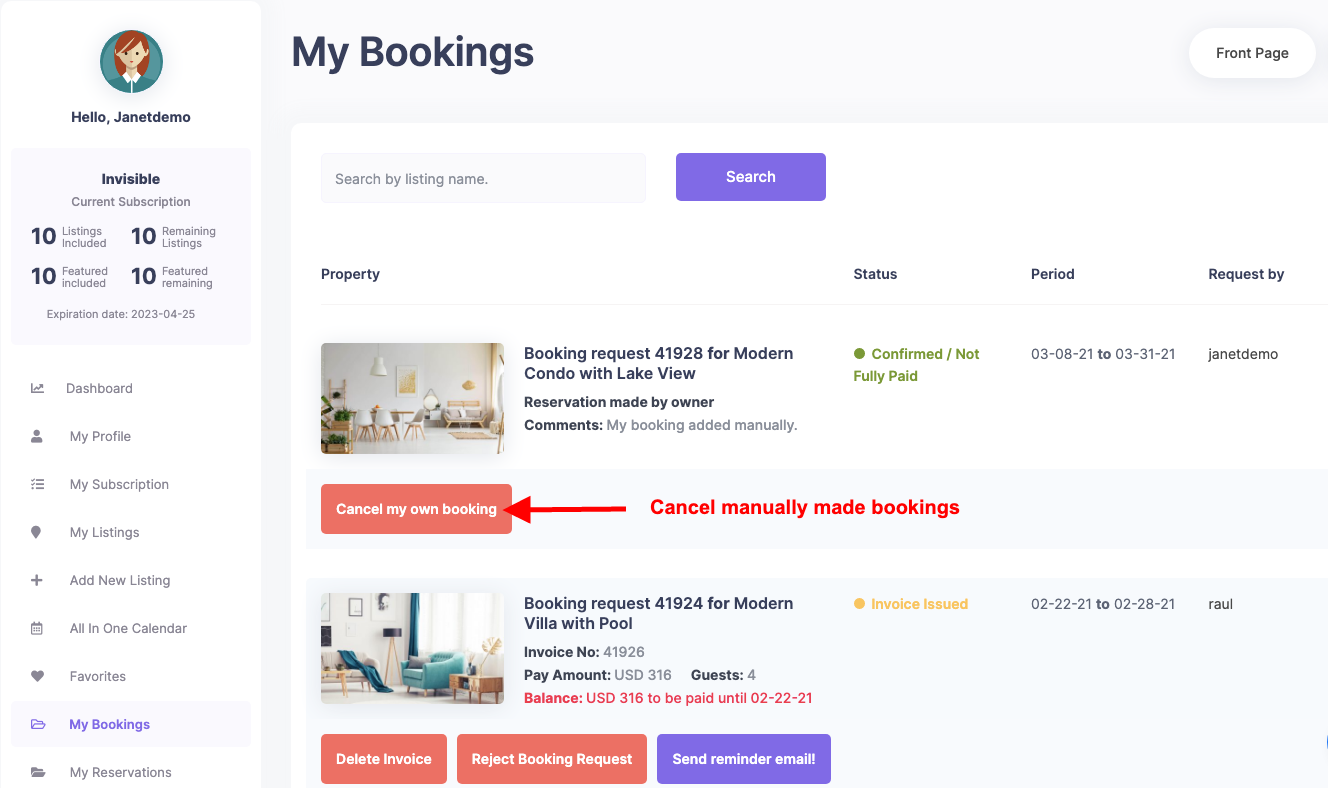
If you manually blocked a period and need to make those dates available again, remove the booked period from the dashboard.
Go to:
User Dashboard > My Bookings
Find the manual booked period and use the cancel/delete option to remove it.
After the manual booked period is removed, the dates become available again in the listing calendar.
All In One Calendar vs Listing Calendar Section
WPRentals has more than one calendar management area.
All In One Calendar
Use this page when you want an overview of multiple listings and their booked dates from one dashboard screen.
Path:
User Dashboard > All In One Calendar
Listing Calendar section
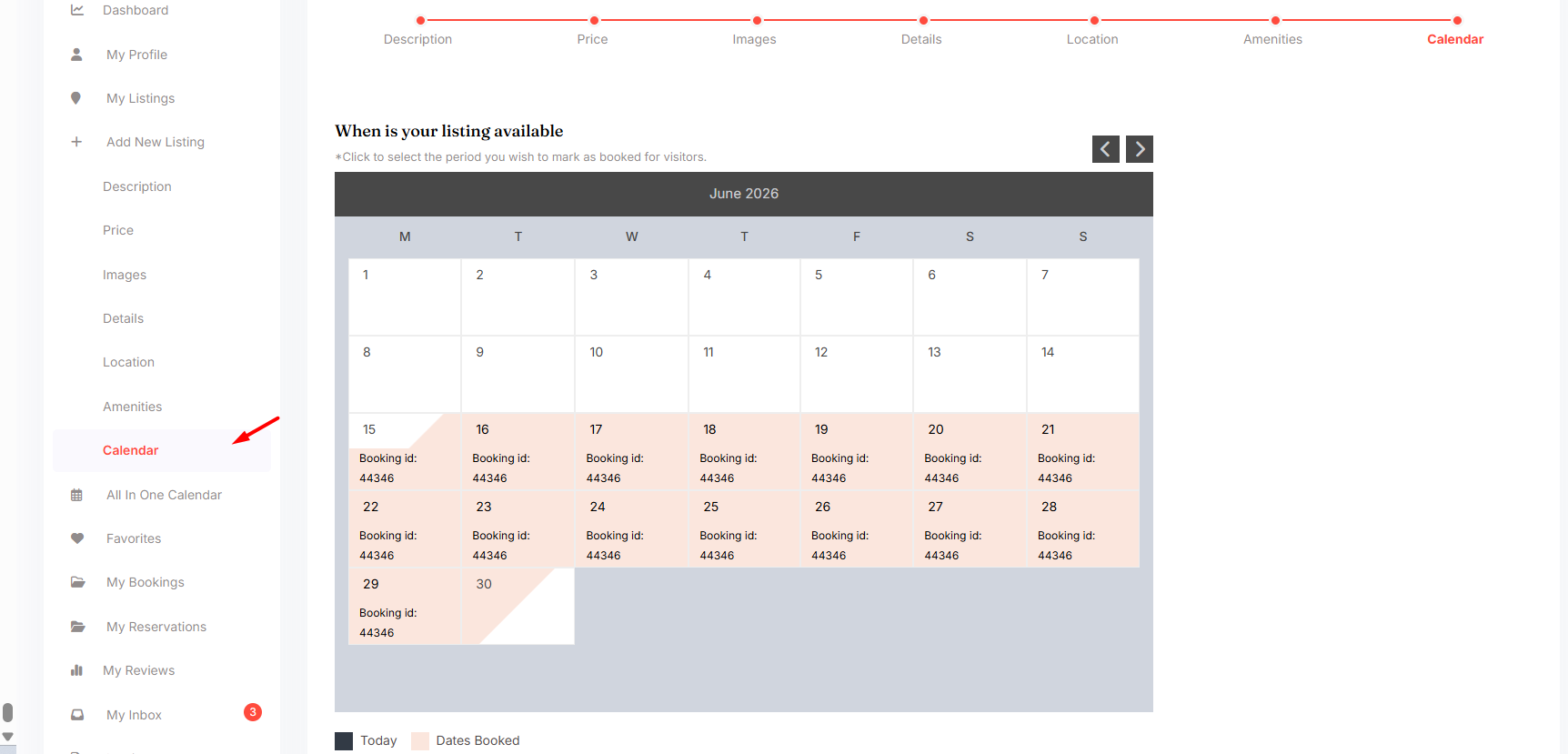
Use the individual listing Calendar section when you need to manage availability, custom prices, or iCal feeds for one specific listing.
Path:
User Dashboard > My Listings > Edit Listing > Calendar
iCal Feed Note
If you need to synchronize availability with external platforms such as Airbnb, Vrbo, Booking.com, Google Calendar, or another platform that supports iCal, manage the iCal feed from the individual listing calendar.
Use:
User Dashboard > My Listings > Edit Listing > Calendar
The listing must be published before iCal synchronization can work correctly.
Important Notes
- The All In One Calendar page is part of the front-end User Dashboard.
- The page must be created with the All in one calendar template.
- If you imported demo content, the page is usually already created.
- Registered owners and site admins/single owners use the same dashboard workflow for their listings.
- The calendar shows listings connected to the logged-in user.
- Manual booked periods only block availability. They do not create invoices or payments.
- Booking requests are managed from User Dashboard > My Bookings.
- Renter reservations are managed from User Dashboard > My Reservations.
- Detailed calendar settings for one listing are managed from User Dashboard > My Listings > Edit Listing > Calendar.
- iCal feeds are managed per listing, not from the All In One Calendar overview.
The All In One Calendar is not recommended for mobile devices or screen resolutions lower than 1200px.
Related Help
How to create the User Dashboard pages
How to make calendar dates unavailable
How to manually block dates and manage external bookings
My Reservations Page – User Dashboard
Summary
- The All In One Calendar page gives owners and site admins a dashboard overview of listing availability.
- It is created from Wp-admin > Pages > Add New using the All in one calendar template.
- It appears in the front-end User Dashboard.
- It displays the listings connected to the logged-in user and their booked dates.
- It can be used to mark periods as booked manually.
- Manual booked periods only block dates and do not create invoices.
- For iCal feeds, custom prices, and detailed listing calendar settings, use User Dashboard > My Listings > Edit Listing > Calendar.