
Overview
In WPRentals, you can manage the content of the email notifications sent by the theme from:
Theme Options > Email Management > Email Content
From this section, you can edit the subject and message content for the email notifications used by the WPRentals notification system.
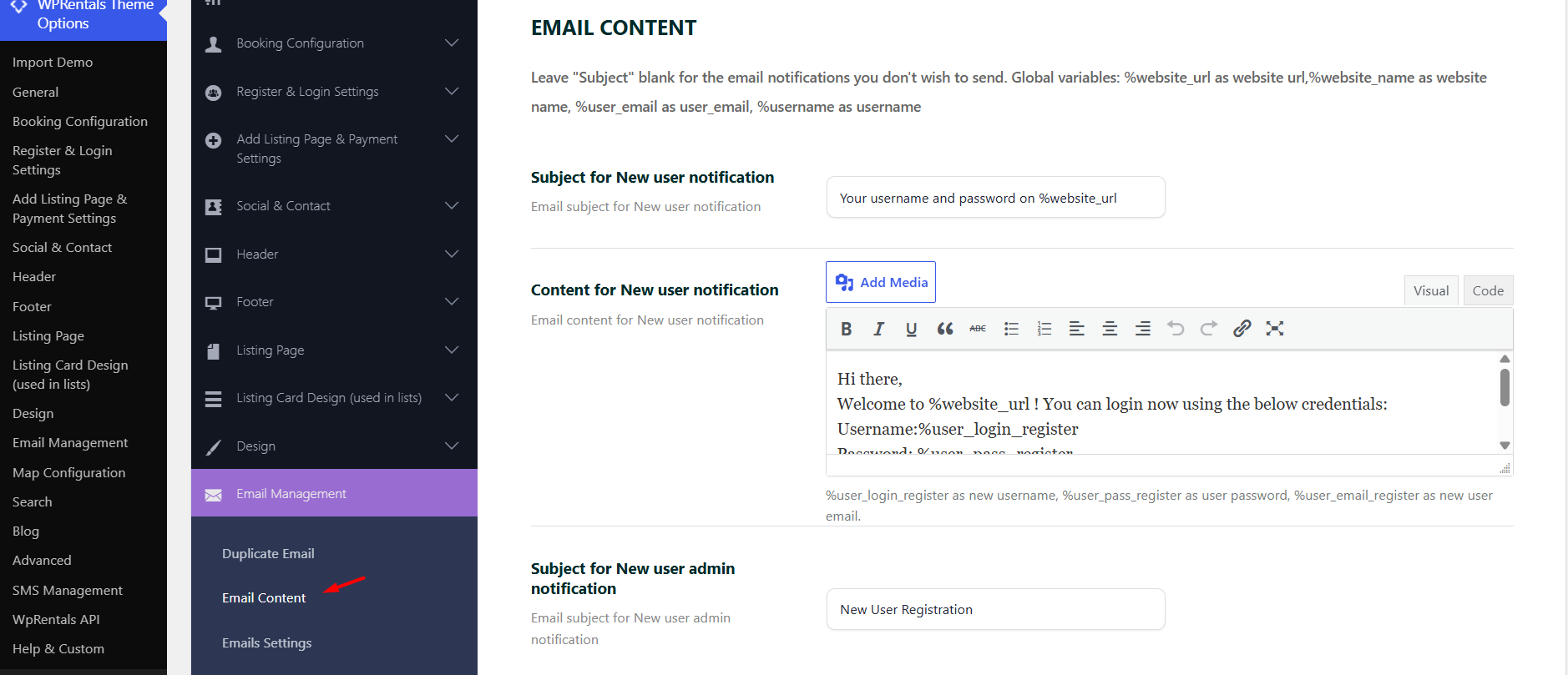
Where to Manage Email Content
Go to:
Theme Options > Email Management > Email Content
This section includes the editable email templates used by the WPRentals theme.
You can edit email notifications related to:
- User registration and account actions
- Password reset
- Listing submission and listing approval
- Membership and paid submission actions
- Booking requests and booking confirmations
- Booking cancellations and rejected requests
- Invoices and payment reminders
- Wire transfer notifications
- Inbox messages
- Reviews and review replies
- User ID verification
Email Content vs Email Settings
WPRentals separates email content from general email design and sender settings.
| Section | What it controls |
|---|---|
| Theme Options > Email Management > Email Content | Email subjects and email message text. |
| Theme Options > Email Management > Email Settings | Email format, sender name, sender email address, email logo, and general visual details. |
| Theme Options > Email Management > Duplicate Email | The email address that receives duplicate copies of theme email notifications. |
Subject and Content Fields
Each email notification has two main fields:
- Subject – controls the email subject line.
- Content – controls the message body of the email.
Subject Field
The subject field is required for the email notification to be sent.
Content Field
The content field lets you customize the message sent in the email body.
You can write the email content using the editor available in the theme options. For most websites, no HTML is needed.
Visual and Text Editor Modes
The email content editor includes two editing modes:
- Visual – recommended for non-technical users who want to write and format the email without code.
- Text – used only when you want to add or edit HTML manually.
If you want to create simple email text, use the Visual editor. You can write the message, add line breaks, and use the available editor tools.
If you want a custom design with manual HTML, switch to Text mode and edit the content there.
When HTML Is Needed
HTML is not required for normal email content edits.
Most clients can create and update email messages using the editor available in Email Content. This is the recommended method for non-technical users.
Use HTML only if you need a specific layout or design that cannot be created from the editor, such as:
- Custom inline text styling
- Custom paragraphs
- Special spacing
- Specific colors
- Specific font sizes
Global Variables
Global variables can be used in email templates and are replaced automatically with real website or user data when the email is sent.
Common global variables include:
- %website_url – website URL
- %website_name – website name
- %user_email – user email address
- %username – username
Available Email Notifications
The table below lists the email notifications available in Theme Options > Email Management > Email Content.
| Email Notification | Default Subject | Available Variables |
|---|---|---|
| New user notification | Your username and password on %website_url | %user_login_register, %user_pass_register, %user_email_register |
| New user admin notification | New User Registration | %user_login_register, %user_email_register |
| Purchase Activated | Your purchase was activated | Global variables only. |
| Password Reset Request | Password Reset Request | %reset_link, %forgot_username, %forgot_email |
| Password Reseted | Your Password was Reset | %user_login, %user_pass |
| Approved Listings | Your listing was approved | %listing_author, %post_id, %property_url, %property_title |
| Admin – Expired Listing | Expired Listing sent for approval on %website_url | %submission_title, %submission_url |
| Paid Submission | New Paid Submission on %website_url | Global variables only. |
| Featured Submission | New Feature Upgrade on %website_url | Global variables only. |
| Account Downgraded | Account Downgraded on %website_url | Global variables only. |
| Membership Cancelled | Membership Cancelled on %website_url | Global variables only. |
| Free Listing Expired | Free Listing expired on %website_url | %expired_listing_url, %expired_listing_name |
| New Listing Submission | New Listing Submission on %website_url | %new_listing_title, %new_listing_url |
| Recurring Payment | Recurring Payment on %website_url | %recurring_pack_name, %merchant |
| Membership Activated | Membership Activated on %website_url | Global variables only. |
| Update Profile | Profile Update | %user_login, %user_email_profile, %user_id |
| Booking Confirmed – User | Booking Confirmed on %website_url | Global variables only. |
| Booking Confirmed | Booking Confirmed on %website_url | Global variables only. |
| Booking Confirmed – no deposit | Booking Confirmed on %website_url | Global variables only. |
| Inbox – New Message | New Message on %website_url. | %content |
| New Booking Request | New Booking Request on %website_url. | %booking_property_link, %booking_id |
| Owner – New Booking Request | You booked a period on %website_url. | %booking_property_link |
| Invoice generation | New Invoice on %website_url. | Global variables only. |
| Booking request rejected | Booking Request Rejected on %website_url | Global variables only. |
| Booking Request Cancelled | Booking Request Cancelled on %website_url | %receiver_email, %receiver_name |
| Booking Period Cancelled | Booking Period Cancelled on %website_url. | Global variables only. |
| New wire Transfer | You ordered a new Wire Transfer | %invoice_no, %total_price, %payment_details |
| Admin – New wire Transfer | Somebody ordered a new Wire Transfer | %invoice_no, %total_price, %payment_details |
| Invoice Payment Reminder | Invoice payment reminder | %invoice_id, %property_url, %property_title, %booking_id, %until_date |
| New User ID verification | New User ID verification | %user_login |
| Payment Action Required | Payment Action Required on %website_url | Global variables only. |
| New Review email | New Review received on %website_url | %stars, %user, %property_name, %content |
| Review Reply Email | A reply was posted to your review on %website_url | %property_name, %reply_content |
| Post Review Reminder | Rate your stay at %property_title | %invoice_id, %property_url, %property_title, %booking_from_date, %booking_to_date |
How to Disable an Email Notification
To stop a specific email notification from being sent, leave its Subject field empty.
- Go to Theme Options > Email Management > Email Content.
- Find the email notification you want to disable.
- Remove the text from the Subject field.
- Save the theme options.
SMS Notifications
The same video also explains how to enable SMS management.
SMS notifications are managed separately from email content and require Twilio setup.
For SMS setup, go to:
Theme Options > SMS Management
SMS notifications require:
- An active Twilio account
- A Twilio phone number
- Twilio Account SID
- Twilio Auth Token
- SMS templates for the notifications you want to send
Duplicate Email Copies
If the administrator wants to receive copies of theme email notifications, use the Duplicate Email option.
Go to:
Theme Options > Email Management > Duplicate Email
Add the email address that should receive a copy of theme notifications.
Duplicate Email for Administrator
Troubleshooting
An Email Notification Is Not Sent
- Check that the email subject is not empty.
- Check that the notification template exists in Email Content.
- Check that the related website action is actually triggered.
- Check the sender email from Theme Options > Email Management > Email Settings.
- Check if WordPress emails are working on the website.
- Check SMTP settings if an SMTP plugin is used.
The Email Content Shows Variables Instead of Real Values
- Check that the variable is spelled correctly.
- Check that the variable is supported by that specific email template.
- Check that the related data exists for that notification.
- Use only the variables listed for that email notification.
HTML Formatting Disappears After Editing
- Edit HTML only from Text mode.
- Avoid switching from Text mode to Visual mode after adding custom HTML.
- Keep custom HTML simple.
- Test the email after saving the template.
The Email Design, Logo, or Sender Details Are Wrong
- Go to Theme Options > Email Management > Email Settings.
- Check the email format option.
- Check the sender name and sender email.
- Check the email logo and visual settings.
- If plain text email is selected, HTML visual design settings will not apply the same way.
Emails Go to Spam or Junk
- Use a sender email address that belongs to the website domain.
- Use authenticated SMTP when possible.
- Check SPF, DKIM, and DMARC records.
- Check the sending server reputation.
- Ask the hosting provider or email provider to check mail logs.
Important Notes
- Email content is managed from Theme Options > Email Management > Email Content.
- Each email notification has a subject field and a content field.
- If the subject field is empty, that email notification will not be sent.
- HTML is not required for normal email edits.
- Non-technical users can use the available editor to create and update email content.
- Use Text mode only when you need to add custom HTML.
- Switching from Text mode to Visual mode can remove or change HTML.
- General email options, such as sender details, email format, logo, and colors, are managed from Theme Options > Email Management > Email Settings.
- SMS notifications are managed separately and require Twilio.
- Duplicate email copies are managed from Theme Options > Email Management > Duplicate Email.
- Email delivery depends on the server, SMTP configuration, sender email, and mail authentication records.