
Video tutorials
Language Files & Child Theme Installation
To translate WpRentals, you may need to edit two separate translation locations:
- Theme files: wp_content/themes/wprentals-child/languages
- Core plugin files: wp_content/plugins/wprentals-core/languages
Why use a child theme
We recommend using the child theme so your theme translations are not lost when updating the main theme.
Core plugin translations may need to be backed up and restored after updates if you keep custom changes inside the plugin language files.
Install the child theme
- Download All Files and Documentation from your buyer account → Downloads.
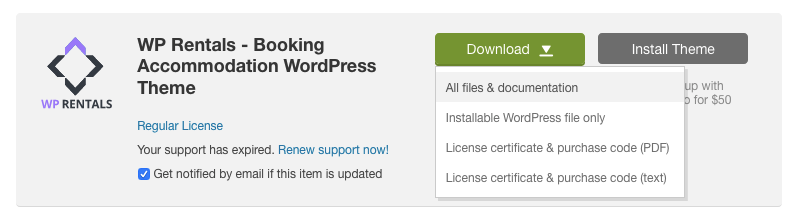
- Unzip the package and locate wprentals-child.zip.

- Install the parent theme first (wprentals.zip). Installation guide
- Then install wprentals-child.zip the same way.
- Activate the child theme.


Check your WordPress site language
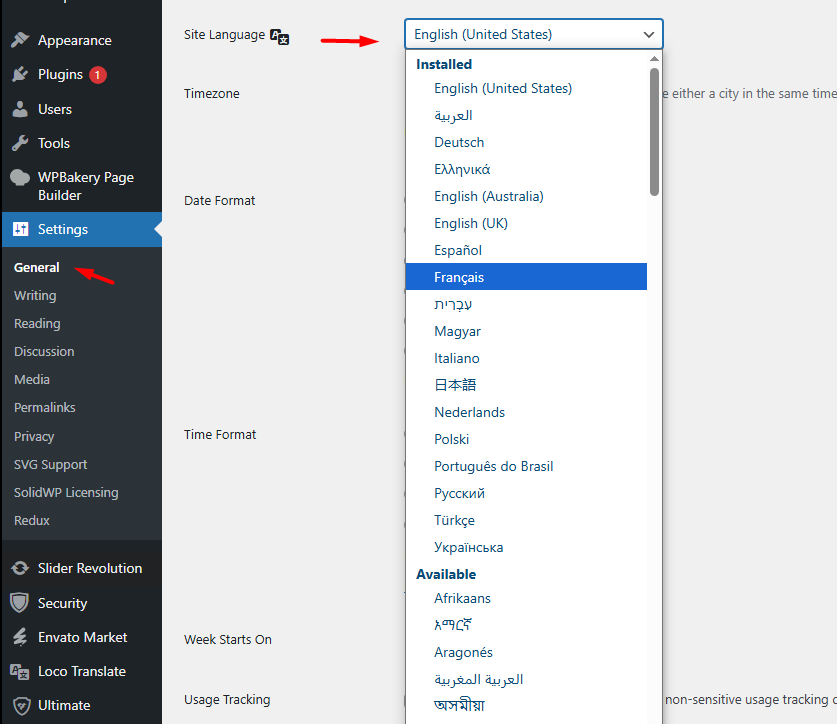
Before using Loco Translate or Poedit, make sure your WordPress site is set to the correct language so WordPress loads the right translation files.
- Go to Settings → General.
- Find Site Language.
- Select your preferred language.
- Click Save Changes.
Translate with Loco Translate (recommended)
Install and activate Loco Translate
- Go to Plugins → Add New.
- Search for Loco Translate, install it, and activate the plugin.

Translate the WPRentals child theme strings
- Make sure the WPRentals child theme is installed and active.
- Go to Loco Translate → Themes.
- Select WpRentals Child Theme.
- Open your language file (for example sr_RS) or create a new language file using New language.
Recommended configuration values for the child theme:
- Project name: WpRentals Child theme
- Text domain: wprentals
- File prefix: wprentals
- Template file: languages/wprentals.pot
- Domain path: languages
- Source file paths: blank

Create or edit your language
- If your language exists, click it (example: French (fr_FR)) and then click Edit.
- If your language does not exist, click New language, select the language, and choose Author.
- Do not use Edit template.


Search, translate, and save
- Use the search box to find the string you want to translate (example: “Book Now”).
- Select the string and enter your translation.
- Click Save.

Translate the WPRentals core plugin strings
Some strings are not in the theme language files. They are inside the core plugin. You must translate them separately.
- Go to Loco Translate → Plugins.
- Select WPRentals – Theme Core Functionality.
- Open your language file (example: sr_RS) or create a new one.
- Click Sync, translate the needed strings, then Save.


Back up your plugin language file before updates
- Before updating, download/save the language file to your computer.

After the update, upload the file back if needed.

Example workflow for plugin strings:
- Search for the string (example: “Service Fee”).
- Translate it.
- Save.

Translate with Poedit (offline work)
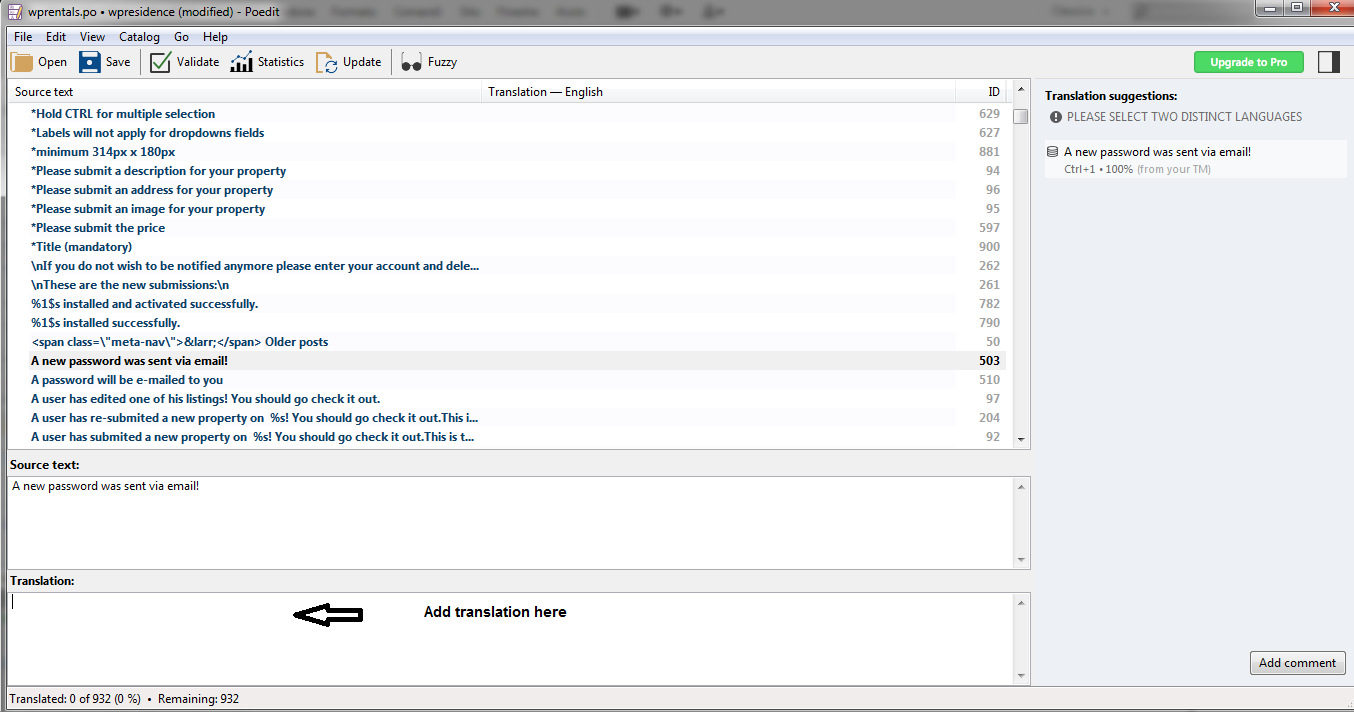
- Download and install Poedit. Use the free version.
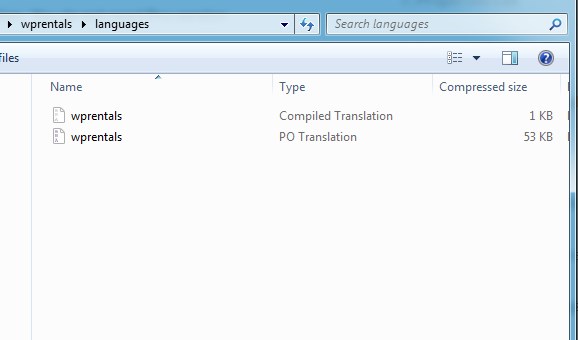
- Open the .po files from:
- wp_content/themes/wprentals-child/languages/
- wp_content/plugins/wprentals-core/languages/
- Set the file language to match your site language (Settings → General → Site Language).
- Translate the strings you need.
- Save both .po and .mo files using the correct language code (example: de_DE.po and de_DE.mo).

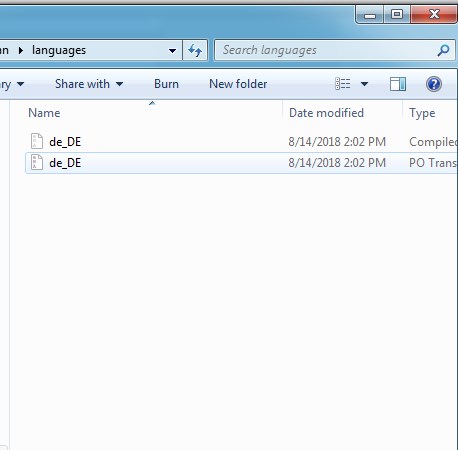
For language codes, see the WordPress list here: WordPress in your language
Labels managed from Theme Options
Not all labels are handled through .po language files. Some are managed directly from the WordPress admin area.
Listing page labels
- Go to Theme Options → Listing Page → Listing Page Text Labels
- Edit the section titles and other listing-related labels (example: “Property Description”, “Property Price”).
- Bed type labels can also be edited there.

Help – Listing labels documentation
Property features and amenities
Features and amenities are not translated through .po files. They must be edited manually.
- Go to Listings, Bookings & More → Listing Features
- Rename, add, or remove features (example: “Air Conditioning”, “Swimming Pool”).

Help – Features and amenities help
Custom property fields
- Go to Theme Options → General → Listing Custom Fields
- Edit the field label, type, and values.

Help – Custom property fields help
Advanced Search labels
Some search labels are set in Theme Options → Search tabs. Help – Advanced search form.

The Half Map filter labels are managed from Theme Options → Search → Half Map Search Form.

Elementor templates and Studio templates
If you edit labels inside Elementor templates (Header, Footer, Listing Page, Taxonomies, etc.), those labels are managed inside the Elementor editor.
For Studio templates, edit the template with Elementor and change the text directly.


Update language files after theme and core plugin updates
When the theme or core plugin is updated, new strings may be added or moved. Follow this guide to update your translation files:
Help – How to update translations after a theme update
FAQ: Loco Translate not working after update
Why is Loco Translate not working after the update?
If your site language is set correctly (example: Serbian), you clicked Sync in Loco Translate, and you followed the steps, but strings like “per night” are still shown in English, it usually means the string is no longer coming from the same place after the update.
Theme and plugin updates can add new strings or move strings between the theme and the WpRentals Core plugin. Because of that, you may need to sync and translate the same string in both locations.
1. Confirm your file locations
These are the two areas that must be checked and updated:
- Theme (child theme): wp_content/themes/wprentals-child/languages/
- Core plugin: wp_content/plugins/wprentals-core/languages/
2. Sync in Loco for the child theme
- Go to Loco Translate → Themes → WpRentals Child Theme
- Open your language (example: sr_RS)
- Click Sync
- Search for the string (example: per night)
- Translate it and click Save
3. Sync in Loco for the core plugin
- Go to Loco Translate → Plugins → WpRentals – Theme Core Functionality
- Open your language (example: sr_RS)
- Click Sync
- Translate the string and click Save
4. Confirm WordPress loads the correct language
- Go to Settings → General → Site Language
- Make sure it is set to your target language (example: Serbian)
5. Verify the Loco configuration
If strings still do not load, verify your Loco settings – https://help.wprentals.org/article/translation/#locotranslate
If you want us to check your setup, please open a ticket in our client support system and include your site URL and temporary wp-admin access.