
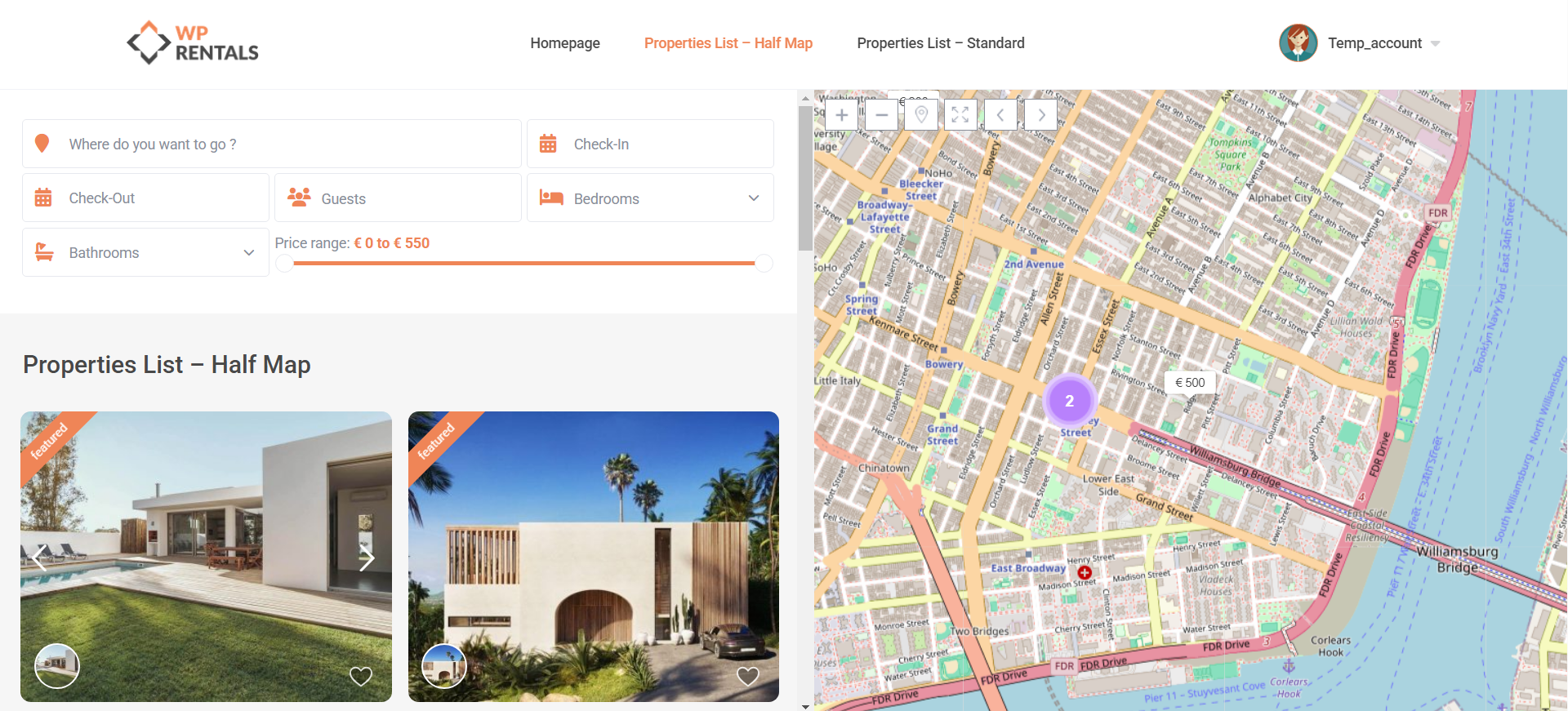
The Properties List Half Map Page is a special page template that displays property listings and an interactive map side by side.
The page is split into two sections:
- Map section – Shows the property pins on the map.
- Properties list section – Shows the properties from the selected list or search results.
This layout is useful when visitors need to browse properties visually on the map while also seeing the property cards in a list.
Properties List Half Map overview
The Properties List Half Map page template shows a map and a property list in the same screen layout.
Visitors can use the filters to search properties, and the results are displayed in the list and on the map.
This page template is different from a regular property list page because it is designed specifically for the map/list experience.
How to create the Properties List Half Map page
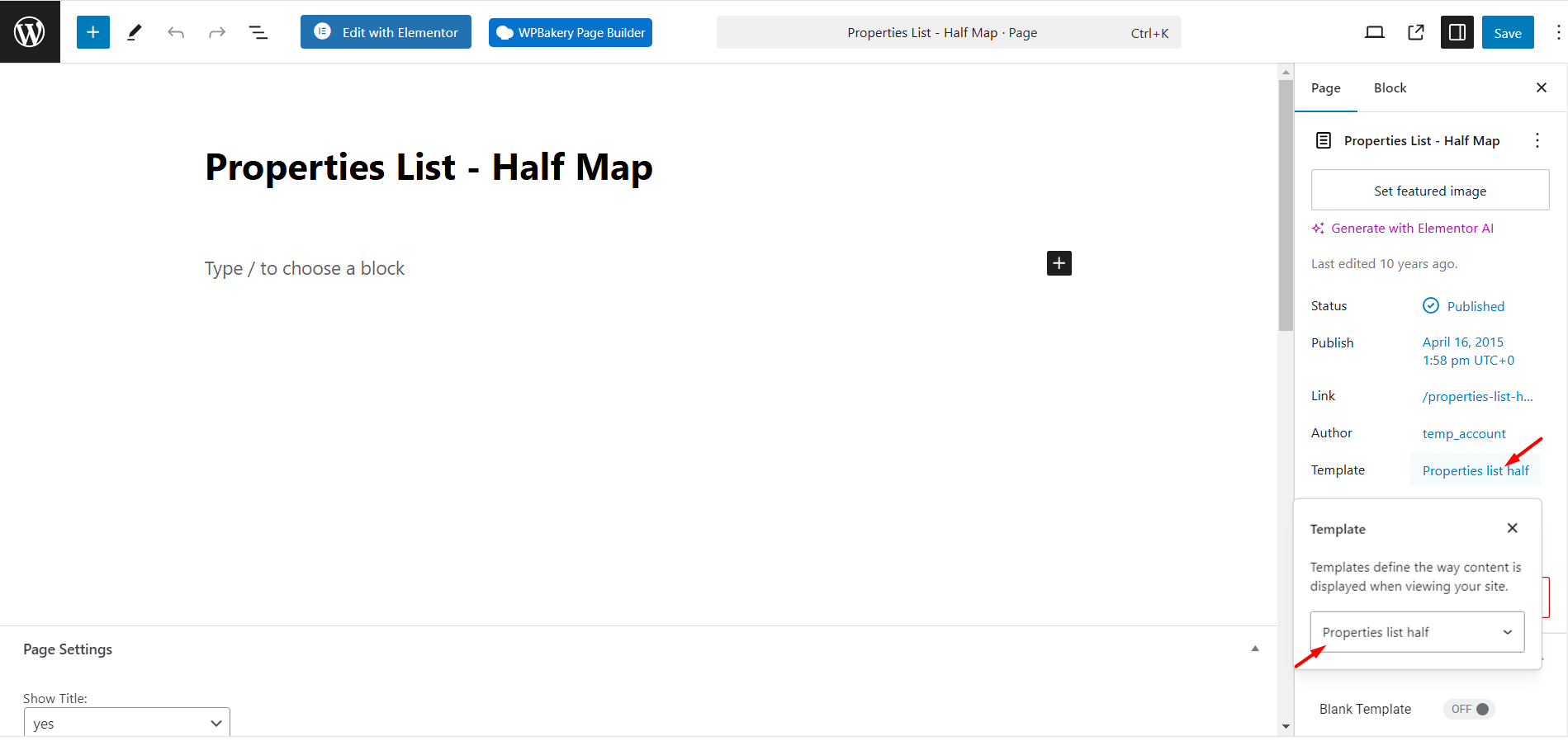
- Go to Wp-admin → Pages → Add New Page.
- Add the page title.
- From the Page Template dropdown, select Properties List Half.
- Click Save or Publish.
What this template includes
The Properties List Half template includes:
- Half map and half properties list layout.
- Search filters above the property list.
- No footer. This template does not include the footer section.
- No standard sidebar. The layout is built for map and list display.
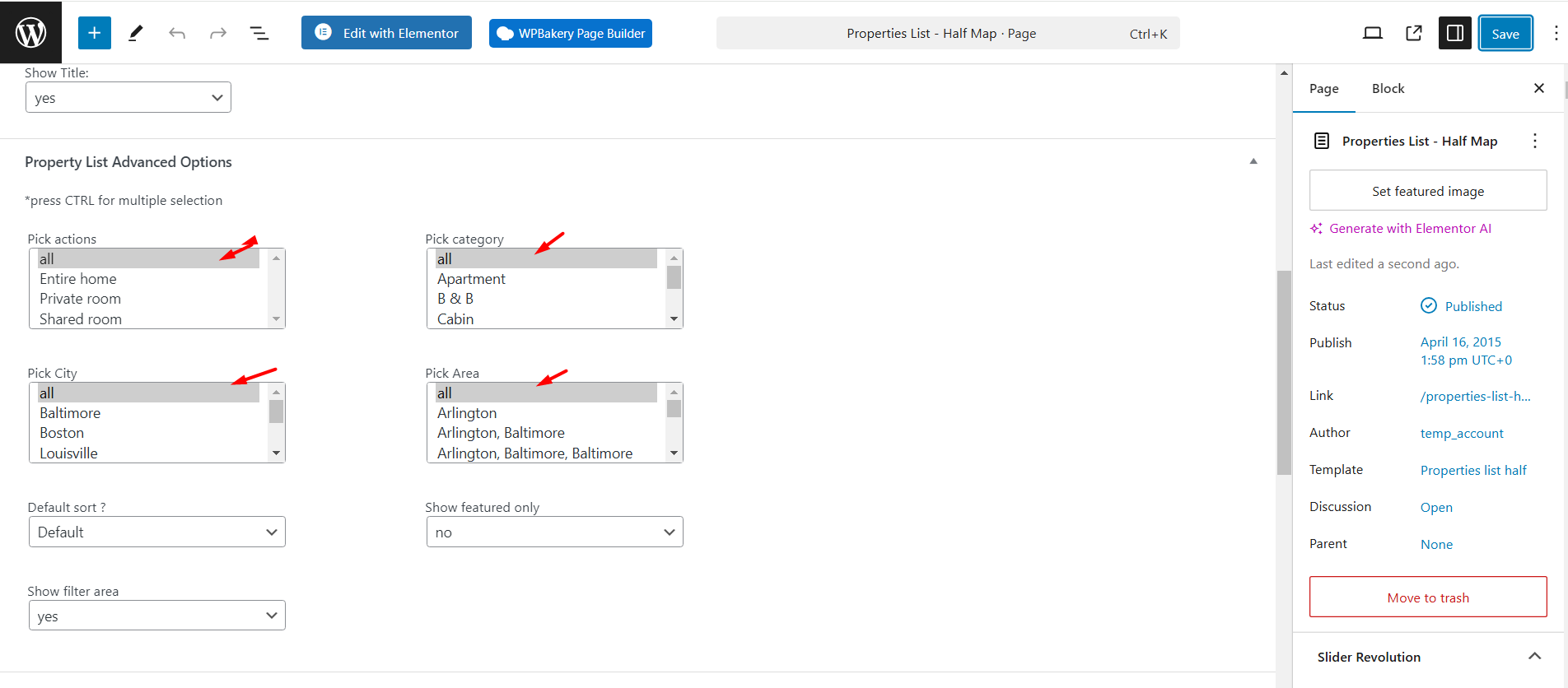
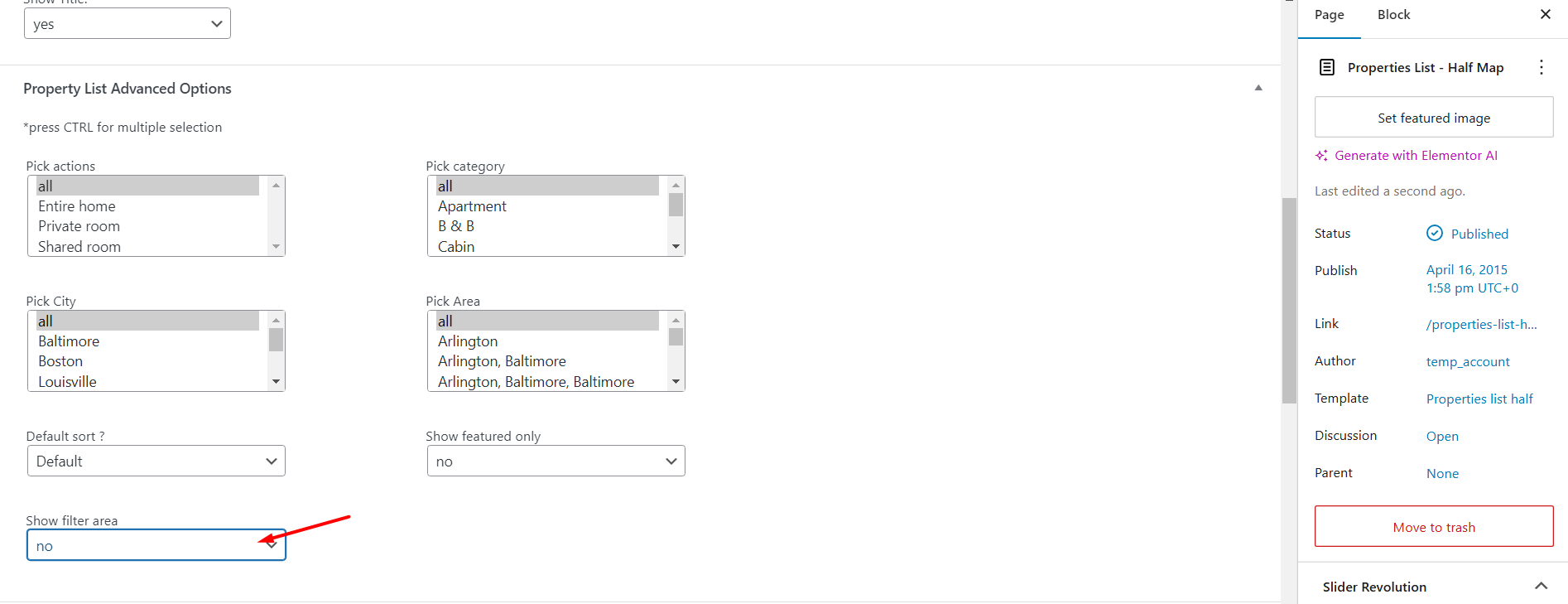
Select which properties show by default
You can choose which properties are listed by default from the page Advanced Settings.
These settings control the initial list shown when the page first loads.
Set the header media to Google Maps
For the Properties List Half Map page to work correctly, the page header media must be set to Google Maps.
If your global header setting is not Google Maps, configure the header media for this specific page.
You will also need to enter the latitude and longitude coordinates for the map.

Set custom map coordinates and zoom
To make the custom latitude, longitude, and zoom values apply on this page, enable the option ByPass fit bounds.
If this option is not enabled, the map may automatically adjust the view based on the visible property pins instead of using your custom coordinates.

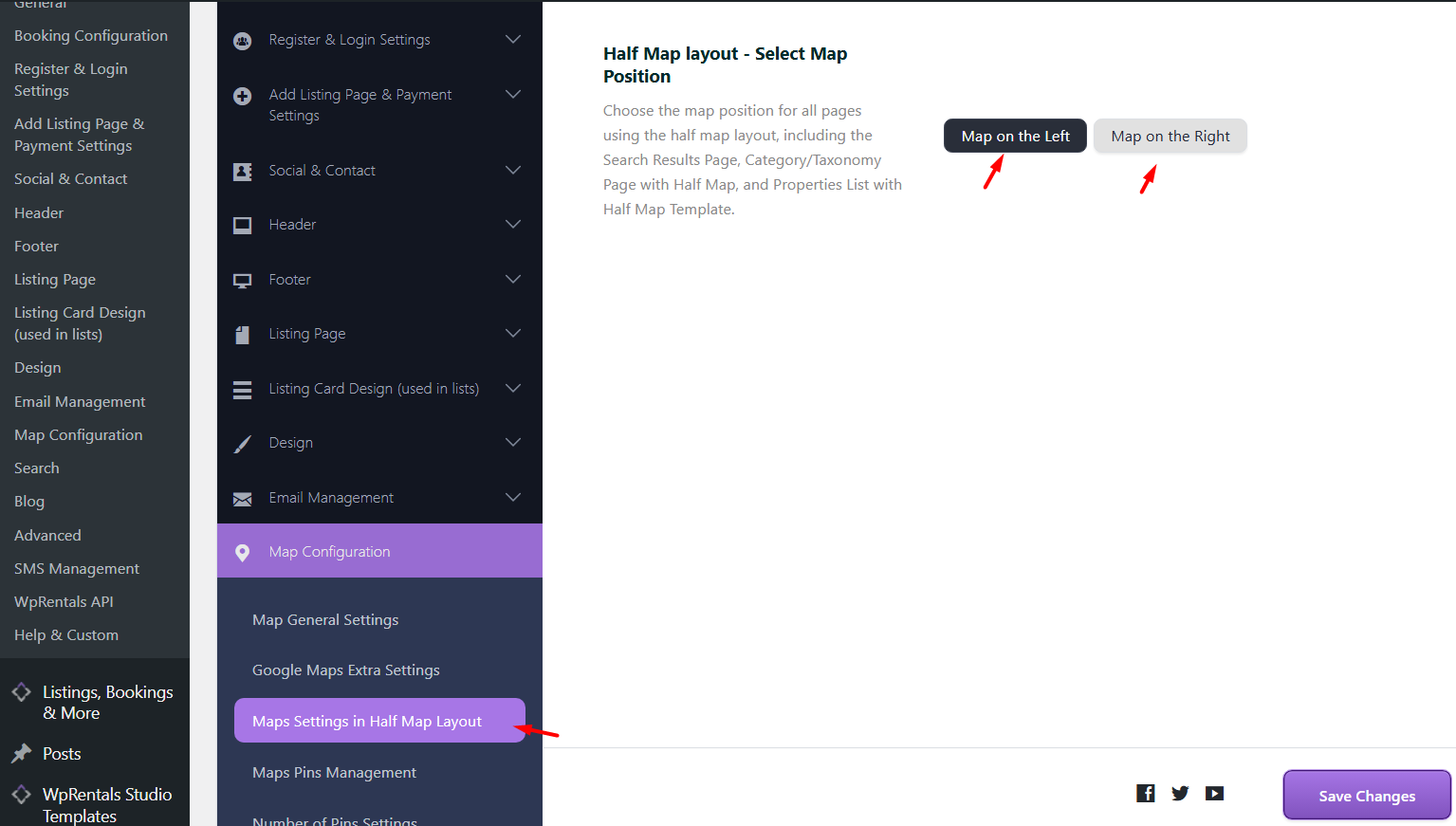
Change the map position
You can display the map on the left or on the right side of the Half Map layout.
To change the position, go to the Half Map layout settings and adjust the option from Maps → Maps Settings.
How the page works on the front end
On the front end, the page shows the search filters, the property list, and the map.
- The filters are always visible on this template.
- The map shows pins for the properties available in the current result set.
- The list shows the properties available for the current page.
- If there are more properties than the number allowed per page, the rest are available through pagination.
Manage the Half Map filter fields
The filter fields shown on the Properties List Half Map page are managed from Theme Options → Search → Half Map Search Form.
From there, you can choose the number of fields, fields per row, field types, and icons.
More details: Half Map Search Form settings
Number of properties shown per page
The number of properties shown in the list is controlled by the list settings, not by the map settings.
Check these options:
- Theme Options → General → List & Sidebar Appearance → No of Properties per Page in Property List Templates and Category/Taxonomy Lists
- WordPress Admin → Settings → Reading → Blog pages show at most
Additional Half Map features
On-demand pins
You can enable Use On-Demand Pins When Moving the Map for the Properties List Half Map page.
When enabled, moving the map can update the properties shown in the list based on the current map view.
More information: Advanced Search Results and Half Map behavior
Geolocation search
You can enable Geolocation Search for Half Map layouts.
This allows visitors to search for a map location and display properties within a selected radius.
More information: Geolocation Search