
Overview
This help explains how to manage the Global Hero Media Header options in WPRentals.
The Hero Media Header is the first visual section displayed below the site header. It can show no media, a static image, the WPRentals theme slider, Revolution Slider, or a map.
These options are managed from:
WPRentals Options > Header > Hero Media Header
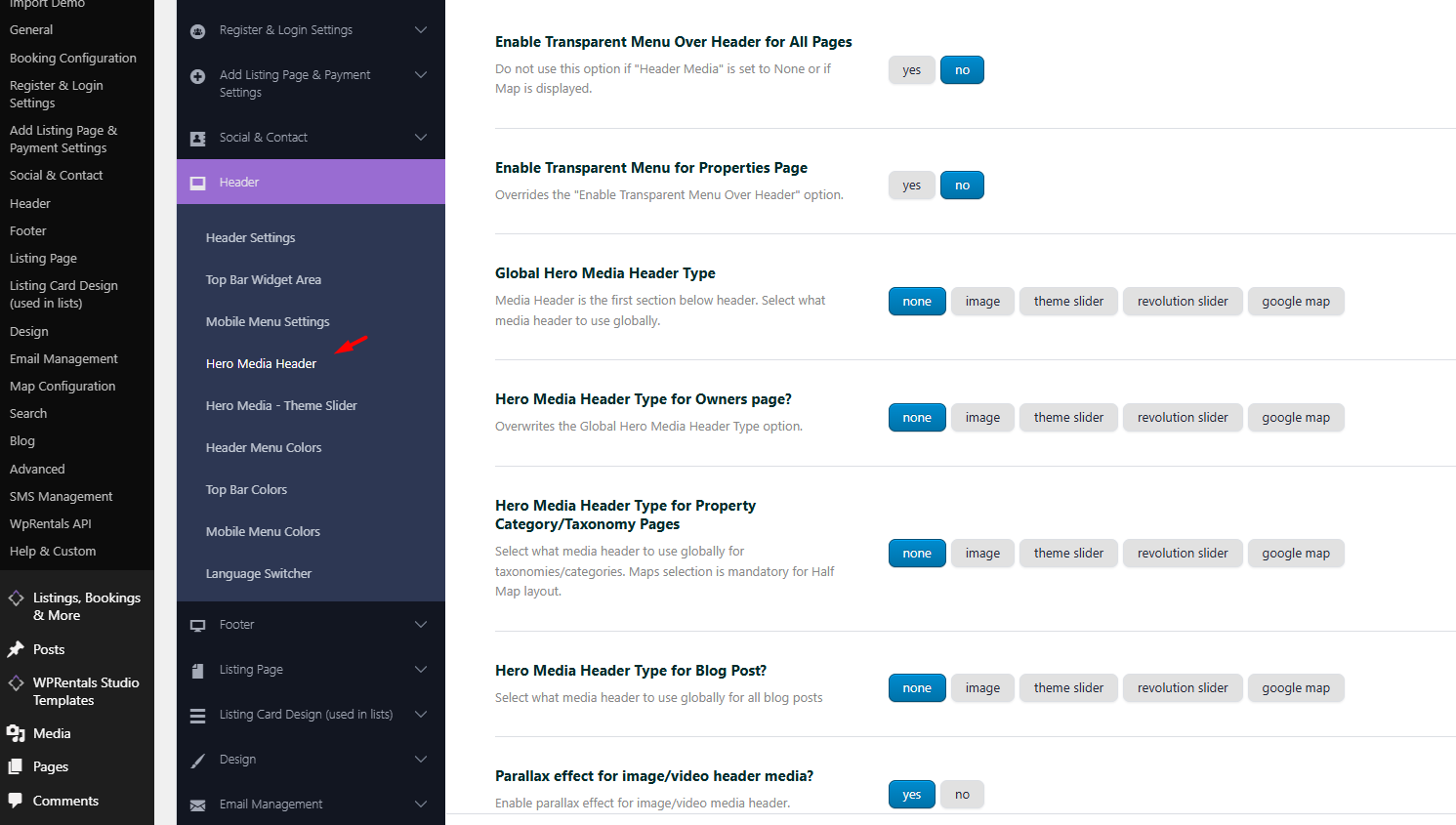
What Is the Hero Media Header?
The Hero Media Header is the media area displayed below the main website header.
Depending on the selected option, this area can show:
- No hero media
- A static image
- The WPRentals Theme Slider with published listings
- A Revolution Slider
- A map
The global hero media settings can apply to:
- Standard pages
- Owner profile pages
- Property category and taxonomy pages
- Blog posts
Global means the page uses the header type selected in Theme Options. If you edit one page and choose a different Header Media Type, that page will no longer follow the global setting.
Quick Guide: Which Setting Should You Use?
Use this table to understand which option controls each type of page.
| If you want to change the header for… | Use this option |
|---|---|
| Normal pages | Global Hero Media Header Type |
| Owner profile pages | Hero Media Header Type for Owners page? |
| Property category, type, city, or area pages | Hero Media Header Type for Property Category/Taxonomy Pages |
| Blog post pages | Hero Media Header Type for Blog Post? |
| One specific page only | Edit Page > Header Media Type |
Where to Find the Settings
Go to:
WPRentals Options > Header > Hero Media Header
From this section, you can manage:
- Enable Transparent Menu Over Header for All Pages
- Enable Transparent Menu for Properties Page
- Global Hero Media Header Type
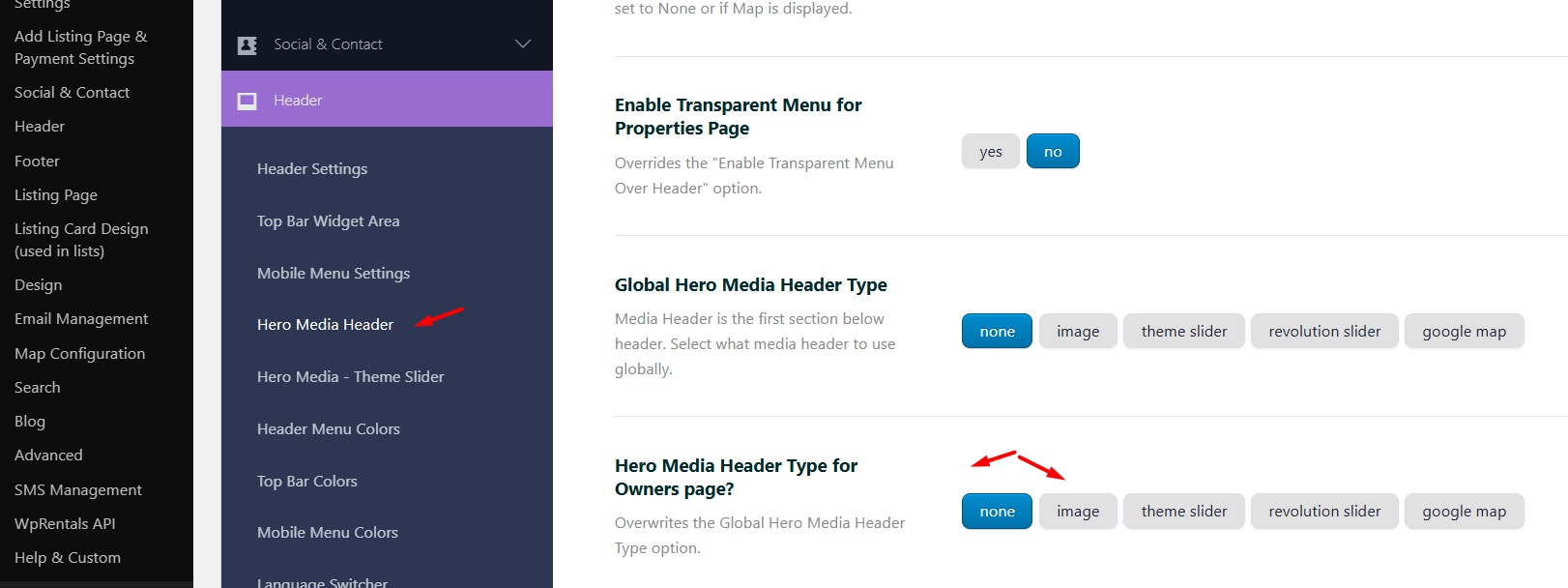
- Hero Media Header Type for Owners page?
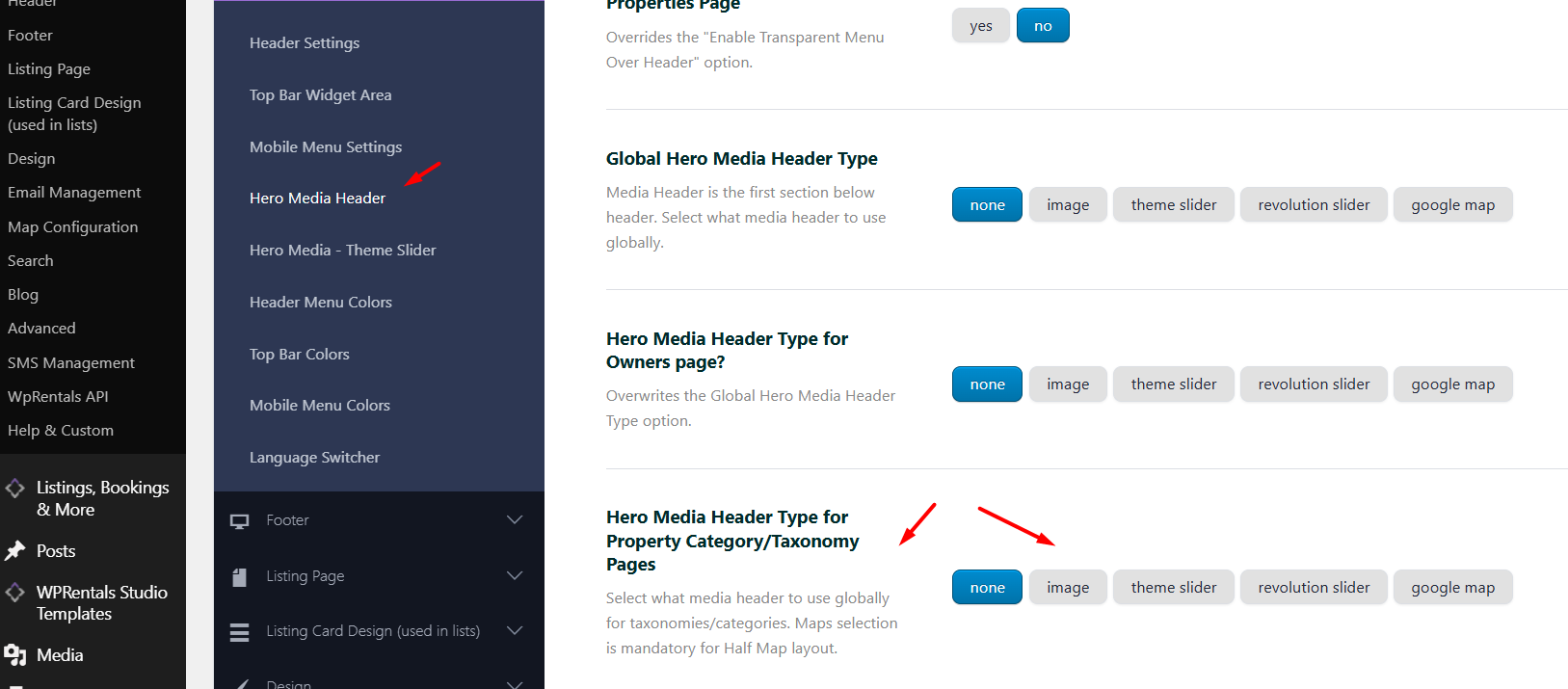
- Hero Media Header Type for Property Category/Taxonomy Pages
- Hero Media Header Type for Blog Post?
- Parallax effect for image/video header media?
Transparent Menu Options
The transparent menu is a design option that places the menu over the hero media header with a transparent background.
This works best when the hero media is an image, theme slider, video, or Revolution Slider, and the menu text has enough contrast over the media.
Enable Transparent Menu Over Header for All Pages
This option enables the transparent menu over the hero media header for pages that use the global header setting.
- Set this option to Yes to show the menu as transparent over the hero media.
- Set this option to No to use the normal menu background.
Enable Transparent Menu for Properties Page
This option controls the transparent menu behavior on property pages.
- Set this option to Yes to use a transparent menu on property pages.
- Set this option to No to use the normal menu background on property pages.

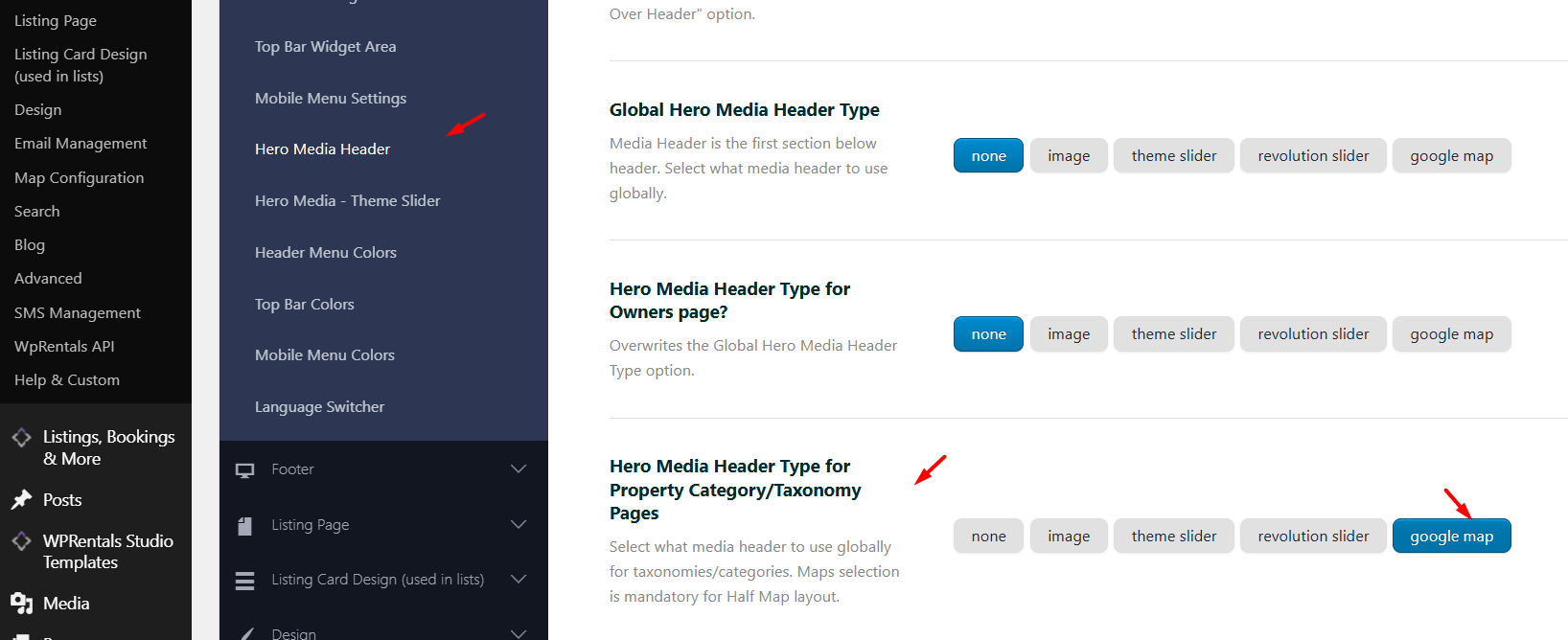
Global Hero Media Header Type
This option controls the default hero media header used globally for standard pages.
Available options are:
- None
- Image
- Theme Slider with Published Listings
- Revolution Slider
- Maps
Use this option when you want one default hero media type for the site pages that are set to use the global header.
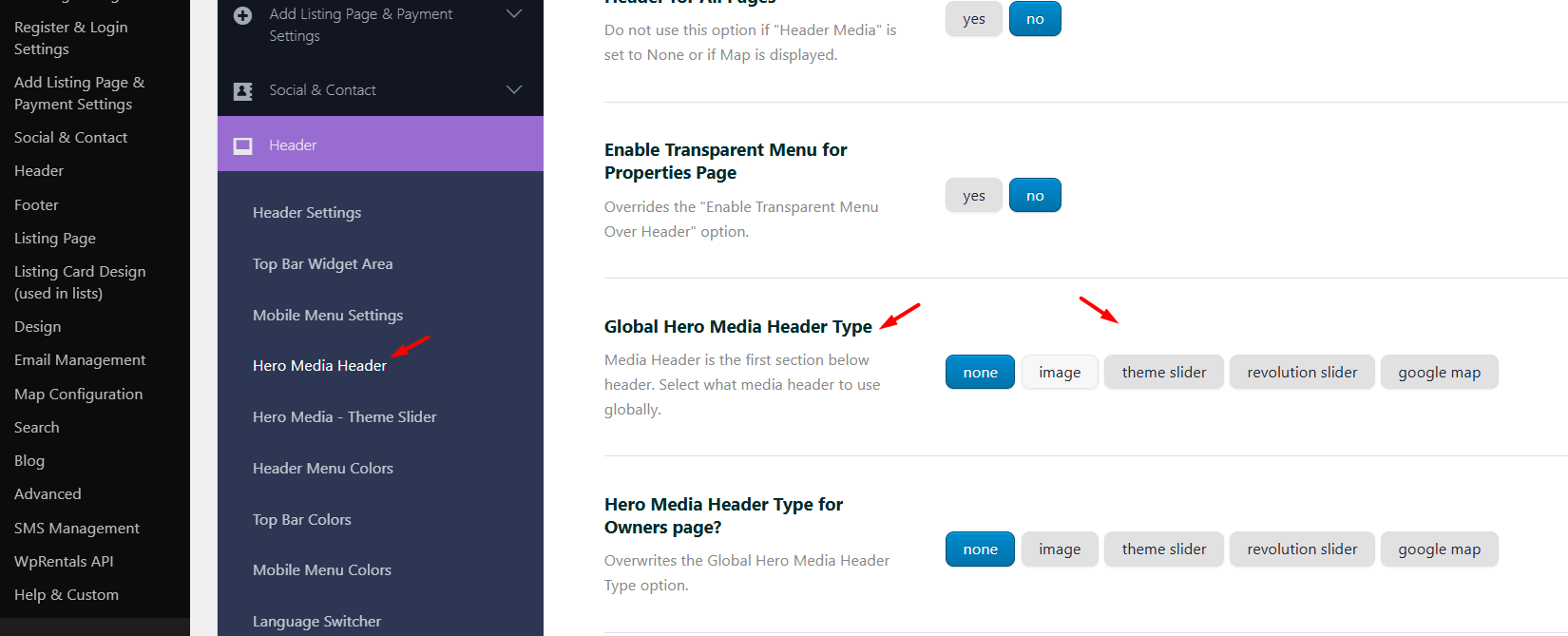
Hero Media Header Type for Owners Page
This option controls the hero media header used for owner profile pages.
Available options are:
- None
- Image
- Theme Slider with Published Listings
- Revolution Slider
- Maps
This setting overrides the Global Hero Media Header Type option for owner pages.
Hero Media Header Type for Property Category and Taxonomy Pages
This option controls the hero media header used for property category and taxonomy pages.
Property taxonomies include listing category, listing type, city, and area.
Available options are:
- None
- Image
- Theme Slider with Published Listings
- Revolution Slider
- Maps
For Standard Taxonomy Layouts
For standard taxonomy pages, you can use any of the available hero media options:
- None
- Image
- Theme Slider with Published Listings
- Revolution Slider
- Maps
For Half Map Taxonomy Layouts
For Half Map taxonomy pages, the map is required.
- Select Maps as the Hero Media Header Type for Property Category/Taxonomy Pages.
- Other hero media options do not apply to the Half Map layout.
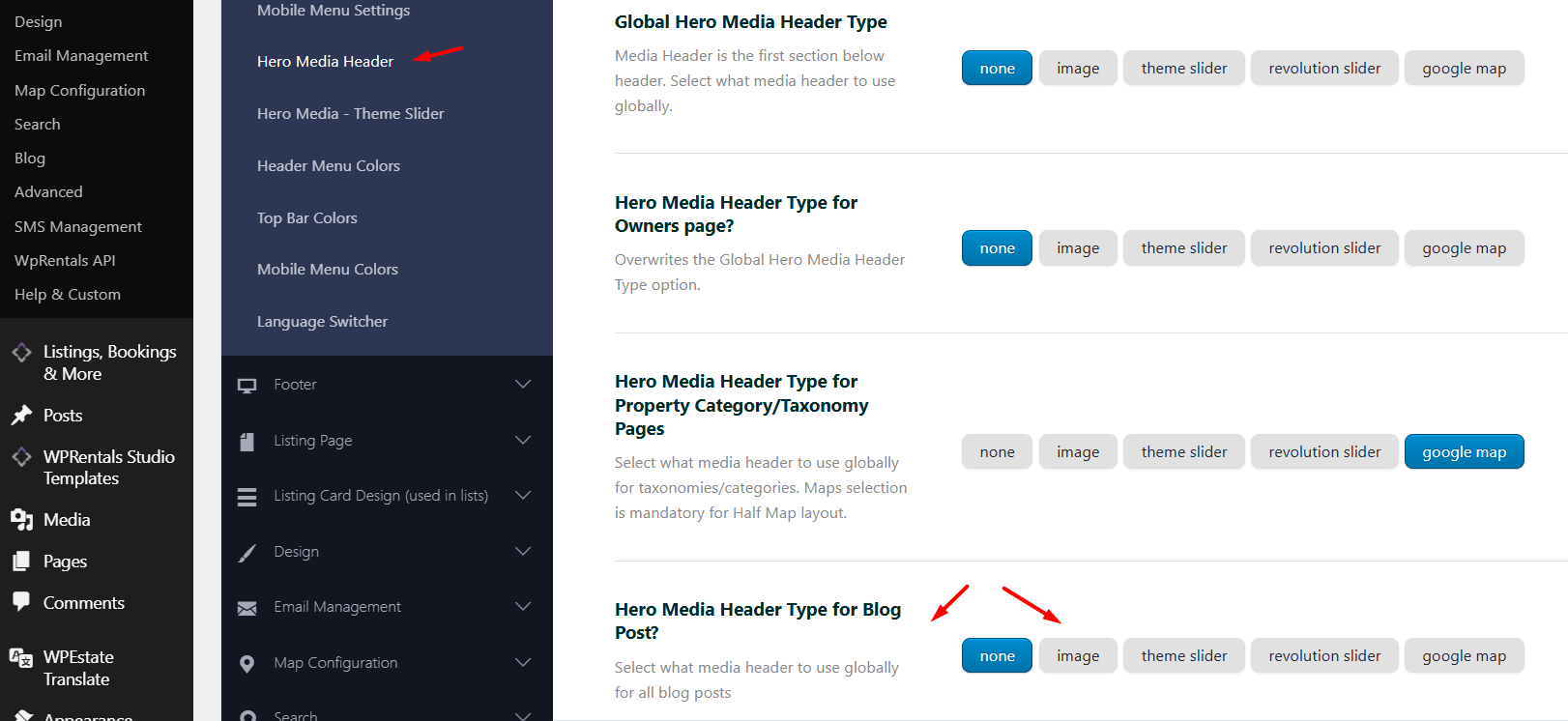
Hero Media Header Type for Blog Posts
This option controls the hero media header used for blog post pages.
Available options are:
- None
- Image
- Theme Slider with Published Listings
- Revolution Slider
- Maps
This setting overrides the Global Hero Media Header Type option for blog posts.
Parallax Effect for Image and Video Header Media
The Parallax effect for image/video header media? option enables or disables the parallax effect for image or video hero media.
- Set this option to Yes to enable the parallax effect.
- Set this option to No to disable the parallax effect.
Hero Media Header Types Explained
None
Select None when you do not want to show a hero media header.
When this option is selected, the page will not display an image, slider, or map below the site header.
Image
Select Image when you want to show a static image in the hero media header.
- Add the image URL in the available image field for the hero media header.
- Use a wide image because the hero media header displays full width.
- The image height is adjusted proportionally based on the screen width and selected header settings.
Theme Slider with Published Listings
Select Theme Slider when you want the hero media header to show selected listings in the WPRentals theme slider.
- Configure the slider from WPRentals Options > Header > Hero Media – Theme Slider.
- Select the listings that should appear in the slider.
- Choose the theme slider design type from the same settings.
Theme Options > Theme Slider for Hero Media

Revolution Slider
Select Revolution Slider when you want the hero media header to show a slider created with the Revolution Slider plugin.
- Create or edit the slider from the Revolution Slider plugin menu.
- Copy the slider Alias.
- Add the alias in the Revolution Slider field from the WPRentals hero media header settings.
REVOLUTION SLIDER – Plugin Licensing, Updates & Hero Media Header Settings

Maps
Select Maps when you want the hero media header to show a map.
The option may appear as Google Map in some WPRentals settings, but the map system used on the site is controlled separately from:
WPRentals Options > Map Configuration
- If the site is configured to use Google Maps, the map header uses Google Maps.
- If the site is configured to use OpenStreetMaps, the map header uses OpenStreetMaps.
- Map height, zoom, pins, and other map behavior are managed from the map settings.
Theme Options – Map Configuration Settings

How to Override the Global Header for a Specific Page
The global hero media header applies only when the page is set to use the global header option.
To use a different header for one specific page, edit that page and go to:
Edit Page > Header Media Type
Change the header option from Global to one of the available page header options.
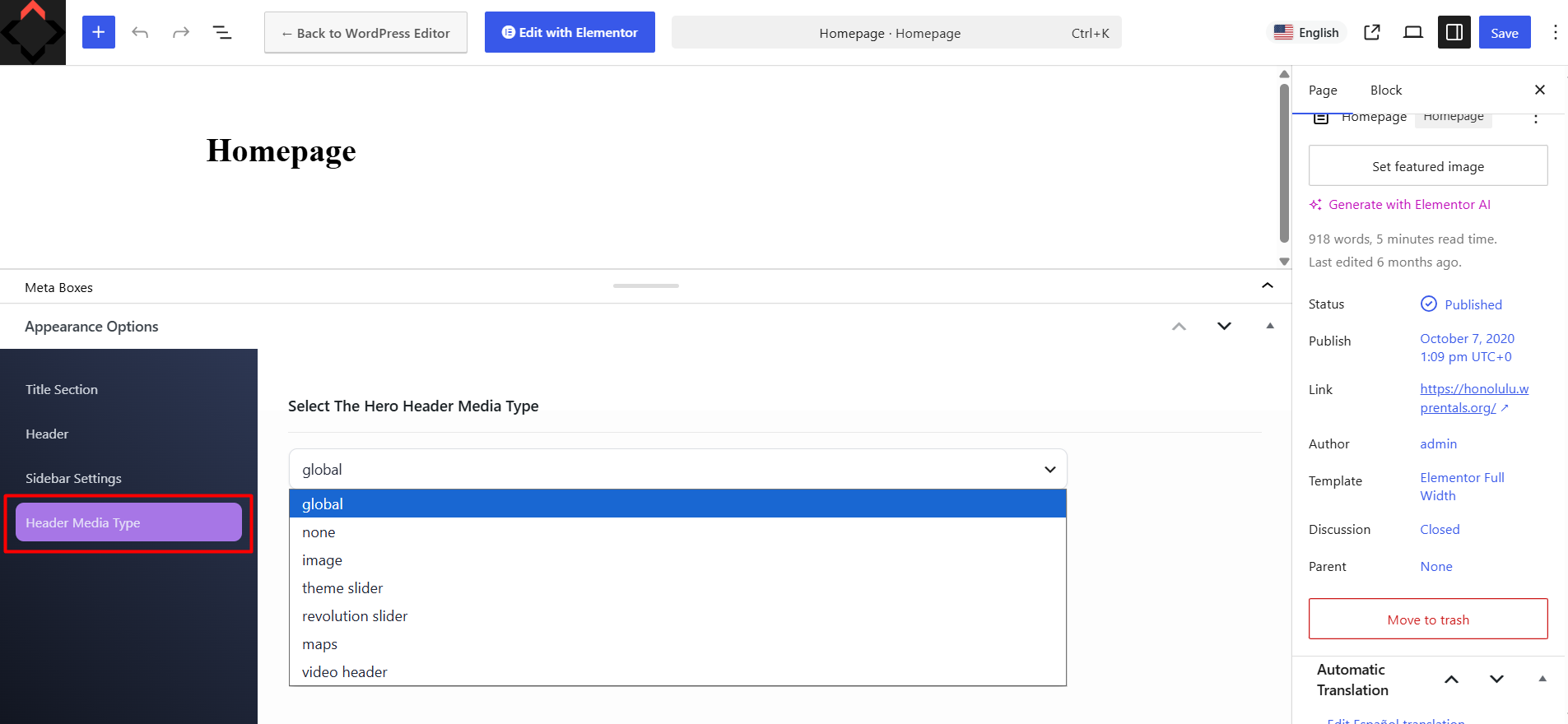
Available custom page header options can include:
- Video
- Image
- Theme Slider
- No Header
- Google Maps
- Revolution Slider
Custom Hero Media Header Options For Pages
Video Header
The video header option is available for individual page header settings.
- Supports self-hosted video in MP4, WEBM, and OGV formats.
- Supports an optional cover image for devices or browsers that do not load the video.
- Can be used with fullscreen or fixed height options.
- Can use overlay color and opacity settings.
Image Header
The image header option can be used globally or per page.
- Can be fullscreen or fixed height, depending on the available settings.
- Supports overlay color with opacity control.
- Supports background style options such as cover or contain.
- Can use the parallax option when enabled globally.
Theme Slider Header
The theme slider uses selected listings from the WPRentals theme slider settings.
- Configure it from WPRentals Options > Header > Hero Media – Theme Slider.
- Select the listings that should show in the slider.
- Choose the slider design type.
Maps Header
The maps header uses the theme map settings.
- Configure it from WPRentals Options > Map Configuration.
- Use map settings to manage zoom, height, and map behavior.
- For custom coordinates and zoom settings, use the available map options from the map configuration area.
Revolution Slider Header
The Revolution Slider header uses a slider created in the Revolution Slider plugin.
- Create the slider in Revolution Slider.
- Copy the slider alias.
- Add the alias in the WPRentals hero media header settings.
Transparent Header Per Page
Some page header options also allow the transparent header to be managed per page.
- Set Transparent Header to Yes to enable it for that page.
- Set Transparent Header to No to use the normal menu background for that page.
How This Works With Advanced Search
The Hero Media Header controls the media section below the site header.
The Advanced Search form position is managed separately from:
WPRentals Options > Search > Advanced Search Display & Position
For example, if you want the Advanced Search form to show over the hero media header, the hero media must be enabled, and the Advanced Search display settings must also allow the search form to show over the selected header media.
Theme Options – Advanced Search Display & Position
Important Notes
- The global hero media settings are managed from WPRentals Options > Header > Hero Media Header.
- The Hero Media Header is the first media section below the site header.
- The available global hero media types are None, Image, Theme Slider, Revolution Slider, and Maps.
- Property pages and dashboard pages are excluded from the general global hero media setting.
- Owner pages, taxonomy pages, and blog posts have their own hero media header type settings.
- The owner page setting overrides the global page setting for owner pages.
- The blog post setting overrides the global page setting for blog posts.
- The property category and taxonomy setting controls the hero media for taxonomy pages.
- For Half Map taxonomy pages, Maps must be selected.
- The transparent menu should not be used when the hero media is set to None or when the map is displayed.
- The parallax option applies only to image and video header media.
- Individual pages can override the global hero media header from Edit Page > Header Media Type.
- The Advanced Search position is controlled separately from WPRentals Options > Search > Advanced Search Display & Position.
- If changes do not show on the front end, clear theme cache, plugin cache, server cache, and CDN cache, then test again.
Related Help
- Theme Options > Theme Slider for Hero Media
- REVOLUTION SLIDER – Plugin Licensing, Updates & Hero Media Header Settings
- Theme Options – Map Configuration Settings
- Property Taxonomies: Category, Types, City and Area
- Custom Hero Media Header Options For Pages
- Theme Options – Advanced Search Display & Position
- Theme Options – Search – Half Map Search Form