
Manual booked periods are available for daily bookings, not hourly bookings. They are used to block calendar availability only. Manual booked periods do not go through the normal booking request flow, so no invoice is generated and no payment is processed through the theme.
Owners can manually block dates from the dashboard when they want to reserve periods without using the standard booking request flow.
This is useful when a reservation is confirmed outside the website, when the owner wants to keep certain dates unavailable, or when the website is used only to display availability while bookings are managed manually.
Manual Bookings Overview
Manual booked periods are added directly by the owner from the dashboard. They are used to block availability in the property calendar.
They do not create a normal booking request, they do not create an invoice, and they do not trigger payment through WPRentals.
If you need invoice creation and payment handling through WPRentals, the reservation must start as a normal booking request sent from the property page by the guest.
When to Use Manual Booked Periods
Use manual booked periods when you only need to make dates unavailable on the calendar.
Common examples:
- The owner received a booking outside the website.
- The owner wants to reserve dates for personal use.
- The property is unavailable for maintenance.
- The site is used as a presentation website, while bookings are handled manually.
- The site imports availability from another platform, but the owner also needs to block extra dates manually.
A manually booked period is not the same as a confirmed booking created by a guest. It only blocks the calendar.
Mark Dates as Booked From My Listings
Step 1: Go to My Listings
Log in to the front-end dashboard and click My Listings.
This applies to both:
- site admins managing listings from the front-end dashboard
- owners registered from the front end who manage their own listings
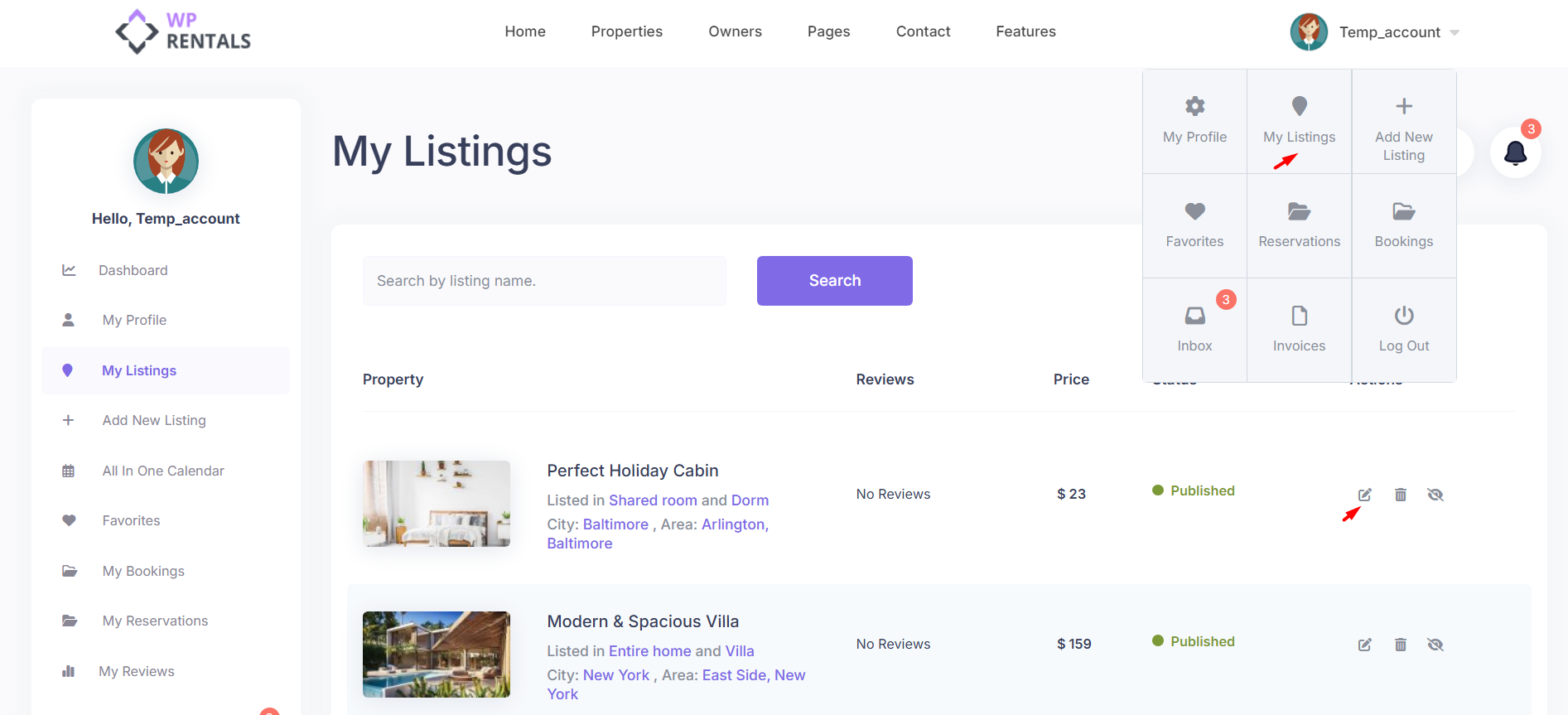
Step 2: Edit the Listing
Find the listing you want to update and click Edit.
Step 3: Go to Calendar Settings
Scroll to the Calendar Settings section. This is where availability is managed for the property.

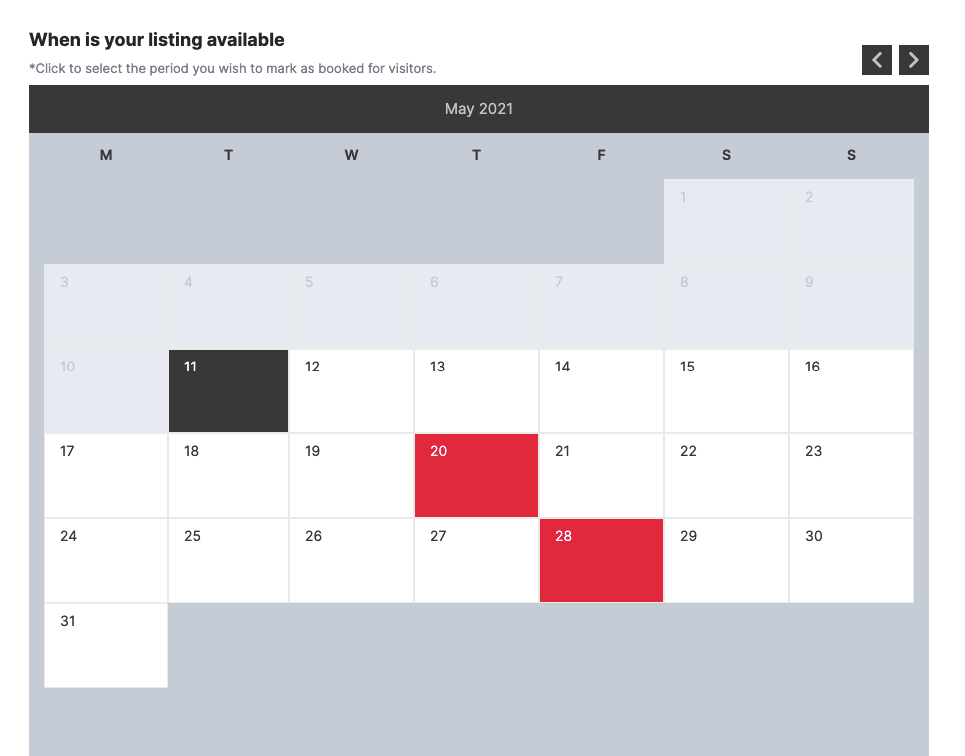
Step 4: Select the Dates
Click the dates you want to mark as booked. The selected dates will be highlighted in red.
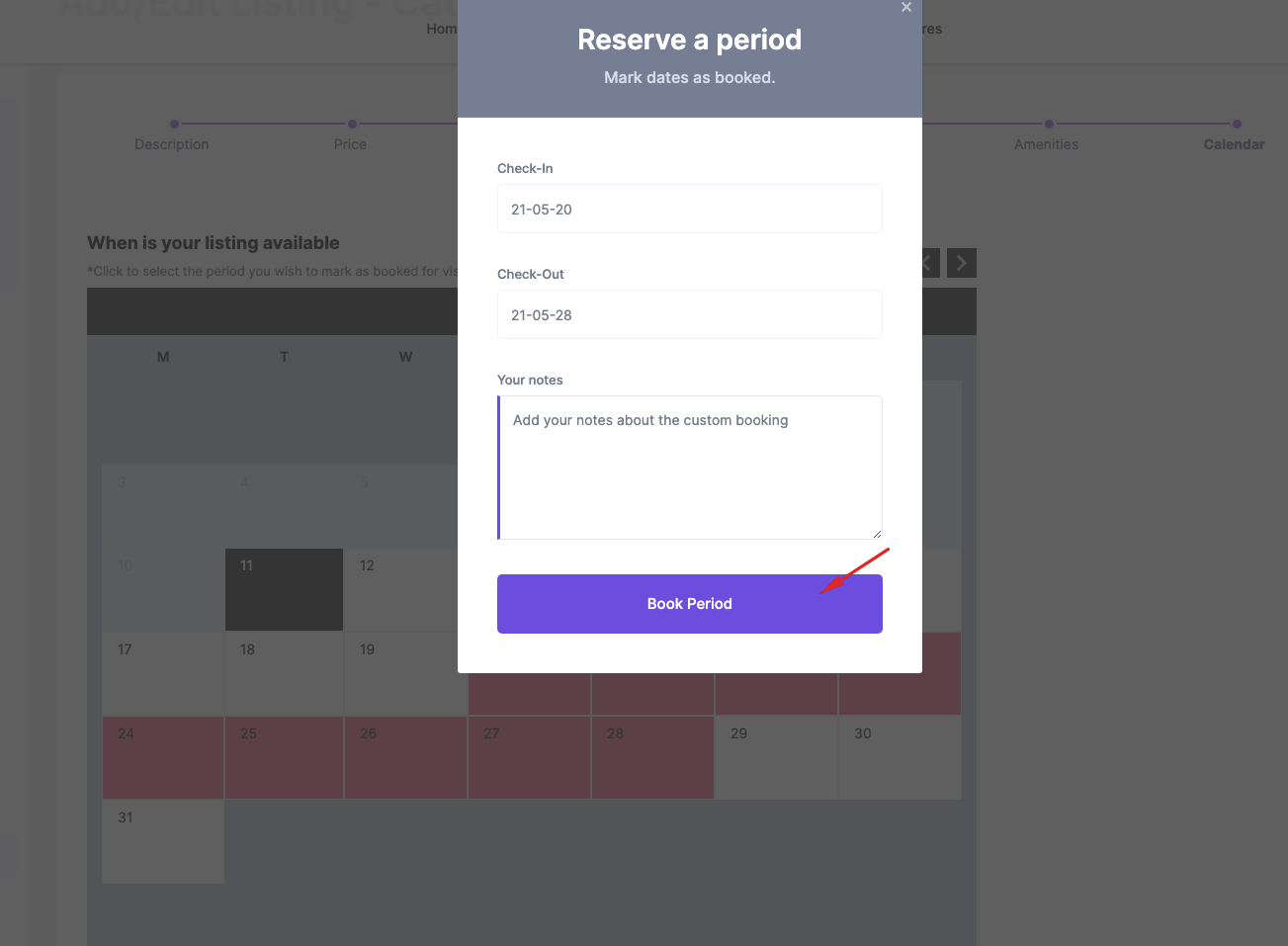
Step 5: Click Book Period
After selecting the dates, click Book Period to confirm the blocked period.
Mark Dates as Booked From the All-in-One Calendar
You can also block dates from the All-in-One Calendar.
Step 1: Go to All-in-One Calendar
Open All-in-One Calendar from the dashboard menu.

Step 2: Select the Dates
Click the dates for the property you want to mark as booked.
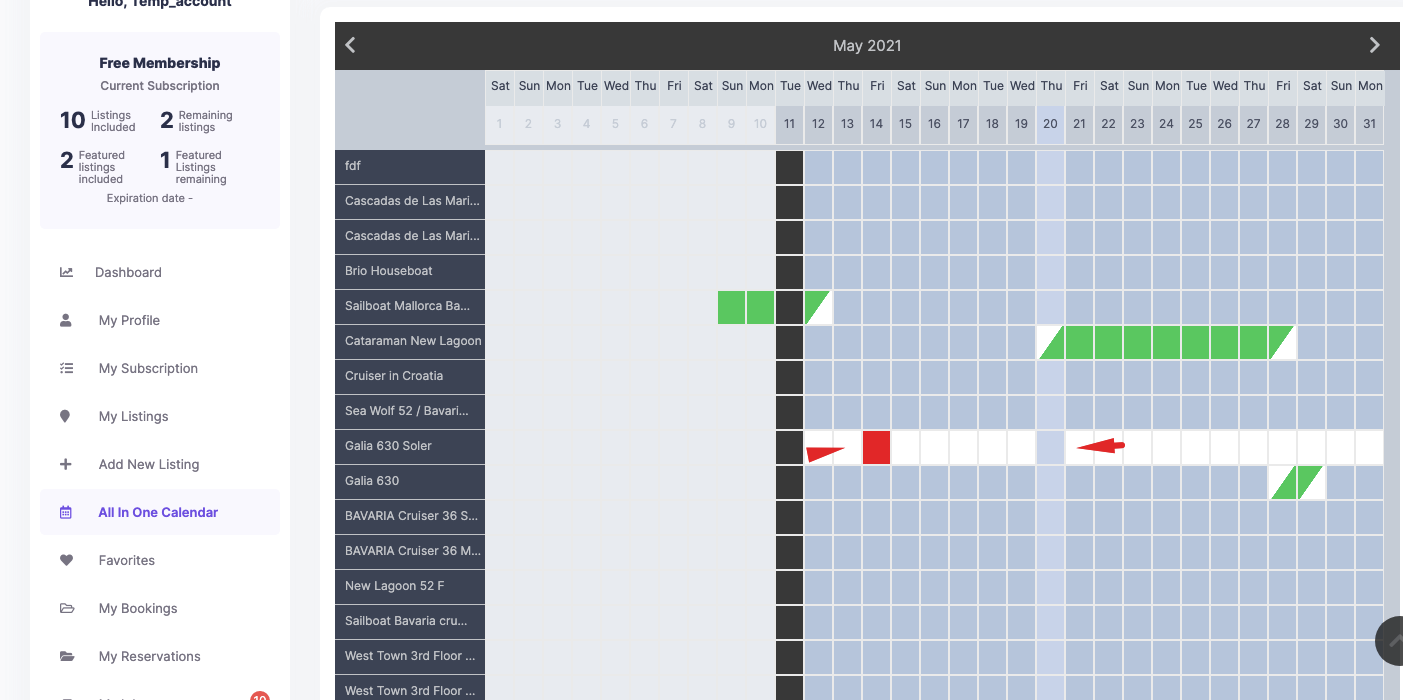
Step 3: Mark the Period as Booked
Check the option to mark the period as booked, then click Save.

How to Delete a Manually Booked Period
If you manually blocked a period and want to make the dates available again, you can cancel that booked period.
Step 1: Go to My Bookings
Open My Bookings from the dashboard.
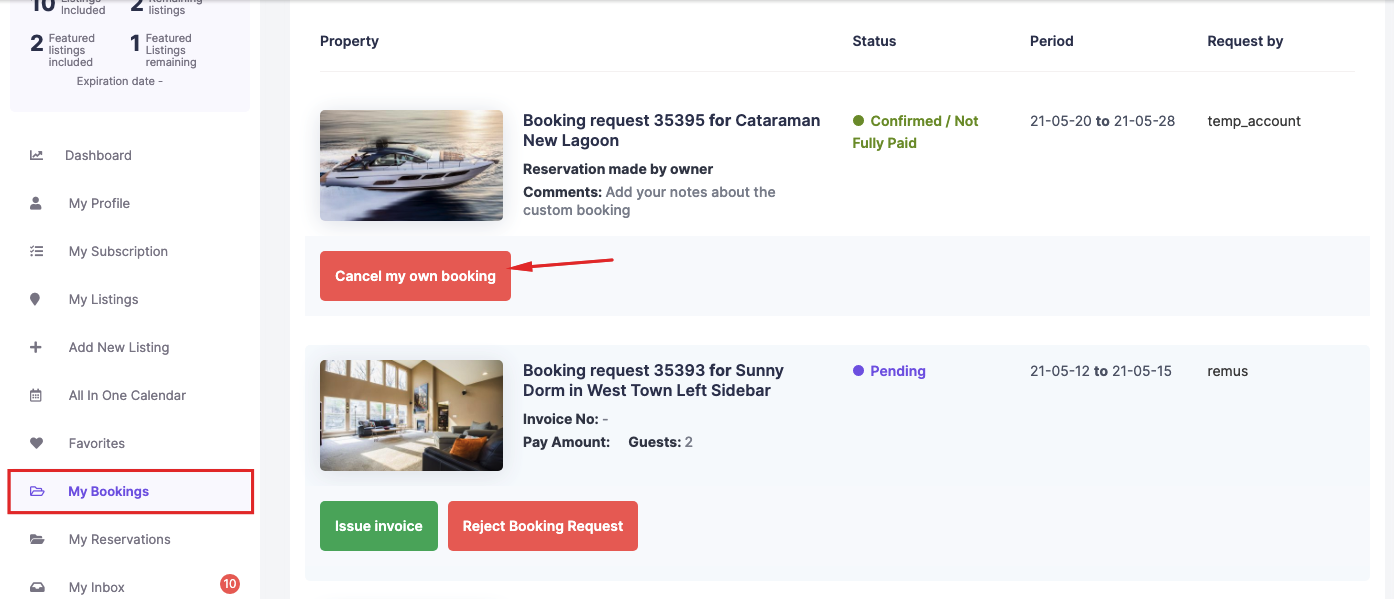
Step 2: Cancel the Booked Period
Click Cancel My Booking to remove the manually blocked period and make those dates available again.
Canceling a manually booked period only releases the blocked dates. Since no invoice or payment was created, there is no payment action connected to this cancellation.
Use Affiliate Link for External Bookings
If you want users to book on a third-party website instead of through the WPRentals booking system, you can use the Affiliate Link field.
When an Affiliate Link is added, the Book Now button on the property page redirects users to that external URL. This replaces the default booking action for that listing.
To use this option:
- Make sure the Affiliate Link field is enabled in Add Listing Page & Payment Settings > Listing Submission Form.
- Go to User Dashboard > My Listings > Edit Property.
- In the Description section, add the external booking URL in the Affiliate Link field.
- Save the property.
This setup is useful if you use an external booking platform and want WPRentals to work as the presentation website only.
If you also want to keep your property calendar updated with bookings from that third-party platform, you can import the external iCal feed into the property calendar.
Sync Calendar Availability with Other Platforms Using iCal Feed
Replace Booking Form With Contact Form
If you prefer to receive inquiries by email instead of allowing users to send booking requests through the theme, you can replace the booking form with the owner contact form.
To enable this option:
- Go to Theme Options > Booking Configuration > Form Display Settings.
- Set Show Contact Form instead of Booking Form to YES.
- Save the settings.
Once enabled, the booking form is replaced by the contact form on the property page.
Messages are sent to the property owner email and are also stored in the dashboard inbox.
This setup is useful when you want to collect inquiries first, discuss details manually, and avoid automatic booking processing through the theme.
If the owner later wants to reserve the dates, they can manually block the calendar using the manual booking options explained above.
If instead you want users to book on a third-party system, use the Affiliate Link option described above.
Add a Redirect URL instead of Book Now button
Related Articles
Sync Calendar Availability with Other Platforms Using iCal Feed
Manage Booking Requests in WPRentals
Add a Redirect URL instead of Book Now button
Hide Booking Form and Replace with Owner Contact Form
Summary
- Manual booked periods are used only to block calendar availability.
- Manual booked periods are available for daily bookings, not hourly bookings.
- Manual booked periods do not generate invoices or payments.
- Use a normal booking request if you need invoice and payment handling through WPRentals.
- Use the Affiliate Link field if users should book on an external website.
- Use the contact form instead of the booking form if you want inquiries before confirming reservations manually.