
This guide walks you through the full setup checklist for a correct WPRentals installation: domain + hosting + WordPress + theme + required plugins + license activation. Follow the steps in order to avoid common install and demo import issues.
Before installing the theme
Before installing any WordPress theme (including WPRentals), you must already have:
- A hosting account
- A domain name
- WordPress installed on that domain
Most WordPress hosts offer a one-click WordPress installer. If you prefer to install WordPress manually, use these resources:
Minimum server requirements (PHP limits)
Note: Ensure that your web host meets the minimum requirements for WordPress and WPRentals.
Help article about Server / Theme Requirements
Recommended minimum PHP limits
PHP time limit
- max_execution_time 600 (php.ini)
- set_time_limit(600); (wp-config.php)
- max_execution 600 (.htaccess)
PHP memory limit
- memory_limit 256M
PHP post max size
- post_max_size 64M
Upload max filesize
If the upload size is too small, you may see this error: The link you followed has expired
- upload_max_filesize 64M
Download the theme from your ThemeForest account
Log in to your ThemeForest buyer account and go to your Downloads page.
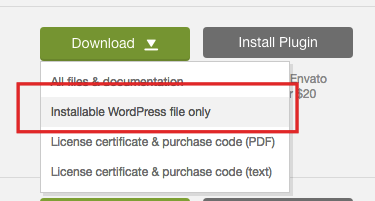
From ThemeForest, you can download:
- Installable WordPress file only – includes only the theme zip (wprentals.zip)
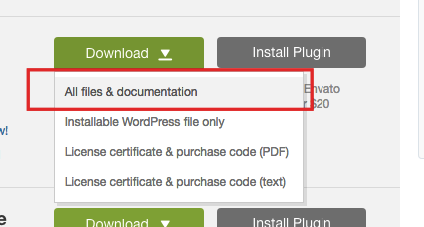
- All files & documentation – includes the full package (theme zip + child theme + demo content assets and other resources)
Install WPRentals via WordPress
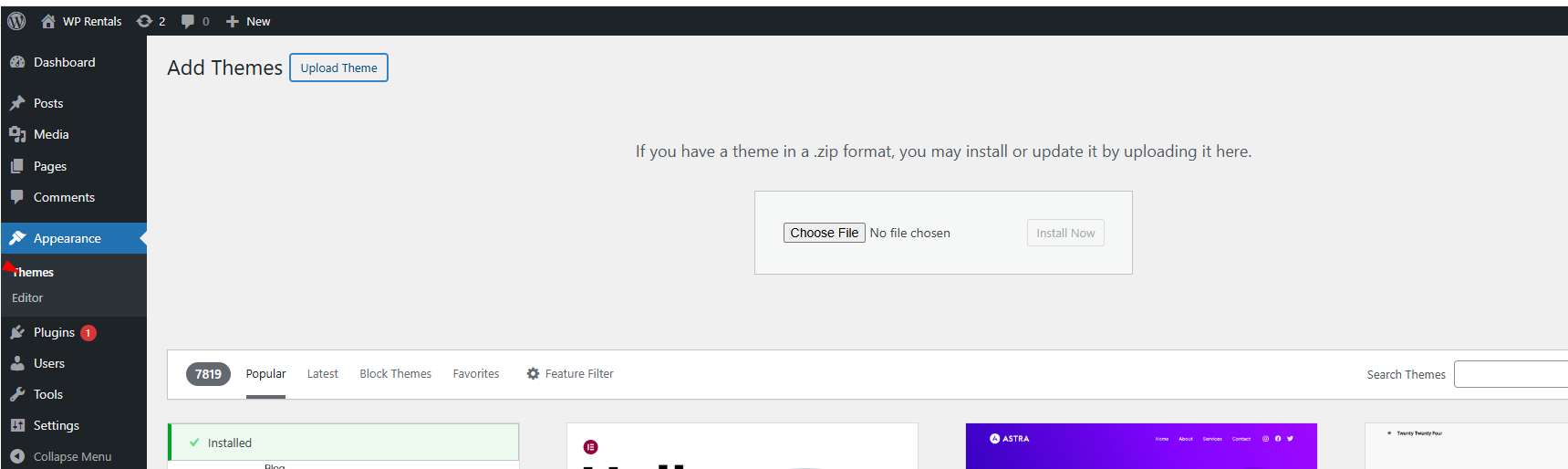
- Go to Appearance → Themes
- Click Add New then click Upload Theme
- Select wprentals.zip and click Install Now
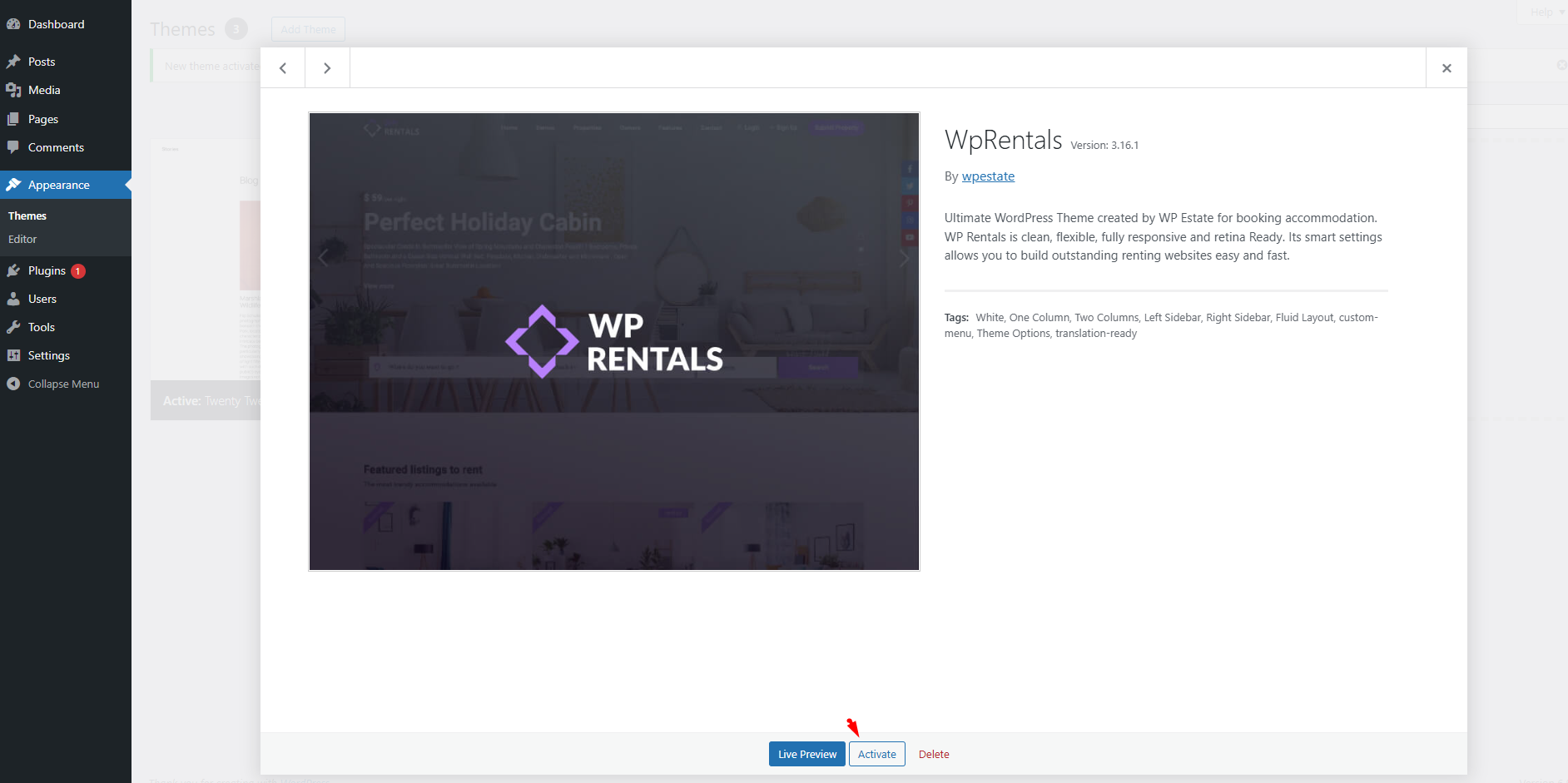
After installation, click Activate (or activate later from Appearance → Themes).
Install WPRentals via FTP
- Download All files & documentation, unzip the package, and locate the wprentals theme folder
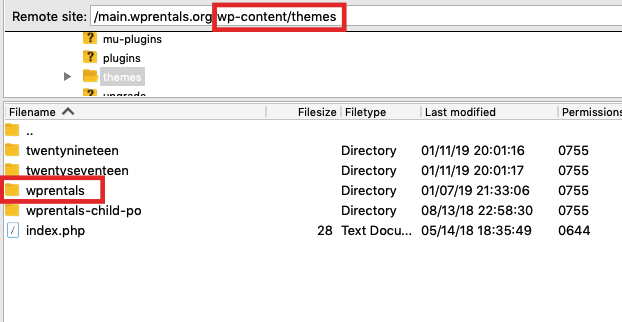
- Upload the wprentals folder to: wp-content/themes
- Go to Appearance → Themes and activate WpRentals

Install required plugins
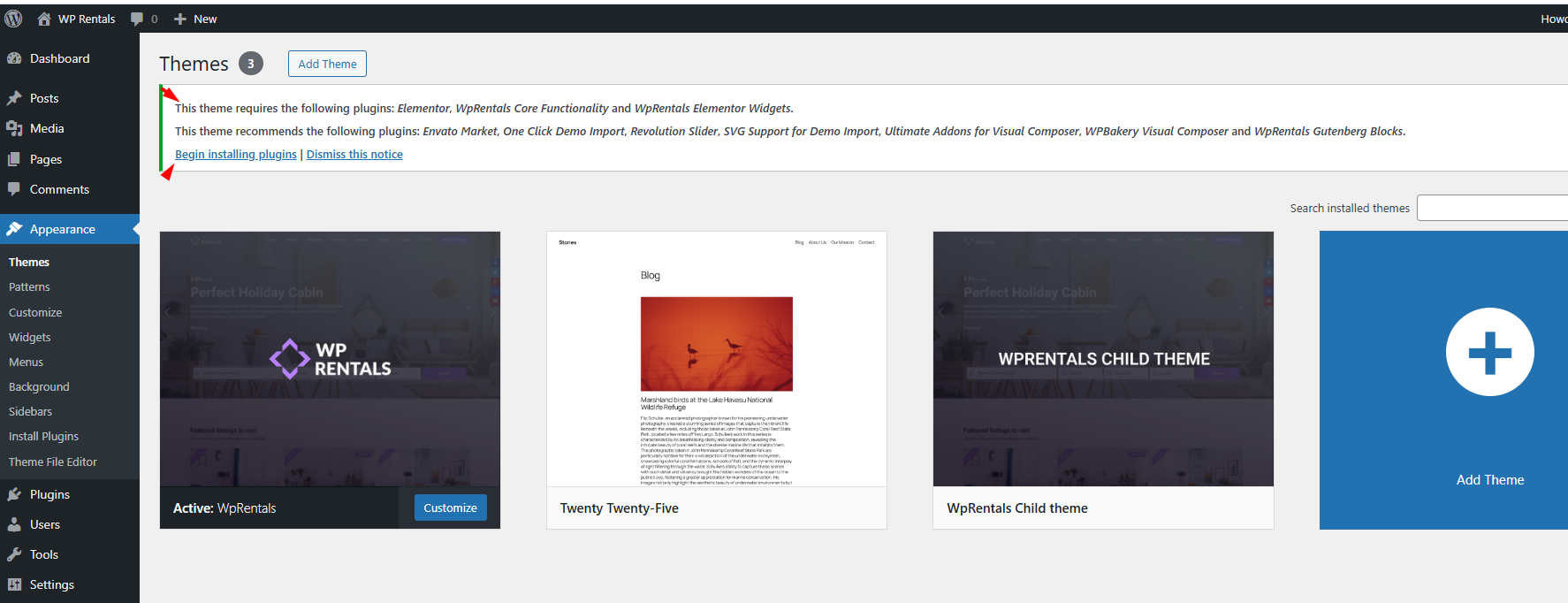
After activating the theme, install the mandatory plugins from:
Appearance → Install Plugins
WPRentals Core Functionality is MANDATORY.
Activate your license
To activate the theme, you need your ThemeForest purchase code and your ThemeForest username.
Help: https://help.wprentals.org/article/where-is-my-purchase-code/
Go to the WPRentals License section in your WordPress admin.
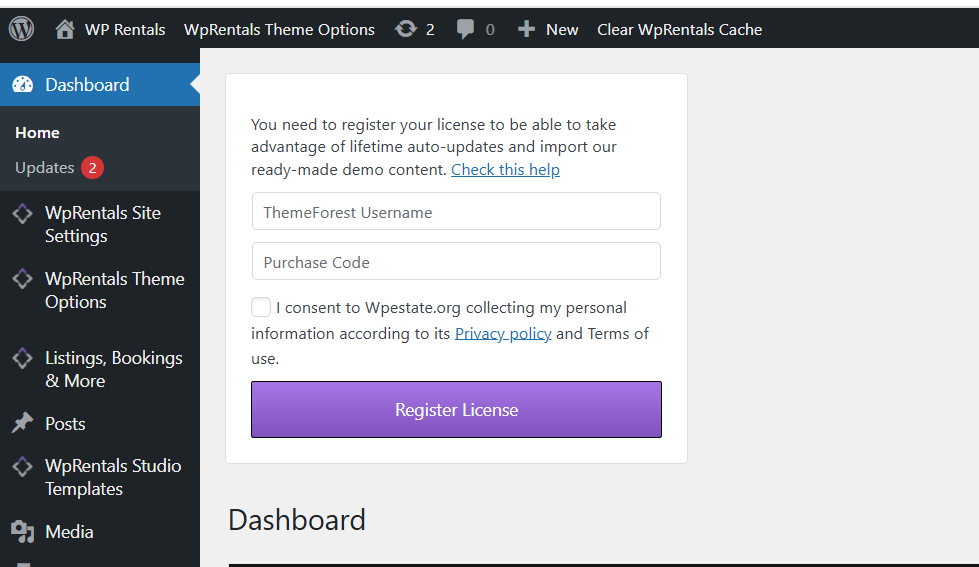
Enter:
- Your ThemeForest username (the account you used to purchase the theme)
- Your purchase code (license code)
Click Register License.
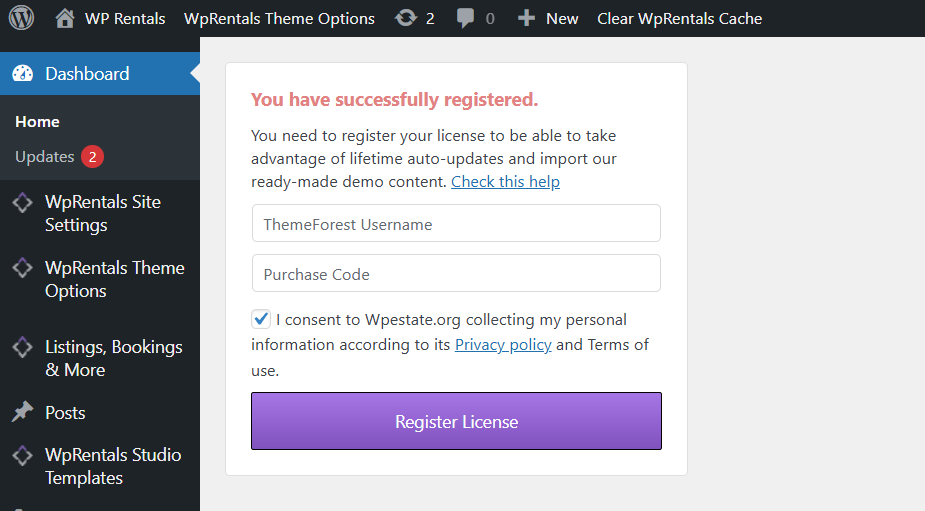
If successful, you will see the message: You have successfully registered.
See: license registration help.
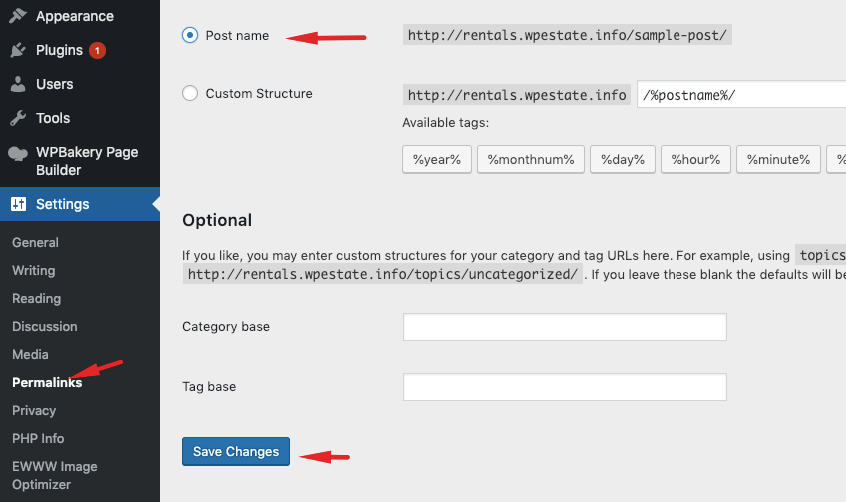
Save permalinks (required for redirects)
To ensure search redirects work correctly, set permalinks to Post name:
Settings → Permalinks → Post name → Save Changes
Next step: Import a demo
After the theme is installed, plugins are active, and the license is registered, you can import a demo.
Demo import tutorials (videos for each demo): https://help.wprentals.org/article/demo-import-video-tutorials/
Important demo import notes:
- Import demos only on a clean WordPress installation whenever possible.
- Do not import multiple demos on top of each other. It can duplicate menus, widgets, and pages.
- Importing a demo replaces theme options with demo options, but it does not automatically “switch” your site perfectly if you already imported another demo.
The demo content provided with this theme is for demonstration purposes only. It is intended to showcase the layout and functionality of the theme. Please note images, videos, and other media files included in the demo content are placeholders and may be subject to copyright. These are not licensed for use on live websites. You are responsible for replacing them with properly licensed assets.
Related articles
How to get client support
How to install the demo content
How to install the included plugins
How to check the server requirements
Activate your installed license with your buyer license code