
WPRentals offers several ways to manage listing locations. This help explains only the setup where City and Area are used as dropdown selectors.
With this setup, the site admin creates the available cities and areas in wp-admin, and owners select them from dropdown fields when adding or editing listings.
How City and Area Dropdowns Work
The dropdown selector setup uses two WordPress taxonomies:
- Listing City
- Listing Area
The site admin creates the city and area values in wp-admin. Then, owners and site admins select these values from dropdowns when adding or editing a listing.
This helps keep locations consistent and avoids duplicate location variations such as:
- New York
- new york
- NYC
- New York City
Step 1: Disable Google/OpenStreet Places
Go to:
WPRentals Options > Search > Location Field Search Settings
Set:
Use Google Places or Open Street Places for Location Field in Search? – No
This keeps the location setup based on the theme City and Area taxonomies, not on Google/OpenStreet location suggestions.
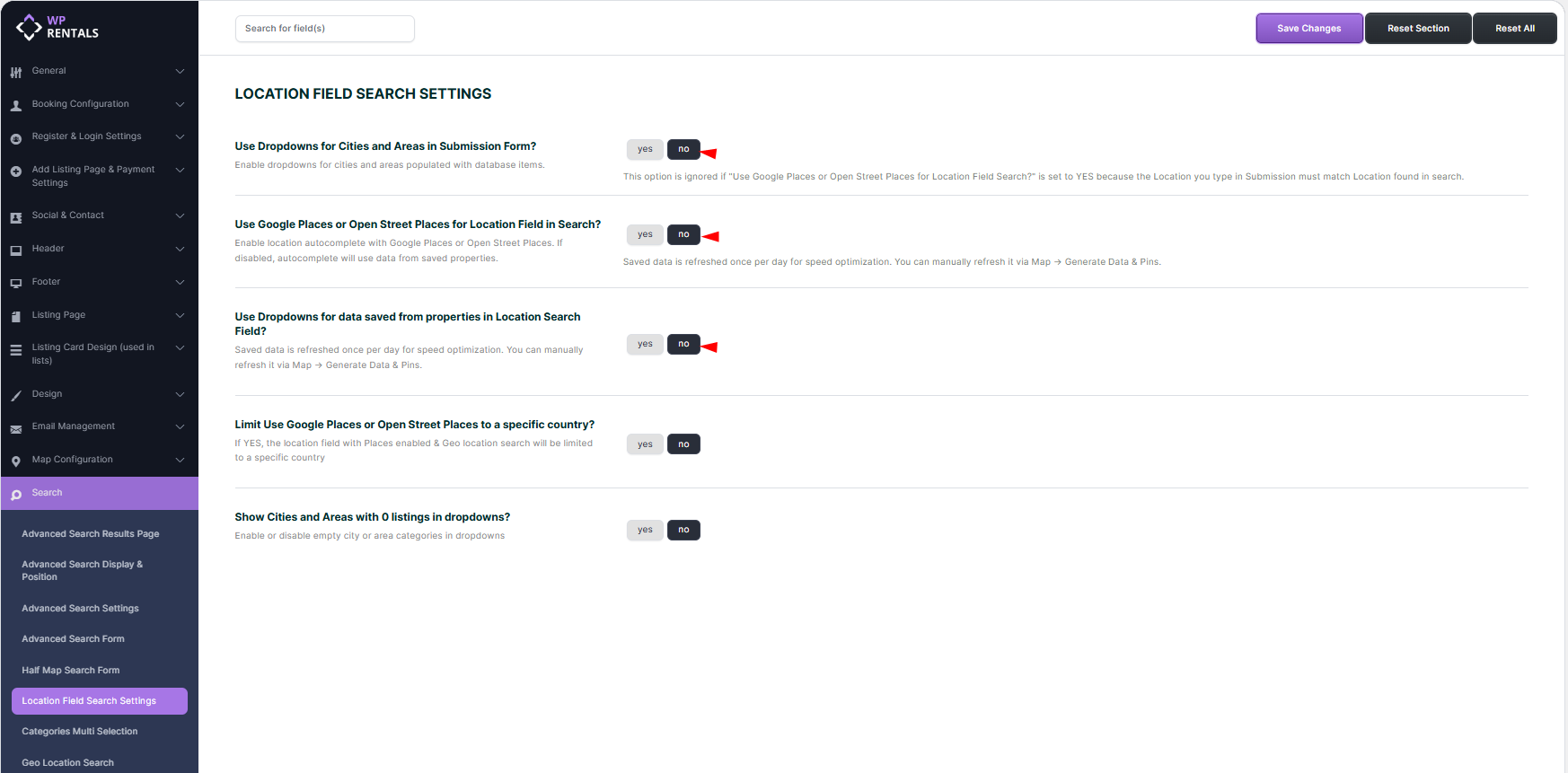
Step 2: Enable City and Area Dropdowns in the Submit Form
Go to:
WPRentals Options > Search > Location Field Search Settings
Find:
Use Dropdowns for Cities and Areas in Submission Form?
Set this option to:
Yes
This makes the City and Area fields appear as dropdown selectors in the front-end listing form.
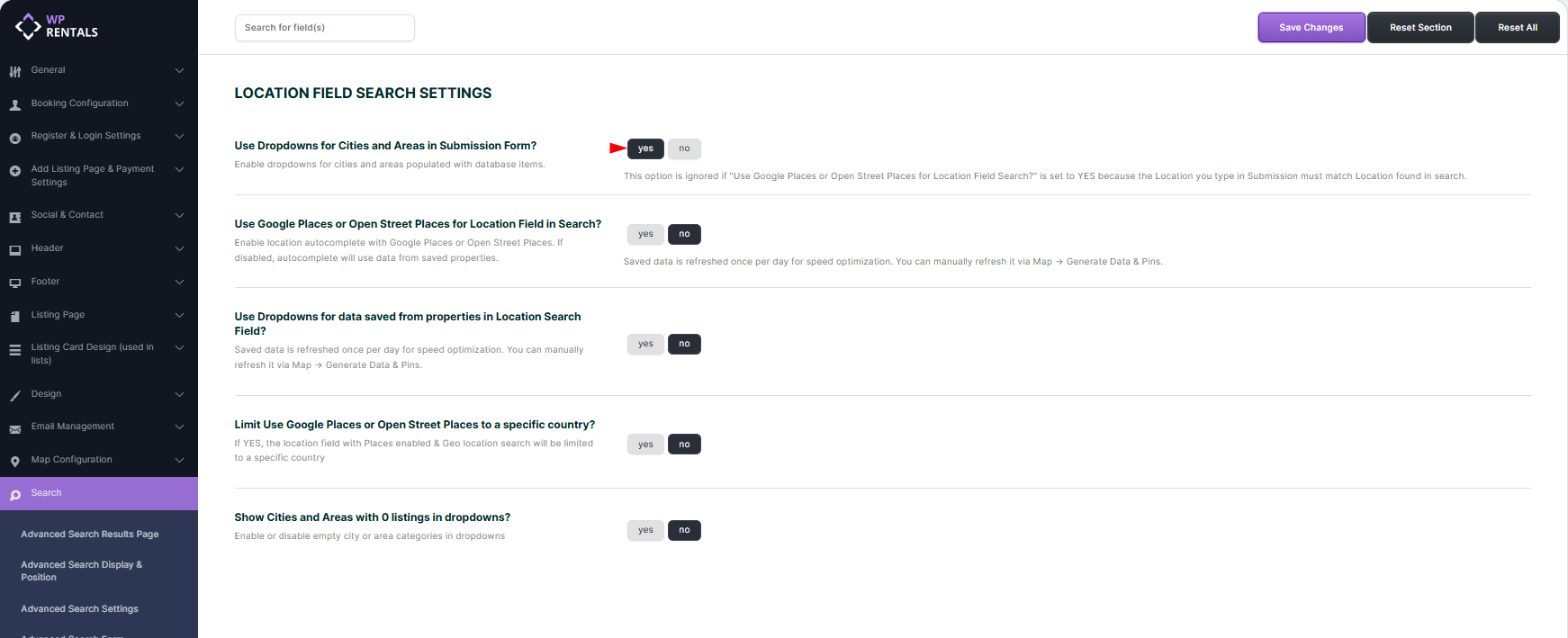
Step 3: Add City and Area Terms
Before owners can select cities and areas in the submit form, the site admin must create the city and area terms.
Go to:
Wp-admin > Listings, Bookings & More > Listing City
and:
Wp-admin > Listings, Bookings & More > Listing Area
More about Listing City and Listing Area taxonomies
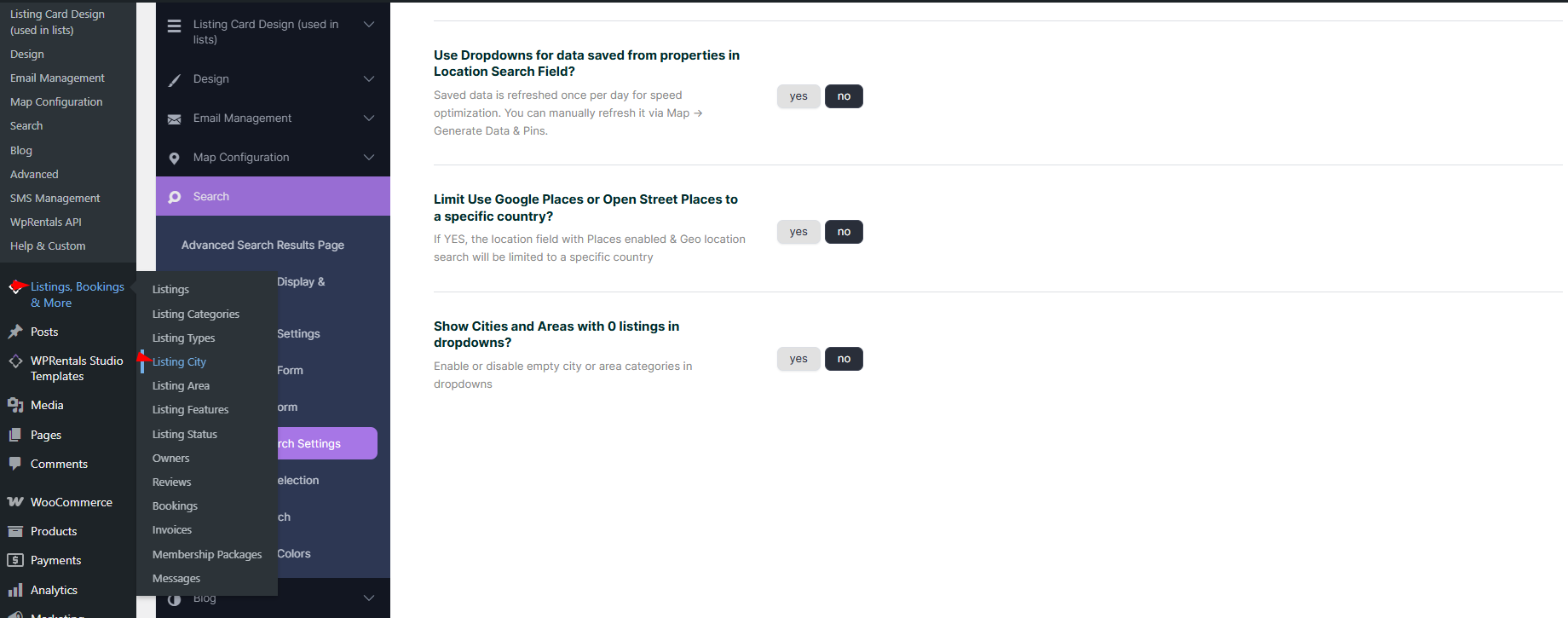
Step 4: Select City and Area When Adding a Listing
Owners and site admins manage listing locations from the front-end dashboard.
Go to:
User Dashboard > My Listings > Add New Listing
or:
User Dashboard > My Listings > Edit Listing
In the listing form:
- Select the City from the dropdown.
- Select the Area from the dropdown.
- Select the Country from the dropdown.
- Complete the County and State fields, if needed.
- Complete the remaining listing details and save or submit the listing.


Step 5: Add City and Area Dropdowns in Search Forms
To let visitors search by the same City and Area values, add Listing City and Property Area as search fields.
These fields are added as separate dropdowns.
When configuring the fields, use:
- Field: Listing City or Property Area
- Compare Term: like
- Label: the text you want to show in the search form

Example of City and Area as standard dropdowns in the search form:

Optional: Enable Multi-Select for City and Area Search
If you want visitors to select more than one city or area in search, enable multi-select.
Go to:
WPRentals Options > Search > Categories Multi Selection
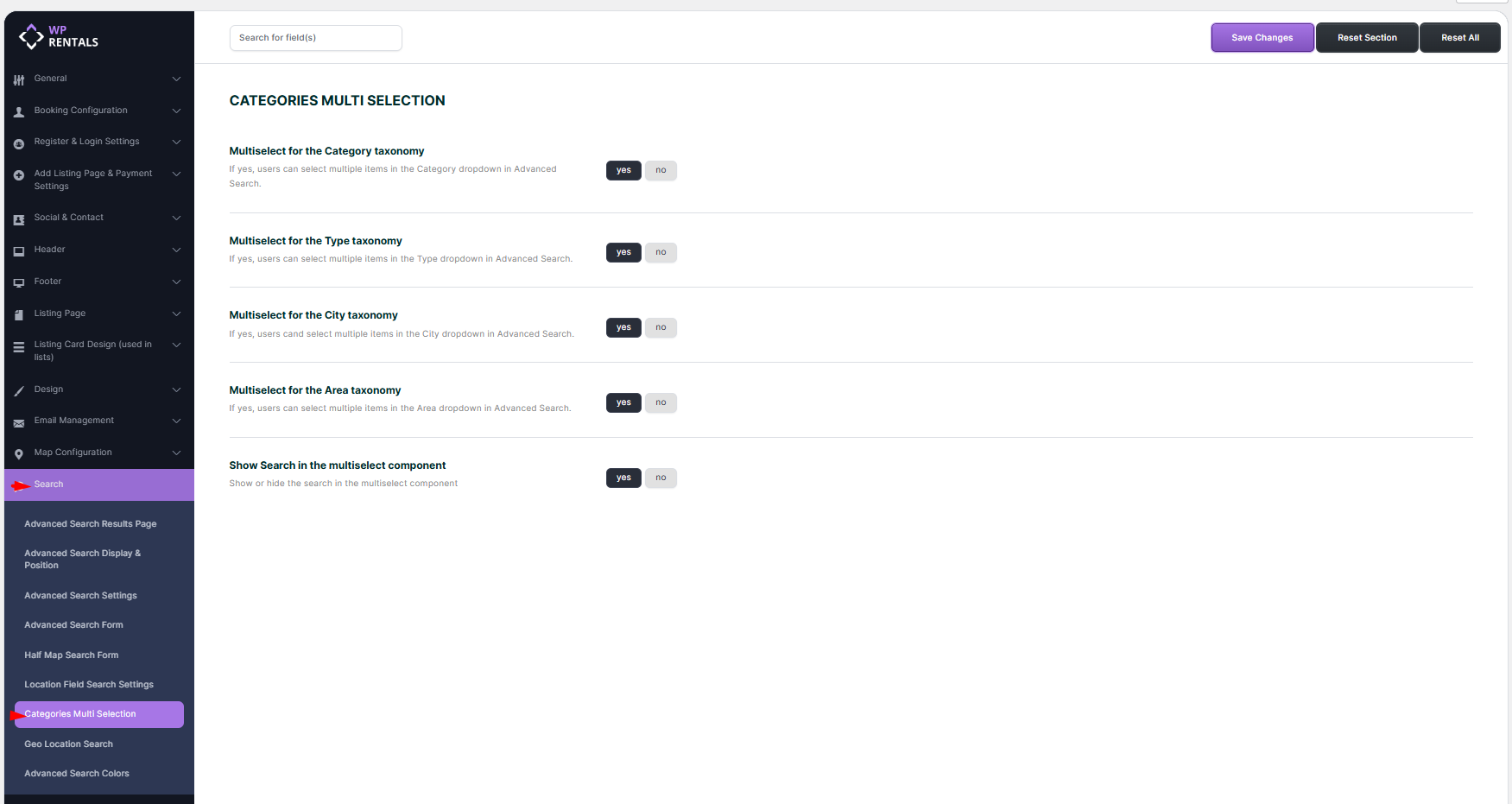
Example of multi-select in the search form:

Search Forms That Can Use City and Area Fields
Listing City and Property Area can be used in search forms that support custom fields.
Hero Media Search
Hero Media Search is available in five variations.
- Type 1 – Default Search, hardcoded fields.
- Type 2 – Default Search, hardcoded fields.
- Type 3 – Supports custom fields only.
- Type 4 – Default fields plus custom fields.
- Type 5 – Supports custom fields only.
Half Map Layout Search
This search form is configured with custom fields, so City and Area fields can be added.
Search Form Builder in Elementor
This search form is configured with custom fields, so City and Area fields can be added.
Important Notes
- This help is only for using City and Area as dropdown selectors.
- The setup uses Listing City and Listing Area taxonomy terms created in wp-admin.
- Google Places or OpenStreet Places should be disabled for this setup.
- Owners and site admins select City and Area from User Dashboard > My Listings > Add New Listing / Edit Listing.
- City and Area are independent taxonomies. Selecting a city does not filter the area dropdown automatically.
- For search, use Listing City and Property Area as separate dropdown fields.
- Multi-select can be enabled from WPRentals Options > Search > Categories Multi Selection.
Related Help
Google Places or OpenStreet Places autocomplete
Theme autocomplete based on saved listing location details