
The My Inbox page is part of the front-end User Dashboard in WPRentals.
It is used to track messages between renters, owners, and site users. These messages can come from booking actions, contact owner forms, replies between users, or booking-related communication.
What the My Inbox Page Is Used For
The Inbox in WPRentals is the theme private messaging system.
It helps users keep communication inside the website dashboard instead of relying only on email.
The Inbox can include:
- messages sent from the Contact Owner form
- booking request messages
- invoice-related messages
- booking confirmation messages
- replies between owners and renters
- system messages triggered by booking actions
Messages are saved in the front-end dashboard under:
User Dashboard > My Inbox

Who Uses the Inbox
The Inbox is used by registered users who have a front-end dashboard account.
This can include:
- owners who receive inquiries or booking requests for their listings
- renters who send booking requests, contact owners, or receive replies
- site admins who manage listings from the front-end dashboard
How to Create the My Inbox Page
If you imported a WPRentals demo, the My Inbox page is usually already created.
If you did not import demo content, create the page manually.
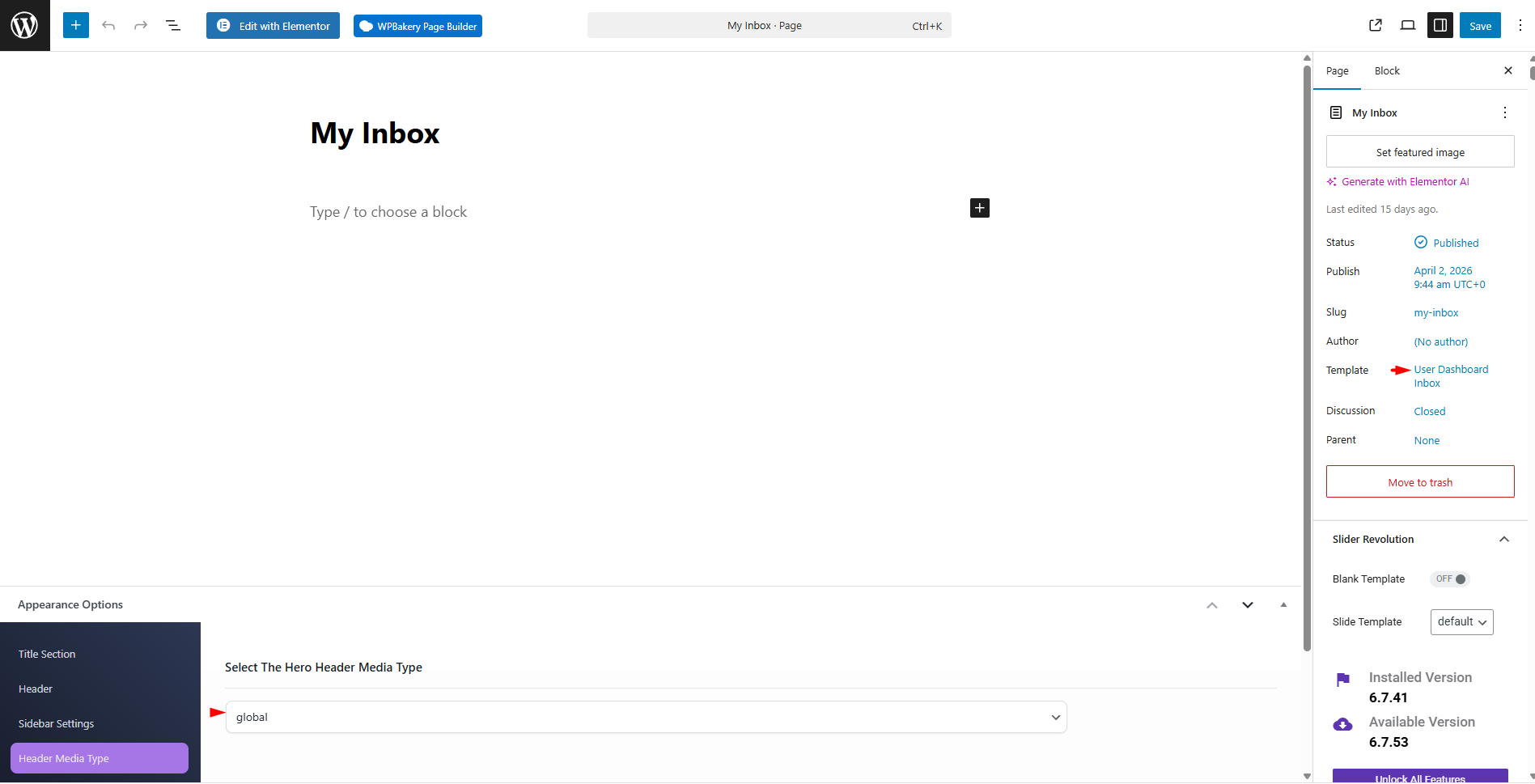
- Go to Wp-admin > Pages > Add New.
- Add the page title, for example My Inbox.
- Select the page template User Dashboard Inbox.
- Publish the page.
Where the Site Admin Can See All Messages
The site admin can review all messages from the WordPress admin area.
Go to:
Wp-admin > Messages
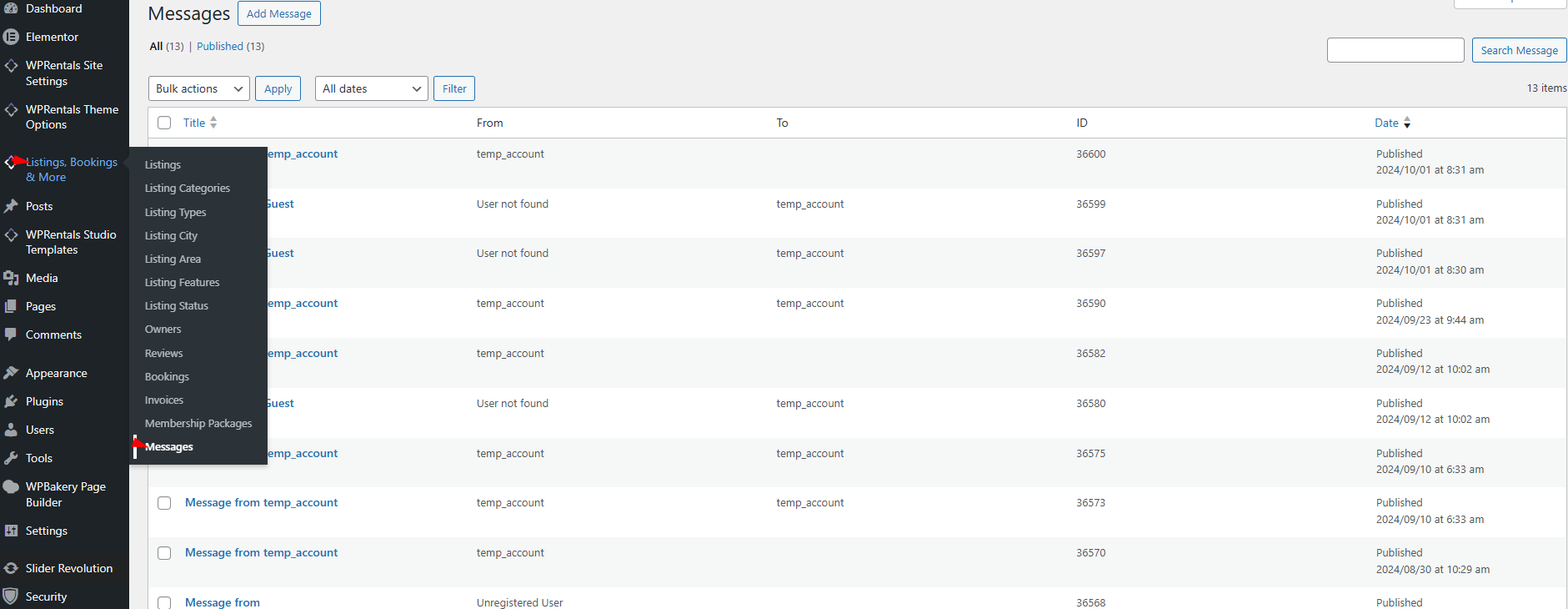
This is useful for admin tracking and support checks.
When Messages Are Created
Messages can be created automatically by theme actions or manually by users.
Messages can be saved when:
- a renter sends a message to the owner
- a renter sends a booking request
- an owner receives a new booking request
- an owner issues an invoice
- a booking is confirmed
- a user replies to an existing message
- an owner or admin reserves a period for their own listing
- a visitor sends a message from the Contact Owner form
Messages are also sent by email to the recipient when the related email notification is enabled.
Messages Sent From the Contact Owner Form
The Contact Owner form allows visitors or registered users to send a message to the listing owner.
When a logged-in user sends a message from the Contact Owner form:
- the owner receives an email notification
- the message appears in the owner’s User Dashboard > My Inbox
- the user can track replies from their own My Inbox
When a non-logged-in visitor sends a message from the Contact Owner form:
- the owner receives the message by email
- the site admin can review the message from wp-admin > Messages
- dashboard tracking depends on the user account because the visitor is not logged in
Messages Related to Bookings
Booking communication can be tracked from the dashboard.
Owner / site admin side
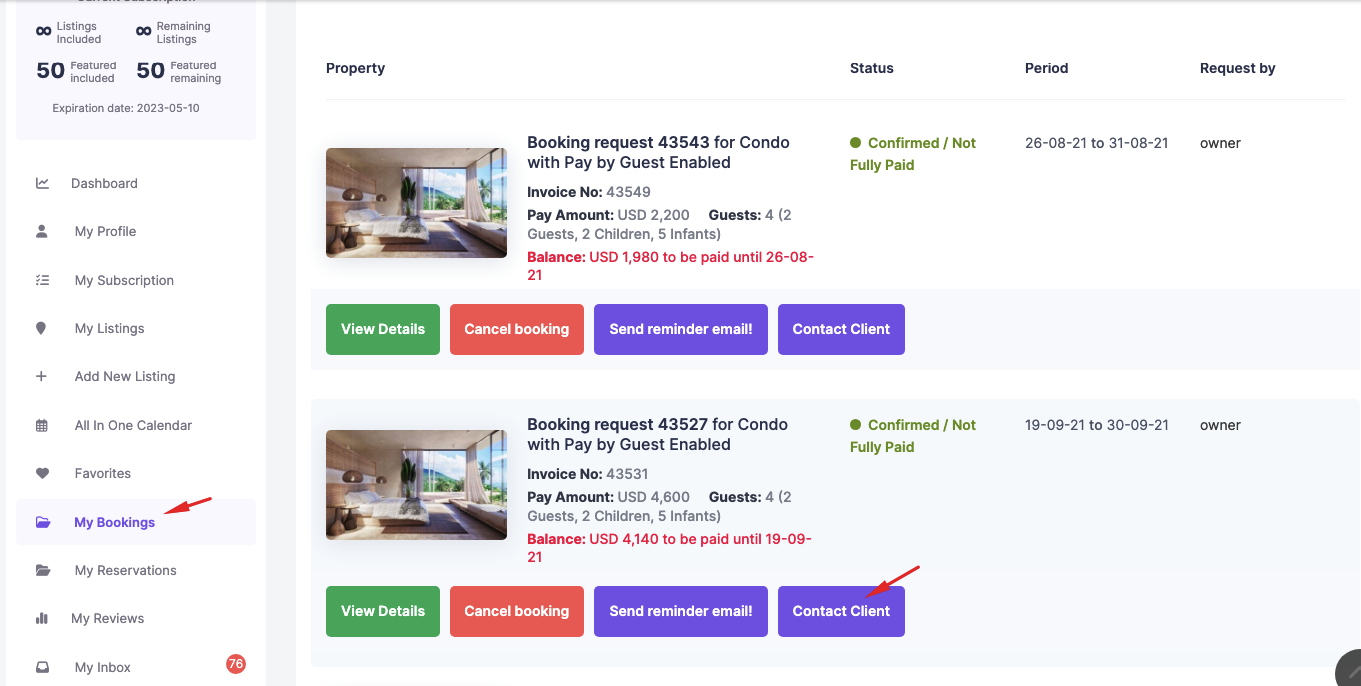
Owners or site admins who manage listings can send messages from:
User Dashboard > My Bookings
This is used when managing booking requests received for their listings.
Renter side
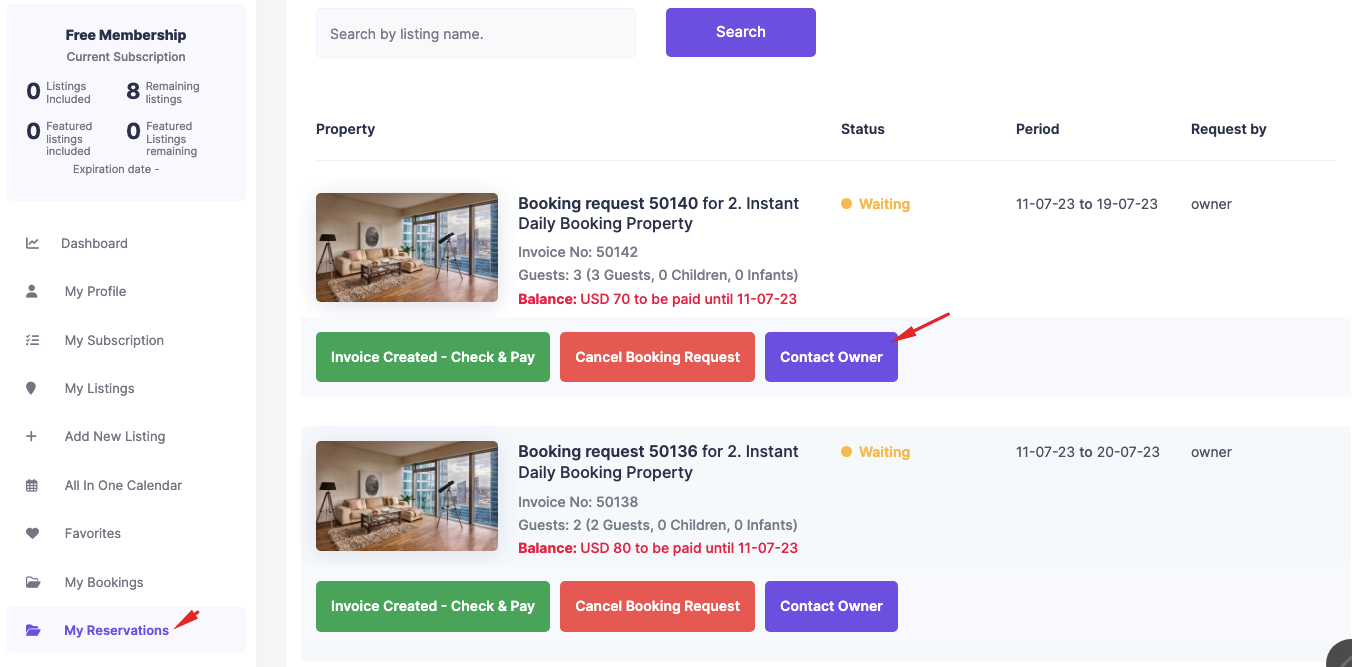
Renters can send or reply to messages from:
User Dashboard > My Reservations
This is used when tracking bookings sent by the renter.
How Replies Work
When a user replies to a message:
- the recipient receives an email notification
- the reply is saved in the recipient’s dashboard Inbox
- the conversation can be tracked from User Dashboard > My Inbox
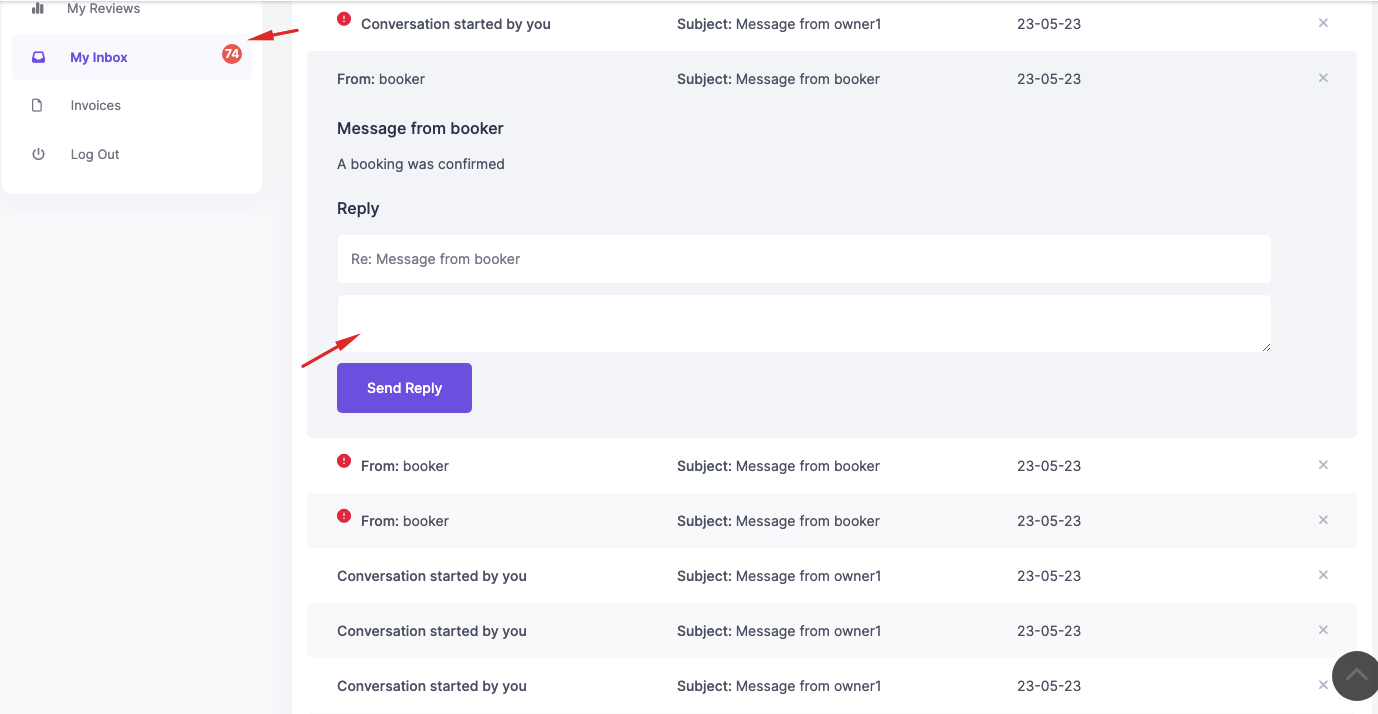
This helps owners and renters keep a record of their communication.
Email Notifications and Duplicate Admin Email
Messages created by theme actions can also be sent by email.
Depending on your email notification settings:
- the owner can receive an email when a new message or booking request is sent
- the renter can receive an email when the owner replies or issues an invoice
- the admin can receive duplicate email notifications if the duplicate admin email option is enabled
Where the Contact Owner Form Can Appear
The Contact Owner form can appear in several places, depending on your theme options and page setup.
Property page – Contact Host button
The contact form can be opened from the property page, usually from the booking/contact area.

Owner public profile page
Users can also contact the owner from the public owner profile page.

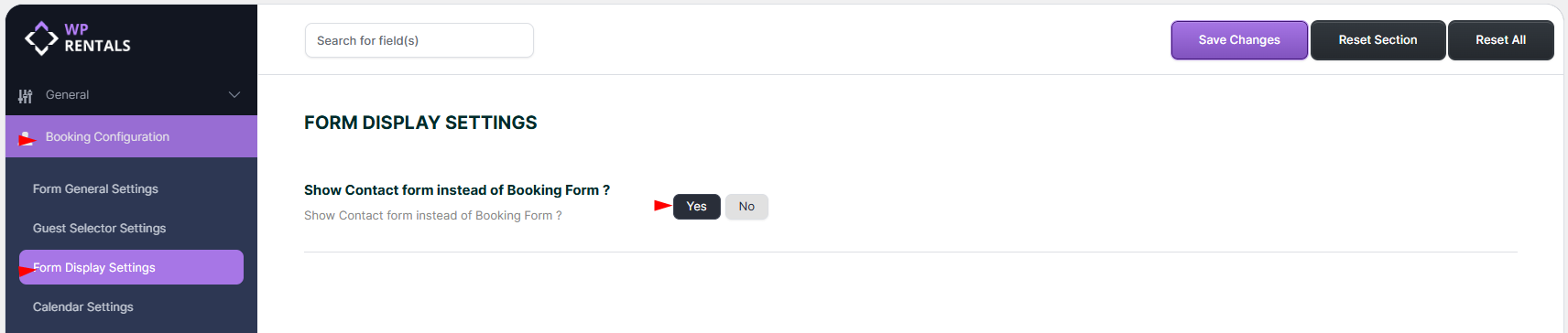
Contact form instead of booking form
The site admin can choose to show a contact form instead of the booking form on property pages.
This is useful when the website should collect inquiries first instead of allowing direct booking requests.

Important Notes
- My Inbox is the front-end dashboard page where registered users track messages.
- The site admin can review all messages from wp-admin > Messages.
- Messages can be created by contact forms, booking requests, invoice actions, booking confirmations, and replies.
- Owners and site admins managing listings can send messages from User Dashboard > My Bookings.
- Renters can send messages from User Dashboard > My Reservations.
- Replies are sent by email and saved in the dashboard Inbox.
- For complete dashboard tracking, users should be logged in.
- Non-logged-in contact form messages can still be delivered by email and reviewed by the admin.
- Email delivery depends on the website email setup and email notification settings.
Related Help
Owner Contact Info – How it works
How to create the User Dashboard pages
My Reservations Page – User Dashboard
Theme Options – Booking Configuration
Summary
- The Inbox is the WPRentals private messaging system.
- Registered users can track messages from User Dashboard > My Inbox.
- The site admin can review all messages from wp-admin > Messages.
- Owner messages can come from contact forms, booking requests, invoices, booking confirmations, and replies.
- Owners and site admins use My Bookings for booking-related communication.
- Renters use My Reservations for reservation-related communication.
- Email notifications are sent when the related email templates and website email system are configured correctly.