
What is Hourly Booking
Hourly booking allows a listing to be booked by the hour instead of by the day or night.
This option is useful for listings that are rented for short periods, such as:
- meeting rooms
- offices
- studios
- event spaces
- equipment or other bookable objects
When hourly booking is enabled, the booking form and pricing fields adjust to support hourly reservations.
Owners or site admins can manage hourly price, discounted hourly prices for longer bookings, weekend pricing, minimum booking time, business hours, and custom prices for selected dates.
How to Enable Hourly Booking
Go to:
Theme Options > Booking Configuration > Form General Settings
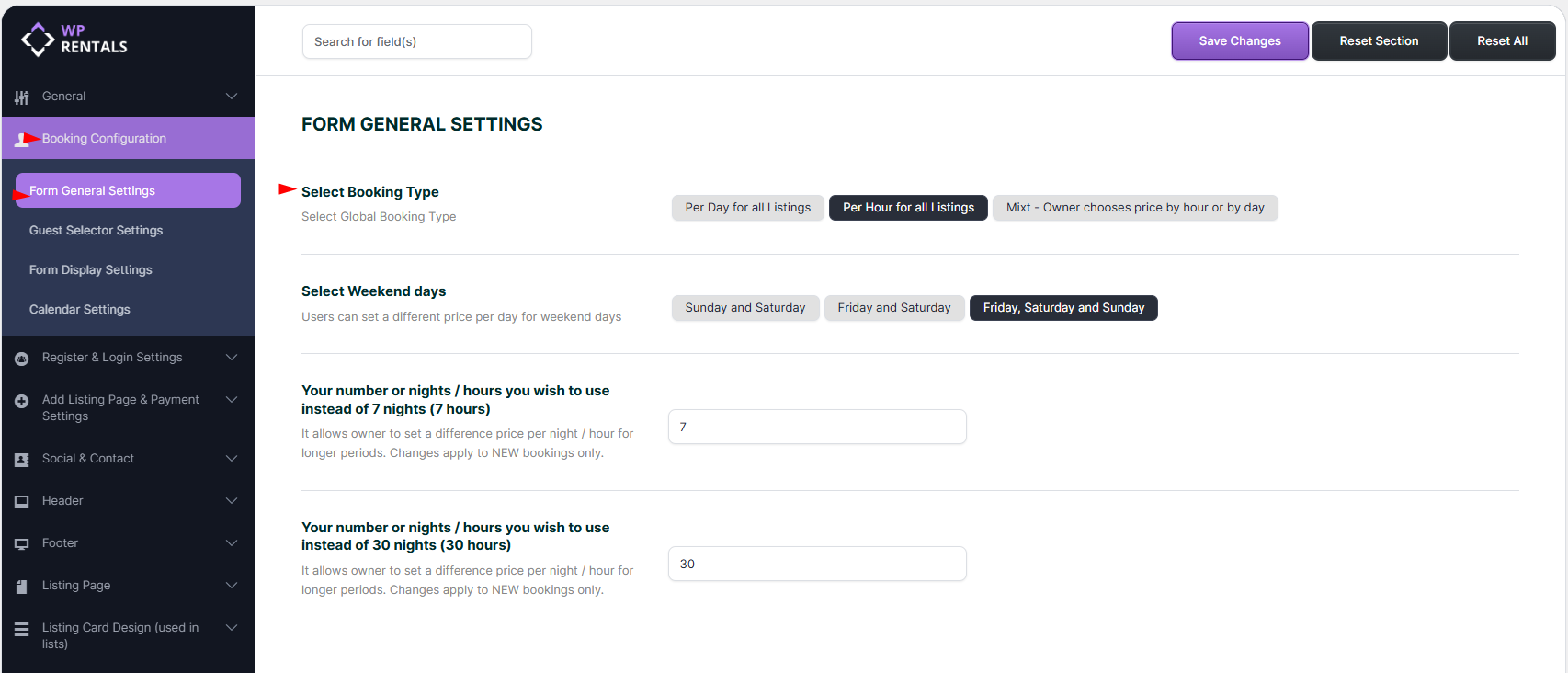
In this section, the site admin chooses how booking works across the website.
You can use hourly booking for all listings, keep daily booking for all listings, or allow each owner to choose the booking type for each listing.
Booking Type Options Explained
WPRentals includes these booking type options:
- Per day for all listings – all listings use the standard daily booking system.
- Per hour for all listings – all listings use hourly booking.
- Mix: Owner chooses price per hour or by day – each listing owner can choose whether a listing is booked by the day or by the hour.
How to Set Hourly Prices for a Listing
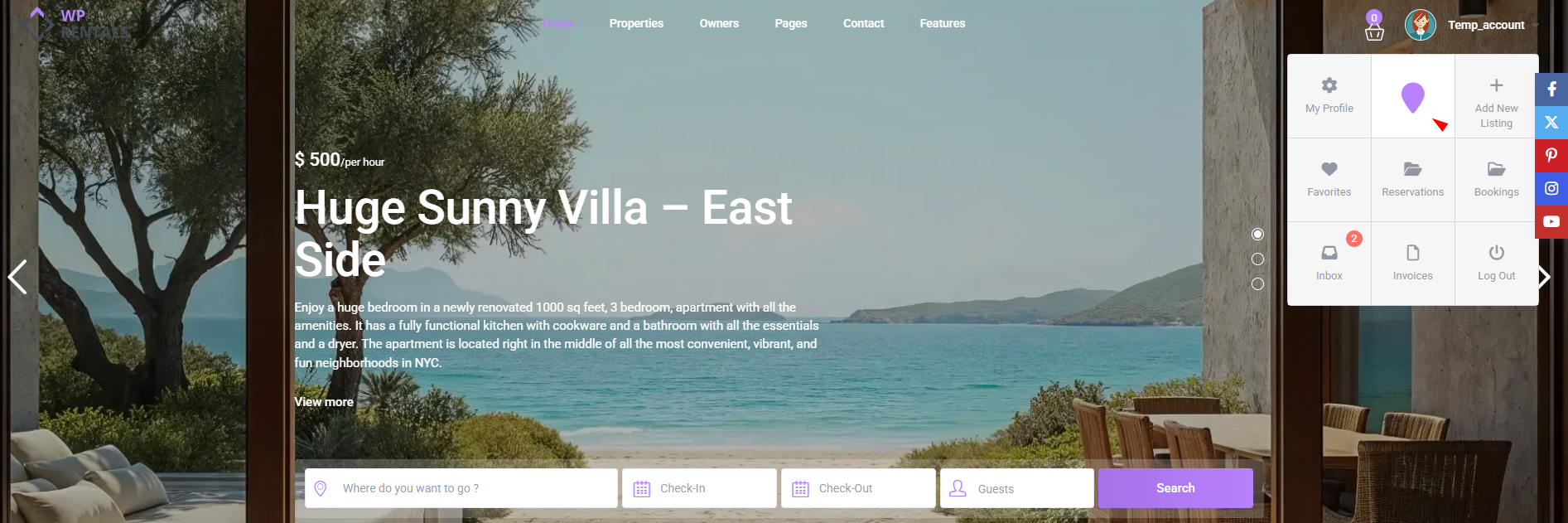
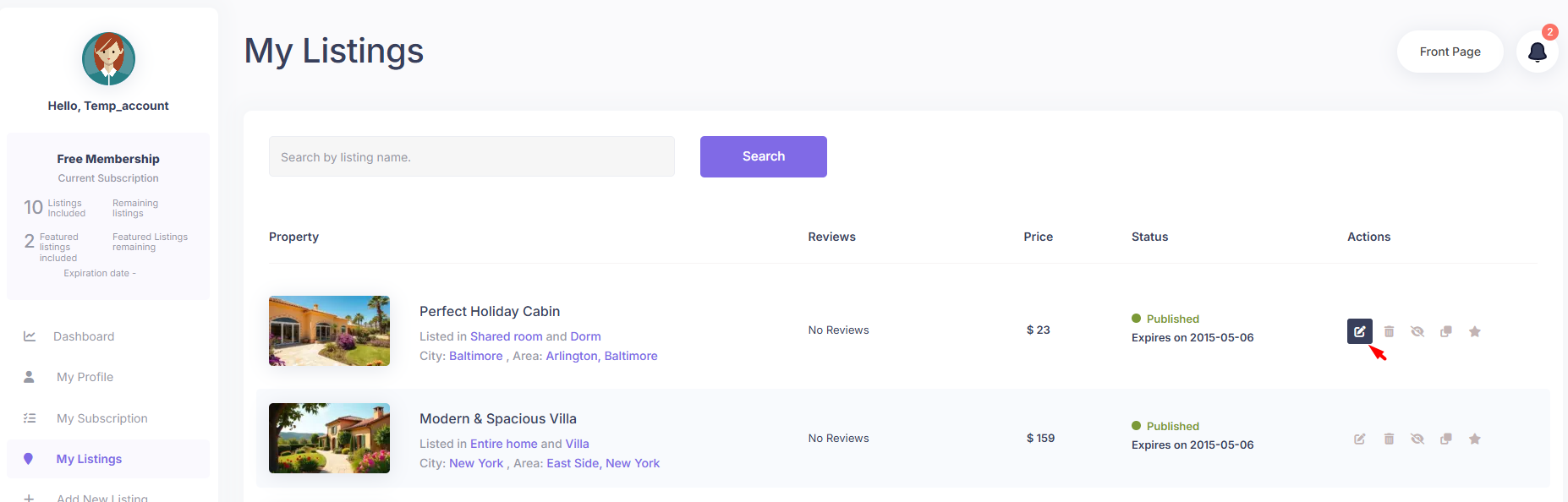
After hourly booking is enabled, the owner or site admin managing the listing can set hourly prices from the front-end dashboard.
Go to:
User Dashboard > My Listings > Edit Listing > Price Settings
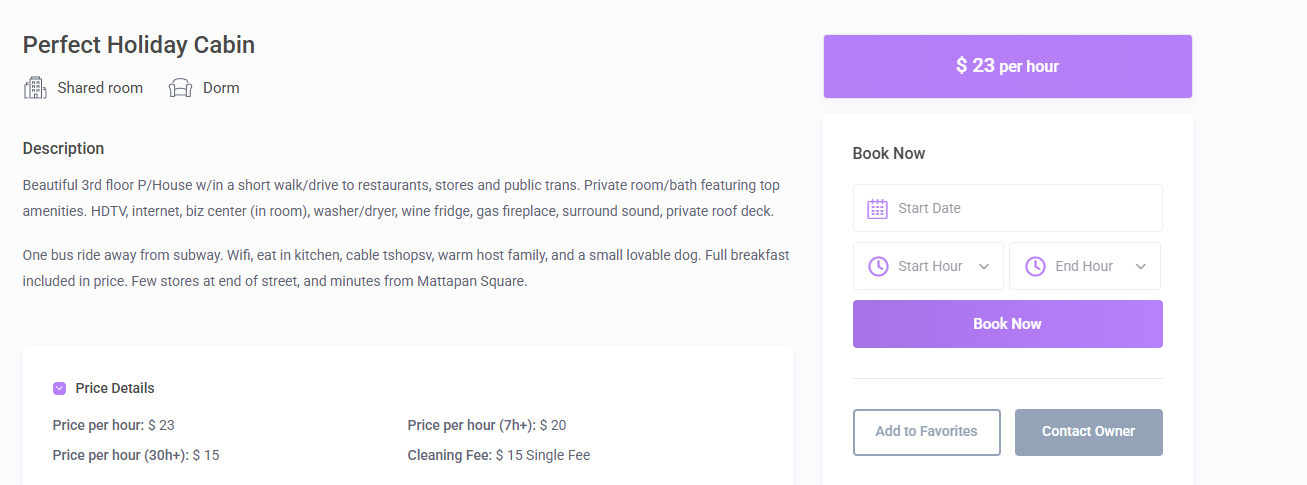
When hourly booking is enabled, the listing can use the following price fields:
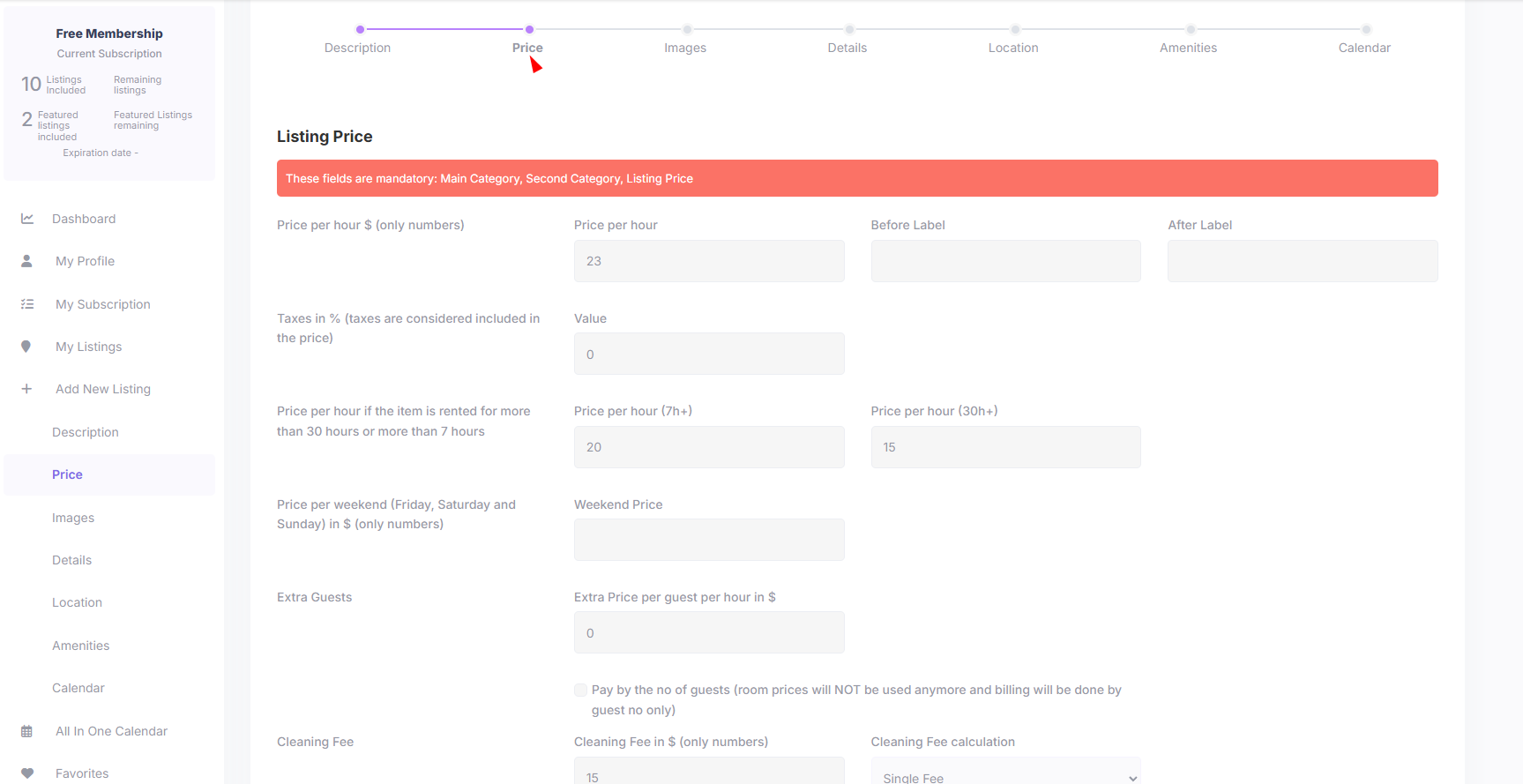
- Price per hour
- Price per hour for 7h+
- Price per hour for 30h+
- Weekend price
- Cleaning fee
- City fee
- Minimum hours of booking
- Early Bird Discount
- Business Hours
How Business Hours Work
Business Hours define the time interval available for hourly reservations.
Visitors can only select booking slots inside the business hours set for that listing.
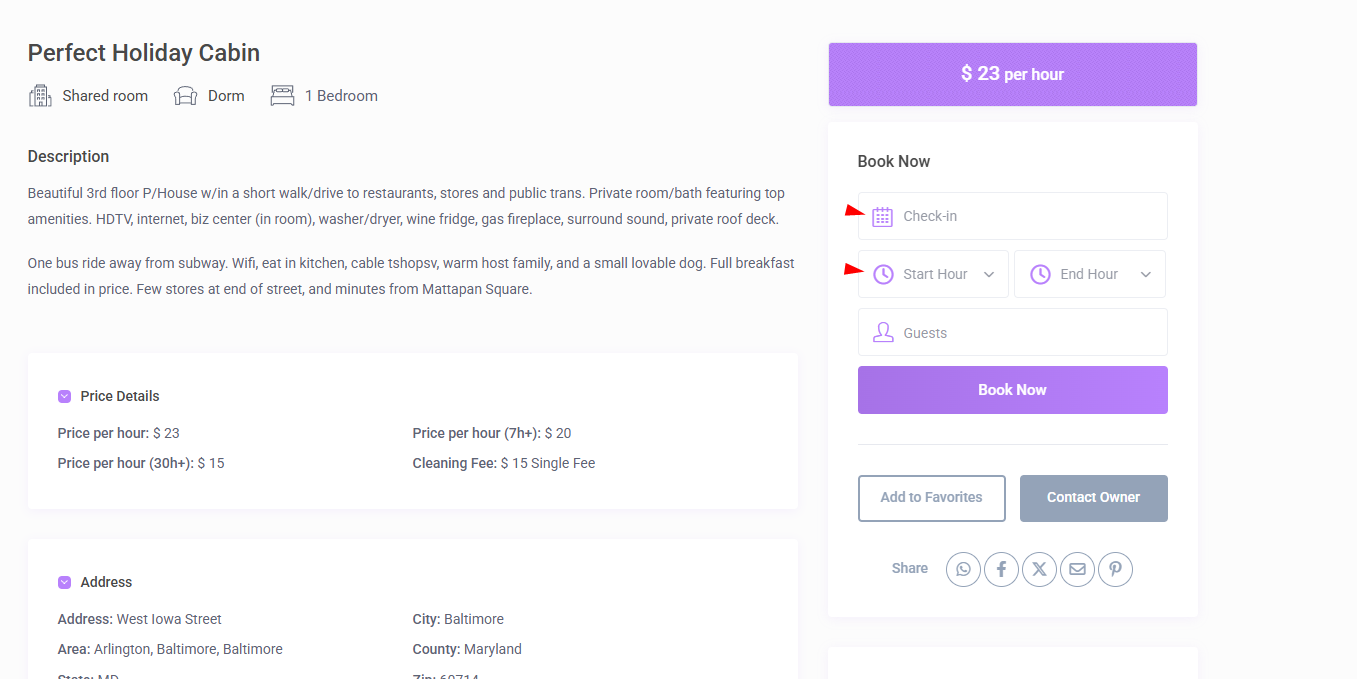
Business hours are managed from the listing Price Settings area.
How to Add Custom Hourly Prices
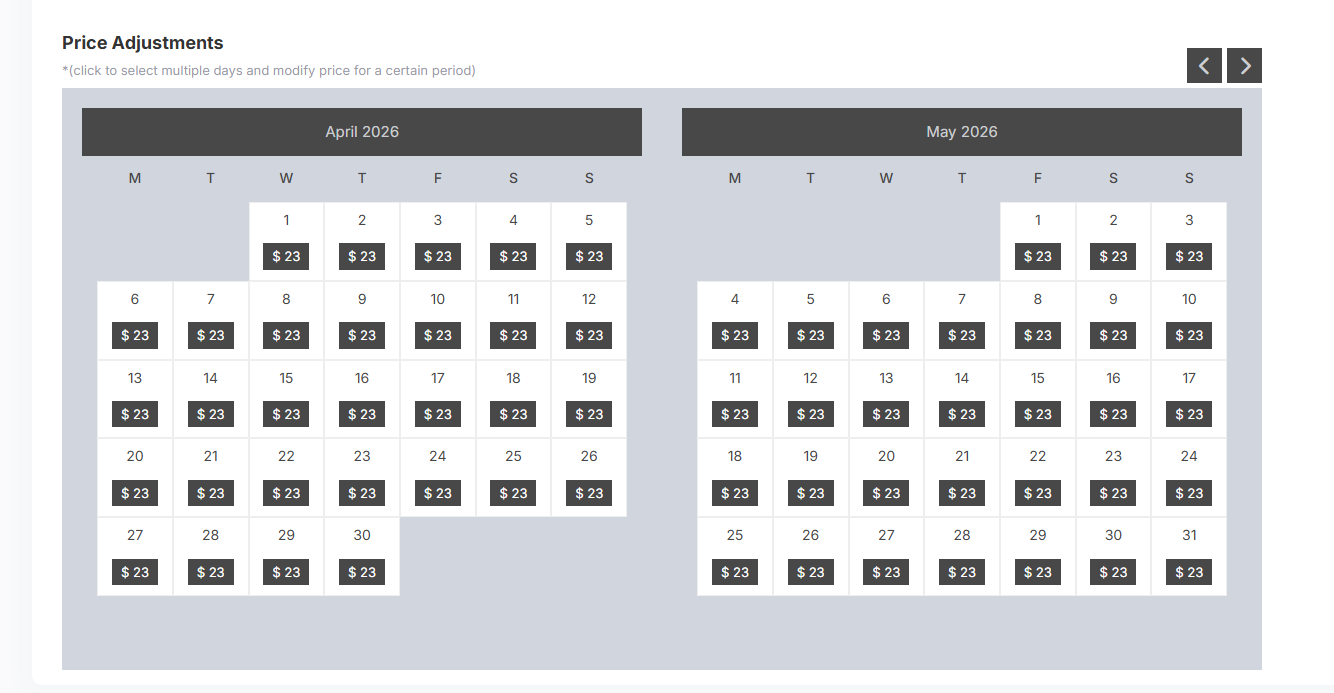
If you want to charge different hourly prices for specific dates, use the Price Adjustments section in the front-end listing editor.
Go to:
User Dashboard > My Listings > Edit Listing > Price Adjustments
From there, you can select the dates and add custom prices for those periods.
This is useful for:
- holidays
- weekends
- peak dates
- special events
- dates that need a different hourly price
Time Format in the Booking Form
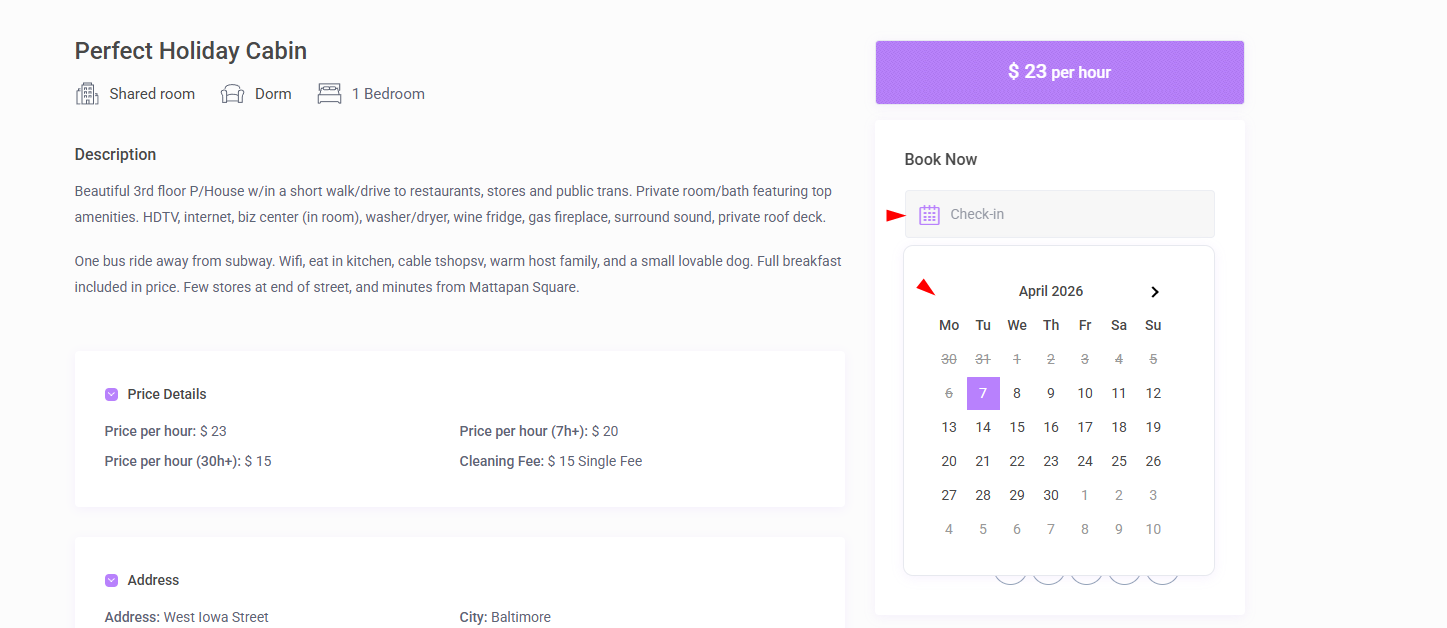
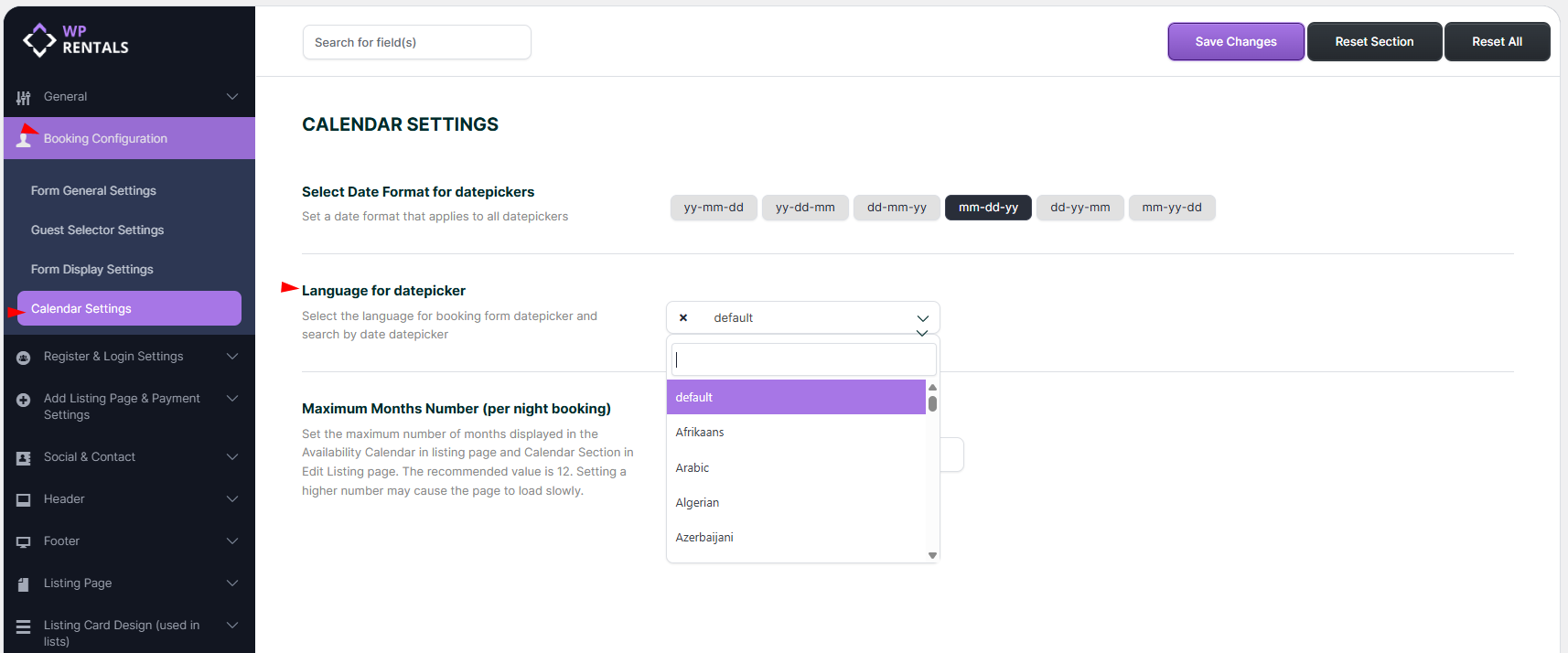
The time format depends on the datepicker language and browser/display behavior.
You can manage the datepicker language from:
Theme Options > Booking Configuration > Calendar Settings > Language for Datepicker
Using Hourly Booking with Object Rental
If you rent items instead of accommodation, you can use hourly booking together with Object Rental.
Go to:
Theme Options > Booking Configuration > Guest Selector Settings
Select:
Object Rental
When Object Rental is enabled:
- the guest selector is removed from the booking form
- the wording can change from night to day for daily bookings
- hourly booking is still controlled separately from the booking type settings
This setup is useful for bookable objects, equipment, or spaces where the number of guests is not relevant.
Important Limitations
Before using hourly booking, please keep these limitations in mind:
- Hourly bookings can only be made within a single day.
- A listing cannot be both hourly and daily at the same time.
- The All-in-One Calendar is designed for daily bookings, not as a full hourly booking management calendar.
- Search by check-in and check-out is mainly designed for daily availability, not detailed hourly interval filtering.
How iCal Works with Hourly Booking
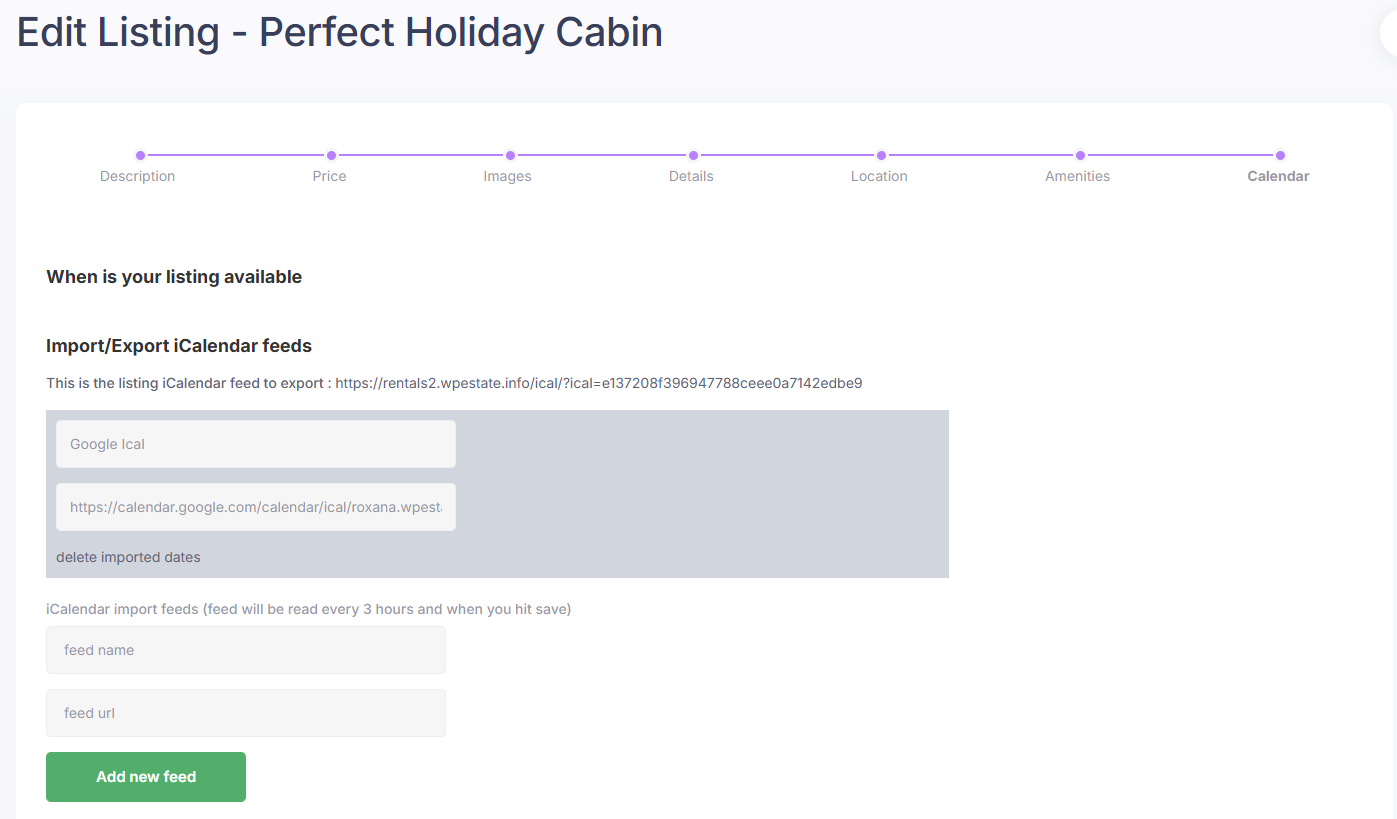
You can import hourly availability by iCal only from platforms that support hourly booking in their calendar feed.
To add an iCal feed, go to:
User Dashboard > My Listings > Edit Listing > Calendar
Important details:
- The listing must be published before the iCal feed can be managed correctly.
- The iCal feed is managed from the front-end dashboard.
- If you want a listing to stop appearing in date search results for one full day, the full day must be blocked from hour 1 to hour 23.
- By default, iCal synchronization runs every 3 hours.
Related Help Articles
Manage the property submission form fields
Add a booking form to a different page