
How This Works
For the owner to add a manual discount or custom invoice item, the booking must follow this flow:
- The renter sends a booking request.
- The listing owner receives the booking request notification by email.
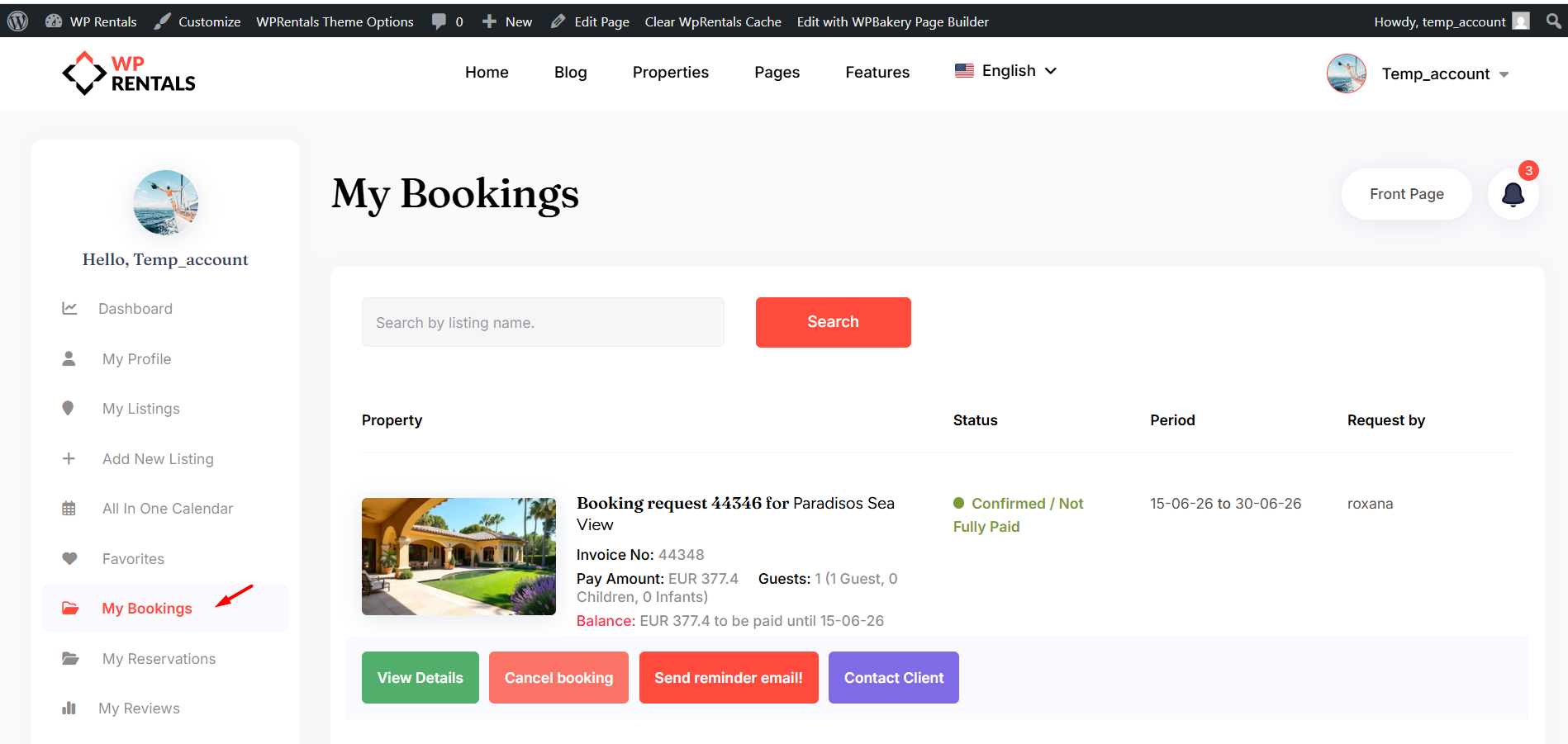
- The listing owner logs in and checks the request from User Dashboard > My Bookings.
- The listing owner chooses to issue the invoice.
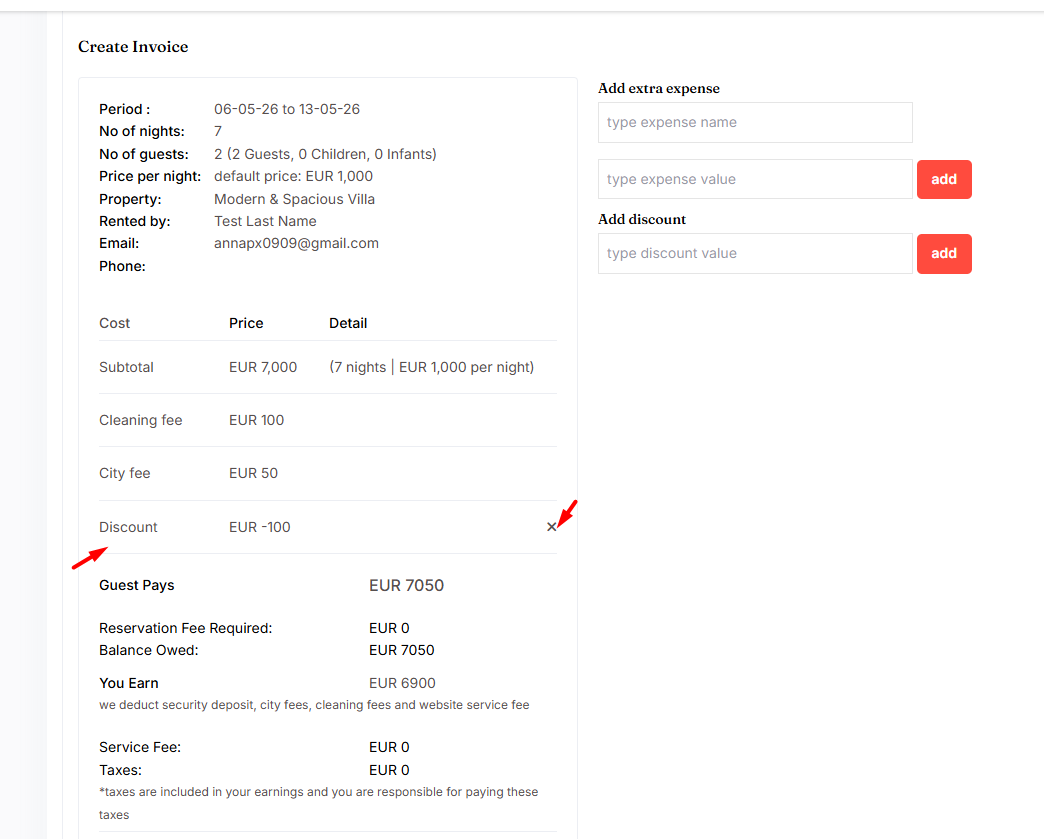
- Before sending the invoice, the listing owner can add a manual discount or custom extra expense.
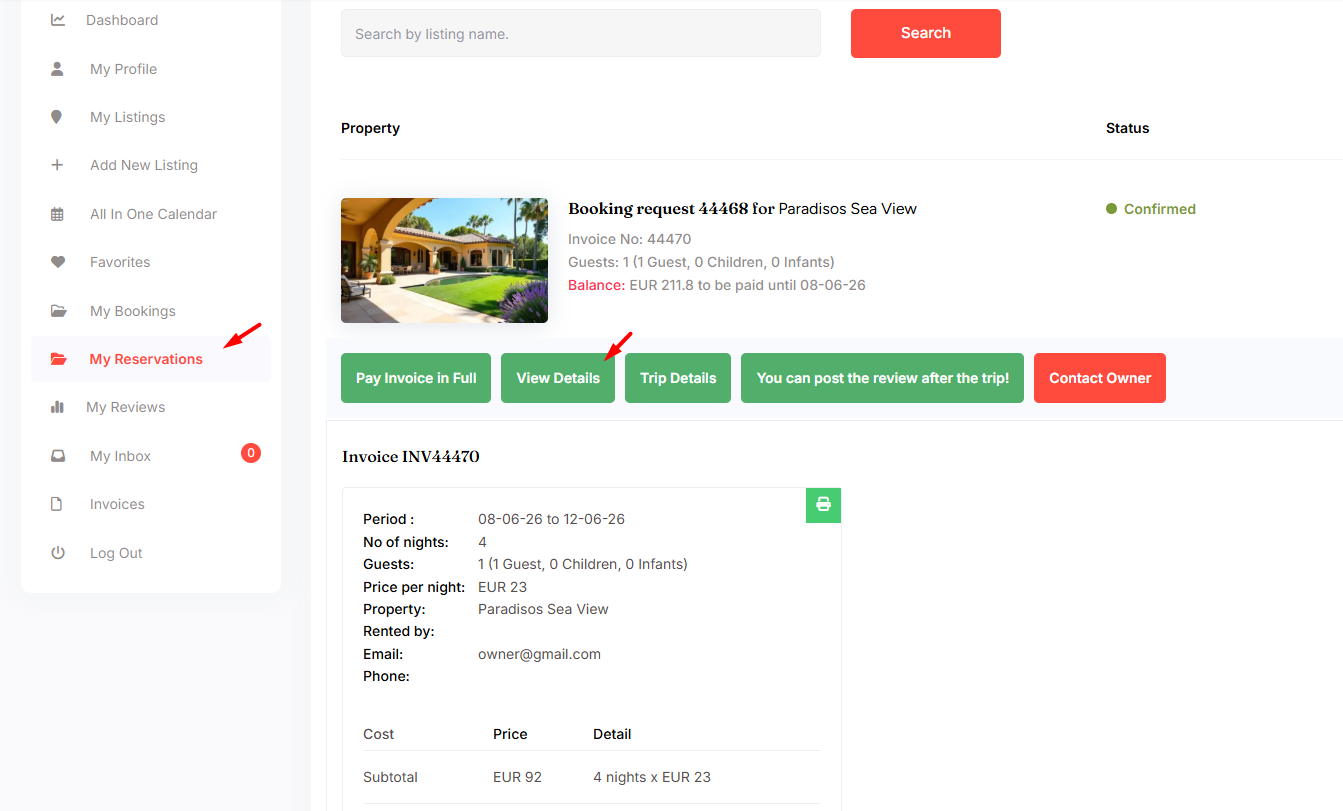
- The renter receives the invoice and can pay it from User Dashboard > My Reservations.
Who Can Add Manual Discounts or Custom Invoice Items
Only the listing owner can add these details when issuing the invoice.
The booking request must appear in that owner’s dashboard:
User Dashboard > My Bookings
This means the option can be used by:
- the registered owner assigned to the listing
- the site admin only if the admin is managing the listing as the owner or single-owner account
Step 1: Renter Sends a Booking Request
The renter selects the booking dates and sends a booking request from the listing page.

Step 2: Listing Owner Checks the Booking Request
The listing owner receives an email notification about the new booking request.
The owner logs in and goes to:
User Dashboard > My Bookings

From this page, the owner can:
- Reject the booking request if they do not want to accept it.
- Issue the invoice if they approve the booking request.
Step 3: Owner Adds a Custom Invoice Item
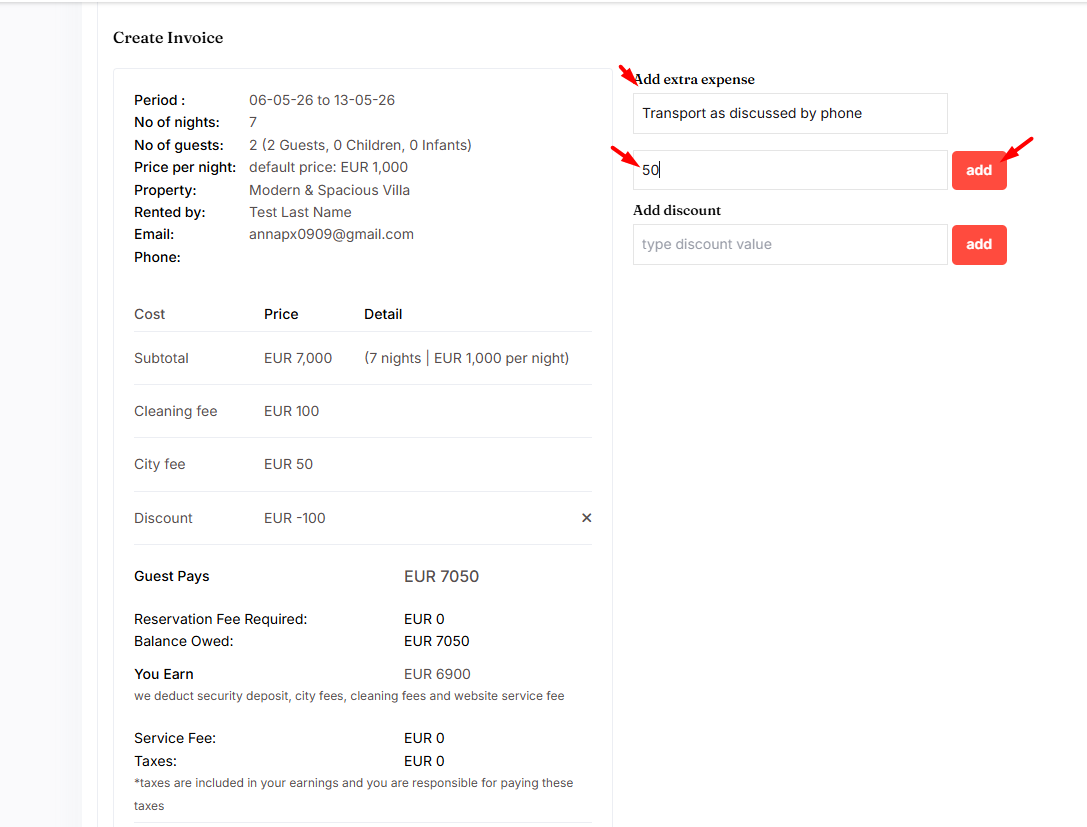
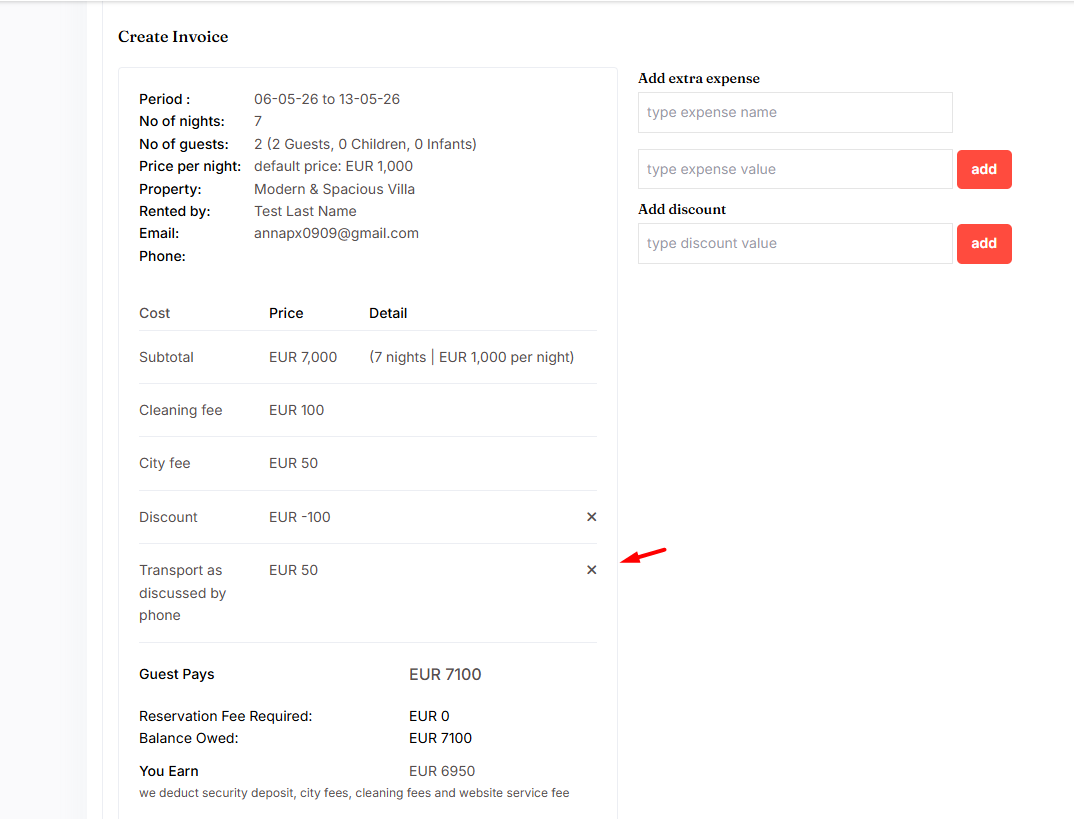
When issuing the invoice, the listing owner can add a manual extra expense.
Use this option when the invoice needs a custom charge for that specific booking request.
Examples:
- special cleaning fee
- late check-in fee
- extra service fee
- custom guest charge
- any extra cost agreed with the renter
Step 4: Owner Adds a Manual Discount
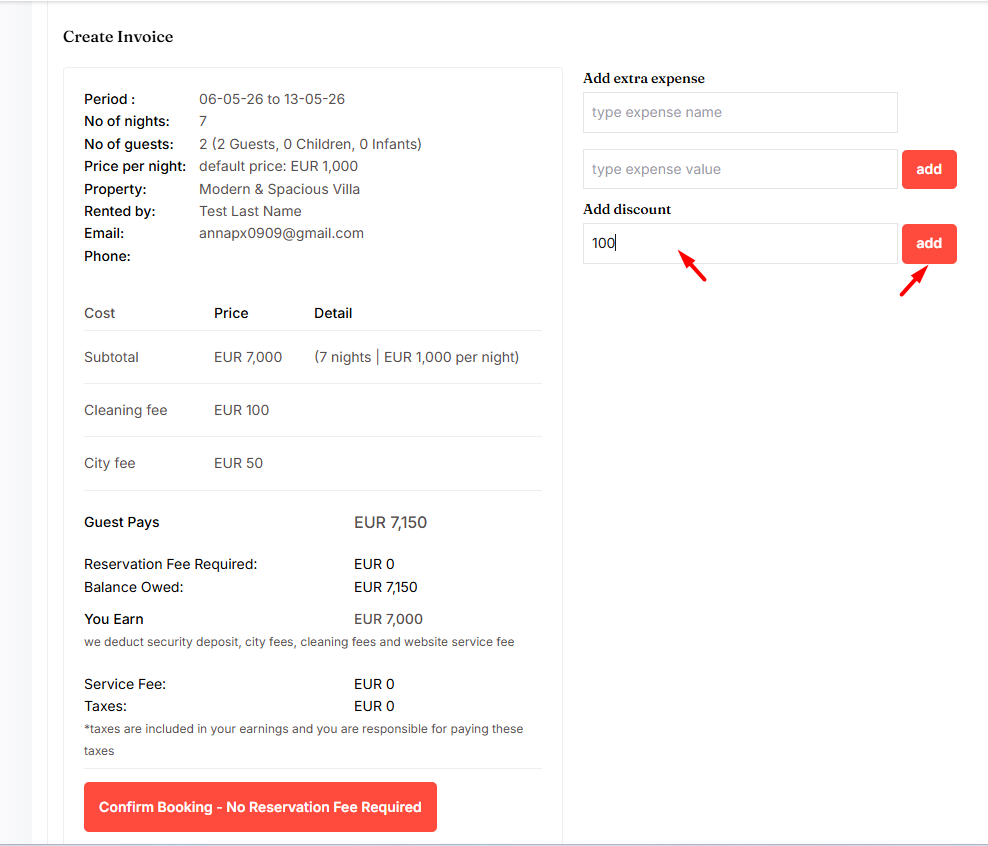
When issuing the invoice, the listing owner can also add a manual discount.
Use this option when the owner wants to reduce the invoice amount for that specific booking request.
Examples:
- the owner agreed to a special price with the renter
- the owner wants to offer a one-time discount
- the invoice amount must be adjusted before payment
Can the Owner Change the Discount or Custom Item?
Yes, but only before the renter pays the invoice.
Before payment, the listing owner can delete the invoice and issue a new one with the correct manual discount or custom extra expense.
How does Renter see the details
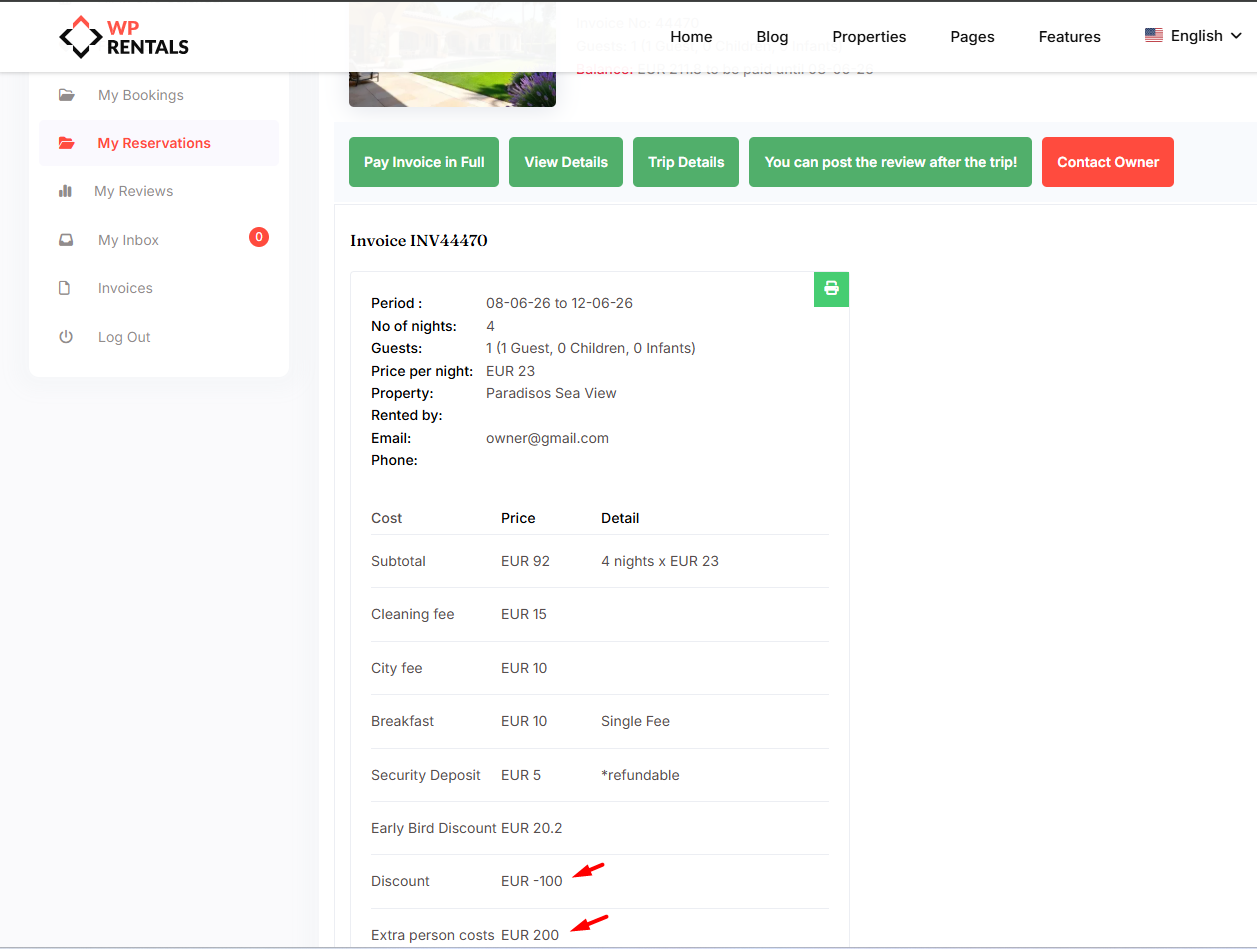
After the invoice is issued, the renter sees the custom extra expense in the invoice details from:
User Dashboard > My Reservations
Important: This Does Not Apply to Instant Booking
Manual discounts and custom invoice items are added when the owner reviews a booking request and issues the invoice.
If Instant Booking is enabled, the owner does not manually approve the booking request before payment. Because of this, the owner does not have the same invoice review step where manual discounts or custom invoice items can be added.
If you need prices or optional charges to be available before checkout for Instant Booking, use listing price settings or Extra Booking Options instead.
How to add Extra Options in the booking form
Manual Discount vs Early Bird Discount
The manual invoice discount is different from the Early Bird Discount.
- Manual discount is added by the listing owner when issuing the invoice for one booking request.
- Early Bird Discount is set in the listing price settings and applies automatically when the booking matches the advance booking rule.
Important Notes
- This option is for bookings that require owner approval.
- Only the listing owner can add manual discounts or custom invoice items.
- The option is available when the owner issues the invoice from User Dashboard > My Bookings.
- The manual discount applies only to that invoice.
- The custom extra expense applies only to that invoice.
- These changes must be added before the renter pays the invoice.
- The renter sees the updated invoice from User Dashboard > My Reservations.
- This option does not apply to Instant Booking because the owner invoice review step is skipped.
- Online payments collected through WPRentals go to the site admin payment account.
Related Help
Send booking. Approve booking and issue invoice or reject booking as owner
My Reservations Page – User Dashboard
How to add Extra Options in the booking form