
This system allows you to monetize property submissions by selling membership packages.
Users get a limited number of listings (and optionally featured listings) based on their active package.
Choose a Submission Model
WPRentals supports one submission model at a time. Decide what you want to sell:
- Paid Submissions (users pay per listing, no membership packages)
- Membership Packages (users pay for a package that includes multiple listings)
How to Enable Membership Submission
Go to:
Theme Options → Add Listing Page & Payment Settings → Submission Settings → Enable Paid Submission → Select “Membership”

Free Membership and Free Listings
- Each new user account gets Free Membership by default.
- Free Membership includes a number of free listings and optionally featured listings, defined by the admin.
- Free listings can have an expiration time (days), also defined by the admin.
Free listing expiration is calculated as:
Publish date + number of days set in Theme Options.

When listings expire, users will see them in My Listings under “Expired”, and they may receive expiration emails (if enabled).

If you change free membership limits after users have already registered, existing accounts will not update automatically.
Changes apply only to new accounts and new listings. Existing accounts must be adjusted manually.
How to add a membership package manually
Membership Package Rules
- Users cannot have two active packages at the same time.
- Buying a new package replaces the previous one. Package listing limits do not add up.
- If a user downgrades to a package with fewer listings than they currently have published,
listings may be set to Expired so the account fits within the new limit. - Deleted listings still count as used listings. Deleting does not restore a slot.
Create the “My Subscription” Page
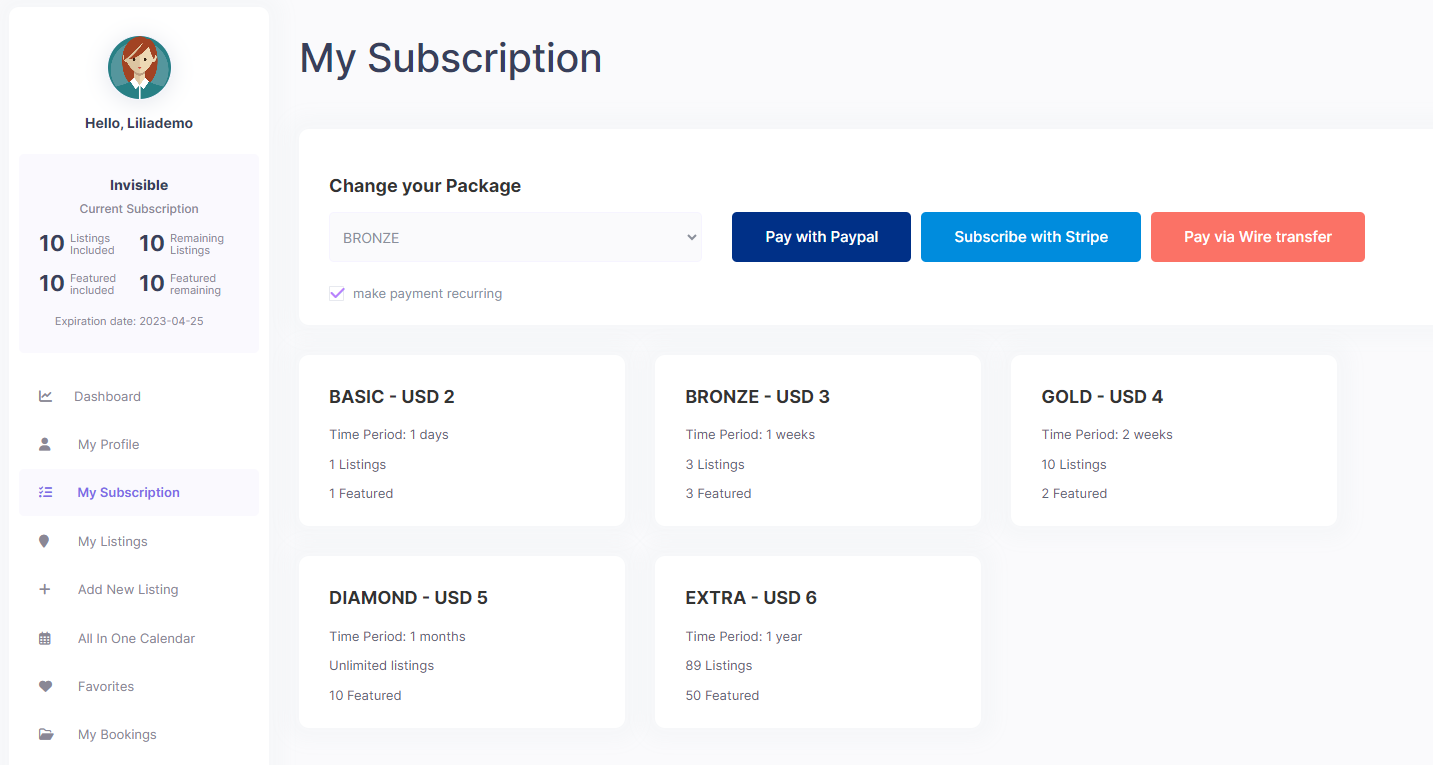
Users manage packages from the dashboard area. If you did not import demo content, create the “User Dashboard Subscription” manually with the page template from the below screenshot.
Help: How to import demo content

Set Paid Membership Packages
A paid membership package typically includes:
- Package name
- Billing cycle (daily, weekly, monthly, yearly)
- Listings included (regular)
- Featured listings included (optional)
- Price
- Show/hide in dashboard (optional


Payment Currency and Test Mode
For WpRentals included merchants, you can set whether payments are processed in Sandbox (testing) or Live mode:
- Sandbox – used for testing your setup
- Live – used for real payments
Select the Payment Currency you want to receive:


Note: PayPal and Stripe support a limited number of countries and currencies.
- Check PayPal supported currencies:
https://developer.paypal.com/docs/classic/api/currency_codes/ - Check Stripe supported currencies:
https://support.stripe.com/questions/which-currencies-does-stripe-support - See Stripe supported countries:
https://stripe.com/global
Payment Methods
WpRentals supports multiple payment methods for memberships:
1) Direct Theme Payment Methods
PayPal (supports recurring payments)
- Supports one-time and recurring payments.
- Recurring renewals happen automatically if enabled.
- Users must cancel PayPal subscriptions from their PayPal account.
- PayPal Setup Guide
Stripe (supports recurring payments)
- Users can pay with credit/debit cards.
- Supports automatic renewals if enabled.
- Users can cancel Stripe subscriptions from the WpRentals dashboard.
- Stripe Setup Guide
Wire Transfer (manual approval)
- Users receive payment instructions and send a bank transfer.
- Admin must manually approve the payment to activate the package.
- Wire Transfer Setup Guide
2) WooCommerce Payment Integration (optional)
- Use WooCommerce to accept any WooCommerce-supported payment gateway.
- WooCommerce does not support recurring payments for membership packages by default.
- Payments and order management are handled through WooCommerce.
How to Install WooCommerce & Use WooCommerce Payments
How Users Buy and Manage Memberships
Users manage packages from:
User Dashboard → My Subscription
Buying a Package
- Users select a package and proceed to payment.
- A recurring checkbox may be available for PayPal/Stripe. If enabled, the package renews automatically.
What Happens if Payment Fails?
- If a first-time payment fails, the user remains on Free Membership.
- If a recurring renewal fails, the user is downgraded to Free Membership automatically.
Upgrading to a New Package
- The new package replaces the old one immediately.
- Time remaining on the previous package does not carry over.
- Listings do not accumulate across packages.
Listings and Package Changes
- If users already have published properties, those will be deducted from the available listing slots in the new package.
- Deleted properties still count as used listings.
Downgrading to a Lower Package
If a user downgrades to a package with fewer listings than they currently have published:
- Listings may be set to Expired so the account fits within the new package limit.
- The user must resubmit listings, but cannot exceed the package limit.
The user may need to resubmit them (depending on your approval settings).
Featured Listings
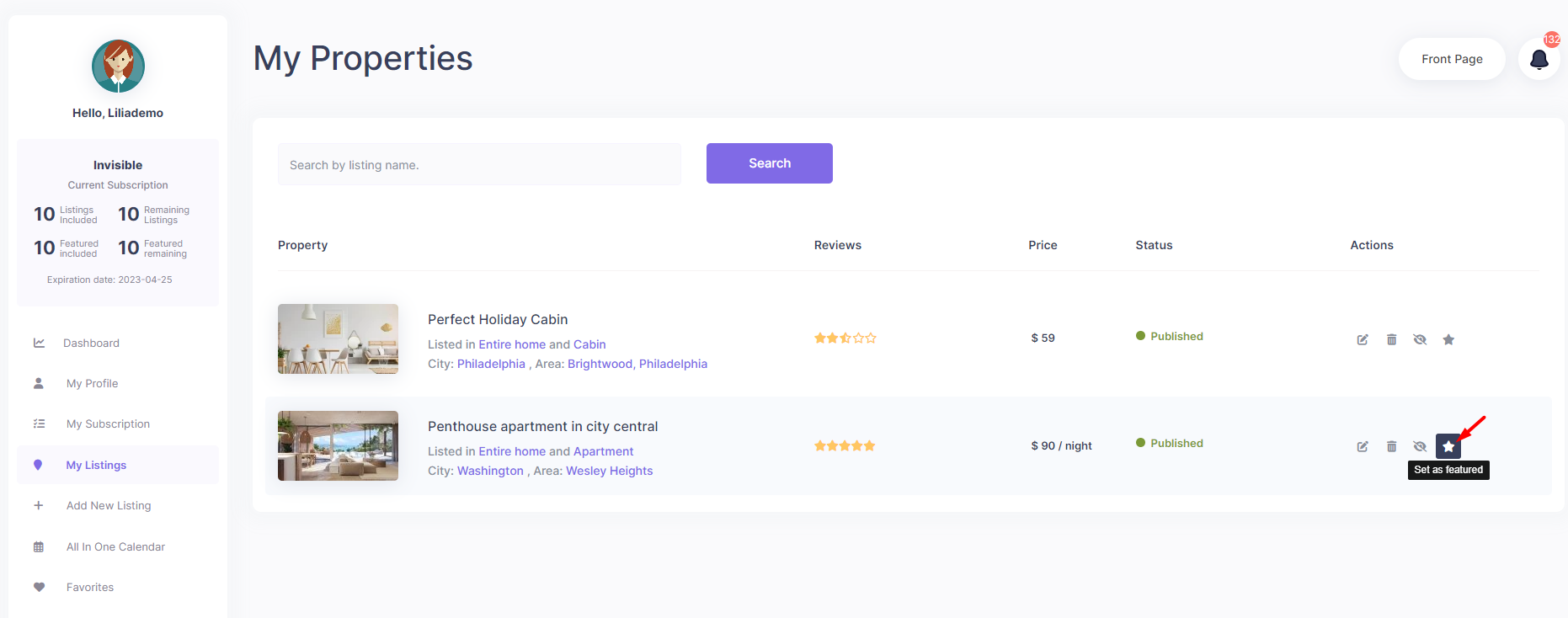
- Users can mark a property as featured from My Properties.
- Featured listings are deducted from the package featured limit.
- Only the admin can unmark a featured property and grant a new featured slot.
Canceling and Expiring Packages
One-time Payment Packages
- These expire automatically at the end of the billing period.
Recurring Subscriptions
- Stripe: can be canceled from the user dashboard.
- PayPal: must be canceled from the user’s PayPal account.
What Happens When a Package Expires or a Renewal Fails?
- The account reverts to Free Membership.
- Listings can be marked as Expired based on your membership rules and available slots.
- Users must purchase a new package to submit or reactivate listings within the new limits.
When a Listing Expires
A listing can expire if:
- The user’s membership package expires and is not renewed.
- A recurring payment fails.
- The user downgrades to a package with fewer allowed listings than currently published.
Users can resubmit only the number of listings allowed by their current package.
FAQ
Do changes to membership limits apply to existing users?
No. Changes you make to free membership limits apply only to new accounts.
Existing accounts must be adjusted manually. How to add a membership package manually
Can a user have multiple membership packages at the same time?
No. A new package replaces the old one immediately.
Why did listings become expired after a downgrade?
Because the new package allows fewer listings than the user currently has published.
The system expires listings so the account fits within the new limit.
Does deleting a listing restore a slot?
No. Deleted listings still count as used listings.
Do expired listings automatically republish when a user buys a new package?
Not always. Depending on your approval workflow, users may need to resubmit expired listings.