
This article is for customers who bought WPRentals directly on wprentals.org. Your license includes 1 year of support, 1 year of theme updates, and the new features we build only for direct licenses. Below you will find your License Key, how to activate it, how updates reach you, and how to manage your subscription.
If you bought on ThemeForest, see Get your license code instead.
Your License Key
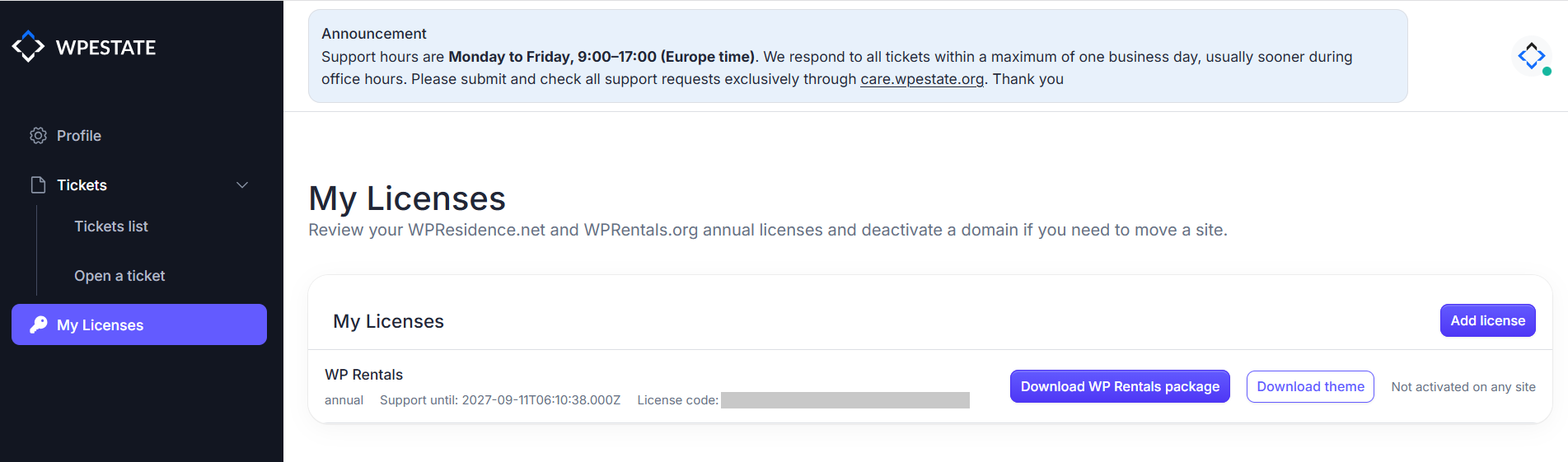
A wprentals.org purchase gives you a License Key. You will find it in two places:
- In the purchase confirmation email sent to the address you bought with,
- In your account at care.wpestate.org, under My Licenses, where it is shown as the License code
Copy it exactly as shown, including the dashes, with no spaces before or after.
Activate the License on Your Website
Install the theme and activate the WPRentals – Theme Core Functionality plugin first.
Then go to WPRentals Site Settings > WPRentals License and choose Purchased on wprentals.org.
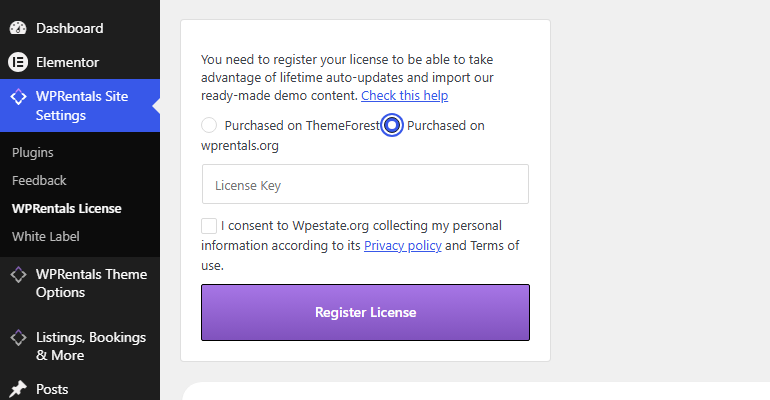
Paste your key, tick the consent checkbox, and click Register License. You are looking for the message You have successfully registered.
How Updates Reach You
Once the license is registered, the theme checks for a new version by itself and hands it to WordPress.
- Go to Dashboard > Updates.
- When a newer version is out, WPRentals is listed under Themes.
- Tick it and click Update Themes.
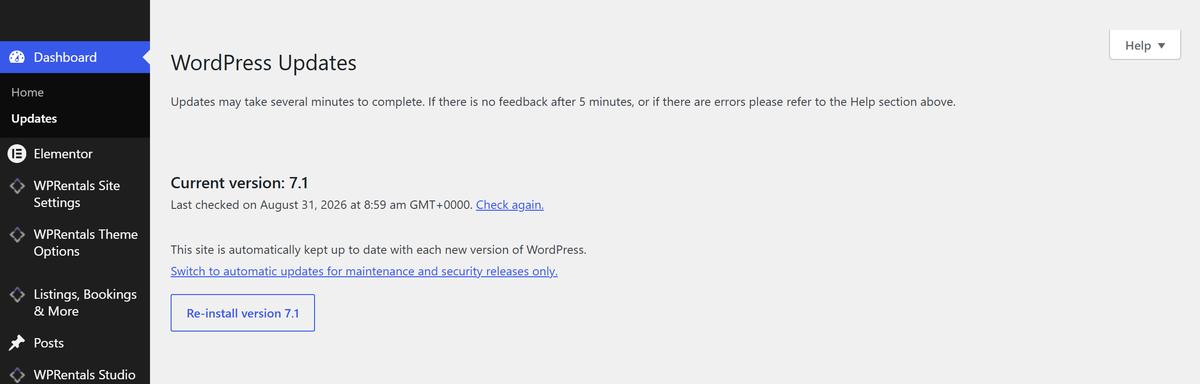
Your content, theme options and child theme are untouched — it is the same operation WordPress performs for any theme.
Demo Content
The ready-made demos are only offered to a registered website. Register the license first, then import. Demo Setup. One Click Demo Import
Moving the License to Another Domain
A license covers one live domain. Before you delete a site, reset a site, or move to a new domain, release the license from the old one.
Go to WPRentals Site Settings > WPRentals License on the old site. A registered site shows the deactivation option instead of the registration form:
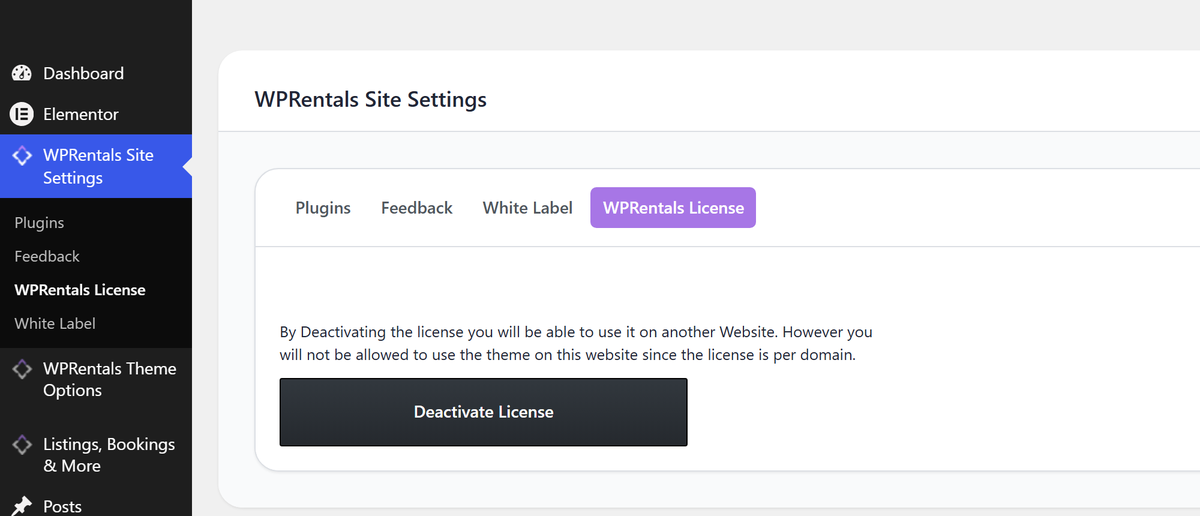
Click Deactivate License and wait for Your license has been successfully revoked. The key is then free to register on the new domain.
Then log in to the new website and activate the license there, exactly as in Activate the license on your website. Moving a license is always these two steps: deactivate on the old domain, activate on the new one. You can do this as many times as you like.
Manage or Cancel Your Subscription
A wprentals.org license is a yearly subscription. It renews automatically every year, and you can cancel it at any time.
Payments are handled by Lemon Squeezy, our merchant of record. Your orders, invoices and subscription are in your Lemon Squeezy account, not on care.wpestate.org.
Open your order
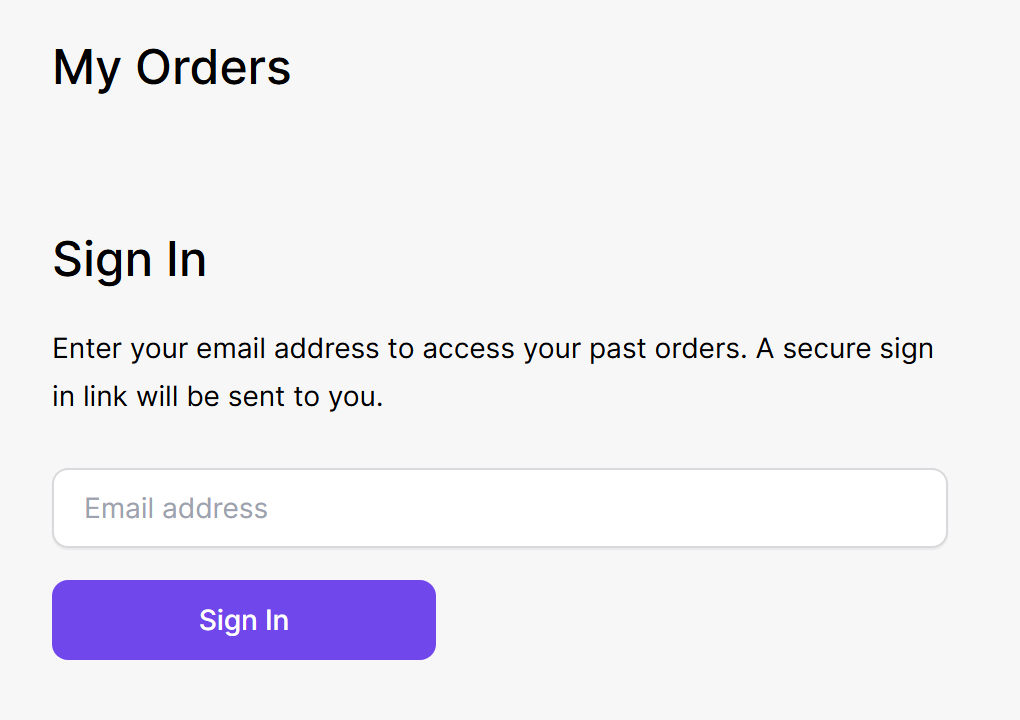
- Go to app.lemonsqueezy.com/my-orders.
- Enter the email address you used when you bought the theme and click Sign In. Lemon Squeezy emails you a secure sign-in link. Click it and you are signed in, no password needed.
- Open your WPRentals order.
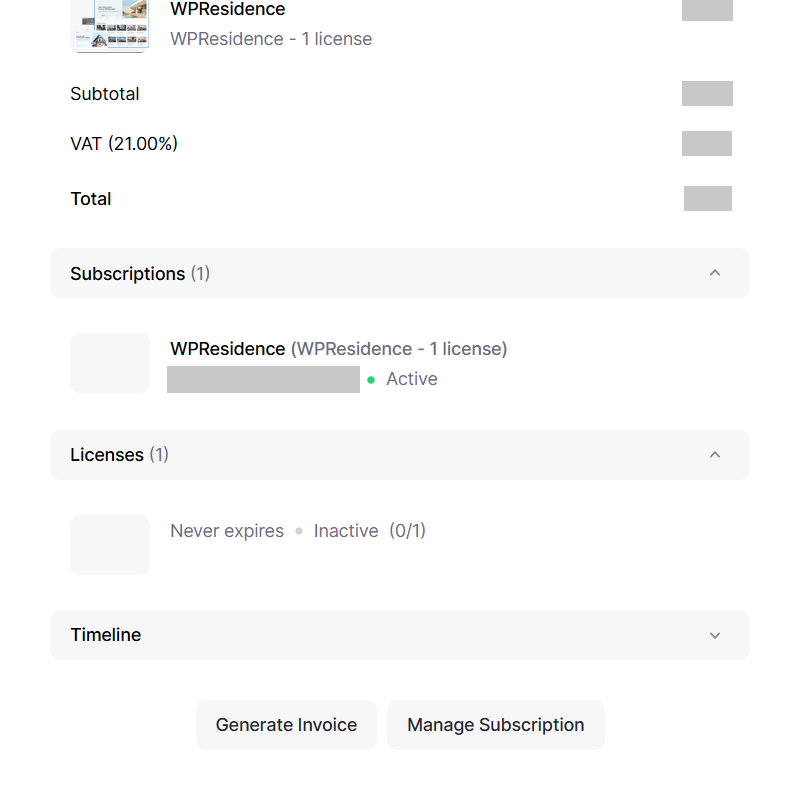
This example shows a WPResidence order, with the prices greyed out. Your WPRentals order has the same sections and buttons.
On the order page you find:
- Subscriptions – your plan and its status, for example Active
- Licenses – your license and how many websites use it. (0/1) means it is not activated on any website yet
- Generate Invoice – creates an invoice for your order
- Manage Subscription – opens the billing page for your subscription
Lemon Squeezy explains this page in its own help: My Orders.
Manage or cancel the subscription
- On the order page, click Manage Subscription.
- To cancel, choose to cancel your WPRentals subscription and confirm.
The same billing page is where you update your card or payment method and your billing details. If you change your mind after cancelling, you can resume the subscription from there. Lemon Squeezy describes everything this billing page can do here: Customer Portal.
Support
Support is at care.wpestate.org. Your license includes 1 year of support and theme updates. The date your support ends is shown as Support until at the top right of care.wpestate.org, and again on each license under My Licenses.
Once you are in, My Licenses is the screen you will use most. It lists your license key and your download files: the full package and the theme-only zip.
Related articles
Get your license code. Register, activate and move it to another domain