
What to Check First
WordPress Permalinks
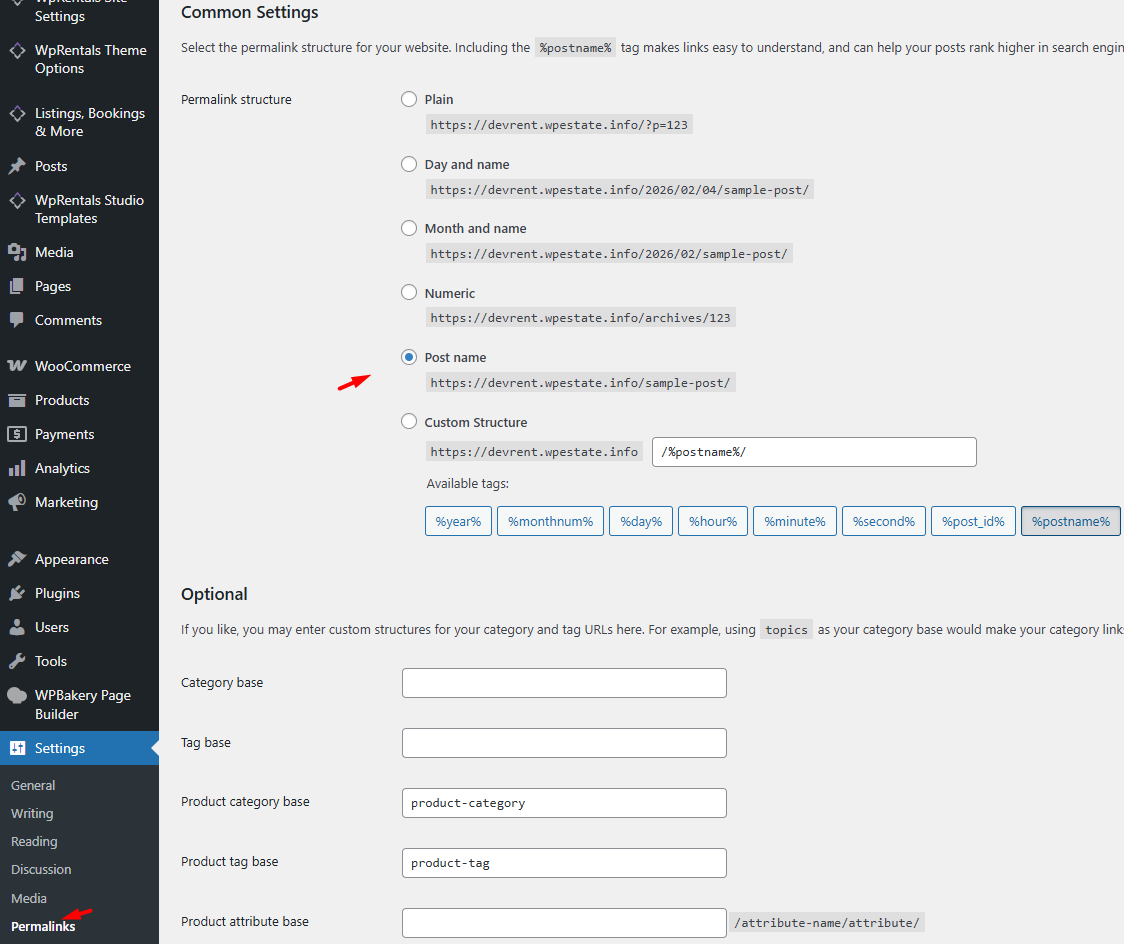
For the search redirect to work correctly, go to Settings → Permalinks and SAVE Common Settings to Post name.
Advanced Search Results Page
The Advanced Search Results page is the page where visitors are redirected after clicking the Search button.
This page must exist and must be published.
In most cases, this page is automatically created when you import the demo content. If you did not import the demo, you can create it manually from Pages → Add New and assign the correct template.

Important notes:
- The page must be Published.
- This page is not meant to be used as a homepage and should not be added to your menu.
- This page is a theme template and is not meant to be built with Elementor or WPBakery.
- The page must be Published.
- The Advanced Search Results page is not suitable as a homepage or to be added as a page in the menu.
- This page cannot be edited with a page builder (Elementor or WPBakery).
- For the Half Map layout, ensure the page Header Type / Hero Media is set to Google Map or OpenStreet Map so the map library loads on this page.
Advanced Search Results Page Options
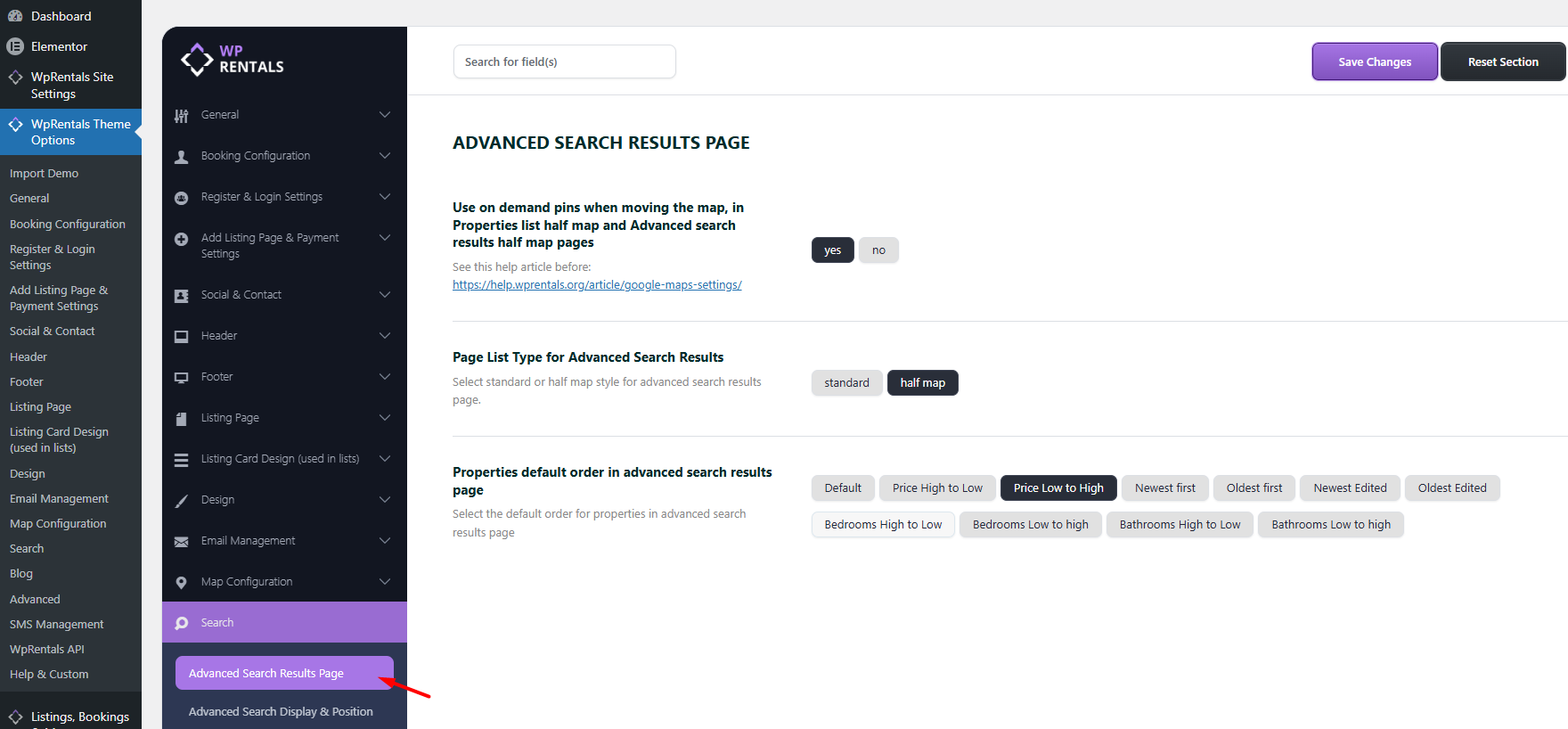
The settings for the Advanced Search Results page are managed from:
Theme Options → Search → Advanced Search Results Page.
Half Map Layout: Important Map Loading Requirement
If you use the Half Map layout (for the Advanced Search Results page or other half-map templates),
the map library must load correctly, otherwise the map will not appear and the list/map sync features will not work.
A common symptom is a missing map on the Advanced Search Results page and a browser console error like:
“google is not defined”.
the Maps library is loaded only when the theme detects that maps are enabled for that page/template.
If the map script is not enqueued on the Advanced Search Results template, the page can render map-related code before the Google API loads, which triggers the “google is not defined” error.
Fix: Enable Map Loading for the Advanced Search Results Page
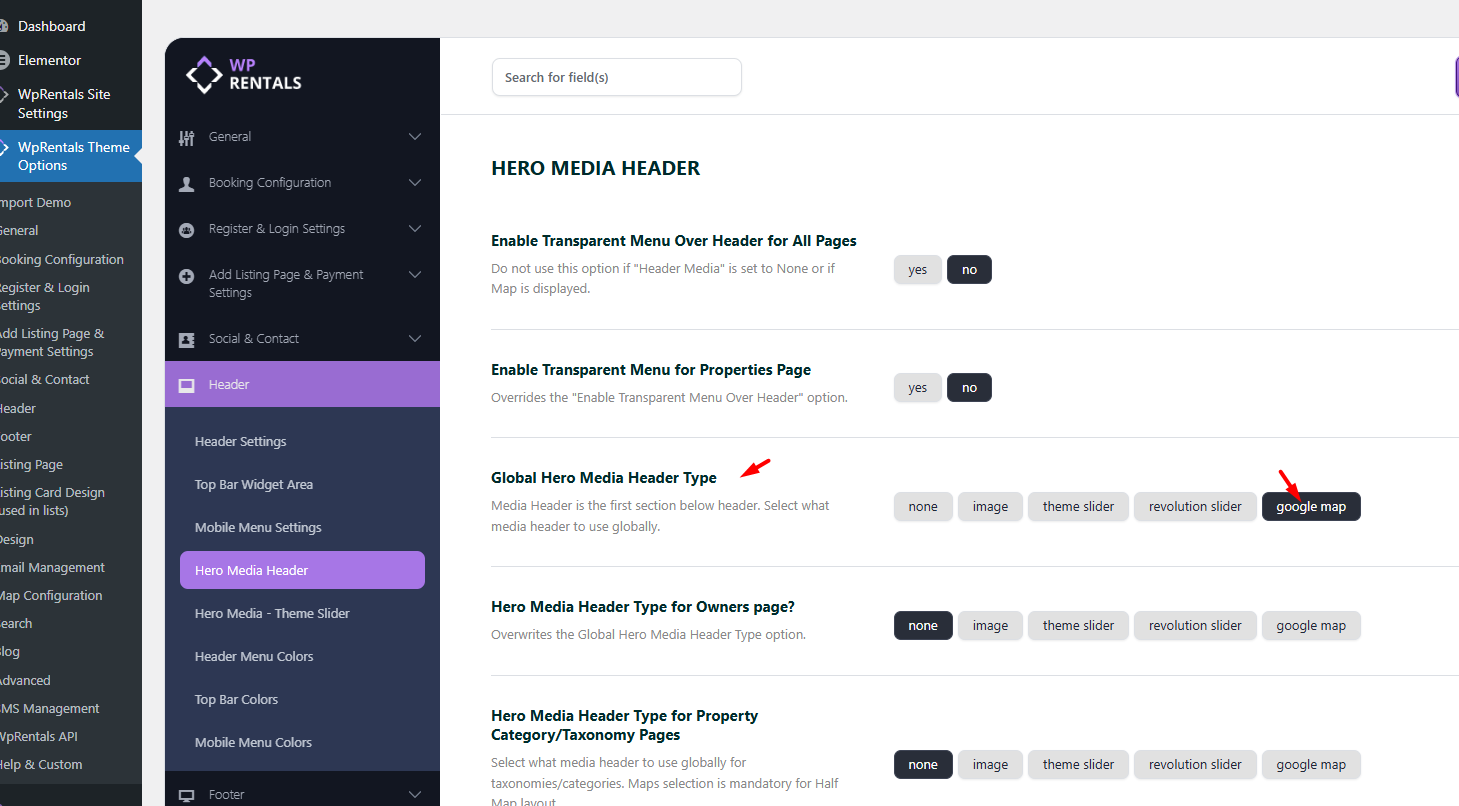
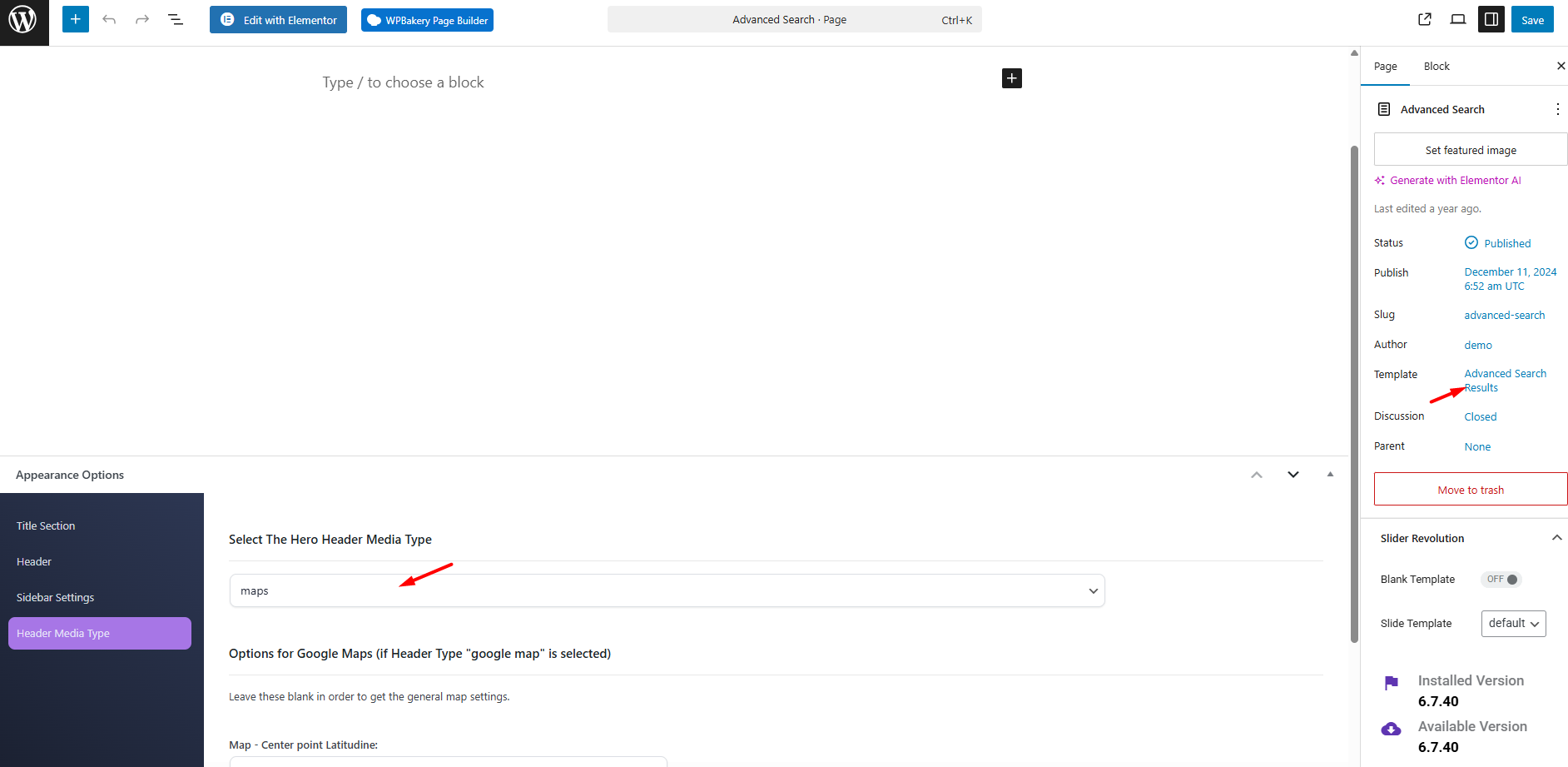
To fix this, make sure the Advanced Search Results page is set to load a map as its header/hero media.
You can do this in one of the following ways:
- Option A : Set the header/hero media globally so maps load where needed. Do it from Header -> Hero Media Header
- Option B: Edit the Advanced Search Results page and set its Custom Hero Media to Map.
This forces the page to enqueue theMaps library and prevents the errors like “google is not defined” .
Even if Maps work on single property pages and property lists, the Advanced Search Results page can still show this error if the map library is not loaded on that specific template.
Use On-Demand Pins When Moving the Map
You can enable or disable on-demand pins for the map. When enabled, moving the map will refresh the pins and the property list based on the current map area.
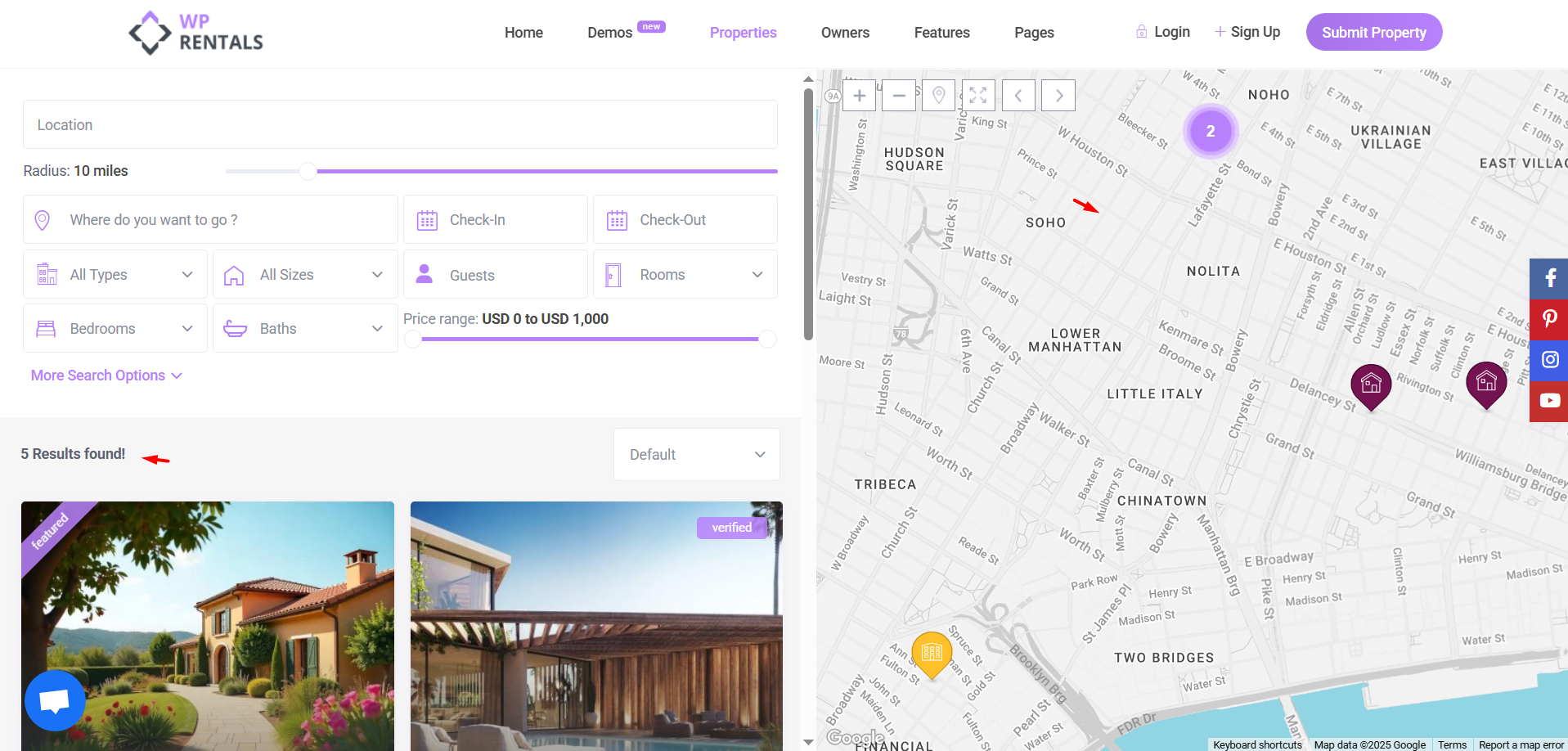
This option applies to:
- Properties List Half
- Advanced Search Results Half Map page template
Important notes:
- If the map zoom is very far out (continent-level), the number of pins may not be counted correctly.
- If results span multiple pages, the map will show pins for the current page only. More pins appear when you change pagination.
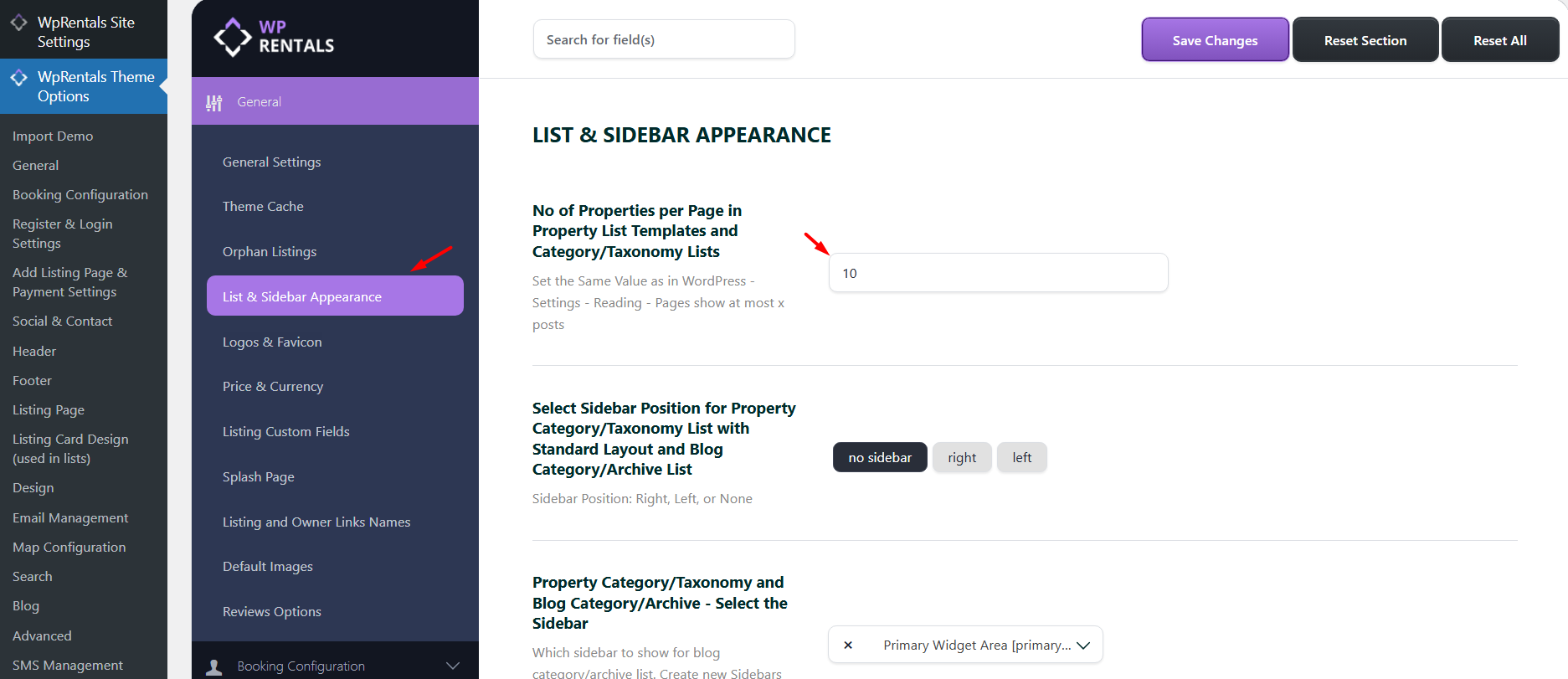
- The number of properties per page is set in:
Theme Options → General → List & Sidebar Appearance
Layout for the Advanced Search Results Page
You can choose the layout for the Advanced Search Results page: Standard or Half Map.
Standard Layout
Standard layout shows:
- Header menu
- Header media (can be customized)
- Search results list
- Sidebar (left, right, or none)
- Footer
Help: How to customize header media

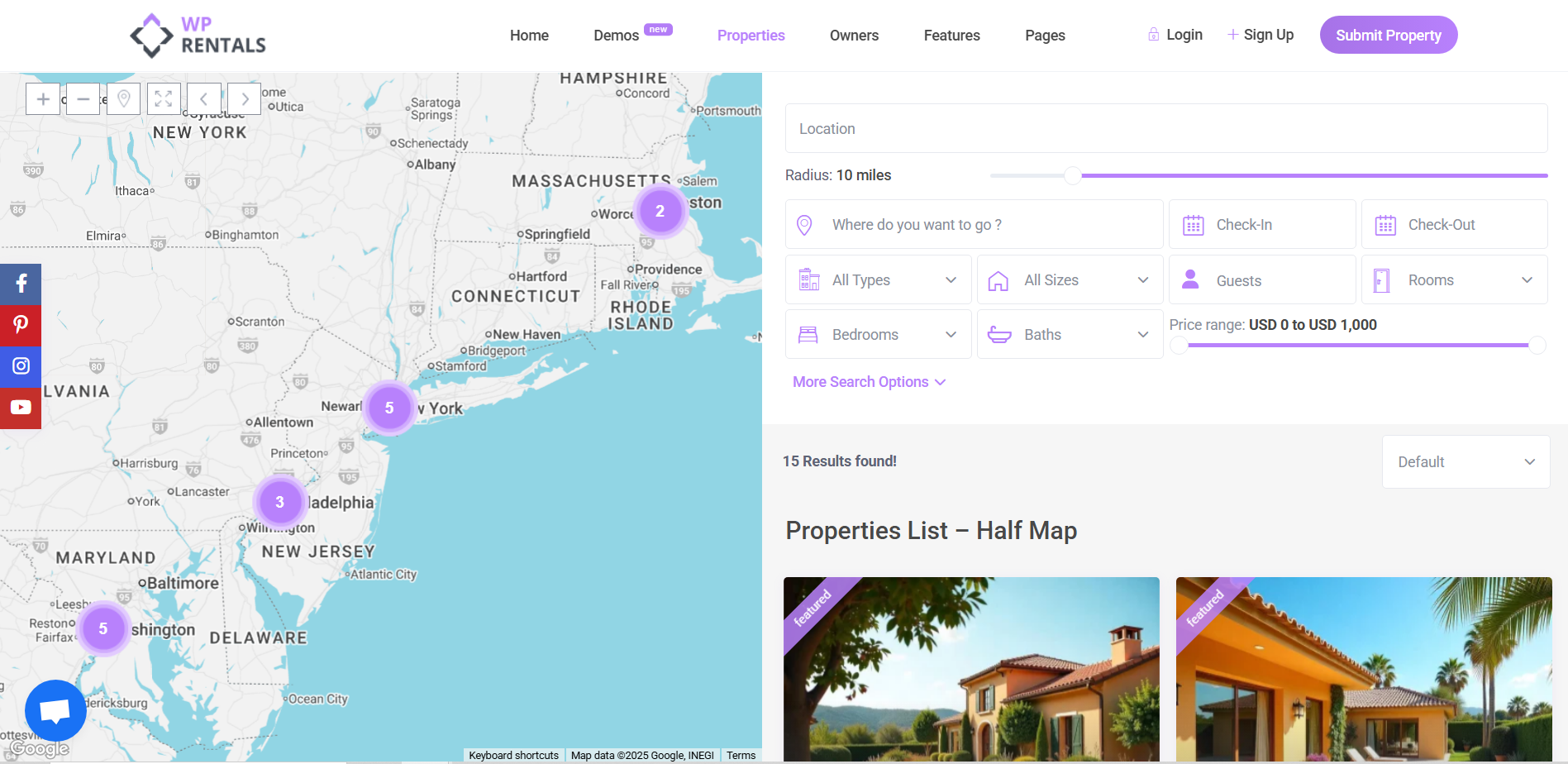
Half Map Layout
Half Map layout shows:
- Header menu
- Filter section (fields can be managed from:
Theme Options → Search → Half Map Search Form Settings
- No header media (the map is part of the layout)
- Search results list synchronized with pins on the map
- No sidebar
- No footer
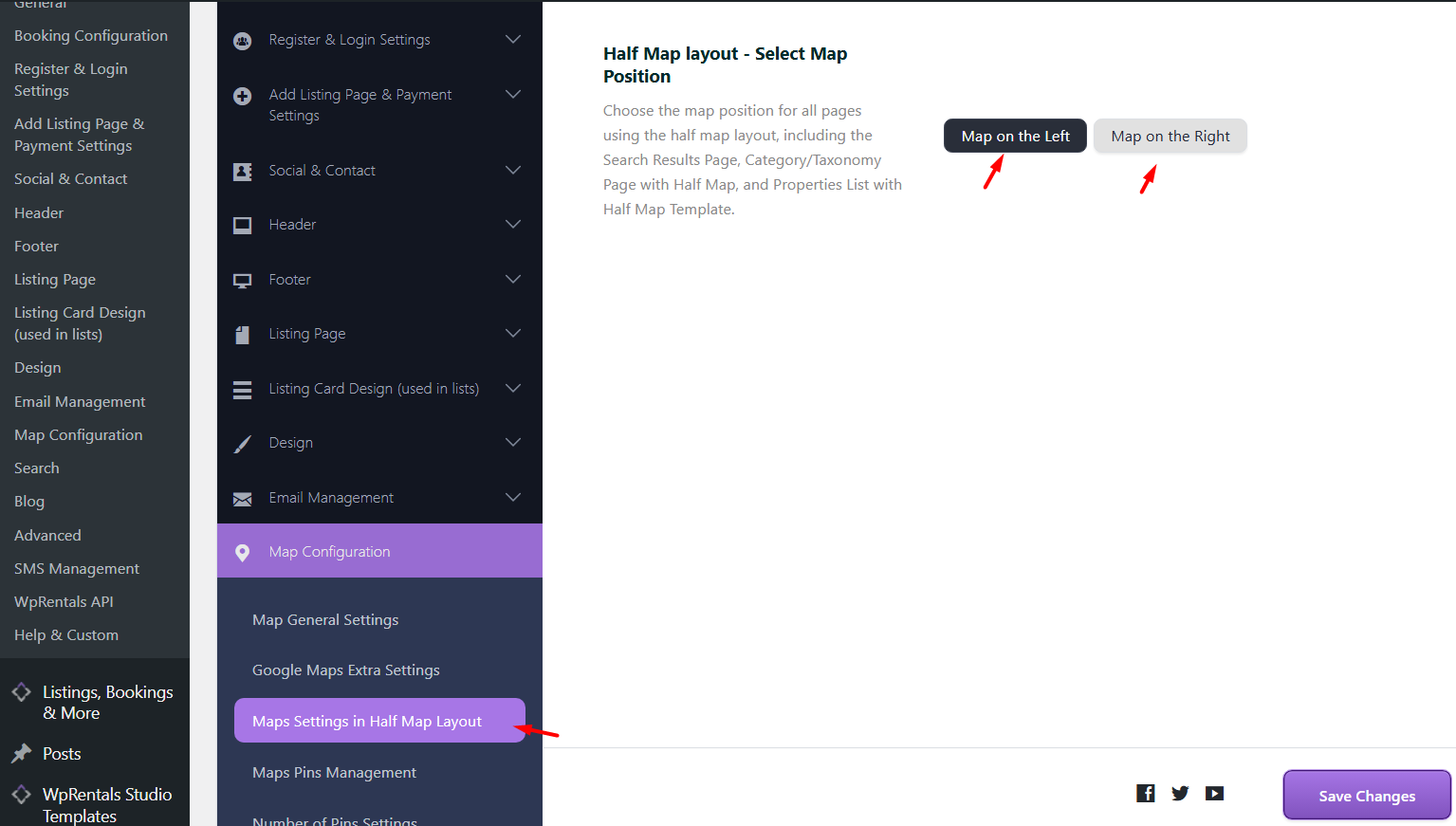
Map Position in Half Map Layout
You can change the map position (left/right) for Half Map layout from:
Maps → Maps Settings inside the Half Map settings.
Properties Default Order on the Advanced Search Results Page
You can select the default order of properties on the Advanced Search Results page from:
Theme Options → Search → Advanced Search Results Page.
Available sorting options:
- Default – Featured listings first, then regular listings (by ID).
- Price High to Low
- Price Low to High
- Newest First – By initial publish date/ID (edited publish dates are not considered).
- Oldest First – By initial publish date/ID (edited publish dates are not considered).
- Newest Edited – By last edit date.
- Oldest Edited – By last edit date.
- Bedrooms High to Low
- Bedrooms Low to High
- Bathrooms High to Low
- Bathrooms Low to High