
Overview
The WPRentals Recent Items Slider widget displays recent property listings in a horizontal slider.
You can use this widget to show recent listings on pages created with Elementor or WPBakery Page Builder.
Before You Start
Before adding the Recent Items Slider, check the following:
- The listings you want to show are published.
- The listings have featured images if you want images to show in the cards.
- The listings are assigned to the correct categories, types, cities, or areas if you plan to filter the slider.
- The page is edited with Elementor or WPBakery.
- If you use Elementor, the WPRentals Elementor Widgets plugin must be installed and activated.
Recent Items Slider Widget Versions
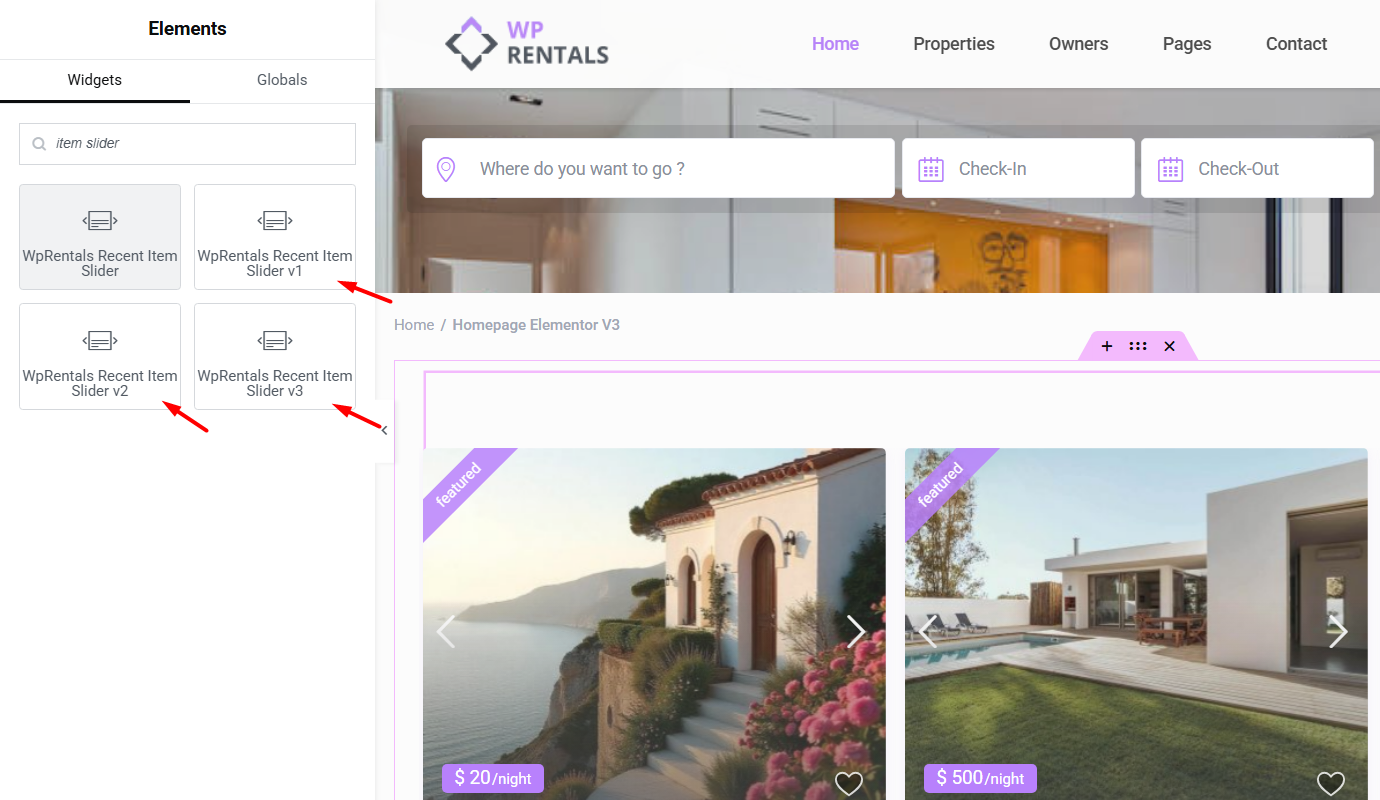
In Elementor, WPRentals includes several Recent Items Slider widget versions. These versions are used to display property cards in different slider layouts.
- WPRentals Recent Item Slider
- WPRentals Recent Item Slider V1
- WPRentals Recent Item Slider V2
- WPRentals Recent Item Slider V3
You can test the available versions and use the one that best matches your page design.
How to Add the Recent Items Slider in Elementor
Step 1: Edit the Page with Elementor
- Go to the page where you want to add the slider.
- Click Edit with Elementor.
- Select the section where the slider should appear, or create a new section.
Step 2: Add the Widget
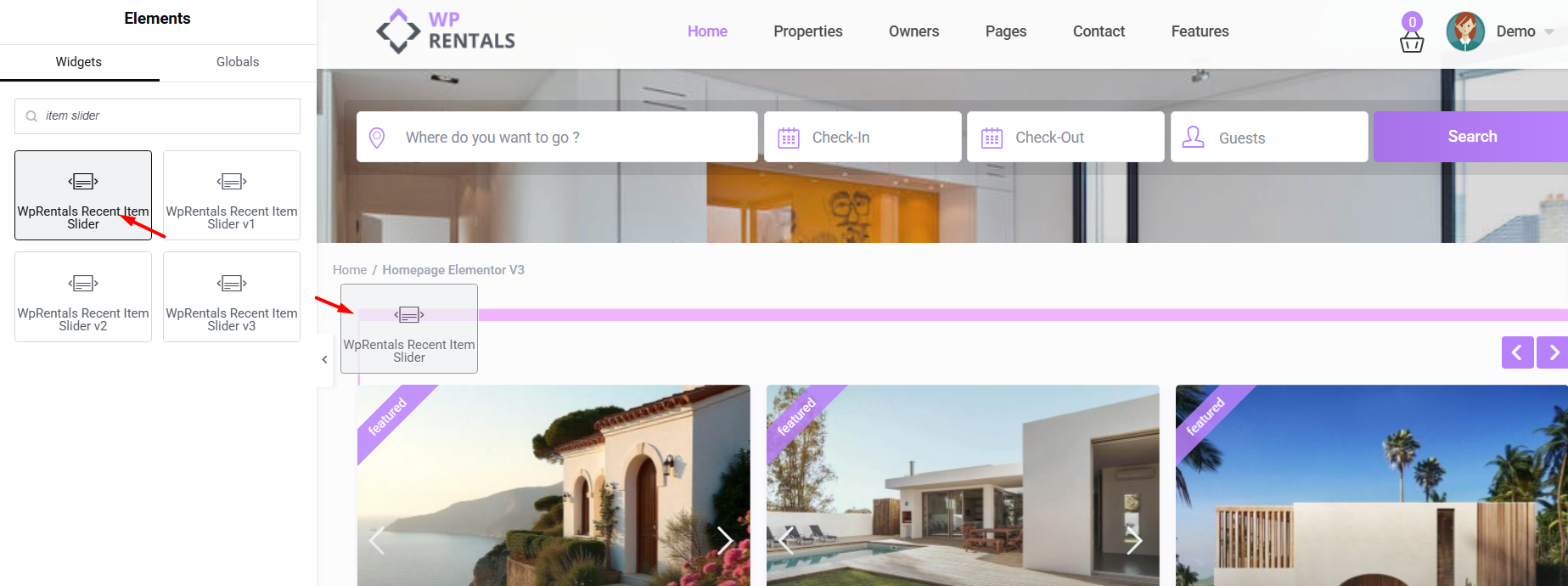
- In the Elementor sidebar, search for Recent Item Slider.
- Choose the Recent Items Slider version you want to use.
- Drag the widget into the page section.
Elementor Widget Settings Explained
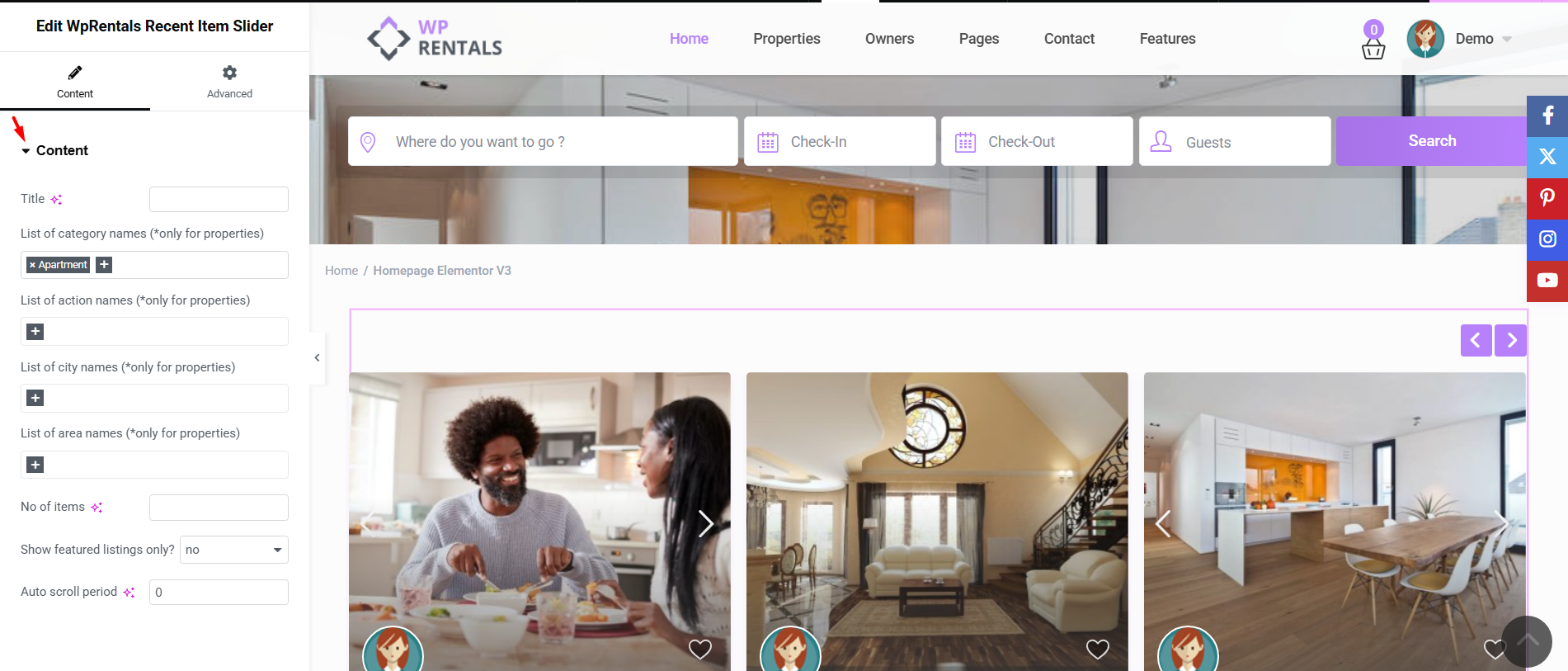
After adding the widget, open the widget settings from the Elementor left panel.
Title
This option controls the title displayed above the slider.
Number of Items
This option controls how many listings are loaded in the slider.
Auto Scroll Period
This option controls whether the slider moves automatically.
- Set the value to 0 if you do not want the slider to auto-scroll.
- Add a higher value if you want the slider to move automatically.
Listing Filters
The Recent Items Slider can display all recent listings or only listings that match selected filters.
You can filter listings by:
- Specific list of category names – shows listings assigned to selected listing categories.
- Specific list of action names / types – shows listings assigned to selected action categories or types.
- Specific list of city names – shows listings assigned to selected cities.
- Specific list of area names – shows listings assigned to selected areas.
- Show featured listings only? – choose Yes to show only listings marked as featured, or No to include normal listings too.
Card Design and Display
The Recent Items Slider displays property listing cards.
The listing card design is managed from:
WPRentals Options > Listing Card Design
From that section, you can manage the global listing card design used in listing lists and shortcodes.
Theme Options – Listing Card Design
How to Add the Recent Items Slider in WPBakery
Step 1: Edit the Page with WPBakery
- Go to Pages.
- Edit the page where you want to add the slider.
- Click Edit with WPBakery Page Builder.
Step 2: Add the Recent Items Slider Element
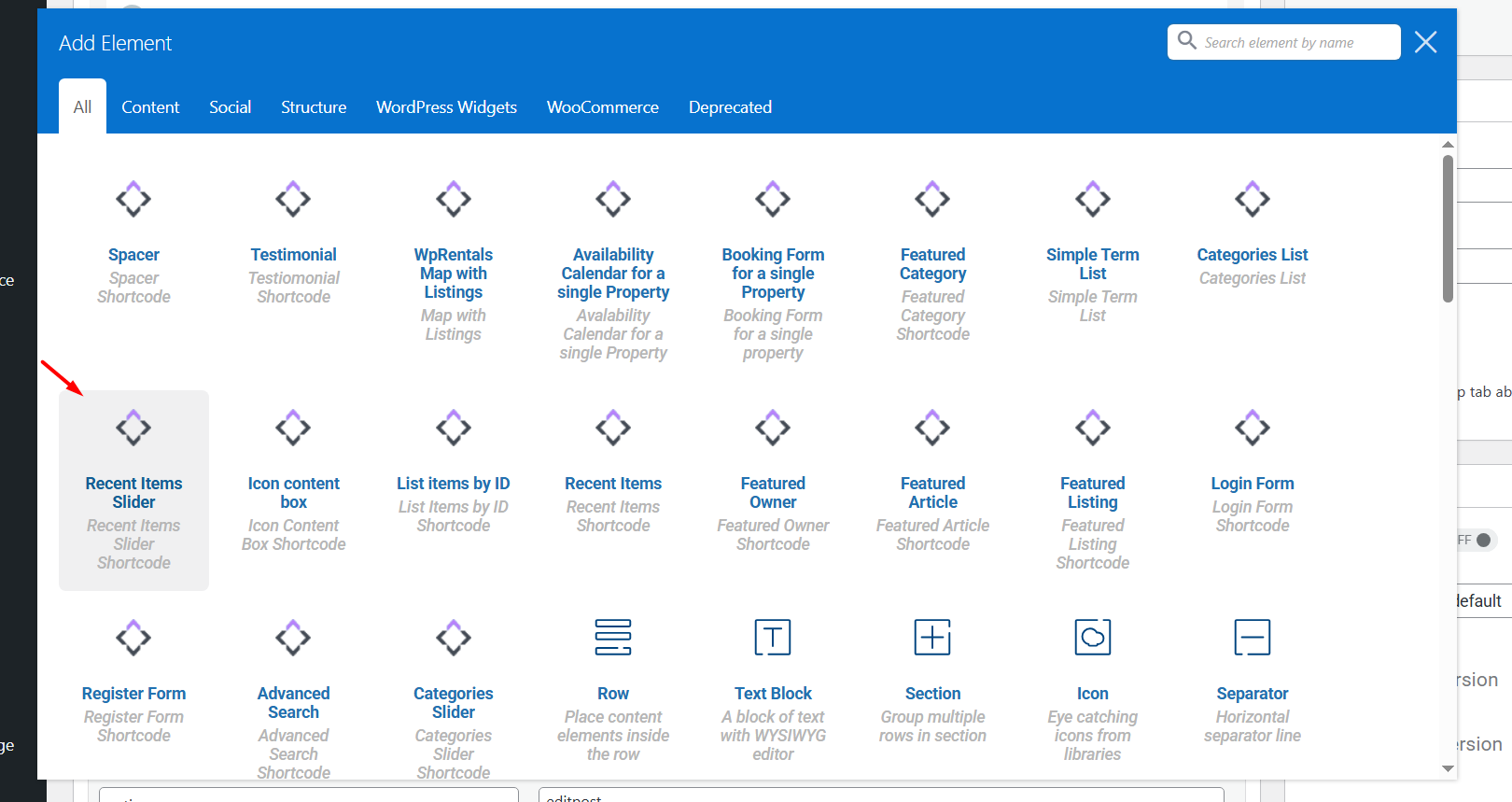
- Click the + Add Element button.
- Search for Recent Items Slider.
- Click the element to insert it into the page.
Step 3: Configure the Slider Options
In the WPBakery element settings, configure the available slider options.
Depending on the shortcode settings, you can manage:
- Listing categories
- Action categories / types
- Cities
- Areas
- Featured listings only
- Number of listings
- Auto-scroll period
Step 4: Save the Page
Save or update the page, then check the slider on the front end.
Save and Test the Slider
After adding the widget or shortcode, test the slider on the front end.
- Save or update the page.
- Open the page as a visitor.
- Check that the slider appears.
- Check that the correct listings are displayed.
- Use the slider arrows to confirm navigation works.
- If auto-scroll is enabled, wait and confirm the slider moves automatically.
- Test the layout on desktop, tablet, and mobile.
Troubleshooting
The widget does not appear in Elementor
- Make sure Elementor is installed and active.
- Make sure the WPRentals Elementor Widgets plugin is installed and active.
- Search for Recent Item Slider or Slider in the Elementor widgets panel.
- Update WPRentals theme and included plugins to compatible versions.
The slider shows no listings
- Check that the listings are published.
- Check if filters were selected for category, type, city, or area.
- Check that listings are assigned to the selected filters.
- If Show featured listings only? is set to Yes, make sure the listings are marked as featured.
- Increase the number of listings to show and test again.
The listing cards do not look as expected
- Check the selected Recent Items Slider version.
- Check the settings in WPRentals Options > Listing Card Design.
- Check if custom CSS or Elementor section settings affect the layout.
- Clear cache and test the page again.
The slider arrows or auto-scroll do not work
- Test the page on the front end, not only inside the Elementor or WPBakery editor.
- Clear plugin cache, server cache, CDN cache, and browser cache.
- Temporarily disable JavaScript optimization, delay, or minify options from cache plugins while testing.
- Check the browser console for JavaScript errors.
Important Notes
- The Recent Items Slider displays recent property listings in a horizontal slider.
- The widget can be used with Elementor and WPBakery.
- In Elementor, there are several Recent Items Slider widget versions.
- The slider can be filtered by category, action category / type, city, area, or featured status.
- If no filters are selected, the slider displays recent listings based on the widget settings.
- If filters are selected, only listings matching those filters will display.
- The Auto Scroll Period value set to 0 means the slider does not auto-scroll.
- The card design follows the settings from WPRentals Options > Listing Card Design.
- Use Elementor only for pages built with Elementor.
- Use WPBakery only for pages built with WPBakery.
- Do not mix Elementor and WPBakery on the same page.
- If changes do not appear, clear plugin cache, server cache, CDN cache, and browser cache, then test again.