Please see below a short description of all options in Map General Settings to understand how to work with these.
You have the following options:
Map General Settings
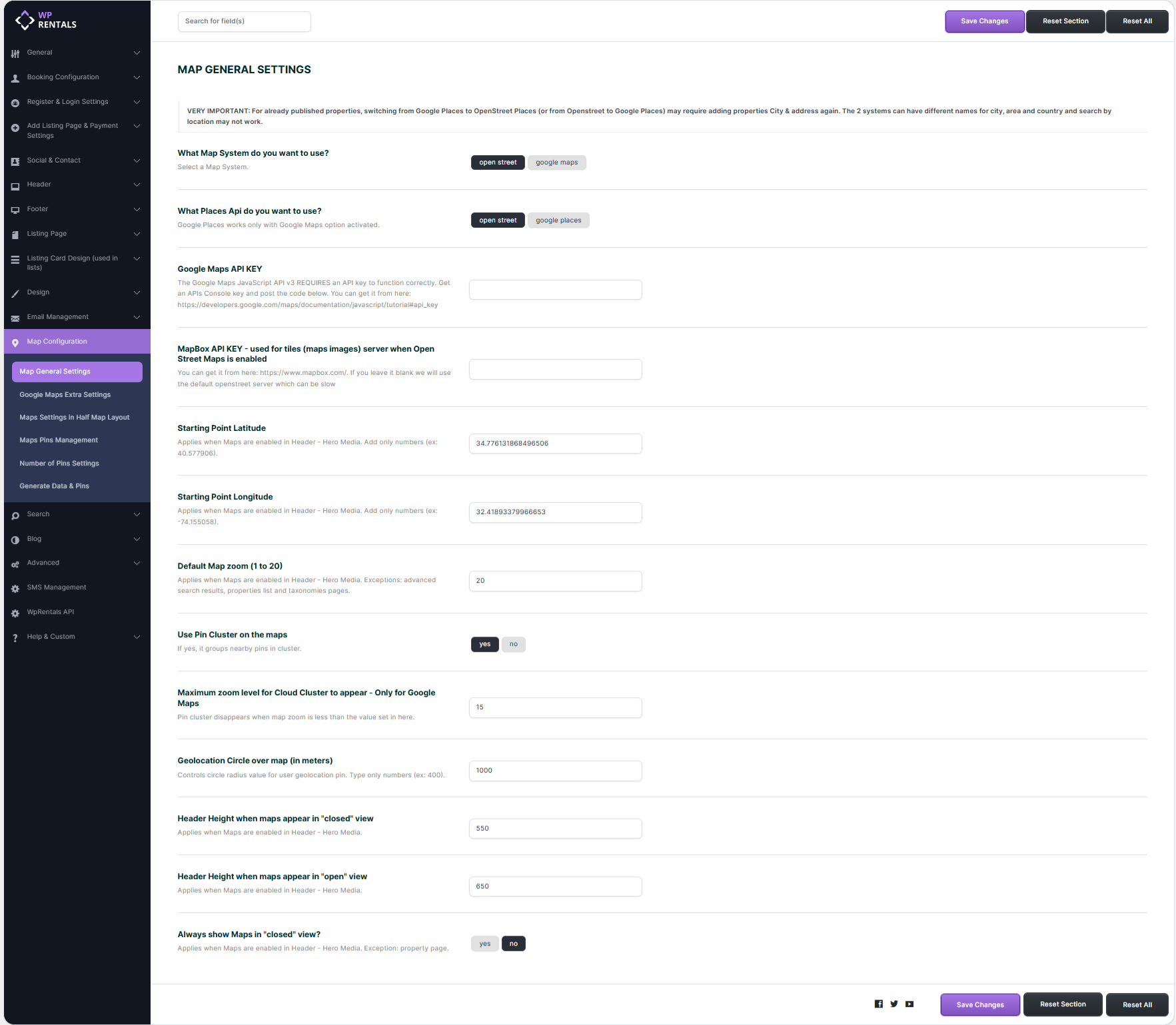
Map System Type
Choose the map system you want to use: Open Street Map or Google Maps.
🟢 Open Street Maps
- No API key is required (it is a free service)
- Optionally, you can use a MapBox API for faster map tile loading.
- If no MapBox API is provided, the default OpenStreet tile server will be used, which may be slower.
- ⚠️ Limitations: Street View and Places features on the property page are not supported.
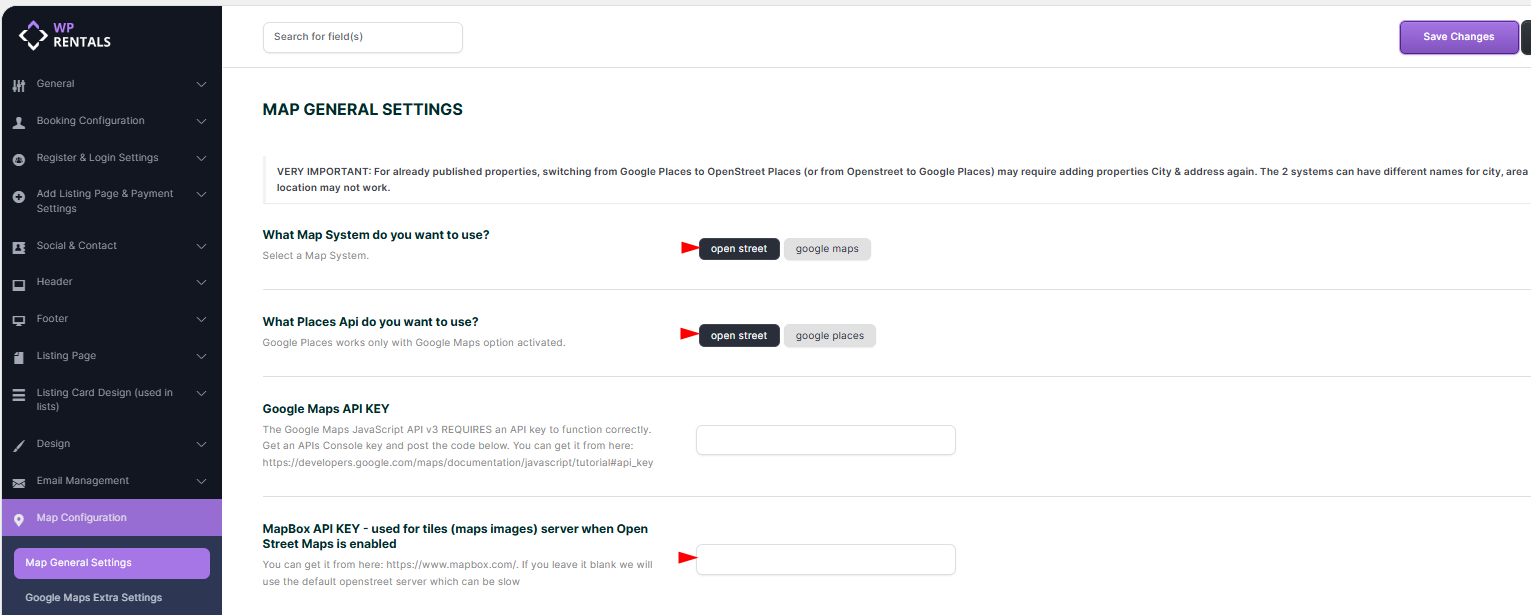
- Get MapBox API:
Register at https://www.mapbox.com/, then copy your Public Token.
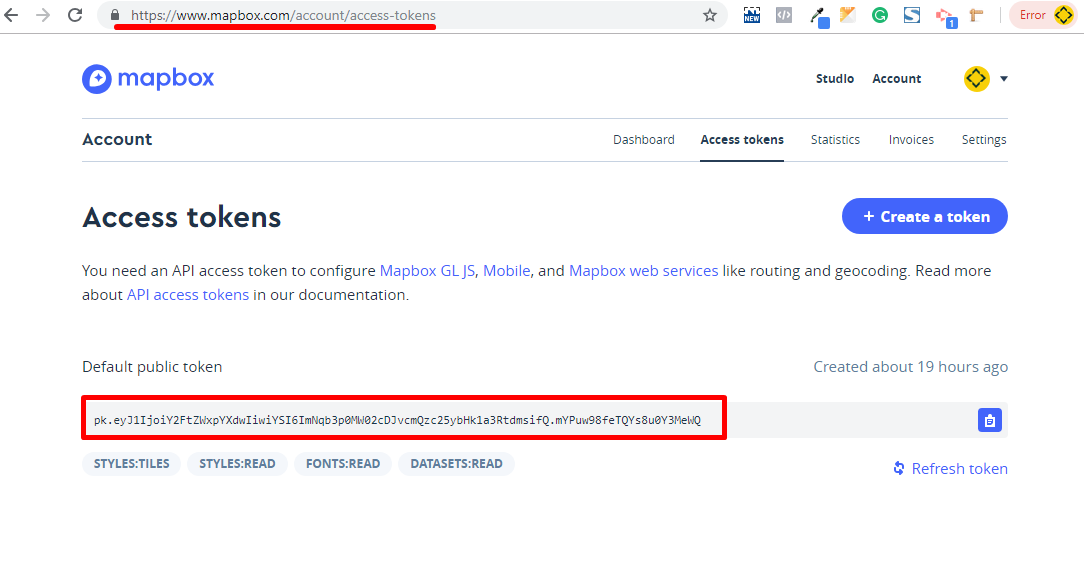
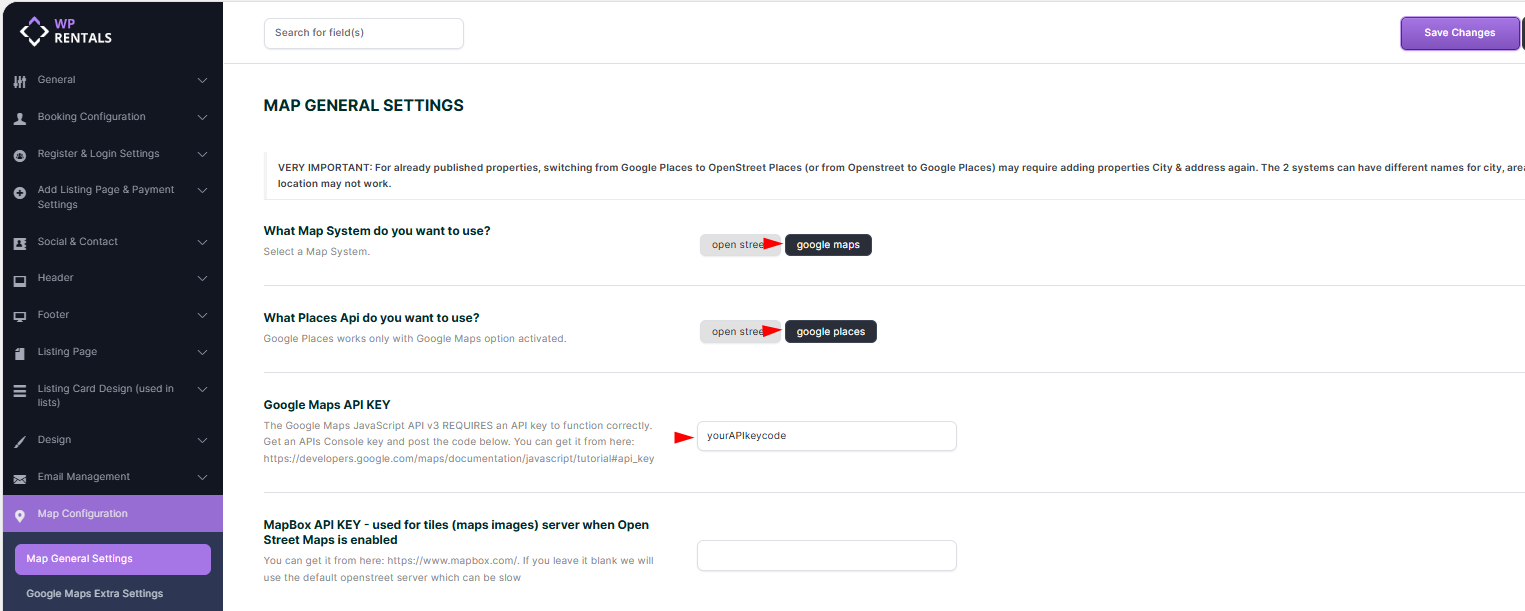
🔵 Google Maps
- Requires a Google Maps API Key.
- A Google Cloud account is required with billing details. Google offers a $200/month free usage.
- 📘 Help guide to get your key:
https://help.wprentals.org/article/google-maps-api-unable-to-load-the-map-and-shows-error-this-page-didnt-load-google-maps-correctly-see-the-javascript-console-for-technical-details-2/
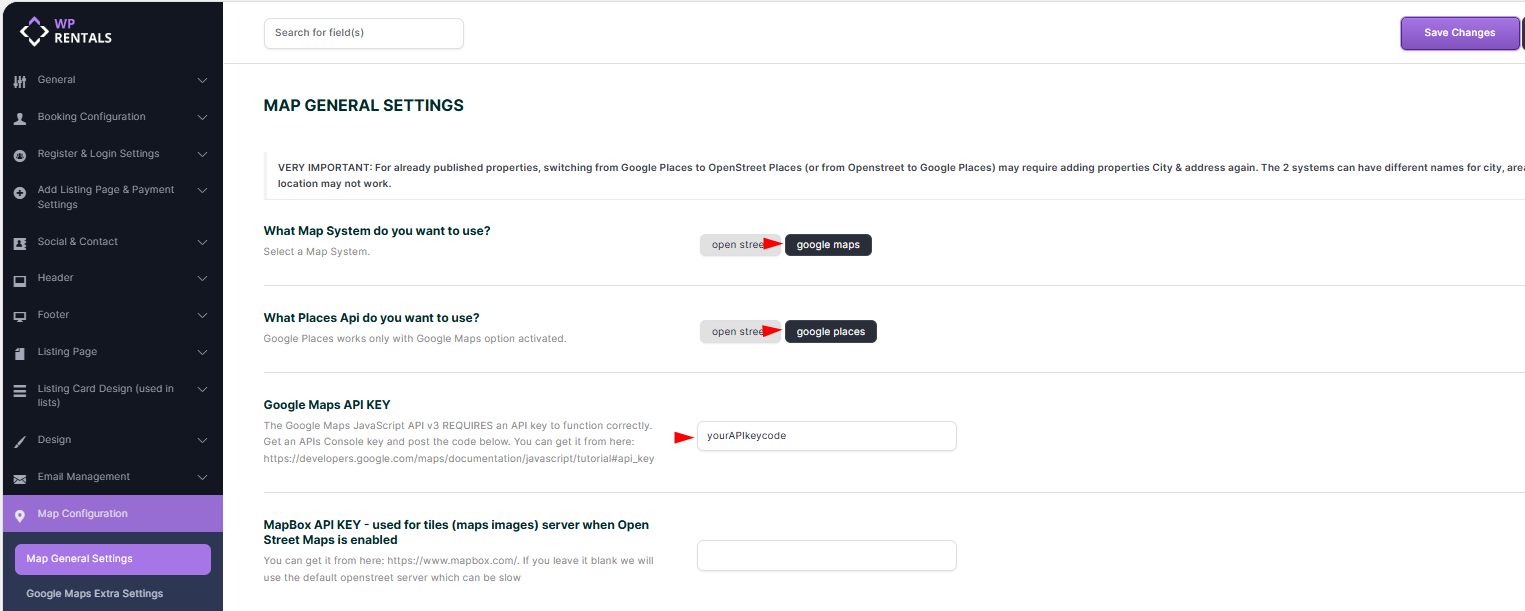
Places API Type
Choose the provider for the auto-complete search system: Open Street Places or Google Places.
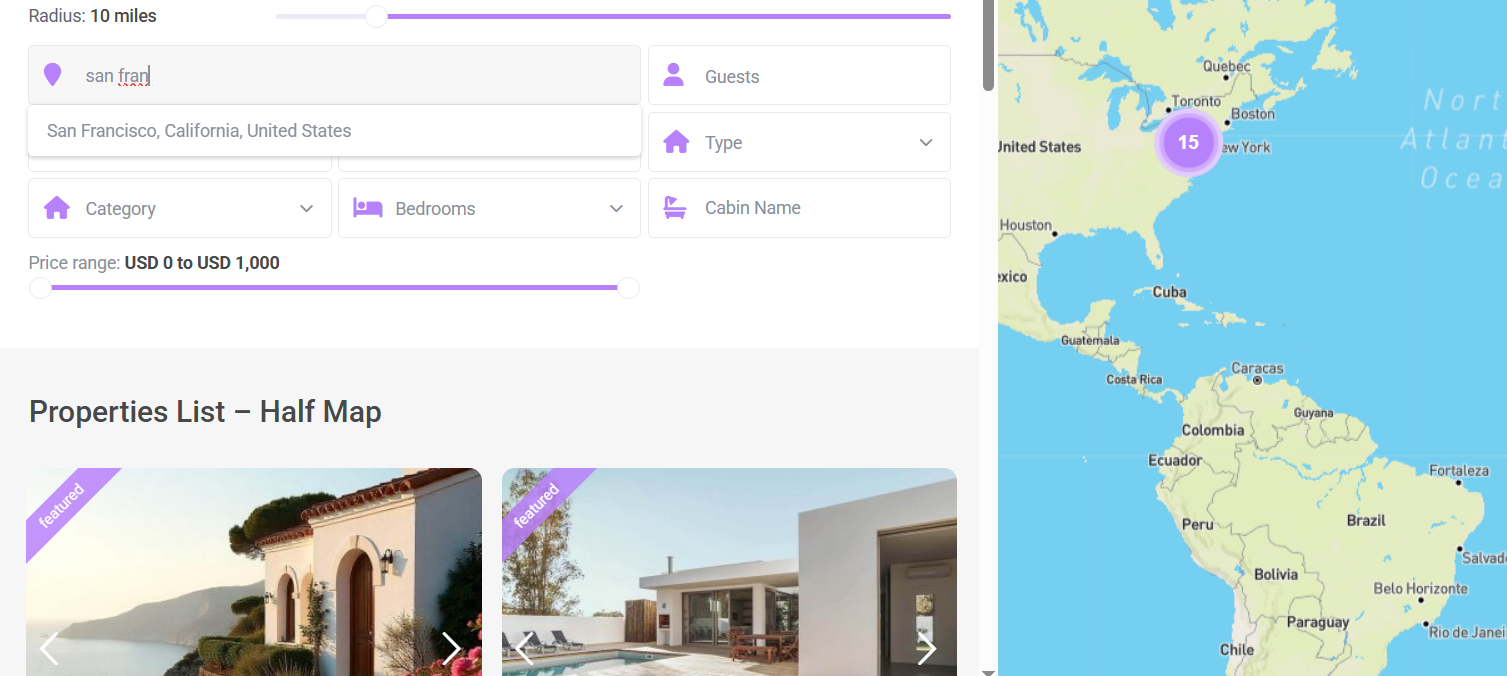
🟢 OpenStreet Places
- Available starting with theme version 3.3 (replaces the deprecated Algolia Places).
- Just enable the option — it’s free and ready to use.
- The autocomplete will return full results based on OpenStreet’s capabilities.
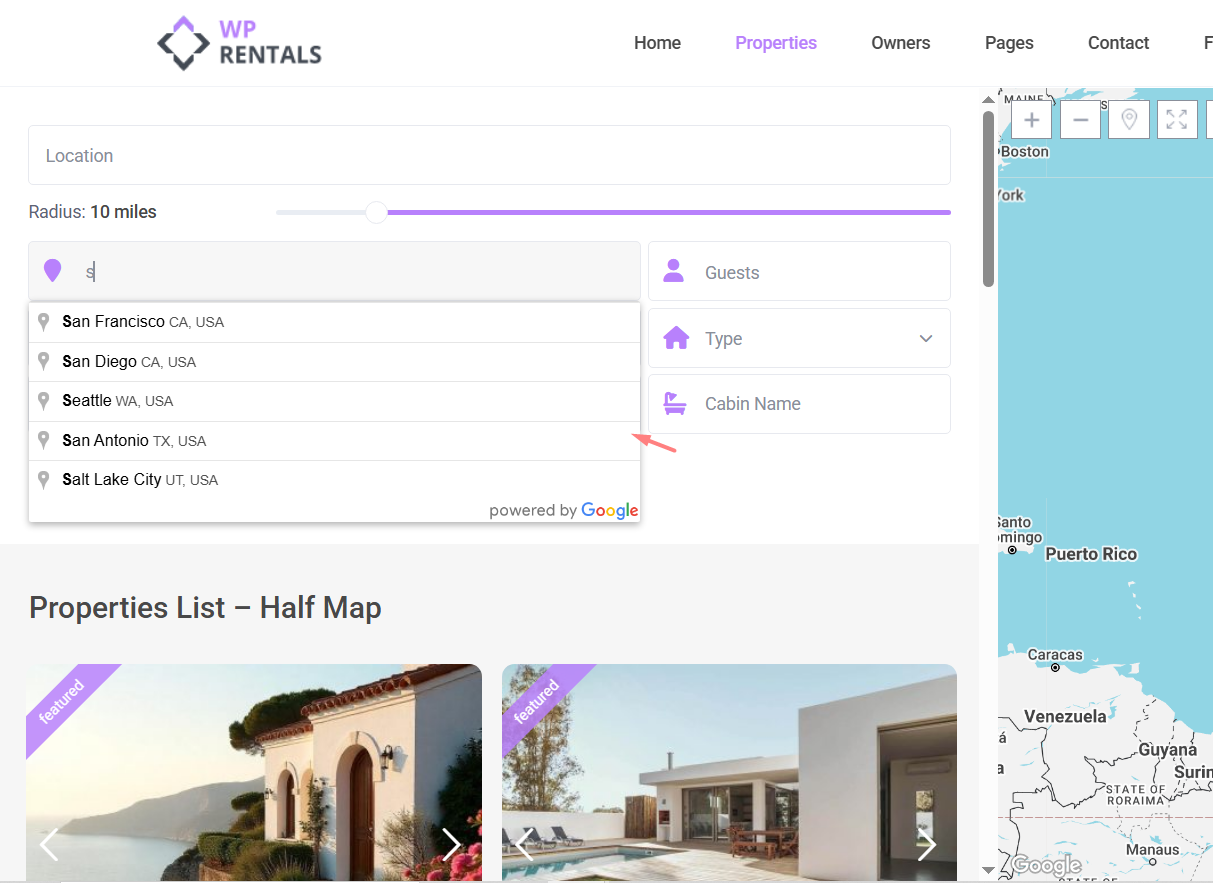
🔵 Google Places
- Requires the Google Maps API Key with the Places Library enabled.
- Google Places are also covered by the $200/month free credit.
- Only works when using Google Maps as your map system.
Map Coordinates
Set the starting latitude and longitude for your map.
-
These settings define the default center point for the global map header when used for Global Hero Media.
-
📘 How to get coordinates:
https://help.wprentals.org/article/how-to-find-latitude-and-longitude-how-to-set-google-maps-coordinates/
Default Map Zoom (1–20)
Controls the default zoom level for maps in the global header media on pages, posts and on the Map with listsings widget.
⚠️ Note: It does not apply to Advanced Search Results, Property List, or Taxonomy archive pages.
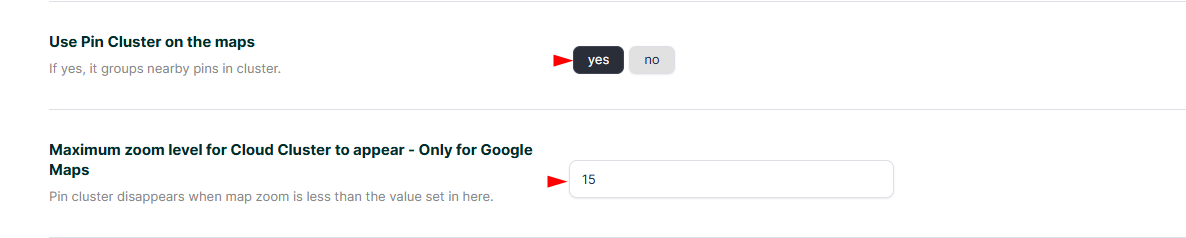
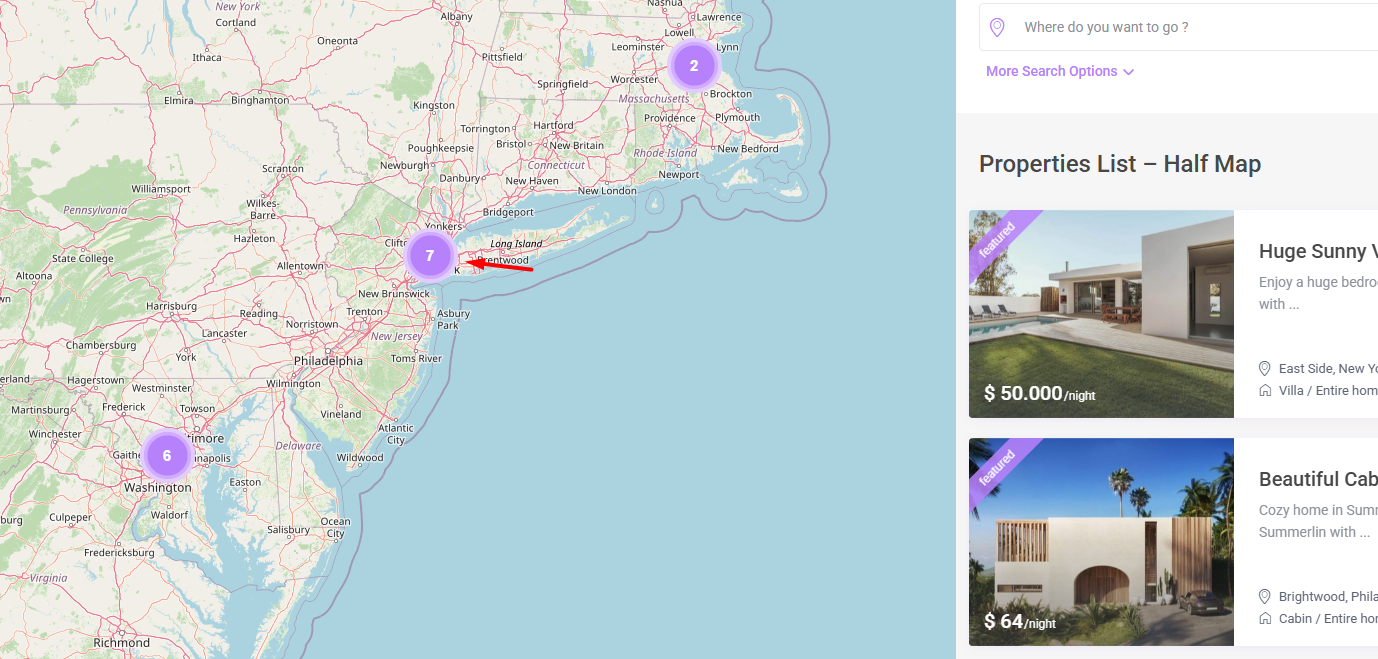
Enable Pin Clustering
Turn this on to group nearby property pins into a single cluster for better map usability and performance.
Max Zoom Level for Cloud Cluster
When the map is zoomed in beyond this level, clustering will be disabled, and individual pins will appear.
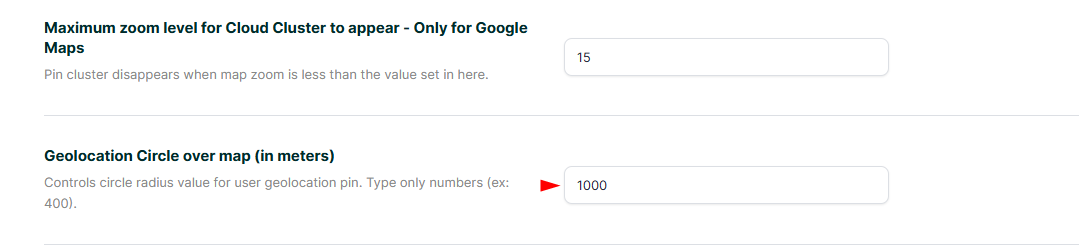
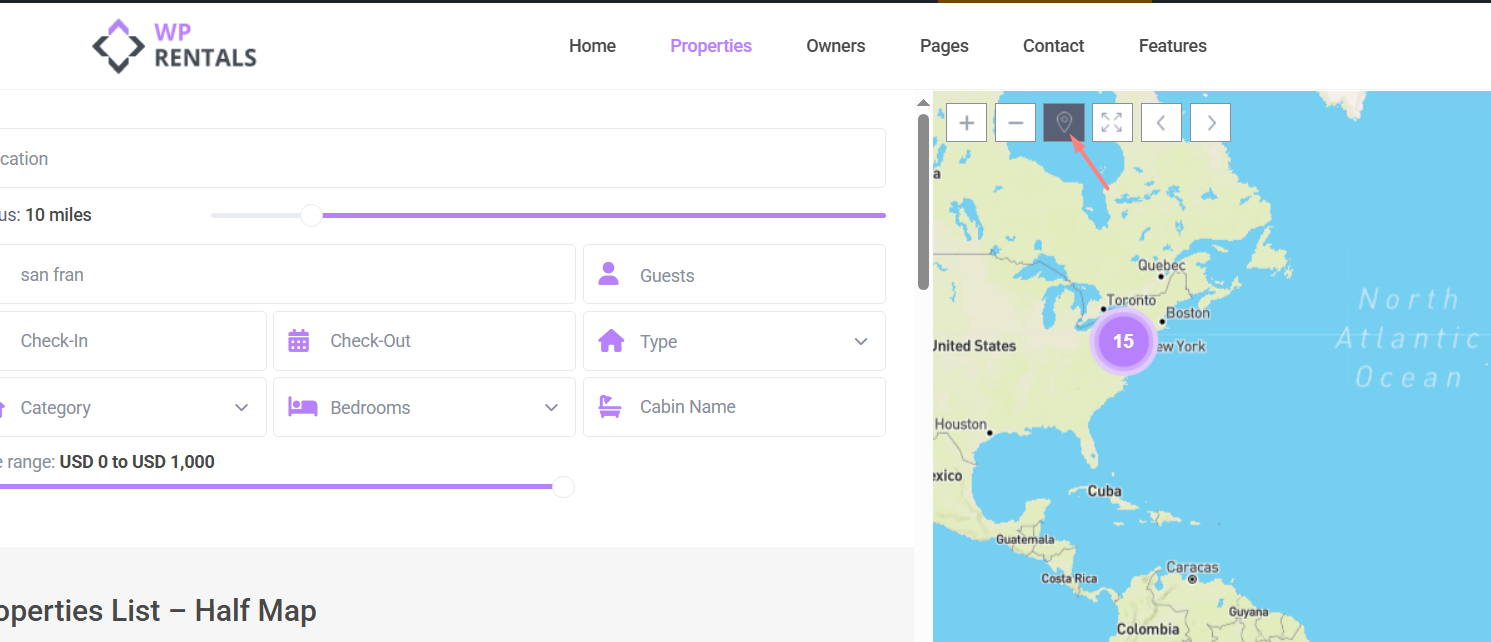
Geolocation Circle (in meters)
Displays a radius around the user’s location on the map.
🔐 Google requires HTTPS for accurate geolocation since June 2016.
-
If your site uses HTTPS (SSL), Google Geolocation API will be used.
-
If your site is HTTP-only, we fall back to
http://ipinfo.io/, which may be less accurate.
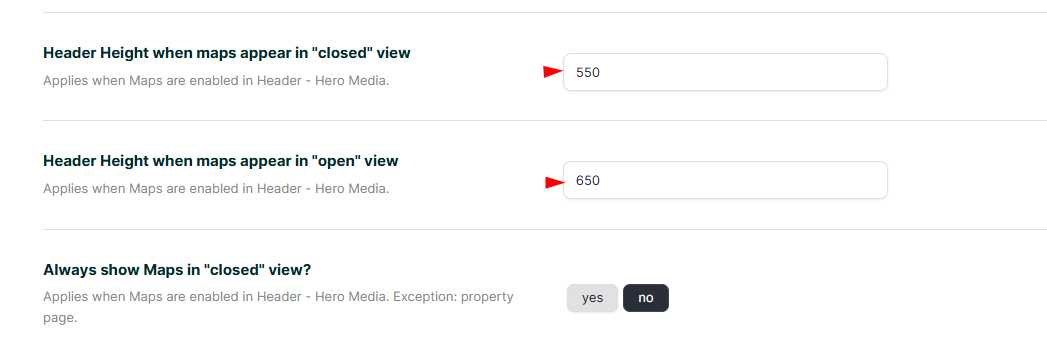
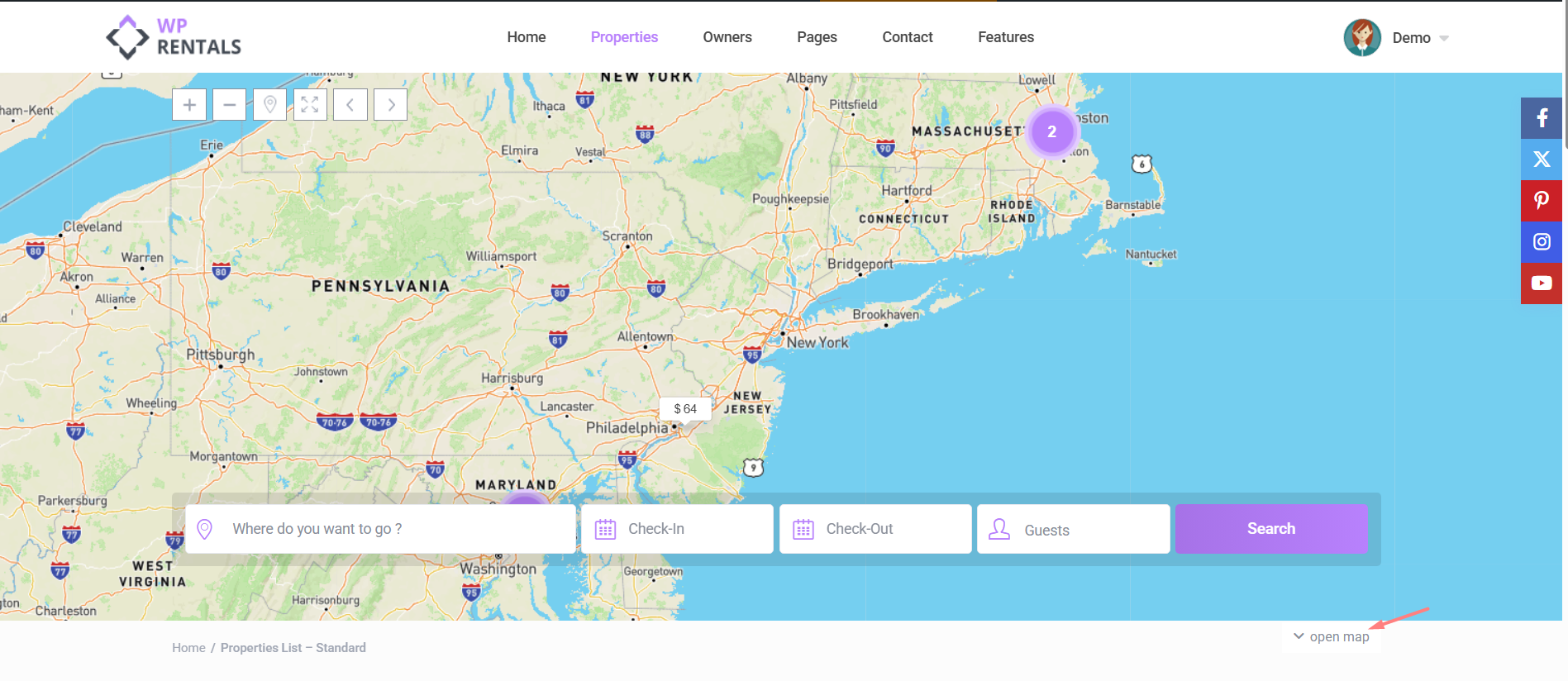
Map Height Settings
Controls the height of the Google Map in the global header area.
Google Maps Extra Settings
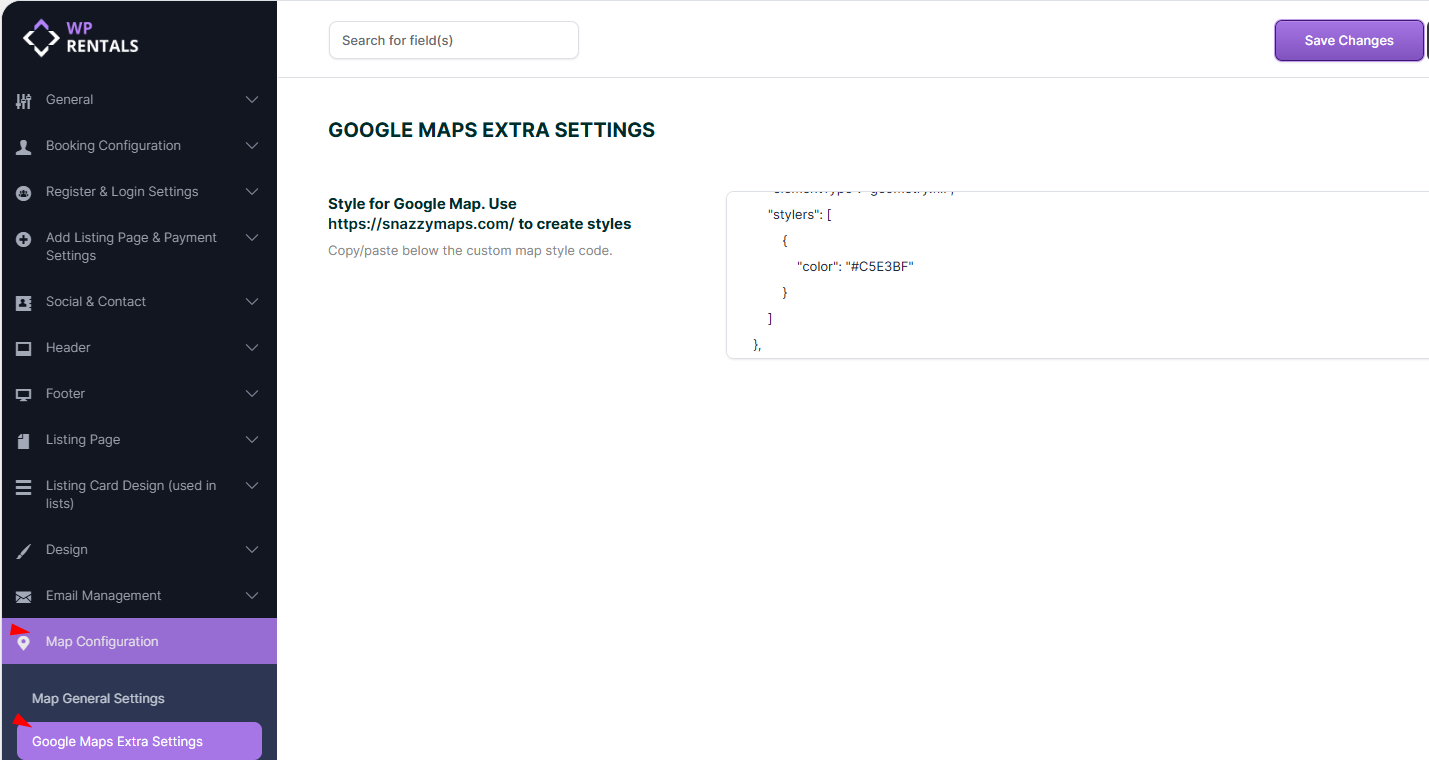
Styling Google Maps (Snazzy Maps)
You can customize Google Maps appearance using styles from Snazzy Maps.
-
Go to: https://snazzymaps.com/
-
Choose or create a style.
-
Copy the JSON code provided.
-
Paste it into Google Maps Extra Settings -> Style for Google Map. Use https://snazzymaps.com/ to create styles
-
Click Save Settings, then clear the theme cache.
Maps Settings in Half Map Layout
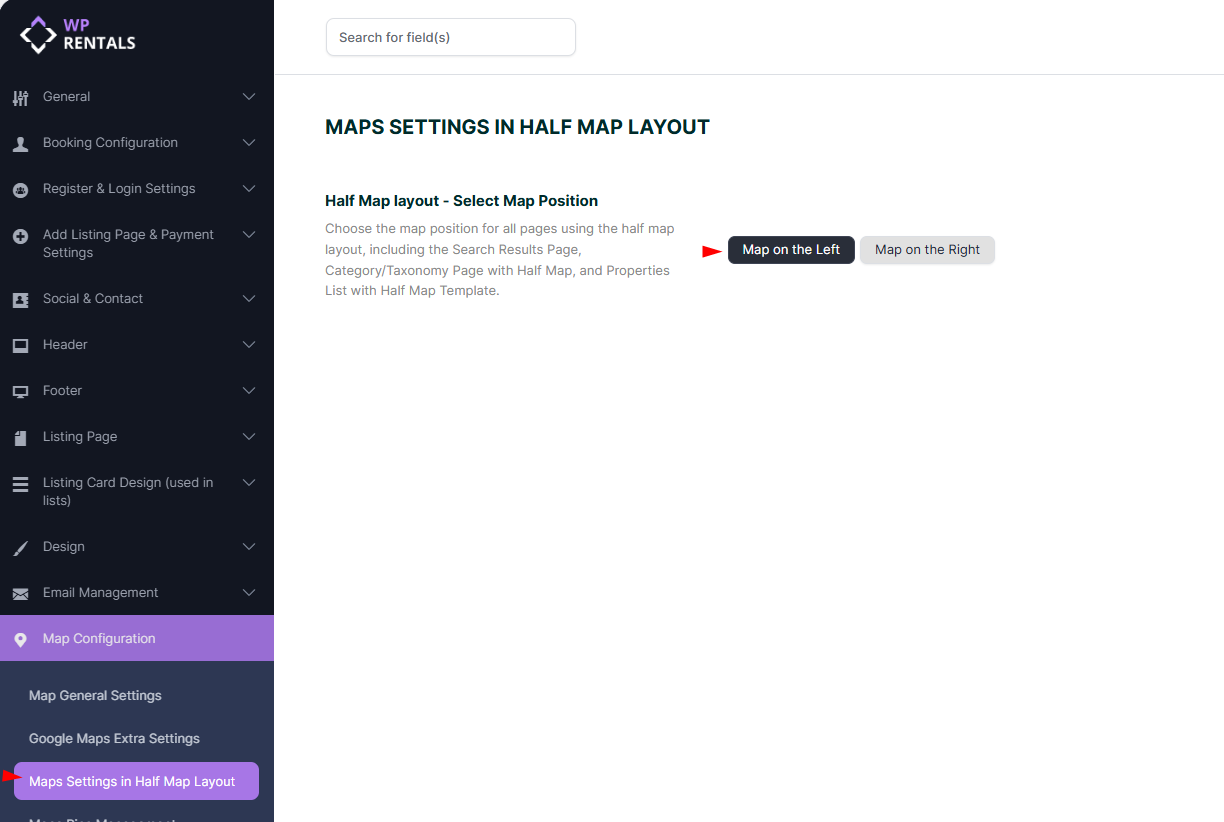
Choose where the map will be displayed on all pages using the Half Map layout, including:
-
Search Results Page with Half Map Layout
-
Category/Taxonomy Pages with Half Map Layout
-
Properties List pages using the Half Map template
Available options:
-
Map on the Left – Display the map on the left side of the screen.
-
Map on the Right – Display the map on the right side of the screen.
Maps Pins Management
✅ Tip: Image size recommendations:
- Single Pin Marker & Entire Home: 44x50px
- Cloud Marker: 70x70px
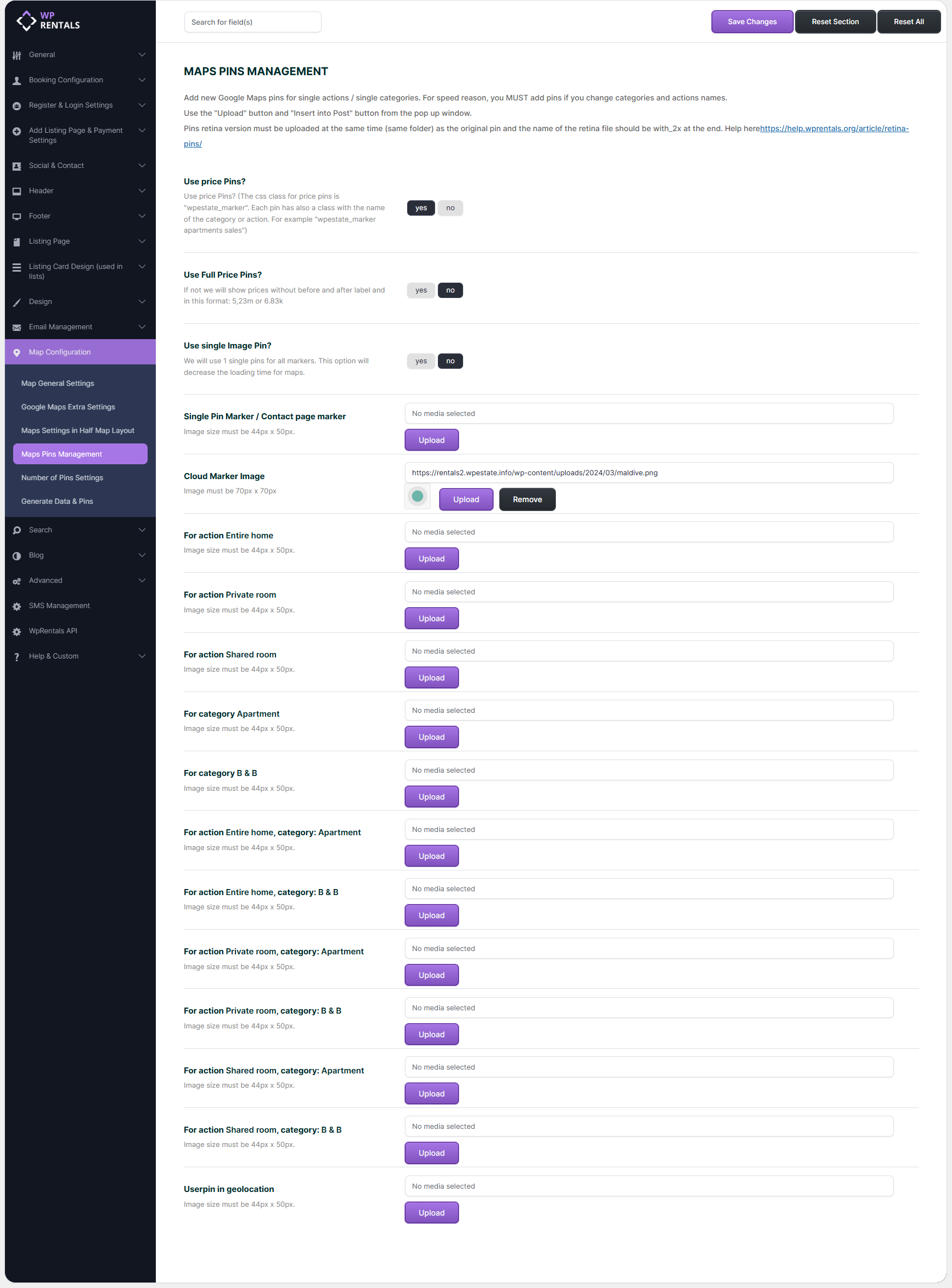
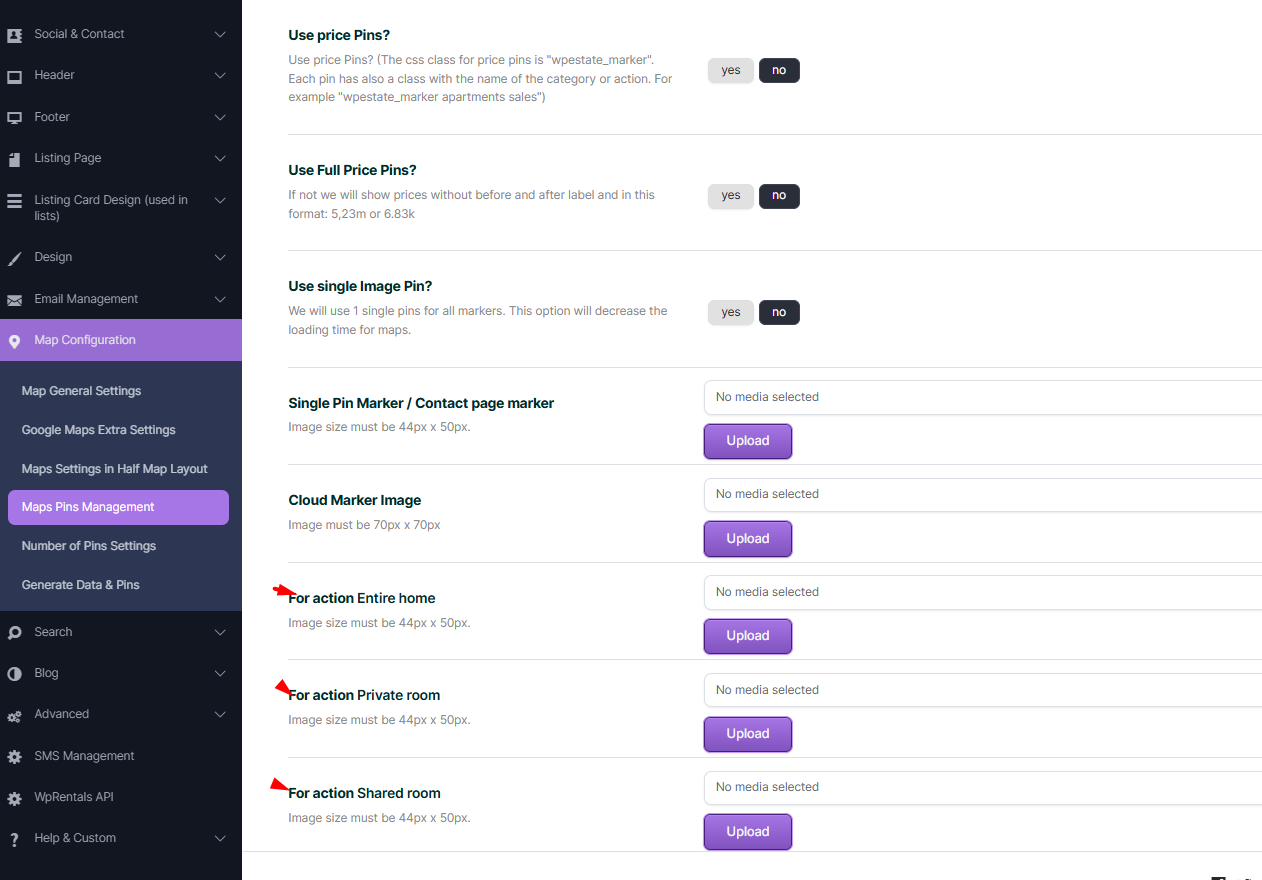
This section of WPRentals → Theme Options → Map Configuration → Maps Pins Management controls how map markers (pins) are displayed across all Google Maps used in the theme. Pins help users visually understand listing types, categories, prices, and actions directly on the map.
Each option below affects either performance, visual clarity, or how accurately listings are represented on the map.
Use Price Pins?
When enabled, map pins will display the price directly inside the marker instead of using a generic icon.
Ideal for sites where price comparison is important
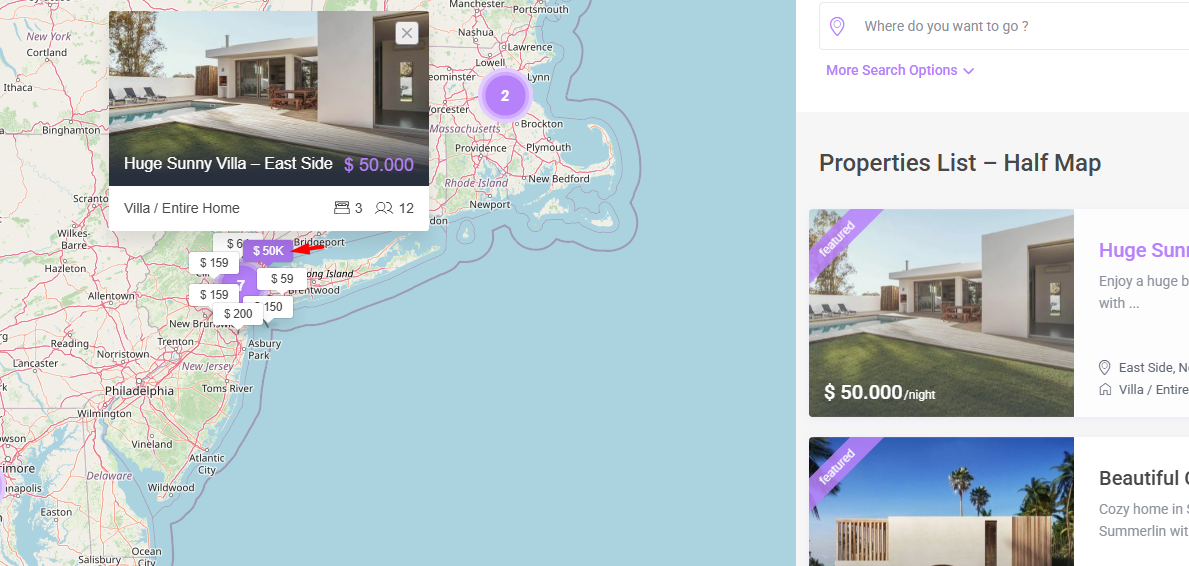
Use Full Price Pins?
Controls how the price text is formatted inside the pin.
Yes: Shows full price with currency symbol (example: $2,530 or €6.83k)
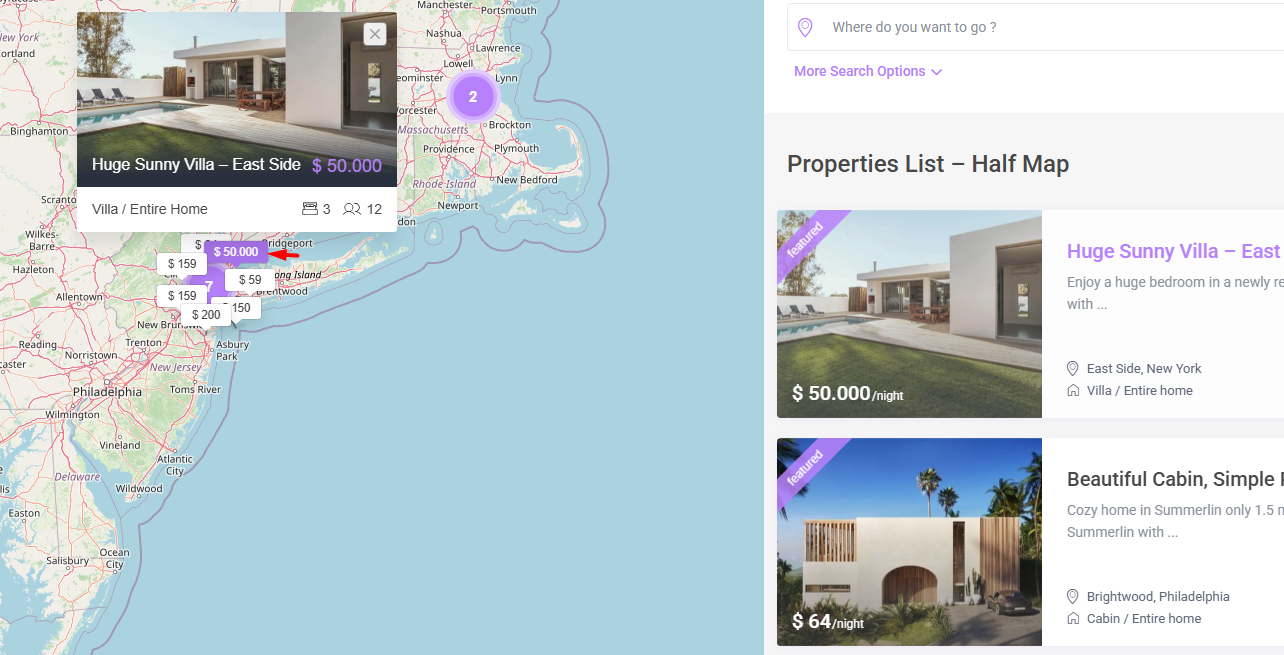
No: Shows a shortened or simplified price format.
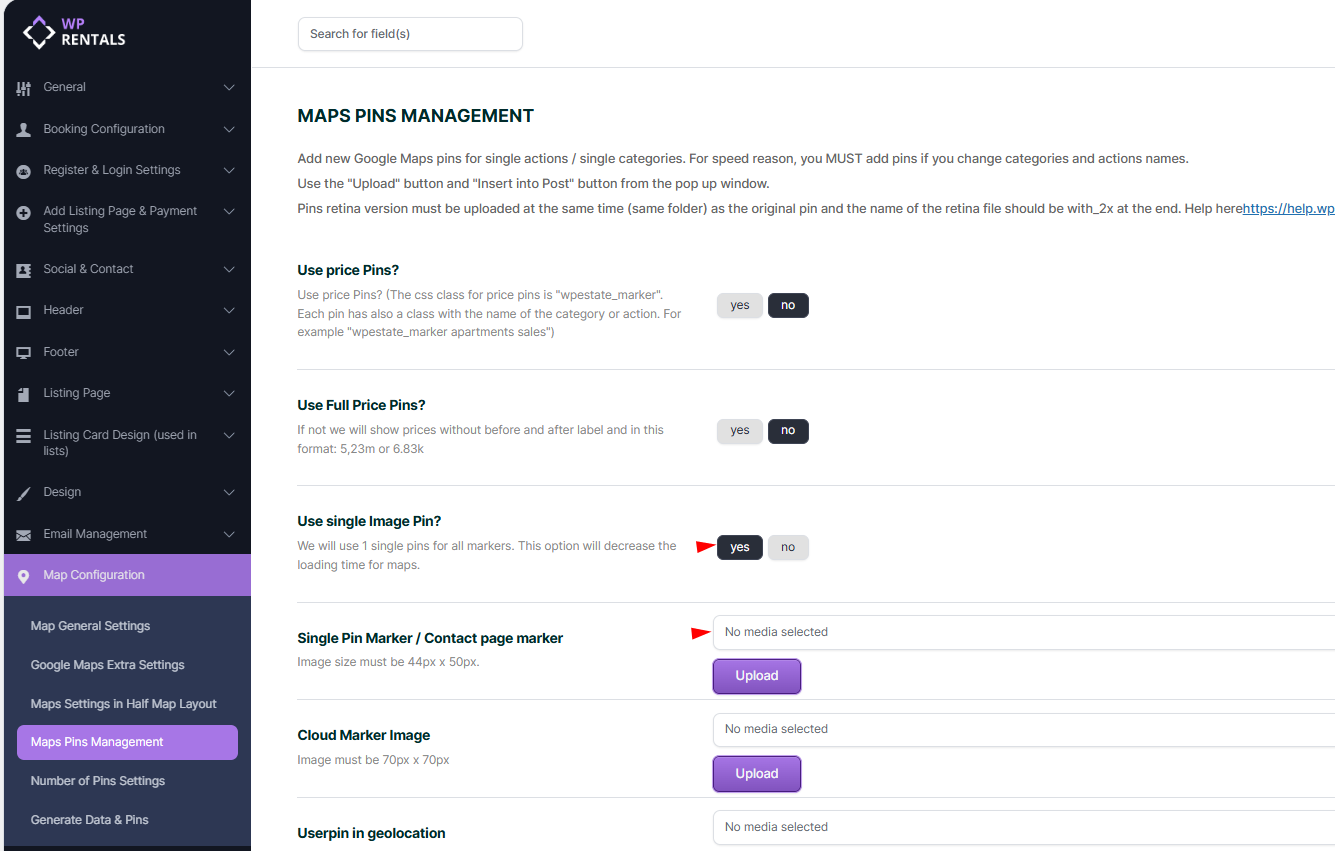
Use Single Image Pin?
Forces all listings to use one single marker image, regardless of category or action.
Cloud Marker Image
Defines the image used for clustered pins (when multiple listings overlap).
How it works
When many listings are close together, WPRentals groups them into a cluster
This image represents that group
Upload Pins per Category/Action?
- If “Use Price Pins?” is set to No, and Single Pin Marker set to NO, image pins will be used instead.
- For each property type and category combination (like Entire Home in Apartment), upload a pin image.
- You can find default pins in your theme package
- Single Pin Marker size must be exactly: 44x50px
User Pin in Geolocation
Defines the marker used to show the visitor’s current location when geolocation is enabled.
Retina Pins (Important)
If you use retina displays, you must:
Upload a second image with the same name
Add @2x at the end of the filename
Store both images in the same folder
Example:
apartment.png
This ensures crisp icons on high-resolution screens.
Number of Pins Settings
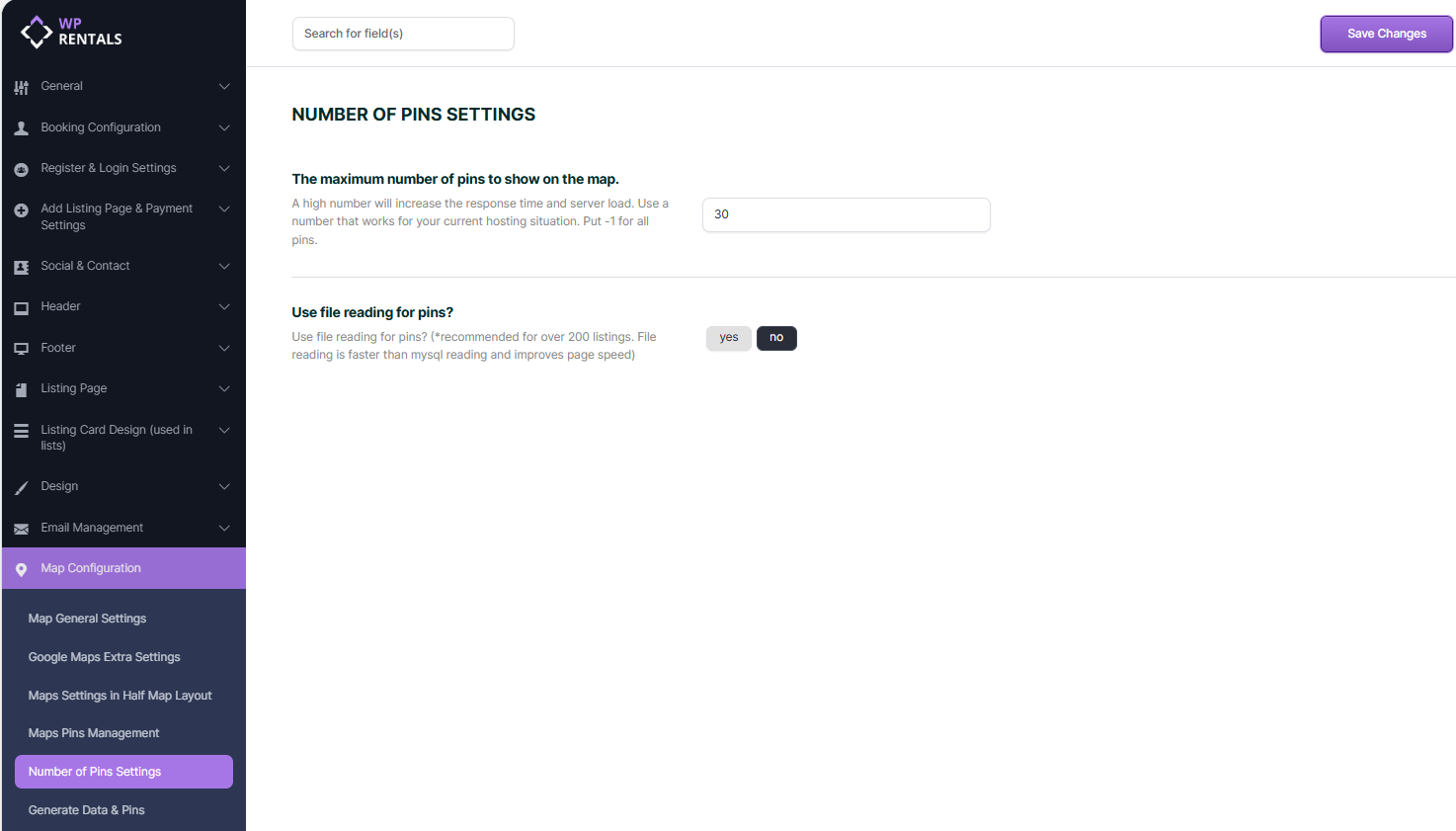
This section of WPRentals → Theme Options → Map Configuration → Number of Pins Settings controls how many listings are loaded and displayed on maps and how pin data is retrieved.
These options are critical for map performance, especially on websites with a large number of listings.
The Maximum Number of Pins to Show on the Map
Defines the maximum number of listing pins that can be displayed on a map at one time. The system limits how many properties are returned and rendered as markers
This applies to: Listing pages with maps, Half-map layouts,Search result maps
Any positive number (for example: 30) limits the number of pins and -1 disables the limit and loads all available listings
A high number of pins increases:
- Server response time
- Database load
- Browser rendering time
- Loading too many pins can slow down maps or cause timeouts
Use -1 only if performance has been tested
Use File Reading for Pins?
Controls how pin data is retrieved by the map system.
- Yes: Pin data is read from pre-generated files
- No: Pin data is retrieved directly from the MySQL database
When the option is enabled:
- Avoids repeated database queries
- Reduces server CPU usage
- Improves page load time
Recommended usage
- Strongly recommended for websites with more than 200 listings
- Ideal for shared hosting or high-traffic sites
How it works internally
- Pin data is generated once and stored as files
- Maps read these files instead of querying the database each time
Important note
If file reading is enabled:
- You must regenerate pin data when listings are added, removed, or updated
- Use Generate Data & Pins after making listing changes
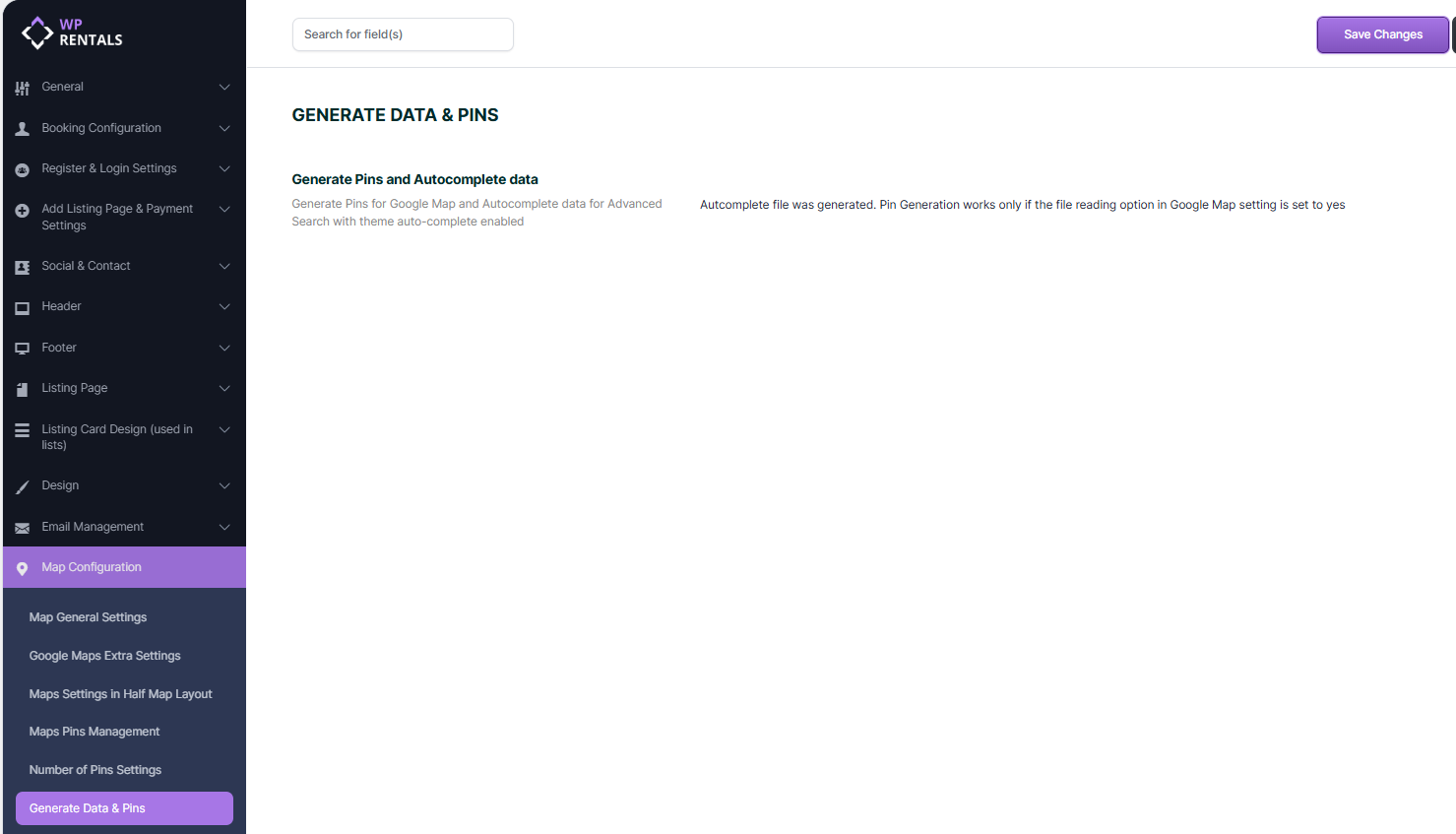
Generate Data & Pins