
WPRentals Theme Documentation WPRentals Theme Documentation

  • Client Support
  • Video Tutorials
  • WPRentals
  • WPEstate
  • API
Home / Property / Listing / PDF Documents in the Property Page

PDF Documents in the Property Page

6364 views

The PDF Documents section lets you upload and display files such as floor plans, contracts, brochures, or any other relevant documents. These files will appear under a “DOCUMENTS” section on the property page, providing easy access for users to view or download.
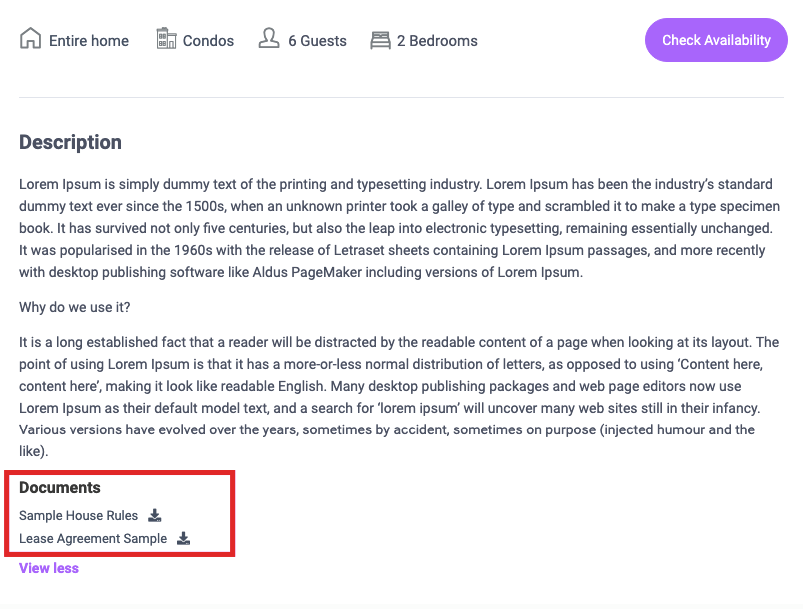
How to Add PDF Documents from the Front-End Submission Form

  1. Log in to your account with submission access.

  2. Go to User Dashboard → Submit Property or My Listings → Edit.

  3. Go to Images

  4. Drag and drop your PDF file(s), or click to upload from your device.

  5. Save or update the listing.

📌 Note: PDF files are uploaded exactly the same way as property images.

Help – https://help.wprentals.org/article/how-to-add-edit-images-in-a-property/

Property / Listing

Related Articles

  • How to Change Thumbnail / Images Sizes
  • How to work with the Listing Page Layout Manager
  • Login & Register – How to Create Renters / Owners
  • Videos – How to add a listing – User Dashboard & Submission Form

HELP CATEGORIES

  • 61. General
  • 72. Installation & Basic Setup
  • 373. How Booking Works
  • 18Advanced Search
  • 17Elementor WPRentals Studio
  • 14Email Notifications
  • 23FAQ
  • 14Installation FAQ
  • 10Menu Options
  • 34Owner & Renter
  • 8Page Templates
  • 23Property / Listing
  • 22Shortcodes
  • 4Supported Maps
  • 99Technical how to
  • 5Third Party plugins
  • 4Translation & Multi Languages
  • 3WordPress Blog Post
  • 13WordPress Widgets
  • 12WP Rentals Payments
  • 80WP Rentals Theme Options
  • 26WPML & Weglot

Join Us On

Powered by WP Estate - All Rights Reserved
  • Client Support
  • Video Tutorials
  • WPRentals
  • WPEstate
  • API