
Add a Redirect URL Instead of the Book Now Button in WPRentals
In WPRentals, you can use the Affiliate Link field to redirect the Book Now button to a custom URL.
This is useful when bookings are handled outside your website, for example on Airbnb, Booking.com, another booking platform, or a custom external booking page.
The Affiliate Link works with the standard WPRentals booking form. If the property page sidebar shows the owner contact form instead of the booking form, the Affiliate Link will not replace it with the external Book Now button.
How It Works
The Affiliate Link field is used as a redirect URL for the Book Now button.
When a URL is added in this field:
- The Book Now button on the property page redirects users to the URL added in the Affiliate Link field.
- The default WPRentals booking action is replaced for that listing.
- Users are sent to the external or custom booking page instead of sending a booking request through the theme.
You can use this option for:
- external booking platforms
- third-party reservation systems
- custom contact or inquiry pages
- direct booking pages managed outside WPRentals
The Booking Form Must Be Active
The Affiliate Link redirects the Book Now button from the standard WPRentals booking form.
If the property page sidebar shows the owner contact form instead of the booking form, the Affiliate Link will not show the external booking button.
The contact form and the affiliate redirect are two different flows:
- Booking form active – the Affiliate Link can redirect the Book Now button to the external URL.
- Owner contact form active – visitors see the contact form, not the external Book Now button.
To use the Affiliate Link redirect, make sure the option that replaces the booking form with the owner contact form is disabled.
This option can be enabled globally from Theme Options or individually from the property edit page.
If the owner contact form is active, reverse the setup explained in this help article:
Hide booking form and replace with owner contact form
After the standard booking form is active again, add the external booking URL in the Affiliate Link field and clear the website cache.
Enable the Affiliate Link Field
Before the Redirect URL can be added to a property, make sure the Affiliate Link field is enabled in the listing submission form.
Go to:
Theme Options → Add Listing Page & Payment Settings → Listing Submission Form
In Select the Fields for Listing Submission, enable the Affiliate Link field.

Theme Options only controls whether the Affiliate Link field is available in the Add Property / Edit Property form. The actual Redirect URL is added individually for each property.
Who Can Add or Edit the Redirect URL
The Redirect URL is managed from the front-end dashboard, inside the property form.
This applies to both:
- site admins managing listings from the front-end dashboard
- owners registered from the front end who manage their own listings
Admins and owners manage properties the same way from the front-end dashboard.
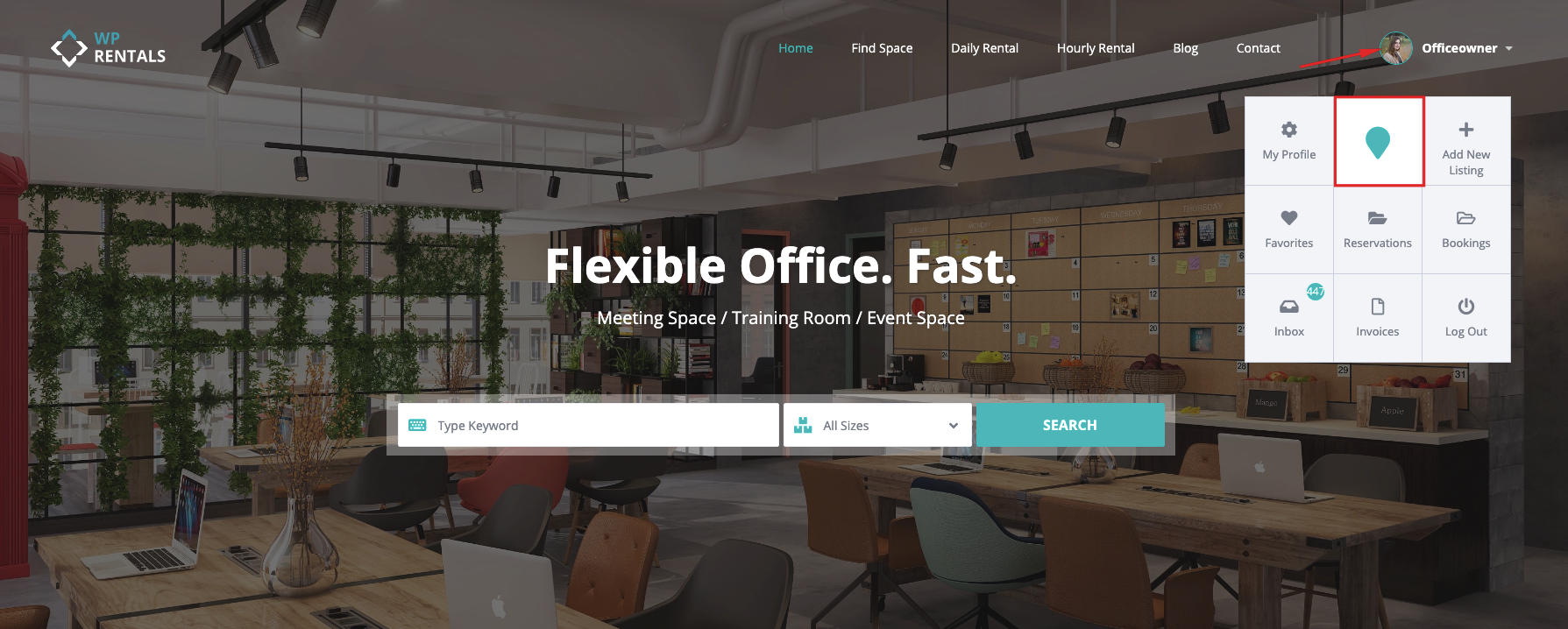
Then go to one of these options:
- My Listings → Add New Listing if you are creating a new property.
- My Listings → Edit Listing if you are updating an existing property.
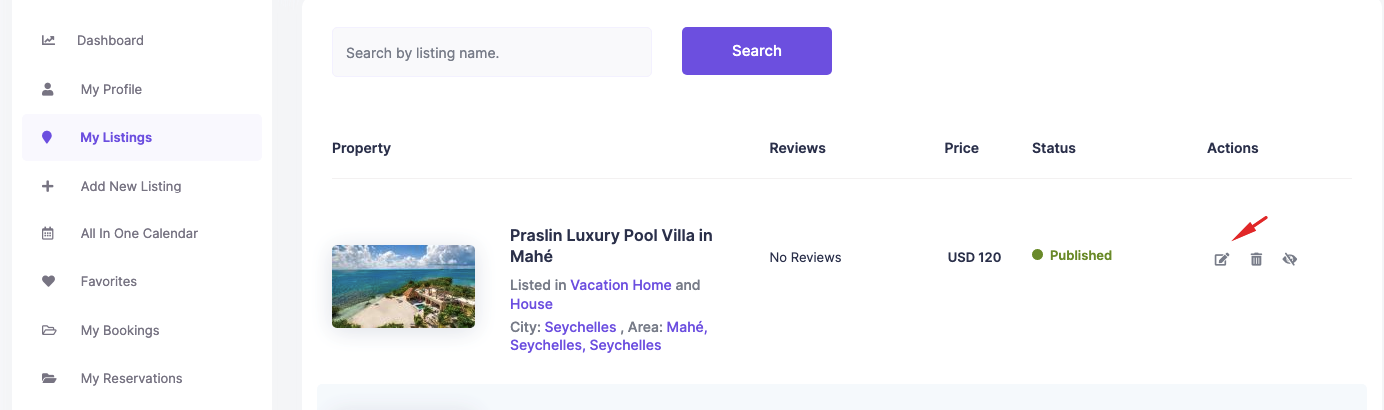
Add the Redirect URL from Add Property or Edit Property
Inside the property form, go to the Description section.
Find the Affiliate Link field and add the full URL where users should be redirected.
Example URL types you can add:
- a listing page from an external booking platform
- a custom booking form page
- a contact page
- any other valid URL where users should continue the booking process
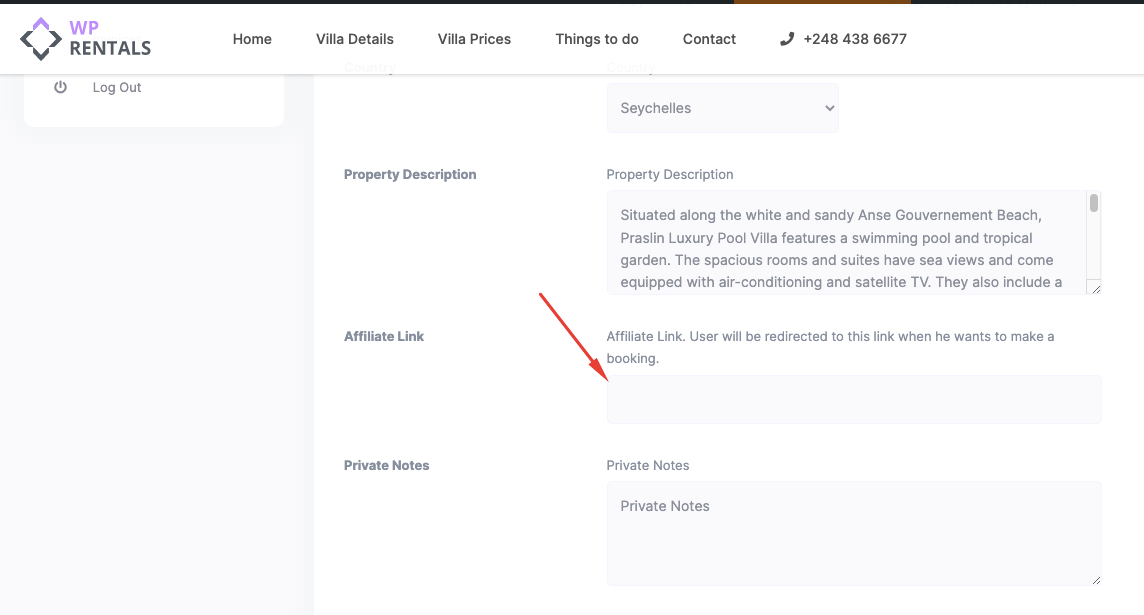
After adding the URL, save the property by clicking Update or Submit Property, depending on whether you are editing an existing listing or creating a new one.
How It Shows on the Property Page
After the Affiliate Link is saved, the property page will show the Book Now button from the standard booking form.
When visitors click Book Now, they are redirected to the URL added in the Affiliate Link field.

Important Notes
The Affiliate Link does not replace the owner contact form.
If the property page shows the owner contact form in the sidebar, disable the option that replaces the booking form with the contact form.
The correct setup is:
- The standard booking form is active.
- The Affiliate Link field is enabled in the listing submission form.
- The full external URL is added in the property Affiliate Link field.
- The website cache is cleared after the change.
Leave the Affiliate Link field empty if you want visitors to use the default WPRentals booking request flow.