
The Early Bird Discount option in WPRentals lets the listing owner offer an automatic discount when a renter books a listing a certain number of days in advance.
This discount is managed per listing and applies automatically in the booking form when the selected booking dates match the early bird rule.
Who Can Manage the Early Bird Discount
The Early Bird Discount can be managed by the user who owns or manages the listing.
This can be:
- the registered owner assigned to the listing
- the site admin, if the admin manages the listing as the owner or single-owner account
Where to Add the Early Bird Discount
Go to:
User Dashboard > My Listings > Edit Listing > Price
In the Price section, find the Early Bird Discount fields.
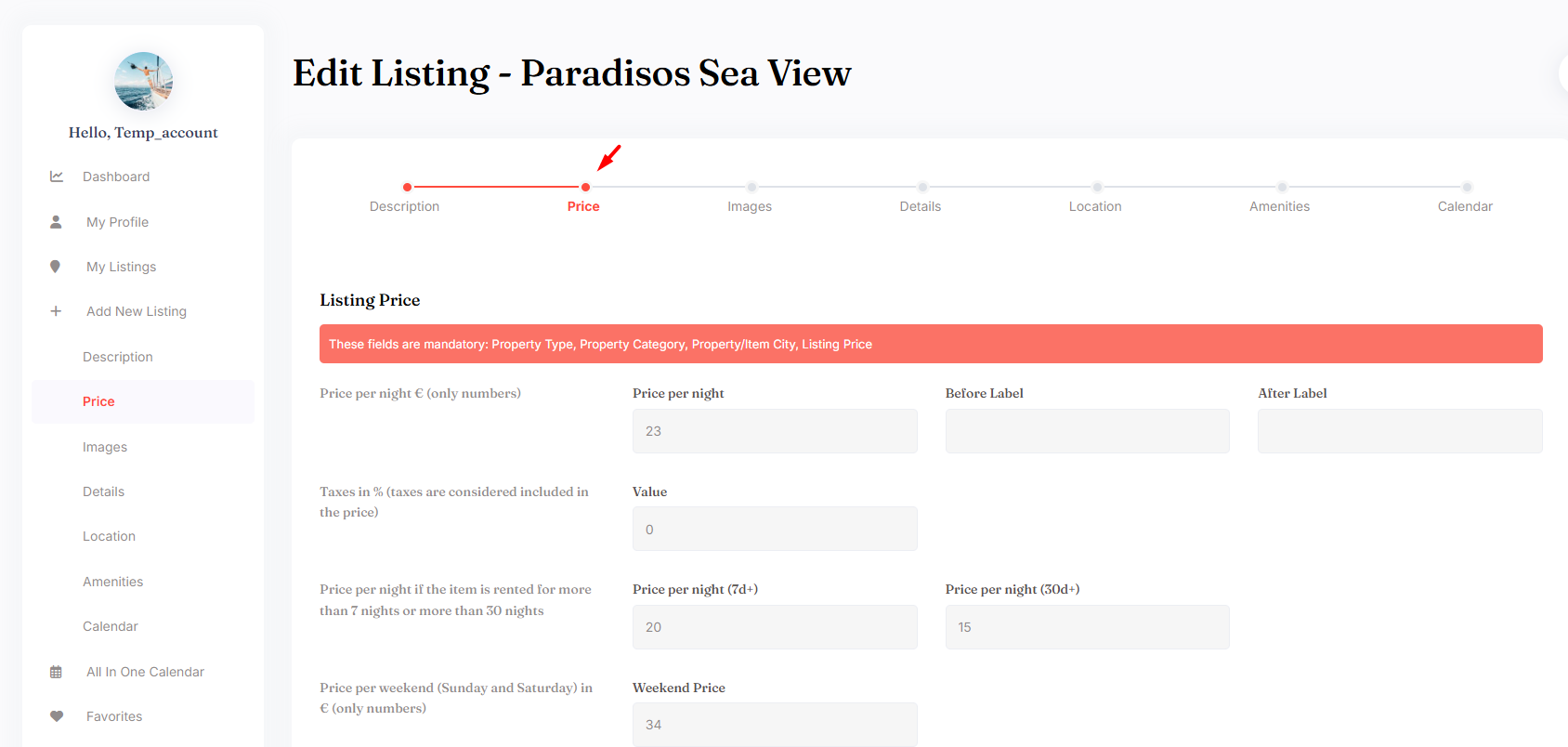

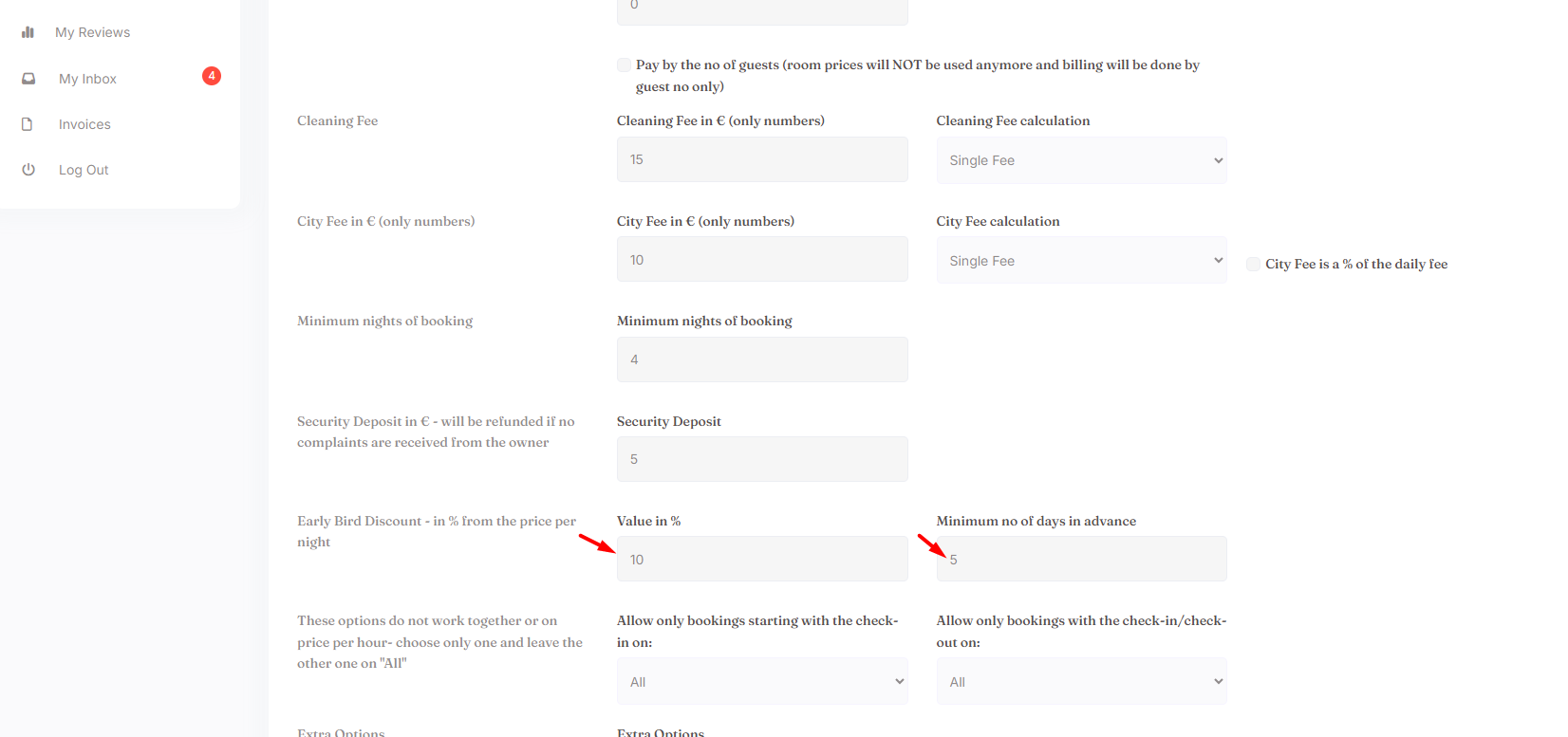
The owner can set:
- Discount value – the discount percentage applied to the booking price.
- Number of days in advance – how many days before the check-in date the renter must book for the discount to apply.
How the Early Bird Discount Works
The discount applies only when the renter selects booking dates that match the advance booking rule.
Example:
- The owner sets an Early Bird Discount of 10%.
- The owner sets the rule to apply when the booking is made at least 30 days in advance.
- If the renter selects a check-in date that is 30 days or more from the current date, the discount is applied automatically.
- If the renter selects a check-in date that is less than 30 days away, the discount is not applied.
How the Discount Is Displayed to the Renter
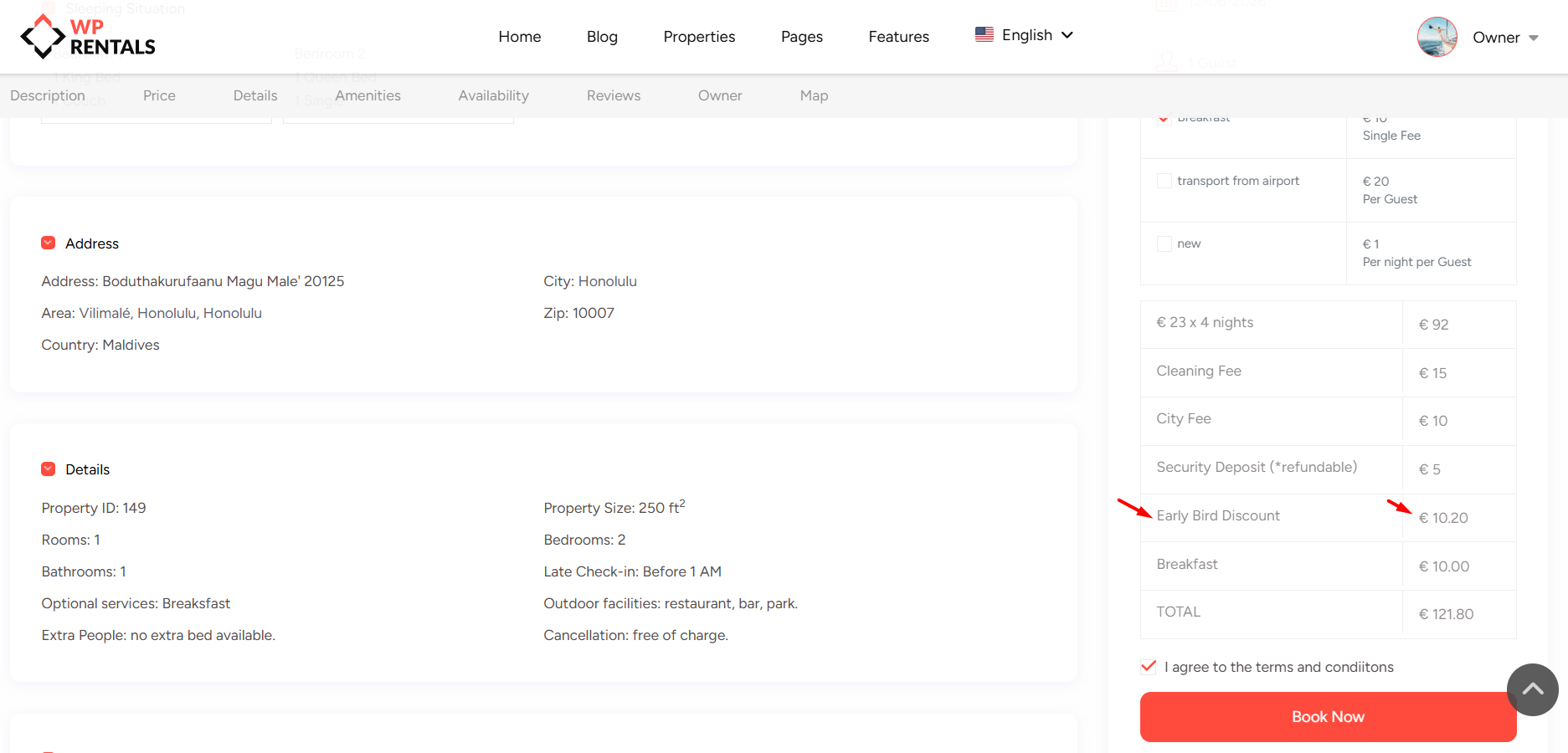
When the renter selects dates in the booking form, WPRentals calculates the booking price.
If the selected dates qualify for the Early Bird Discount, the discount is shown in the booking price details.
The renter can see the discounted amount before sending the booking request or continuing with the booking flow.
The discount is also included in the invoice details when the invoice is issued for that booking request.
What the Early Bird Discount Applies To
The Early Bird Discount applies to the booking price calculated for the selected stay.
The Early Bird Discount does not apply to:
- extra guest price
- security deposit
- city fee
- cleaning fee
Early Bird Discount vs Manual Invoice Discount
These are different discount options.
- Early Bird Discount is set in the listing price settings and applies automatically when the renter books far enough in advance.
- Manual Invoice Discount is added by the listing owner when issuing an invoice for one booking request.
Use Early Bird Discount when you want the discount to be automatic.
Use Manual Invoice Discount when the owner wants to give a special discount only for one booking request.
Important Notes
- Early Bird Discount is managed per listing.
- The setting is found in User Dashboard > My Listings > Edit Listing > Price.
- The discount is applied automatically only when the renter books the listing the required number of days in advance.
- The renter sees the discount in the booking price details when the selected dates qualify.
- The discount does not apply to extra guest price, security deposit, city fee, or cleaning fee.
- Early Bird Discount does not change the listing base price. It only applies when the booking matches the early bird rule.
Related Help
Submit Listing Form – Price Details Explained
Understanding Invoice Details Info for Owner and Renter
Formulas used in WPRentals Invoices
How to add manual discount or custom items to an invoice
You should look in help_functions.php at function wpestate_booking_price (around line 557).
We use this function to calculate all the fees, discounts etc in 90% of the cases.
The early bird discounts are calculated around line 834
$early_bird_discount = wpestate_early_bird($property_id,$early_bird_percent,$early_bird_days,$from_date_discount,$total_price);
Please note that due to theme update the line numbers might change, but the code will remain the same.