
About the Child Theme
It is recommended to install and activate the child theme provided in the WPRentals theme package if you plan to make your own code modifications.
A child theme inherits the parent theme’s features, styles, and templates. This allows you to make code changes without editing the parent theme directly.
When a new version of the parent theme is released, you can update the parent theme safely because your custom changes are saved in the child theme.
A child theme also lets you selectively modify only the template files and functions you need, without changing the original parent theme files.
You can read more about child themes here:
http://www.wpbeginner.com/beginners-guide/wordpress-child-theme-pros-cons/
http://codex.wordpress.org/Child_Themes
Important Support Note
Theme customization services are not included in standard client support. Our support team can help with questions about the default WPRentals theme features, but we cannot make code modifications for you as part of standard support.
We are not able to provide support for custom code changes or third-party plugin customizations.
The full ThemeForest support policy is available here:
https://themeforest.net/page/item_support_policy
Install the Child Theme From the Theme Package
The child theme is optional. It includes the minimum files needed to create a safe place for custom code changes and custom theme adjustments.
Use the child theme if you plan to customize templates, add custom functions, or add custom CSS in theme files.
Important Note About Translations
If you use custom translations, please make sure your translation files are backed up before updates.
For WPRentals Core translations, you must also translate the file from wprentals-core/languages/wprentals-core.po. This file cannot be moved to the child theme, so you must keep a backup of your translation.
https://help.wprentals.org/article/translation/
Step 1: Download the Full Theme Package
Log in to your ThemeForest buyer account and go to Downloads.
Download All Files and Documentation.
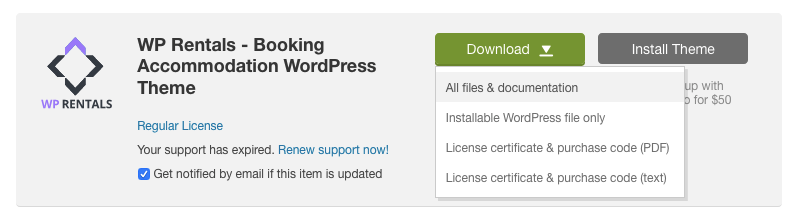
Step 2: Find the Child Theme Zip File
Unzip the downloaded package on your computer.
Inside the package, find the child theme file named wprentals-child.zip.
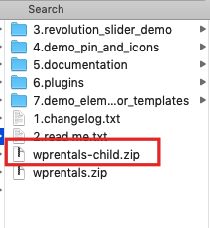
Step 3: Install the Parent Theme First
Before installing the child theme, install the parent theme first.
The parent theme file is wprentals.zip.
https://help.wprentals.org/article/theme-installation/
Step 4: Install the Child Theme
After the parent theme is installed, install wprentals-child.zip the same way you install a regular WordPress theme.
Go to Appearance > Themes > Add New > Upload Theme.
Upload wprentals-child.zip and install it.

Step 5: Activate the Child Theme
After the child theme is installed, activate it from Appearance > Themes.

Important Note About Updates
Changes saved in the child theme are not overwritten when the parent theme is updated.
However, if a future WPRentals update changes the same template file that you copied and customized in the child theme, you may need to review your child theme file and adapt it to the new parent theme version.
This is why child theme customizations should be reviewed after major theme updates.