How to Get Your License Code
To find your license code:
- Log in to ThemeForest with your buyer account:
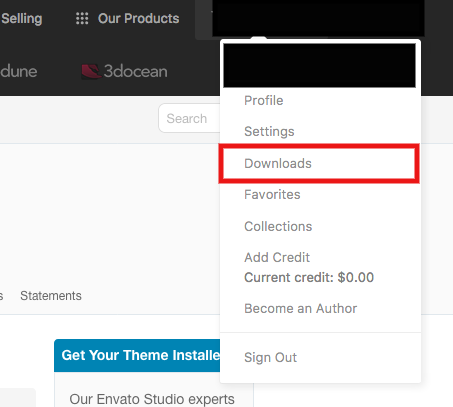
ThemeForest Login - Go to the Downloads section:
ThemeForest Downloads
- Locate your WpRentals purchase and select
“License Certificate and Purchase Code”.
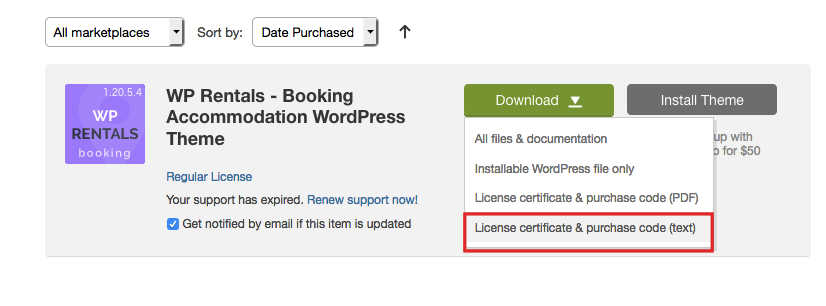
- Open the downloaded text file and copy your buyer code (license key).

How to Register Your License Code
Install the theme and the WPRentals Core Functionality plugin.


- Activate the WPRentals Core Functionality plugin.

Refresh the page. The WPRentals License section will now appear in the WordPress admin.
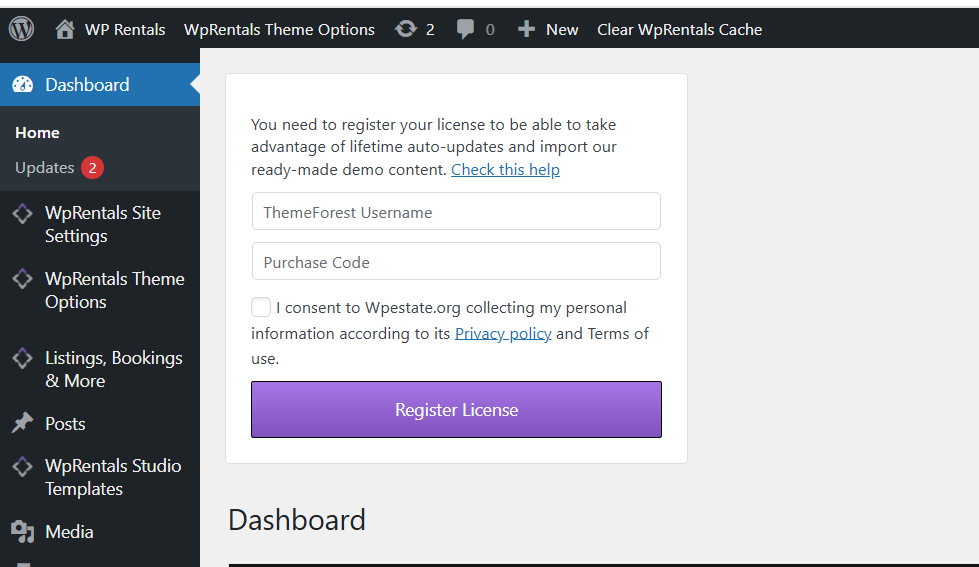
Fill in the form with:
- Your ThemeForest buyer username
- Your license code

Click Register License.
If successful, you will see:
“You have successfully registered.”
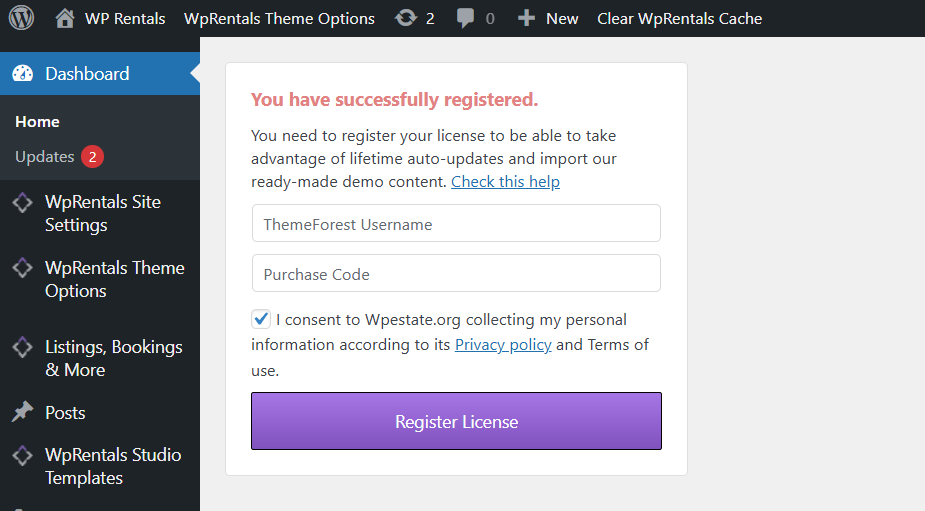
Once registered, you can proceed with importing demo content:
Demo Import Video Tutorials
License Code Is Already Registered for Another Domain
If you try to register the same license on more than one website, you may see this error:
“License code is already registered for another domain.”

Why This Happens
This means the license is already active on another website. Common cases include:
- The license was previously used on a staging or test domain
- The site was reinstalled without de-registering the license
- A developer activated the license on a different domain
- The original website no longer exists or is not accessible
How to Fix (If You Have Access to the Original Site)
- Log in to the WordPress admin of the site where the license was first activated
- Go to WpRentals → License
- Click De-register License
- Confirm the message:
“Your license was successfully revoked.” - Return to your new site and register the license again
What If You Don’t Know Where the License Is Registered?
If you do not know which domain the license is registered on, or you no longer have access to that website, you cannot de-register the license yourself.
In this situation, the license must be checked and released by our support team.
How to De-register Your License Code
⚠️ Always de-register your license before deleting a website.
Log in to the site where the license is active and go to:
WpRentals → License → De-register License

After de-registration you will see:
“Your license was successfully revoked.”

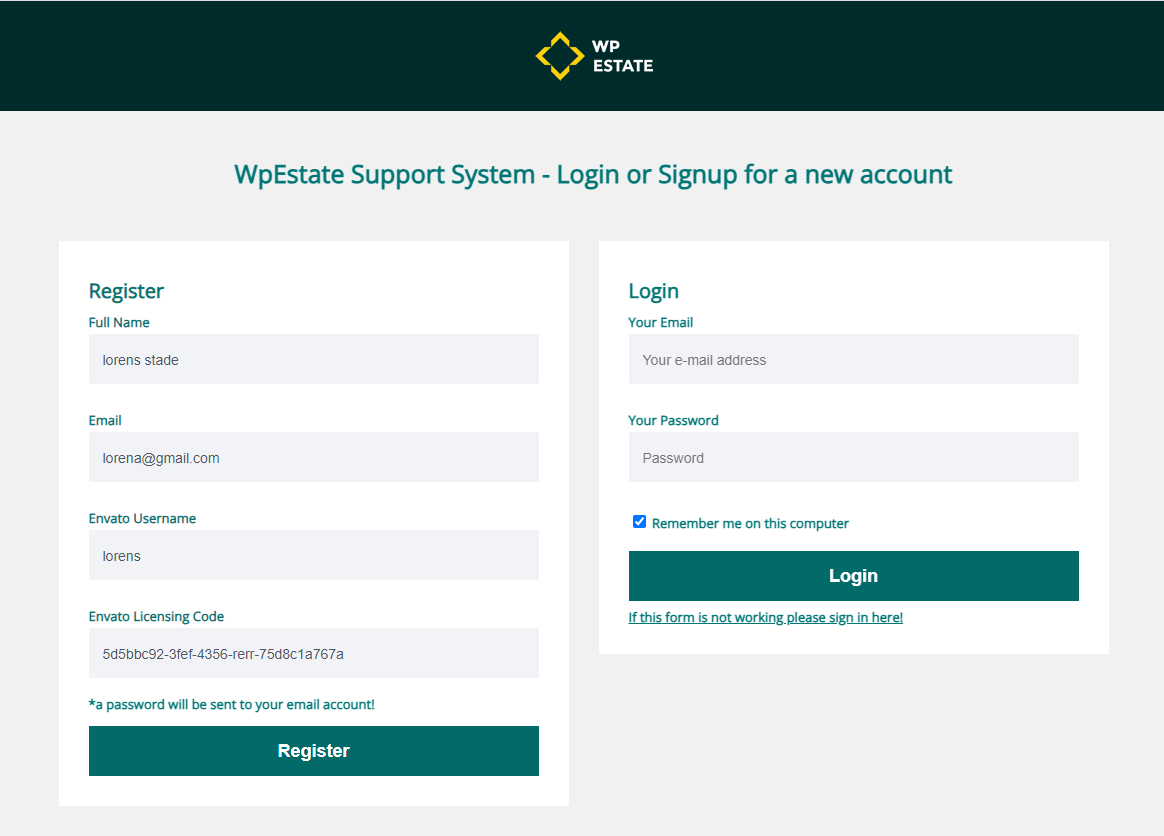
Register for Client Support with Your License Code
If you cannot de-register the license yourself, contact support so we can help identify where the license is used and release it.
You will need:
- Your ThemeForest buyer username
- Your license code
👉 Register for support here:
https://support.wpestate.org/