
Video Tutorials
In this video, I will show how to create a Rental website for a single owner/single listing using the WP Rentals theme.
Watch Video on Youtube
In this video you will learn how to import and edit the SOLO demo to easily create a holiday rentals website as a single owner.
Watch Video on Youtube
Install a Demo of Your Choice
- Start with the WpRentals Solo Demo or any other WpRentals demo.
- You can delete demo properties, owners, and blog posts from the admin panel while keeping pages and theme settings to save time.
➡ Help Guide: Demo Setup with 1-Click Import
Fill in Your Profile Information
- Even as an admin, you must use front-end submission to add listings and complete your profile details.
- Navigate to My Profile and update your information.

Add Properties Using the Front-End Submission Form
- Always use the front-end submit form to gain access to all property options.
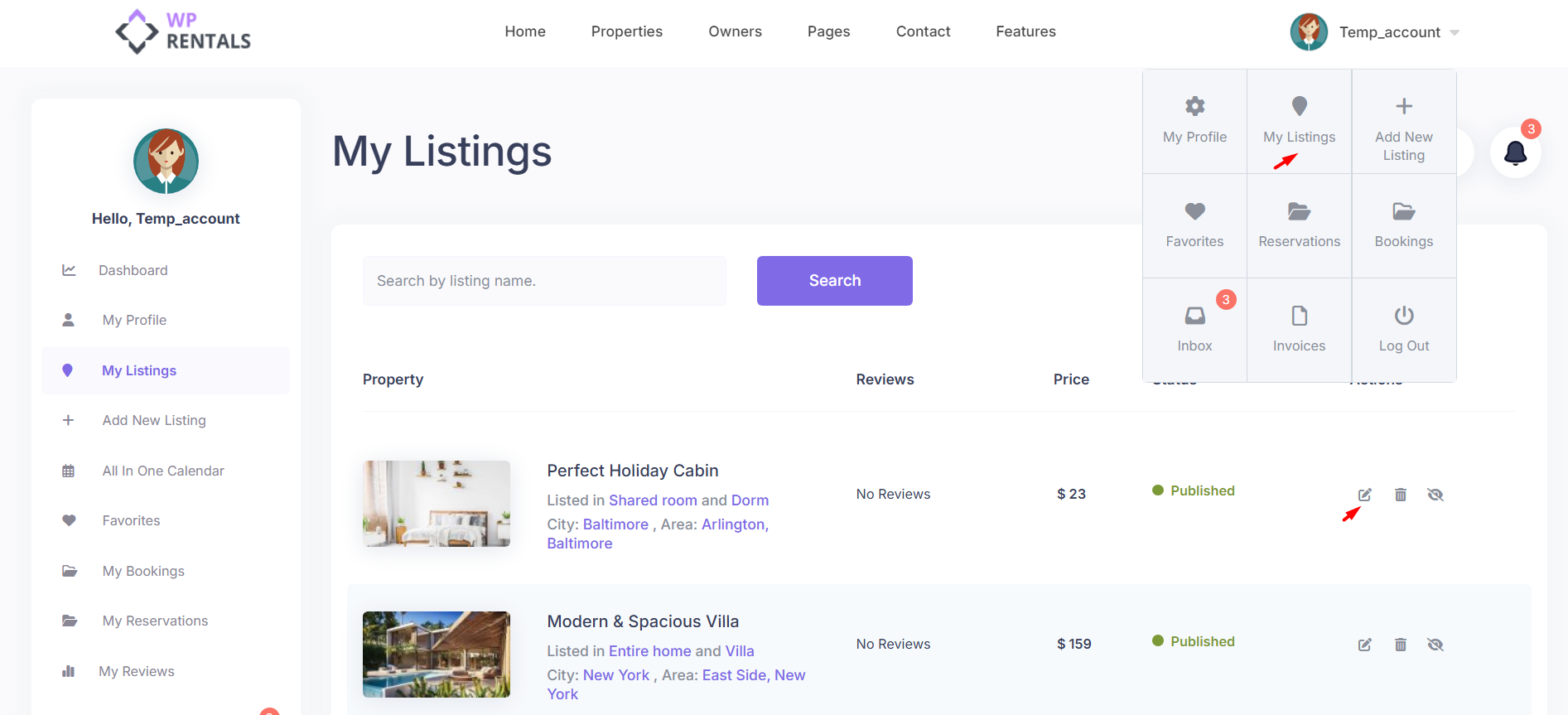
- Customize the submission fields via:
Admin → Theme Options → Add Listing Page & Payment Settings → Listing Submission Form
➡ Help Guide: Manage Submit Form Fields & Mandatory Fields

- Adding properties via the front end ensures full access to pricing & calendar options.

- If properties were added as an admin, you can reassign them to another owner:
Admin → Listings → Edit Listing → Owner -> Listing Owner dropdown

Set Yourself as the Sole Owner
- In Theme Options, Register & Login Settings -> Renter / Owner Separation Make sure “Separate users on registration” is set to NO
- Add your username as the only property owner.

Copy the exact username as in Wp-admin – Users to be sure you add the correct name

If you have multiple owners, add them separated by comma, without space

Hide the Submit Property button

Hide the “Submit Property” Button
- Go to Theme Options → Register & Login Settings
- Find “Show the Submit Listing Button in Header?”
- Select “NO” and Save Changes

Disable Manual Approval for Submissions
- Go to Theme Options → Add Listing Page & Payment Settings → Submission Settings
- Set “Submitted Listings Should Be Approved by Admin?” to “NO”
- This allows listings to be published automatically without admin approval.
