
Elementor Troubleshooting for Editor Loading and Frontend CSS Issues
If Elementor does not load correctly, shows a 404 error in the editor, or loads fine in the editor but displays broken or incomplete styling on the live page, there are 2 Elementor settings that are worth testing first.
These settings can help in situations where the issue is related to how Elementor loads the preview, generates CSS, or serves assets on the frontend.
Content
- Elementor editor returns 404 or does not load correctly
- Elementor looks correct in the editor but broken on the frontend
- Extra steps after changing the settings
- Important note
Elementor Editor Returns 404 or Does Not Load Correctly
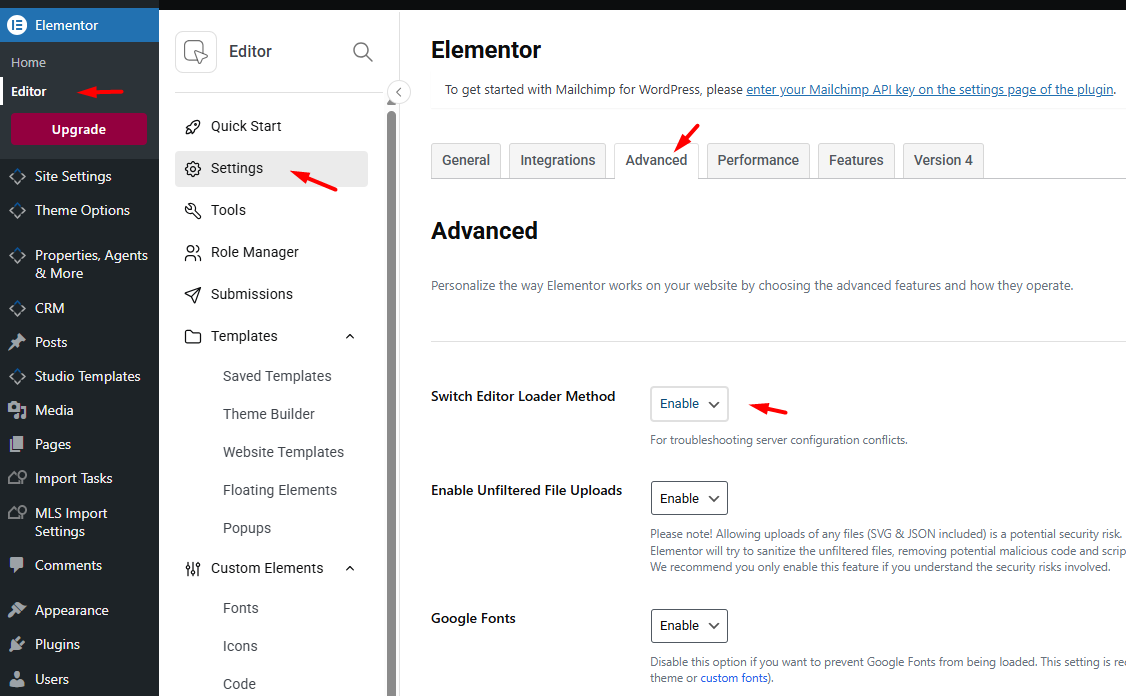
If Elementor opens with a 404 error, a blank screen, or fails to load the editor preview correctly, one of the first settings to test is Switch Editor Loader Method = Enable.
You can find this option in Elementor > Settings > Advanced.
Recommended fix
Go to Elementor > Settings > Advanced and set Switch Editor Loader Method to Enable.
Why this can help
This setting changes the way Elementor loads the editor preview. In some server environments, the default loading method may be affected by preview URL handling, server rules, security rules, or optimization layers. Enabling the alternate loader method can allow the Elementor editor to open correctly.
If you experience a 404 error specifically when trying to edit with Elementor, this setting is a good first check.
Elementor Looks Correct in the Editor but Broken on the Frontend
If the page looks correct inside the Elementor editor but the live page shows incomplete styling, broken spacing, missing fonts, or missing design elements, the issue is usually not the template itself. In these cases, the frontend is not loading or applying all Elementor generated assets correctly.
This type of problem is often related to cache, CSS generation, optimization settings, minification, deferred loading, CDN behavior, or stale generated CSS files.
Recommended fixes
For this situation, test the following Elementor settings:
1. CSS Print Method = Internal Embedding
Go to Elementor > Settings > Performance and change CSS Print Method to Internal Embedding.
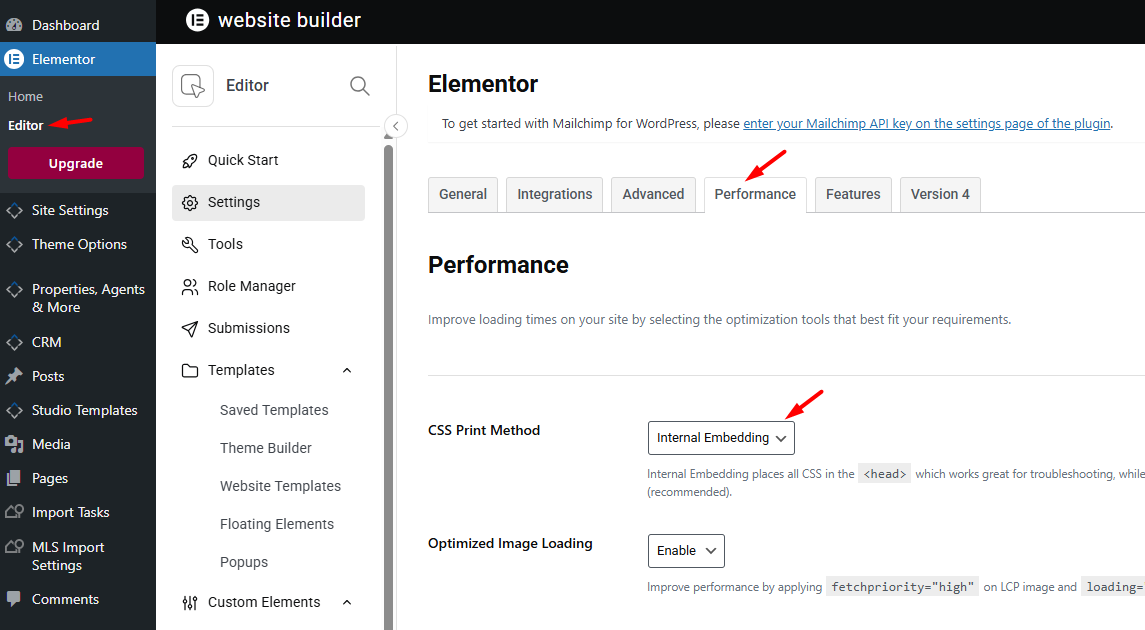
When Elementor uses external CSS files, the live page depends on generated stylesheet files being written, updated, cached, and served correctly. If those files are stale, blocked, or cached too aggressively, the frontend may load incomplete styling even though the Elementor editor looks correct.
Changing the CSS Print Method to Internal Embedding forces Elementor CSS to load directly inside the page output instead of relying on a separate generated CSS file. This can help resolve problems caused by cache, optimization, or asset delivery issues.
2. Switch Editor Loader Method = Enable
Go to Elementor > Settings > Advanced and set Switch Editor Loader Method to Enable.
Although this setting is mainly used for editor loading issues, it is still a useful troubleshooting step when Elementor behaves inconsistently between the editor and the live frontend. It can help rule out a broader Elementor loading issue on the website.
Extra Steps After Changing the Settings
After changing either of the above settings, make sure to clear all generated files and all active cache layers before testing again.
Recommended steps:
- Go to Elementor > Tools and use Clear Files & Data
- Clear any cache plugin used on the website
- Clear server cache
- Clear CDN cache if one is active
- Clear browser cache
If the issue still continues, temporarily disable optimization features that affect asset delivery, especially settings related to:
- CSS minify
- JS minify
- CSS or JS combine
- Delay JavaScript
- Defer JavaScript
- Unused CSS removal
- Cloudflare Rocket Loader or similar tools
Important Note
These Elementor settings are good troubleshooting steps and are often enough to solve the issue. However, they do not confirm the exact conflicting optimization rule or server behavior by themselves.
If the issue continues after these checks, the next step is to test the website directly and review the active optimization setup, browser console errors, and server behavior in more detail.
In cases where the Elementor editor works correctly but the live page does not, the issue is usually related to frontend asset loading and optimization rather than to the theme layout itself.