
WPRentals Theme Documentation WPRentals Theme Documentation

  • Client Support
  • Video Tutorials
  • WPRentals
  • WPEstate
  • API
Home / Owner & Renter / Add or Remove the Video field from the listing submission form

Add or Remove the Video field from the listing submission form

7621 views

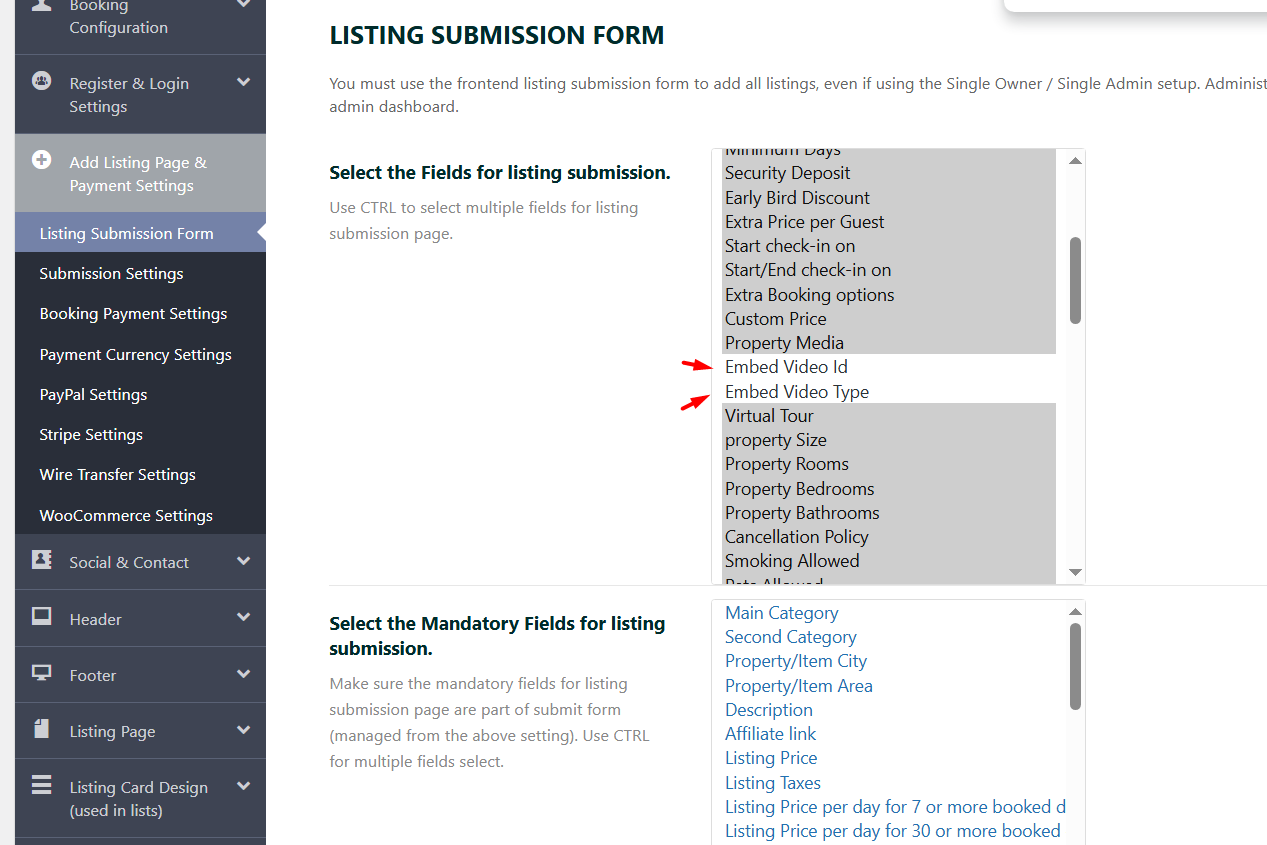
To remove the “Embed Video ID and Embed Video Type” field from the front-end submission form in WpRentals, follow these steps depending on how you want to handle it:

  1. Go to Admin Dashboard → Theme Options.

  2. Click on Add Listing Page & Payment Settings → Select the fields for the listing submission

  3. Look for the field “Embed Video ID and Embed Video Type”.

  4. Use CTRL – Select to un-select both fields

  5. Save changes.

Help – https://help.wprentals.org/article/1-30-how-to-manage-submit-form-fields-and-mandatory-fields/
If you let the video field in the submit form, you can add the Video ID from youtube or Vimeo as in this screenshot from Add Listing -> Images -> Video section. See more details here.

Owner & Renter

Related Articles

  • Why the “User Registration Is Currently Disabled” Message Appears
  • How to Add and Sync Owners from the WordPress Admin in WPRentals
  • Owner Profile Page
  • Login & Register – How to Create Renters / Owners

HELP CATEGORIES

  • 61. General
  • 72. Installation & Basic Setup
  • 363. How Booking Works
  • 20Advanced Search
  • 17Elementor WPRentals Studio
  • 14Email Notifications
  • 23FAQ
  • 14Installation FAQ
  • 10Menu Options
  • 34Owner & Renter
  • 9Page Templates
  • 23Property / Listing
  • 22Shortcodes
  • 4Supported Maps
  • 99Technical how to
  • 5Third Party plugins
  • 4Translation & Multi Languages
  • 3WordPress Blog Post
  • 13WordPress Widgets
  • 12WP Rentals Payments
  • 79WP Rentals Theme Options
  • 26WPML & Weglot

Join Us On

Powered by WP Estate - All Rights Reserved
  • Client Support
  • Video Tutorials
  • WPRentals
  • WPEstate
  • API