
Overview
The WPRentals Grids widget for Elementor lets you display listing taxonomies in a grid layout.
You can use this widget to show items such as cities, areas, property types, or property categories on pages created with Elementor.
This is useful when you want visitors to browse listings by location, type, category, or area from a visual section on your website.
Before You Start
Before using the WPRentals Grids widget, check the following:
- The page is edited with Elementor.
- The WPRentals Elementor Widgets plugin is installed and activated.
- The categories, cities, areas, or property types you want to display already exist.
- If you want images to show in the grid, each taxonomy item must have a featured image added.
Edit the Page with Elementor
Go to the page where you want to add the grid, for example your homepage or a landing page.
- Go to Pages.
- Edit the page where you want to add the grid.
- Click Edit with Elementor.
- Choose the section where the grid should appear, or create a new section.
Add the WPRentals Grids Widget
In the Elementor sidebar, search for:
Grids
Find the WPRentals Grids widget and drag it into the section where you want the grid to appear.
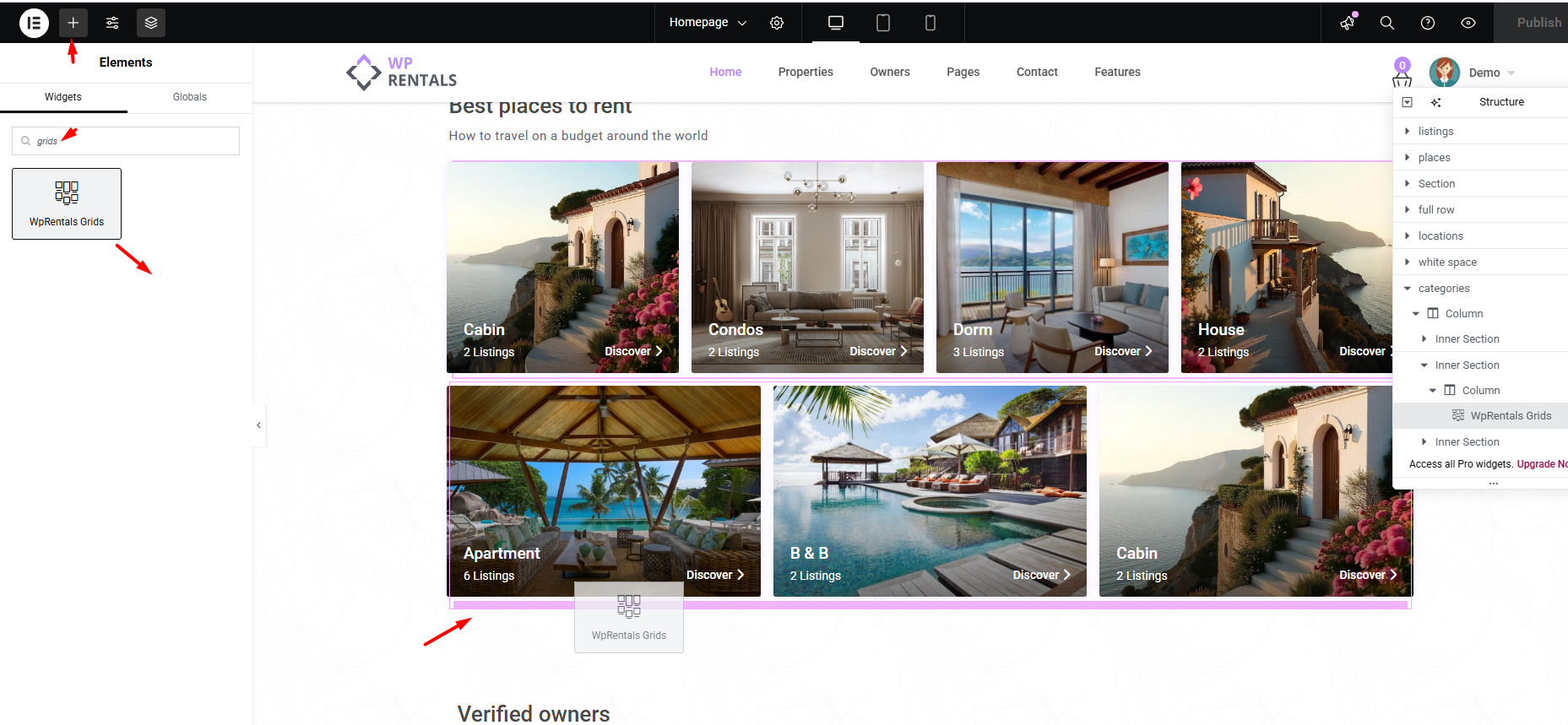
Choose Which Taxonomy Items to Show
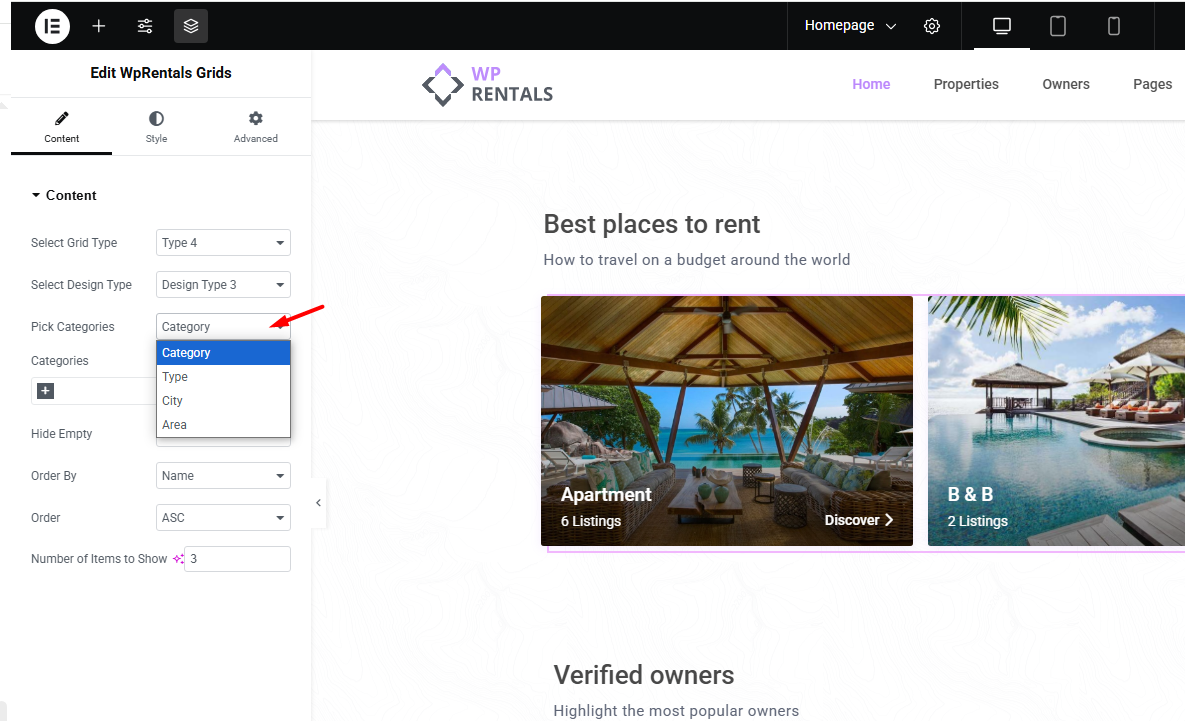
After adding the widget, open the widget Content settings.
From this section, select which taxonomy type you want to display in the grid.
You can display items such as:
- Cities
- Areas
- Property Types
- Property Categories
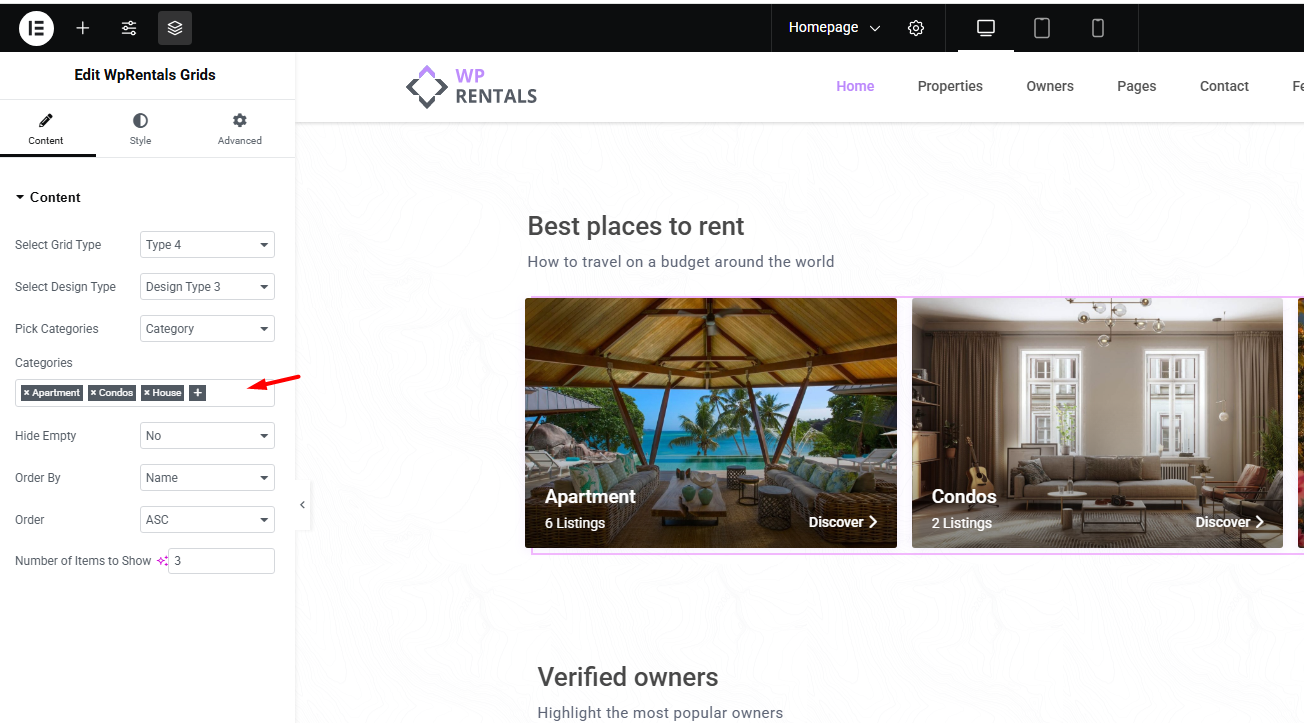
You can choose to show all items from the selected taxonomy or manually select only specific items.
Grid Settings Explained
The widget includes several options that control what appears in the grid and how the grid is organized.
Taxonomy Type
This option controls what type of items the widget displays.
For example, you can display cities, areas, listing types, or listing categories.
Show All or Select Specific Items
Use this option to decide if the widget should display all items from the selected taxonomy or only selected items.
- Use all items when you want the widget to automatically show everything from that taxonomy.
- Use selected items when you want to manually control which categories, cities, areas, or types appear in the grid.
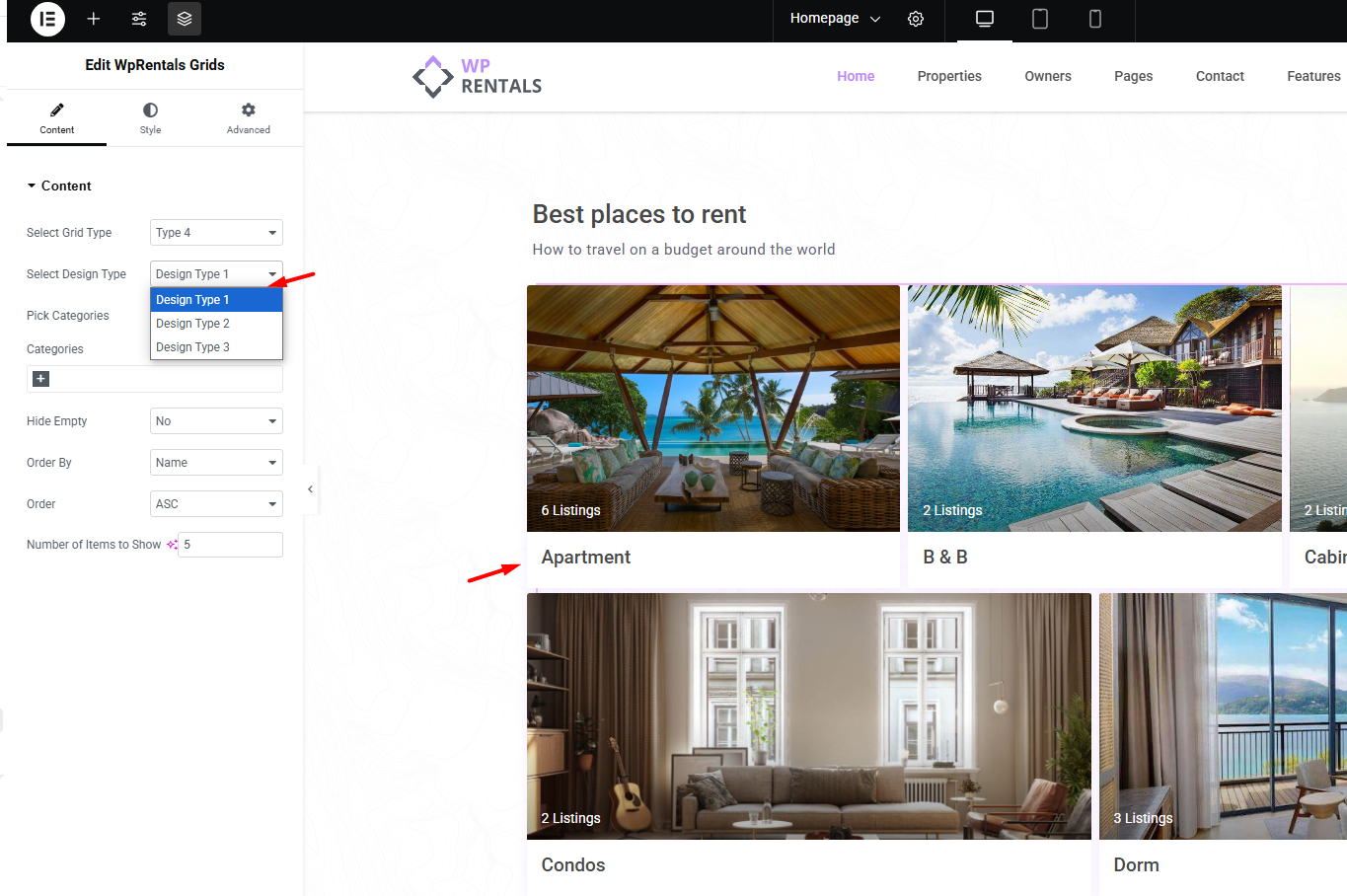
Grid Layout & Design Style
There 2 options control the layout style used for the grid items.
From Grid Type, choose the layout that best matches your page design.
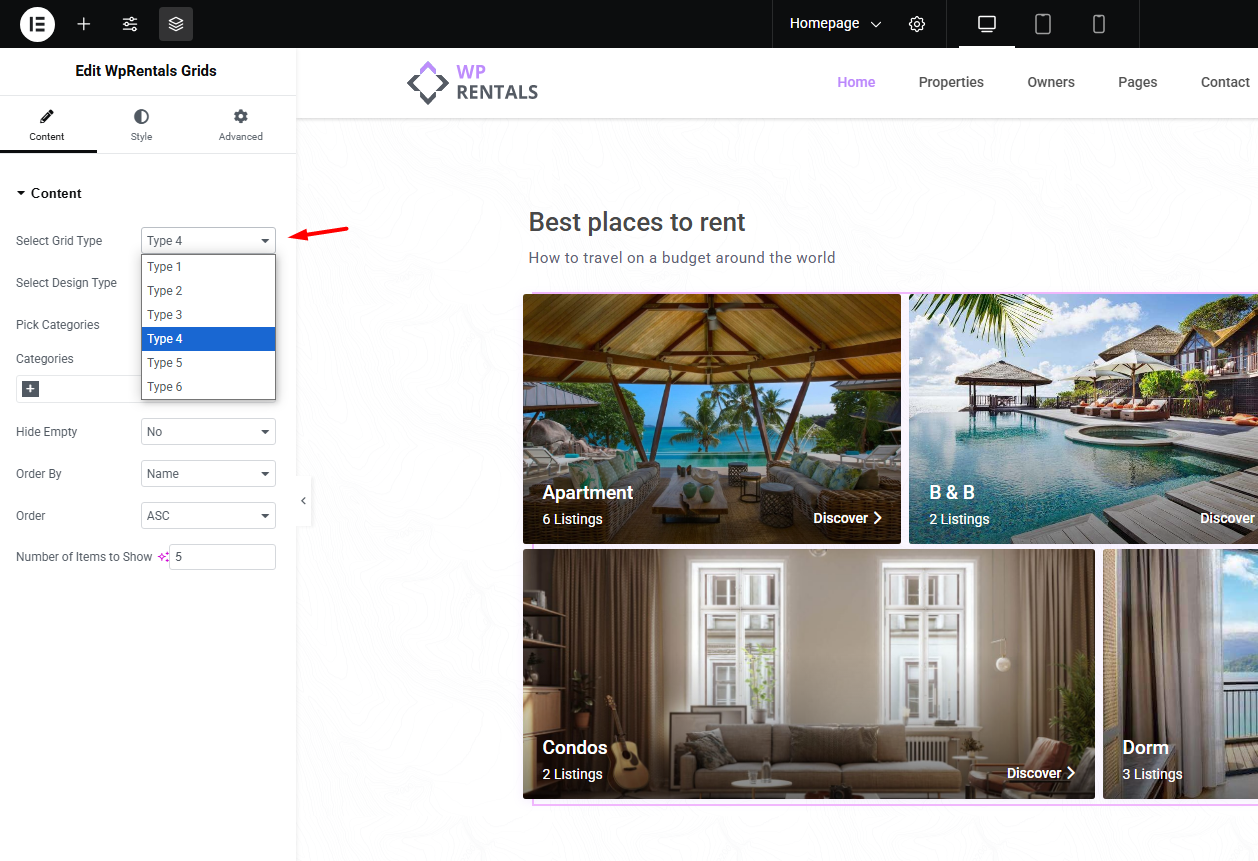
From Design Type, choose between different styles can change how the image, title, count, and overlay appear.
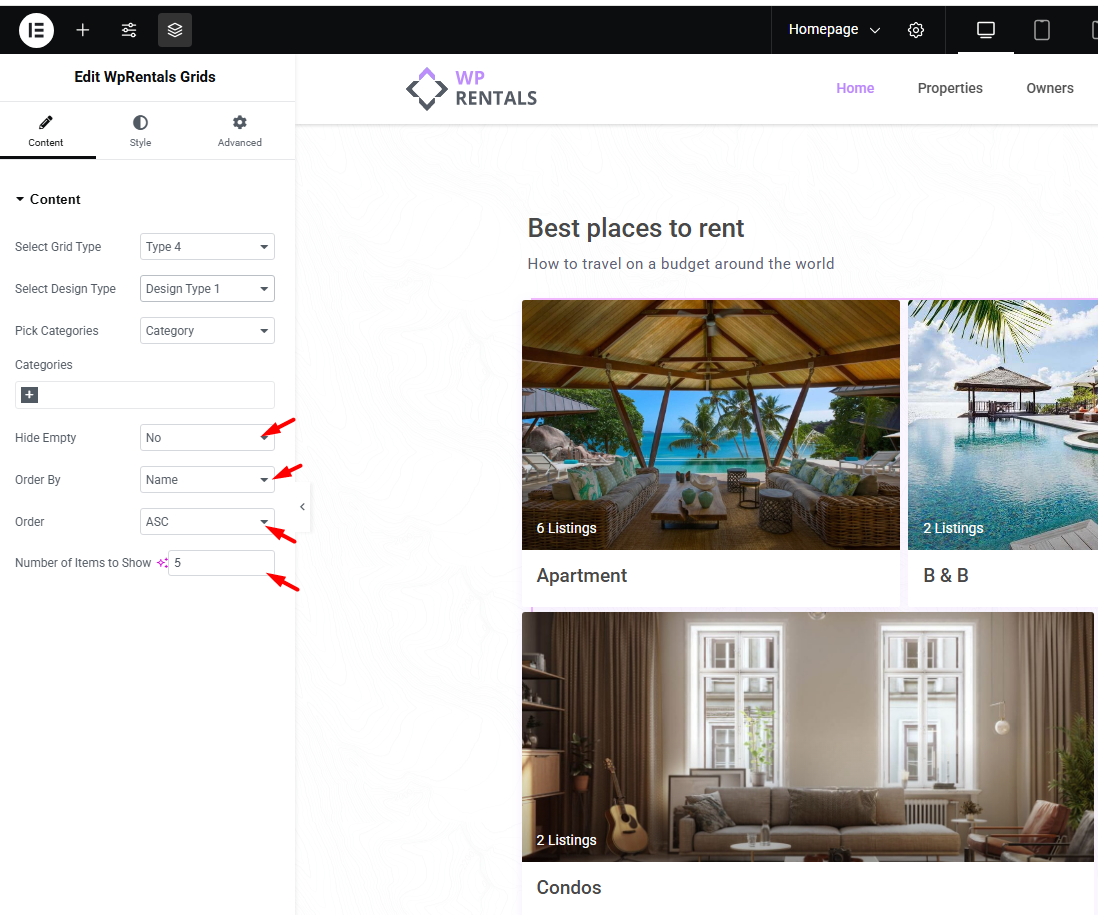
Number of Items
This option controls how many taxonomy items are displayed in the grid.
Hide Empty Categories
This option controls whether taxonomy items with no listings are shown.
- Set this option to Yes if you want to hide categories, cities, areas, or types that do not have listings.
- Set this option to No if you want to show them even when they do not have listings yet.
Order Options
This option controls how the taxonomy items are sorted.
For example, you can order items by name or by listing count, depending on the widget options available in your theme version.
Style the Grid
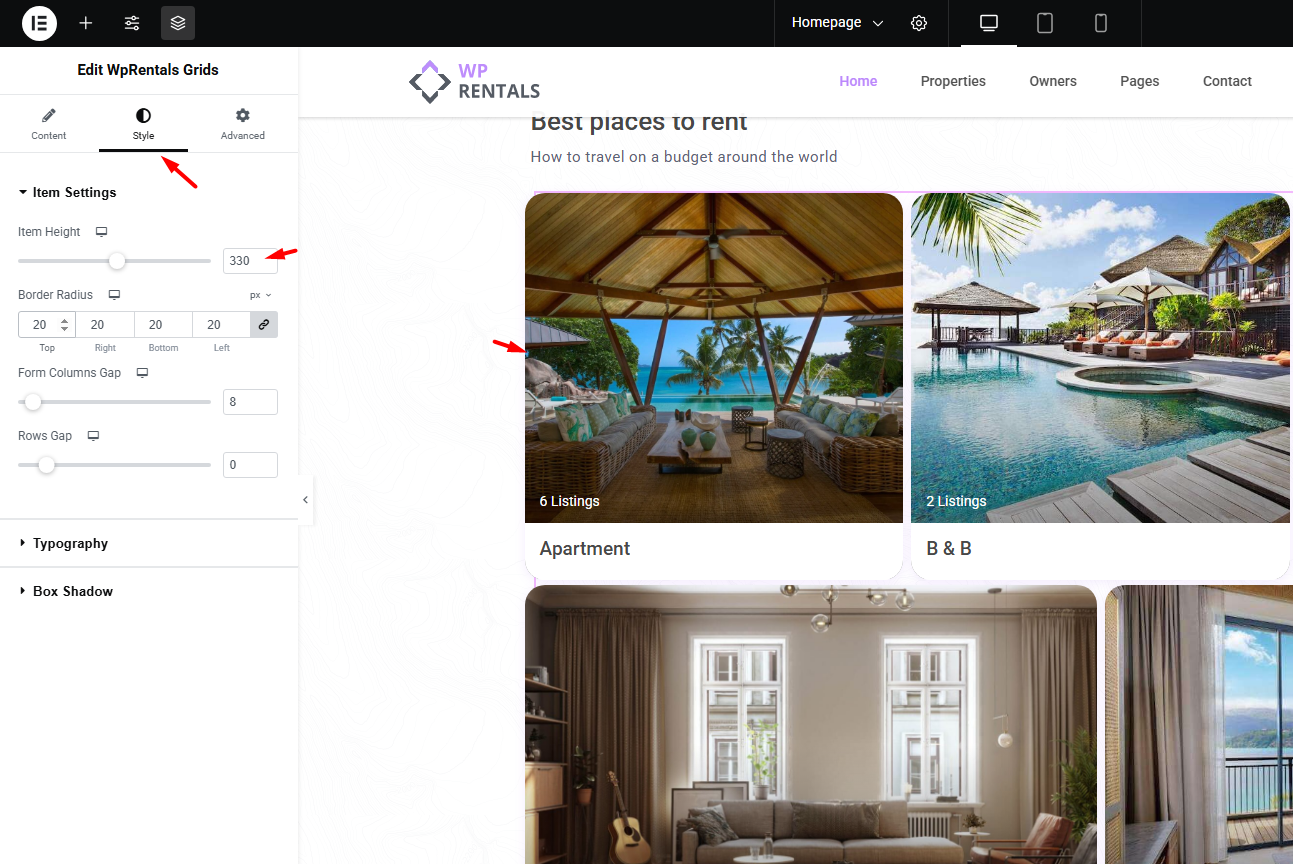
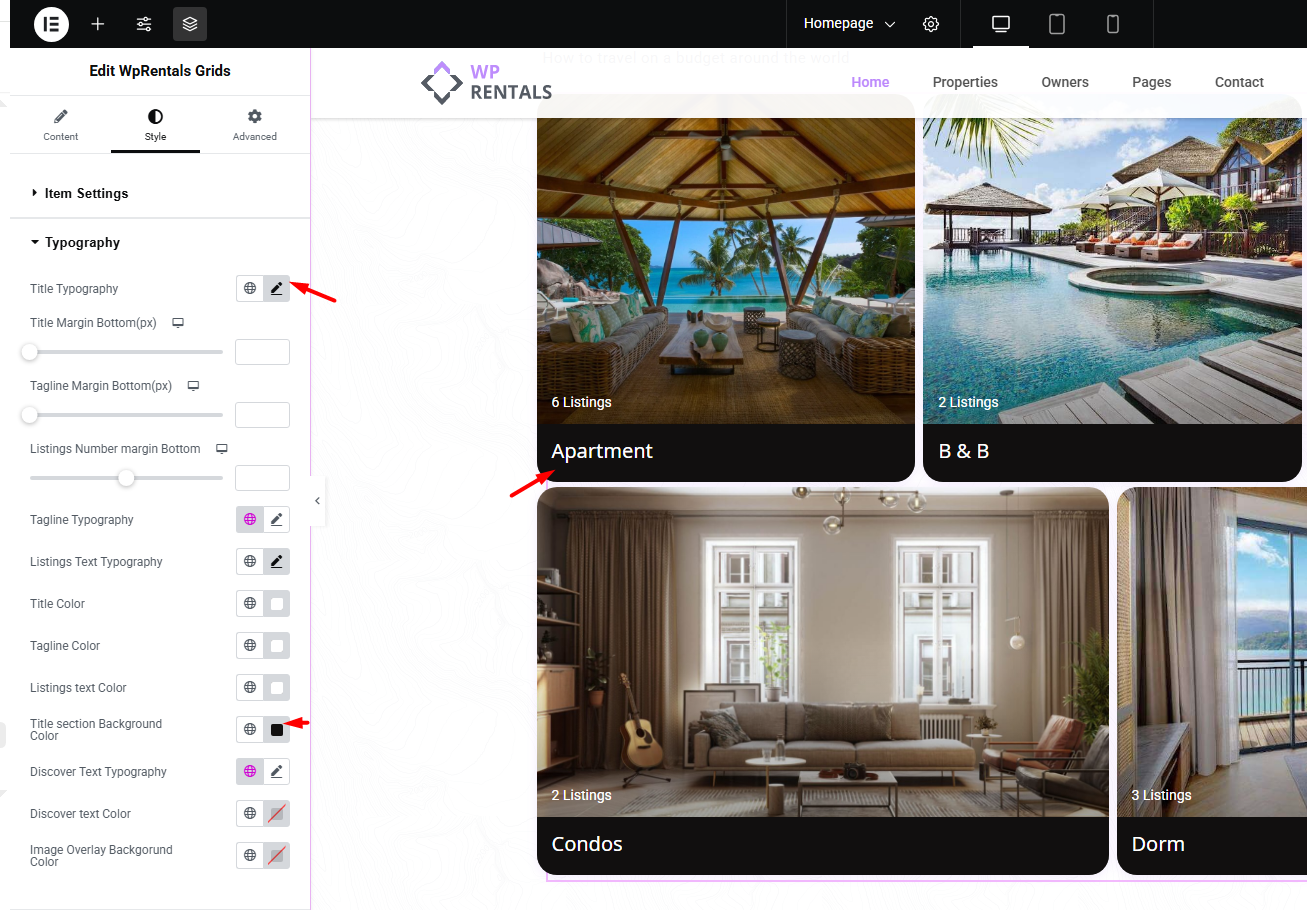
Open the widget Style settings to customize the grid design.
Depending on the widget options, you can manage:
- The height of each grid item
- Border radius for rounded corners
- Spacing between columns and rows
- Text color
- Typography
- Overlay color
- Title position
- Category count style
How to Add Images to Categories
The image shown in the WPRentals Grids widget comes from the taxonomy item image.
For example, if the widget displays cities, the image must be added to the city term. If the widget displays property categories, the image must be added to the category term.
Step 1: Go to the Taxonomy Section
In the WordPress dashboard, go to:
Listings, Bookings & More
Then open the taxonomy you want to edit, such as:
- Categories
- Types
- Cities
- Areas

Step 2: Edit or Add a Taxonomy Item
To add an image to an existing item, hover over the item name and click Edit.
To create a new item, add the name in the form and click the button to add the new taxonomy item.


Step 3: Set the Featured Image
In the taxonomy edit screen, find the option to upload or set the Featured Image.
- Click Upload/Add Image.
- Choose an existing image from the Media Library or upload a new image.
- Save the taxonomy item by clicking Update.

Image Tips for Grid Items
- Use images with a similar size and orientation for a cleaner grid design.
- Use large enough images so they do not look blurry on desktop screens.
- Use images that match the taxonomy item. For example, use a city image for a city term.
- If a grid item shows without an image, check that the taxonomy item has a featured image saved.
- After changing taxonomy images, clear cache and refresh the page.
Troubleshooting
The widget does not appear in Elementor
- Make sure the WPRentals Elementor Widgets plugin is installed and activated.
- Make sure Elementor is installed and active.
- Update WPRentals theme and WPRentals plugins to compatible versions.
The grid does not show the expected categories
- Check that the correct taxonomy type is selected in the widget.
- Check if the widget is set to show all items or only selected items.
- If Hide Empty Categories is enabled, taxonomy items without listings will not show.
- Check that the listings are assigned to the correct categories, cities, areas, or types.
The category image does not show
- Edit the taxonomy item and check that a featured image is saved.
- Check if the image still exists in the Media Library.
- Clear cache and reload the page.
The grid layout does not look correct
- Check the widget layout and style settings.
- Check Elementor section or container width.
- Adjust item height, spacing, and image sizes.
- Test the page on desktop, tablet, and mobile.
Important Notes
- The WPRentals Grids widget is an Elementor widget.
- The widget displays taxonomy items, not individual listings.
- The widget can display cities, areas, property types, or property categories.
- The displayed image comes from the taxonomy item featured image.
- If Hide Empty Categories is enabled, empty taxonomy items will not show in the grid.
- If a taxonomy item has no featured image, the grid item may show without the expected image.
- The grid design is controlled from the Elementor widget settings.
- After changing images, widget settings, or taxonomy details, clear cache and test the page again.