
Overview
WPRentals supports creating pages with Elementor Free and the WPRentals Elementor Widgets plugin.
The WPRentals Elementor Widgets plugin adds WPRentals-specific widgets inside Elementor, so you can use theme design elements, listing widgets, search widgets, and WPRentals shortcodes while editing a page visually.
You can also import ready-made WPRentals Elementor templates directly into your Elementor pages.
What You Can Do With Elementor and WPRentals Widgets
Elementor lets you create and edit pages visually. The WPRentals Elementor Widgets plugin adds theme-specific widgets that are designed to work with WPRentals.
You can use Elementor and WPRentals widgets to:
- Create custom pages with drag-and-drop sections.
- Add WPRentals listing, search, owner, contact, and design widgets.
- Import prebuilt WPRentals Elementor templates.
- Edit page content, spacing, colors, typography, and responsive settings.
- Create layouts with Elementor Free. Elementor Pro is optional and is not required for the WPRentals Elementor Widgets plugin.
Install Elementor
Elementor is a free page builder plugin available from the WordPress plugin repository.
https://wordpress.org/plugins/elementor/
To install Elementor:
- Go to Plugins > Add New.
- Search for Elementor.
- Install the Elementor Website Builder plugin.
- Click Activate.
Install the WPRentals Elementor Widgets Plugin
The WPRentals Elementor Widgets plugin is optional. Install it only if you want to build pages with Elementor and use WPRentals-specific Elementor widgets.
To install it:
- Install and activate the WPRentals theme.
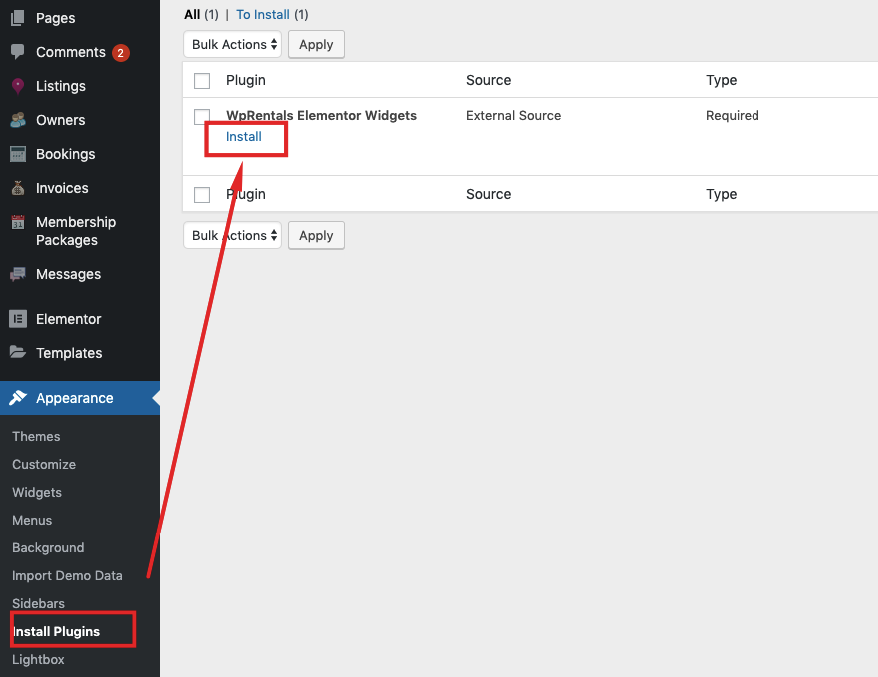
- Go to Appearance > Install Plugins.
- Find WPRentals Elementor Widgets.
- Click Install.
- Click Activate.
How to install WPRentals theme and included plugins
Create a Page With Elementor
To create a new page with Elementor:
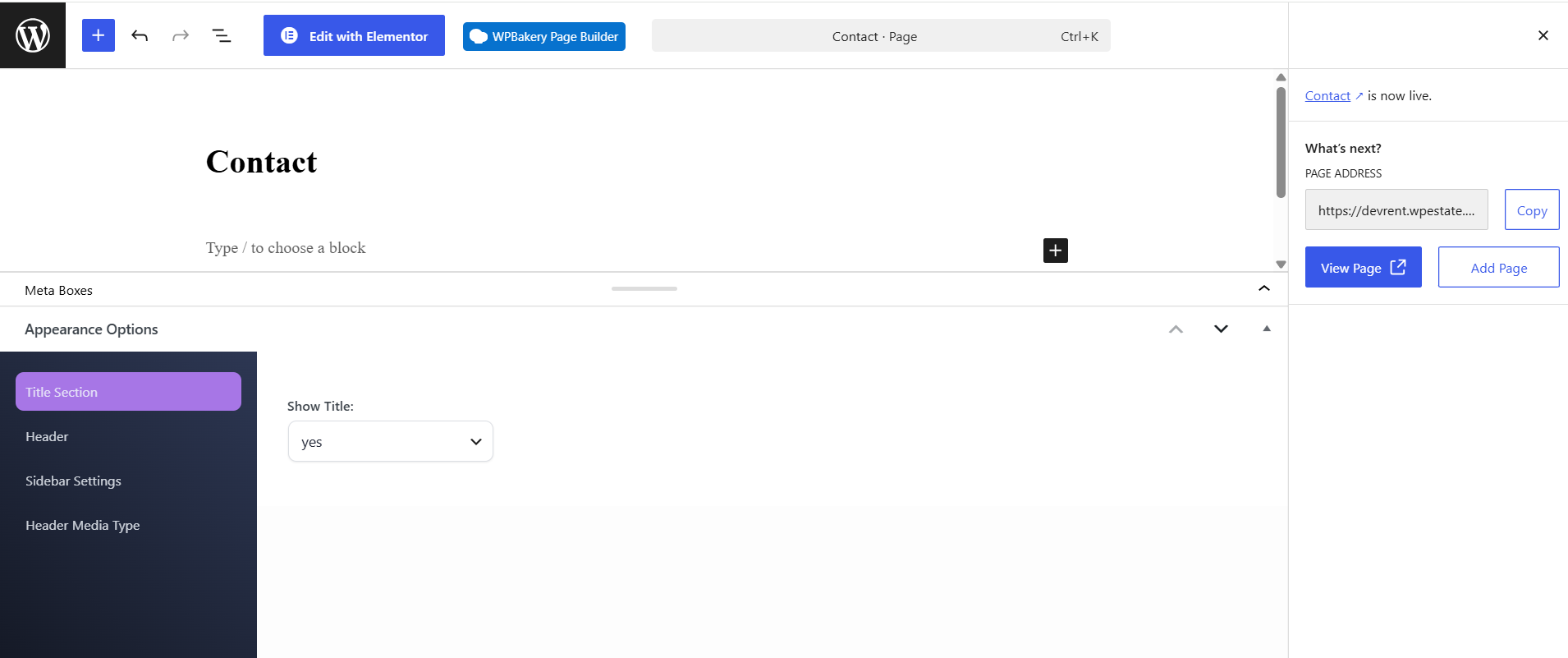
- Go to Pages > Add New.
- Add a page title.
- Click Edit with Elementor.
- Start building the page with Elementor widgets and WPRentals widgets.
- Click Publish or Update when you finish editing.
Find the WPRentals Elementor Widgets
After Elementor and the WPRentals Elementor Widgets plugin are active, the WPRentals widgets will be available inside the Elementor editor.
To find them:
- Open a page with Edit with Elementor.
- Look in the Elementor left panel.
- Find the WPRentals widget section.
- Drag the widget you need into the page layout.
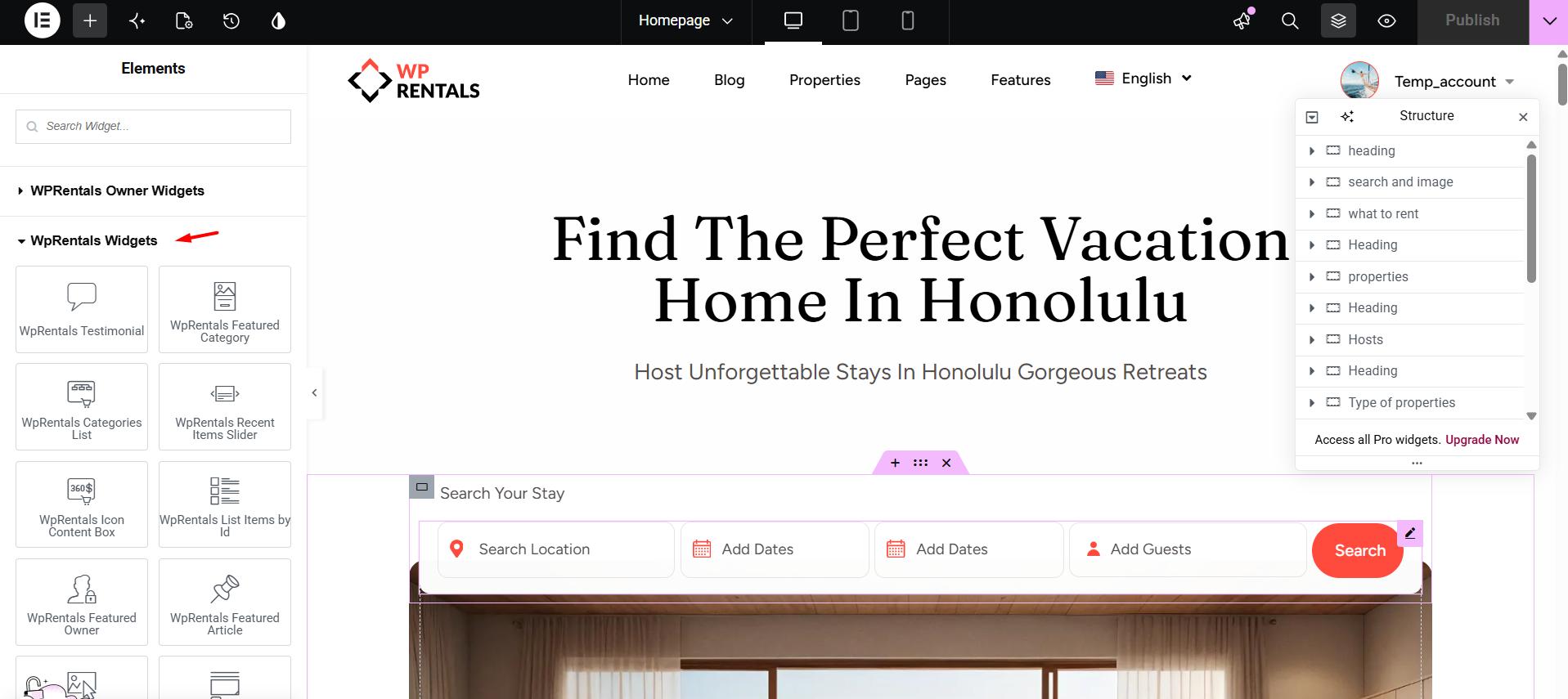
Examples of WPRentals Elementor widgets can include listing widgets, search widgets, contact widgets, owner widgets, and design widgets. The exact widgets available depend on the active WPRentals plugins and theme version.
Import WPRentals Elementor Templates
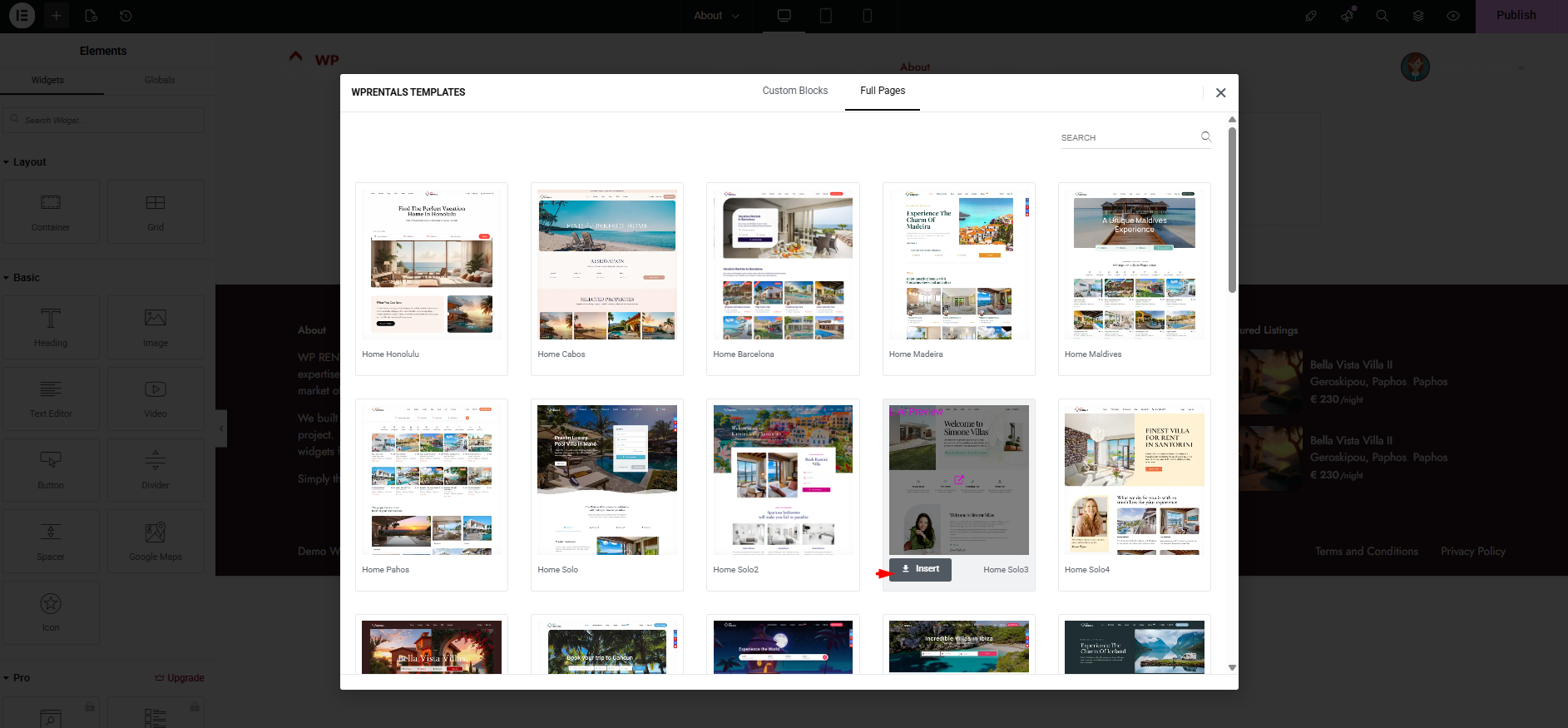
You can import ready-made WPRentals Elementor templates directly from the Elementor editor.
This allows you to use page sections or layouts from WPRentals demos, even if your website was imported with a different demo.
To import a template:
- Go to Pages > Add New.
- Add a page title.
- Click Edit with Elementor.
- In the Elementor editor area, click the WPRentals Templates tab/icon.
- Choose the template design you want.
- Click Insert.
- Customize the content with Elementor.
- Click Publish or Update.

Important Editing Rules
To avoid layout or content issues, follow these rules when working with Elementor pages:
- Use Elementor for pages created with Elementor.
- Use WPBakery only for pages created with WPBakery.
- Do not edit the same page with multiple builders.
- Do not switch an existing WPBakery page to Elementor unless you plan to rebuild the page content.
- Do not switch an existing Elementor page to Gutenberg or WPBakery unless you plan to rebuild the page content.
- After importing a template, edit the page content only from Elementor.
Elementor Server Requirements and Troubleshooting
If Elementor does not save correctly, shows an error, or returns a server error, check Elementor’s official documentation and your server limits.
For Elementor pages to work correctly, your server must meet Elementor’s requirements and WPRentals theme requirements.
If you see server errors while saving Elementor pages, check:
- PHP memory limit
- Max execution time
- Server security rules
- ModSecurity or firewall restrictions
- Active third-party plugins
- Browser console errors
- Plugin, server, or CDN cache
Important Notes
- WPRentals works with Elementor Free.
- Elementor Pro is optional and is not required for the WPRentals Elementor Widgets plugin.
- The WPRentals Elementor Widgets plugin is optional and should be installed only if you want to build pages with Elementor.
- WPRentals widgets appear inside Elementor only after the WPRentals Elementor Widgets plugin is installed and activated.
- You can import ready-made WPRentals Elementor templates from the Elementor editor.
- Imported templates must be reviewed and customized before using them live.
- Use one editor per page. Do not mix Elementor, Gutenberg, and WPBakery on the same page.
- If Elementor does not save, check server requirements, plugin conflicts, security rules, and cache.
- After making design changes, clear cache and test the page on desktop, tablet, and mobile.