
This help explains how the Listing Taxes field works in WPRentals, where the field is enabled, where owners add the tax value, and what the difference is between WPRentals taxes and WooCommerce taxes.
1. Enable the Listing Taxes Field in the Submit Form
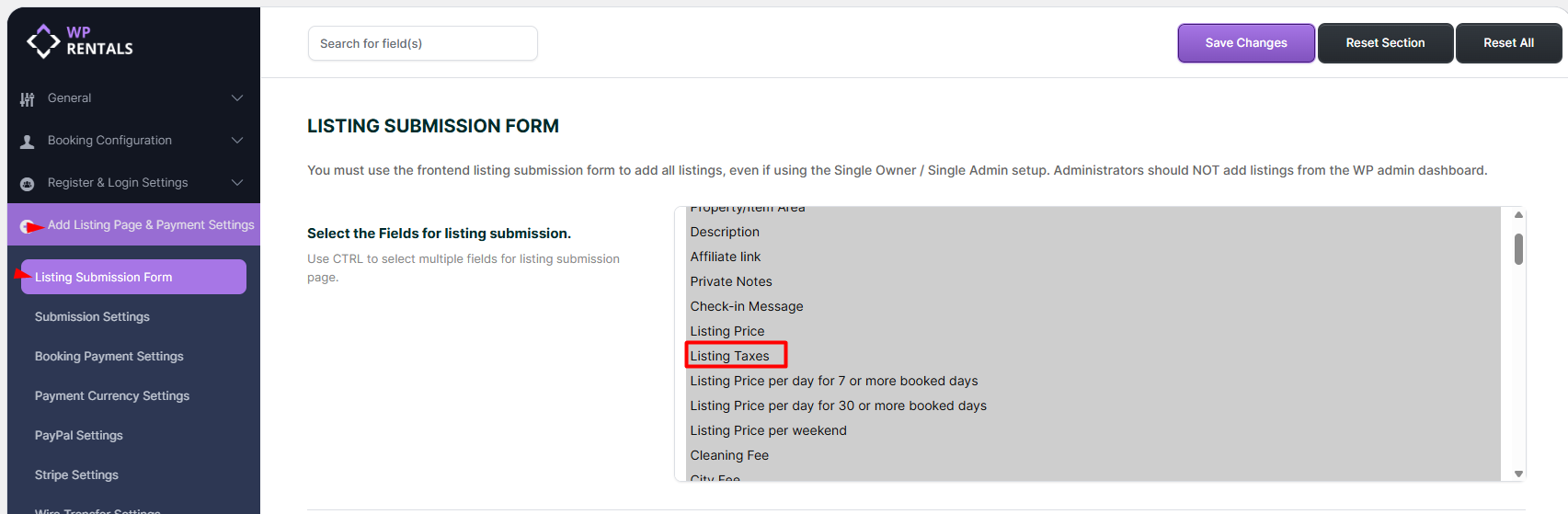
The site admin must first make sure the Listing Taxes field is available in the front-end listing form.
Go to:
Theme Options > Add Listing Page & Payment Settings > Listing Submission Form > Select the Fields for Listing Submission
Select the Listing Taxes field and save the settings.
2. Add the Tax Percentage in the Listing Price Settings
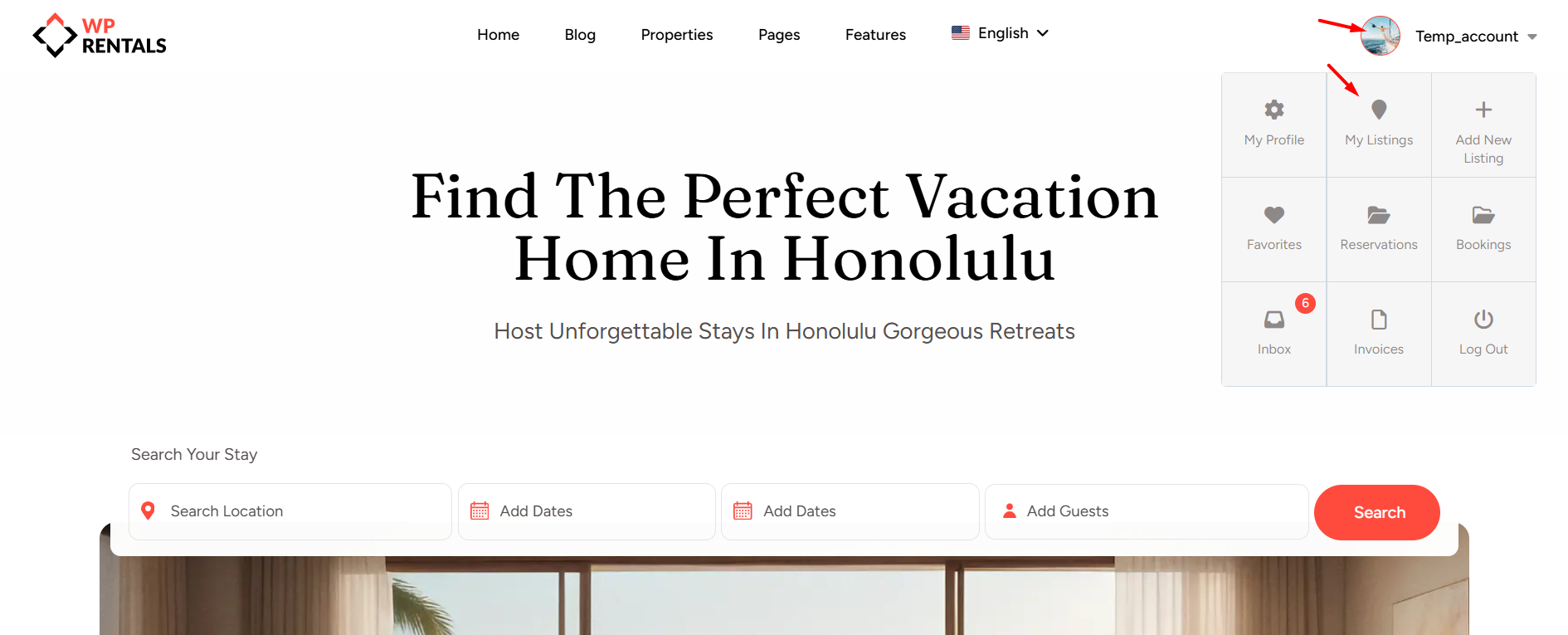
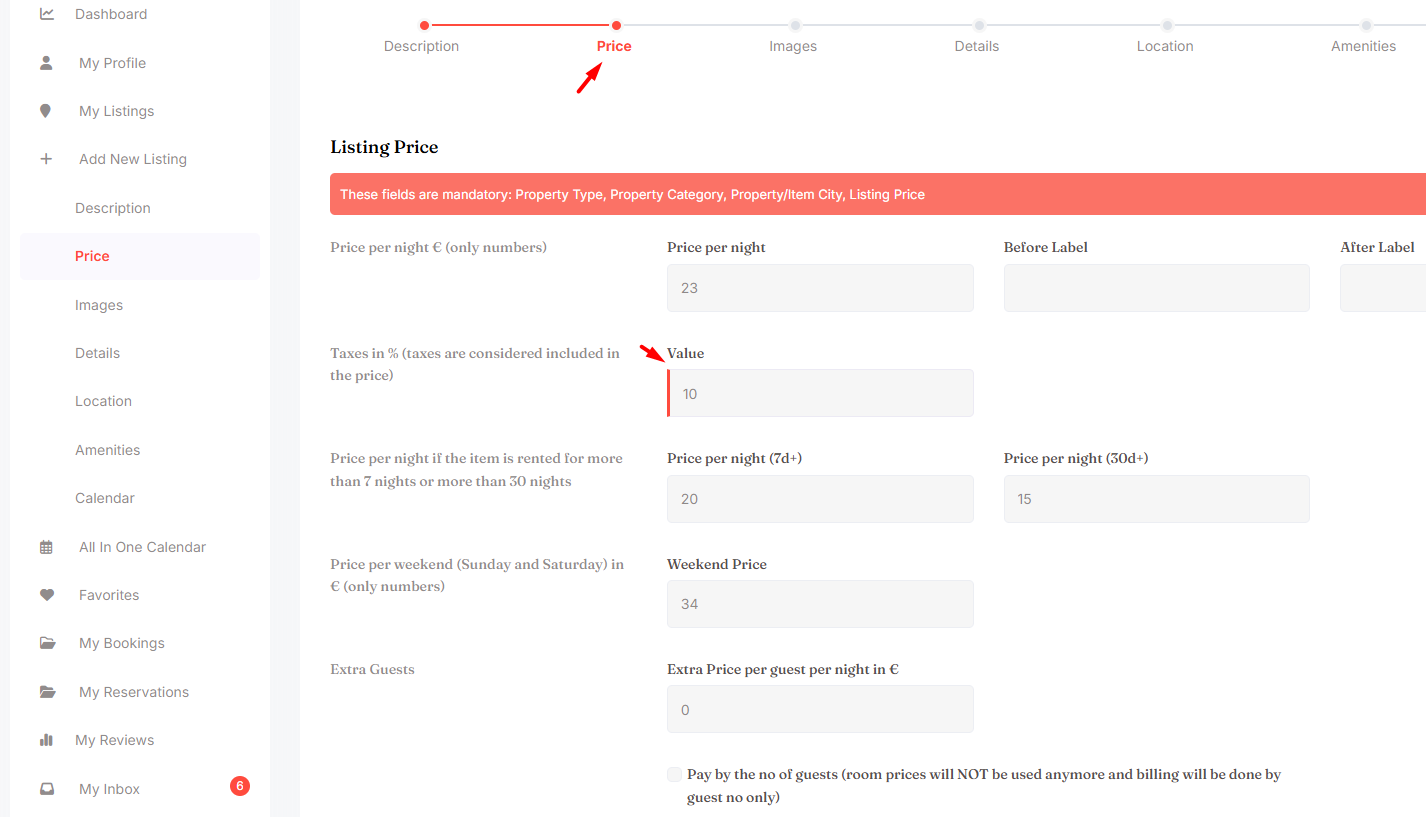
After the field is enabled, the listing owner or site admin can add the tax percentage from the front-end User Dashboard.
Go to:
User Dashboard > My Listings > Add New Listing > Price
or:
User Dashboard > My Listings > Edit Listing > Price
3. How WPRentals Taxes Are Used
In WPRentals, the tax value is added as a percentage in the listing price settings.
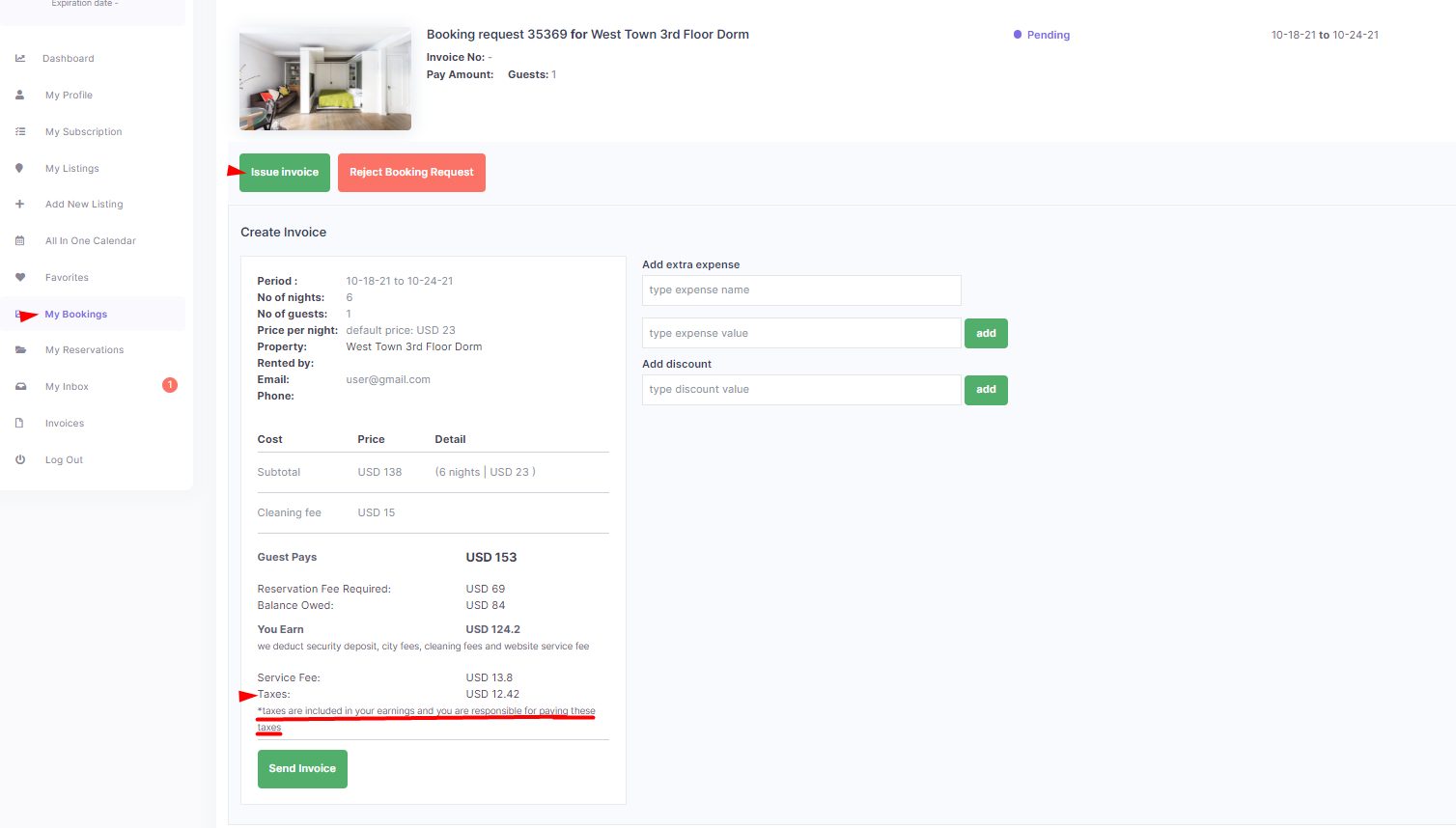
This tax is used in the owner invoice details to help calculate and display the owner earnings breakdown.
The tax amount:
- appears in the owner invoice details
- helps the owner understand the net earnings calculation
- is calculated from the owner earnings value
- is Not added to the renter total in the WPRentals theme invoice
4. Where Taxes Show in the Invoice
The calculated tax amount appears in the owner invoice details.
This helps the owner understand how the invoice values are calculated and how net earnings are shown.
5. Tax Calculation Formula
WPRentals calculates taxes from the owner earnings value.
Owner earnings = total price – security deposit – city fee – cleaning fee – service fee
Taxes = owner earnings × tax percentage / 100
The tax percentage is the value added in the listing price settings.
Help article on how to understand the invoice details for owner and guest
6. If You Need Taxes Added to the Renter Total
The WPRentals Listing Taxes field does not add tax to the renter total in the theme invoice.
If you need taxes to be added during checkout and included in the amount paid by the renter, use WooCommerce taxes.
When WooCommerce is used for payments:
- taxes can be configured in WooCommerce
- taxes are applied during WooCommerce checkout
- the tax amount is included in the WooCommerce order/invoice
- the WooCommerce tax amount does not appear inside the WPRentals theme invoice
Help article on how to install WooCommerce and use WooCommerce payments
WooCommerce documentation about setting up taxes
Important Notes
- The site admin enables the Listing Taxes field from Theme Options.
- The owner or site admin adds the tax percentage from User Dashboard > My Listings > Add New Listing / Edit Listing > Price.
- WPRentals taxes are shown in the owner invoice details.
- WPRentals taxes are used for the owner earnings breakdown.
- WPRentals taxes are not added to the renter total in the theme invoice.
- To charge taxes to the renter at checkout, use WooCommerce tax settings.
- WooCommerce taxes appear in the WooCommerce order/invoice, not in the WPRentals theme invoice.
Related Help
Help article on how to understand the invoice details for owner and guest