WP Rentals Help WP Rentals Help

  • Client Support
  • Video Tutorials
  • WpRentals
  • WpEstate
  • API
Home / Shortcodes / How to manage the Call to Action Widget for Elementor

How to manage the Call to Action Widget for Elementor

5 views
You’ll learn how to manage and customize the Call to Action Widget from the WP Rentals theme using Elementor. Watch Video on Youtube

The Call to Action widegt is avaiable for Elementor and you can use it in any page created with Elementor.

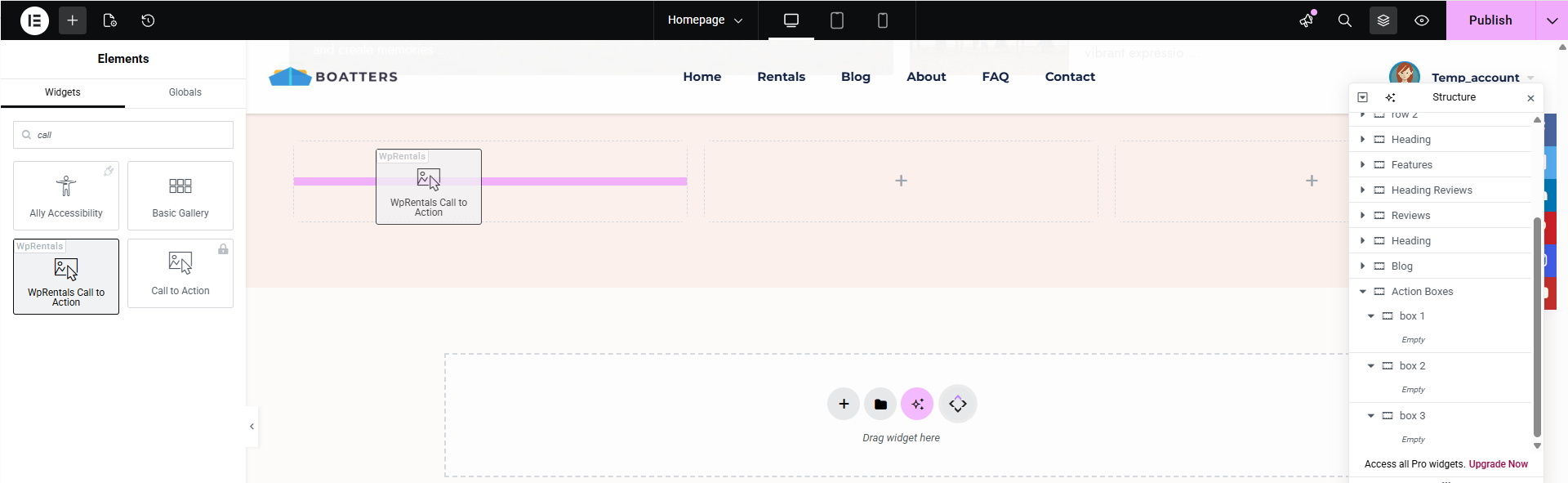
The widegt can be added with Drag and Drop

The widegt will have 3 sections: Image, Content, and Ribbon

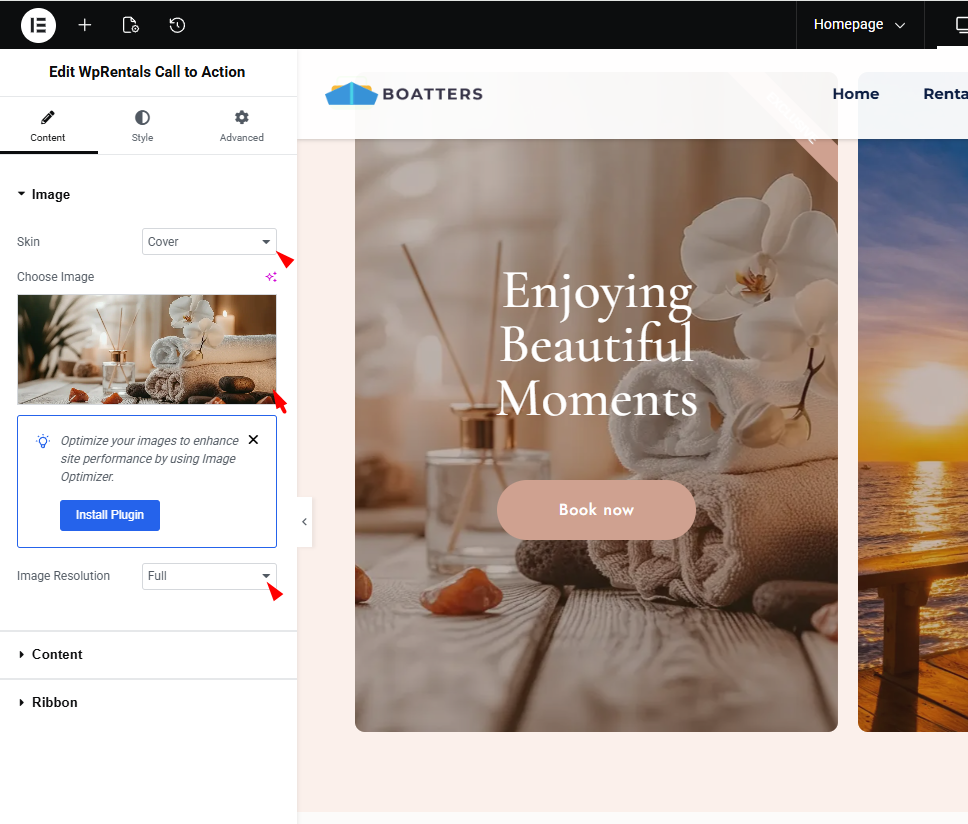
In the Image section, you can upload the image that will show, the skin and the image size

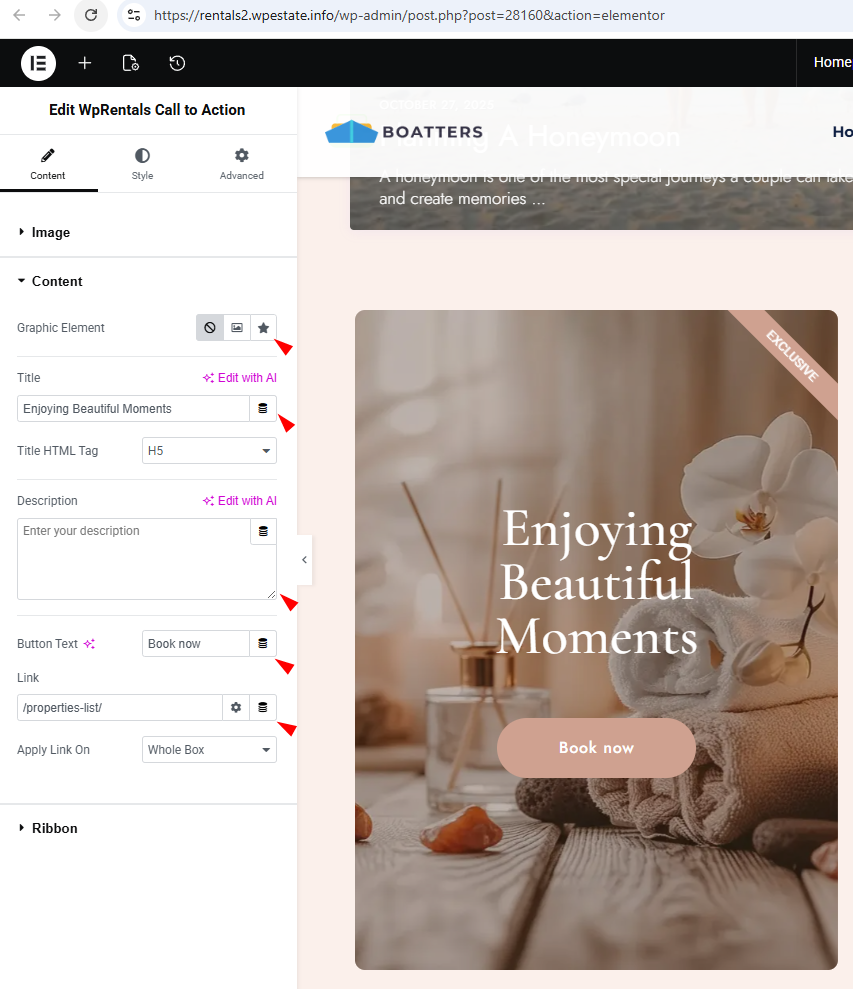
In the Content section, you can set box elements like text and button settings.

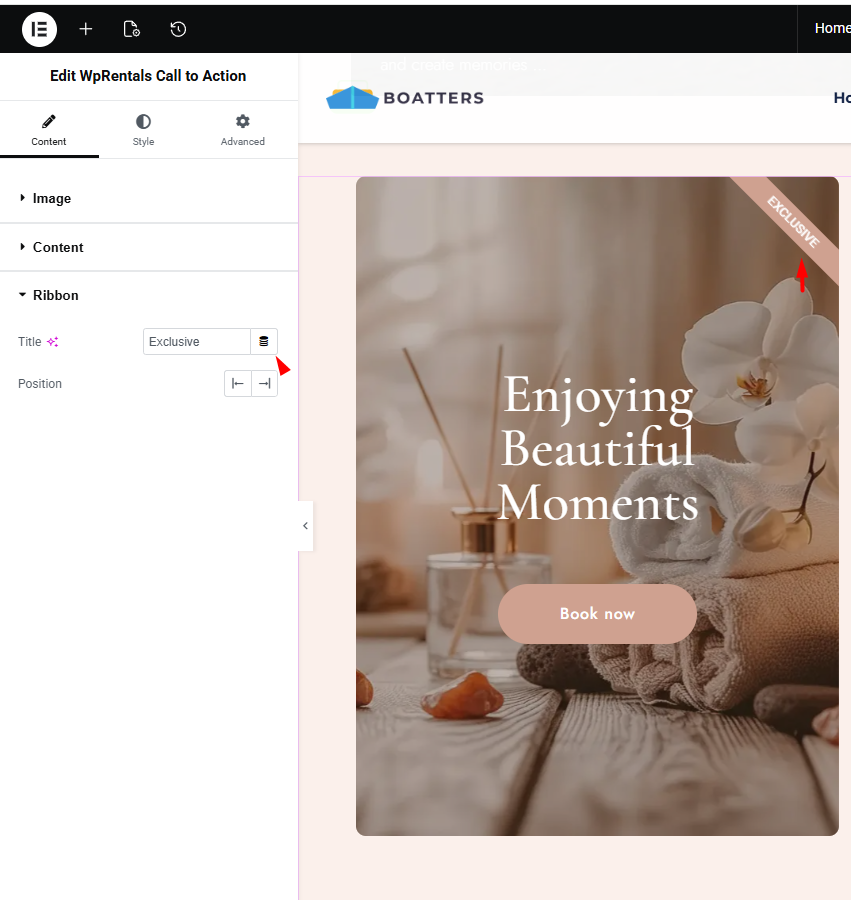
In the Ribbon section, you can set a label that will show over the box


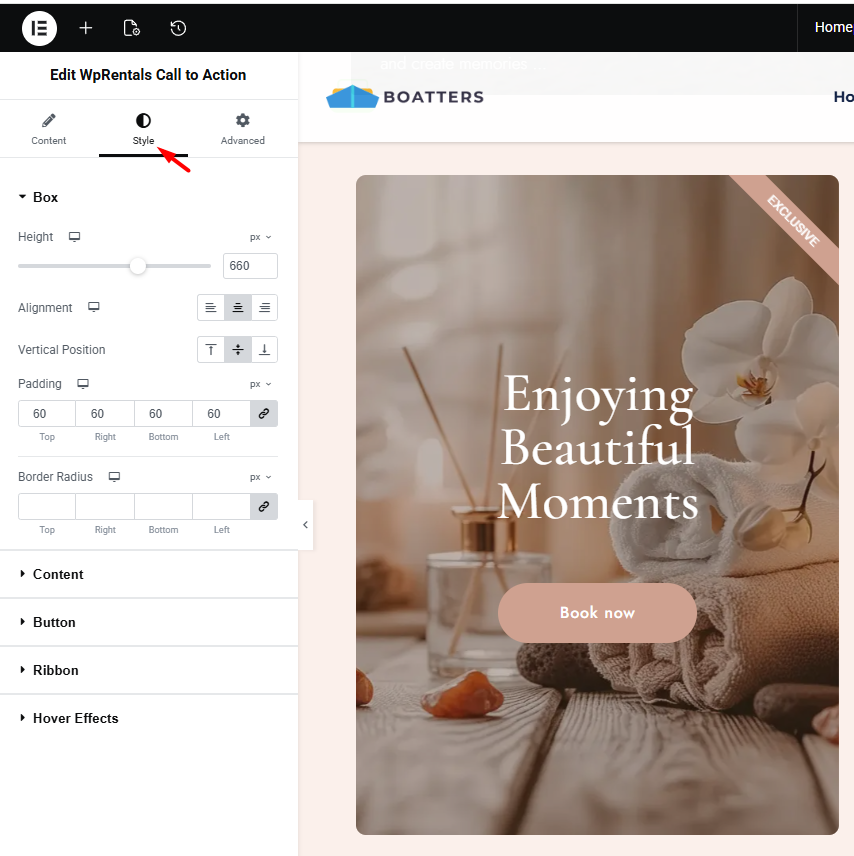
In the Style section, you can make design settings: box height, change color, text typography, and set hover effects

Shortcodes

Related Articles

  • How to create a custom contact form with the WpRentals Contact form builder for Elementor
  • How to Manage the WP Rentals Map with Listings Widget
  • How to use the WP Rentals Grids widget for Elementor
  • How to work with the WPRentals Tabs widget

HELP CATEGORIES

  • 71. General
  • 102. Installation & Basic Setup
  • 393. How Booking Works
  • 20Advanced Search
  • 19Elementor Free & WP Rentals Studio
  • 13Email Notifications
  • 10FAQ
  • 14Installation FAQ
  • 10Menu Options
  • 27Multi-Languages - 3rd party
  • 32Owner & Renter
  • 9Page Templates
  • 24Property / Listing
  • 22Shortcodes
  • 4Supported Maps
  • 97Technical how to
  • 5Third Party plugins
  • 3Translation
  • 3WordPress Blog Post
  • 13WordPress Widgets
  • 12WP Rentals Payments
  • 78WP Rentals Theme Options

Join Us On

Powered by WP Estate - All Rights Reserved
  • Client Support
  • Video Tutorials
  • WpRentals
  • WpEstate
  • API