
Read from file for Google Maps pins helps improve site performance, especially when displaying 200+ properties on the map.
How It Works
Go to Theme Options > Map Configuration > Number of Pins Settings and set Use file reading for pins to YES.
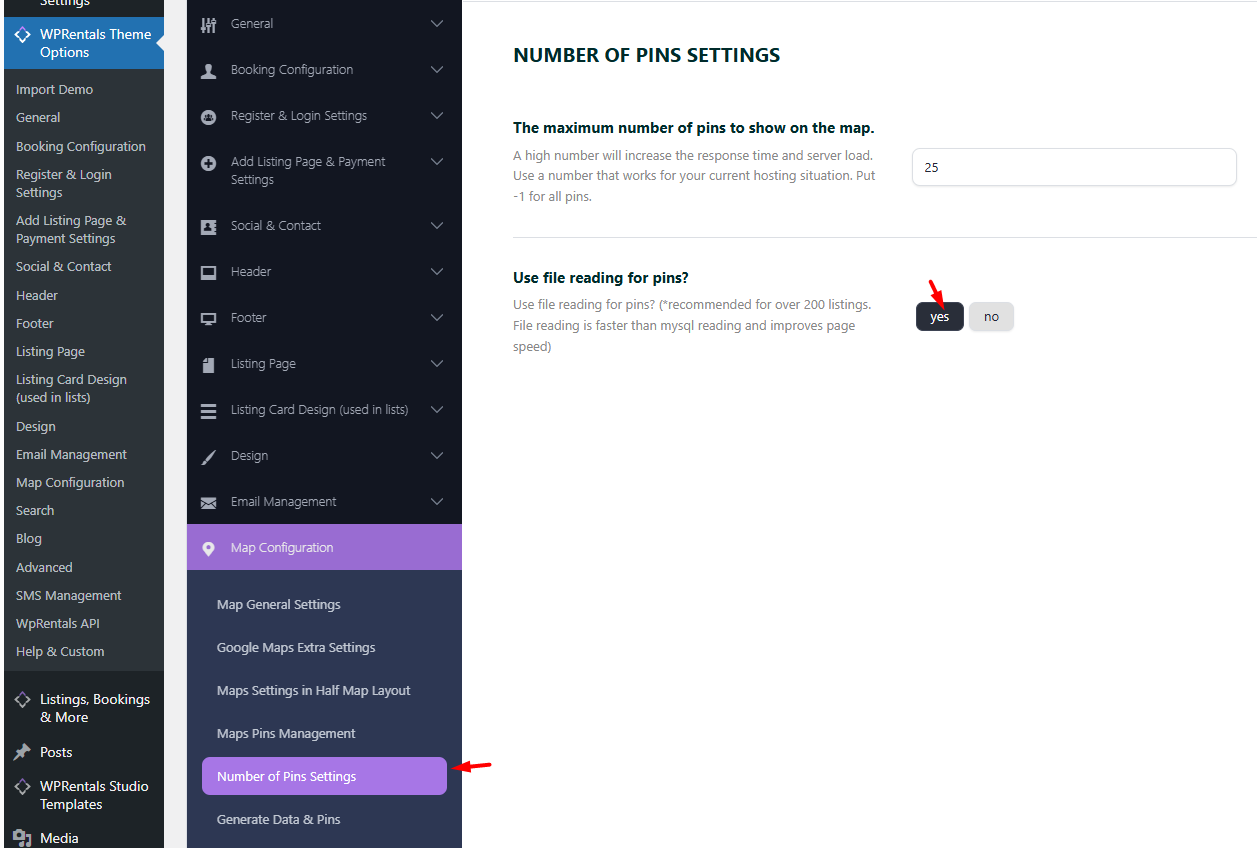
Once Enabled, the Following Applies
- pins.txt File Permissions The pins.txt file located in the theme folder must be writable. The recommended permission is 755. Learn how to change file permissions: http://codex.wordpress.org/Changing_File_Permissions
- Automatic Pin Generation A daily cron job automatically generates new map pins for newly added properties.
- Manual Pin Generation You can also generate the pins manually from Theme Options > Map Configuration > Generate Data & Pins. The data is generated when you open Theme Options, and you can save it by clicking Save Changes.
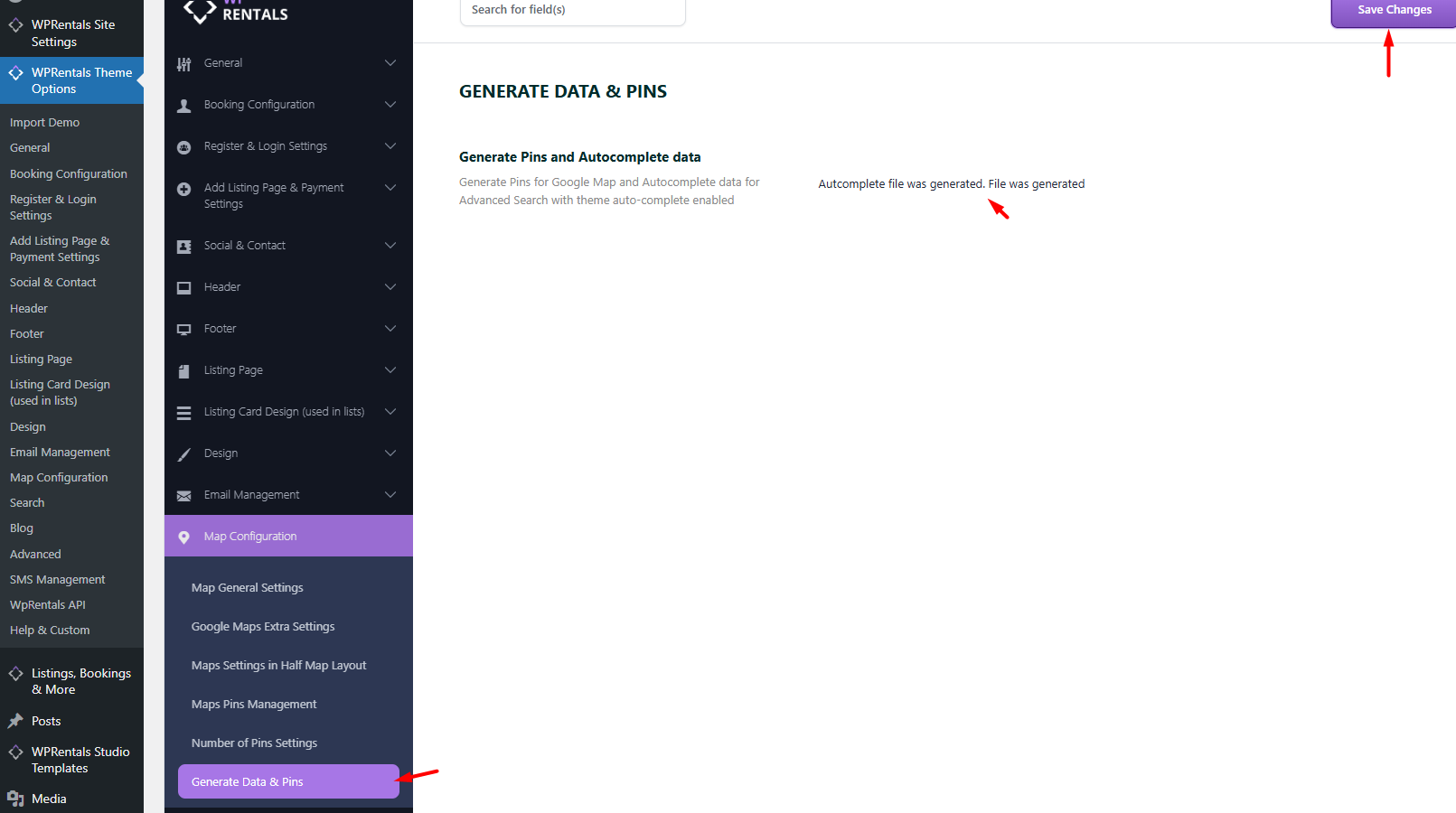
File Does Not Exist or Is Not Writable
This feature may fail in the following situations:
a. File Permissions Issue The pins.txt file does not have proper write permissions. Solution: Set permissions to 755. Guide on File Permissions
b. Modified Theme Name You renamed the theme folder. This feature requires the original theme folder name, for example wprentals. Rename the theme folder back to its default name.
c. Incorrect Theme Installation The theme may have been installed with an incorrect folder structure such as theme-name/theme-name. Reinstall the theme so the folder structure is only wprentals/.
Note These steps are needed only if you plan to use the Read from file option.
Using a Multilanguage Plugin?
If you use a multilingual setup, follow this guide to make sure pins are created correctly for each language: Help Article: pins.txt with Multilanguage Support
How the Pin Limit Works in Practice
Read from File = YES
In this mode, the pin limit set in Number of Pins Settings applies to the following pages:
- Property List Standard with Header Map – the map shows the same number of pins as the value set in Number of Pins Settings per page.
- Property List Half Map – the map shows the same number of pins as the value set in Number of Pins Settings per page.
- Taxonomy pages (List or Half Map) – the map shows the same number of pins as the value set in Number of Pins Settings per page.
- Search Results (Standard or Half Map) – the map shows the same number of pins as the value set in Number of Pins Settings per page.
- Key Difference: With Read from File enabled, the global Header Google Maps shows all pins, regardless of the limit set in Number of Pins Settings.