
Overview
The WPRentals Featured Article widget allows you to highlight one specific blog post or article on any page.
You can use this widget to promote important content, announcements, travel tips, news updates, or any article you want visitors to notice first.
Before You Start
Before adding the Featured Article widget, check the following:
- The blog post or article you want to display already exists.
- The article is published.
- The article has a featured image if you want an image to show in the card.
- The page is edited with Elementor or WPBakery.
How to Add the Featured Article Widget in Elementor
Step 1: Edit the Page with Elementor
- Go to the page where you want to add the featured article.
- Click Edit with Elementor.
- Select the section where the featured article should appear, or create a new section.
Step 2: Add the Widget
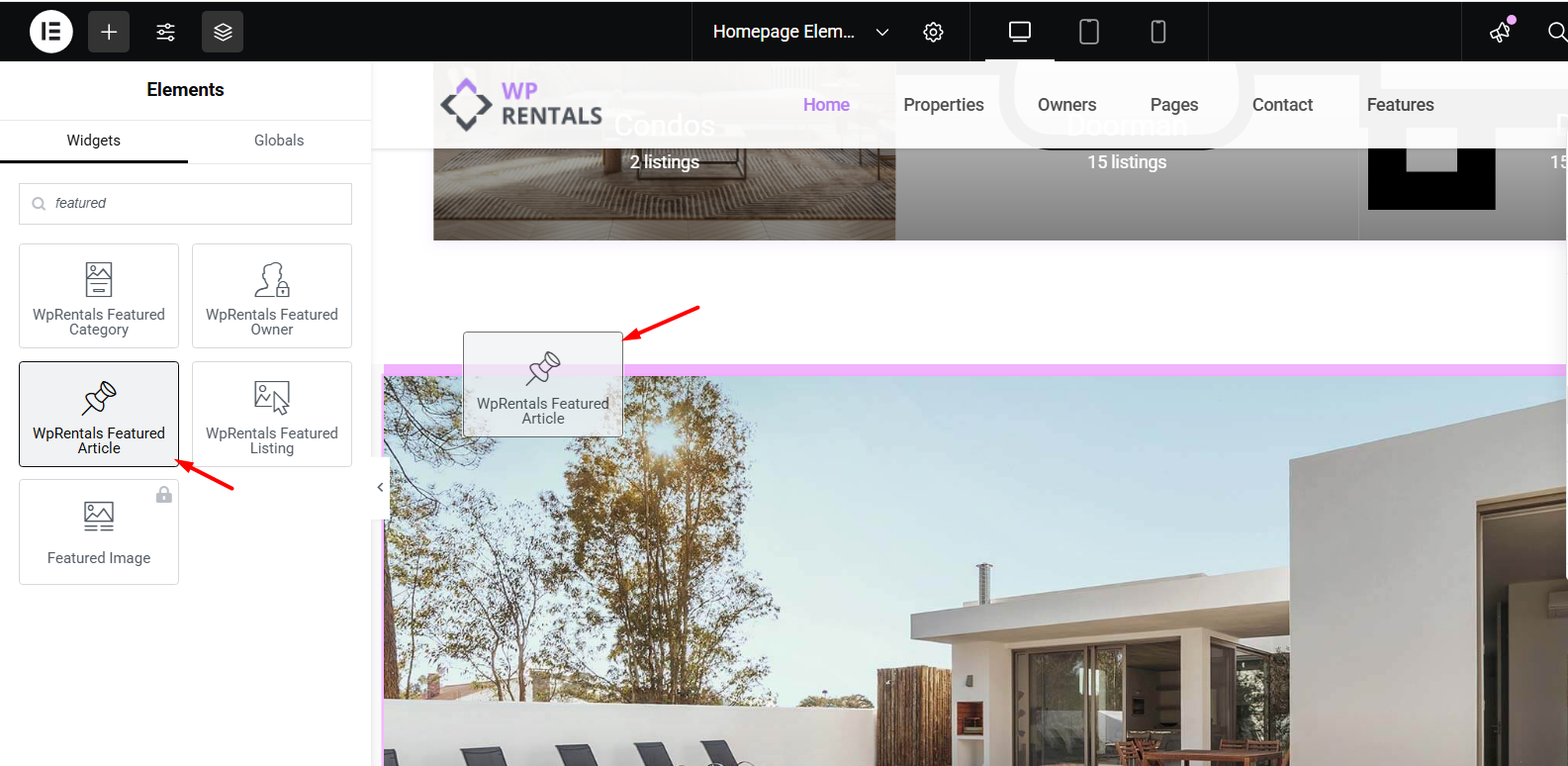
- In the Elementor sidebar, search for WPRentals Featured Article.
- Drag the widget into the section where you want the article to appear.
Elementor Widget Settings Explained
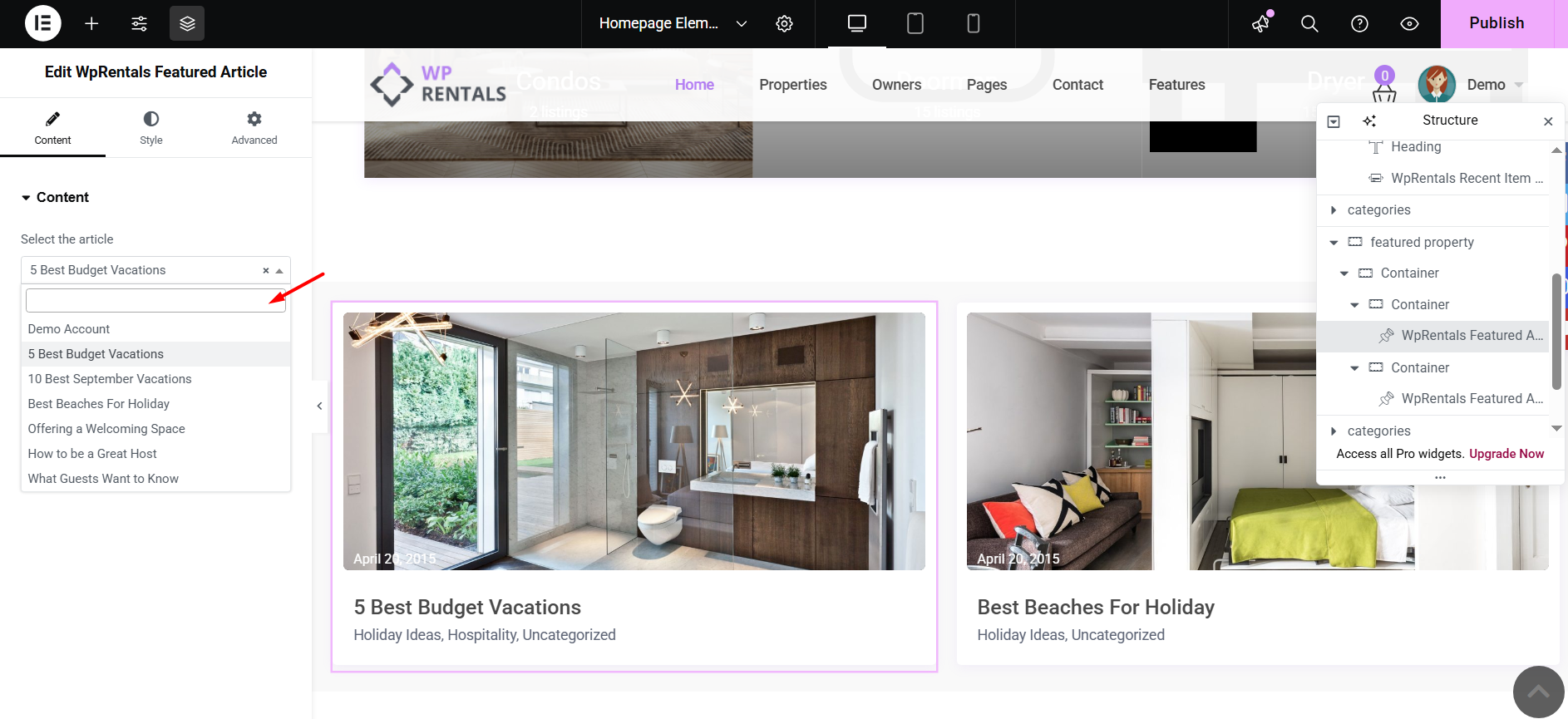
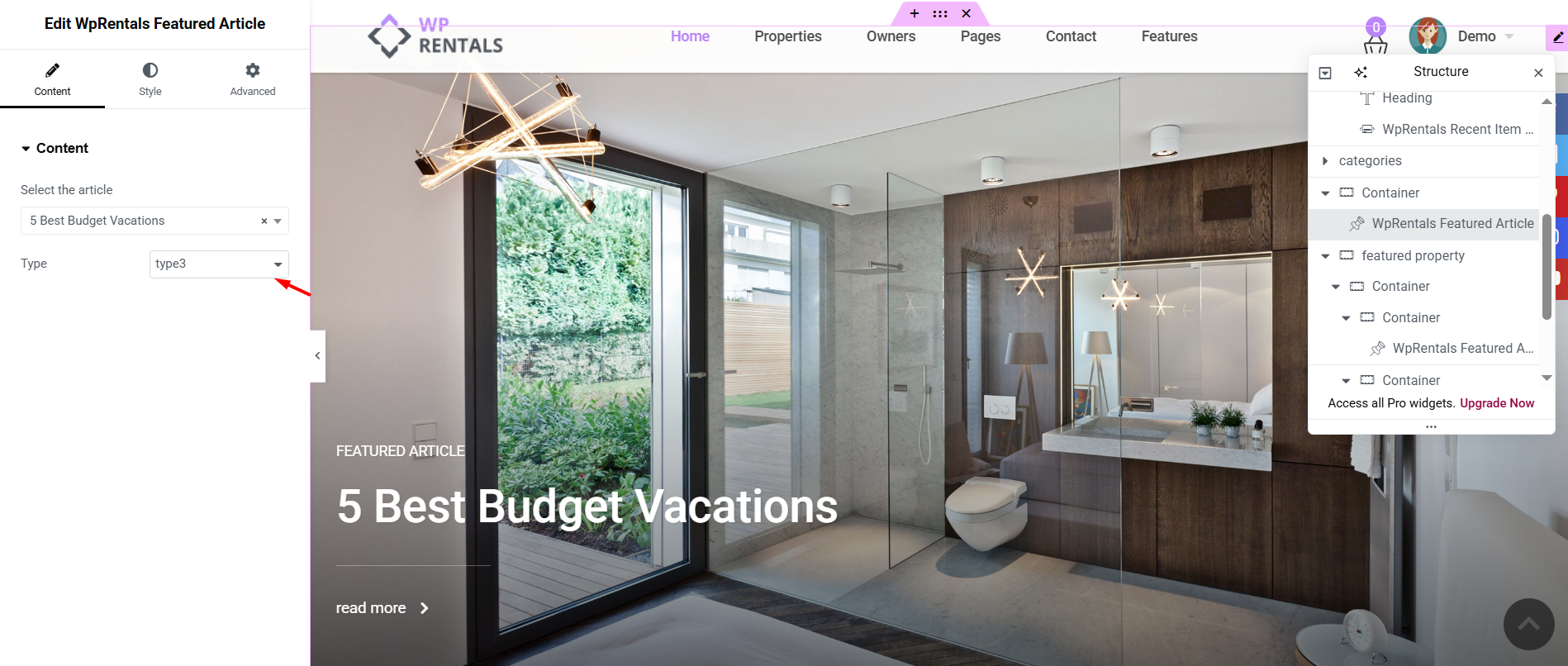
Select Article
Use this option to choose the blog post or article you want to show in the Featured Article section.
You can select the article from the dropdown list or by using the auto-complete field, depending on the widget options available in your version.
Design Type
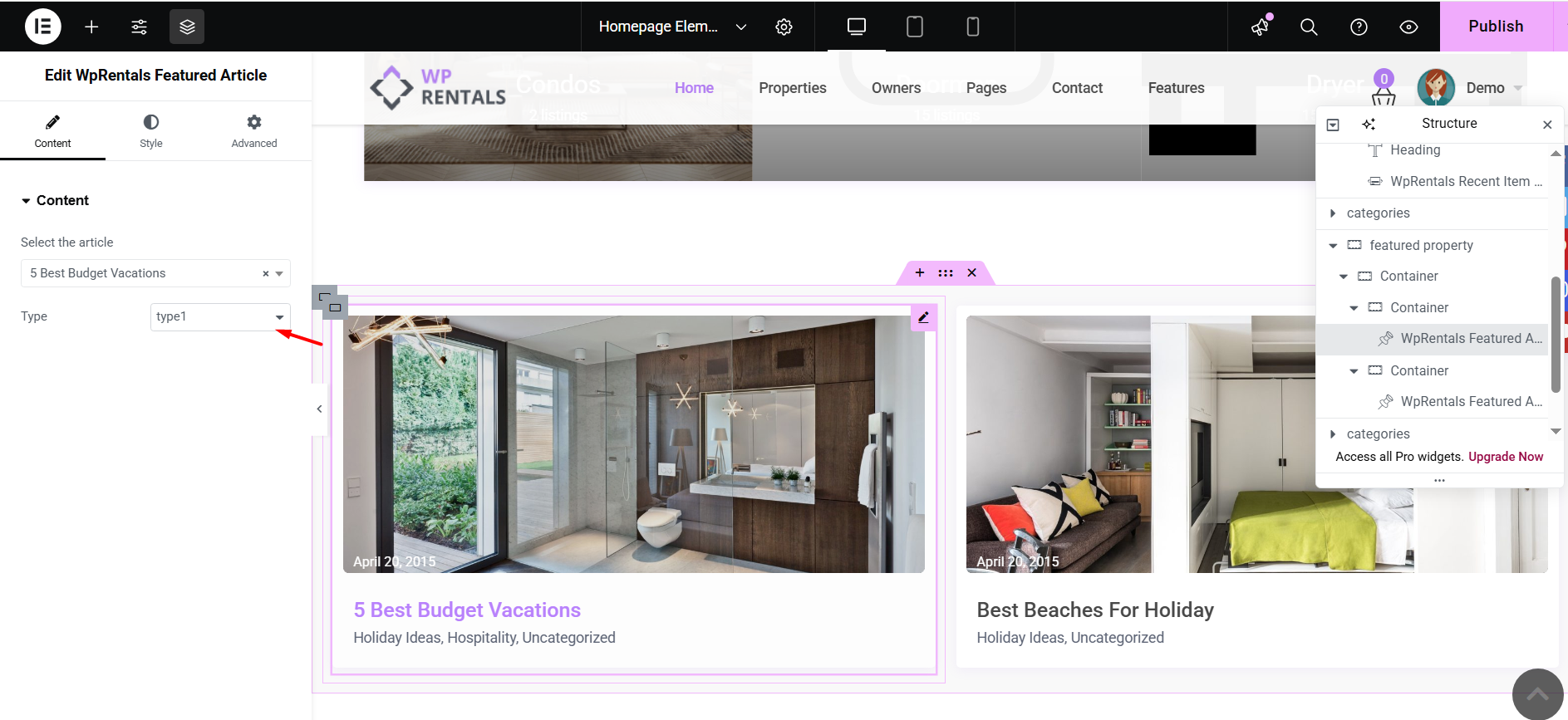
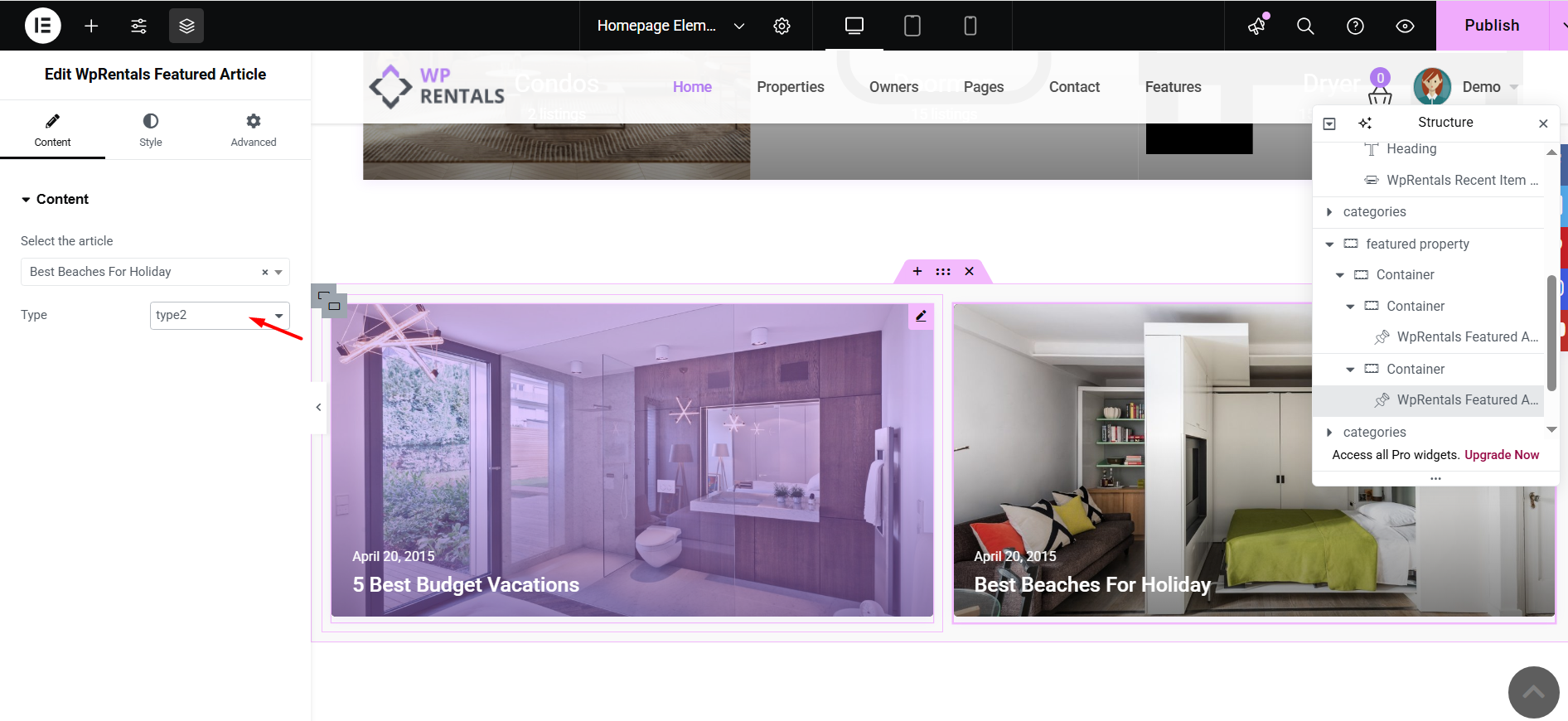
This option controls the layout used for the featured article card.
The available design types are:
- Type 1
- Type 2
- Type 3
Select the design type that fits your page layout best.
Featured Article Design Types
Design Type 1
Design Type 2
Design Type 3
How to Find the Blog Post ID
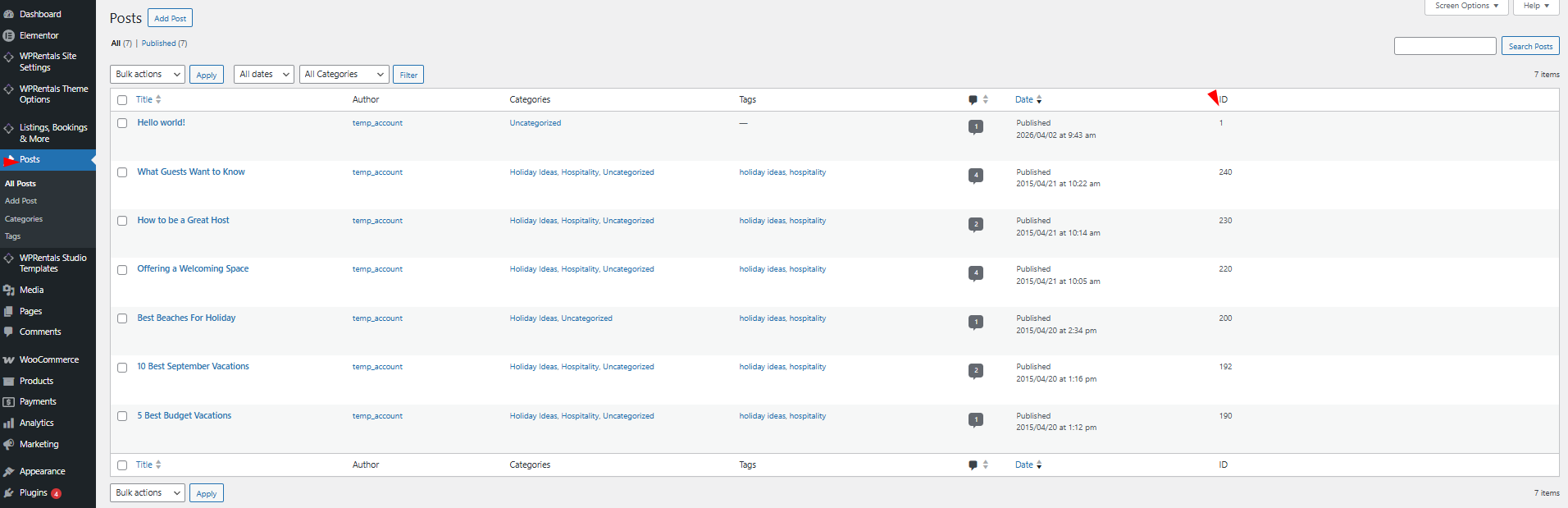
You need the blog post ID when using the Featured Article element with WPBakery, or if you need to verify which article is being displayed.
To find the blog post ID, go to:
Wp-admin > Posts
Find the article you want to use and copy the ID from the ID column.
How to Use the Featured Article Widget with WPBakery
Step 1: Edit the Page with WPBakery
- Go to Pages.
- Edit the page where you want to add the featured article.
- Click Edit with WPBakery Page Builder.
Step 2: Add the Featured Article Element
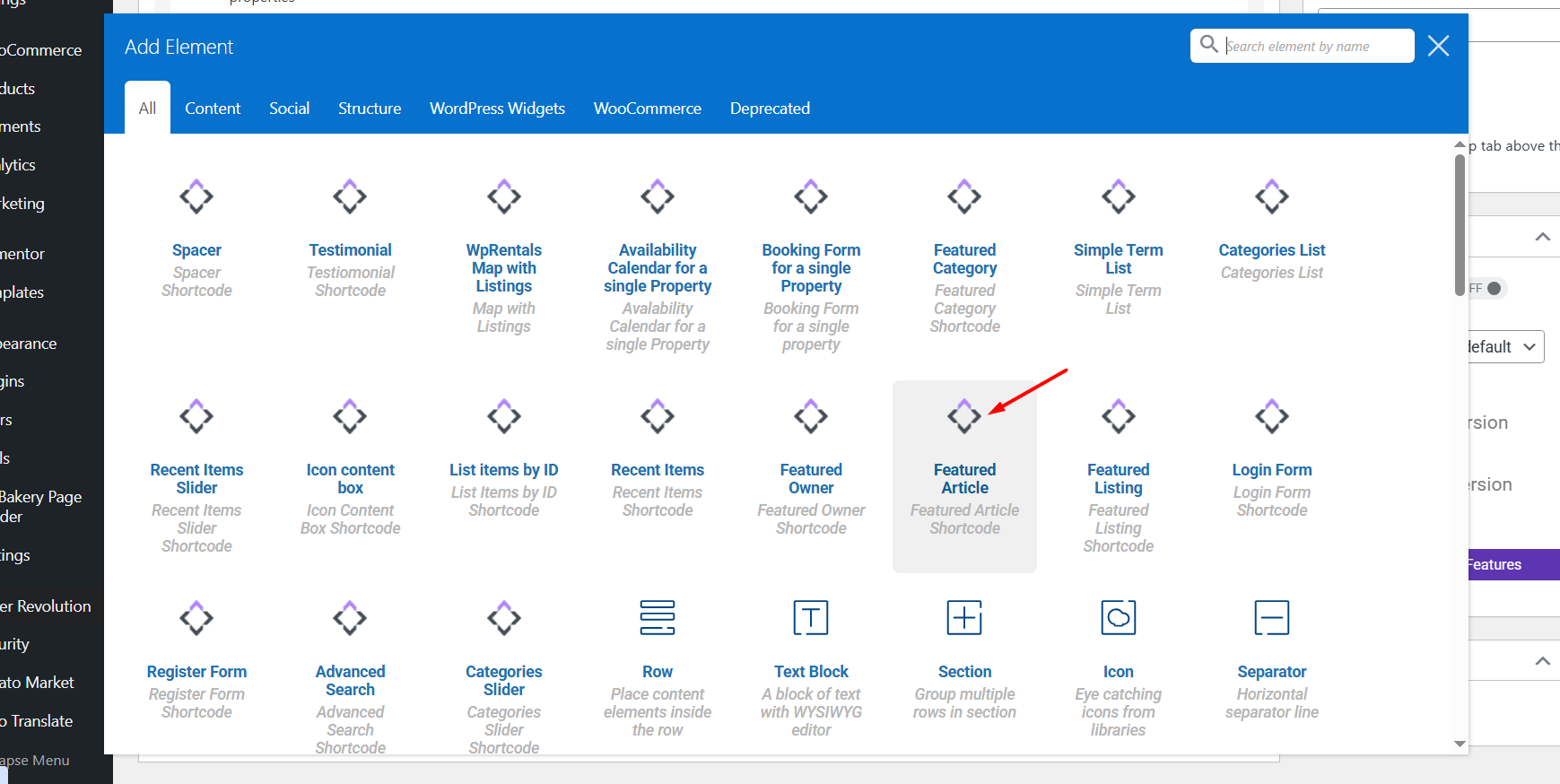
- Click the + Add Element button.
- Search for Featured Article.
- Click the element to insert it into the page.
Step 3: Add the Post ID
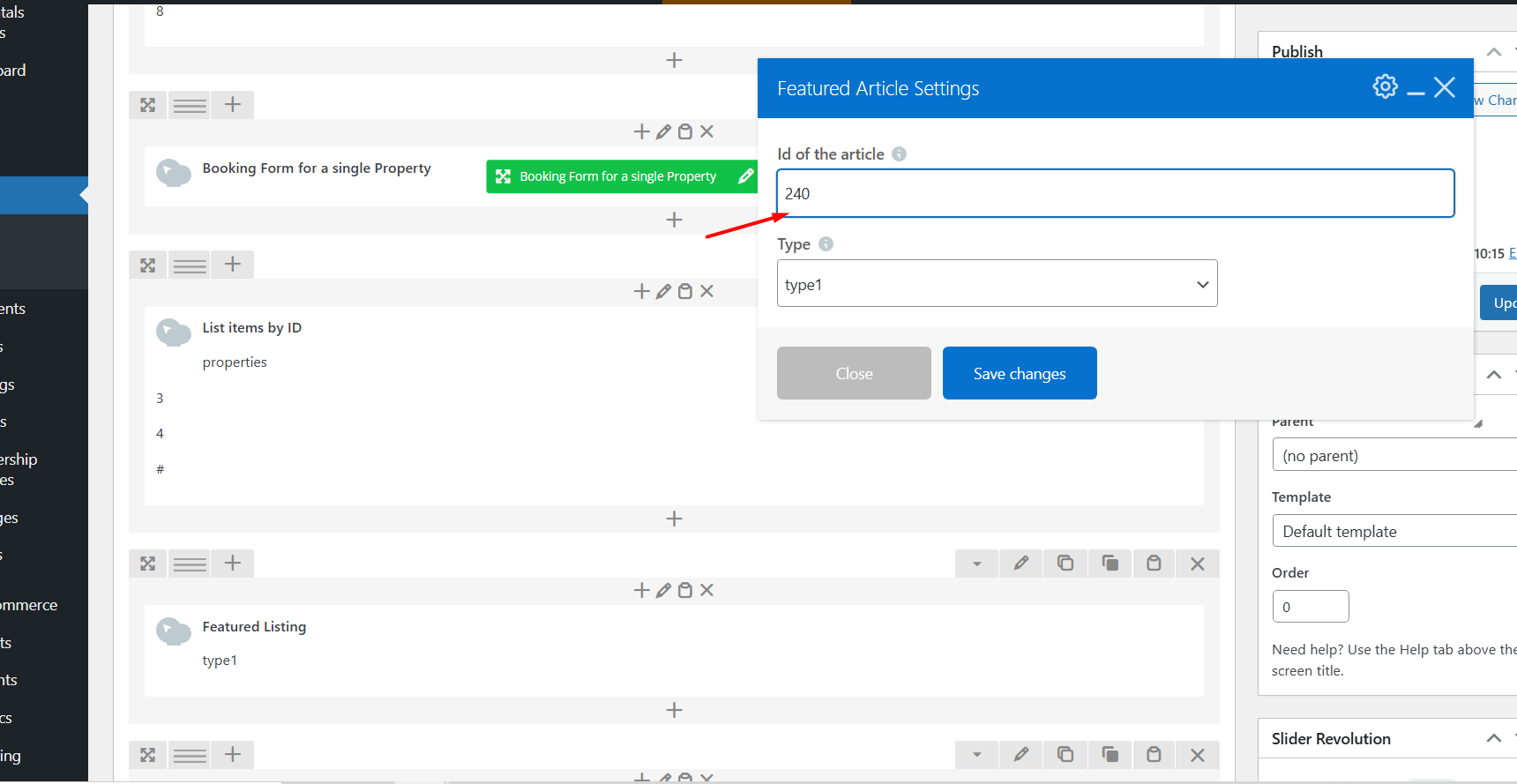
The WPBakery shortcode works with the blog post ID.
After the element is added, paste the blog post ID in the element settings. This ID tells the widget which article should be displayed.
Step 4: Save the Page
Save or update the page, then check the result on the front end.
Styling and Display
The Featured Article widget displays the selected blog post using the selected design type.
General blog card design settings are managed from:
WPRentals Options > Blog > Blog Card Settings
Use the Blog Card Settings to control the general blog card design used across blog lists, category pages, blog shortcodes, and Elementor or WPBakery widgets.
Theme Options – Blog Card Settings
New Article Does Not Appear in the Elementor Selector
If a newly published article does not appear in the Select Article dropdown or search field inside Elementor, first check that the article is published and searchable by its exact title.
If older articles appear, but the new article does not appear, clear the WPRentals theme cache, then reload the Elementor editor and search for the article again.
- Confirm the article is published in Wp-admin > Posts.
- Clear the WPRentals theme cache from wp-admin.
- Close the Elementor editor tab.
- Open the page again with Edit with Elementor.
- Search again using the exact article title.
- Update the page and check the front end.
Save and Test the Widget
After adding the Featured Article widget or WPBakery element, test it on the front end.
- Save or update the page.
- Open the page as a visitor.
- Check that the selected article appears.
- Click the article and confirm it opens the correct blog post.
- Check the layout on desktop, tablet, and mobile.
Important Notes
- The Featured Article widget displays one selected blog post or article.
- In Elementor, you can select the article from the widget options.
- In WPBakery, you must add the blog post ID in the element settings.
- You can find the blog post ID from Wp-admin > Posts.
- The selected article must be published to show correctly on the front end.
- The widget includes 3 design types.
- General blog card styling is managed from WPRentals Options > Blog > Blog Card Settings.
- Use Elementor only for pages built with Elementor.
- Use WPBakery only for pages built with WPBakery.
- Do not mix Elementor and WPBakery on the same page.
- If a new article does not appear in the Elementor selector, clear the WPRentals theme cache and reload Elementor.
- If frontend changes do not appear, clear plugin cache, server cache, CDN cache, and browser cache, then test again.