
Issue Summary
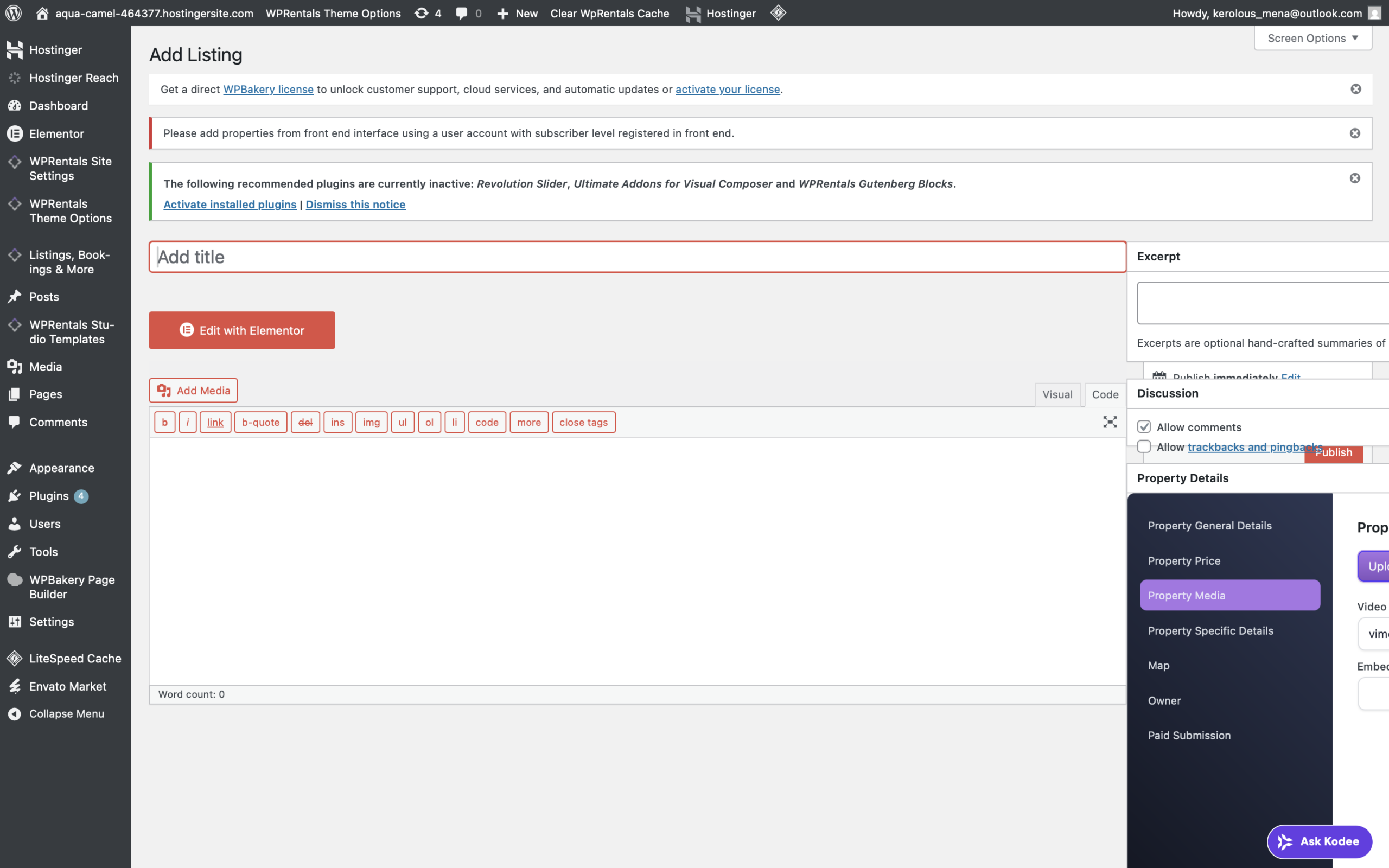
Some users report that on Add Listing / Edit Listing in wp-admin:
- All meta boxes appear on the right side.
- Property Details overlaps other sections.
- Left side shows only description/editor area.
- Layout does not look like standard WordPress/WP Rentals editor.
Why this happens
Most commonly, this is caused by:
- Screen Layout set to 1 column instead of 2 columns.
- A wp-admin CSS/JS conflict from another plugin.
- A temporary user-specific screen preference problem.
WP Rentals registers Property Details as a standard WordPress metabox (normal context), so it is intended to work within the standard admin post layout, not a custom locked layout.
The property post type uses this metabox callback in standard editor flow.
Quick Fix (for users)
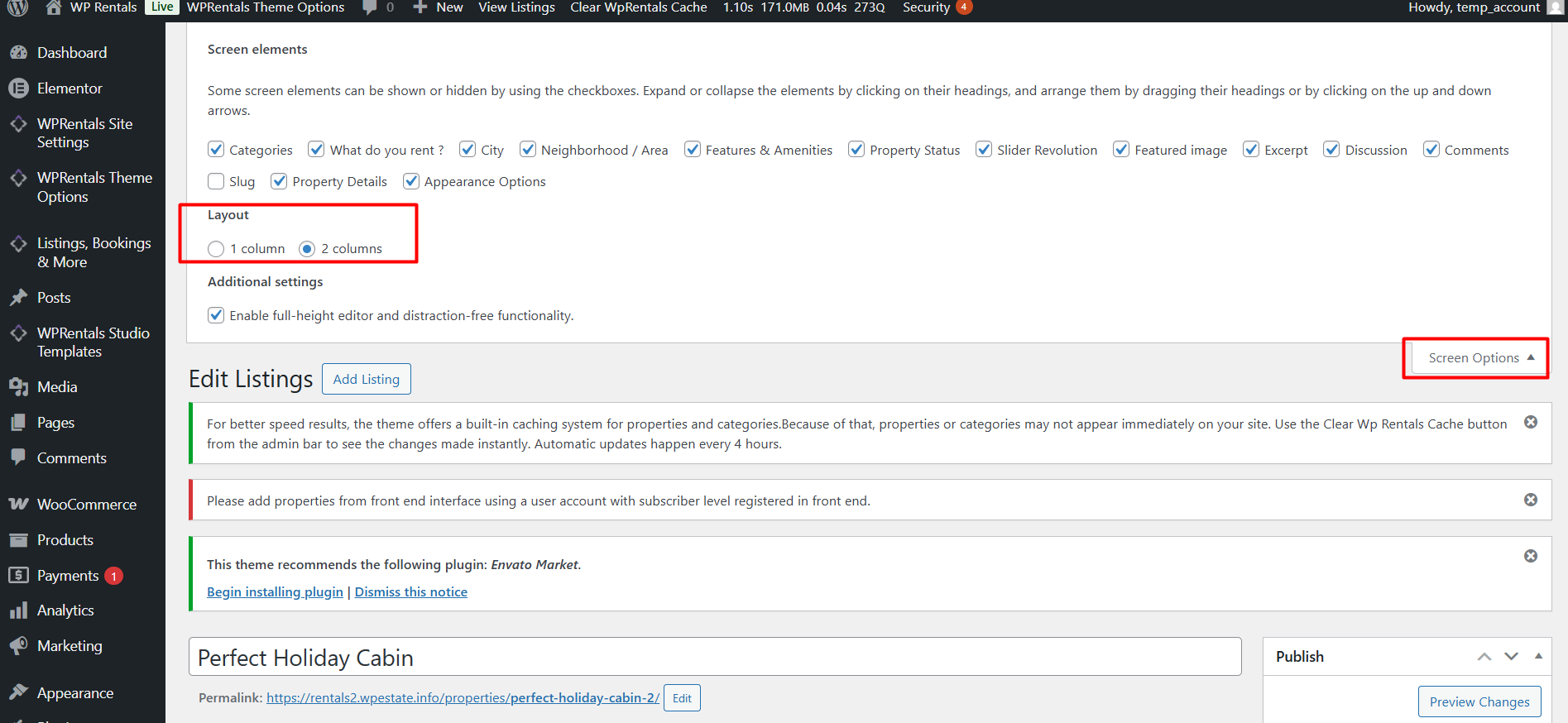
Step 1 — Set layout to 2 columns
- Go to Listings > Add Listing (or edit an existing listing).
- Click Screen Options at top-right.
- Under Layout, select 2 columns.
- Close Screen Options and refresh.
Step 2 — Reposition boxes if needed
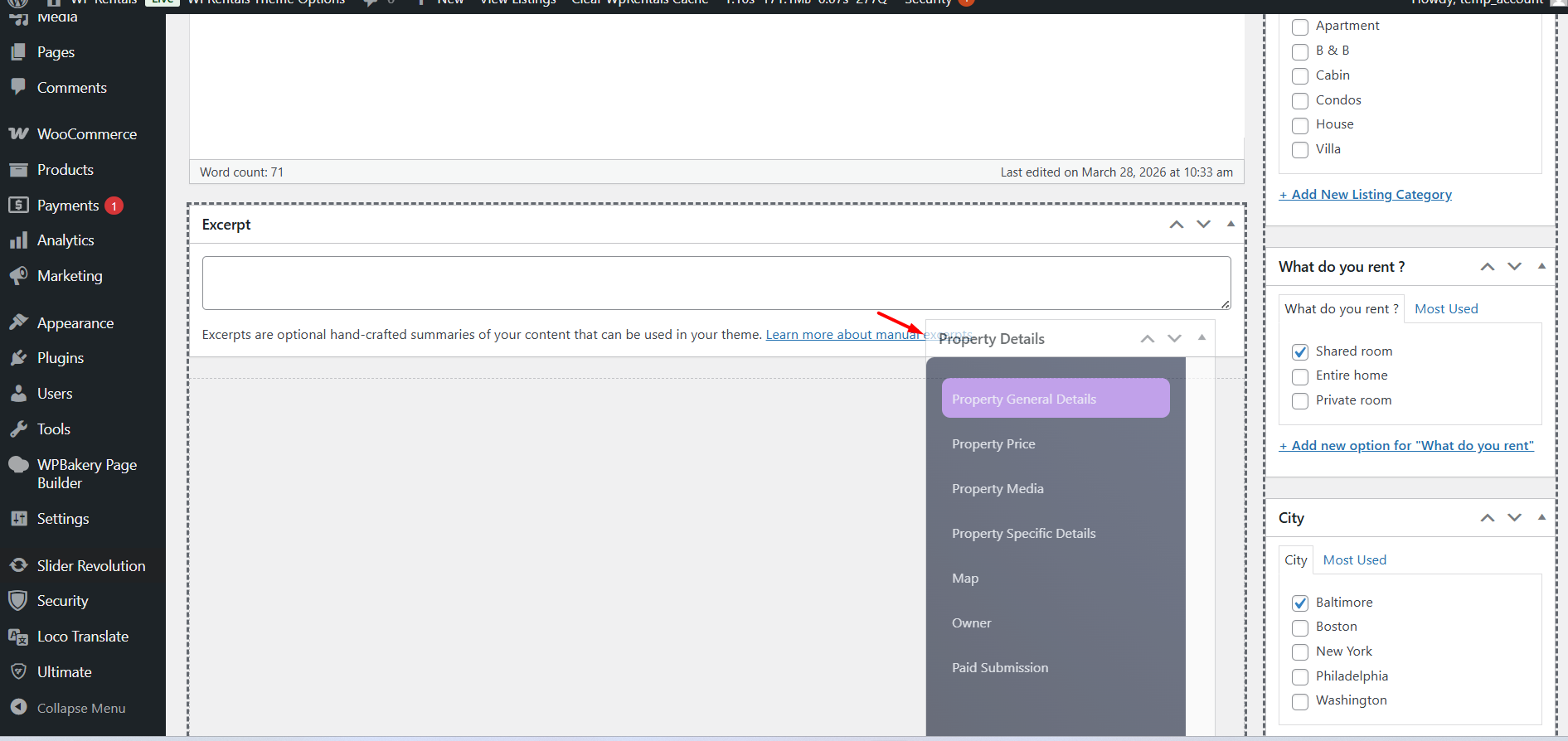
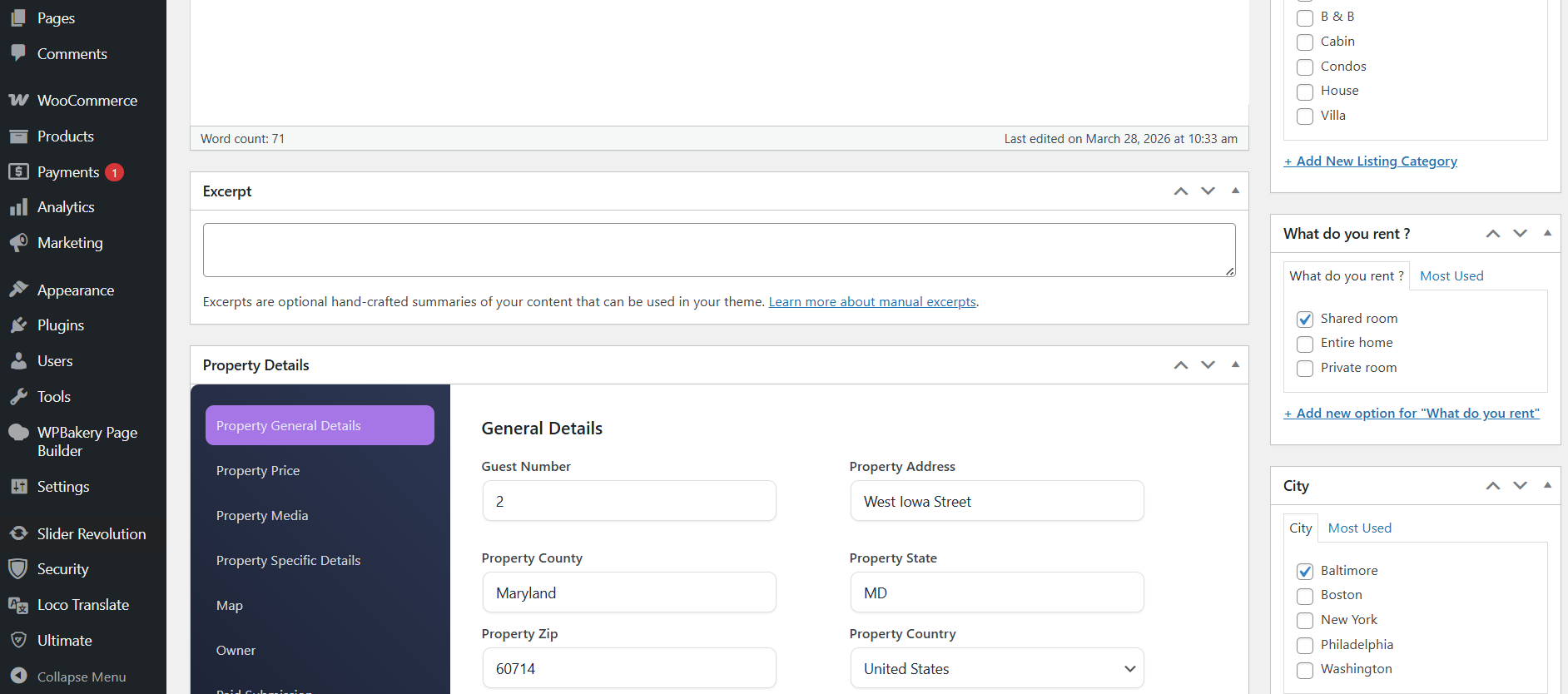
- Drag Property Details back into the main content area if misplaced.
- WordPress saves this per user profile, so it should persist.
Step 3 — Clear cache and reload
- Clear browser cache and any admin optimization cache plugin.
- Reload the editor page.
Advanced Troubleshooting
A) Plugin conflict test
- Temporarily disable non-essential plugins.
- Reload Add Listing page.
- If layout is fixed, reactivate plugins one-by-one to identify conflict.
B) Browser and zoom check
- Set browser zoom to 100%.
- Test in another browser/private window.
C) Confirm core admin assets are loading
WP Rentals admin layout depends on core admin assets being enqueued (theme-admin CSS and tabs JS).
The enqueue hook is attached in core plugin initialization.
Important note
From theme/core code review, there is no code that intentionally blocks standard WordPress column layout for this screen; it uses normal metabox registration.
If issue persists after 2-column reset and plugin conflict test, request:
- Site URL
- Temporary wp-admin login
for direct environment-level diagnosis.