This guide explains how to control header appearance and map visibility in various parts of your website, including global pages, taxonomy/search results, single property pages, and the submit form. These instructions are particularly useful for users who want to customize the layout and appearance of their theme beyond the default settings.
Pages, Post, Owners
You can control the global header (the header displayed on most pages) through the theme settings:
-
Navigate to Theme Options → Header → Hero Media Header to set your preferred global header style.
Important Notes:
- Properties pages are excluded.
- Dashboard pages are excluded.
- Half-map design does not support a custom header.
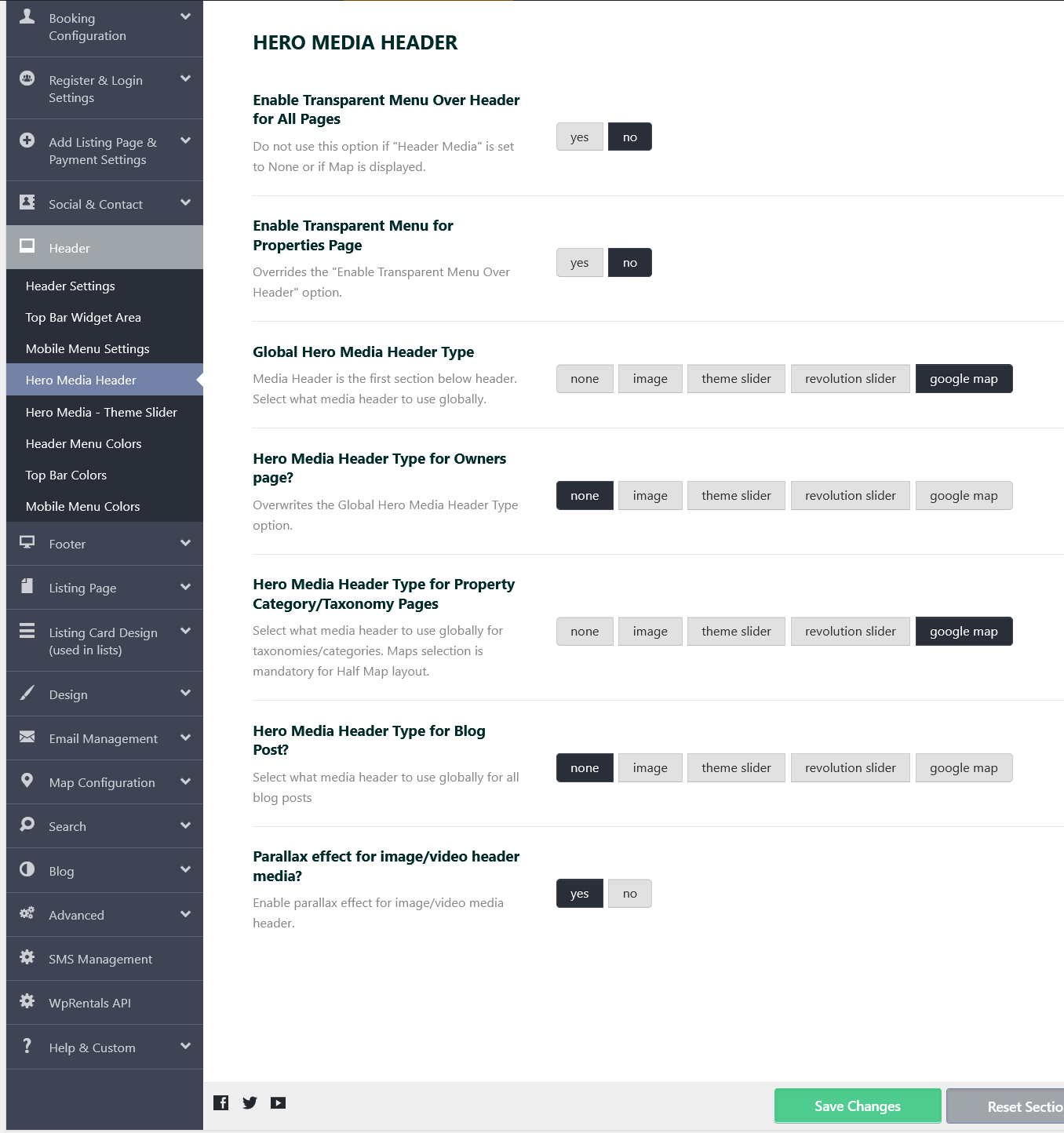
How to change the layout of the property category / taxonomy page to not have maps in header
- Choose Standard layout Theme Options → General → List & Sidebar Appearance → Layout Type for Property Category/Taxonomy List Pages

Change the header to categories/taxonomies to something else than google maps

How to change the layout of the Advanced Search Results page to not have maps in header
- Select Standard Layout in Theme Options > Search > Advanced Search Results Page.

Theme options Hero Media Header will apply for Hero Media header if you have “Global” set in Appearance Options.

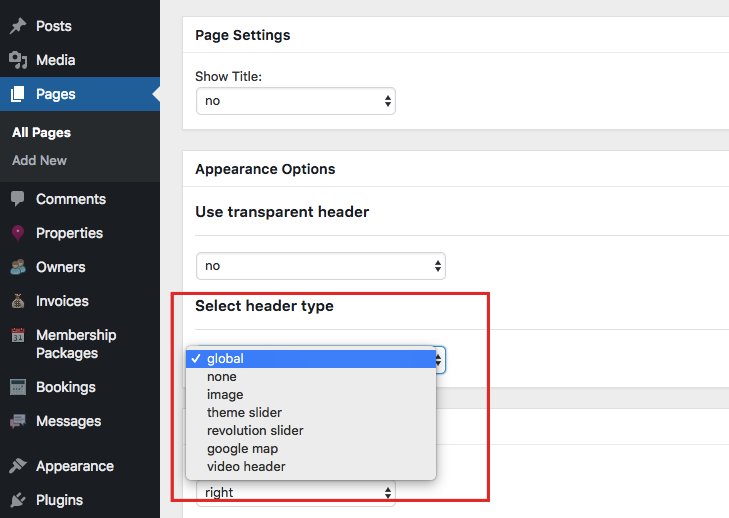
Hero Media Header can be overwritten for specific pages from Edit Page → Header Options by switching the “global” option to one of the options from the dropdown. So you can set a different hero media just for the Search Results page.
Remove the map from the Single property page
You can keep sections Enabled or Disabled by Accessing the Listing Page Layout Manager
- Navigate to WpRentals Options in your WordPress dashboard.
- Click on Listing Page.
- Open Listing Page Layout Manager.
- Enabled Layout Manager (set to YES)

Hiding the Double Sections
By Default these sections will show 2 times when Listing Layout Manager is Enabled
- Description
- Owner
- Map
- Similar Listings
To hide a section:
- Find the respective Hide Default [Section Name] Section? option.
- Select Yes.
- Click Save Changes and refresh your listing page to see the update.
OR
- Locate the Property Page Layout Manager.
- Drag and drop sections from Enabled to Disabled.
- Click Save Changes.

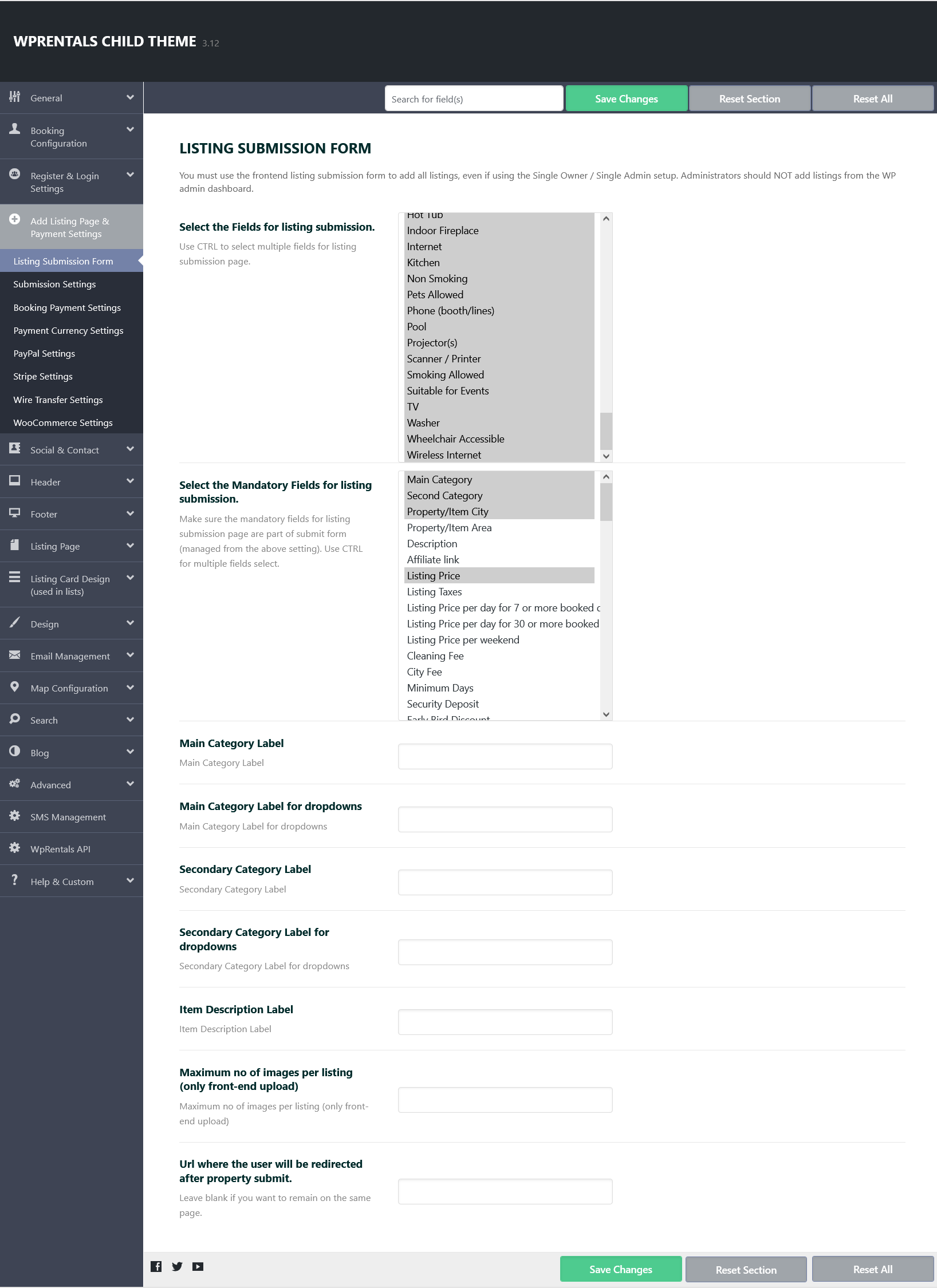
How to remove the Map from Submission Form
You can manage what fields appear on the listing submission form by going to: Theme options -> Add Listing Page & Payment Settings -> Listing Submission Form