
Plugin Licensing and Updates
Revolution Slider is included as a bundled premium plugin.
You do not need to activate it with your own personal license key in order to use it on your site.
We hold an extended license for bundled plugins, which allows us to provide plugin updates through theme updates. This means:
- There is one license per theme purchase, and only we can use it to access plugin updates.
- When a new plugin version is available, we include it inside the latest theme update package.
- To update the plugin, update the theme to the latest version.
- SR6 will continue receiving critical security and severe bug fixes through at least March 2028 (per ThemePunch).
- In March 2028 the plugin will not longer be included with WPRentals theme updates as there will be no support from ThemePunch team.
If you experience issues with bundled plugins or need help updating them, please open a ticket in our private support system: https://care.wpestate.org/
Important Update About Slider Revolution 7 (SR7)
ThemePunch (the plugin authors) released Slider Revolution 7 in March 2026. SR7 is a separate, rebuilt version and is not included under older one-time licenses.
What this means for theme-bundled users:
- Your current Slider Revolution 6 (SR6) plugin keeps working on your website.
- SR6 will continue receiving critical security and severe bug fixes through at least March 2028 (per ThemePunch).
- SR7 requires a separate annual plan if you choose to upgrade directly with ThemePunch.
Note: Revolution Slider may also ask for a separate license to access their template library or premium assets. The bundled license covers the plugin itself, but not every premium cloud feature offered by ThemePunch.
How to Import Demo Sliders
Demo sliders are not automatically imported with the demo content. If you wish to use a specific demo slider, you can import it manually:
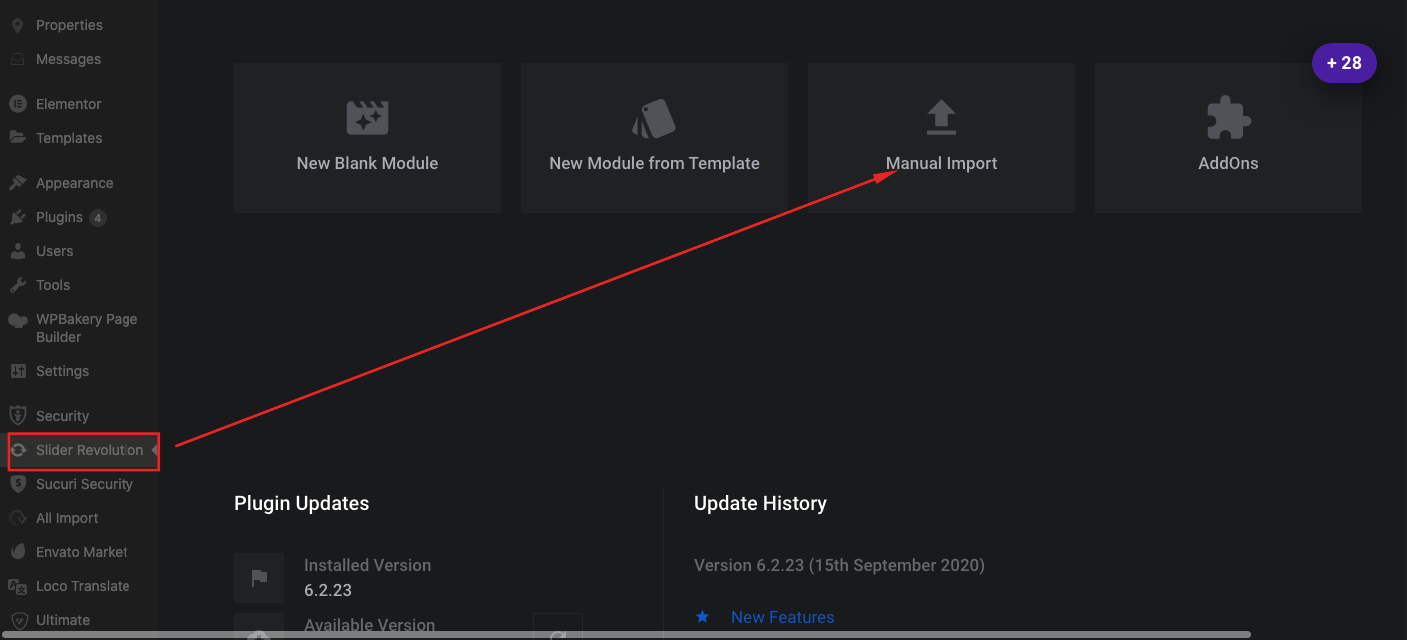
- Go to Revolution Slider in your WordPress dashboard.
- Use the Import Slider option.
- Demo sliders are located in the 4.demo_content/revolution sliders folder.
- To access this folder, download the All files and documentation package from your ThemeForest buyer account and unzip it.
Use the Import option from Revolution Slider:

Revolution Slider Documentation:
For more details about how Slider Revolution works, please use the official Slider Revolution Help Center:
Slider Revolution Documentation & Help Center | Tutorials, Support & Updates
For Slider Revolution 6 tutorials, FAQs, and manual, use the archived Slider Revolution 6 Help Center:
Activating Included Plugins
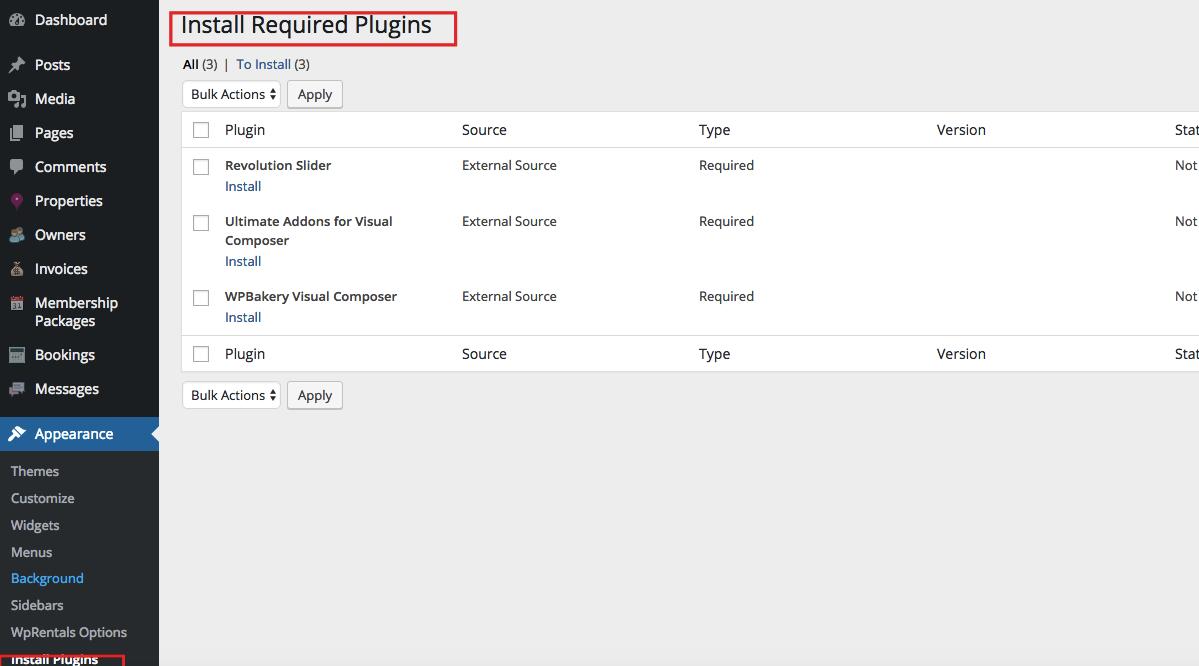
After installing and activating WpRentals, use the Install Plugins notice to activate bundled plugins. The plugins are included with the original theme code.

Updating Plugins
- Plugin updates are provided through theme updates.
- Check this help to update WpRentals and Included plugins
Setting the Revolution Slider as a Specific Page Hero Header
Navigate to Your Page Settings
- Go to Pages -> Edit the page
- Scroll down to the “Appearance Options” section.
- Select the Header Type:
- From the dropdown menu, choose “Revolution Slider” as the header type.
- Create a Slider and Add the Slider Name
- Save your changes to apply the slider.


Setting the Revolution Slider Hero Media Header for All Pages
This is set from Theme Options → Header → Hero Media Header. Available options:
- Select the Global Hero Media Header type – applies for all pages.
- Select the Hero Media Header Type for Owners page. This will apply the Revolution Slider as the hero header across all owner pages.
- Select the Hero Media Header Type for Property Categories / Taxonomies. The Revolution Slider will be used by default for all taxonomy (category), when selecting Standard Layout. More details here
- Select the Hero Media Header Type for Blog Post. The Revolution Slider will be displayed as the header for blog posts unless you change it to a different media header type for posts.

Revolution Slider Documentation
For more details on how the plugin works, see the official documentation:
5.0 documentation – https://www.themepunch.com/revslider-doc/slider-revolution-documentation/