
Extra Booking Options allow property owners to add optional paid services to a listing, such as breakfast, airport pickup, parking, cleaning services, extra equipment, or other add-ons.
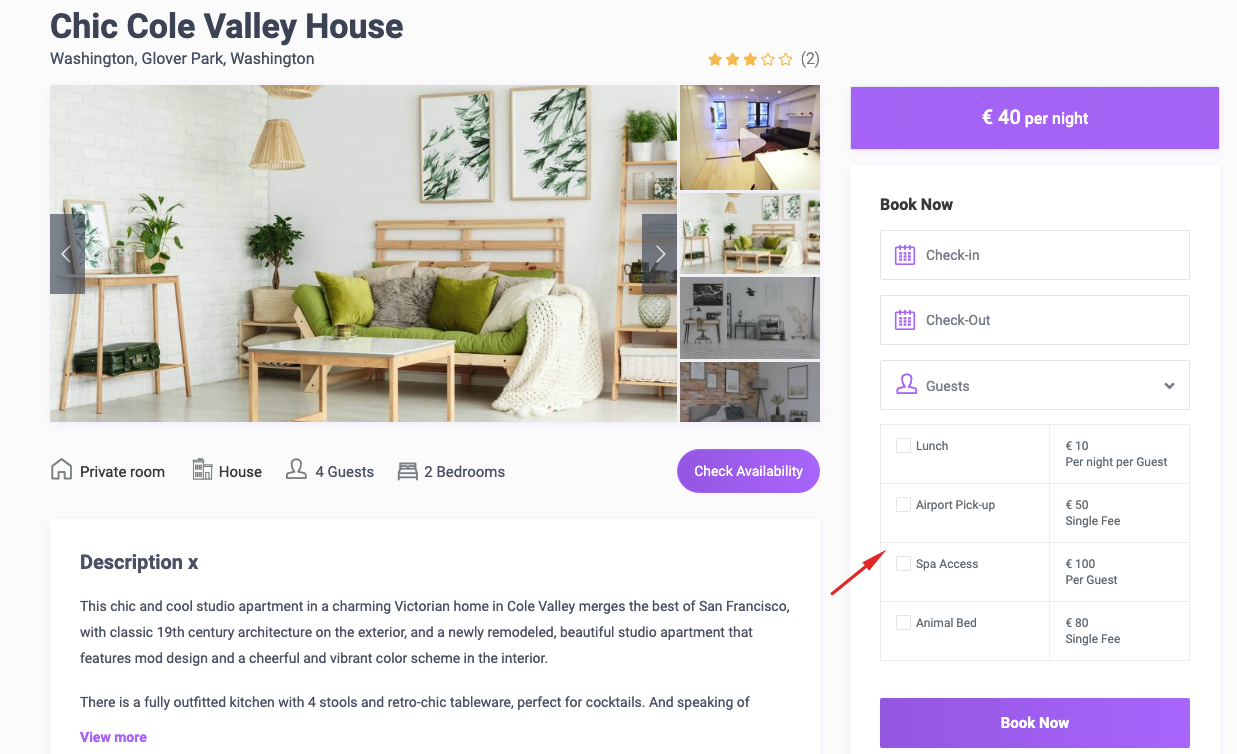
When Extra Booking Options are added to a property, they appear in the booking form as optional checkboxes. Guests can select the options they want during the booking process, and the selected options are added to the booking total.
Extra Booking Options are managed per property. If the same option should appear on multiple listings, it must be added separately to each listing.
Enable Extra Booking Options in the Submit Form
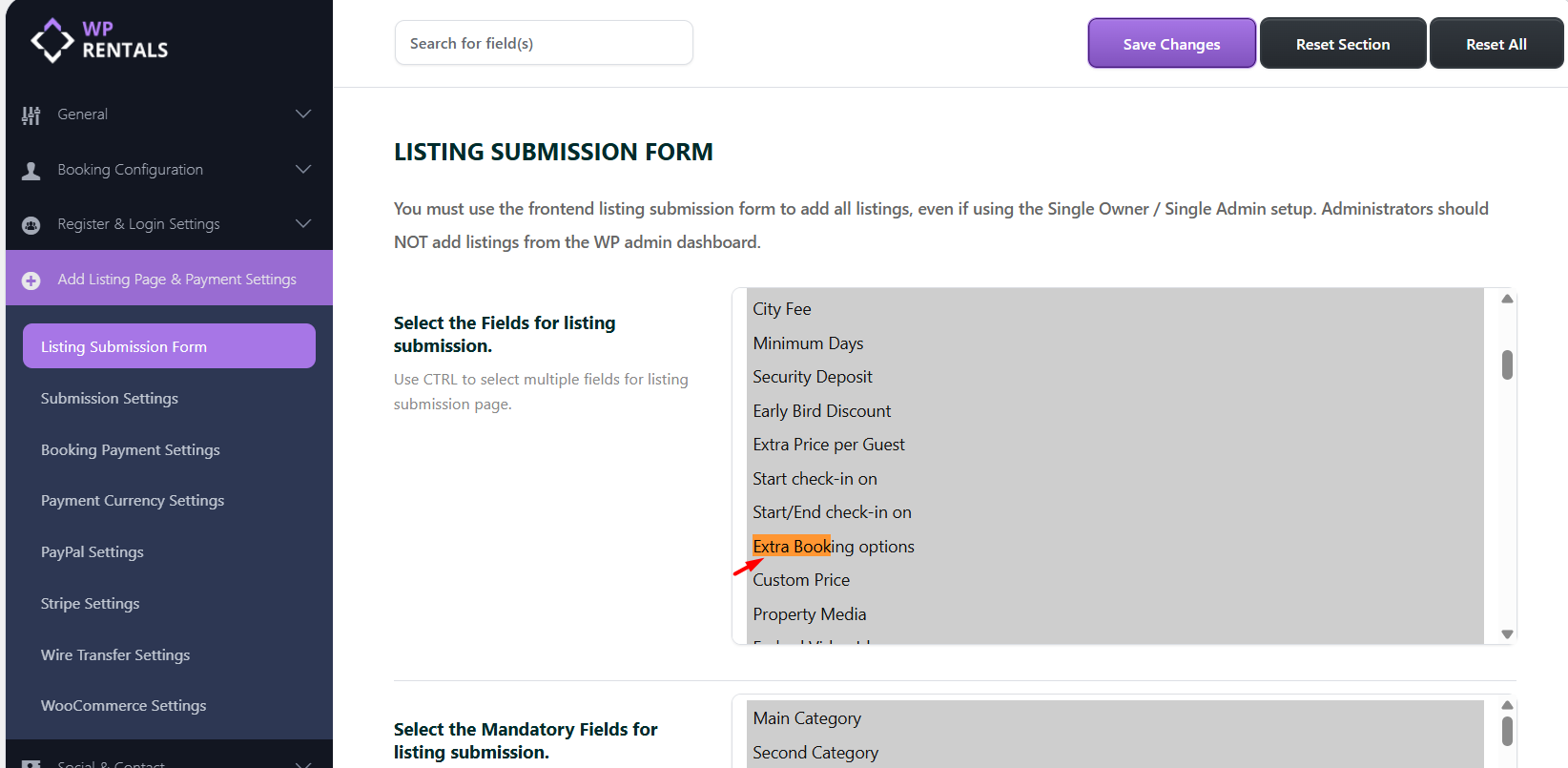
Before owners can add Extra Booking Options to their listings, the field must be enabled in the listing submission form.
Go to:
Theme Options > Add Listing Page & Payment Settings > Listing Submission Form
In Select the fields for listing submission, make sure Extra Booking Options is enabled.
Who Can Manage Extra Booking Options
Extra Booking Options are added from the property editor in the Owner Dashboard.
This applies to:
- Owners who register, submit and manage their own listings from the front end.
- Single admins or site admins who manage their listings with WPRentals.
Go to My Listings in Your Dashboard
- Log in to your Dashboard and click My Listings.
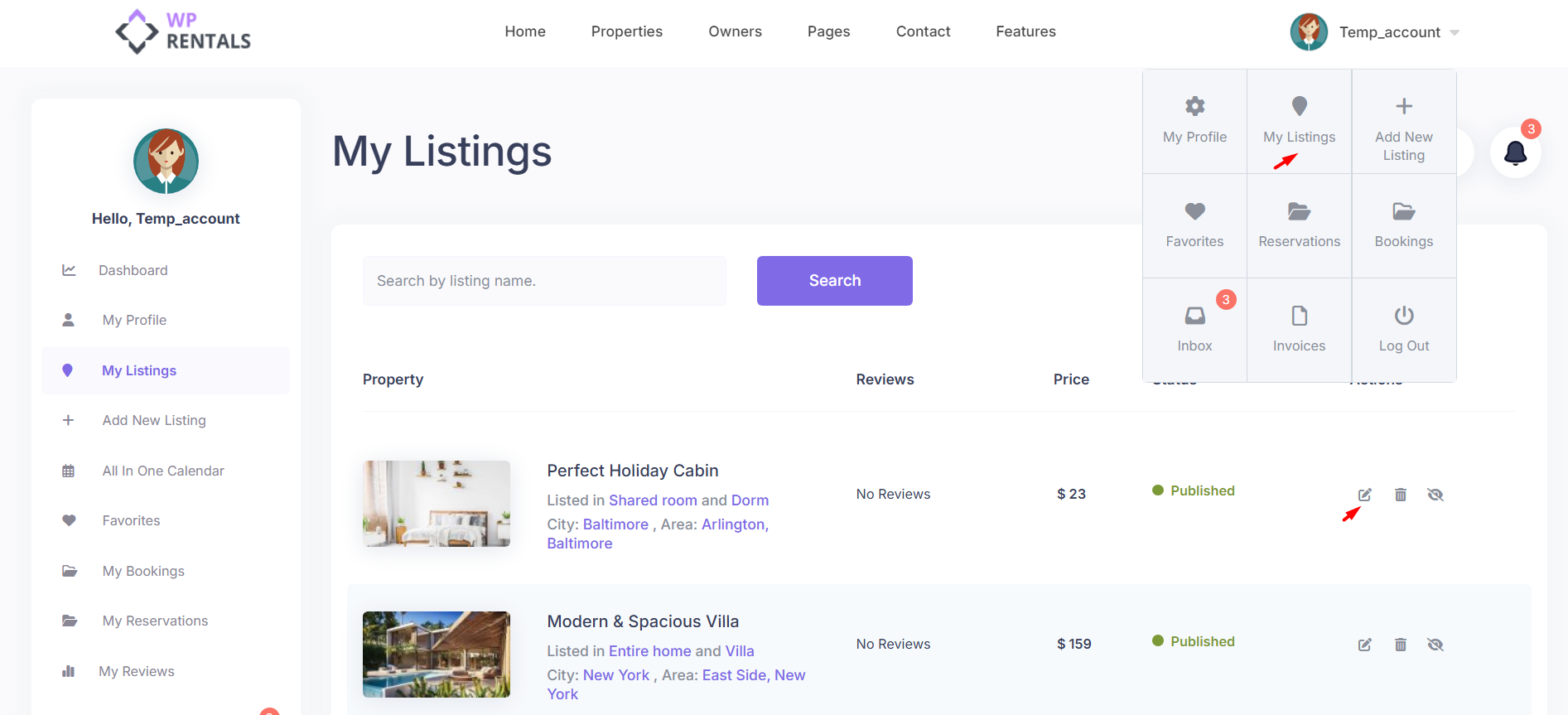
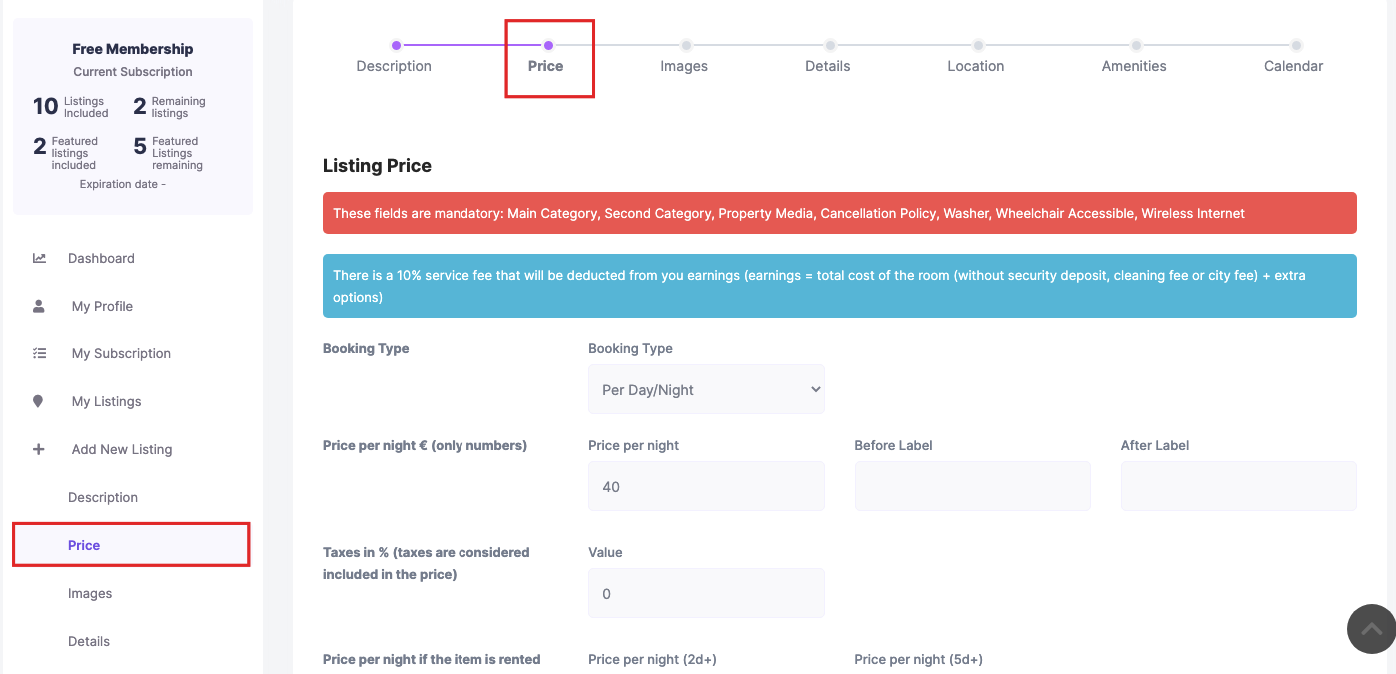
- Go to: Owner Dashboard > My Properties > Edit Property > Price Settings
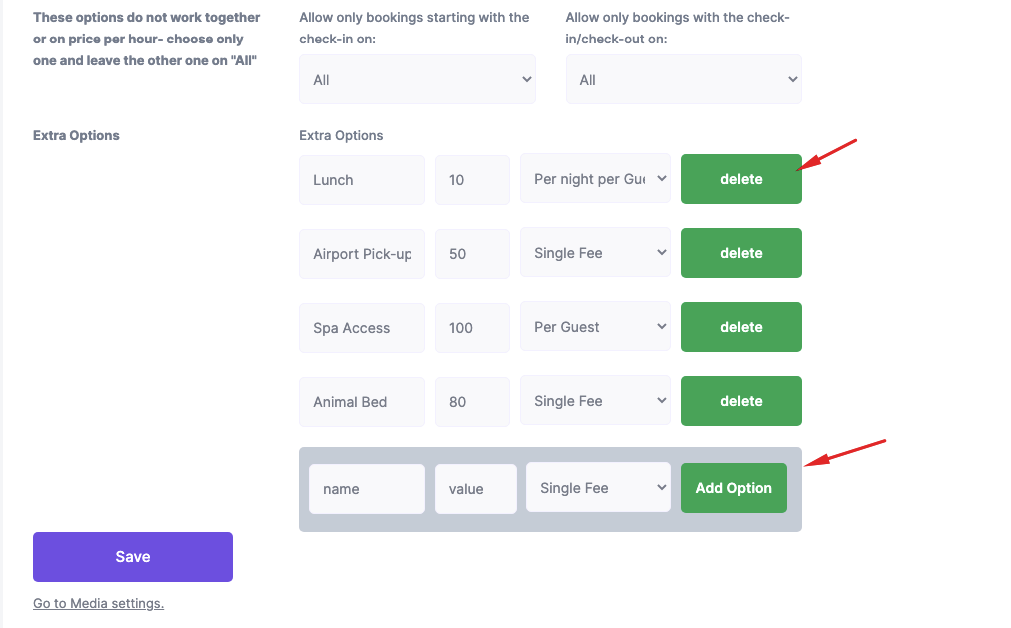
In the Extra Options section, configure each option with the following details:
- Option Name – the label shown to the guest, for example Breakfast, Airport Pickup, or Parking.
- Option Value – the price value for that option, for example 10.
- Option Calculation – how the option price is calculated and added to the booking total.
Owners can add or remove Extra Booking Options for each listing as needed.
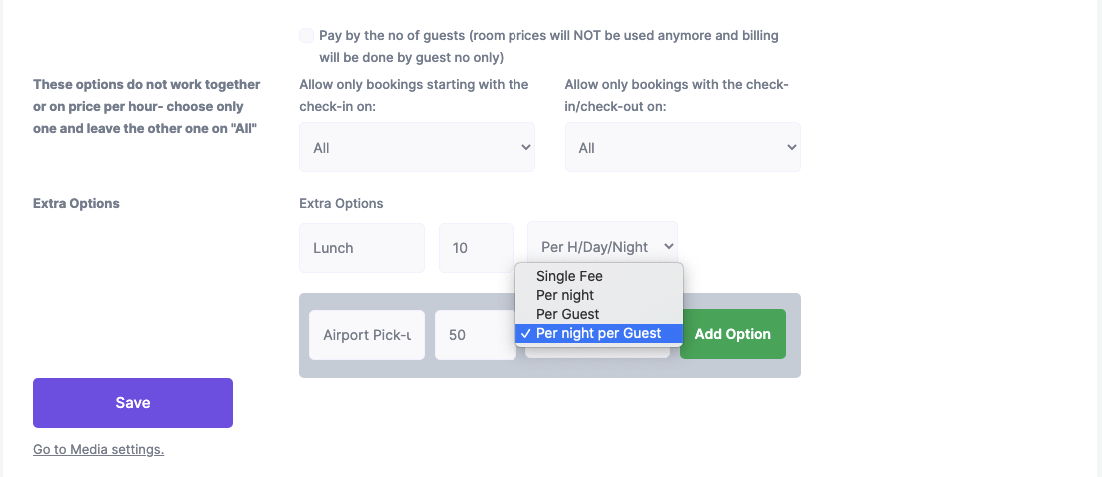
Extra Option Calculation Types
The Option Calculation setting controls how the extra option price is added to the booking total.
You can choose from the following calculation types:
- Fixed Fee – the option is added once to the booking total.
- By Night/Hour – the option is multiplied by the number of booked nights or hours.
- By Guest – the option is multiplied by the number of guests selected in the booking form.
- By Night/Hour and Guest – the option is multiplied by both the number of booked nights or hours and the number of guests.
Example
If the option is Breakfast and the value is 10:
- Fixed Fee adds 10 once to the booking total.
- By Night/Hour adds 10 for each booked night or hour.
- By Guest adds 10 for each guest.
- By Night/Hour and Guest adds 10 for each guest for each booked night or hour.
How Extra Booking Options Show on the Property Page
On the property page, the booking form automatically displays the Extra Booking Options configured for that listing.
Guests can select the options they want before sending the booking request or confirming the booking.
The selected options are included in the booking calculation based on the calculation type selected by the property owner.
Summary
- Enable Extra Booking Options in the listing submission form settings.
- Owners or single admins manage these options from Owner Dashboard > My Properties > Edit Property > Price Settings.
- Extra Booking Options are added per property, not globally.
- Add the option name, value, and calculation type.
- The Extra Booking Options appear automatically in the booking form on the property page.
- Guests can select the options they want, and the price is added to the booking total.